2. Repair Orders Tags
The Repair Orders Tags feature can be accessed from the Configuration
menu within the Repair module. This function allows you to define
and manage tags associated with repair requests. Any previously
created tags will also be displayed here.
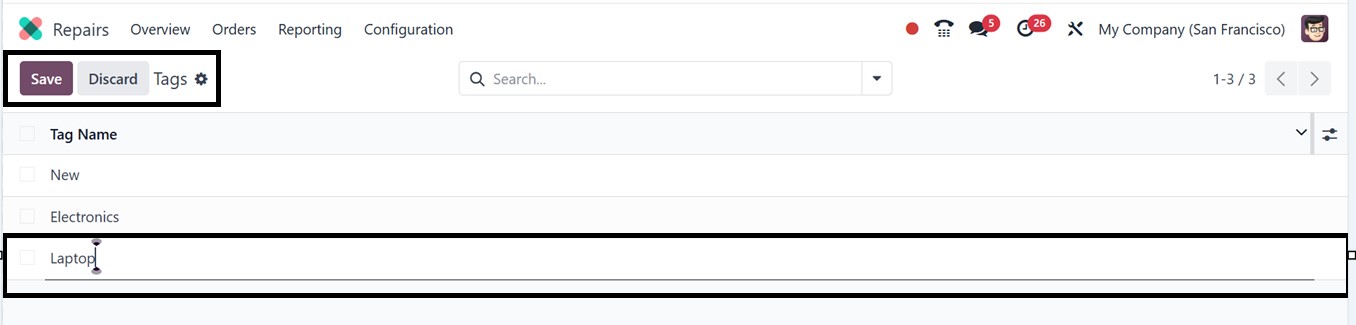
Click the New button to create a new tag. This button, located below
the existing tags list, adds a new entry line. You can enter the
name of the tag in the provided space. This interface allows you to
generate as many tags as needed, quickly and efficiently.
3.1 Products Menu
The manufacturing module offers a centralized space to manage and
monitor products and their variations. We can see the available
products and the product catalog from the Products menu, with their
name, Price, and Quantity available, in a Kanban view, as shown in
the screenshot below.
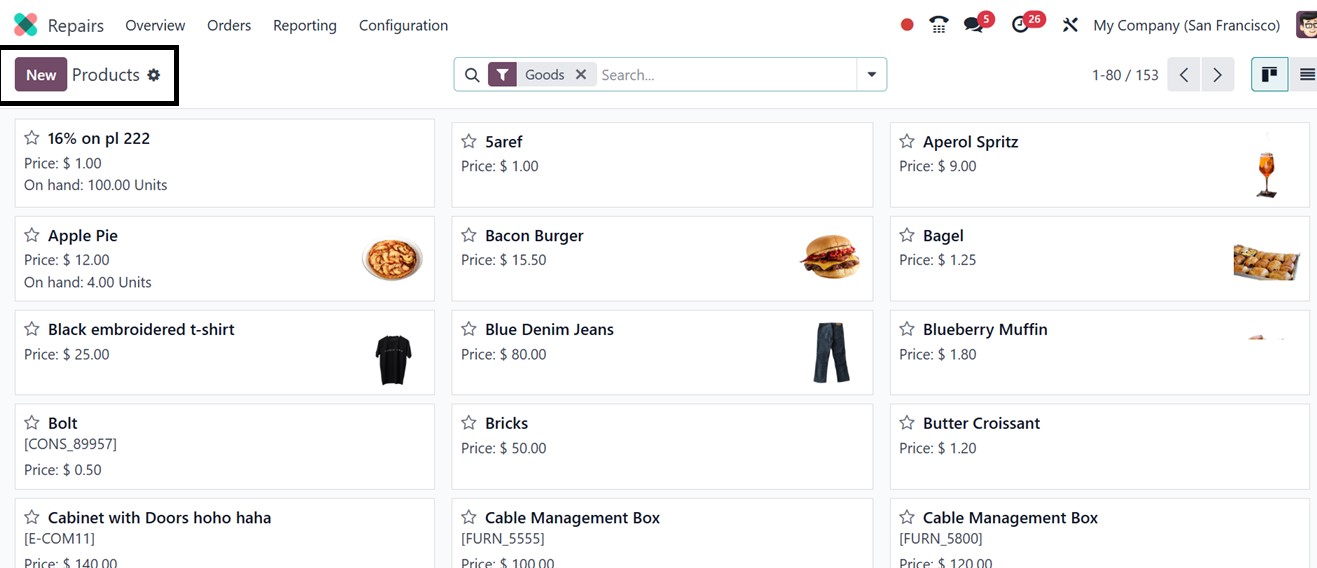
We can also add new products to the product dashboard using the ‘New’
button. When developing a product, you need to include General
Information, Attributes, and Variants, as well as details about the
Purchase, Sales, Inventory, and Accounting.
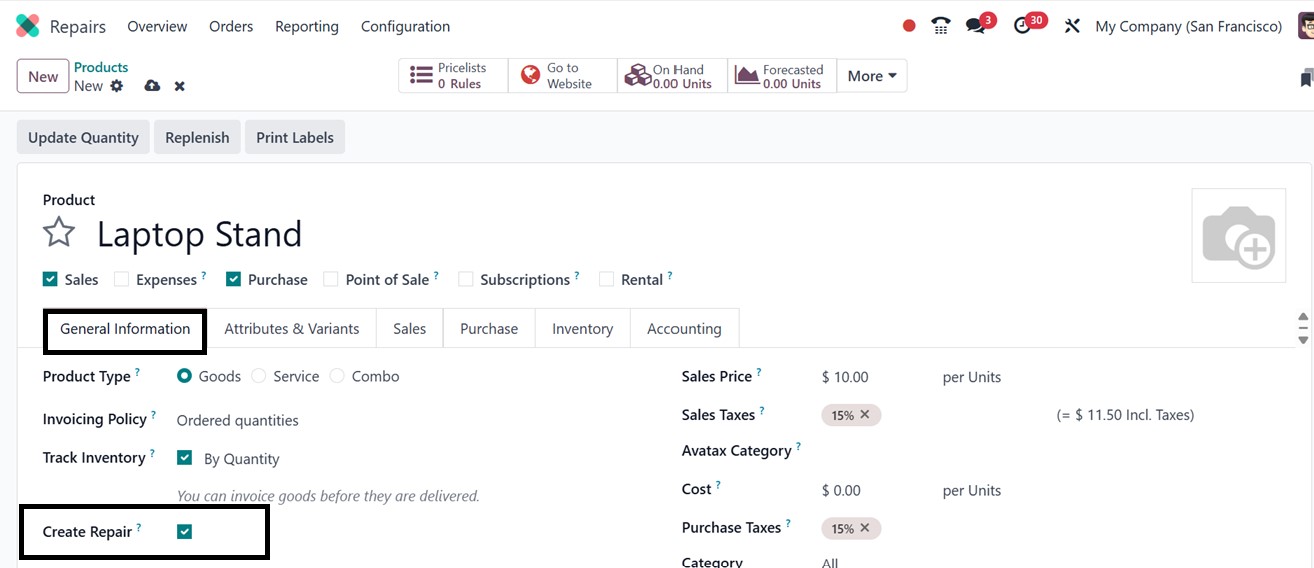
In the ‘General Information’ tab, you can activate or deactivate a
function named ‘Create Repair’, which can be used to create a repair
order on confirming the Sales Order for the product.
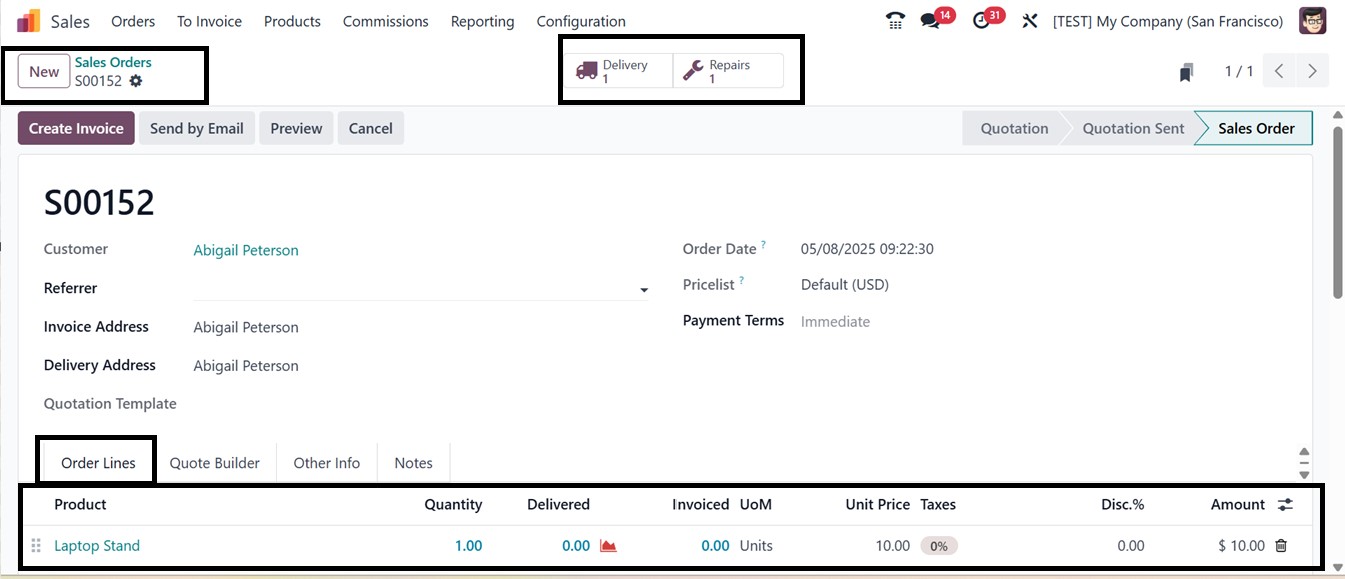
Then, utilize the Odoo Sales module to generate a new Sales Order for
the particular product in order to check the functioning of the
‘Create Repair’ feature. Odoo will immediately create a matching
repair order as soon as the order has been verified. As seen in the
screenshot below, the order form will have a "Repairs" smart button
that lets you handle the related repair orders.
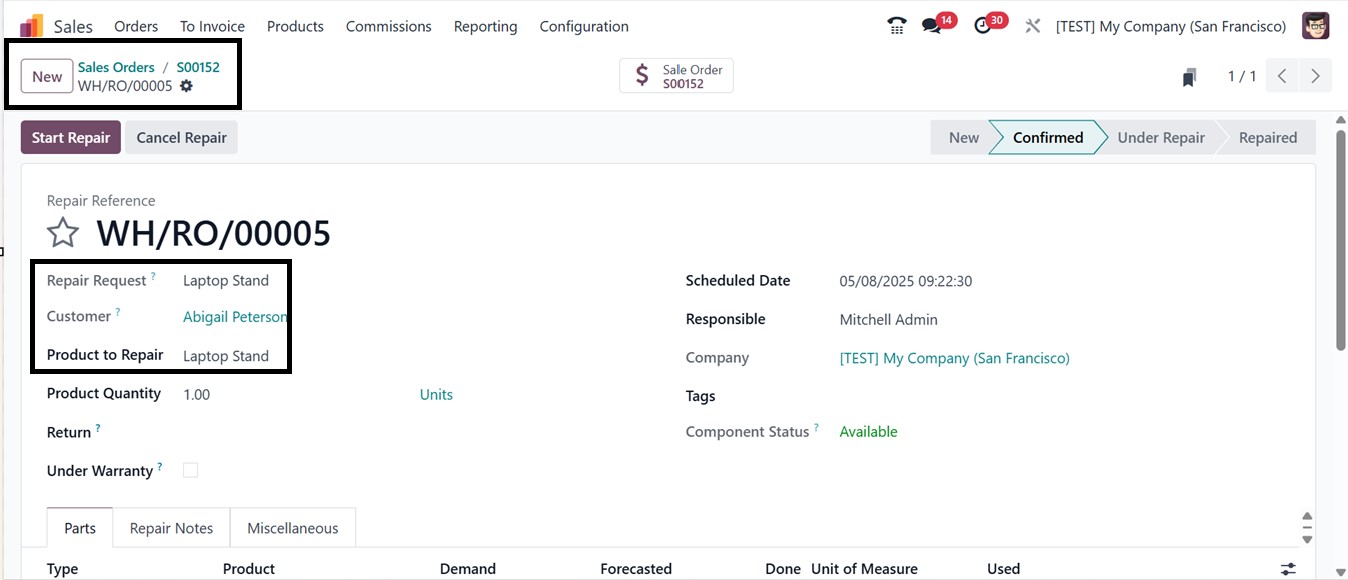
Inside the ‘Repairs’ smart button, you can see the generated repair
request. So, you can start the repair process within the sales
module without navigating to the repair module using the ‘Start
Repair’ button and proceed with the next steps, as depicted in the
screenshot below.
Inside the repair product configuration form, configure all the
product details in the other tab sections of the form and save the
data. You can see some smart buttons to track and manage various
product data and inventory options, including Pricelists, On Hand
Units, Forecasted Units, Bill of Materials, Documents, Reordering
Rules, Putaway Rules, and Storage Capacities etc.
If the product requires restocking, the ‘Replenish’ button option can
be selected. To update the quantity of the product, press the
‘Update Quantity’ button. Also, you can print labels for the product
using the ‘Print Labels’ option after connecting to an external
device.
3.2 Product Variants
Odoo's product variants streamline inventory, pricing, and sales
processes by grouping similar items under a single product template
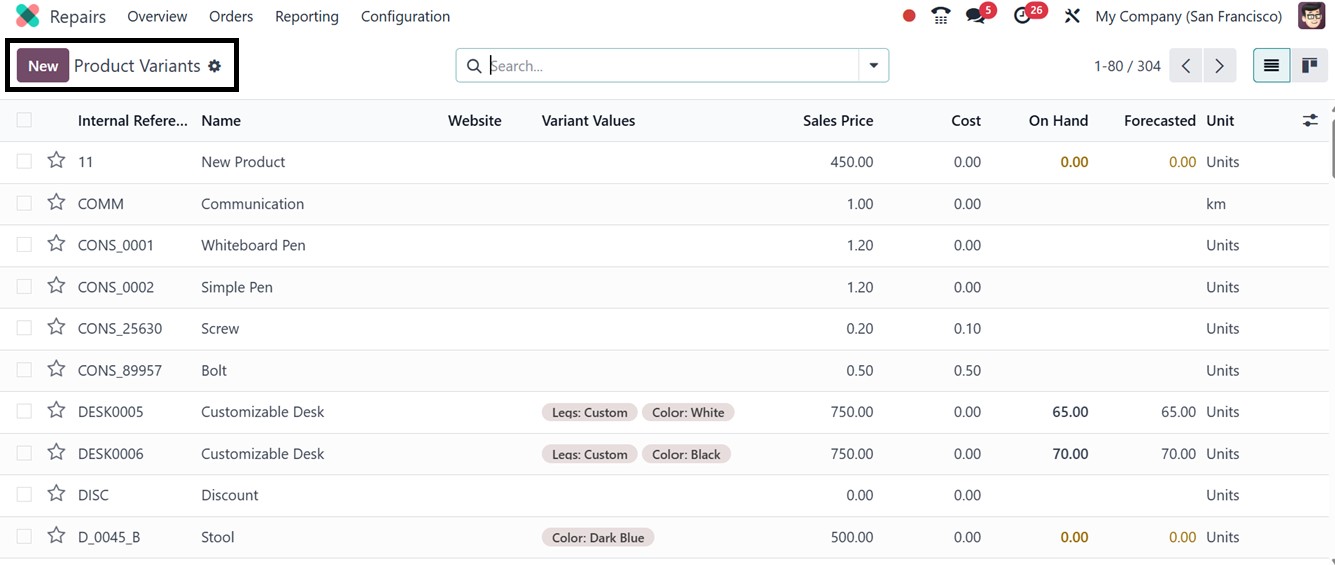
while tracking each variant individually. This feature can be
managed in the Odoo manufacturing module under the Product Variant
option, which displays a dashboard of all possible product variants
created earlier in a Kanban view as shown below.
Creating a new product variant is similar to the configuration of a
new product that we have discussed in the above section.