1. Customers
The customer management platform
in Odoo 18 Enterprise Sales
module simplifies the process
of managing customer
information and enhancing
customer relationships.
Accessible from the Orders
menu, this platform offers a
user-friendly Kanban view
where customer photos and
essential details like names
and contact information are
displayed.
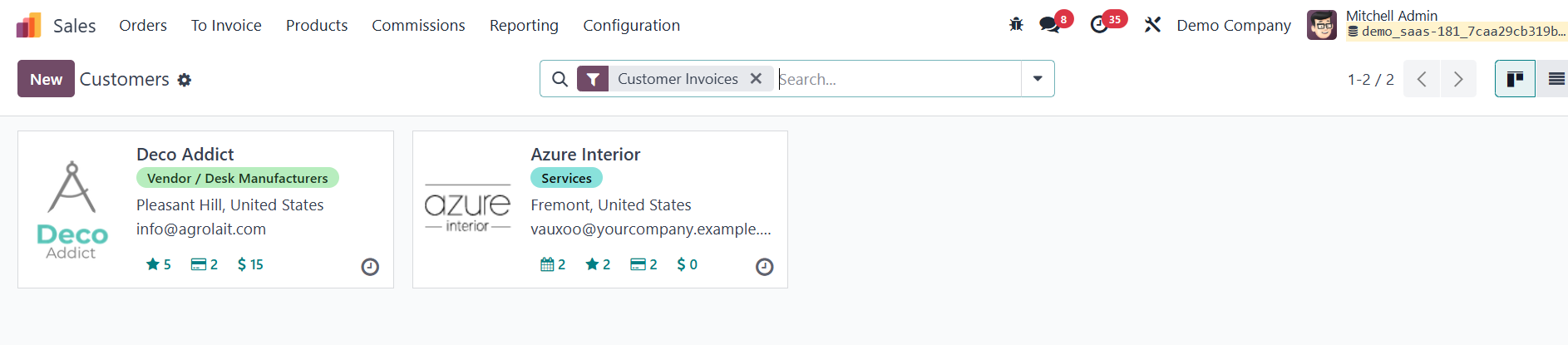
This visual and organized layout
makes customer management
more intuitive and efficient.
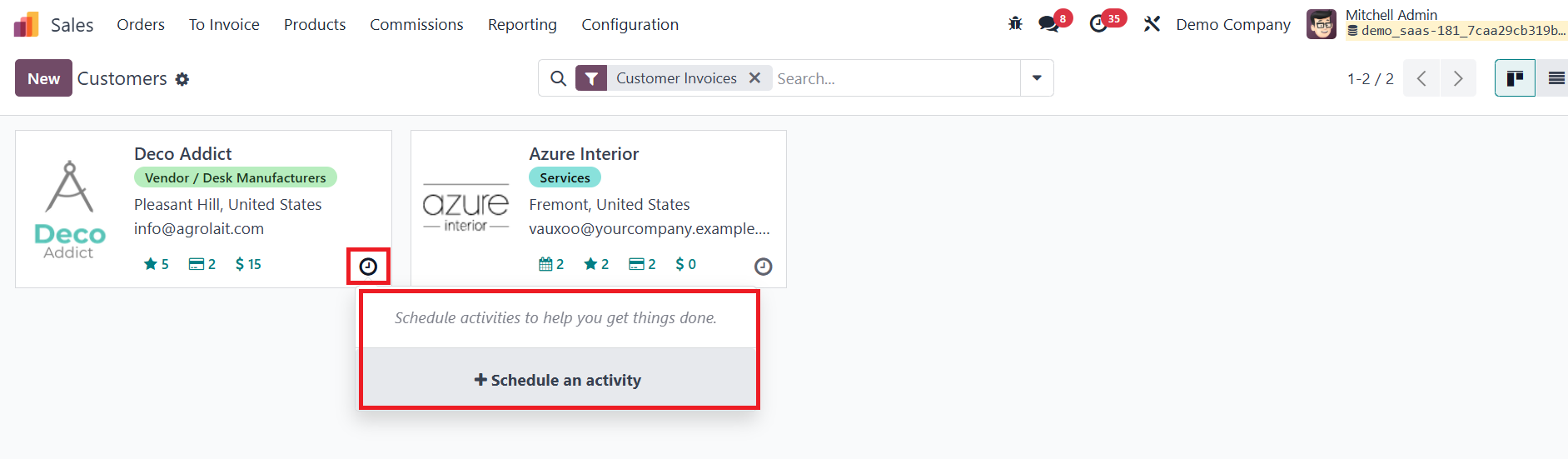
The interface also includes a
clock icon to schedule
sales-related activities,
ensuring timely follow-ups
and interactions.
The platform provides robust
filtering and grouping
options to streamline
customer searches. Users can
filter customers based on
categories such as
Individuals, Companies,
Archived, Vendor Bills,
Customer Invoices, and
Subcontractors.
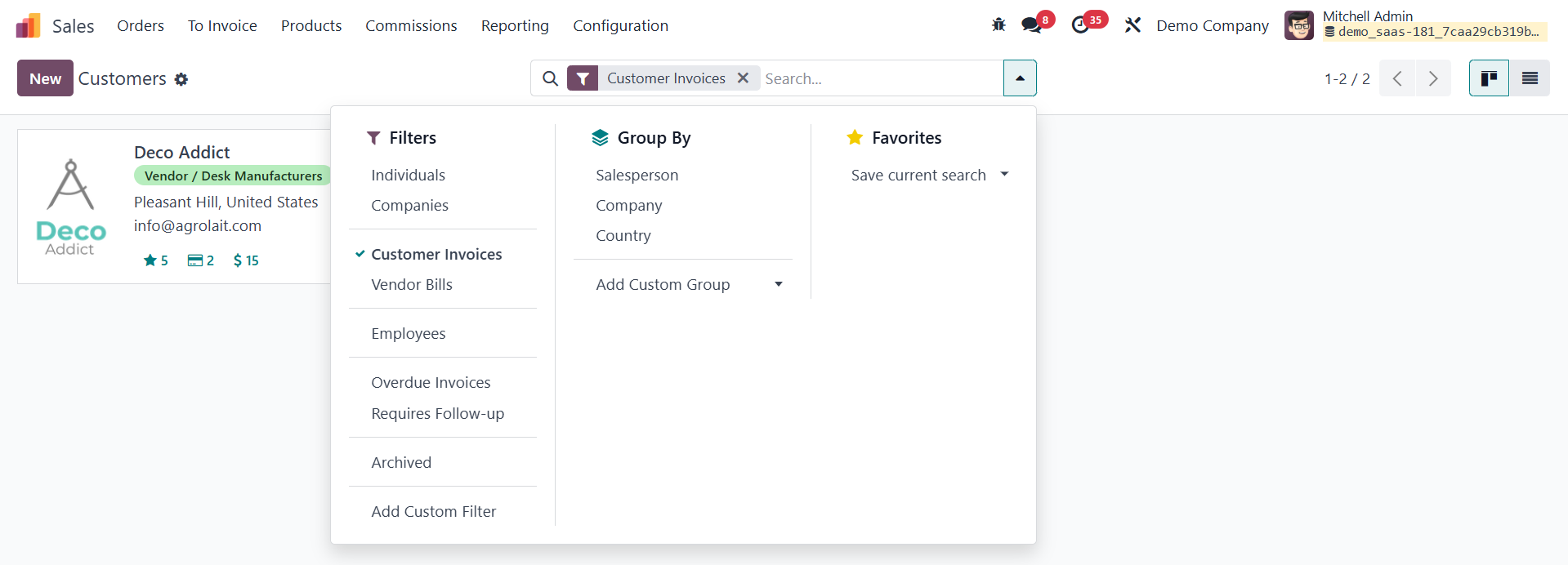
The Group By feature allows
categorization by parameters
like Company, Country, or
Salesperson, enabling
businesses to manage their
customer base effectively.
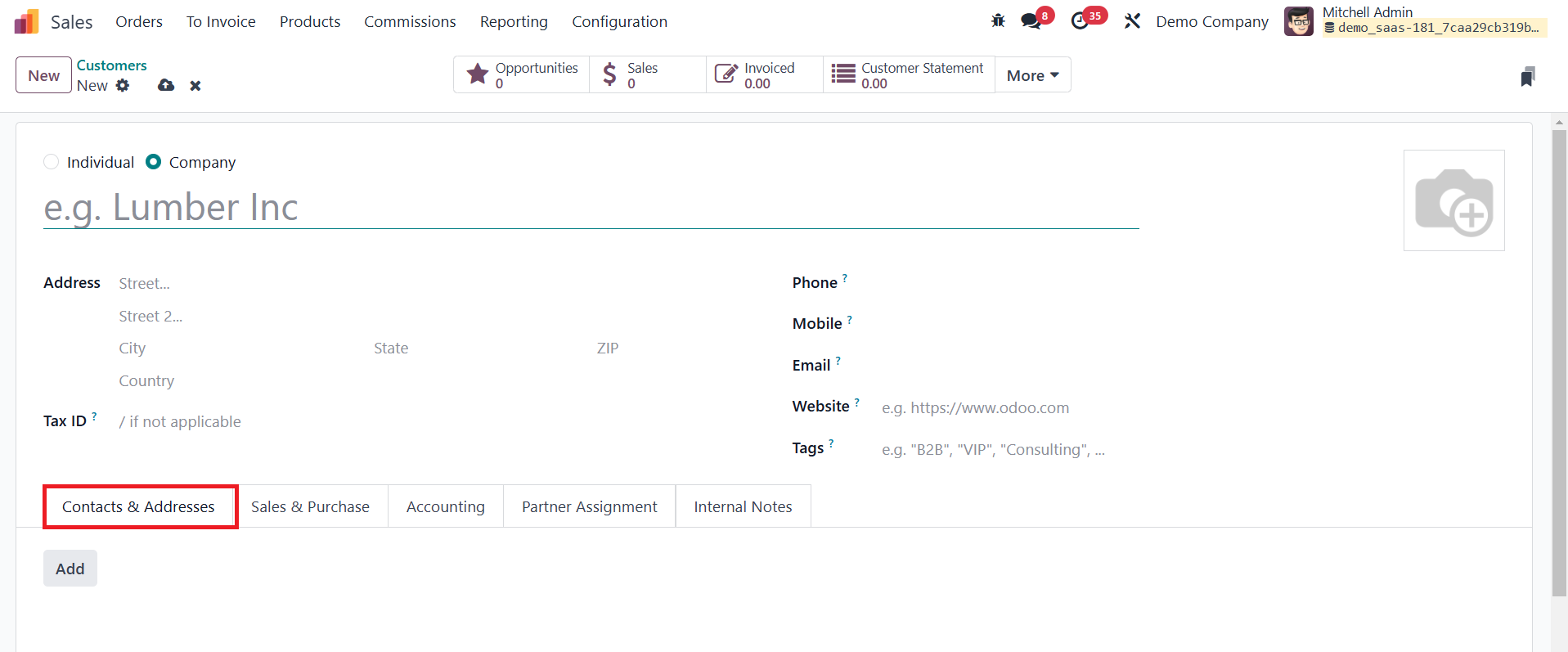
Adding new customer profiles is
straightforward; clicking the
New button opens a
configuration window where
users can input essential
details such as the
customer's name, type
(Individual or Company),
address, contact information,
tax identification number,
website URL, and tags for
segmentation (e.g., VIP,
Wholesale, Retail).
Odoo 18 Enterprise allows
businesses to add multiple
addresses and contact details
for a single customer, such
as billing and shipping
addresses, using the Contacts
& Addresses section. The
flexibility to define various
address types ensures
seamless management of
customer-specific needs.
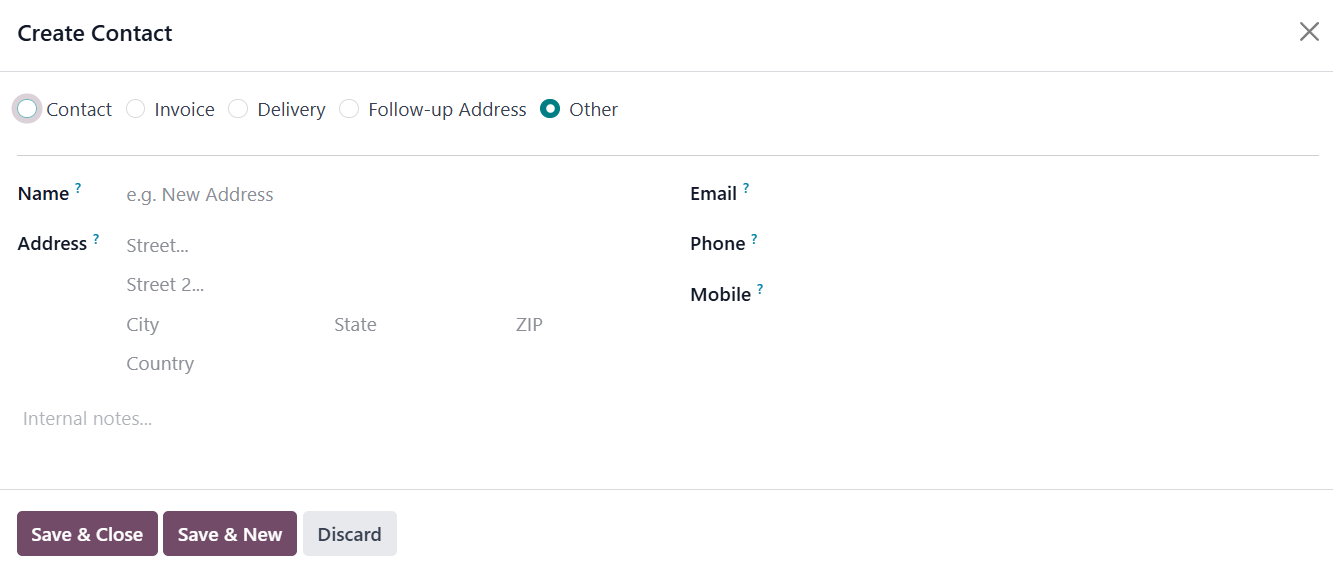
These include Invoice Address,
Delivery Address, Contact
Address, Other Address, and
Follow-Up Address, each
serving a distinct purpose.
The Invoice Address is the
designated address for
billing purposes, linked to
vendors or clients for the
delivery of invoices. It
ensures that all financial
documents are routed to the
appropriate location. The
Delivery Address, on the
other hand, is the specific
location for shipping
products or services,
typically tied to a vendor or
client to streamline
logistics.
A Contact Address represents a
unique, non-business address
associated with a contact,
often used for personal or
social communications. The
Other Address is an
additional point of contact,
often utilized for temporary
purposes, supplementary
business sites, or
alternative correspondence
locations. Lastly, the
Follow-Up Address serves as a
specialized contact point,
assigned for follow-up
messages or activities
related to a particular
record, ensuring seamless
communication for ongoing
tasks.
After selecting the appropriate
address type, users can input
details such as the contact's
name, physical address,
email, phone number, and
mobile number in the
designated fields.
Furthermore, the Sales and
Purchases tab offers several
configuration options to
enhance sales and procurement
processes.
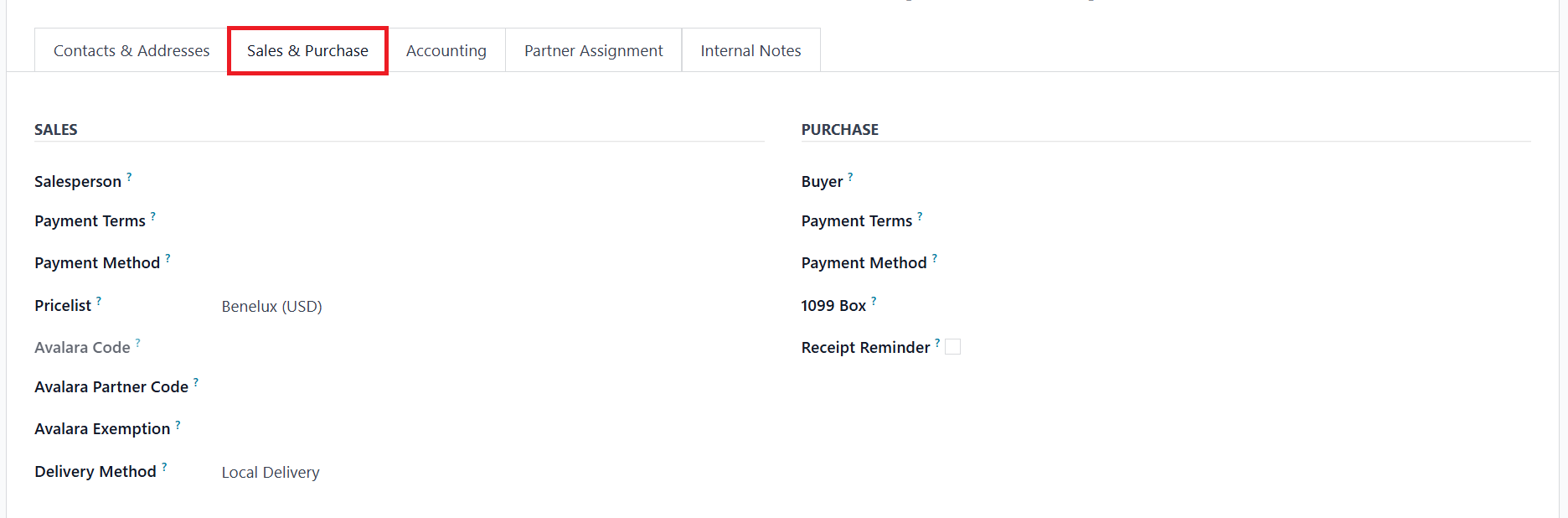
You can designate a Salesperson
to manage the sales
activities for the customer,
ensuring accountability and
efficient tracking of sales
efforts. If a specific
payment term is defined, it
will override the default
setting and be applied to
client invoices and sales
orders, catering to
customized payment terms.
Mention suitable Payment
Method for this customer in
the specified field.
For customers requiring tailored
pricing, you can define a
unique Price List in the
respective field, which will
be used for all sales
transactions instead of the
standard pricing.
Additionally, an Avalara Code
can be assigned to the
customer for
cross-referencing within the
Avalara tax compliance
portal. You can also specify
the Avalara Partner Code and
Avalara Exemption details in
the designated fields to
ensure accurate tax
calculations and exemptions.
To enhance the delivery process,
the Delivery Method option
allows you to specify the
default shipping method for
the customer’s sales orders.
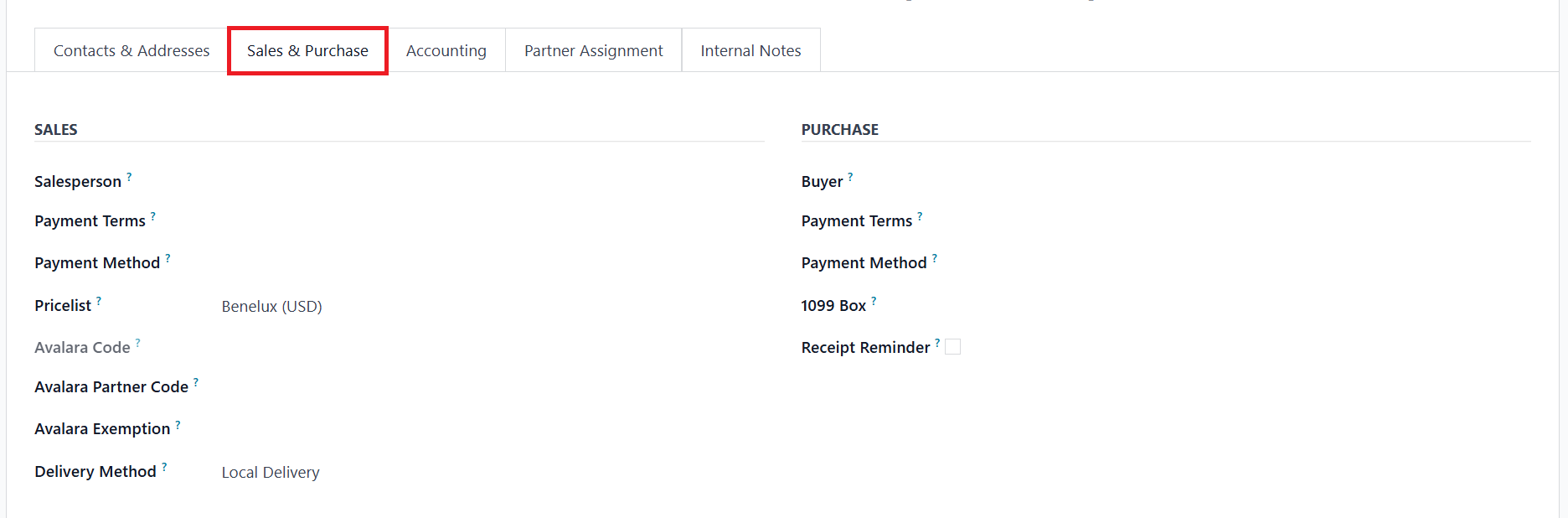
Under the Purchase tab in Odoo
18, you can configure
settings to streamline
procurement processes for
each customer or vendor. By
selecting the customer's
preferred Payment Terms,
these terms will
automatically apply to vendor
bills and purchase orders,
overriding the default
payment terms. The 1099 Box
field allows you to assign a
specific box on the 1099
report, where the vendor's
journal entries will be
recorded, ensuring accurate
reporting and compliance with
tax requirements. You can
also define the preferred
Payment Method for the
vendor, which helps in
filtering vendor bills by the
desired payment method,
particularly useful for
managing bulk payments
efficiently.
Enabling the Receipt Reminder
feature automates
communication by sending a
confirmation email to the
vendor a few days before the
expected receipt date,
prompting them to confirm the
exact delivery timeline. The
Supplier Currency field
specifies the currency used
for transactions with a
particular supplier.
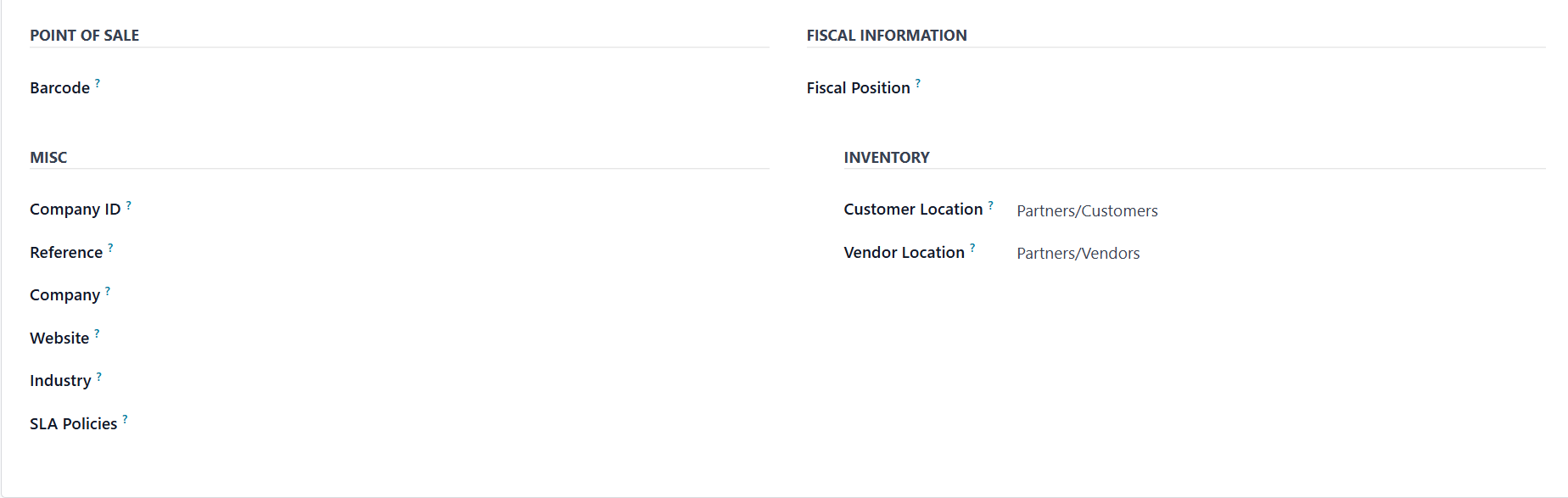
To streamline customer management
and ensure accurate tracking
at the point of sale, you can
assign a Barcode for the
customer, making
identification quick and
efficient. Within the Fiscal
Information section, you can
specify the customer's Fiscal
Position, which determines
the applicable taxes and
accounts based on the
customer’s financial or
geographical situation,
ensuring compliance with
fiscal regulations.
In the Miscellaneous tab, you can
provide essential details
such as Company ID,
Reference, Company, Website,
Website Tags, Industry, and
SLA Policies. These fields
allow for comprehensive
documentation of the
customer's profile,
supporting better
organization and service
delivery.
Under the Inventory section, you
can define the Customer
Location, which indicates the
stock location designated as
the shipping destination for
products sent to this
contact. Additionally, the
Vendor Location field lets
you specify the stock
location used as the source
for receiving products from
this contact, ensuring smooth
inventory operations and
precise stock management. The
Subcontractor Location refers
to the specific stock
location used for managing
products sent to or received
from subcontractors as part
of a subcontracting process.
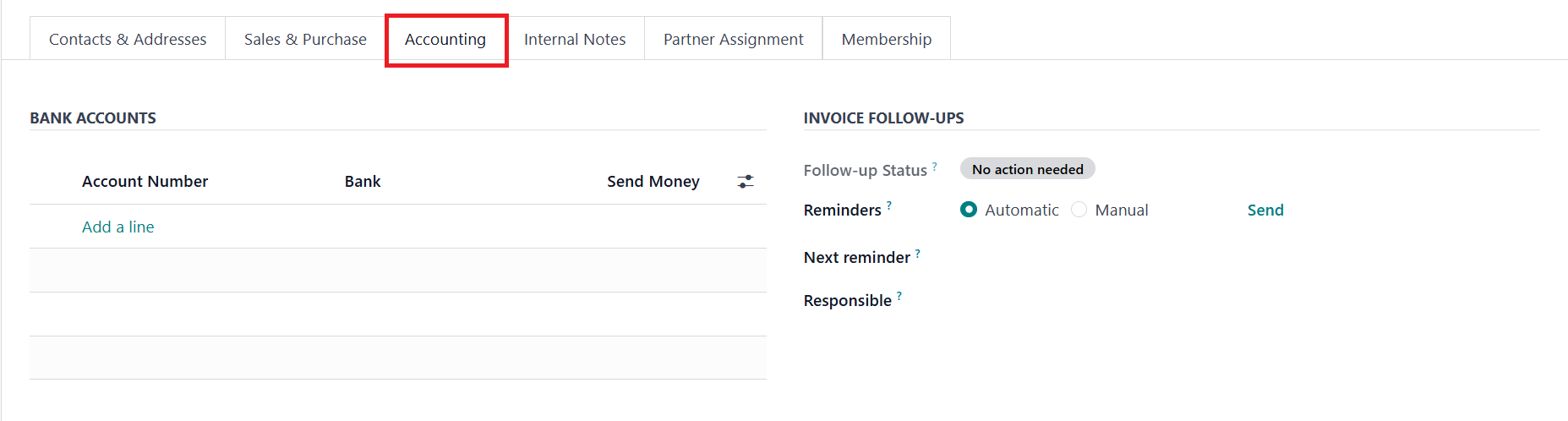
The Accounting tab in Odoo allows
businesses to manage a
customer's financial
information efficiently.
Under the Banks Accounts
section, you can add details
of the customer’s bank
accounts, such as the account
number and bank name, using
the Add a Line button.
Invoice Follow-ups help
businesses manage overdue
invoices and ensure timely
payments. The Follow-up
Status provides an overview
of the current state of an
invoice follow-up. The
Reminders feature allows
businesses to set up
automatic or manual reminders
for their customers.
Automatic Reminders are
triggered by Odoo based on
predefined rules, such as a
certain number of days after
the invoice due date. Manual
Reminders, on the other hand,
require the user to manually
trigger the reminder when
needed, providing more
control over the timing and
communication. In addition,
users can also opt to Send
reminders through different
channels, such as email,
depending on customer
preferences.
The Next Reminder field specifies
when the next reminder will
be sent, allowing businesses
to set a clear schedule for
follow-up communications.
Lastly, the Responsible field
assigns a team member or
department the responsibility
for following up on a
particular invoice.
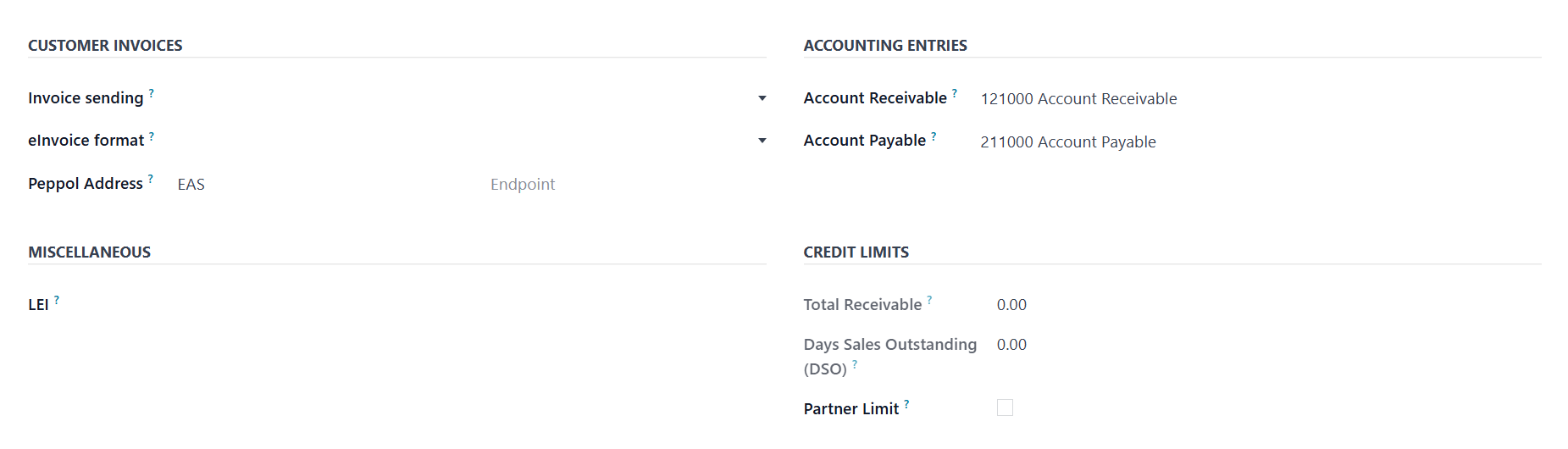
The Account Receivable field is
used to record payments owed
by the customer, tracking all
outstanding invoices and
ensuring a clear view of
receivables. Similarly, the
Account Payable field tracks
amounts the customer owes to
vendors or suppliers, helping
businesses maintain accurate
records of their payables. In
the Customer Invoices
section, the Invoice Sending
option allows businesses to
define how invoices are
delivered to customers,
whether via email, printed
copies, or other specified
methods, ensuring smooth and
timely communication.
The eInvoice Format feature
facilitates the generation of
electronic invoices in
standardized formats,
complying with regional or
international e-invoicing
regulations. The Peppol
Address is used for customers
who are part of the Peppol
e-invoicing network. LEI
(Legal Entity Identifier)
option available in the
Miscellaneous session, is a
globally recognized unique
identification code assigned
to legally distinct entities
that engage in financial
transactions.
The Credit Limits section
includes the Total
Receivable, Days Sales
Outstanding, and Partner
Limit. Total Receivable
represents the total amount
the customer owes the
business at any given time,
including unpaid invoices and
pending receivables. Days
Sales Outstanding (DSO) is a
financial metric that
measures the average number
of days it takes for a
business to collect payments
after a sale has been made.
Partner Limit represents the
maximum amount of credit that
the business is willing to
extend to that particular
customer.
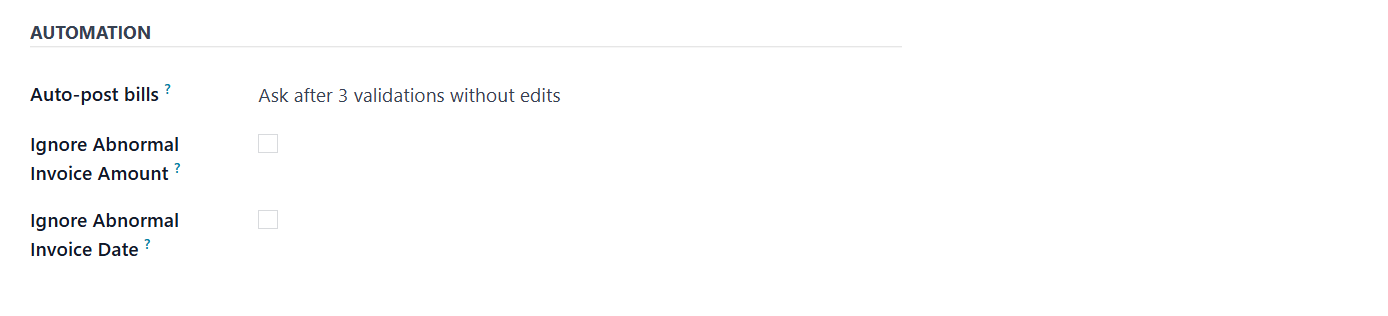
The Auto-post Bills feature, when
enabled, allows vendor bills
to be posted automatically
without requiring manual
validation, streamlining
accounting operations,
especially for frequent and
trusted transactions.
Additionally, the Ignore
Abnormal Invoice Amount
setting helps to detect and
prevent errors or fraud by
flagging invoices with
amounts that deviate
significantly from the norm.
Likewise, the Ignore Abnormal
Invoice Date feature flags
invoices with unusual or
unexpected dates, ensuring
the accuracy of records and
avoiding discrepancies caused
by incorrect data entry.
The Internal Notes tab allows
businesses to add specific
remarks or additional
information related to a
customer. To enhance customer
interaction and transaction
management, you can activate
the Sales Warning feature
from the Settings menu of the
Sales module.
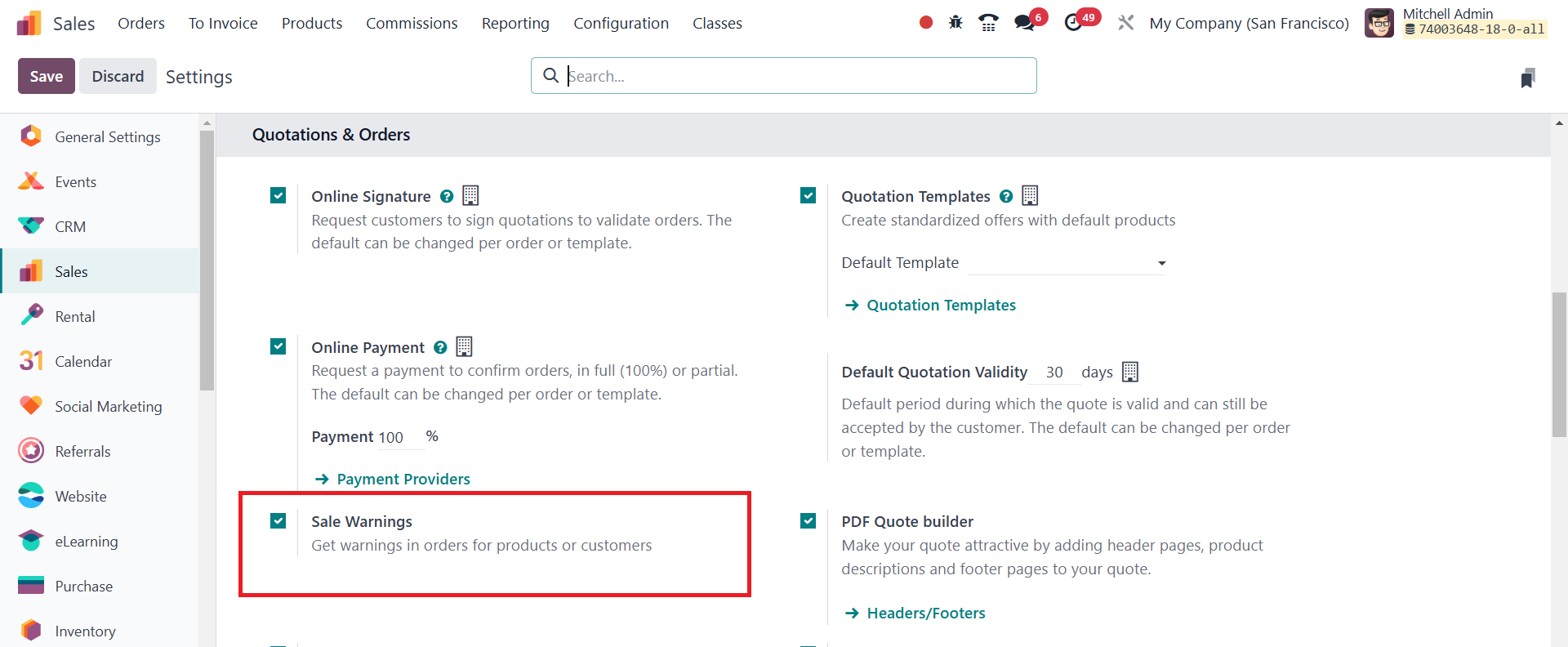
This feature enables you to
generate warning messages for
transactions with specific
customers. Once the Sales
Warning feature is enabled,
the Internal Notes tab in the
Customer setup window offers
the ability to configure and
view these warnings.
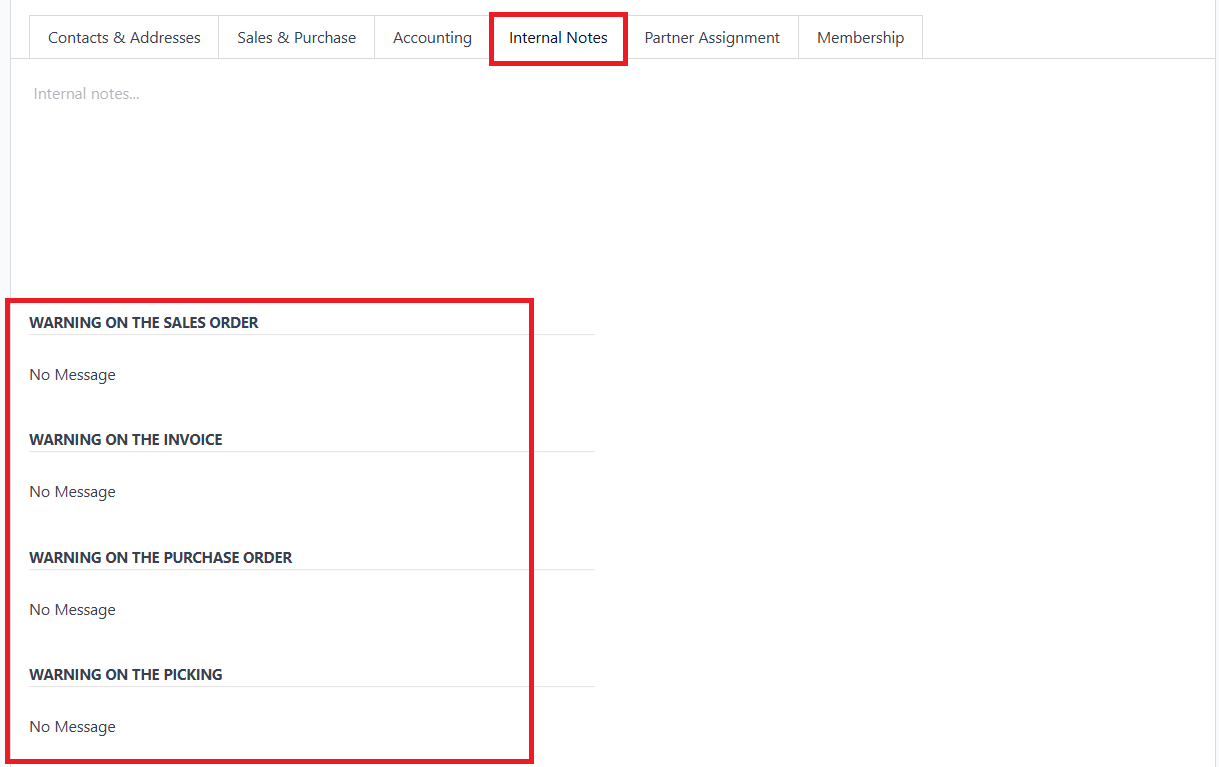
Here, you can set warning
messages for Sales Orders,
Invoices, Purchase Orders,
and Picking.
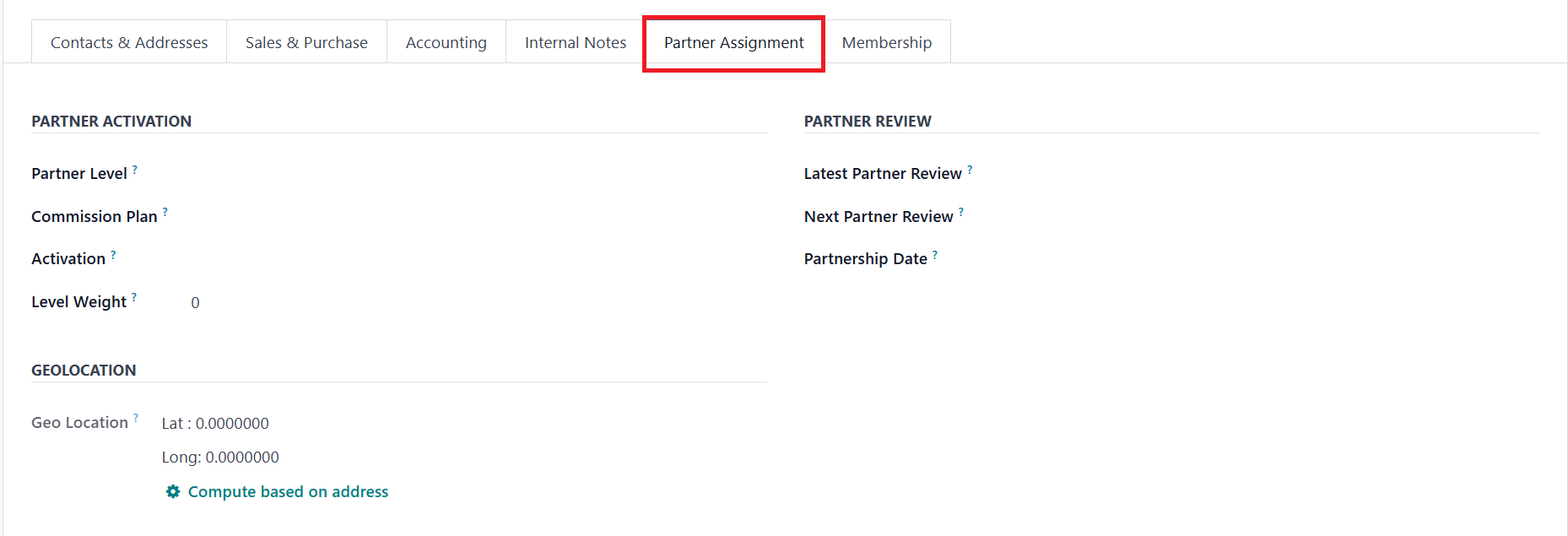
The Partner Assignment tab
provides important features
to manage and track
partnerships effectively,
allowing businesses to
configure various details
about their partners or
customers. This tab includes
the Partner Activation and
Partner Review sections, as
well as the Geolocation
information.
The Partner Level refers to the
tier or status assigned to a
partner, helping to
categorize and prioritize
partners based on their
significance to the business.
For example, a partner can be
classified as "Gold,"
"Silver," or "Platinum,"
reflecting their level of
engagement or value to the
business.
The Commission Plan is an option
that allows businesses to
define a specific commission
structure for the partner.
This can be useful for
partners who are involved in
sales or other
revenue-generating
activities. The Activation
field shows whether the
partnership is active or
inactive. Level Weight is a
field used to assign a value
or priority to the partner
level. The weight assigned
helps in determining the
importance of a particular
partner compared to others,
influencing decisions such as
prioritizing sales or support
resources.
In the Partner Review section,
the Latest Partner Review
refers to the most recent
evaluation or assessment of
the partner’s performance or
relationship with the
business. The Next Partner
Review is the date set for
the upcoming evaluation of
the partner, allowing
businesses to schedule
regular reviews and maintain
up-to-date information on the
partner’s performance. The
Partnership Date is the date
when the partnership was
initiated or formalized.
Finally, Geolocation allows
businesses to specify the
physical location of the
partner. This can be entered
manually or calculated
automatically based on the
address information provided,
helping businesses organize
and track their partners'
geographic distribution.
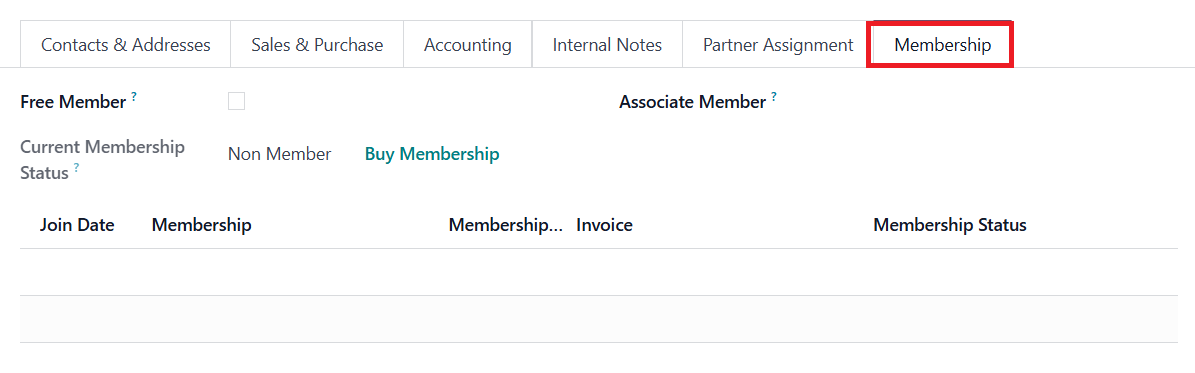
In Odoo, the Membership tab
allows businesses to manage
customer memberships
efficiently. If you wish to
offer a customer a free
membership, you can activate
the Free Member option.
Additionally, the Associate
Member box enables you to
link the customer’s
membership to another
designated member. This tab
also provides a clear
overview of the customer's
current membership status,
helping businesses track
active, expired, or pending
memberships. If a customer
needs to purchase a new
membership, the Buy
Membership button simplifies
the process, allowing for
quick enrollment. Other key
details displayed in this
section include the Join
Date, the type of Membership,
the Membership Price, the
related Invoice, and the
Membership Status, which
indicates whether the
membership is active or
pending.
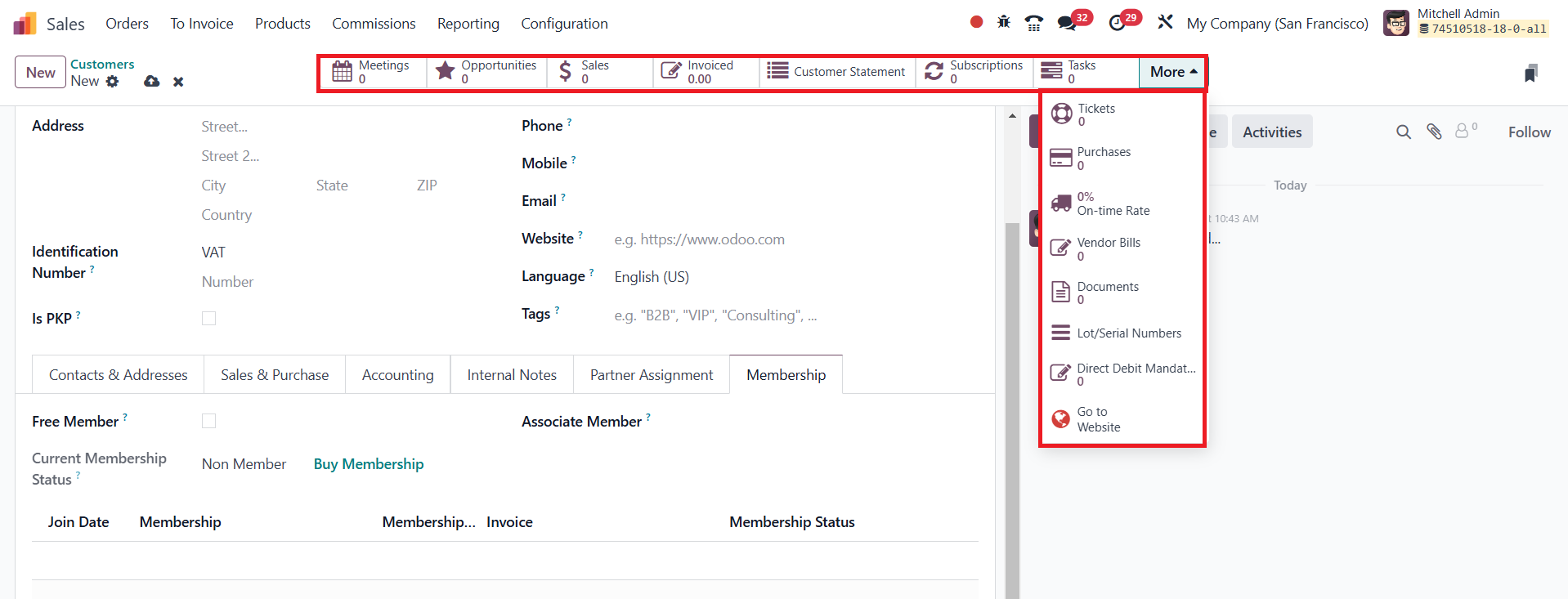
To enhance customer management,
Odoo also provides smart
buttons that allow quick
access to various operations
related to the customer.
These smart buttons enable
businesses to view and manage
meetings, opportunities,
sales, subscriptions, tasks,
and purchases associated with
the customer. Additionally,
businesses can track details
related to partner ledger,
saved payment tokens,
certifications, signatures,
documents, direct debit
requirements, and course
enrollments, ensuring a
comprehensive view of all
interactions and transactions
with the customer.