9. Invoices
In Odoo 18 Enterprise, once a
sales order is confirmed, the
next step is to generate an
invoice. The Sales module
provides two invoicing
policies that businesses can
configure based on their
specific needs. The first
method, Invoice What is
Ordered, generates an invoice
immediately upon order
confirmation, billing the
customer for the entire order
quantity. This is the default
and most commonly used
invoicing rule.
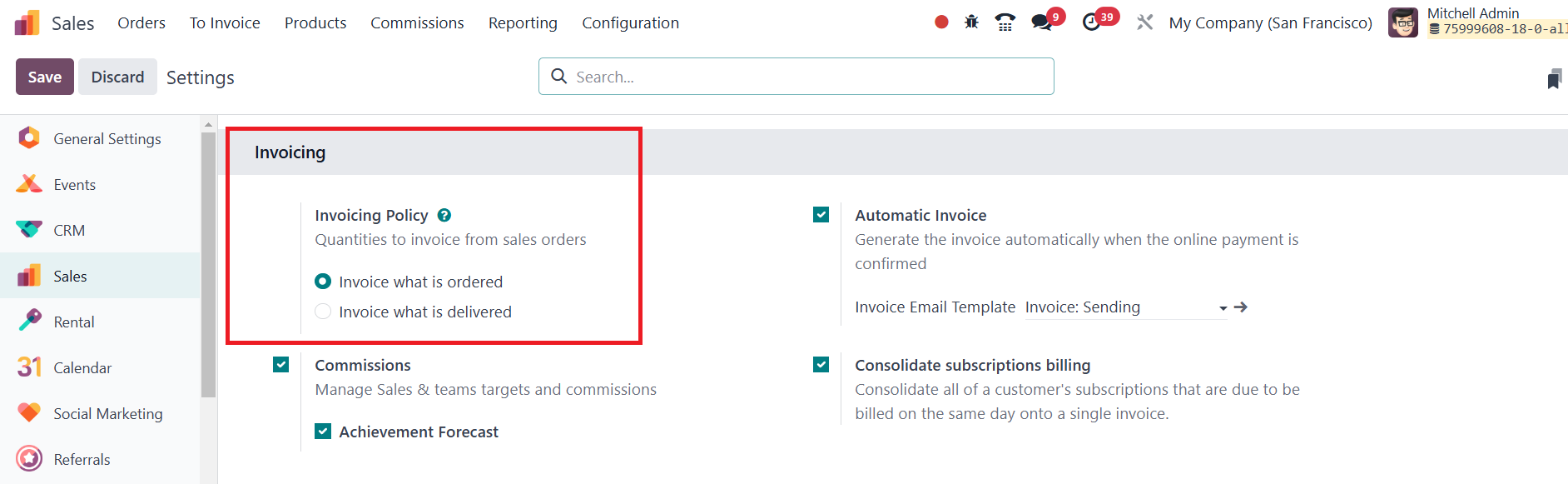
The second method, Invoice What
is Delivered, creates an
invoice only after the
delivery is completed. This
approach is particularly
beneficial for businesses
dealing with materials,
liquids, or perishable goods,
where the delivered quantity
might slightly differ from
the ordered amount. In such
cases, invoicing based on the
actual delivery ensures
accuracy and prevents
discrepancies.
To generate an invoice based on
the delivered quantity, it is
necessary to confirm the
delivery first before
proceeding with the invoice
creation.
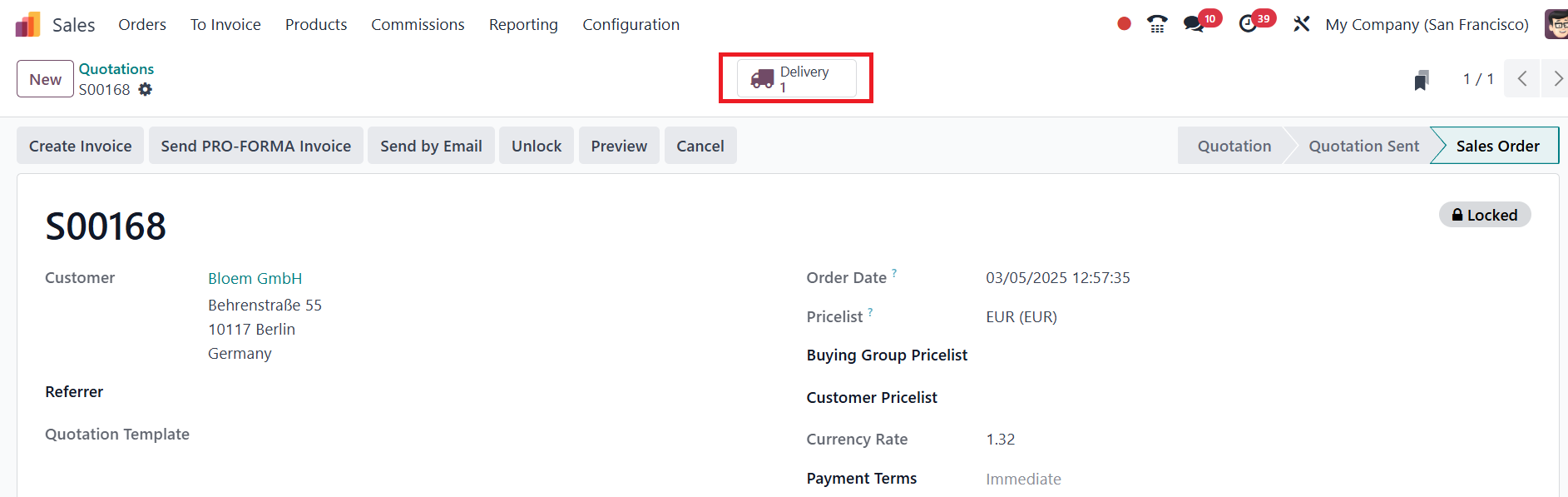
Once the delivery is confirmed,
the delivered quantity is
updated in the order line.
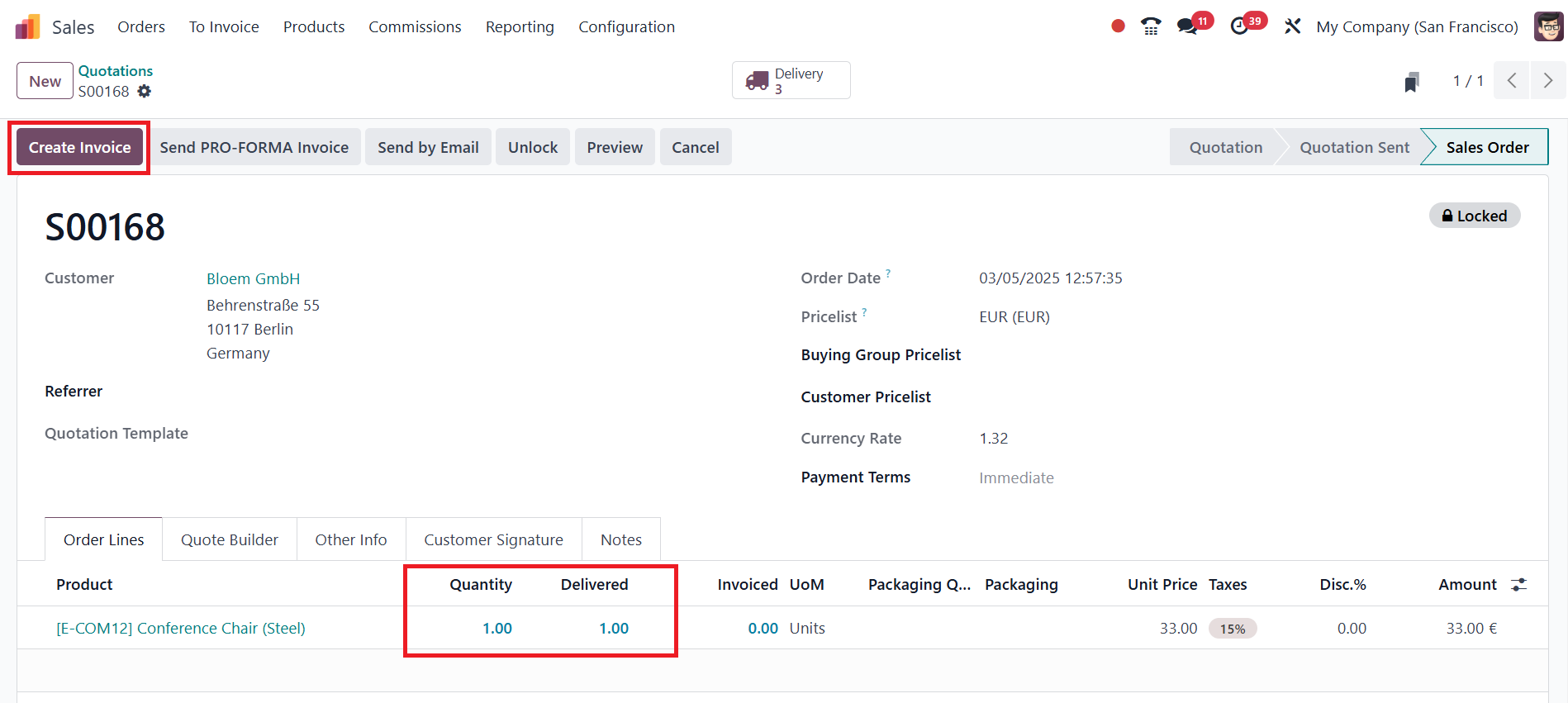
Clicking the Create Invoice
button prompts a pop-up
window where users can choose
from different invoicing
options, including a
percentage-based down
payment, a fixed amount down
payment, or a regular invoice
for the full amount.
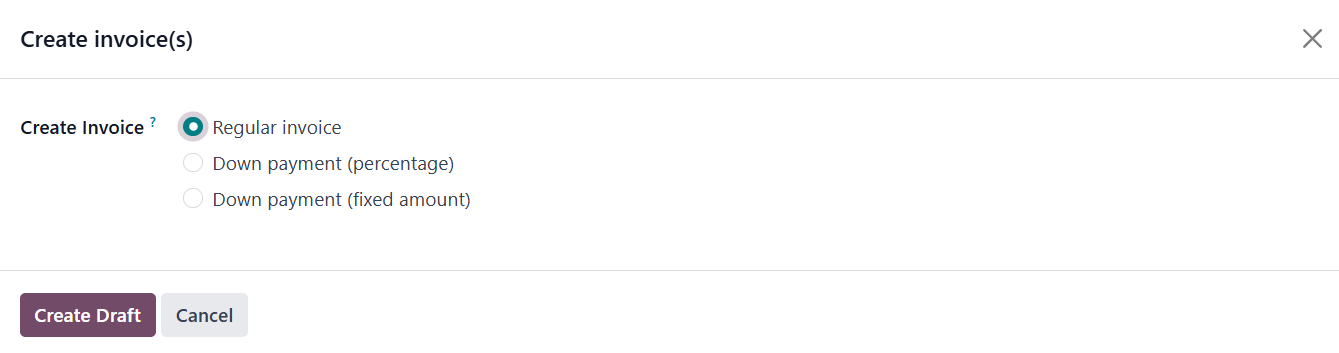
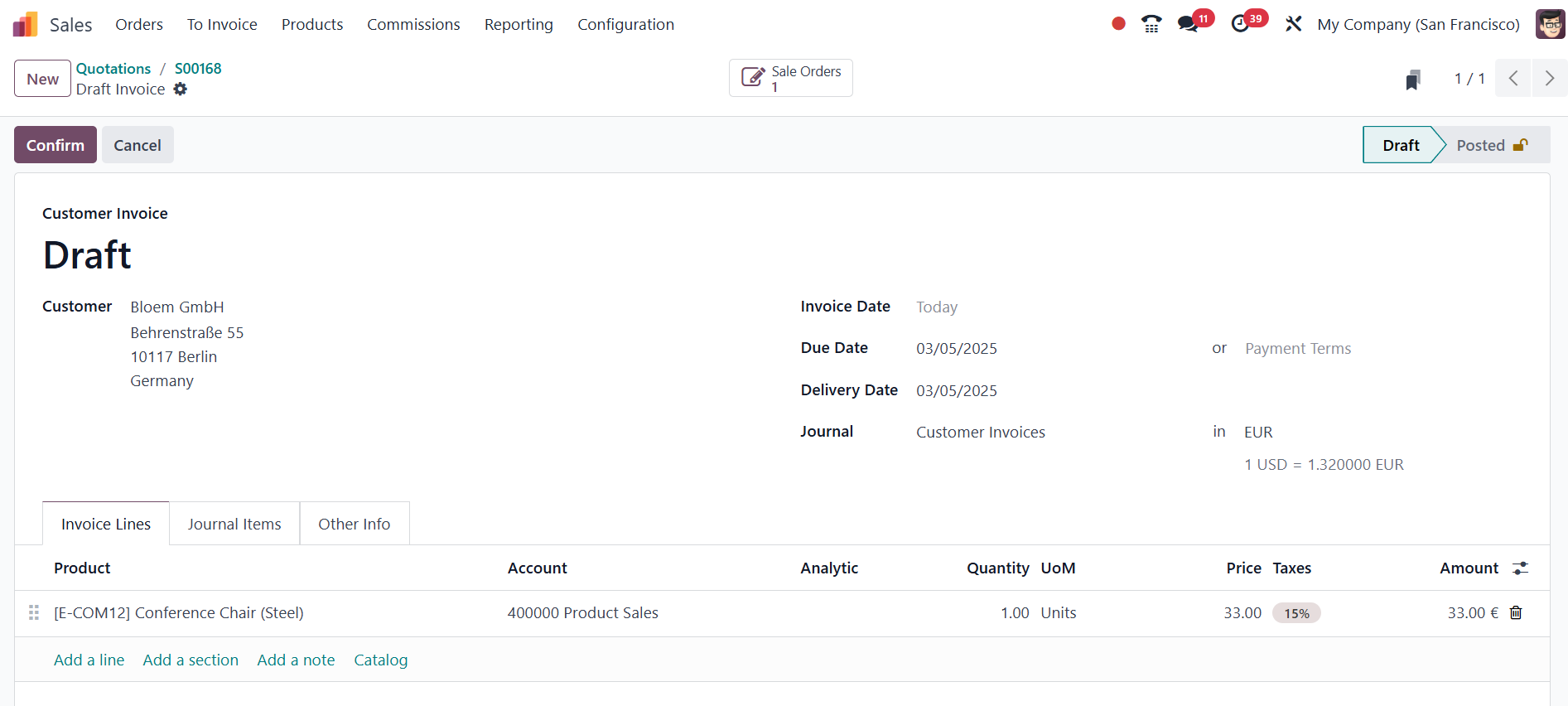
After selecting the appropriate
option, clicking Create Draft
generates a draft invoice,
which can be reviewed before
final confirmation.
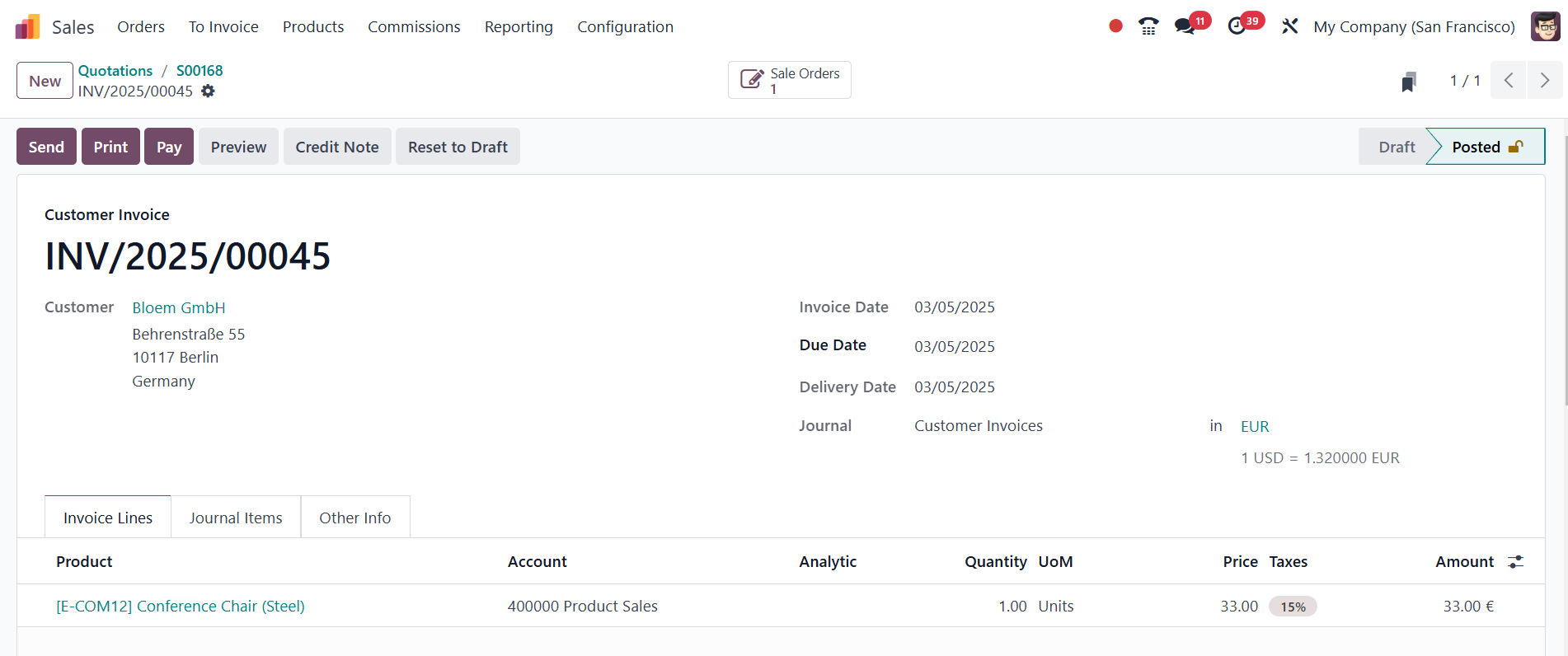
Once the invoice is confirmed,
the system provides an option
to register the payment.
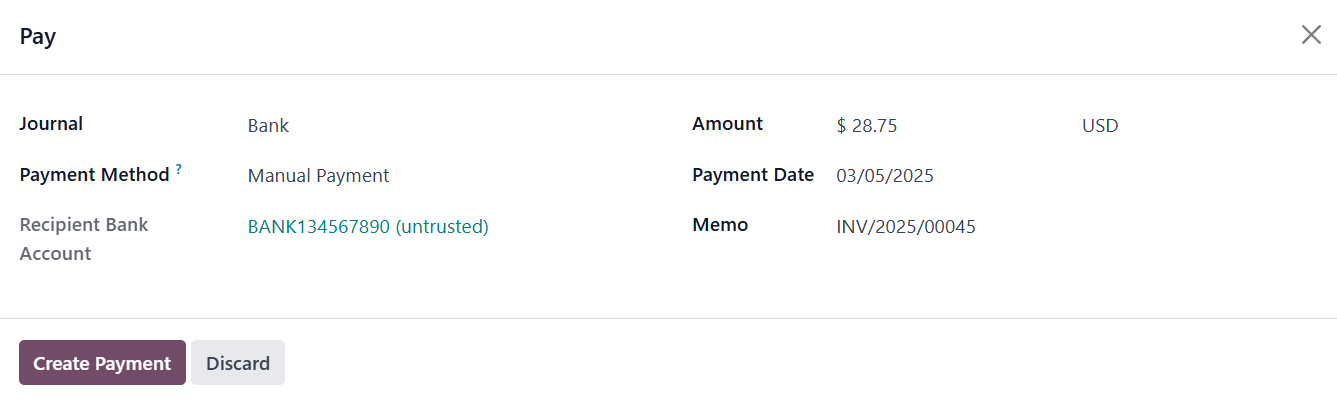
Clicking the Pay button opens a
payment window where users
can enter relevant details
such as the payment amount,
date, memo, journal, payment
method, and recipient bank
account.
After finalizing the payment,
clicking Create Payment
records the transaction, and
the invoice status updates to
Paid.
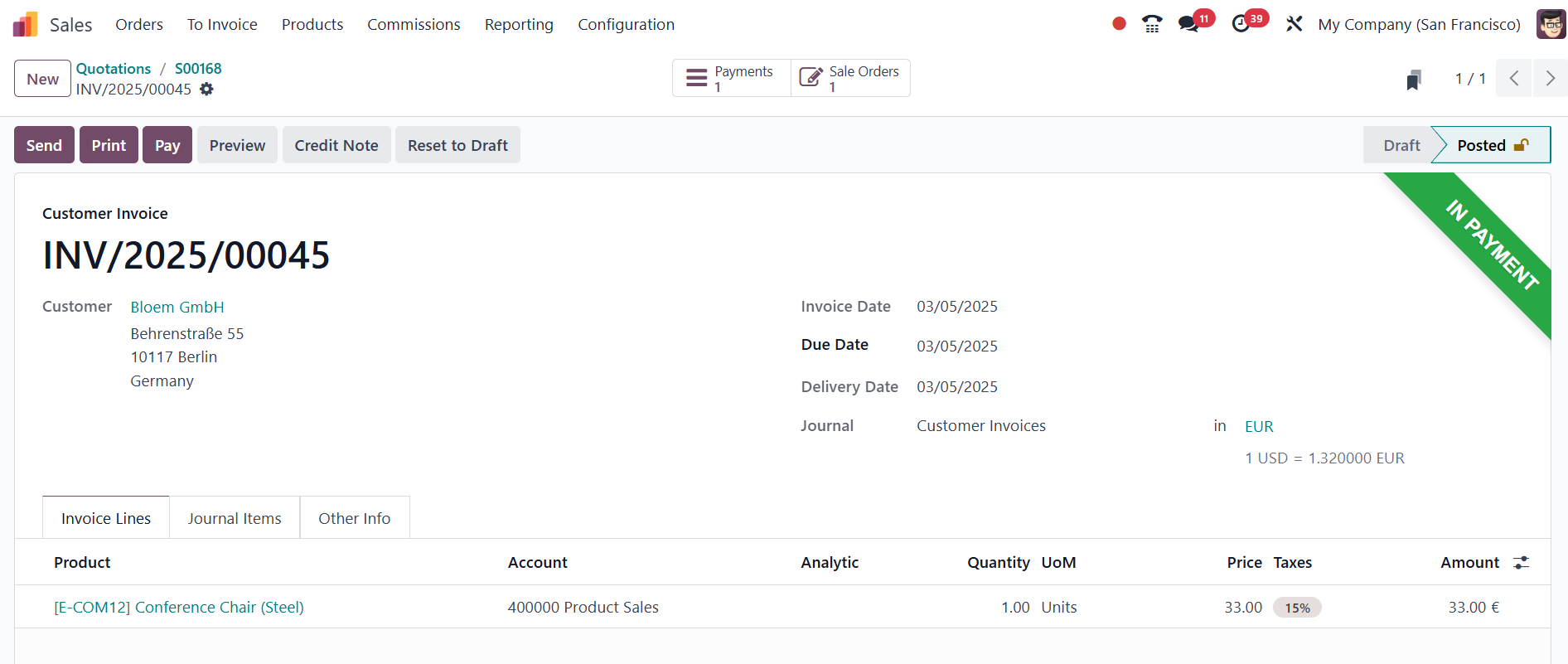
In Odoo, when a bill shows the
status In Payment, it means
that a payment has been
initiated but is not yet
fully reconciled or
completed. Once the payment
is fully validated and
reconciled, the status will
change to "Paid." The
finalized invoice can then be
sent to the customer using
the Send & Print option.
Odoo 18 also simplifies the
management of pending
invoices and upsells through
the To Invoice menu.
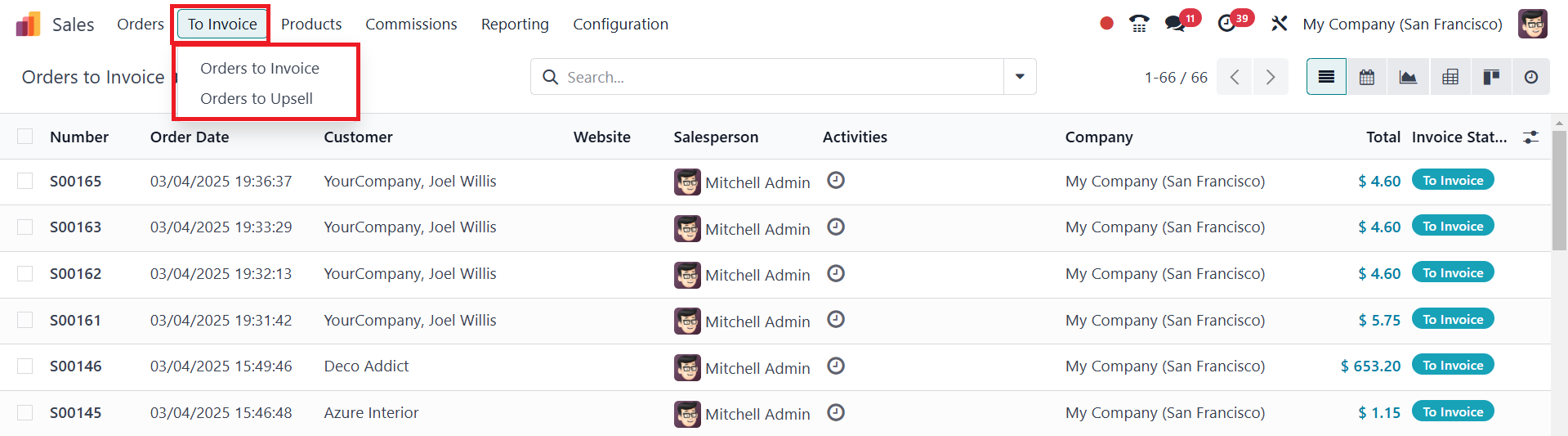
Orders that still require
invoicing appear under the
Orders to Invoice section.
When the delivered quantity
exceeds the invoiced amount
in Odoo 18 Enterprise Sales
Module, the sales order is
automatically moved to the
Orders to Upsell section.
This feature ensures that any
extra quantity delivered
beyond the initially invoiced
amount is properly accounted
for. In such cases, an
additional invoice must be
created for the surplus
quantity, and Odoo will
automatically generate an
update for the sales order to
reflect the excess delivery.
For instance, if a customer
originally ordered 10 units
of a product but received 15
units upon delivery, the
system will flag this
discrepancy and categorize
the sales order under Orders
to Upsell.
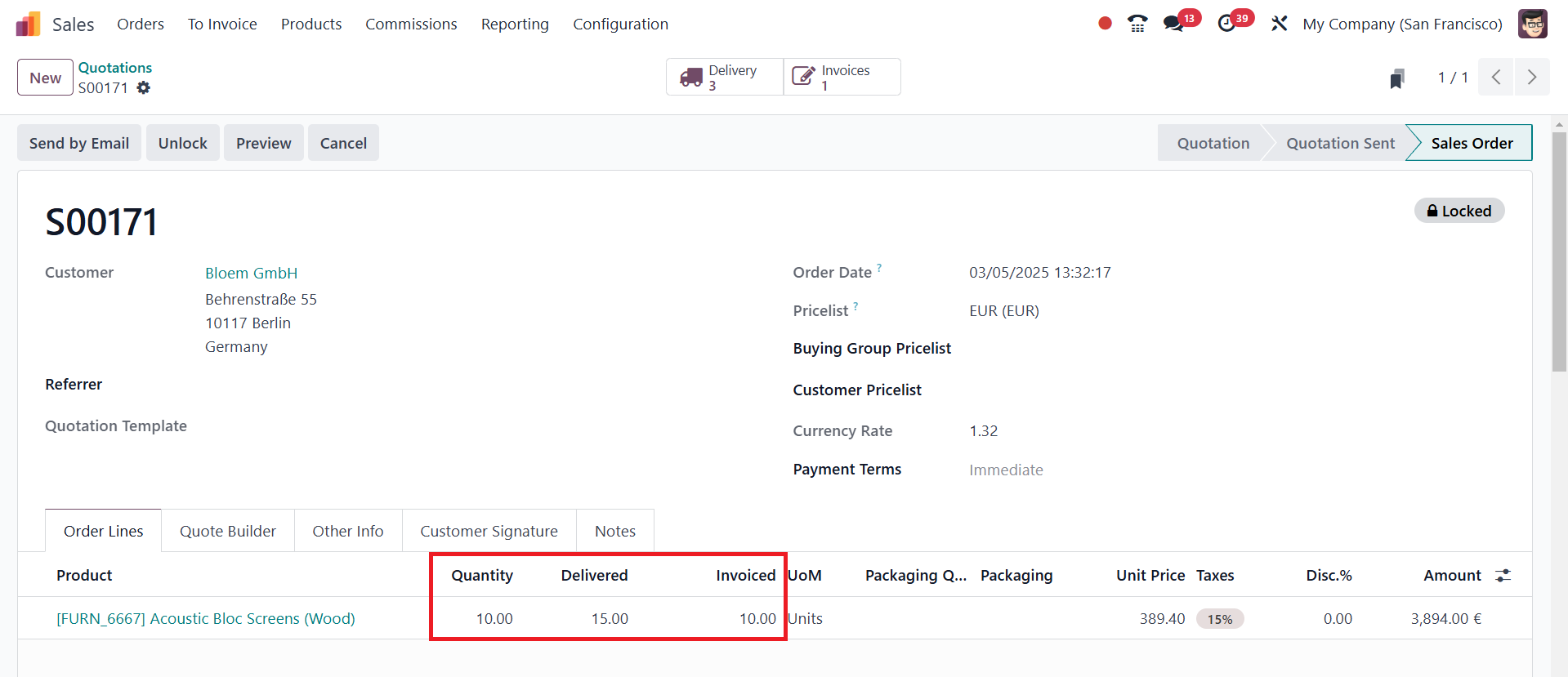
This allows businesses to
generate an additional
invoice to bill the customer
for the extra 5 units
delivered.

To correct the order and remove
it from the Orders to Upsell
section, the ordered quantity
must be updated to match the
delivered quantity. This can
be done by editing the sales
order and changing the
ordered quantity from 10 to
15.
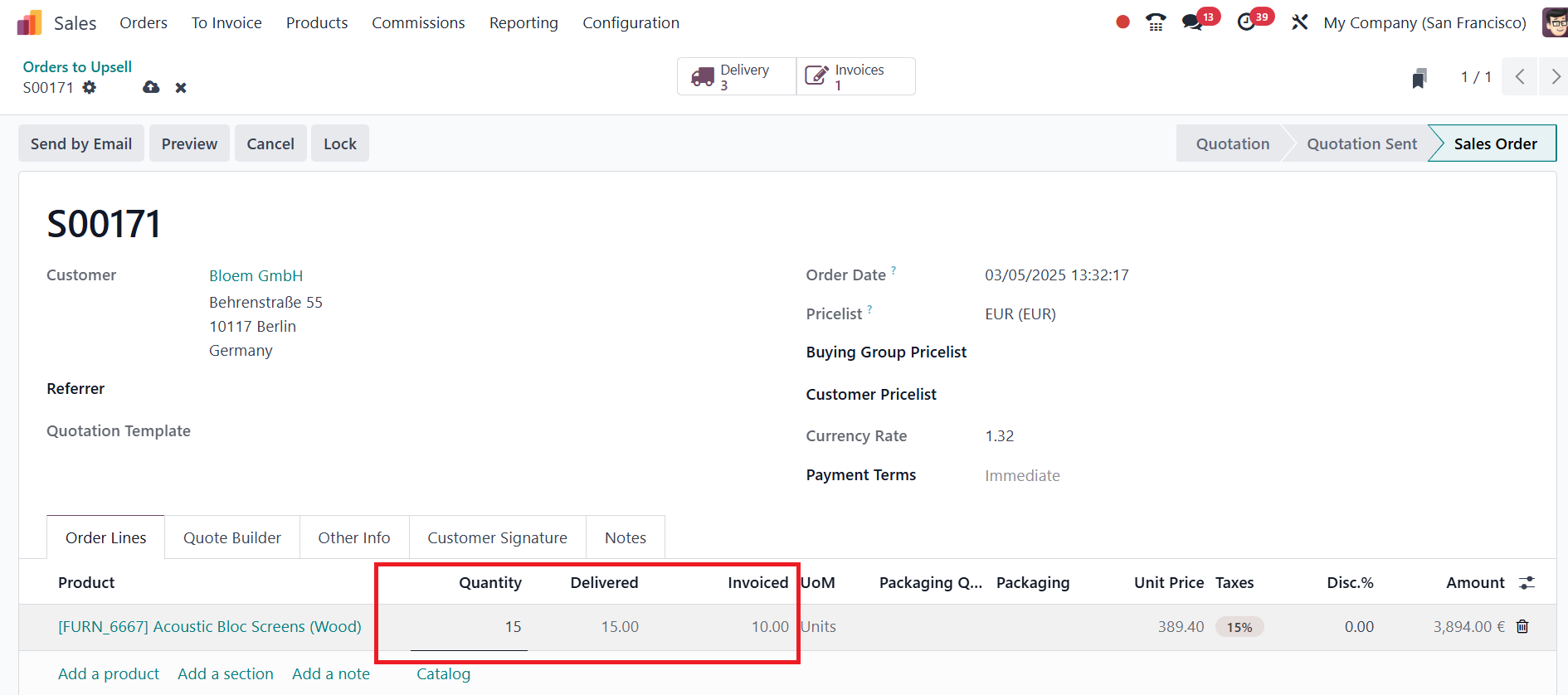
After updating the order
quantity, a new invoice needs
to be generated to cover the
remaining 5 units.
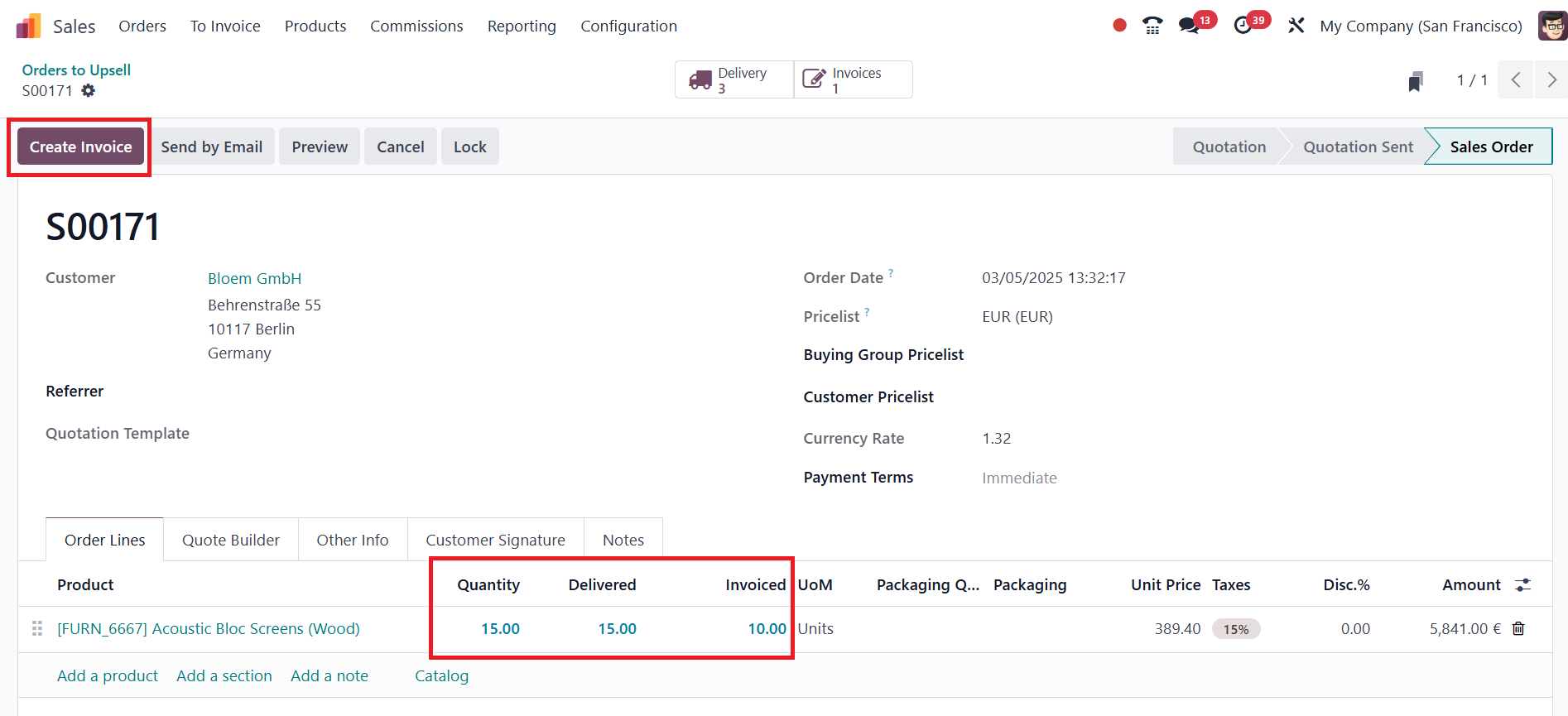
When creating this invoice, the
system will automatically
calculate and include the
outstanding quantity.
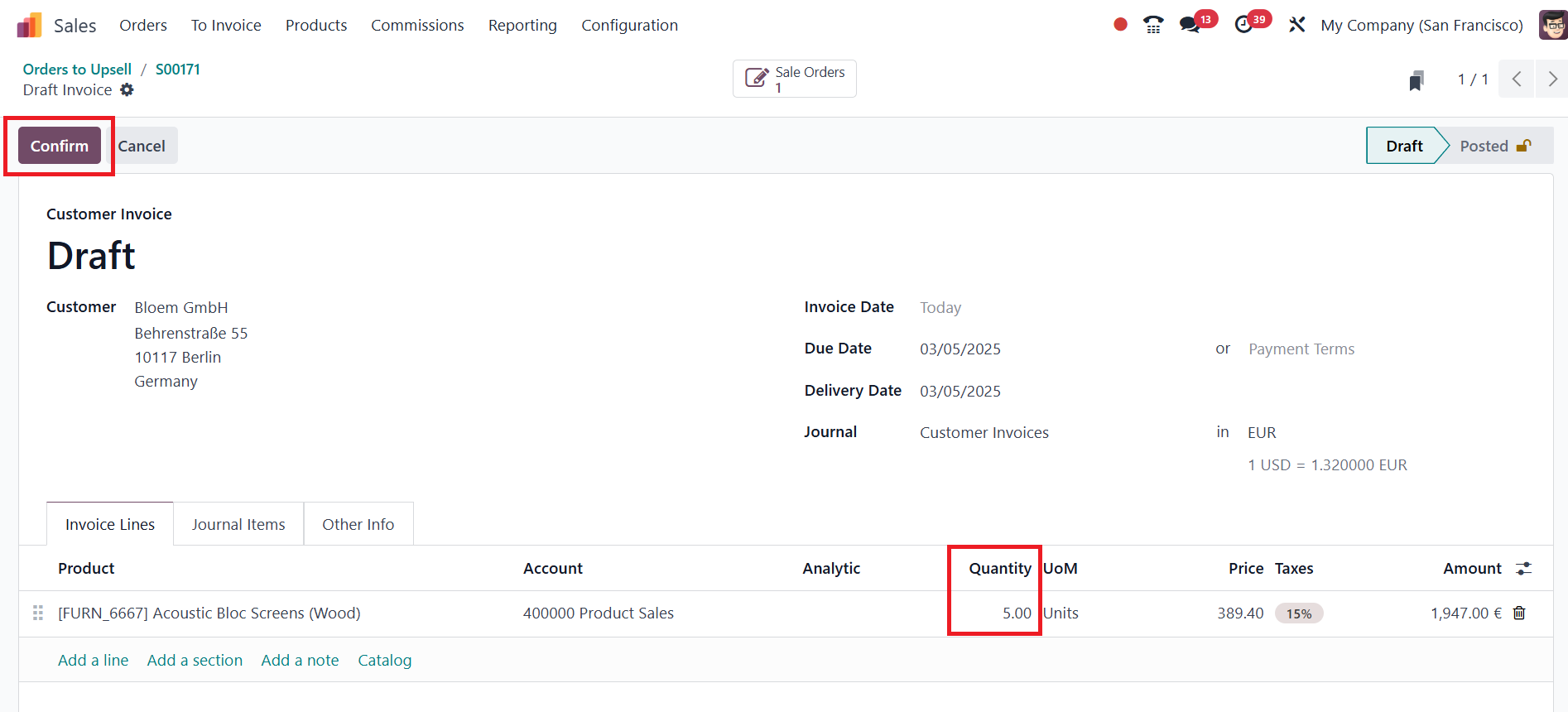
Upon clicking the Confirm button,
Odoo will process the
additional invoice, and the
sales order will move back to
the Sales Orders menu,
indicating that all invoicing
actions are complete.
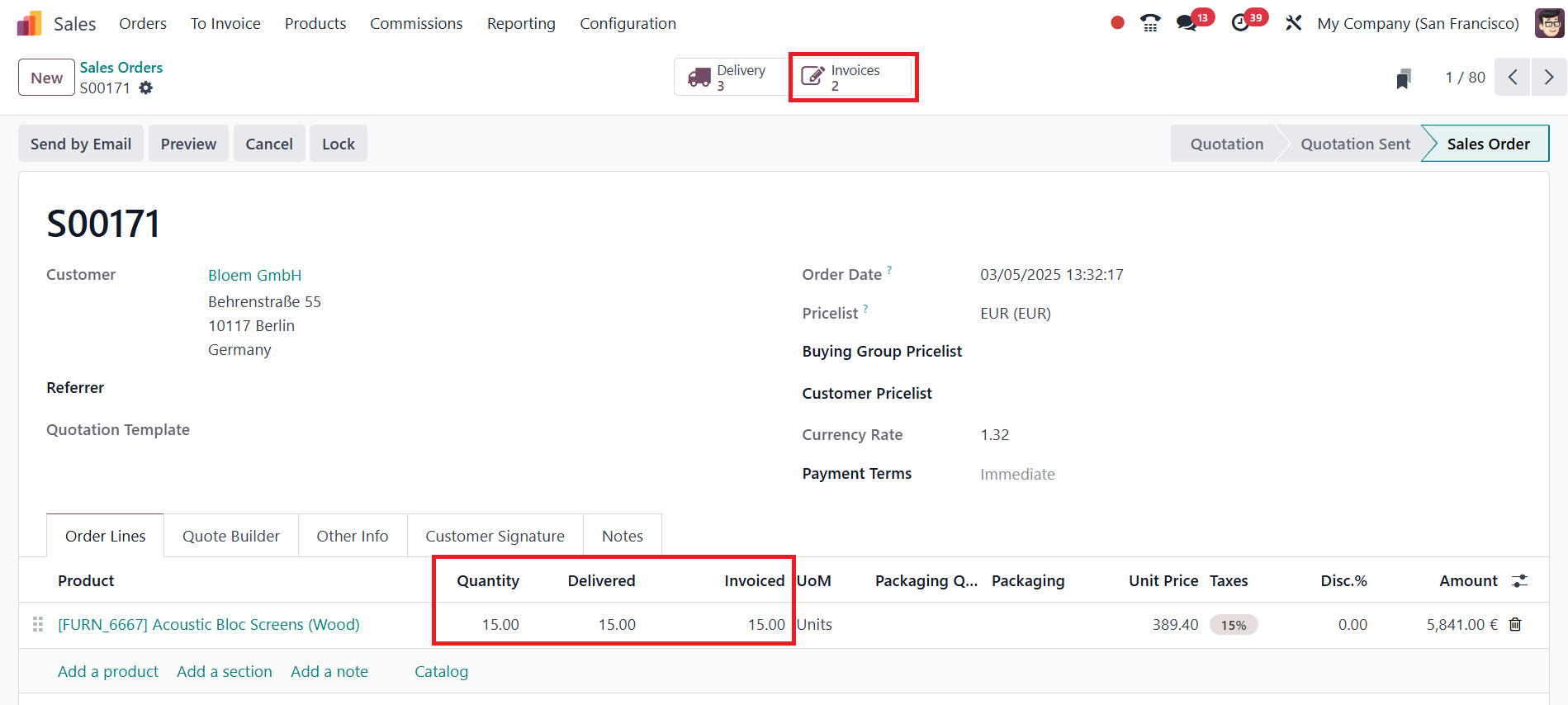
At this stage, there will be two
separate invoices associated
with the same sales order,
one for the initially ordered
10 units and another for the
additional 5 units.