11. PDF Quote Builder
The PDF Quote Builder in Odoo 18 Enterprise Sales Module allows
businesses to generate professional and customized quotations in PDF
format. This tool enhances the presentation of sales offers by
organizing essential details such as product descriptions, pricing,
and business information into a structured and visually appealing
document. By incorporating headers, footers, and product-specific
attachments, companies can create a highly personalized customer
experience. Additionally, the feature supports dynamic fields and
custom notes, allowing businesses to tailor quotes to meet specific
client requirements.
To enable the PDF Quote Builder, users must navigate to the Sales
module, access Configuration, and select Settings. Under the
Quotations & Orders section, the PDF Quote Builder option can be
activated with a simple toggle.
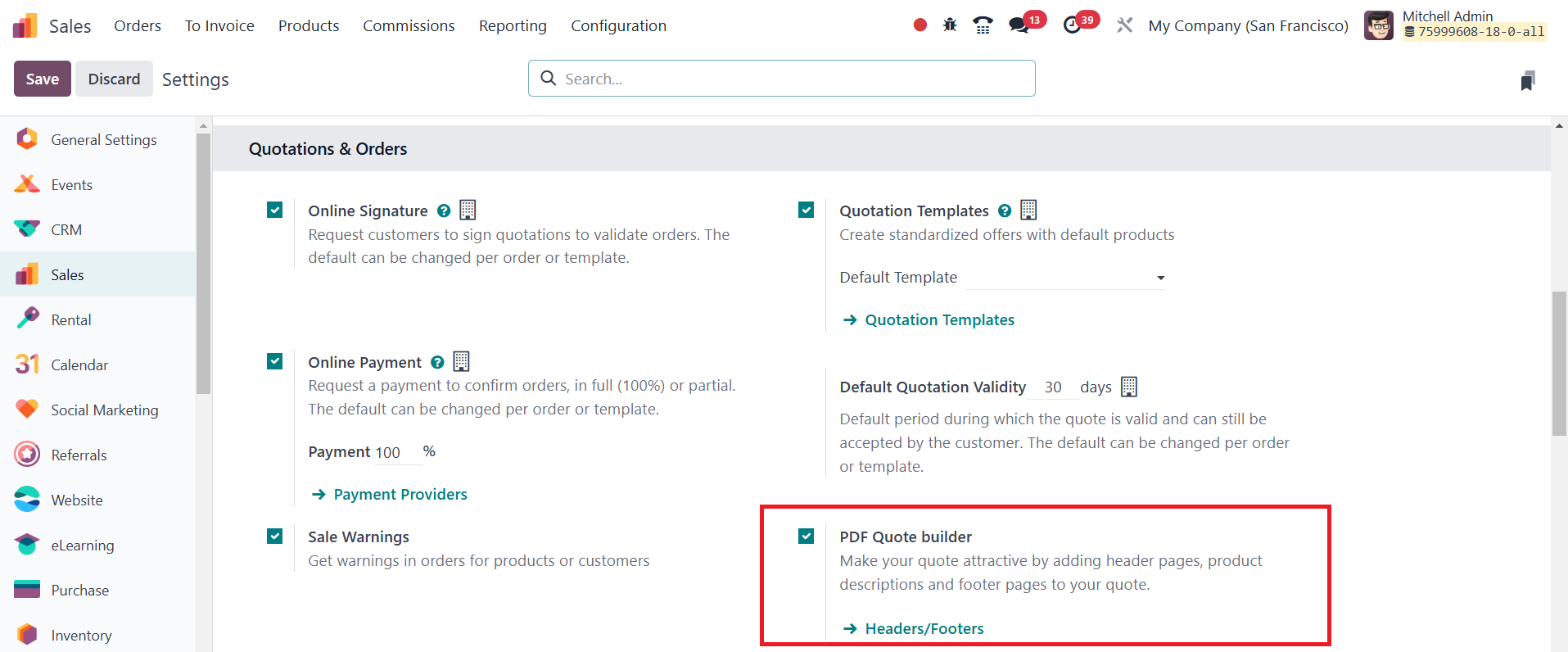
Once enabled, businesses can begin configuring custom headers,
footers, and product-specific documents to enhance the appearance
and professionalism of their quotations.
In Odoo 18, businesses can easily add custom PDF files as headers and
footers to their sales quotations. This ensures that all documents
maintain a consistent brand identity, including elements such as
company logos, terms and conditions, and legal disclaimers.
To add a custom PDF as a header or footer, start by navigating to the
Sales module, then go to Configuration and select Headers/Footers.
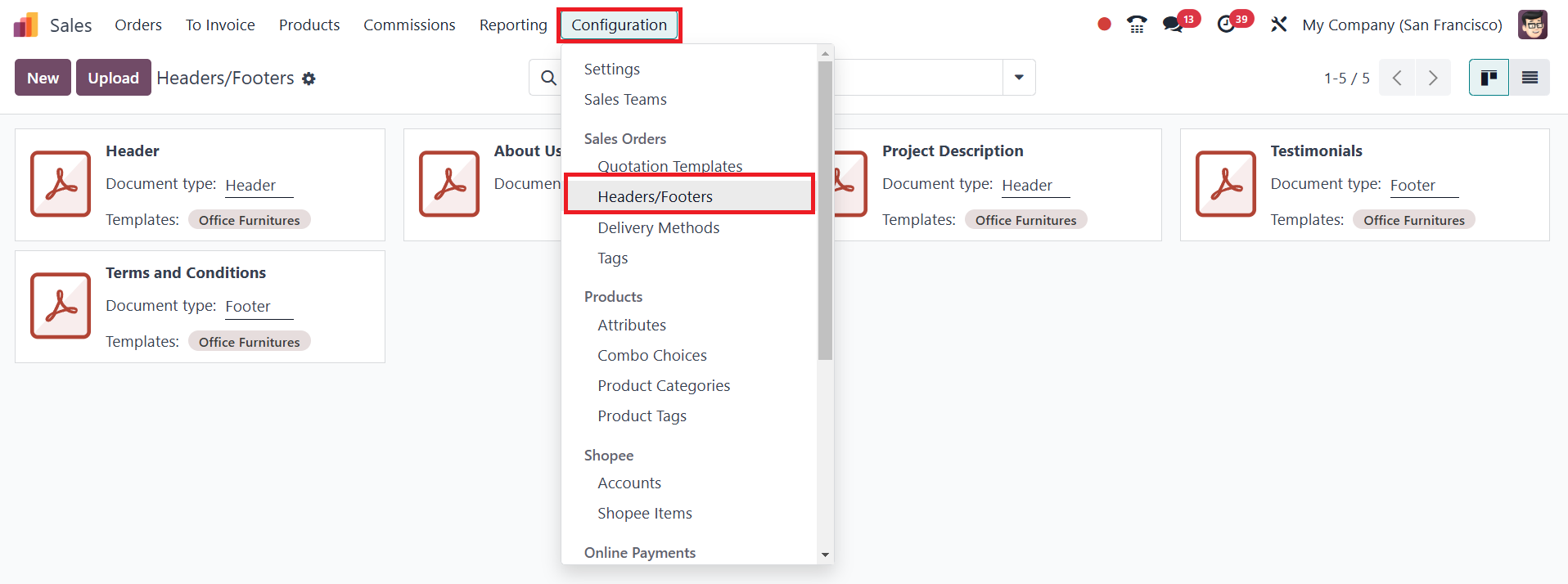
From this section, you have two options: you can either click New to
create a new header or footer document or click Upload to instantly
upload an existing PDF file.
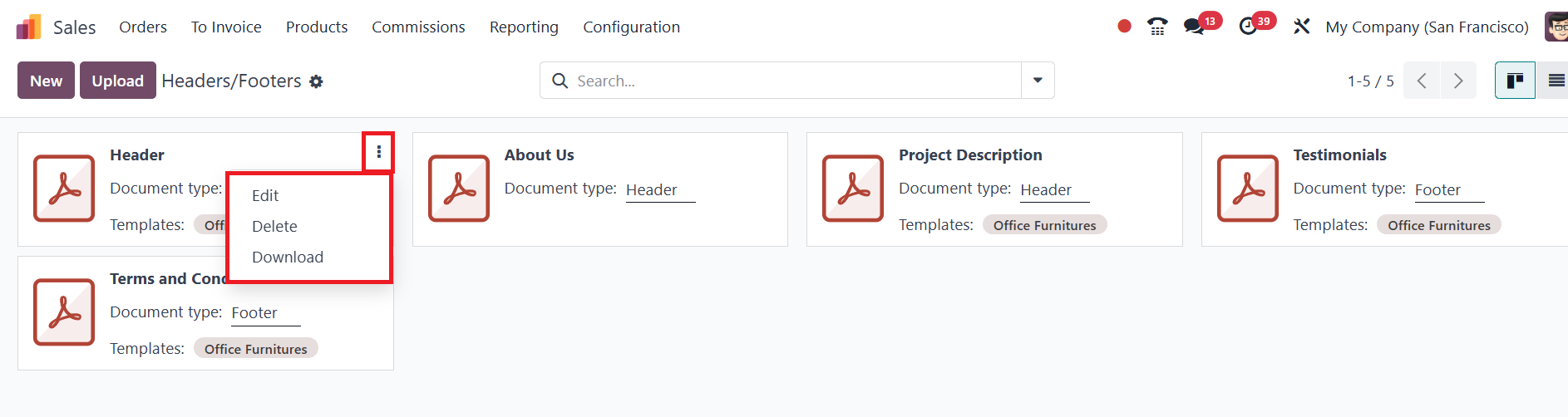
If you select the Upload option, the file is directly added to the
system, after which it can be configured based on your requirements.
If you choose New, a blank document form appears where you can
upload a PDF using the Upload your file button located within the
File Content field.
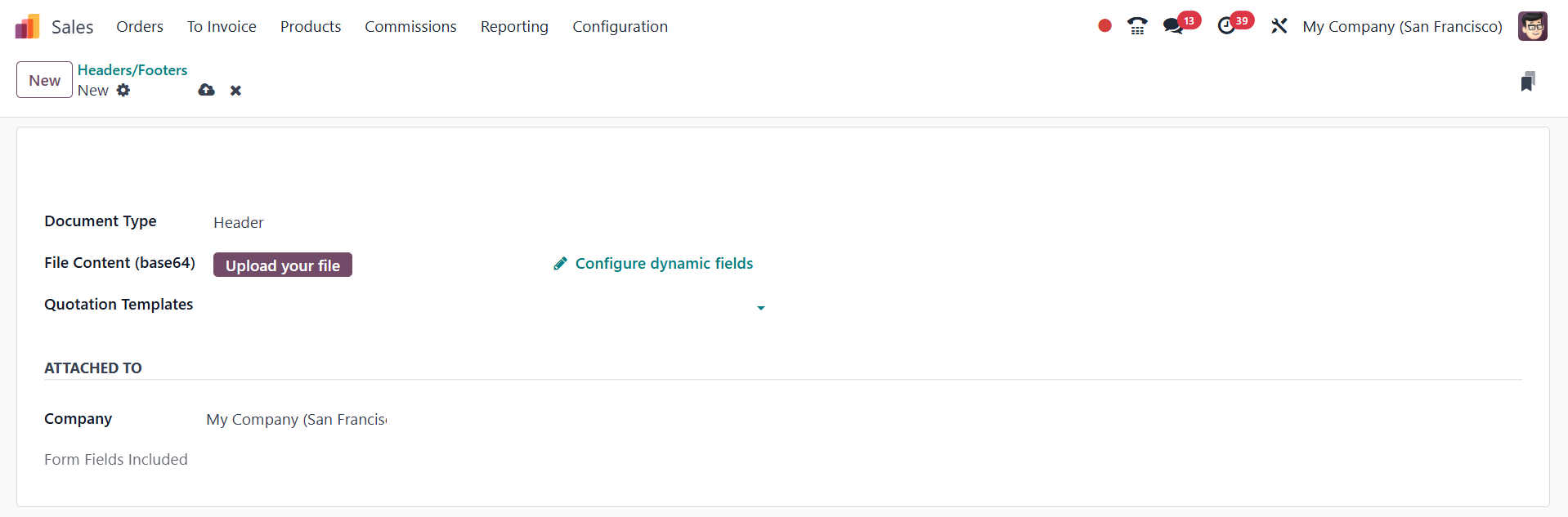
Once the document is uploaded, various configurations can be
adjusted. The Name field is automatically populated with the file
name, which can then be edited if needed. In the Document Type
field, select whether the document should function as a Header or
Footer within the quotation. If you want the document to be applied
only to specific templates, you can define that in the Quotation
Templates section. Additionally, the Company field allows you to
specify which company should use this document in a multi-company
setup.
One of the key features of Odoo 18’s PDF Quote Builder is the ability
to configure dynamic fields. These fields enable users to map
placeholders in the PDF to actual data fields within Odoo. For
example, if your PDF contains a placeholder for the customer’s name,
you can map this to the Customer Name field in the system, ensuring
that personalized information is automatically populated. This
mapping is done by specifying the path for the fields you wish to
populate dynamically.
In addition to headers and footers, Odoo 18 allows users to attach
custom PDFs to specific products, ensuring that relevant product
documentation is automatically included in sales quotations. To do
this, navigate to the Sales module, go to Products, and select the
product for which you want to add a custom PDF.
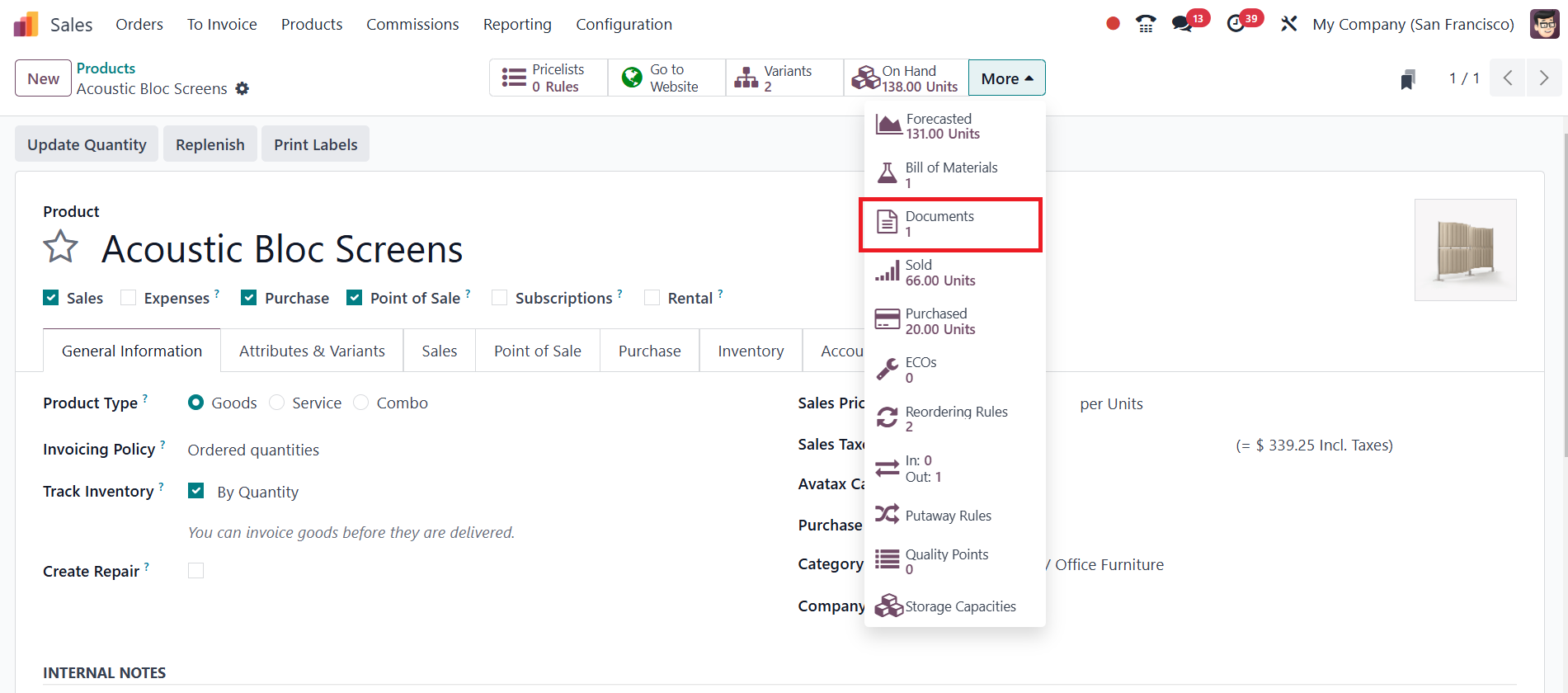
On the product page, click on the Documents smart button at the top.
This opens a dedicated Documents page where you can manage files
related to that product.
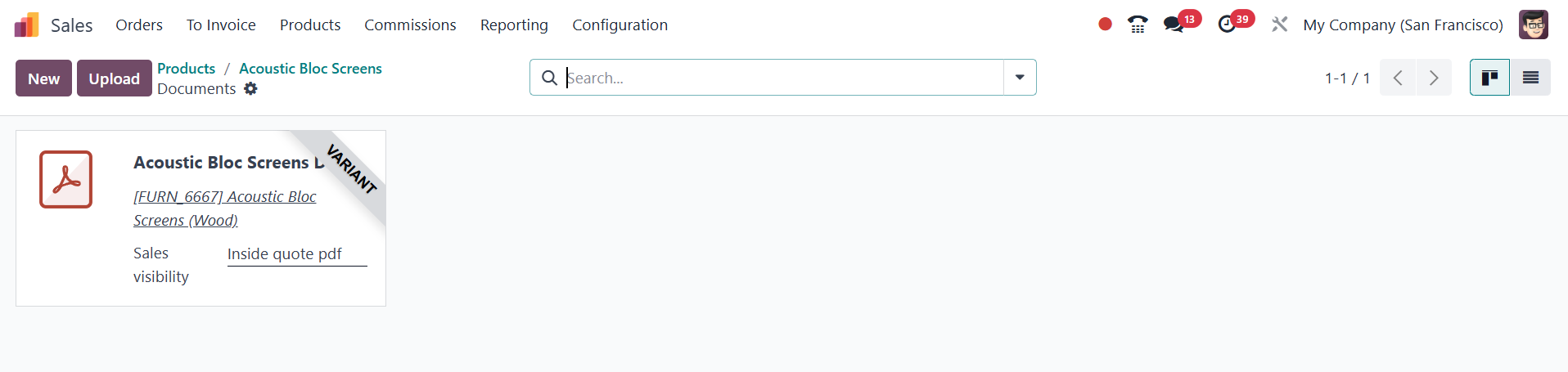
Similar to the header/footer process, you can either click New to
create a new document entry or click Upload to instantly attach an
existing PDF file. If you are creating a new document, the system
provides a blank form where you can upload the file by clicking the
Upload your file button within the File Content field. The Name
field will be auto-populated once the file is uploaded, and it can
be edited if required.
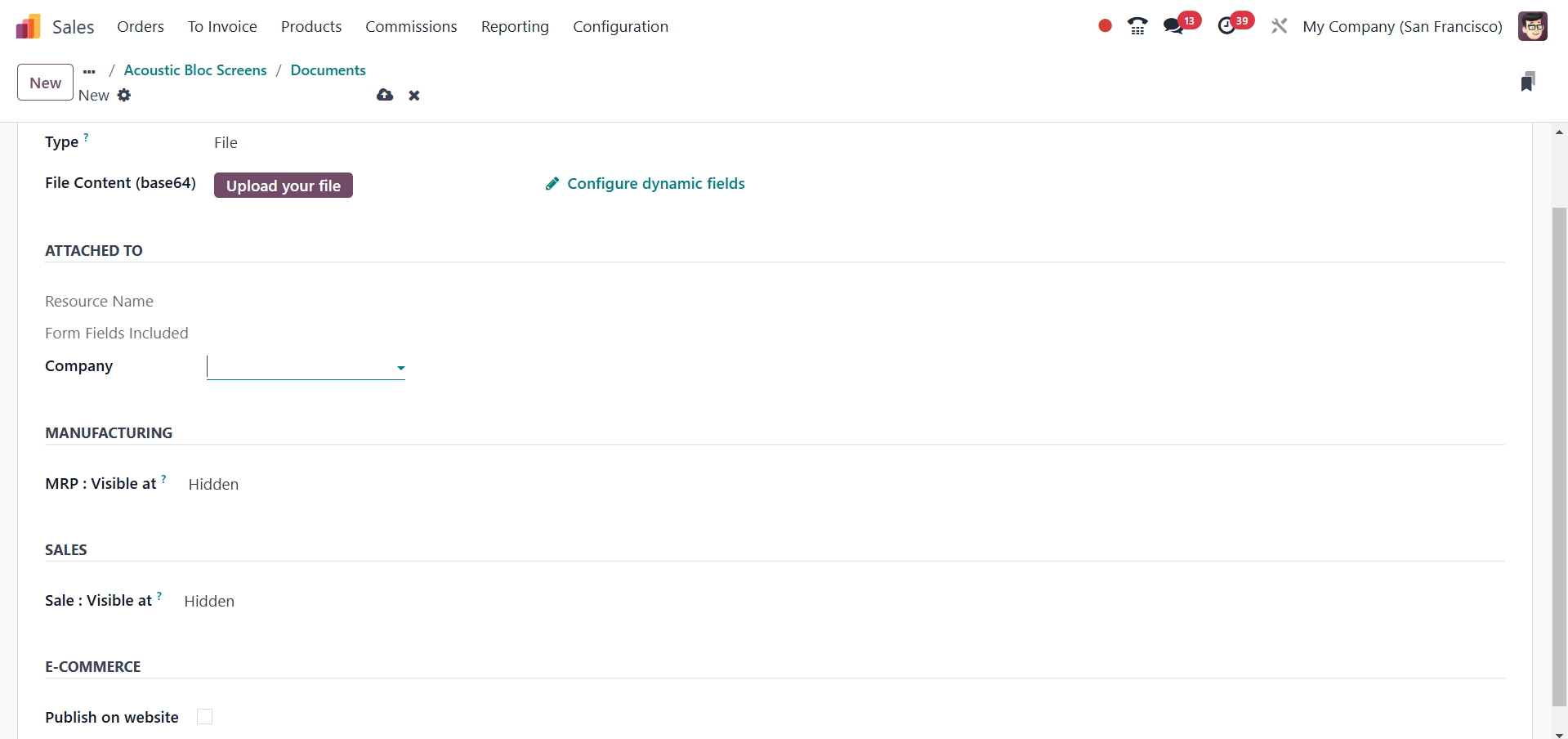
Before uploading the document, you can specify its Type using the
Type drop-down menu, choosing between a File or a URL. The Sales
section contains a Visible at field, which determines when the
document is sent to customers. The available options include:
- Quotation: The document is accessible by customers at any
time during the quotation process.
- Confirmed Order: The document is only sent to customers
once the order has been confirmed. This is useful for documents
like user manuals or warranty details that should only be
provided after a sale is finalized.
- Inside Quote: The document is embedded within the PDF
quotation and positioned between the header pages and the
pricing section.
Additionally, in the E-Commerce section, you can configure whether
the document should be displayed on the product page in the online
store by selecting or deselecting the Show on product page option.
Within the Sales Order, the Quote Builder tab provides the
flexibility to select specific documents to be merged into the final
PDF. If the selected document includes custom fields, users can
directly enter relevant details to populate these fields, ensuring
that each quote is uniquely tailored to the customer’s needs.
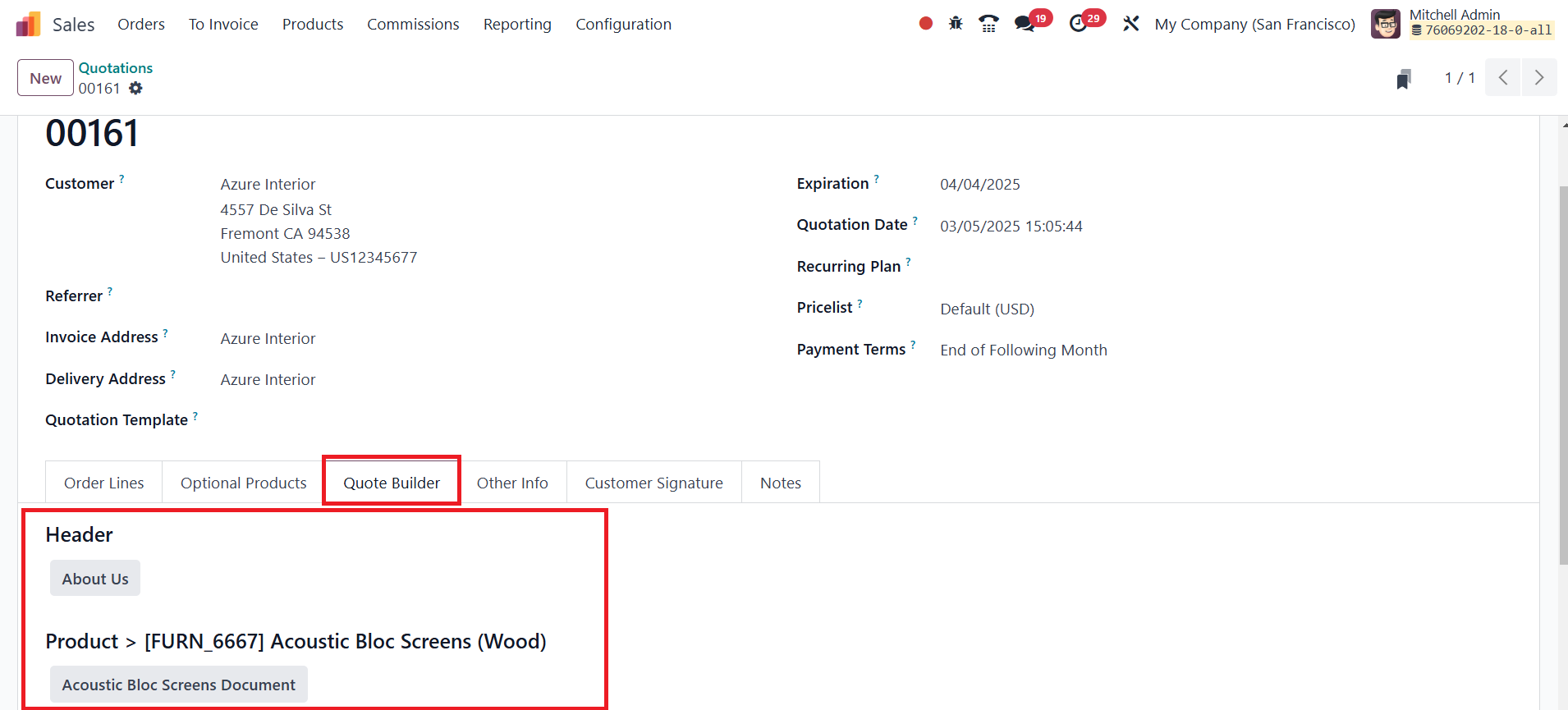
Odoo 18 allows users to incorporate multiple headers,
product-specific documents, and footers into a single quotation,
ensuring a comprehensive and professional presentation. Once a quote
with a pre-configured PDF is confirmed, the system enables users to
generate and print the finalized document for review. To do this,
navigate to the confirmed quote, click on the gear (⚙️) icon, select
Print, and then choose PDF Quote.
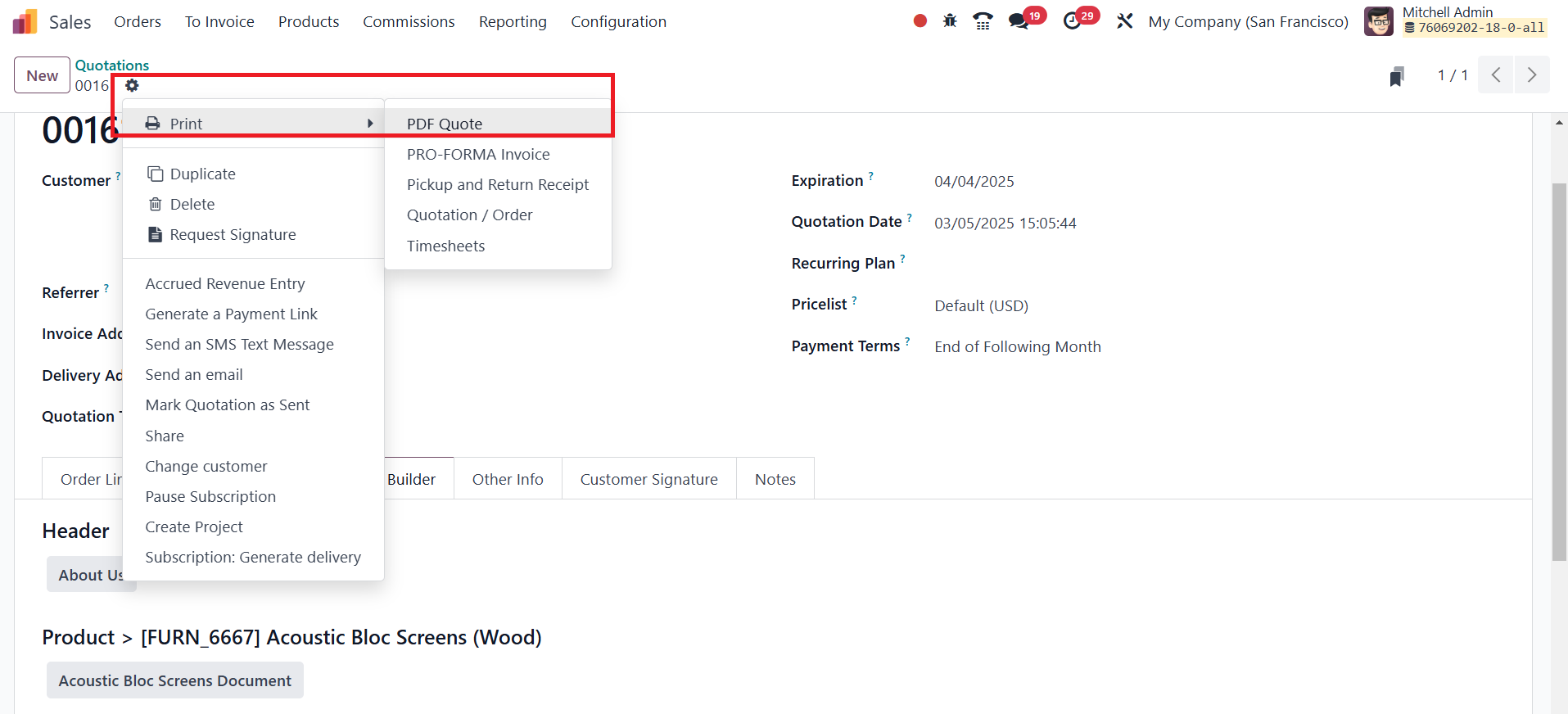
This action triggers the download of the complete PDF quotation,
including all attached product documents, headers, and footers.
Upon opening the downloaded file, users will see a well-structured
quotation that includes all the configured product details, headers,
footers, and any additional documents that were set to be included
within the quote. The final document can then be viewed, shared with
customers via email, or printed for record-keeping purposes.