3. Product Variants and Attributes
In Odoo 18 Enterprise, businesses can offer more options to their
customers by setting up product variants. This feature is
particularly useful when a product has different versions, such as
multiple sizes, colors, or configurations. To enable the Variants
functionality, go to the Settings menu of the Sales module and
activate the Variants option under the Product Catalog tab.
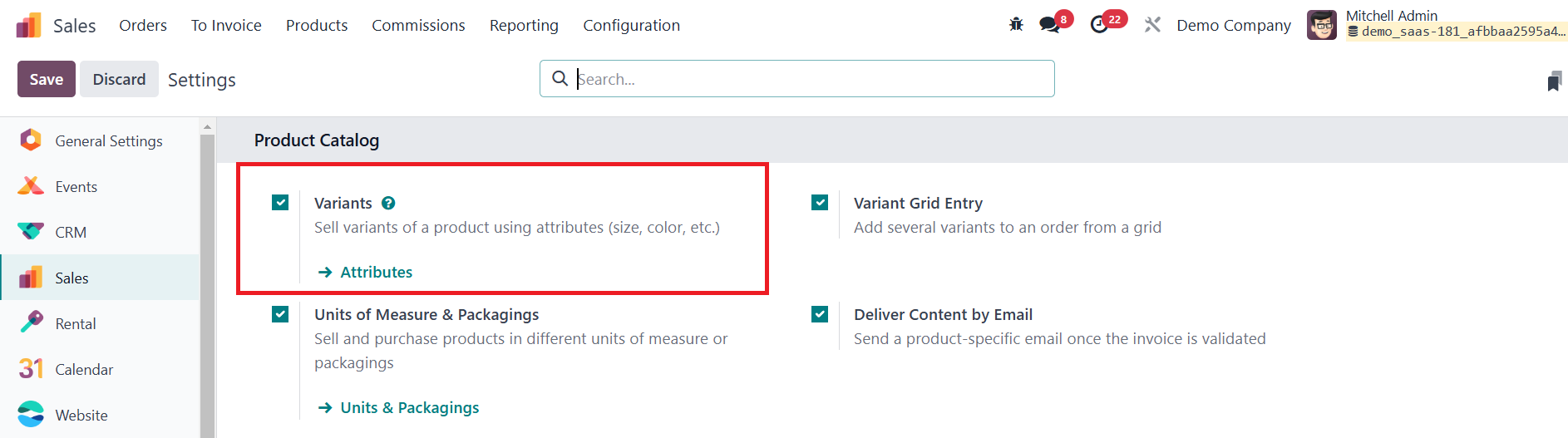
Once activated, you can use attributes to define various versions of
the same product, offering customers a broader selection.
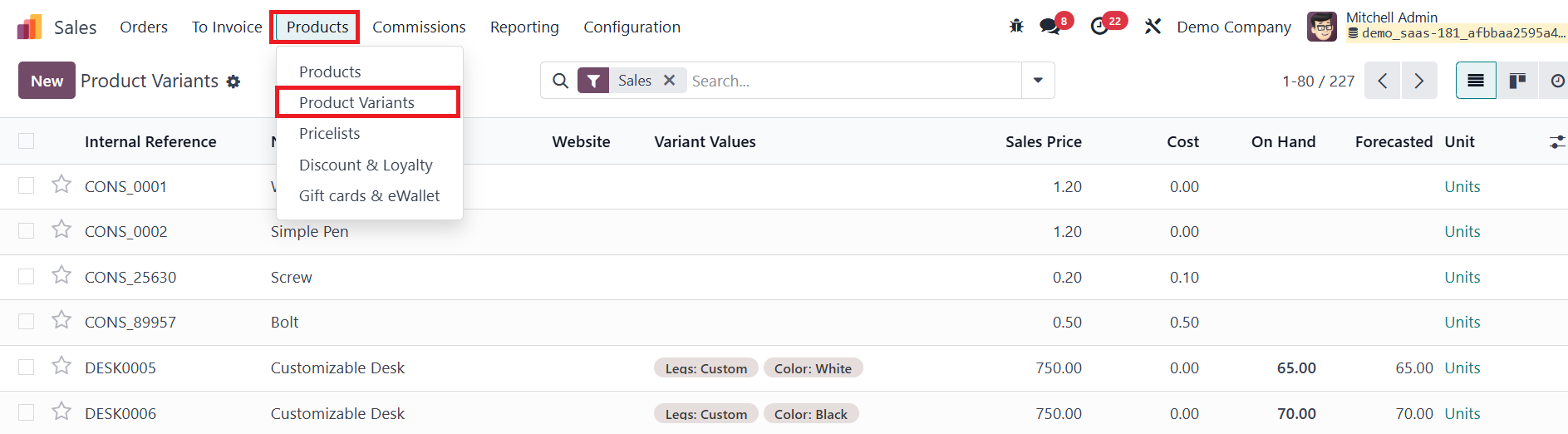
To configure product variants, you can use the Product Variants
option found under the Products menu. The process for configuring
variants is similar to the standard product configuration process.
After enabling the variant functionality, you’ll see a list of
already configured product variants in the product setup window. You
can easily add new variants by clicking the NEW button and following
the same steps used for product configuration.
In the Configuration menu, you can customize the attributes that
define the variants.
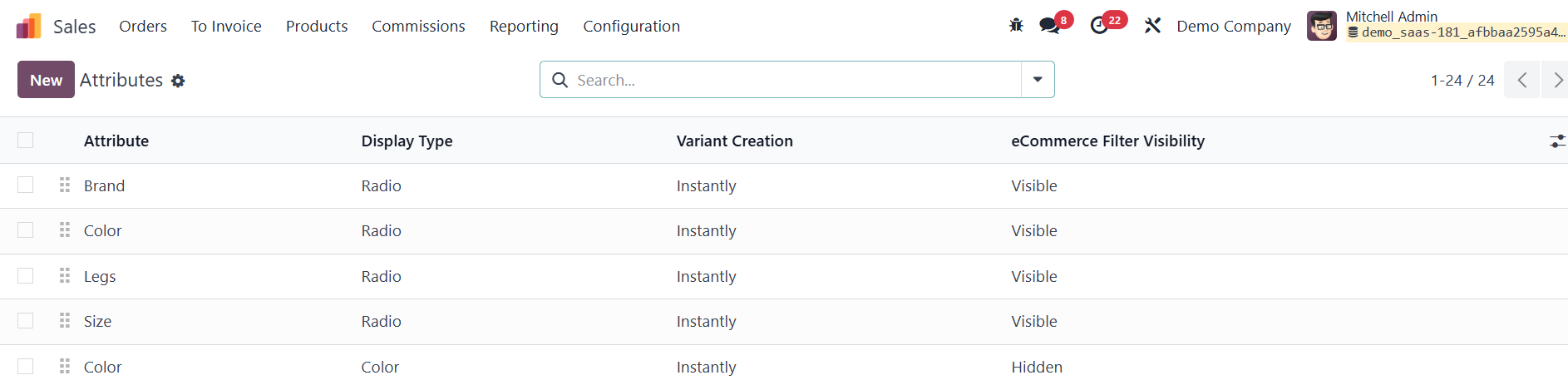
To do this, select the Attributes option from the Configuration menu.
In the Attribute Name field, enter the name of the attribute, such
as Size, Color, or Material. You can group similar attributes into
categories to streamline the eCommerce comparison page.
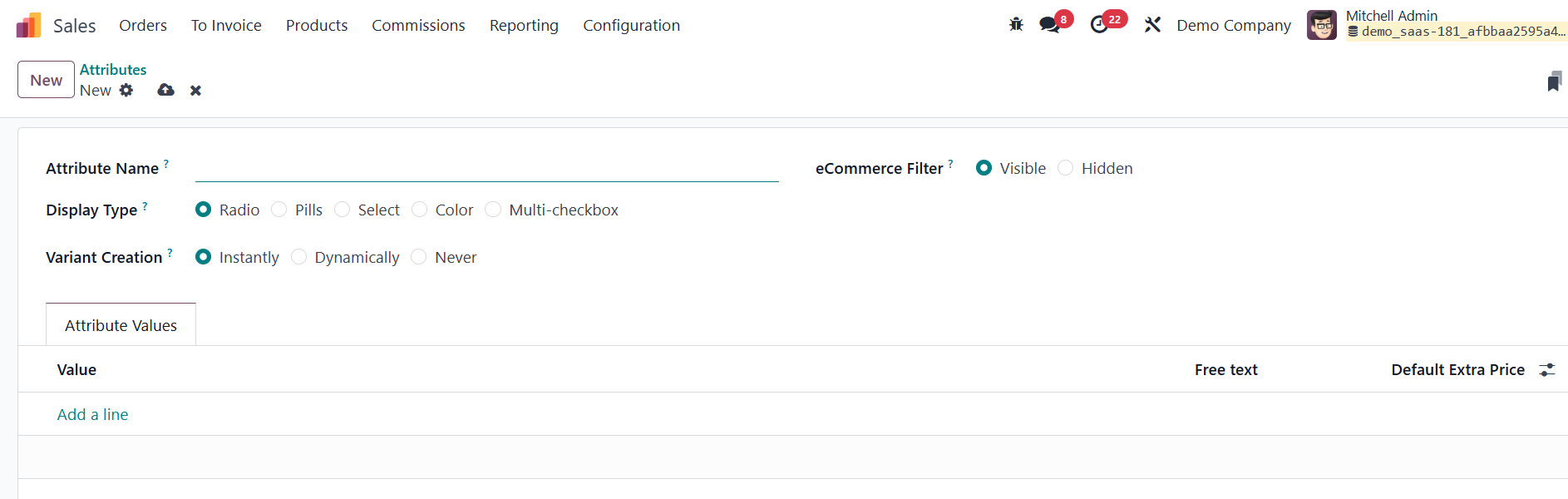
When setting up attributes, you can choose the Display Type for how
these attributes will appear in the Product Configurator. Options
include Radio, Pills, Select, or Colour display types, allowing for
flexibility in how customers interact with the product options on
your website. Additionally, the Variants Creation Mode can be
adjusted to control how variants are generated based on the selected
attributes. To control how attributes appear on your eCommerce
website, the eCommerce Filter Visibility field allows you to choose
whether an attribute will be Visible or Hidden in the website's
filter. If you choose Visible, the attribute will be available for
filtering in the eCommerce store; selecting Hidden will prevent the
attribute from appearing in the filter options.
Using the Add a Line button under the Attribute Values tab, you can
specify the different values for each attribute, such as Red, Blue,
Small, or Large. This allows you to define the specific options that
customers can choose from when purchasing the product.
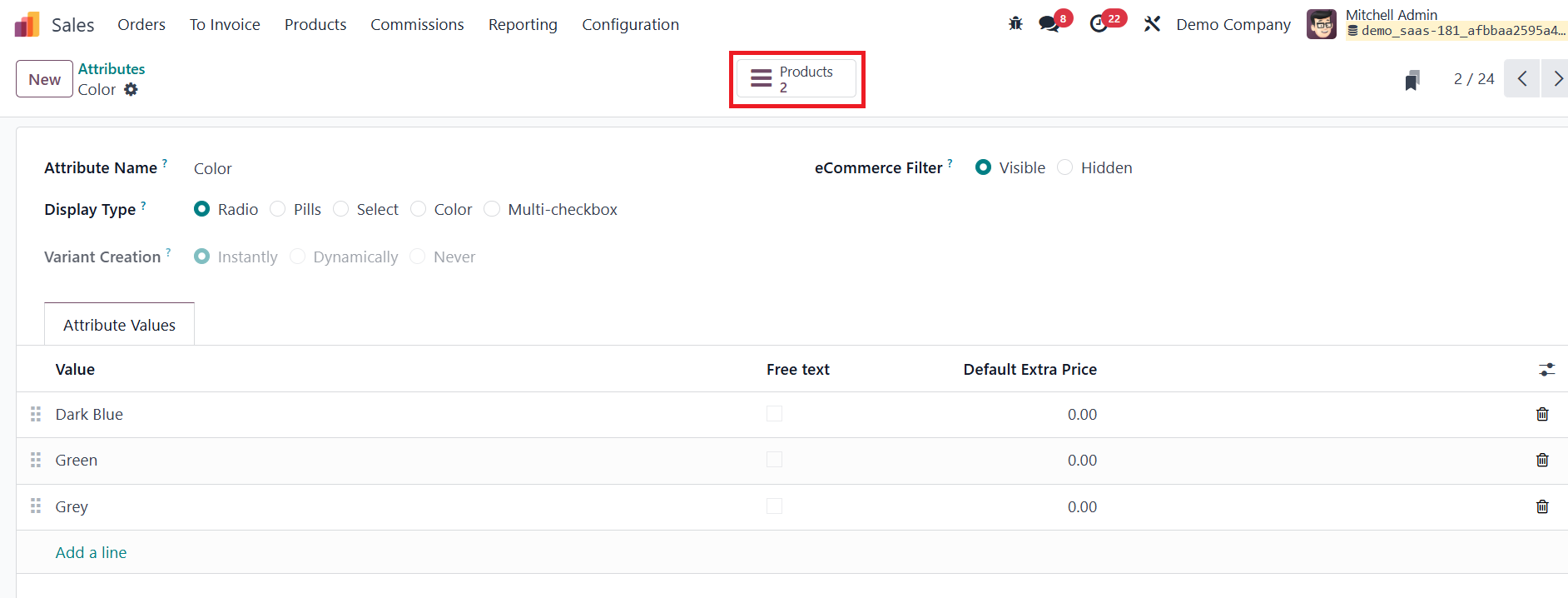
Finally, the Products smart button will display a list of products
that share the same attribute, providing customers with related
options.
In Odoo 18 Enterprise, once product attributes have been configured,
a Configure button appears within the Attributes & Variants tab.
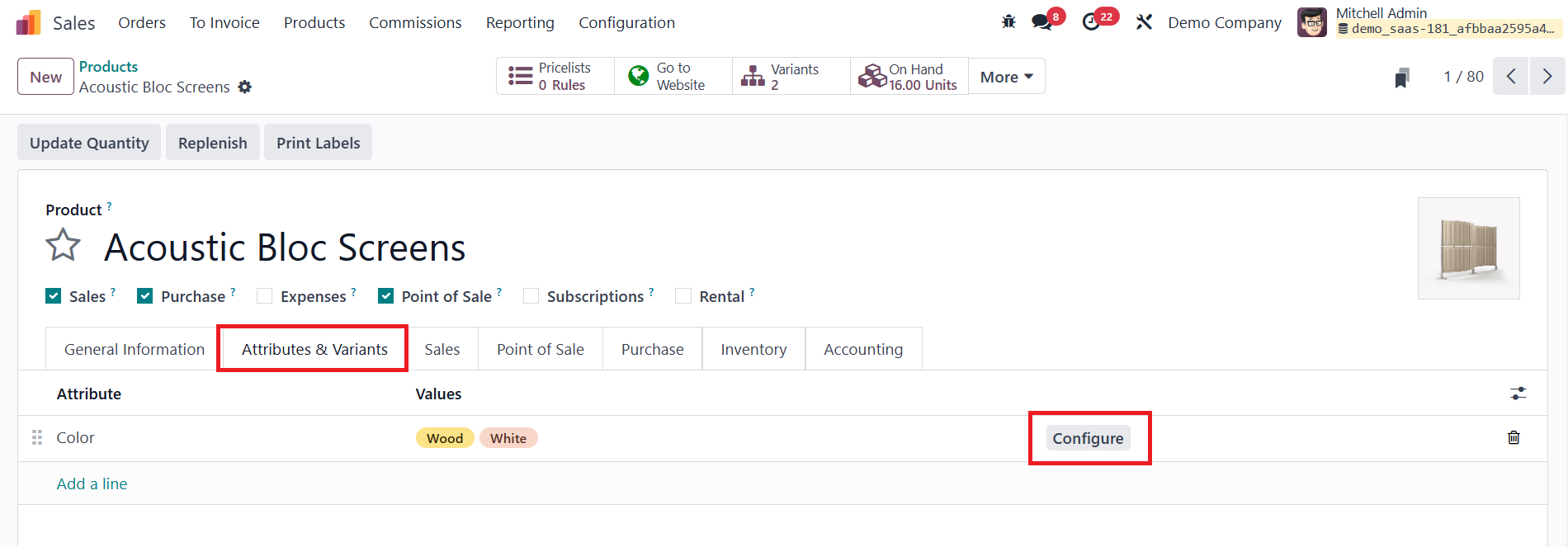
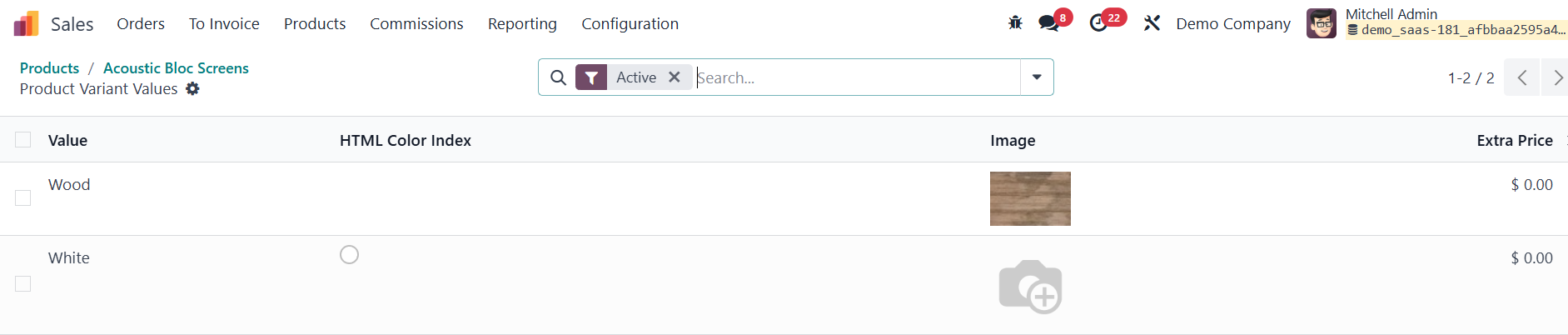
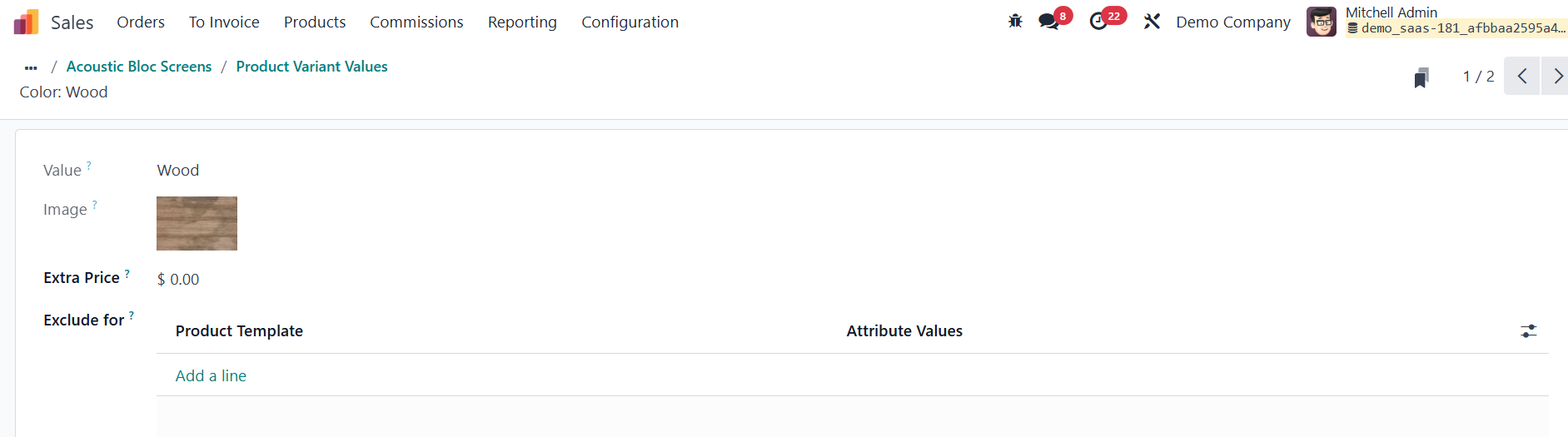
Clicking this button allows businesses to add further customization
to product variants, such as setting additional costs for specific
variants, displaying attribute values, and managing exclusion
criteria in the Exclude for box.
This exclusion feature ensures that certain attribute combinations,
which may be incompatible, are not available for selection.
To streamline the selection process for product variants in
quotations and sales orders, Odoo 18 introduces the Variant Grid
Entry option. This feature provides a pop-up window for selecting
product variants, making it easier for sales teams to configure
orders efficiently. To enable this functionality, navigate to Sales
→ Configuration → Settings, locate the Product Catalog section,
check the box for Variant Grid Entry, and click Save.
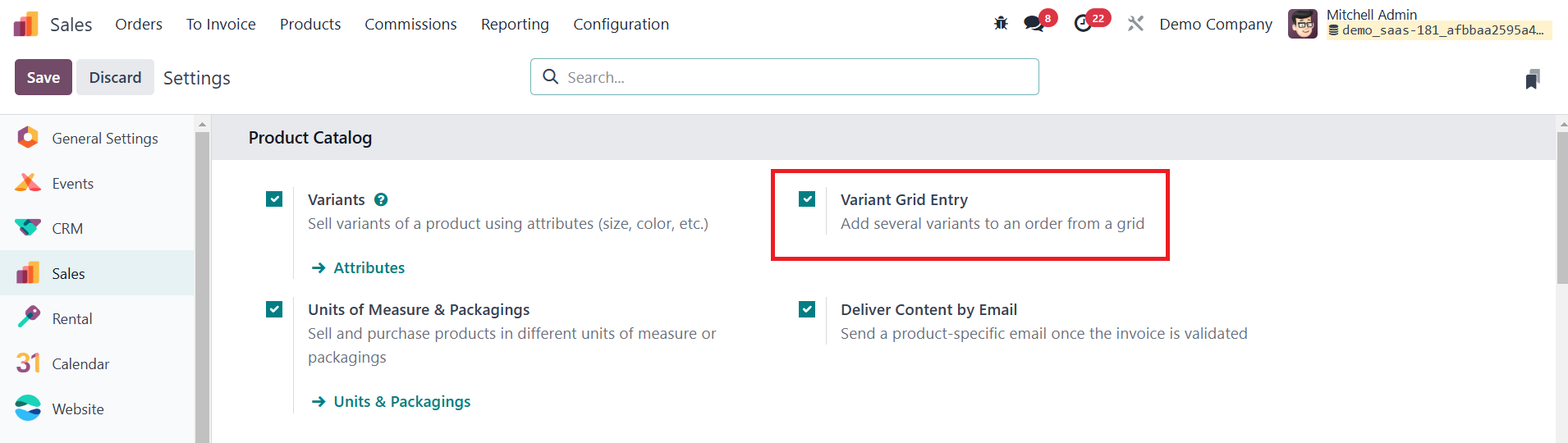
Once enabled, both the Product Configurator and Order Grid Entry
options become available on every product form.
To configure a product for either Product Configurator or Variant
Grid Entry, go to Sales → Products → Products, select an existing
product or create a new one, and open the Attributes & Variants tab.
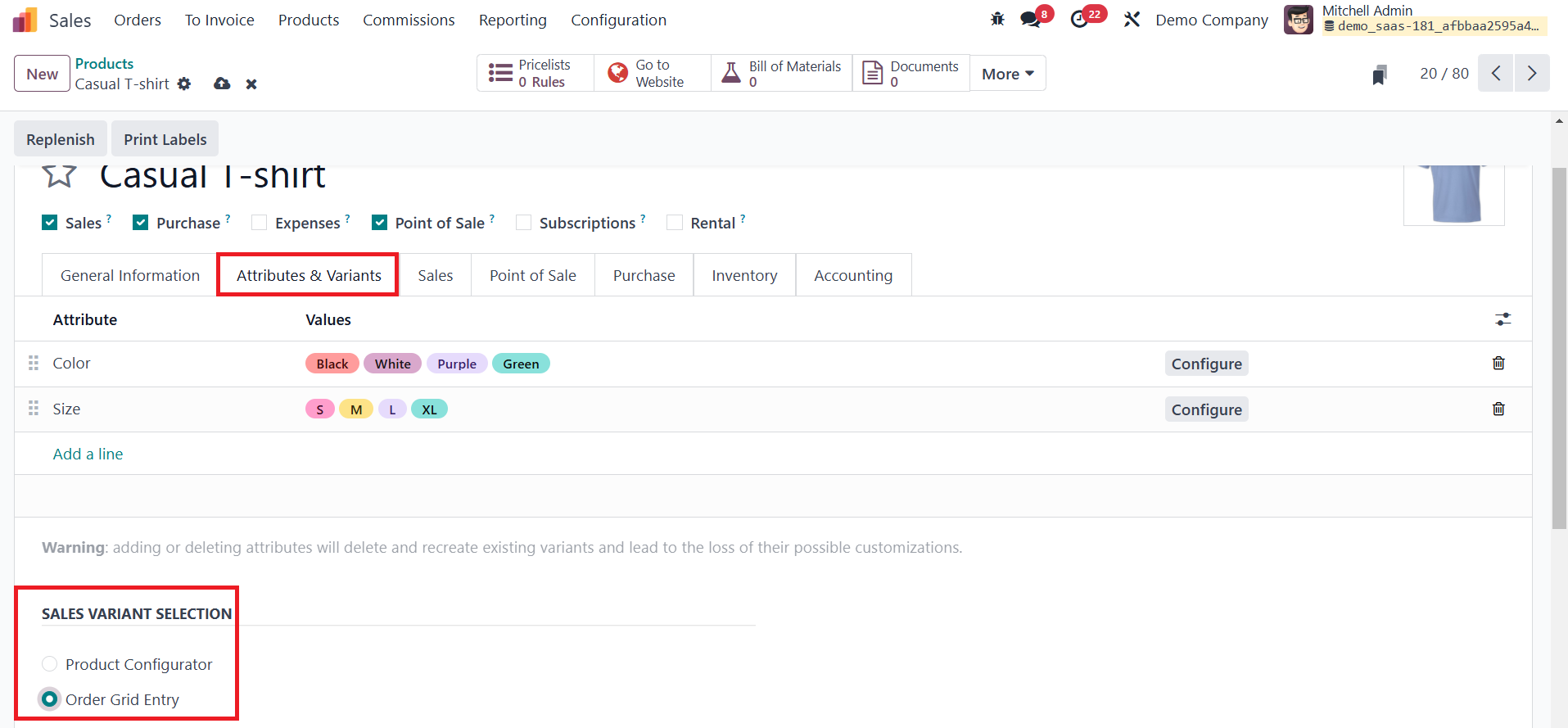
Here, you can view, modify, or add product variants. At the bottom of
this tab, under the Sales Variant Selection section, you will find
two options:
-
Product Configurator: This feature displays a pop-up
window where users can view and select one variant at a time
before adding it to a quotation or sales order. This method is
ideal when customers need to make a detailed selection for each
product individually.
-
Order Grid Entry: This option presents product variants
in a table format, allowing users to select multiple variants at
once.
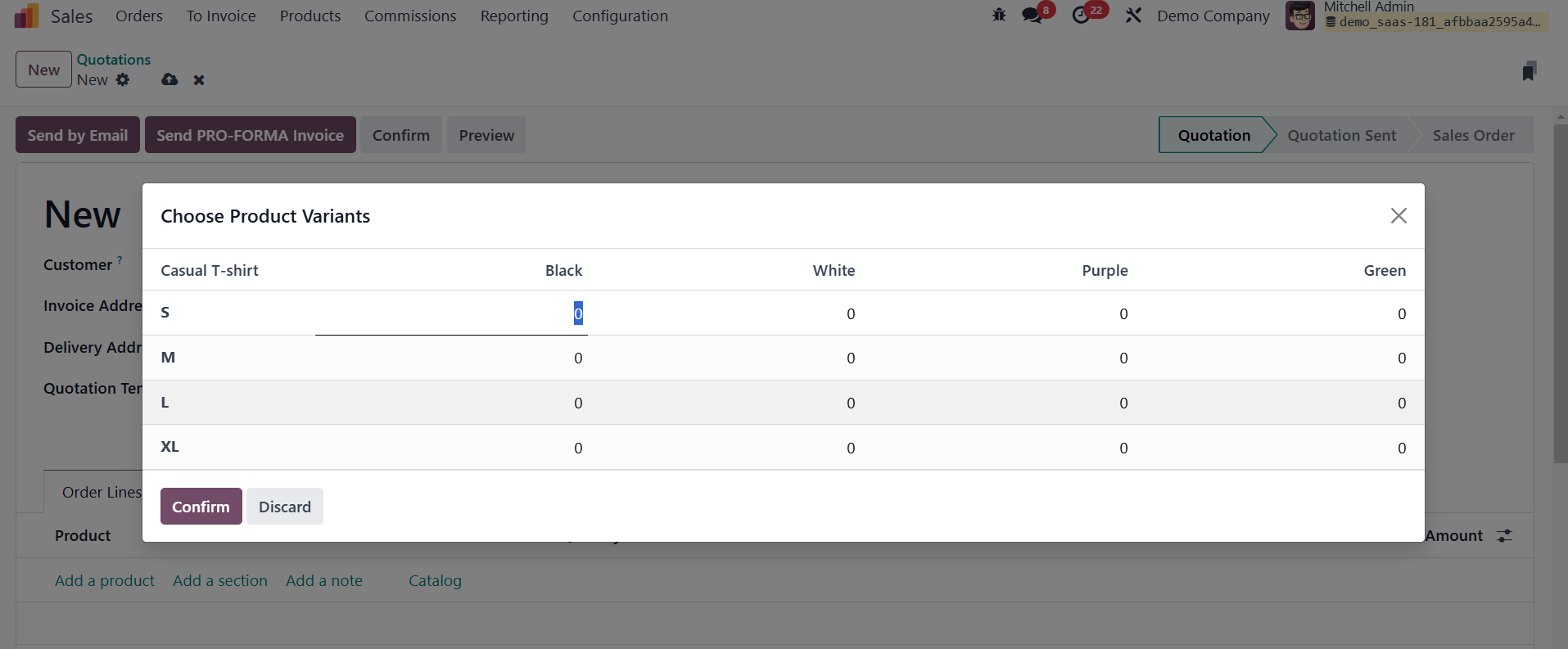
When a product with at least two variants is added to a quotation or
sales order, a Choose Product Variants pop-up window appears,
enabling the salesperson to specify quantities and variants in a
single step.
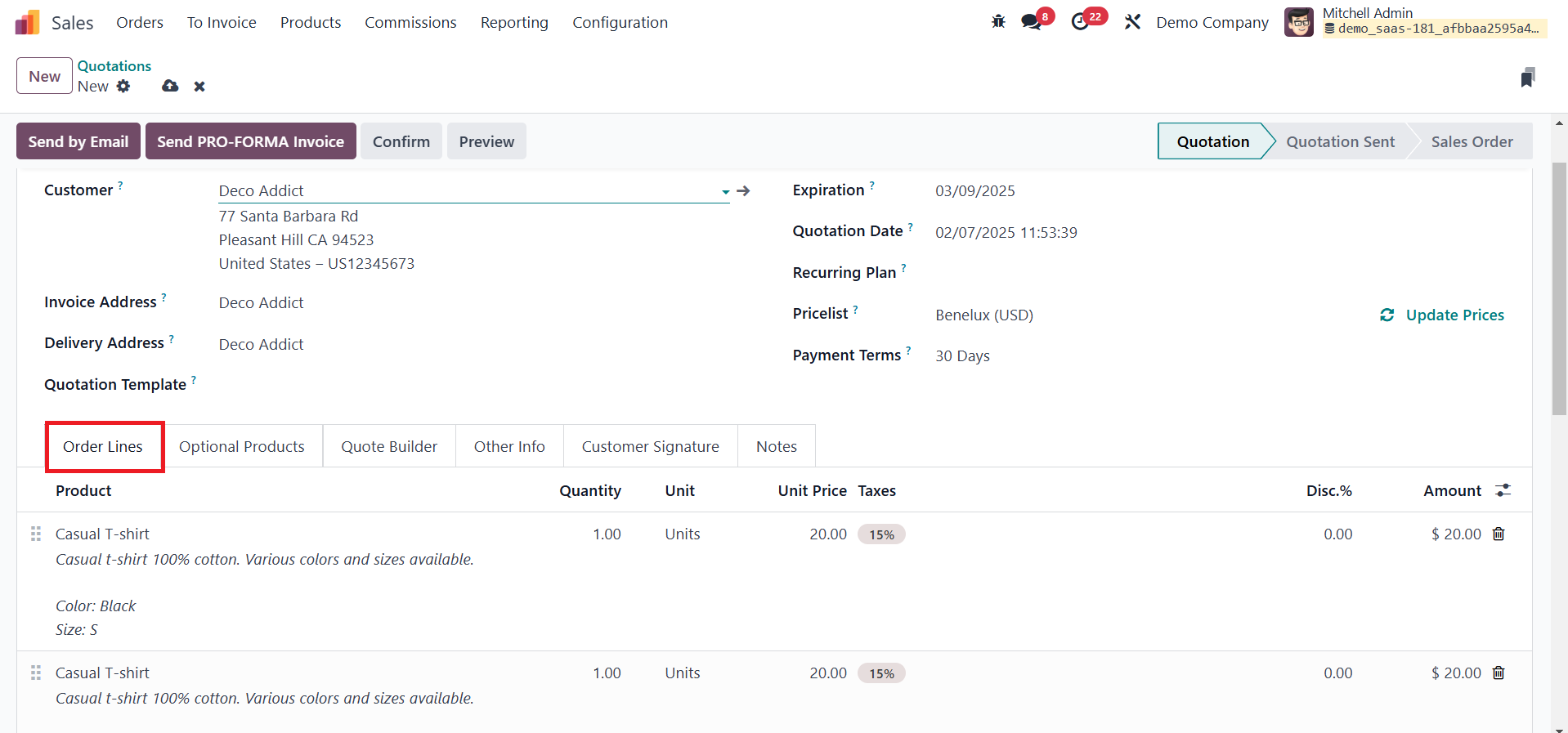
The selected variants are then automatically added to the Order Lines
tab, simplifying order processing.
Once the desired variants are selected and confirmed, the sales order
or quotation is instantly updated.