2. Products
Odoo 18 Enterprise provides a
dedicated Product Management
Platform that allows
businesses to track and
organize all relevant product
information seamlessly. This
system ensures that critical
product details, such as
sales configurations,
inventory levels, pricing,
and accounting data, are
efficiently managed,
contributing to streamlined
business processes.
The Products Menu in the Odoo 18
Sales module plays a key role
in managing sales items
effectively. When creating
quotations or sales orders,
users need to specify product
details to ensure accuracy in
transactions. Having all
sales products configured in
the system simplifies the
selection process, allowing
users to choose items with a
single click.
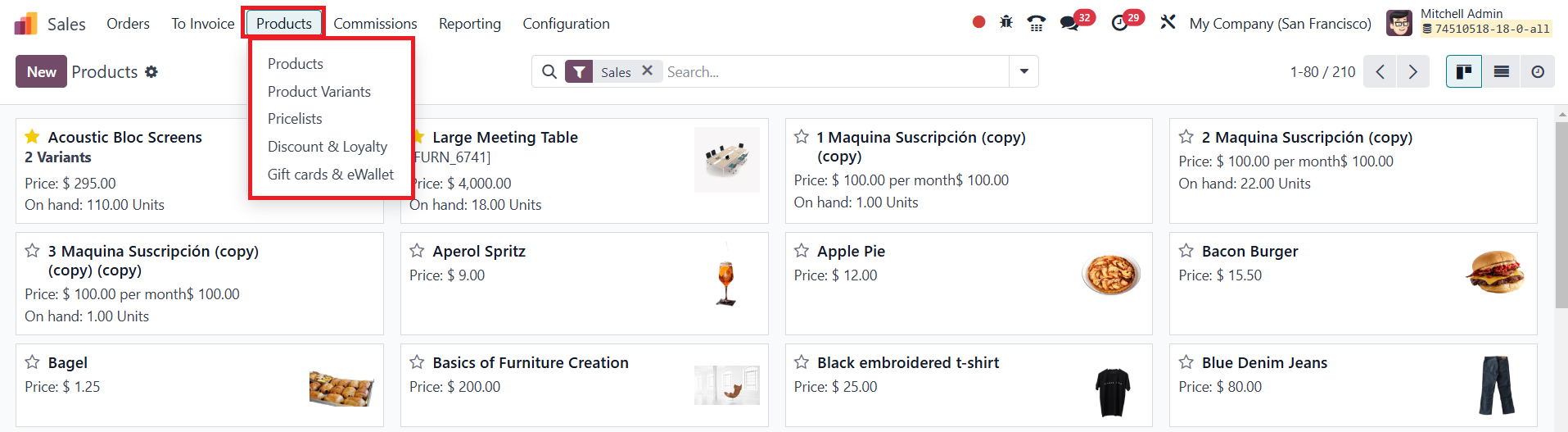
In the Odoo 18 Sales module, the
Products Menu is located in
the main navigation bar. This
menu provides access to
several essential sub-menus,
including Products, Product
Variants, Pricelists,
Discounts & Loyalty Programs,
and Gift Cards & eWallets.
Upon selecting the Products
option, you will be
redirected to a window
displaying a complete list of
products available for sales
operations. This window
supports multiple viewing
modes, including List View,
Kanban View, and Activity
View, each catering to
different management needs.
The Kanban View offers a visually
intuitive layout where
products are represented as
individual cards, making it
easy to navigate and manage
product data. Additionally,
the Activity View provides an
organized list of scheduled
tasks related to sales
operations, allowing users to
track upcoming actions for
different products
efficiently.
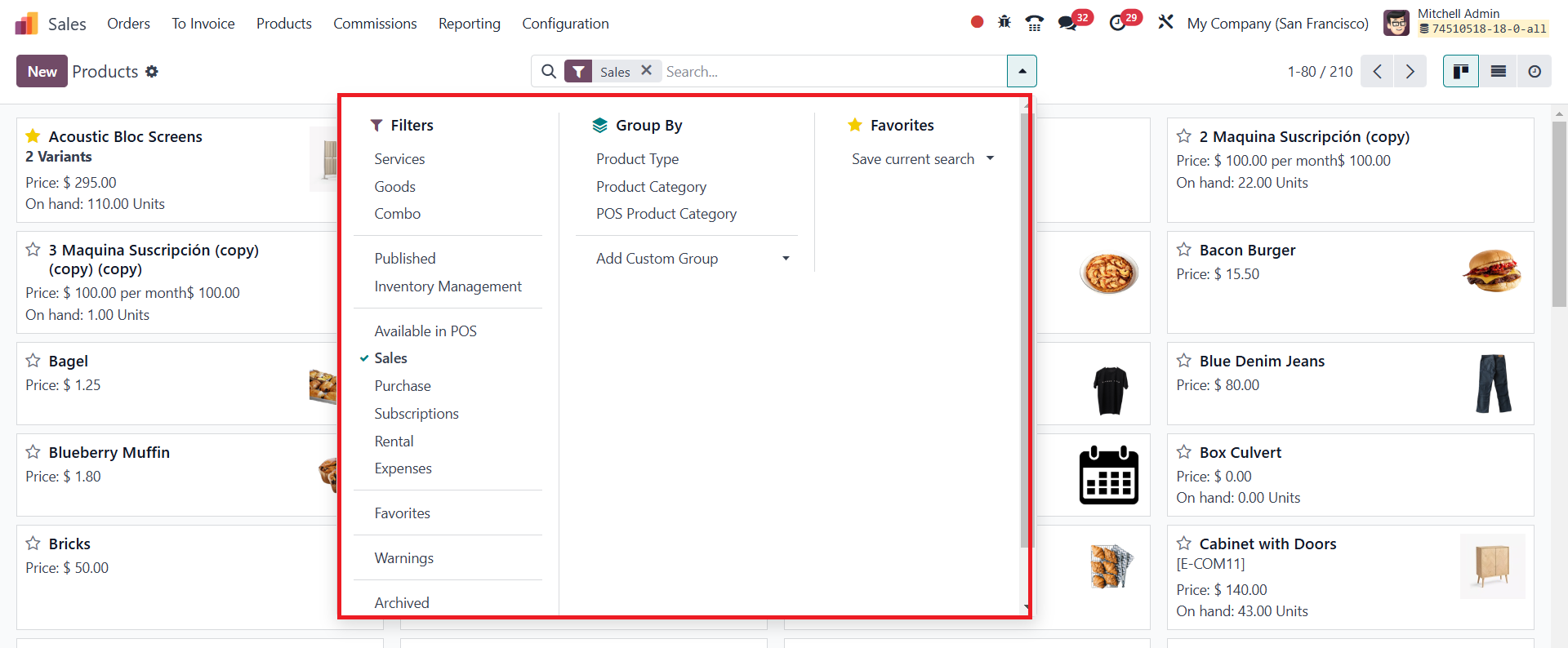
For enhanced data retrieval, the
Filters and Group By options
enable users to sort and
categorize products based on
various parameters. These
options can be customized to
refine searches, ensuring
quick access to the required
product details. Each product
entry includes a star icon,
allowing users to mark
specific products as
favorites for quick
reference.
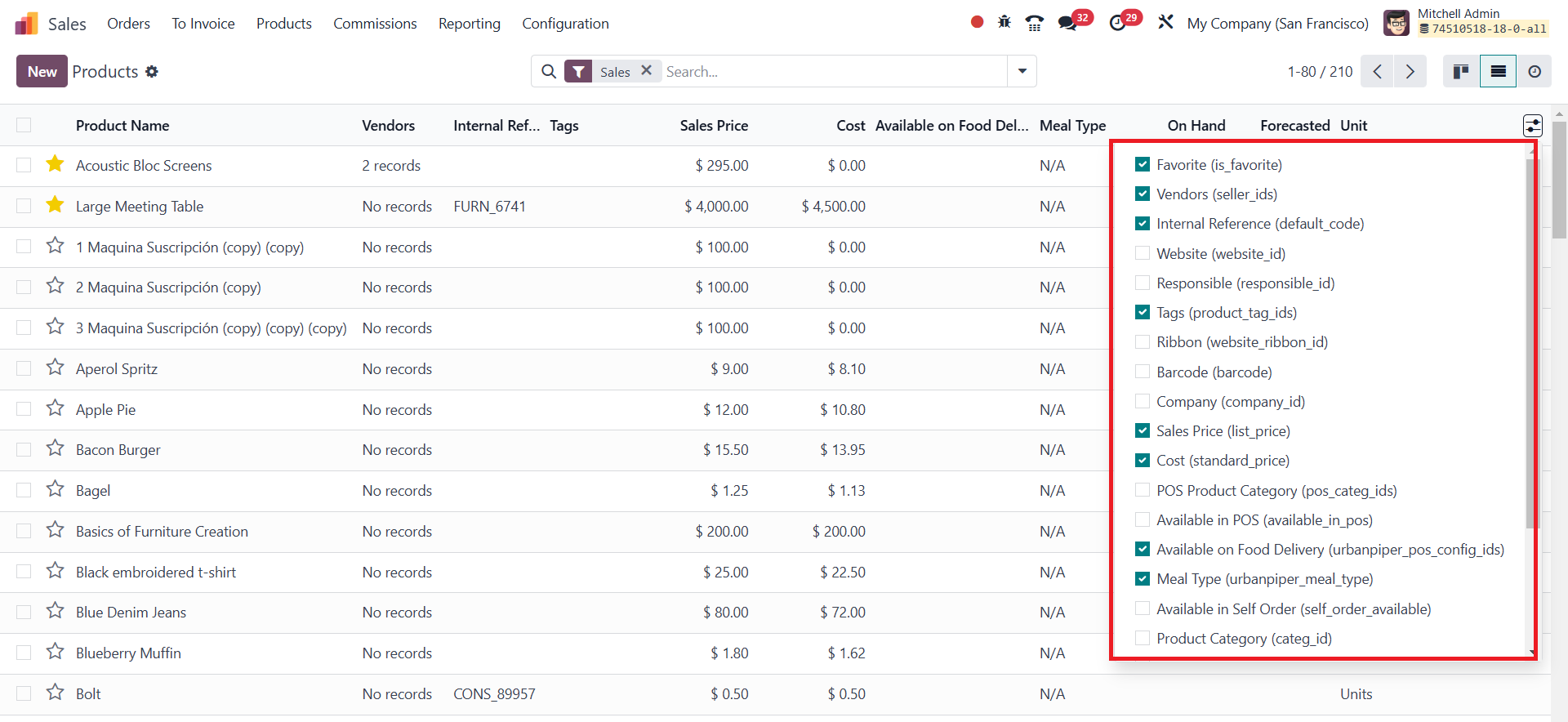
In the List View, comprehensive
product details are
displayed, including Product
Name, Vendor, Internal
Reference, Product Tags,
Sales Price, Cost, Quantity
on Hand, Forecasted Quantity,
and Unit of Measure. Users
can further customize this
view by adding additional
fields using the
configuration icon located in
the top-right corner of the
window. This feature provides
flexibility in managing
product information according
to specific business needs.
To modify existing products,
users can select an item from
the product list and make
necessary updates. If a new
product needs to be added,
clicking the New button opens
a Product Configuration
Window, where detailed
product attributes can be
defined.
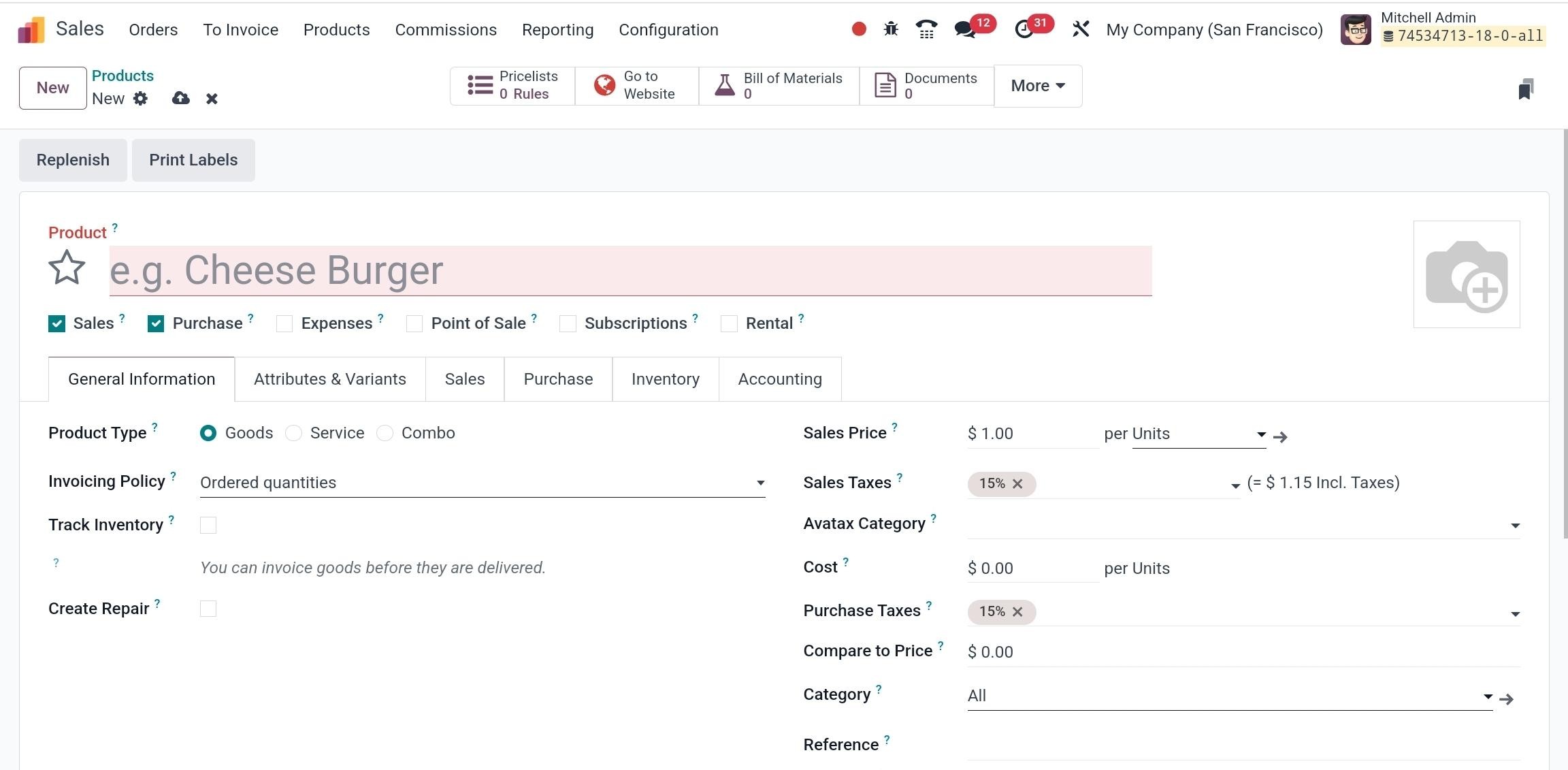
In the Product Name column, you
can specify the product’s
name, making it easily
identifiable in sales,
purchase, and inventory
operations. Additionally, the
star icon next to the product
name allows you to mark the
item as a favorite for quick
access. Odoo 18 provides
multiple product options,
allowing businesses to define
whether a product can be
sold, purchased, expensed,
rented, subscriptions, or
available in PoS.
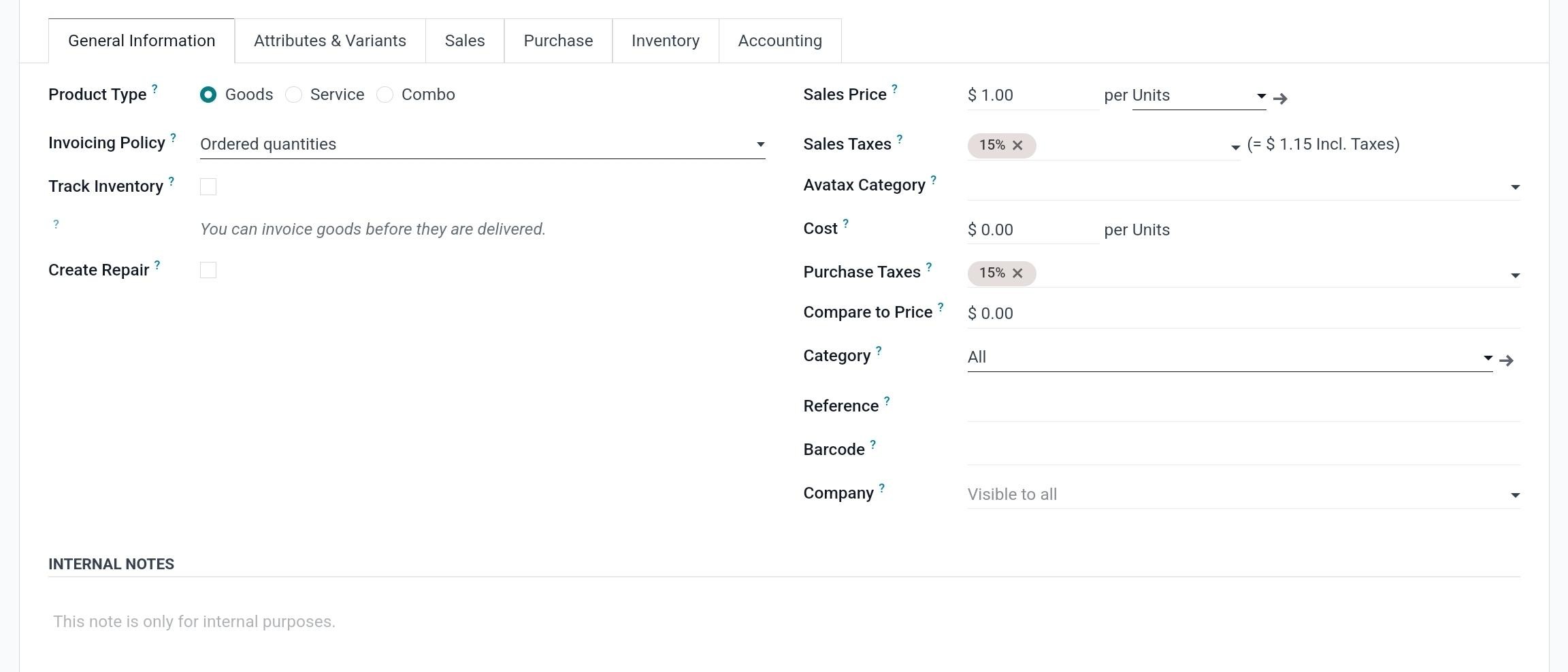
The General Information tab in
Odoo 18 Enterprise allows
businesses to define key
product details, ensuring
efficient product
categorization and
management. One of the most
important settings is the
Product Type, which
determines how a product is
handled within the system. In
Odoo 18, there are three main
product types:
Goods: These are physical,
tangible products that
require inventory management.
Businesses track stock
levels, manage warehouse
locations, and monitor sales
and purchases for these
products. Inventory control
features like stock
adjustments and reordering
rules apply to goods.
Services: These are
non-tangible offerings, such
as consulting, maintenance,
or subscriptions, that do not
require inventory tracking.
Service-based businesses or
companies offering support
plans, repairs, or contracts
use this option.
Combo: A Combo product is
a bundle that consists of
multiple items sold together.
This could include a mix of
goods and services, such as a
laptop with an extended
warranty or a meal deal that
includes food and beverages.
Businesses use combos to
offer promotions, product
packages, or service bundles.
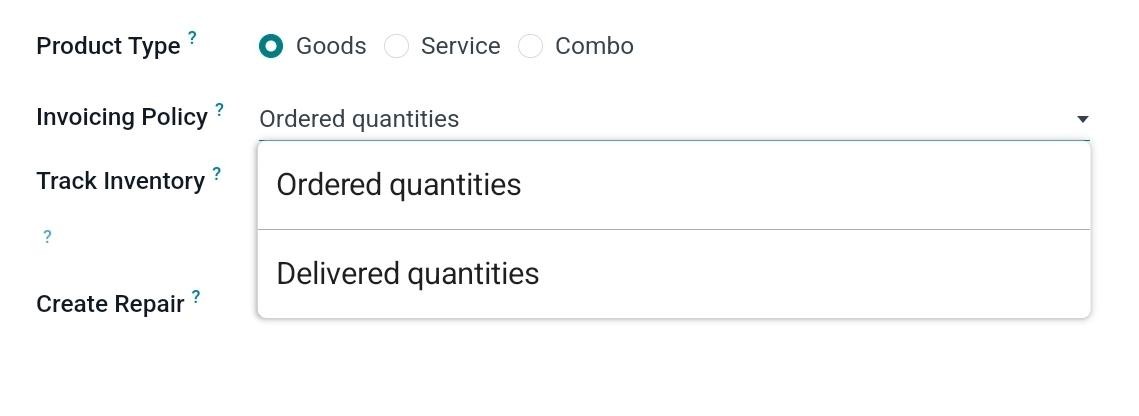
After selecting the product type,
the Invoicing Policy must be
configured. Businesses can
choose to invoice customers
based on Ordered Quantities,
where invoices are generated
as soon as the order is
confirmed, or Delivered
Quantities, where invoices
are created only after the
products have been shipped or
services have been provided.
For storable products, you can
track inventory by activating
the Track Inventory option.
By enabling the Create Repair
option, Odoo will create a
linked repair order on sales
order confirmation. The Unit
of Measure (UoM) section
allows businesses to define
the default unit for stock
activities.
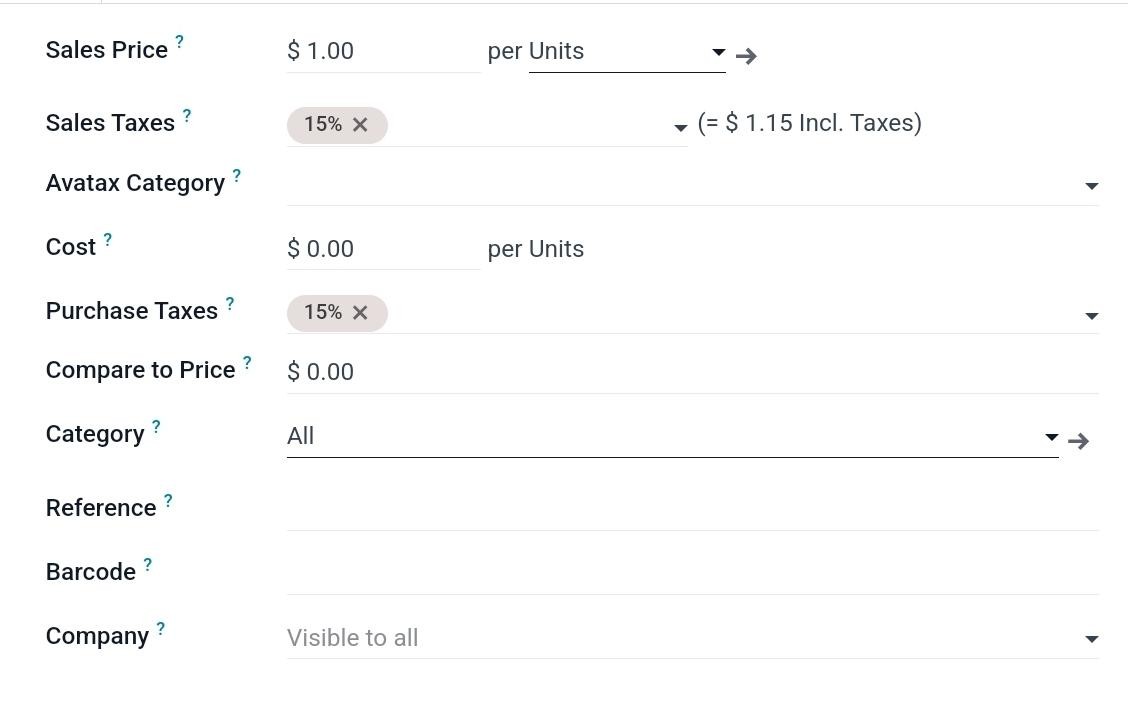
Other essential fields include
Sales Price, Sales Taxes,
Avatax Category, Purchase
Taxes, Compare to Price,
Cost, Product Category,
Internal Reference, Barcode,
Product Tags, and Company.
The Internal Notes section
provides a space to document
important product-related
details for internal use.

By typing “/” in the field, users
can give commands and
activate AI-assisted content
generation, allowing them to
draft descriptions,
reminders, or other text
efficiently.
When you select the Product Type
as Service, a new field
called Create on Order
becomes available.
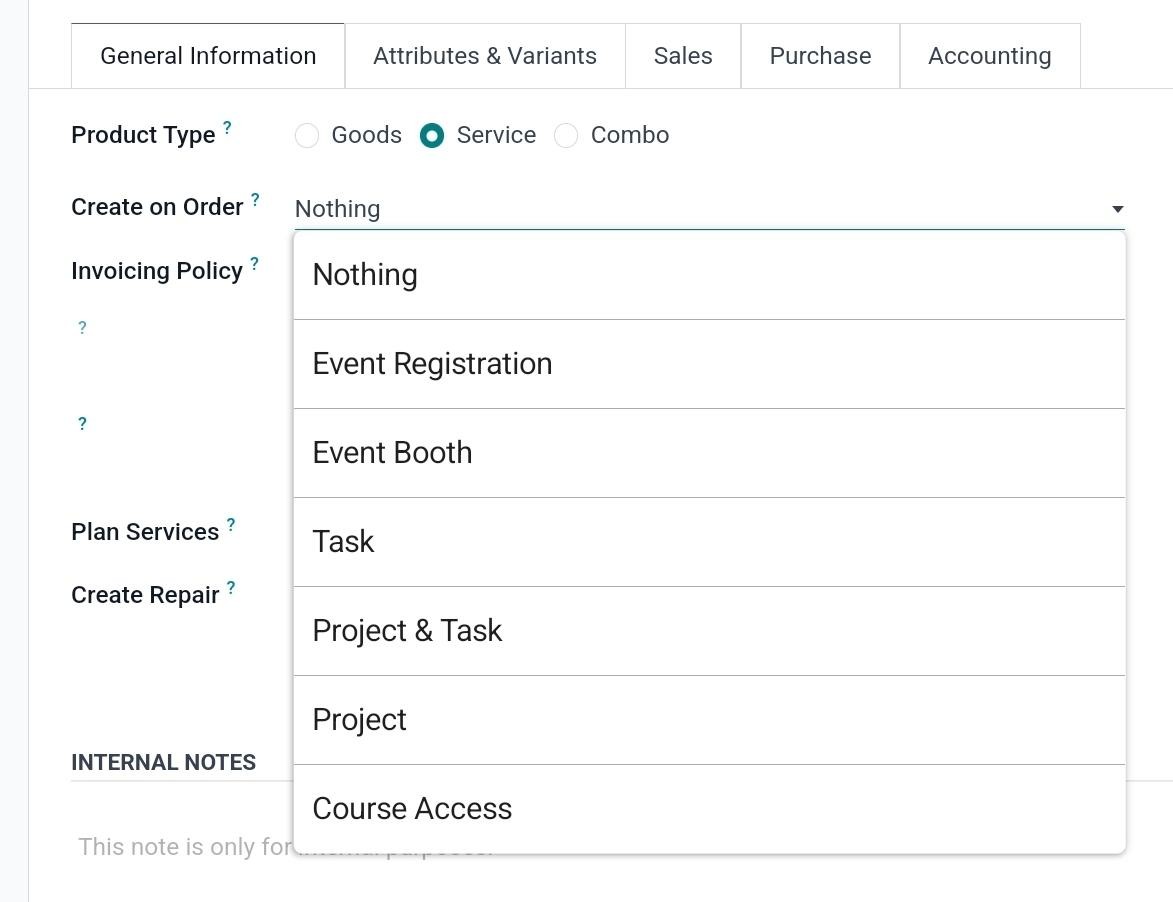
This field offers various
options, allowing businesses
to automatically generate
related activities once a
sales order is confirmed.
Depending on the selected
option, Odoo can
automatically create an Event
Registration, Event Booth,
Task, Project & Task,
Project, or Course Access,
streamlining service-related
operations and enhancing
workflow automation.
Odoo 18 also provides flexible
invoicing policies under the
Invoicing Policy field to
cater to different business
models.
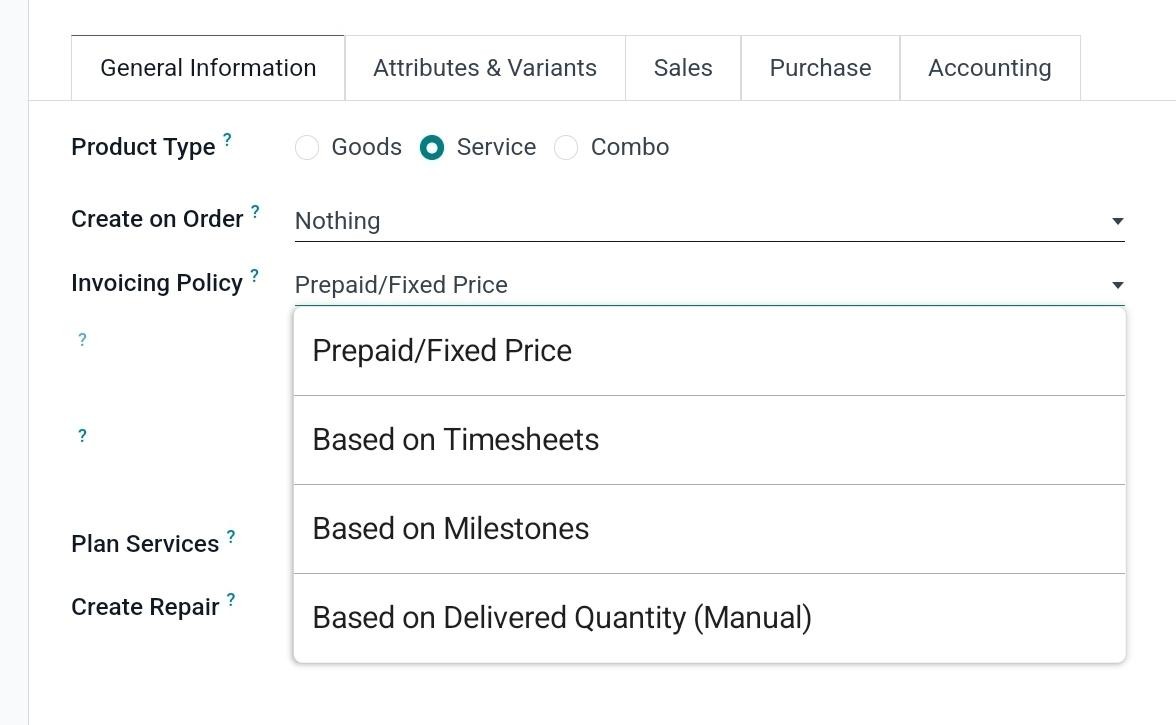
These invoicing methods allow
businesses to choose the most
suitable approach based on
their service delivery model:
Prepaid/Fixed Price
Invoicing: Ideal
for predefined services or
products with a set price,
this method requires
customers to pay upfront or
after delivery. It is
commonly applied to
fixed-price projects or
packaged services.
Timesheet-based Invoicing:
This method allows businesses
to bill clients based on the
hours logged by employees,
making it perfect for
service-based industries or
freelancers who charge hourly
rates.
Milestone-based Invoicing:
Suited for long-term
projects, this method
triggers invoices based on
the completion of predefined
deliverables or project
phases, helping businesses
manage payments for large
projects in stages.
Delivered Quantity-based
Invoicing: This
invoicing method generates
invoices based on the actual
quantity delivered, making it
ideal for wholesale or retail
operations, where payments
are tied to delivered goods.
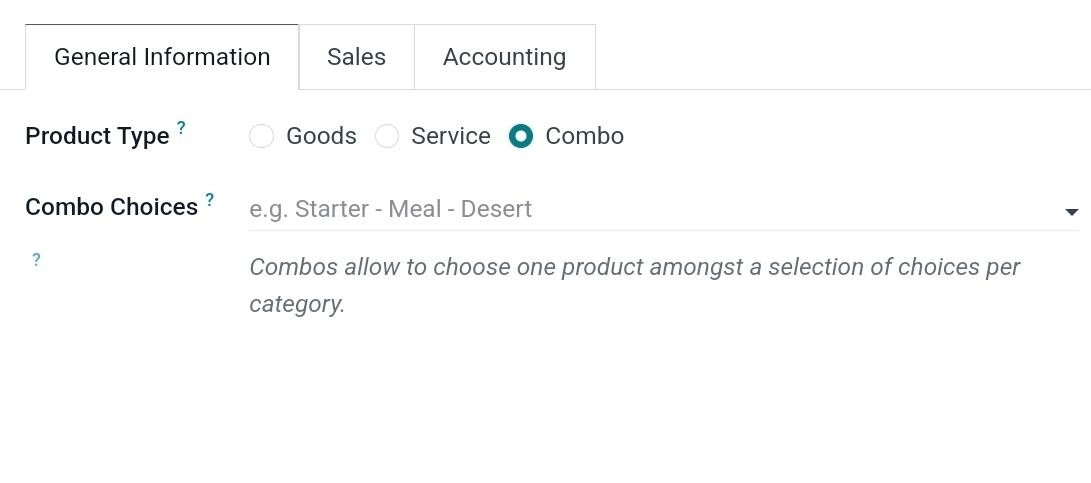
For products with the Combo type,
Odoo 18 requires users to
specify Combo Choices in the
relevant field.
Products can have multiple
variations with different
features, such as size,
color, or material. These
variations are managed under
the Attributes & Variants
tab, allowing businesses to
create and track product
variations efficiently.
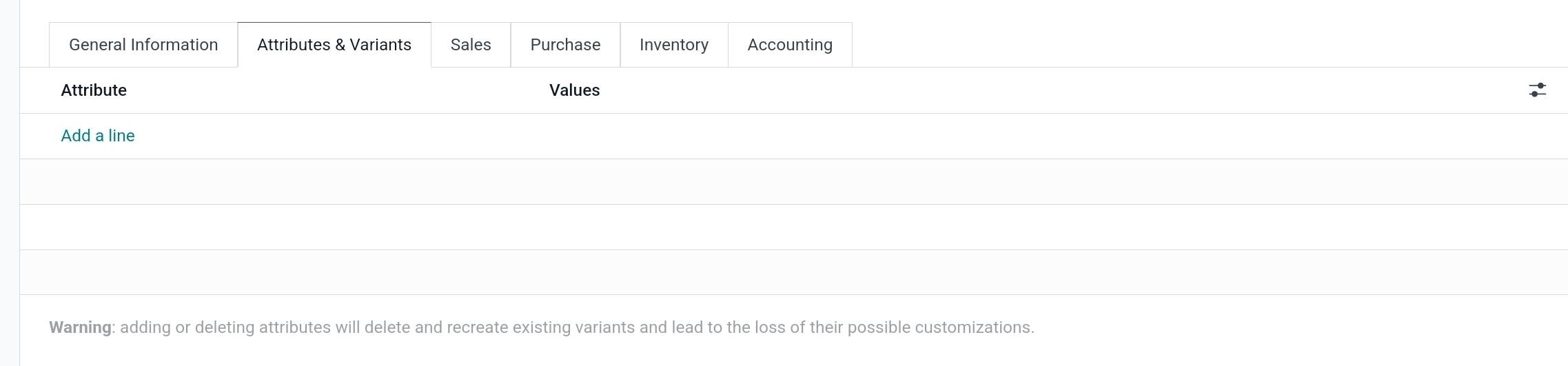
To configure product variations,
users can define Attributes
and their corresponding
Values using the Add a Line
option. Attributes represent
product characteristics, such
as Size, Color, or Material,
while values specify the
available options for each
attribute, such as
Small/Medium/Large for Size
or Red/Blue/Green for Color.
The Sales tab in the product
setup window of Odoo 18
Enterprise contains all the
key sales-related
configurations for a product.
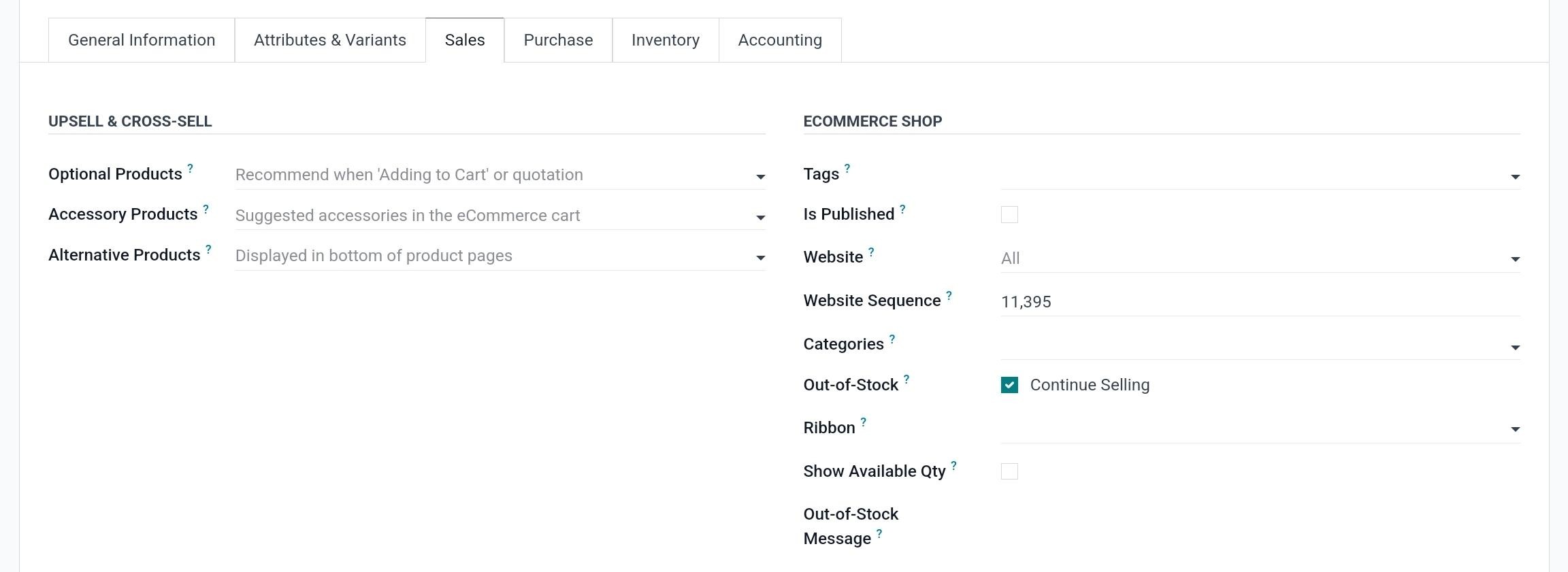
In the Upsell & Cross-Sell
section, you can configure
Optional Products, Accessory
Products, and Alternative
Products to enhance sales
opportunities.
-
Optional
Products:
These are additional
products suggested to
customers when they
purchase a primary
product. For example,
when selling a laptop,
an optional product
could be an external
mouse or a laptop bag.
-
Accessory
Products:
These are
complementary items
that enhance the main
product’s
functionality. For
example, a smartphone
might have an
accessory product such
as a phone case or a
screen protector.
-
Alternative
Products:
These are substitute
products that can be
offered to customers
if the primary product
is out of stock or if
they are looking for
different options. For
instance, if a
specific model of
headphones is
unavailable, an
alternative product
might be a similar
model from another
brand.
In addition to upselling and
cross-selling, the eCommerce
Shop provides fields to
mention the Tags, Is
Published, Website, Website
Sequence, eCommerce
Categories, Out of stock,
Ribbon, Show Available
Quantity, and Out of Stock
Message.
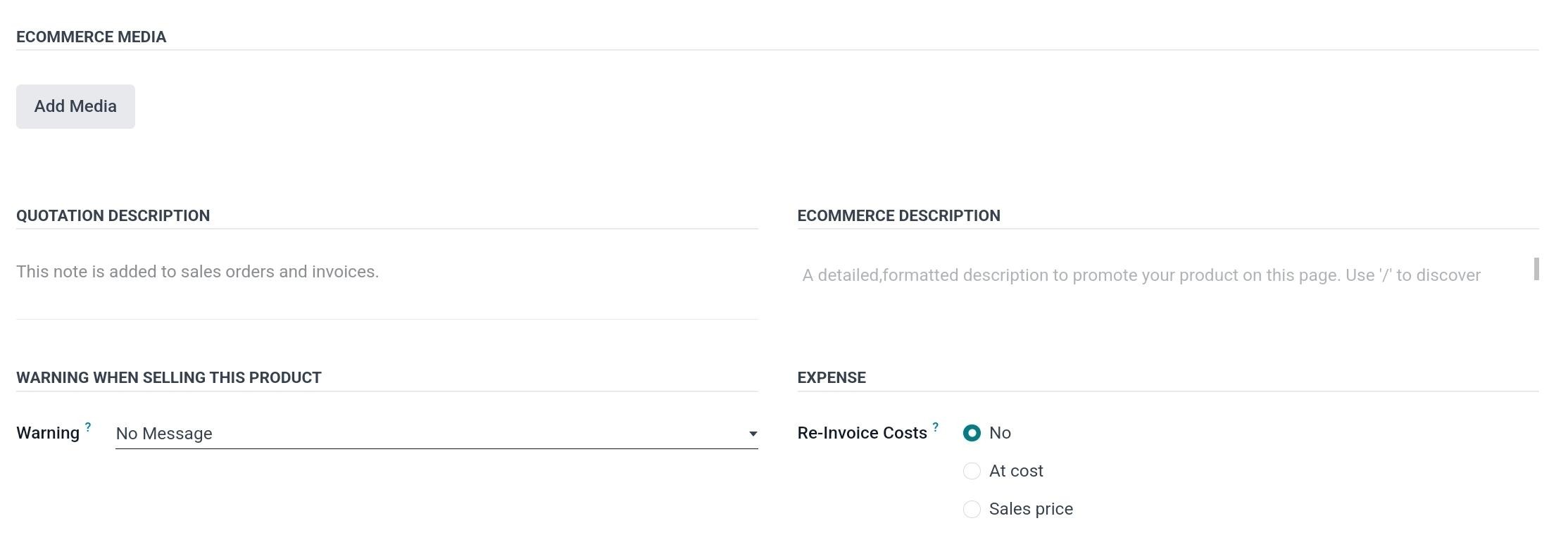
Using the Add Media option, you
can add suitable ECommerce
Media. You can add a note to
sales orders and invoices in
the Quotation Description
field. A detailed description
to promote your product on
your eCommerce page can be
specified in the ECommerce
Description field. You can
invoice validated expenses,
vendor bills, or stock
pickings to the customers at
either cost or sales prices
by selecting the appropriate
option in the Re-Invoice
Costs field.
Odoo 18 Enterprise allows
businesses to set up product
warning messages to alert
users during sales
transactions. This feature
can be activated from the
Sales module’s Settings menu
under the Quotation & Orders
section by enabling the Sale
Warnings option.
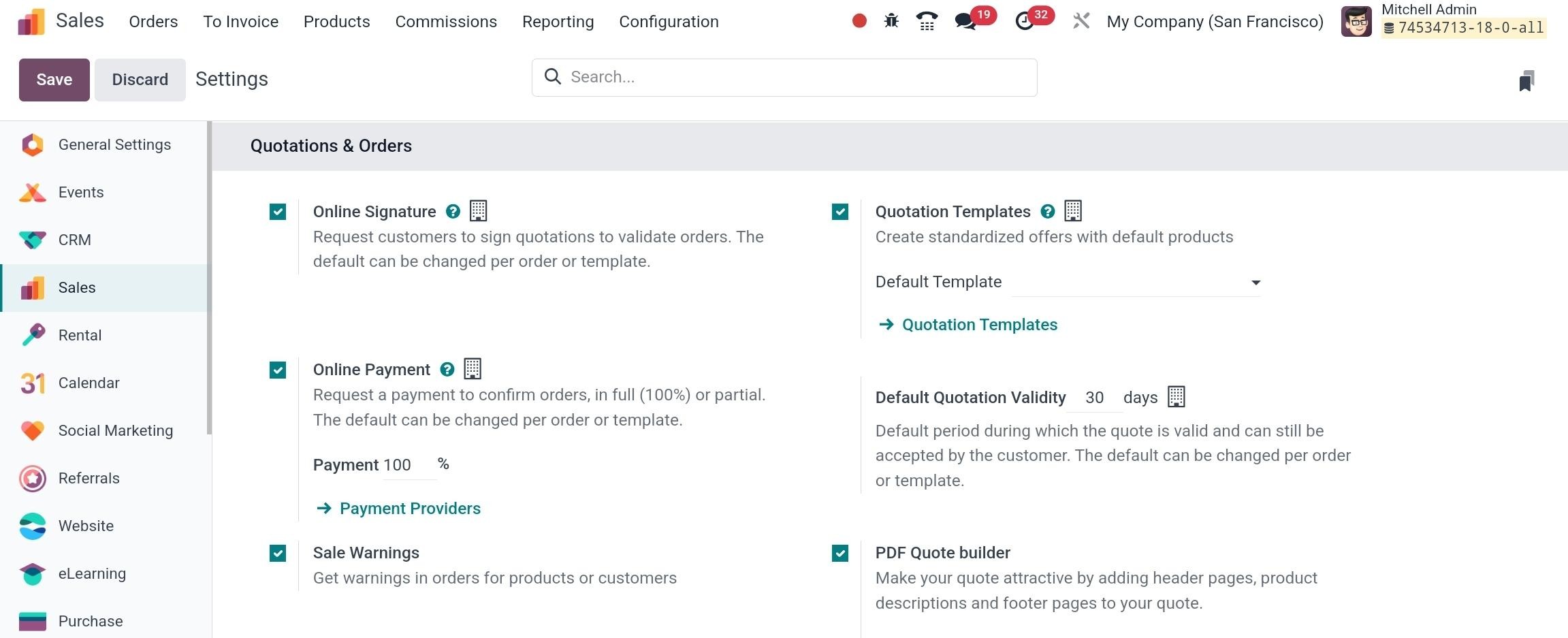
Once activated, a Warning field
appears in the Sales tab of
the product setup window,
allowing businesses to define
warning messages for specific
products.
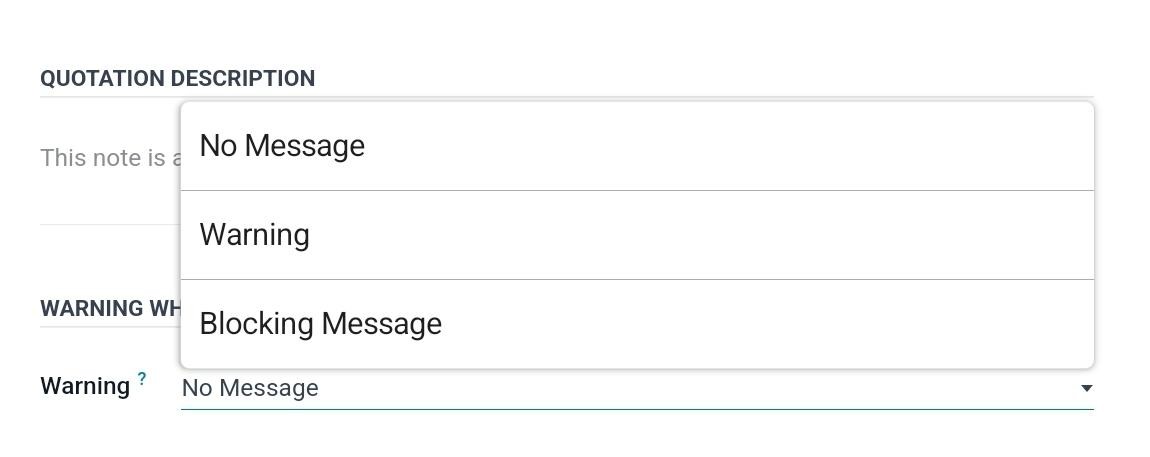
There are three available actions
for product warnings:
Warning: If selected, a
customizable message will be
displayed to users when
selling the product. This
serves as a soft alert,
providing important
information without stopping
the transaction. For example,
a message could notify sales
representatives that a
product is nearing the end of
its stock.
Blocking Message: This
option prevents the sale from
proceeding entirely. If a
user attempts to sell the
product, Odoo halts the
transaction and displays a
blocking message, ensuring
that the product cannot be
sold under certain
conditions. This is useful
for discontinued items,
restricted sales, or
regulatory compliance issues.
No Message: If selected,
no warning or blocking
message will be displayed,
allowing the product to be
sold without any
notifications.
The Purchase tab in Odoo 18
Enterprise allows businesses
to define purchase-related
details for products that can
be bought from vendors.
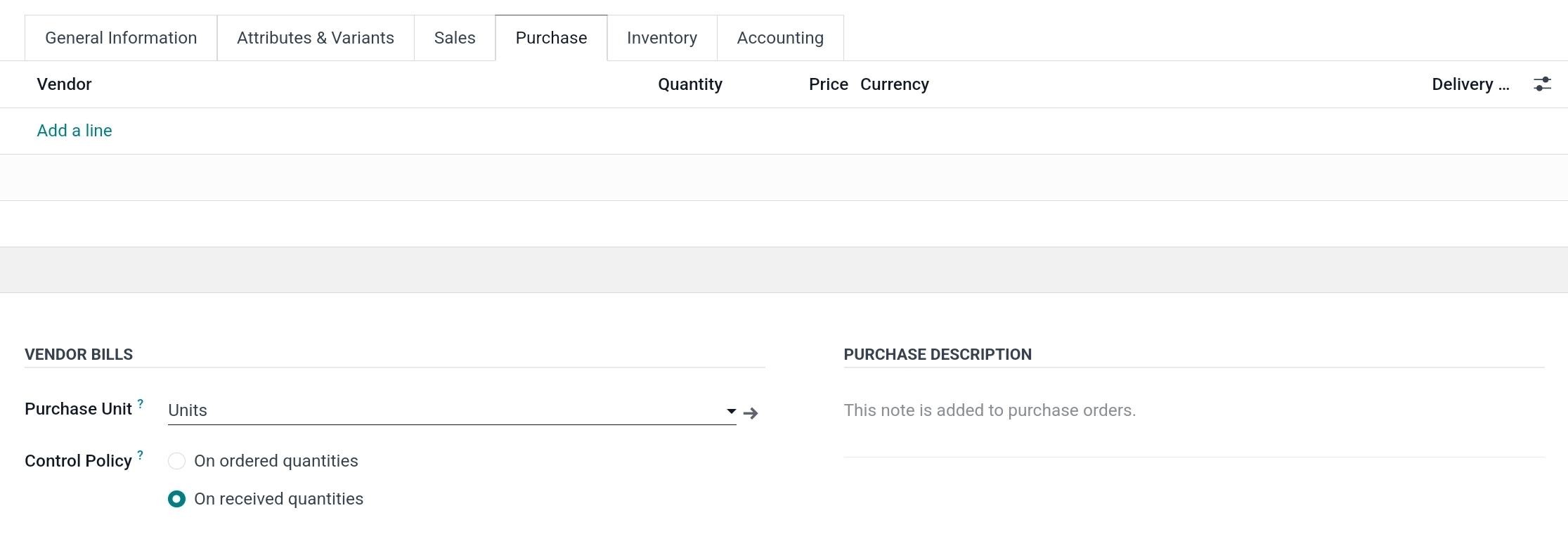
Using the Add a Line button,
businesses can assign
multiple vendors to a single
product, allowing them to
manage different supplier
options. Each vendor entry
can include key details such
as Currency, Minimum Order
Quantity, Unit of Measure,
Purchase Price, and Delivery
Lead Time. The Currency field
ensures that purchase
transactions are processed in
the vendor’s preferred
currency, making
international procurement
seamless. The Delivery Lead
Time represents the number of
days between the purchase
order confirmation and the
expected arrival of the
product in the warehouse.
In addition, the Purchase Units
column enables users to
define default purchase units
that apply when purchasing
the product. The Invoicing
Policy can be set to either
Ordered Quantities or
Received Quantities,
determining whether invoices
are generated based on the
ordered quantity or the
actual quantity received.
Lastly, the Purchase
Description field allows
businesses to include
product-specific notes that
will be added to purchase
orders. This feature is
useful for specifying special
instructions, packaging
requirements, or any
vendor-related conditions.
The Inventory tab in the product
setup window of Odoo 18
Enterprise provides essential
fields for managing stock
levels, logistics, and
product movement. One of the
key settings in this tab is
Routes, which define how the
product is handled in the
supply chain. The available
routes depend on the
installed modules and can
include Make to Order (MTO),
Buy, Manufacture, Dropship,
Replenish on Orders, or
Subcontracting.
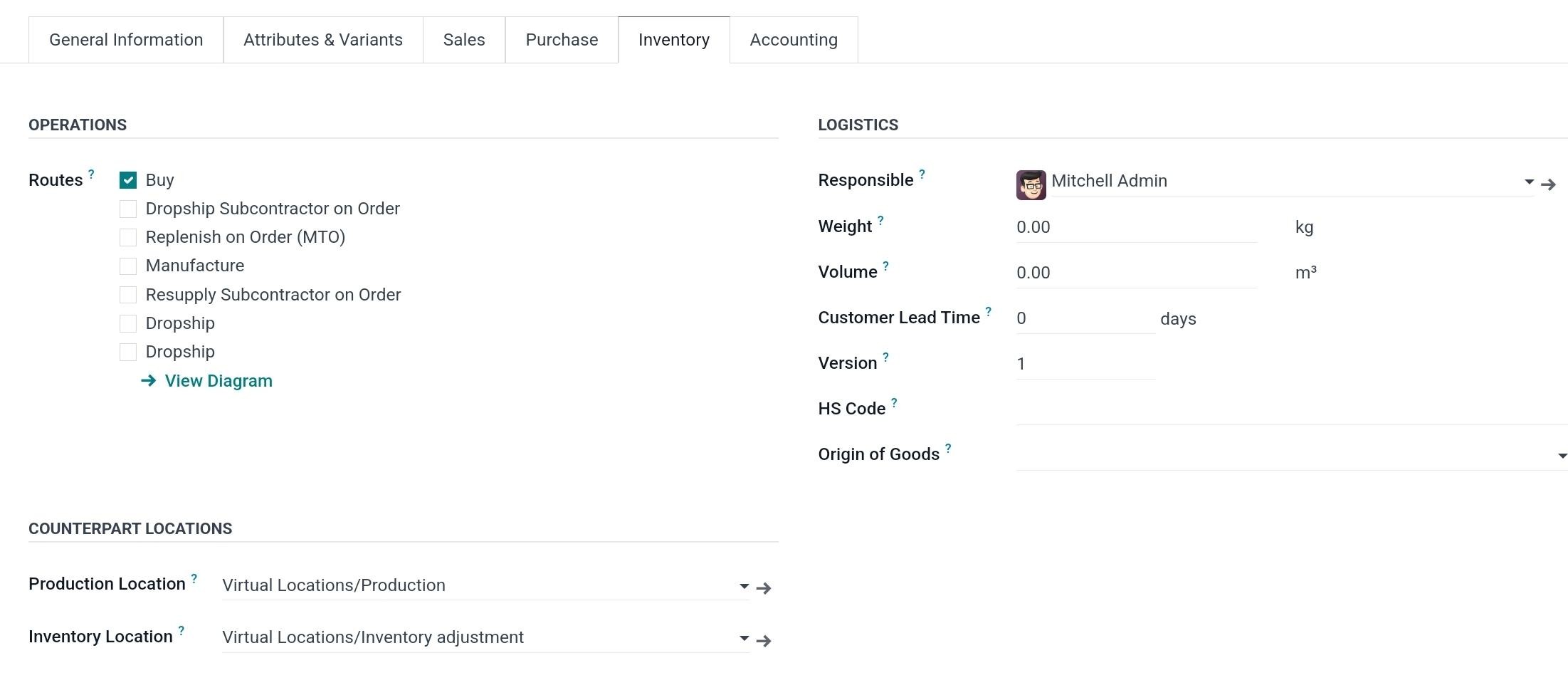
Under the Logistics section,
businesses can assign a
Responsible user who will
oversee inventory operations
related to this product.
Additionally, users can
specify the Weight and Volume
of the product, which is
particularly important for
shipping calculations and
warehouse storage planning.
The Customer Lead Time field
allows businesses to define
the number of days required
to deliver the product after
a sales order is confirmed.
For international trade, the
HS Code (Harmonized System
Code) can be entered, which
is a standardized
classification used for
customs declarations and
shipping. The Origin of Goods
field specifies the country
of production, rather than
the shipping location,
ensuring accurate product
traceability.
Odoo also provides the
Counterpart Location section,
where businesses can
configure stock movement
locations:
Production Location: This
defines the source location
for stock moves resulting
from Manufacturing Orders,
overriding the default
warehouse location.
Inventory Location: This
specifies the source location
used when performing
inventory adjustments,
ensuring proper stock
tracking during inventory
operations.
By enabling the Product
Packagings option from the
Settings menu of the Sales
module, a new field appears
in the Inventory tab of the
product setup window,
allowing users to define
packaging details.
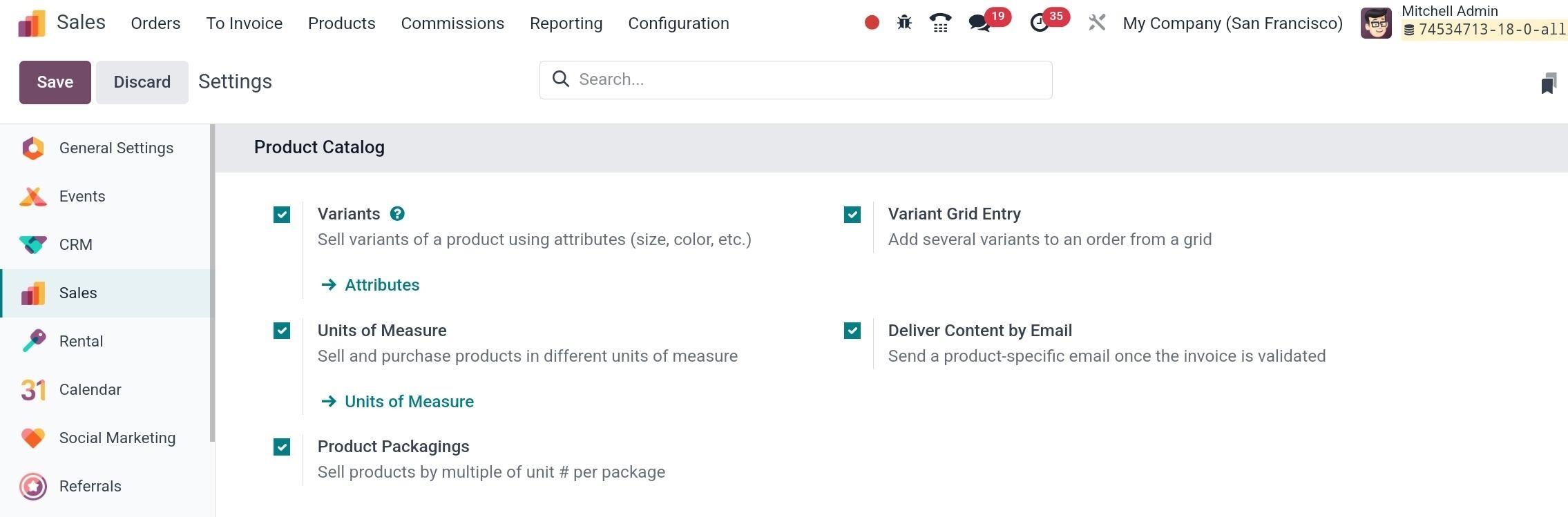
Once activated, businesses can
use the Add a Line button to
specify key packaging
details, including the
Package Type, which defines
the type of packaging used,
such as boxes, pallets, or
bags. The Contained Quantity
field allows users to specify
the number of individual
products included within each
package, ensuring accurate
stock tracking. Additionally,
the Unit of Measure (UoM) can
be defined to maintain
consistency in product
measurement. Packaging can
also be linked to Sales
Orders and Purchase Orders,
ensuring that the correct
packaging method is used
during transactions.
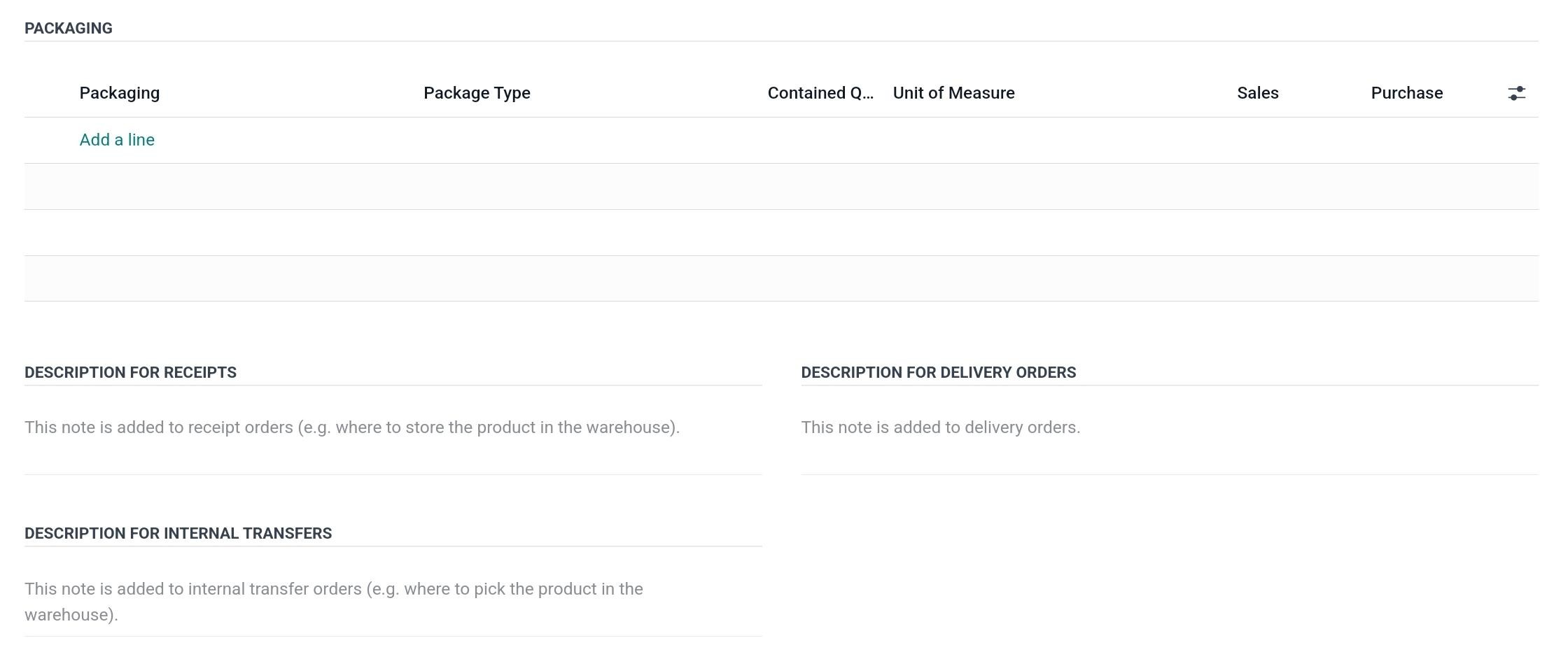
The Description for Receipts
allows businesses to specify
handling instructions for
incoming stock, ensuring
proper verification upon
arrival. The Description for
Delivery Orders helps define
packaging requirements for
outbound shipments, ensuring
compliance with shipping
guidelines. Similarly, the
Description for Internal
Transfers provides details on
repackaging or handling when
moving stock between
warehouse locations.
The Accounting tab in Odoo 18
Enterprise allows businesses
to manage and track a
product's financial
information, ensuring proper
accounting and financial
reporting. In this tab, users
can specify the Income
Account under the Receivables
section, which determines the
account where revenue from
product sales is recorded.
Similarly, the Expense
Account under the Payables
field tracks the costs
associated with purchasing
the product, ensuring that
purchase expenses are
accurately documented.
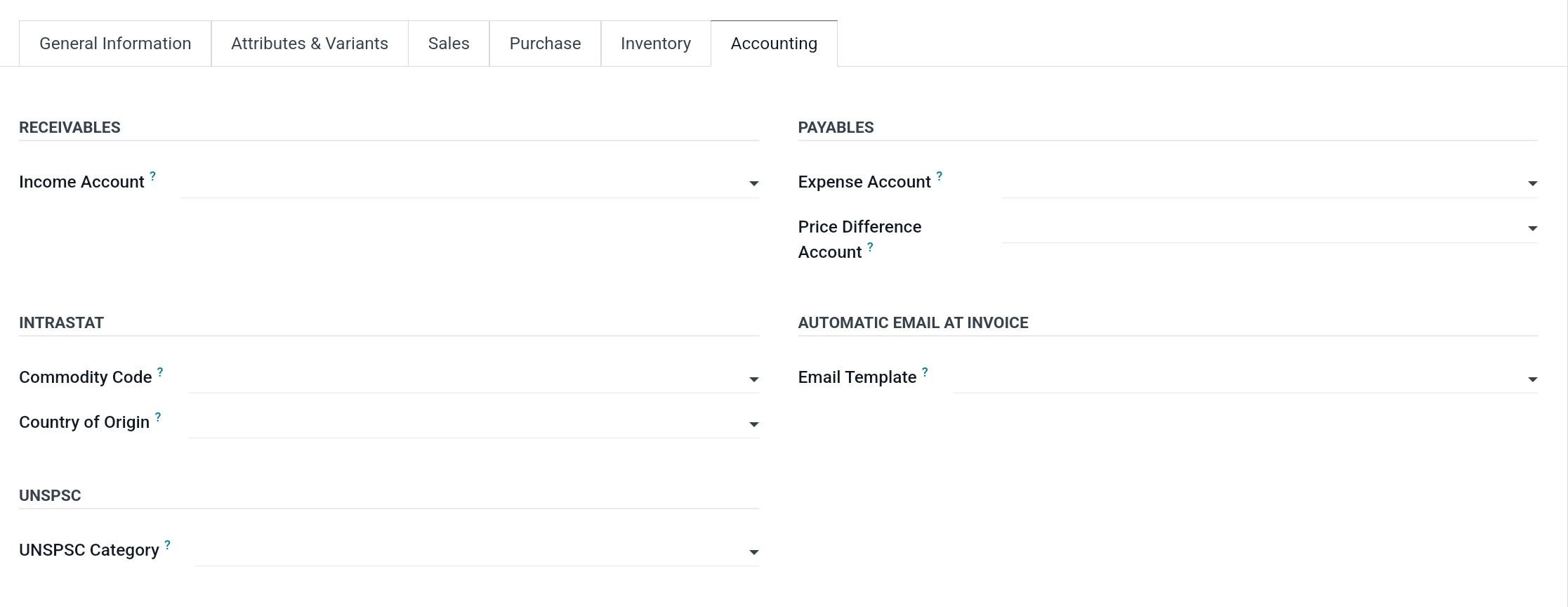
When confirming a vendor bill,
Odoo records the price
difference between the
purchase order and the linked
vendor bill in the Price
Difference Account,
automatically updating
inventory valuations. This
ensures that discrepancies in
purchase prices are properly
reflected in the financial
records without manual
intervention. For
international transactions,
businesses can specify the
Commodity Code and Country of
Origin under the Intrastat
field, ensuring compliance
with customs and trade
regulations. Odoo 18 also
supports the automatic
generation of
product-specific emails once
an invoice is validated,
provided an email template is
defined in the Automatic
Email at Invoice field. The
UNSPSC Category field allows
businesses to associate a
UNSPSC (United Nations
Standard Products and
Services Code) with the
product, helping categorize
products for better
reporting, procurement
analysis, and international
trade compliance. This is how
we configure products in Odoo
18 Sales module.