5. Promotions,
Loyalty & Gift Card
In Odoo 18 Enterprise, the
Promotions, Loyalty & Gift
Card feature allows
businesses to implement a
wide range of promotional
strategies to enhance
customer engagement, increase
sales, and encourage repeat
purchases. This feature
enables the management of
discounts, coupons, loyalty
programs, gift cards, and
eWallets, providing
businesses with flexible
tools to tailor promotional
campaigns based on customer
behavior.
5.1 Discount & Loyalty
To activate discount and loyalty
programs, navigate to Sales →
Configuration → Settings and
enable the Promotions,
Loyalty & Gift Card option
under the Pricing section.
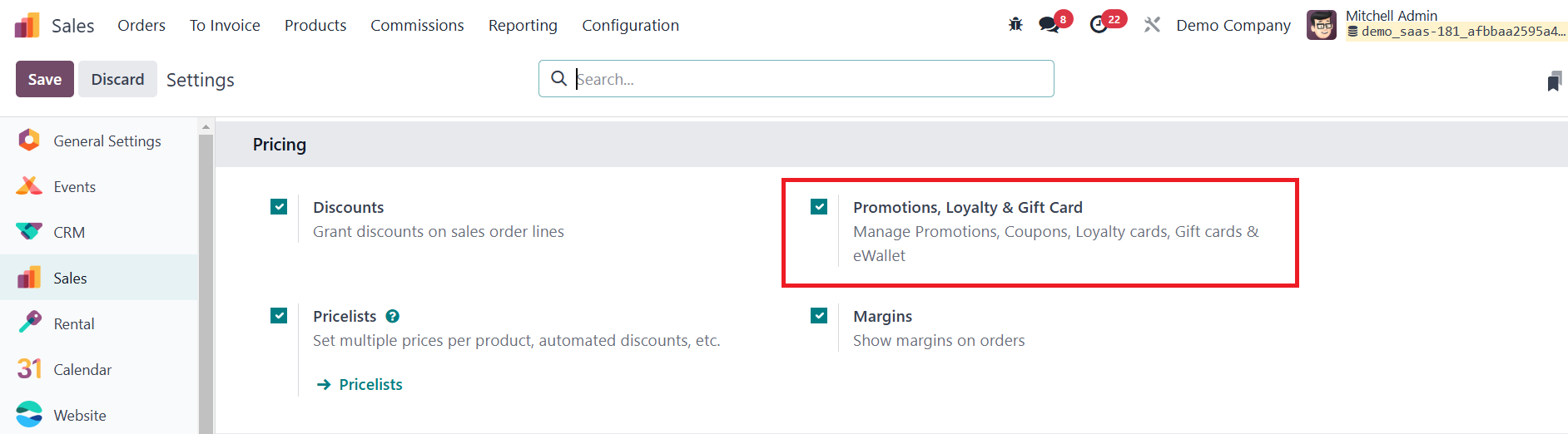
Click Save to apply the changes.
Once enabled, these features
become available across
Sales, eCommerce, and Point
of Sale (PoS). Businesses can
create new discount and
loyalty programs by going to
Sales → Products → Discount &
Loyalty. If no programs
exist, Odoo provides several
pre-configured templates to
help set up the first
program.
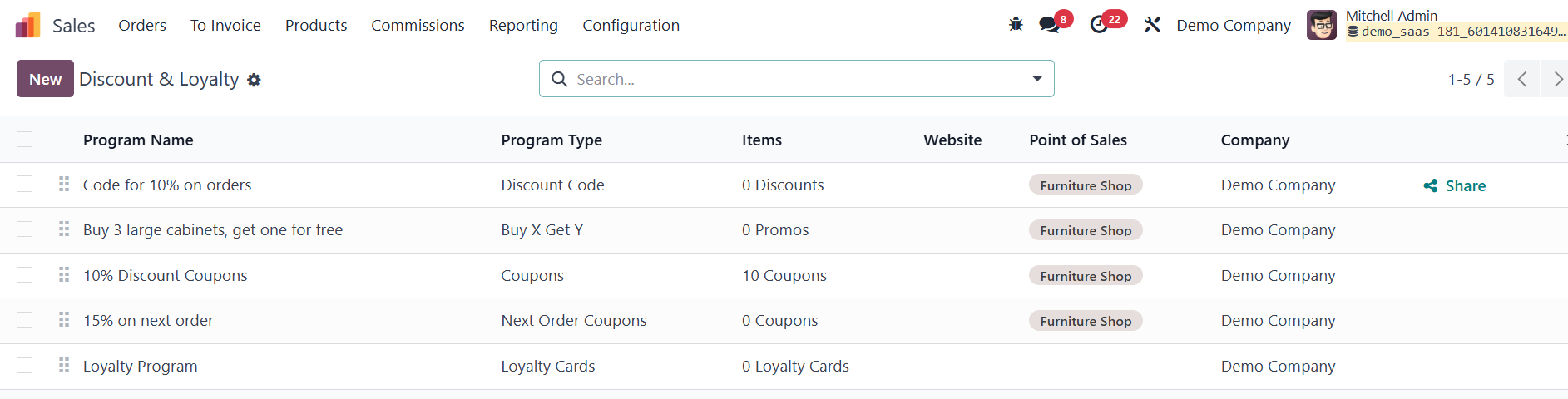
Users can either choose a
template or create a program
from scratch by clicking New.
If existing programs are
available, they can be edited
directly from the list view.
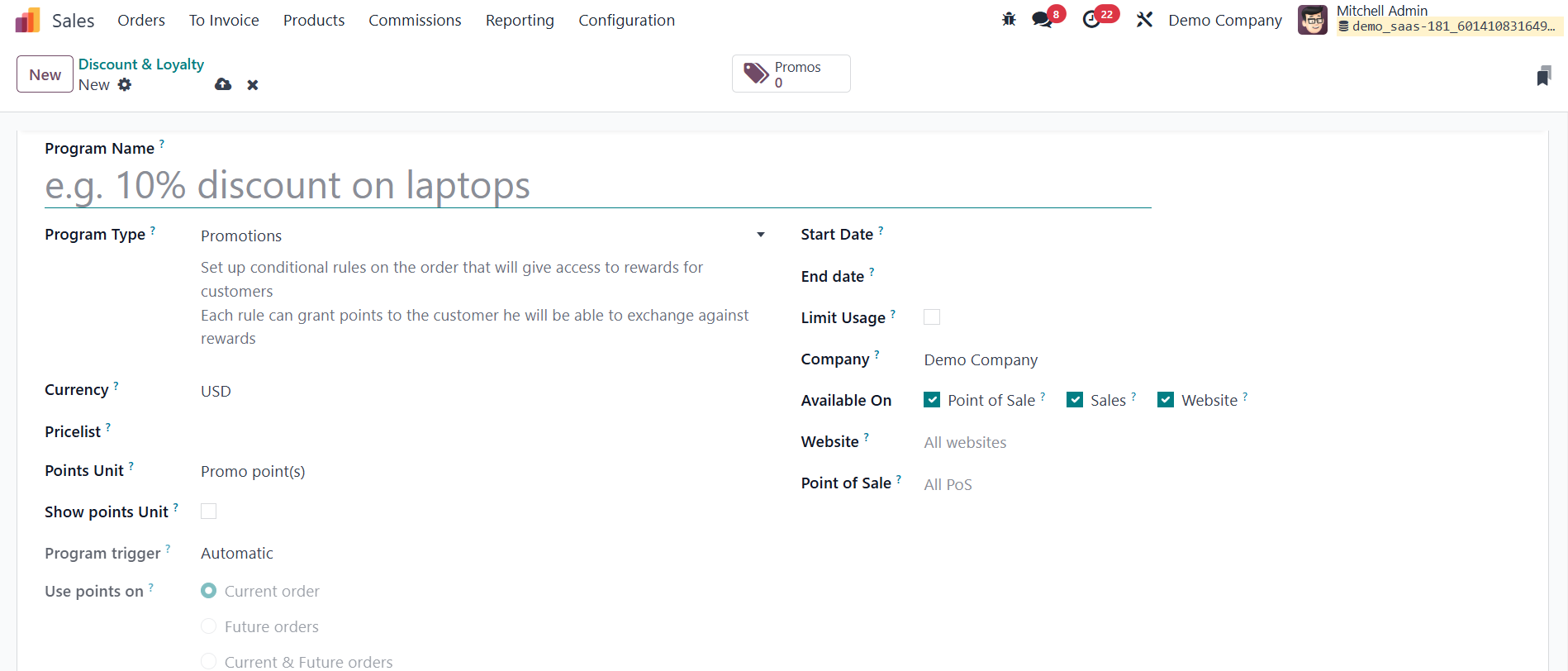
The program form in Odoo contains
several configurable fields
that help customize the
discount or loyalty
structure. The Program Name
field is used to name the
program internally, while the
Program Type drop-down allows
users to choose between
discounts, loyalty cards, or
gift cards etc,. The Currency
field ensures that all
pricing and rewards are
applied in the appropriate
currency.
Additionally, businesses can
assign the program to
specific customer segments by
linking it to one or more
pricelists. If no pricelist
is selected, the program will
be available to all customers
by default. For loyalty card
programs, the Points Unit
field lets users define the
unit of measurement for
earned points (e.g., “Loyalty
Points”), which is visible to
customers for clarity. The
program’s validity is
controlled using the Start
Date and End Date fields,
which specify when the
program becomes active or
expires. Leaving these fields
blank ensures the program
remains active indefinitely.
To limit program usage,
businesses can enable the
Limit Usage option and
specify the maximum number of
times the program can be
redeemed. In a multi-company
setup, the Company field
allows users to restrict the
program to a specific company
or make it accessible across
all companies. Similarly, the
Available On field determines
which platforms the program
is active on, such as Sales,
eCommerce, or PoS. The
Website field allows
businesses to restrict the
program to a particular
website, while the Point of
Sale field lets users assign
it to specific PoS locations.
The program form in Odoo provides
various Program Types, each
catering to different
promotional needs.
- Coupons –
Single-use codes that
customers can redeem
for rewards, ideal for
attracting new
customers and
increasing engagement.
- Loyalty Cards –
Encourage repeat
purchases by allowing
customers to
accumulate points that
can be exchanged for
discounts or free
products.
- Promotions –
Define conditional
rules for discounts,
such as
percentage-based
discounts on specific
products or order
values.
- Discount Codes –
Offer customers fixed
or percentage-based
discounts that can be
redeemed at checkout.
- Buy X Get Y –
Incentivize bulk
purchases by rewarding
customers with free
products after
purchasing a specified
quantity.
- Next Order Coupons
– Generate
single-use coupon
codes that can be
applied to future
purchases, encouraging
repeat business.
Once a program is created, all
associated cards, codes, and
coupons can be accessed via a
smart button at the top of
the form, providing a
centralized view of active
promotions.
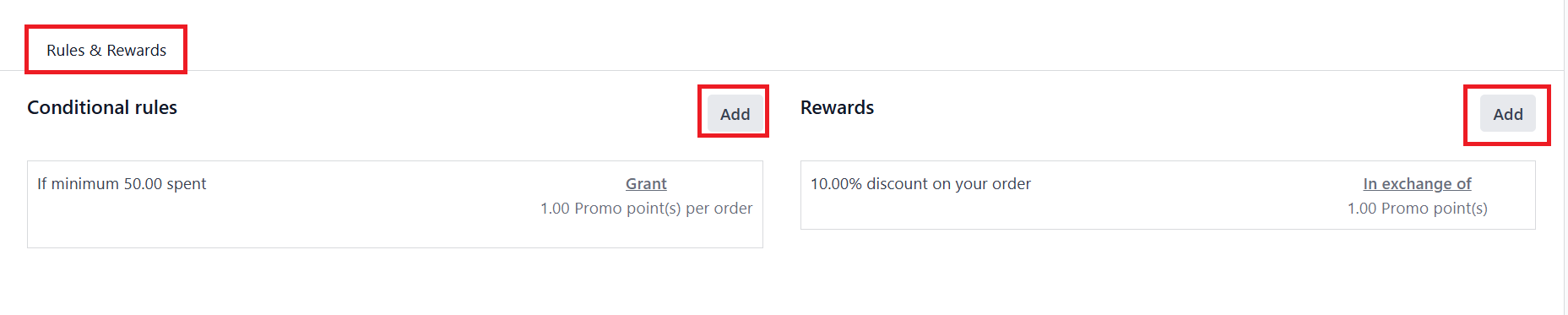
To configure the rules that
determine when a program is
applied, navigate to the
Rules & Rewards tab and click
Add next to Conditional
Rules. This opens a Create
Conditional Rules pop-up
window where specific
conditions can be defined.
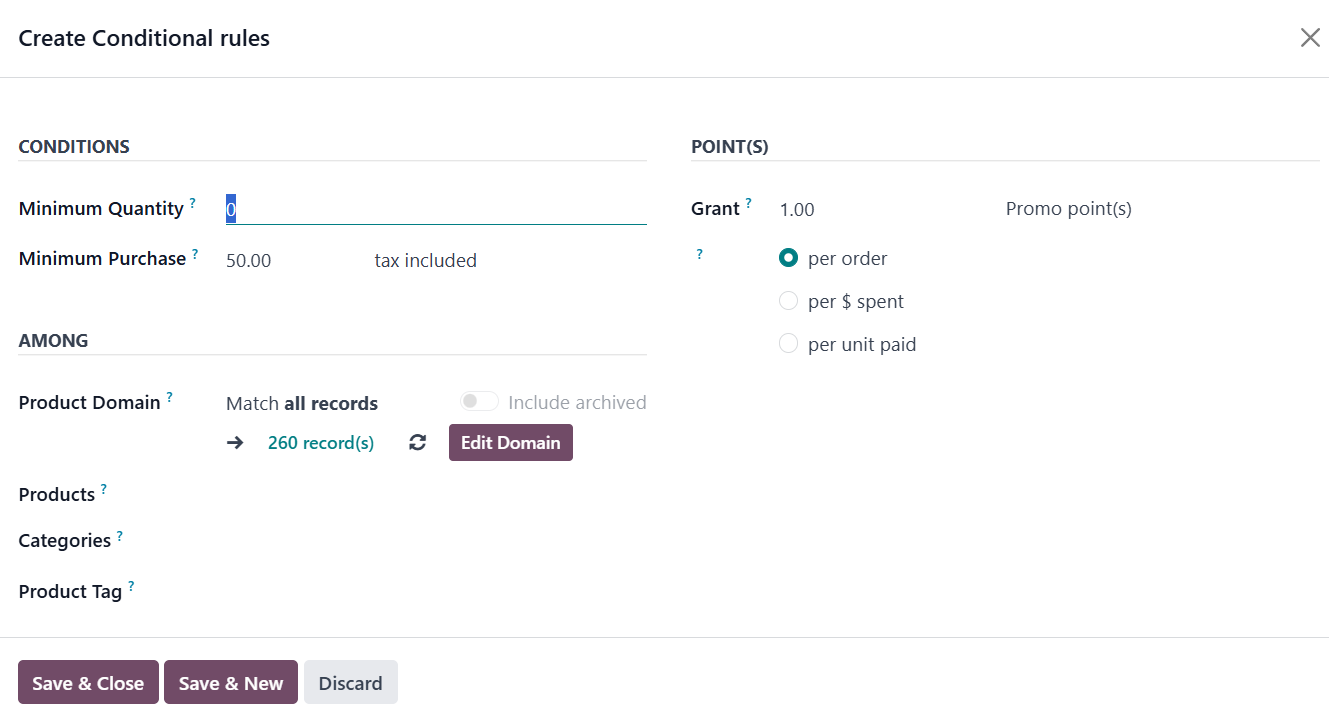
The available rule configuration
options vary based on the
Program Type. For example,
Discount Code programs allow
users to enter a custom code
or use the default code
generated by Odoo. The
Minimum Quantity field lets
businesses define the least
number of products a customer
must purchase to qualify for
the reward. Similarly, the
Minimum Purchase field sets
the required spending amount
to unlock the discount, with
an option to include or
exclude tax. If both
conditions are specified, the
customer must meet both the
minimum quantity and spending
requirements to be eligible
for the reward.
Businesses can further refine
targeting by selecting
specific products or product
categories in the Products
and Categories fields.
Additionally, the Product Tag
field allows the program to
be applied to products with a
specific tag, enabling more
granular promotions.
For Loyalty Cards and Buy X Get Y
programs, the Grant field
defines the number of points
a customer earns per order,
either based on the currency
spent or the quantity
purchased. These flexible
configurations allow
businesses to create highly
customized loyalty and
promotional programs tailored
to their sales strategies.
Once the rules are set, users can
finalize the configuration by
clicking Save & Close to exit
the pop-up window or Save &
New to immediately create
another rule.
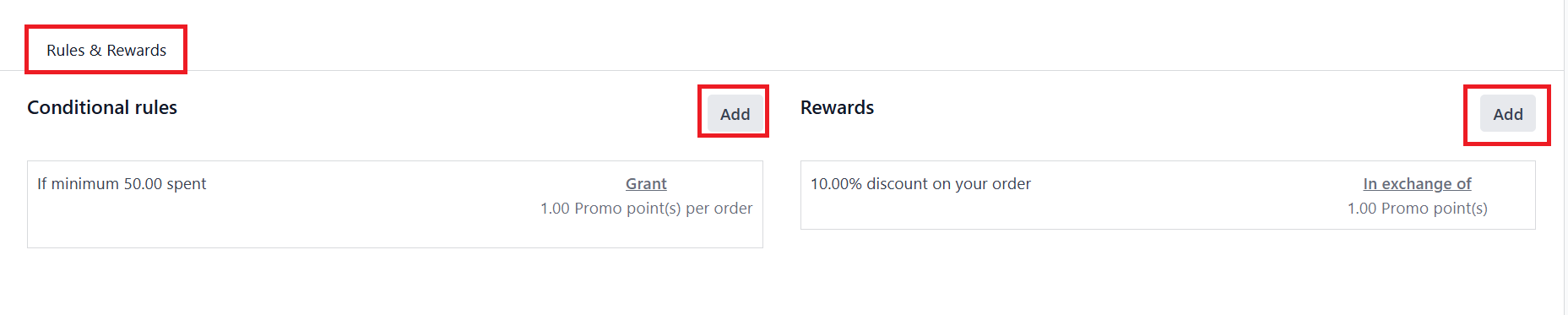
In the Rules & Rewards tab, users
can define specific Rewards
by clicking Add next to the
Rewards section. This opens
the Create Rewards pop-up
window, allowing businesses
to configure different reward
types.
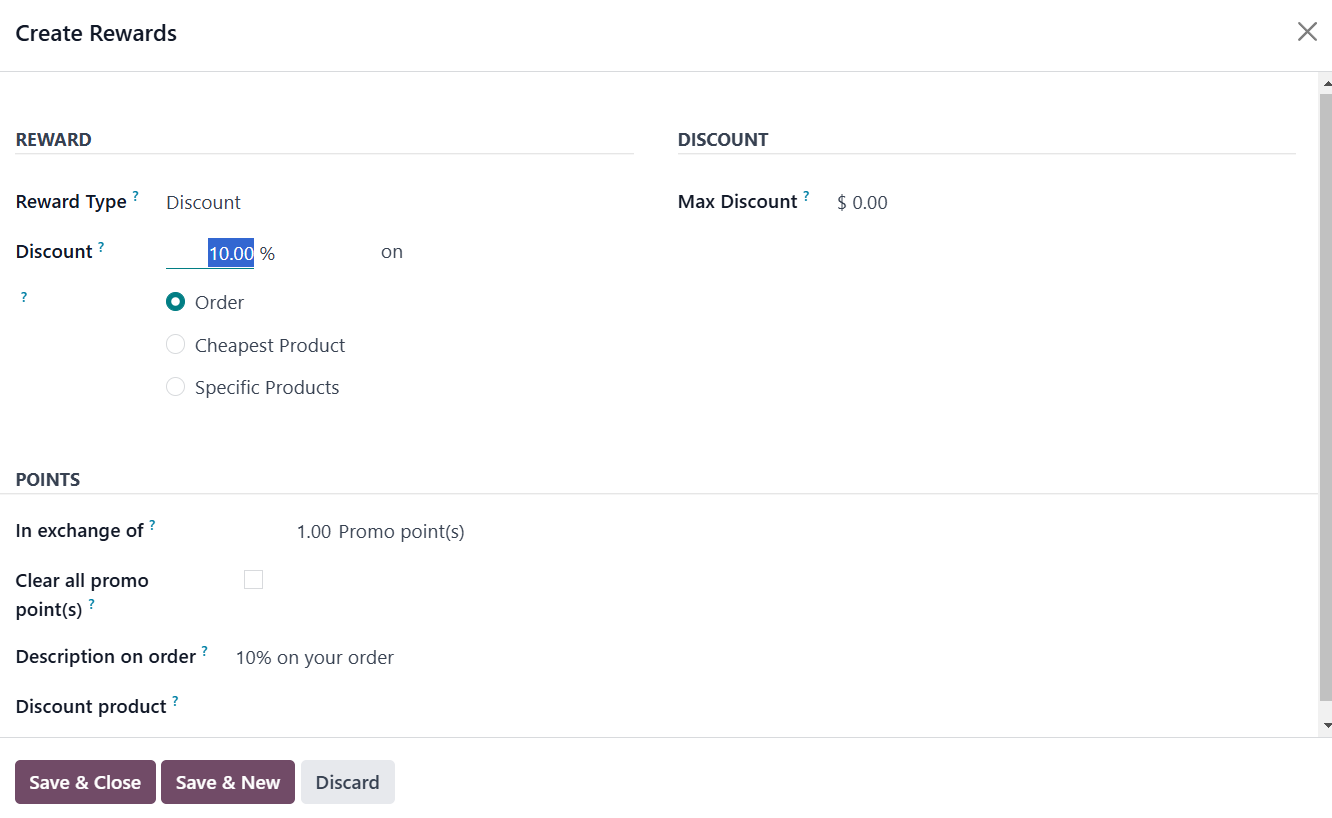
The available reward types depend
on the Program Type selected
and include:
- Free Product –
Allows businesses to
specify the quantity
of the rewarded
product and assign it
based on a purchase
condition.
- Discount – Can be
set as a
percentage-based
discount, a
currency-based
discount per point, or
a fixed amount
discount per order.
Users can also define
whether the discount
applies to the entire
order, the cheapest
product, or specific
products. A Max
Discount value can be
set to cap the total
discount amount, or it
can be left at zero
for no restriction.
- Free Shipping –
Provides free shipping
on eligible orders,
with the option to set
a maximum discount
limit for shipping
costs.
For loyalty-based programs like
Loyalty Cards and Buy X Get
Y, businesses can define the
number of points required to
redeem a reward using the In
Exchange Of field.
Additionally, the Description
on Order field allows
businesses to include a
custom message that will
appear on the customer’s
invoice or checkout page,
ensuring clear communication
about the applied rewards.
By leveraging Odoo 18’s
Promotions, Loyalty & Gift
Card features, businesses can
create dynamic and
customer-centric promotional
strategies that enhance
engagement, incentivize
repeat purchases, and
increase overall sales.
5.2 Gift Cards & eWallet
eWallets
eWallets in Odoo 18 Enterprise
offer customers a convenient
way to store and use digital
credits for making purchases
in both online and physical
stores. These digital wallets
serve as a centralized
payment system, allowing
users to manage multiple gift
cards and seamlessly apply
their stored balance during
transactions. To implement an
eWallet program, businesses
must first create an eWallet
Top-up Product. To set up an
eWallet Top-up Product,
navigate to the Sales module,
then go to Products and click
New to create a new product.
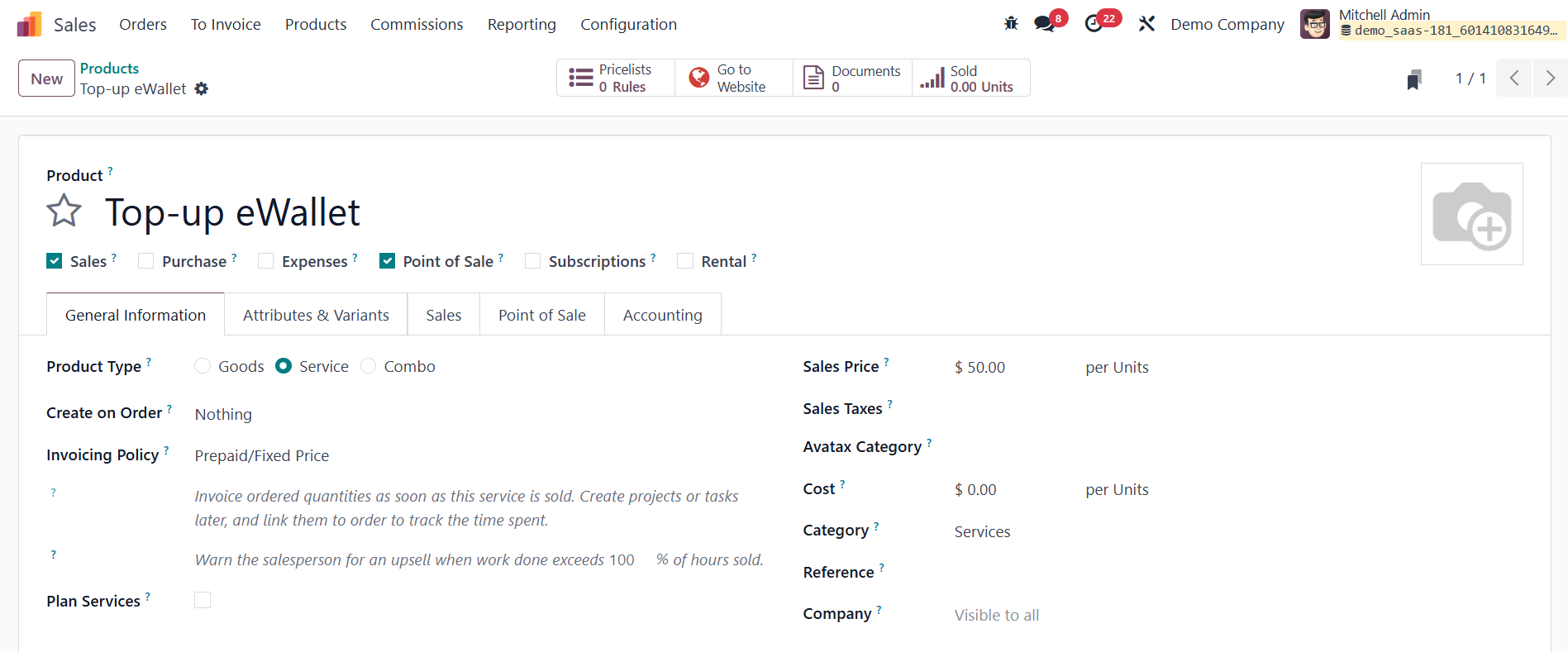
On the Product Template page,
configure the following
options:
- Product Name:
Enter a name for the
top-up product (e.g.,
"eWallet Top-Up –
$50").
- Sales: Enable this
option to make the
product available for
sale.
- Product Type:
Select Service as the
product type, since
top-ups do not require
stock management.
- Invoicing Policy:
Choose Prepaid/Fixed
Price, ensuring that
payment for the
product is made
upfront.
- Create on Order:
Select Nothing, as
this product does not
involve inventory or
manufacturing
processes.
- Sales Price: Enter
the top-up amount
(e.g., $50). If
offering multiple
top-up values, create
separate products with
different Sales Prices
(e.g., $10, $25,
$100).
Once the top-up product is
created, proceed to the Sales
module, then navigate to
Products → Gift Cards &
eWallet to set up an eWallet
program.
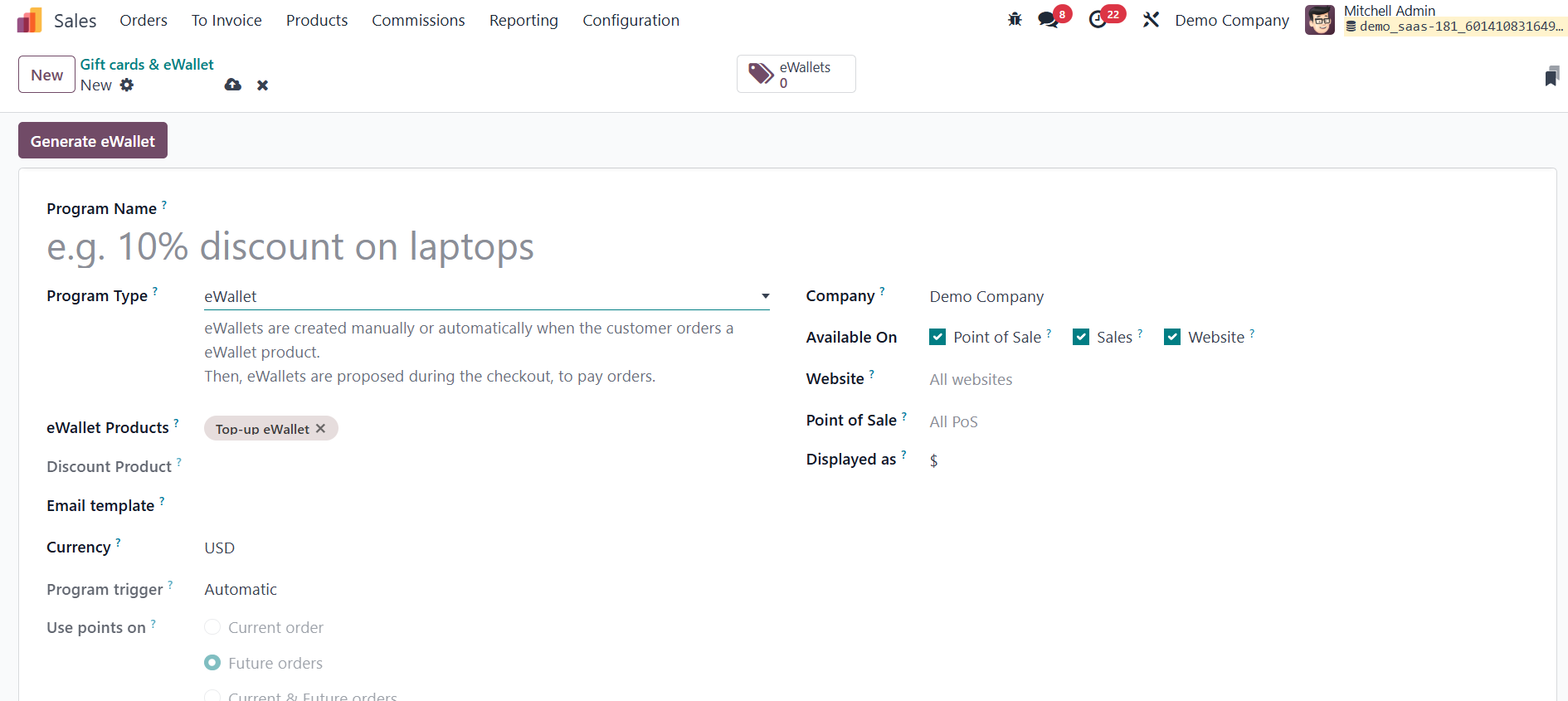
In the Program Form, enter a
suitable name, such as "My
eWallet Program." Under the
Program Type, select eWallet
to designate it as a digital
wallet system. Then, in the
eWallet Product field, select
the previously created top-up
product. If multiple top-up
amounts are available, repeat
the process to add each one
separately.
Next, configure the customer
notification settings by
selecting an Email Template
that will be used to send
confirmation emails to
customers upon successful
top-up. If a suitable
template does not exist, you
can create a new one by
clicking the field, selecting
"Search More," and then
clicking "Create."
Specify the Currency in which the
eWallet program operates,
ensuring consistency in
transactions. If your
business operates in a
multi-company environment,
use the Company field to
restrict the program to a
specific company, or leave it
blank to make it available
across all companies.
Under the Available On section,
define where the eWallet
program can be used by
selecting applicable
platforms, such as Sales,
Website, or PoS.
Additionally, select the
Website and PoS locations
where the program should be
valid. If you want the
eWallet program to be
available across all websites
and PoS locations, leave
these fields empty.
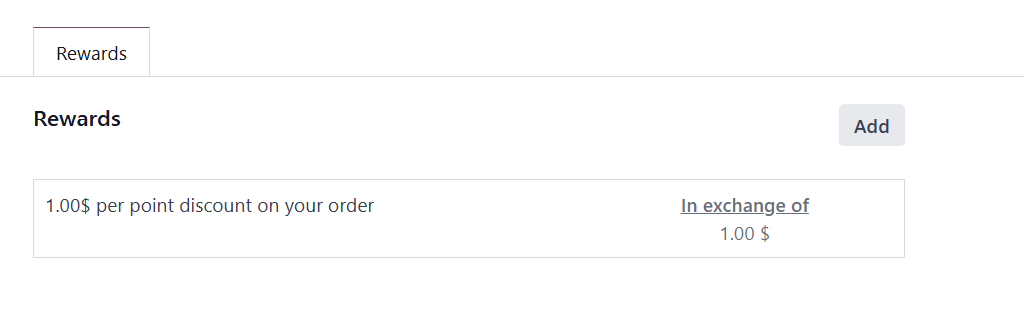
The Add button under the Rewards
tab can be used to add
rewards for this eWallet.
Once all configurations are
completed, finalize the setup
by saving the program. The
eWallet program is now ready
to be used, allowing
customers to top up their
digital wallets and use their
stored credits seamlessly
across multiple Odoo sales
channels.
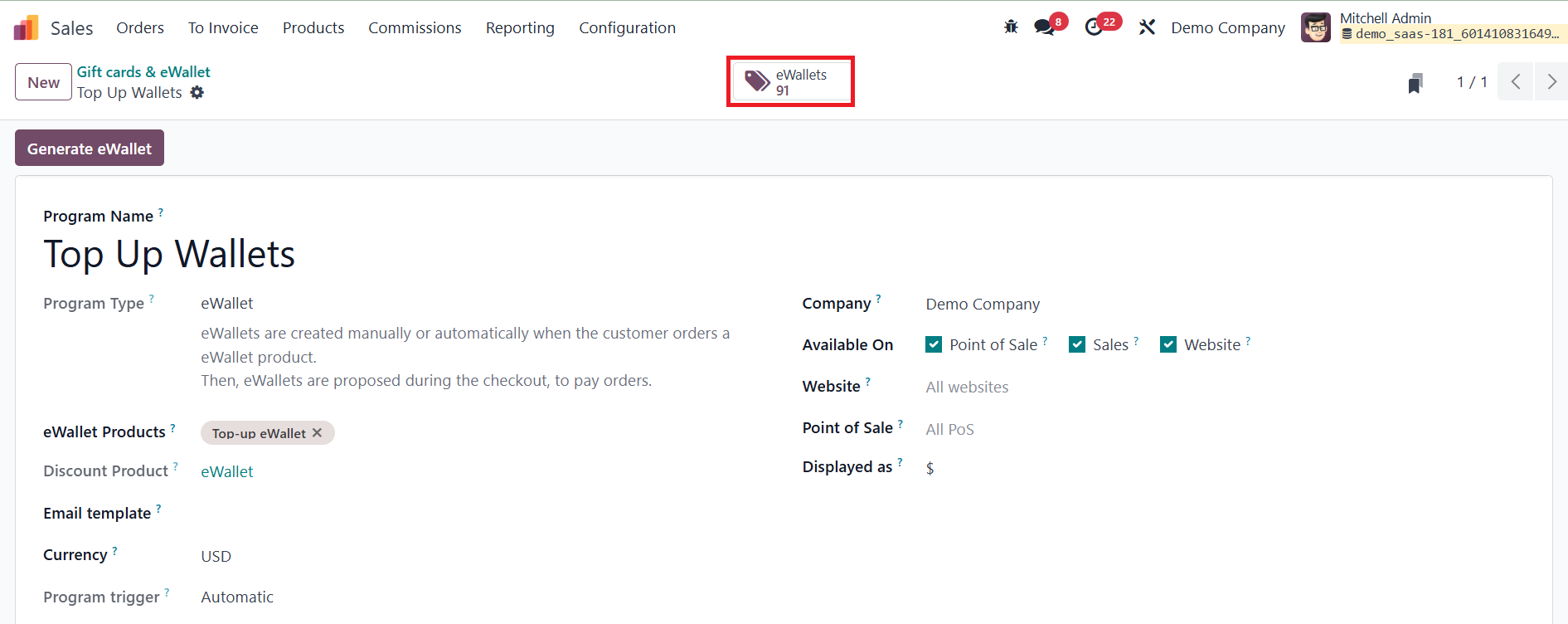
The next step is to generate
individual eWallets for
customers. To do this, click
the Generate eWallet button
located in the upper-left
corner of the program form.
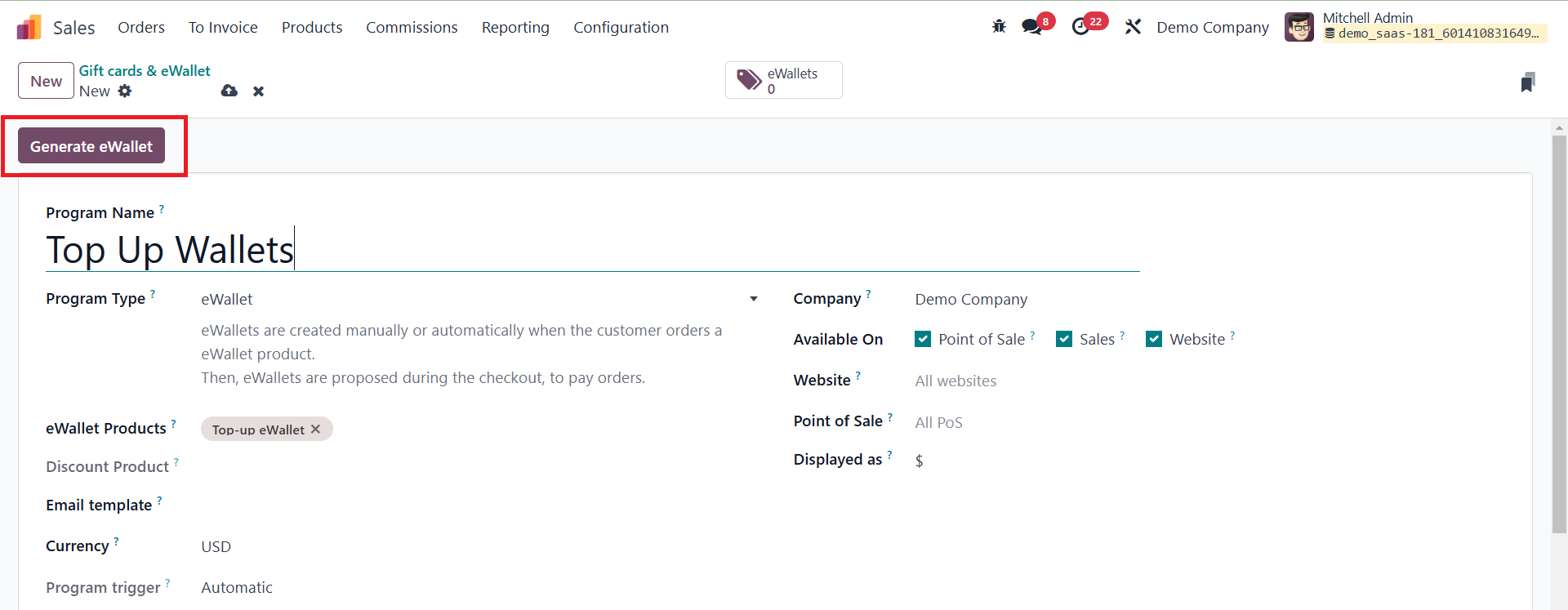
This action will create digital
wallets that customers can
use for making purchases
across the selected sales
channels, eCommerce, and PoS
systems.
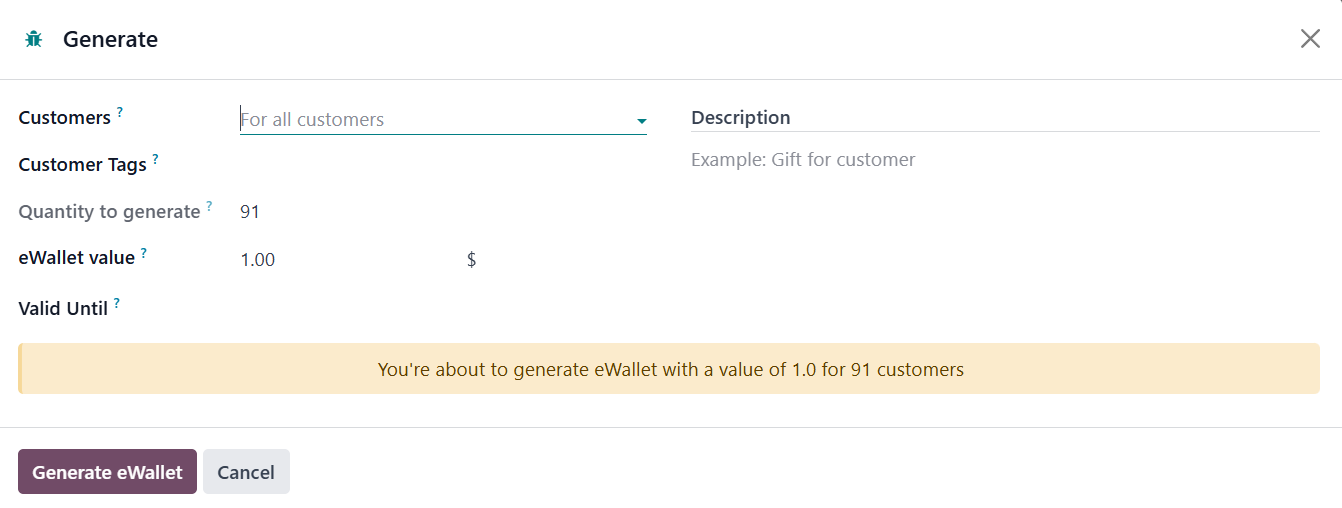
When generating eWallets,
businesses can specify
Customers and/or Customer
Tags to determine who will
receive the eWallets. Based
on the selected criteria, the
system will automatically
adjust the Quantity to
Generate of eWallets being
created. After selecting the
recipients, set the eWallet
Value, which defines the
credit amount available in
each wallet. If required, a
Valid Until period can be
specified to establish an
expiration date for the
eWallets. This feature is
particularly useful for
time-sensitive promotions or
limited-period store credits.
In the Description field, you
can add a description related
to the eWallet. Once eWallets
have been generated, they can
be accessed through the
eWallets smart button located
in the top of the program
form.
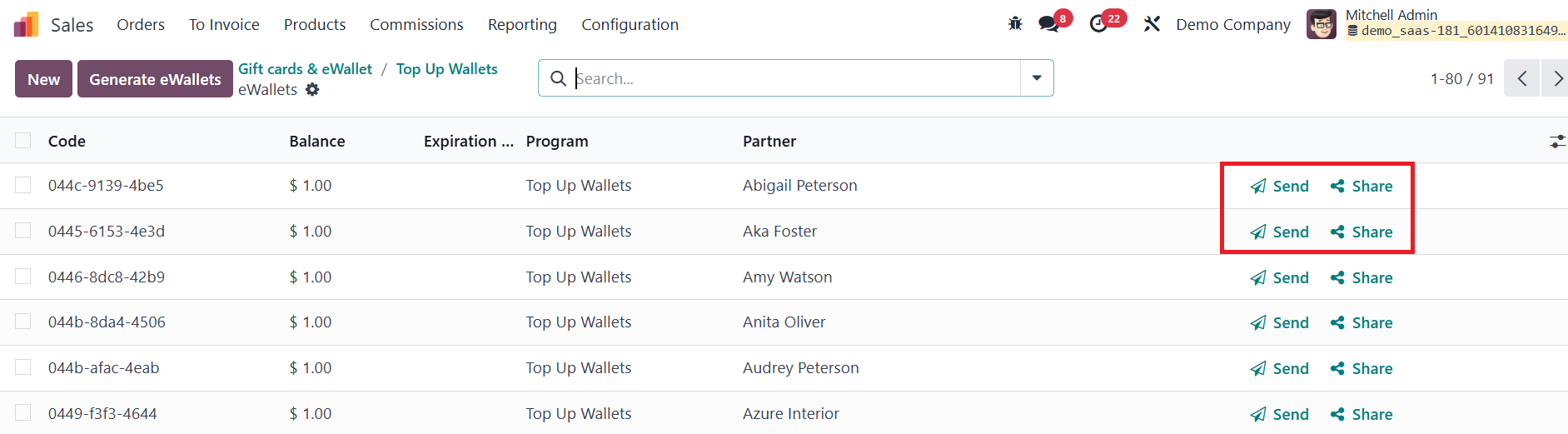
From this interface, users can
send or share eWallets with
customers either via email or
by generating a URL link.
By clicking on an individual
eWallet, users can modify
certain details such as the
expiration date, associated
partner (customer), or
remaining balance.
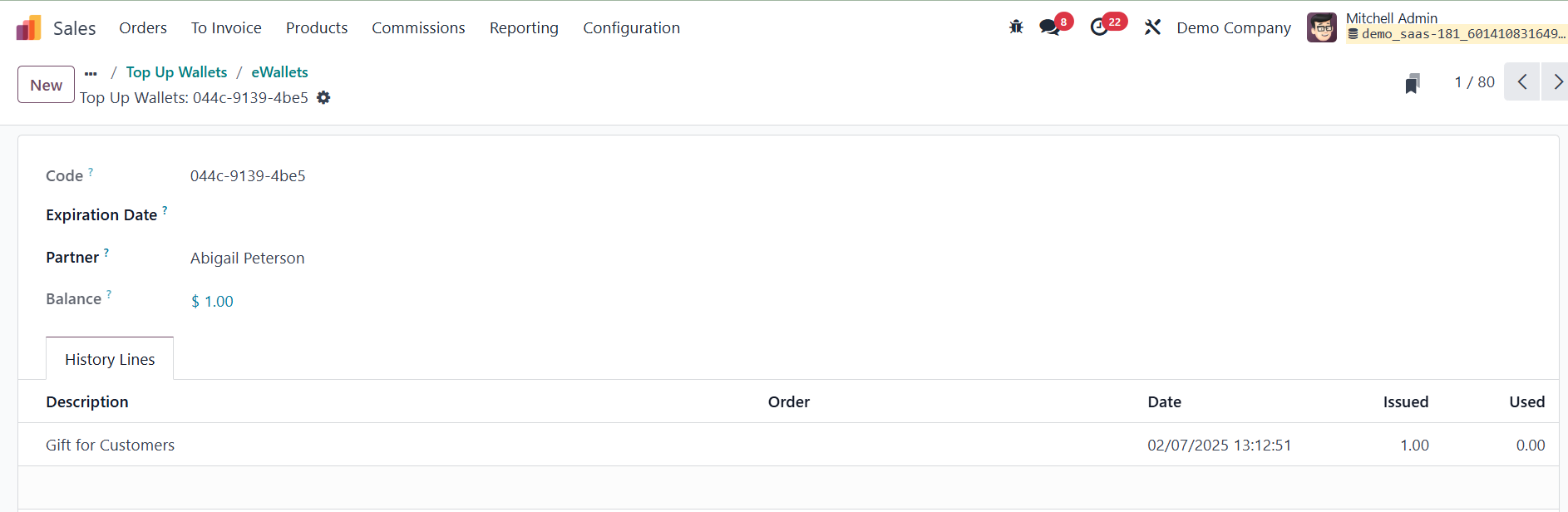
However, for security and
integrity purposes, the
eWallet code itself cannot be
altered, deleted, or
duplicated. This restriction
ensures that each eWallet
remains unique, preventing
fraud or unauthorized
changes.
With these management tools,
businesses can efficiently
oversee their digital wallet
system, providing customers
with a flexible and secure
payment option while
maintaining full control over
eWallet distribution and
usage.
Gift Cards
Gift cards in Odoo 18 Enterprise
provide customers with a
prepaid payment method that
can be used at both eCommerce
stores and physical Points of
Sale (PoS). Customers can
purchase gift cards, which
they or their recipients can
later redeem for purchases,
enhancing flexibility and
encouraging repeat sales.
Before setting up a gift card
program, businesses must
first create gift card
products. To do this,
navigate to the Sales module,
then go to Products →
Products, and click New to
create a new product.
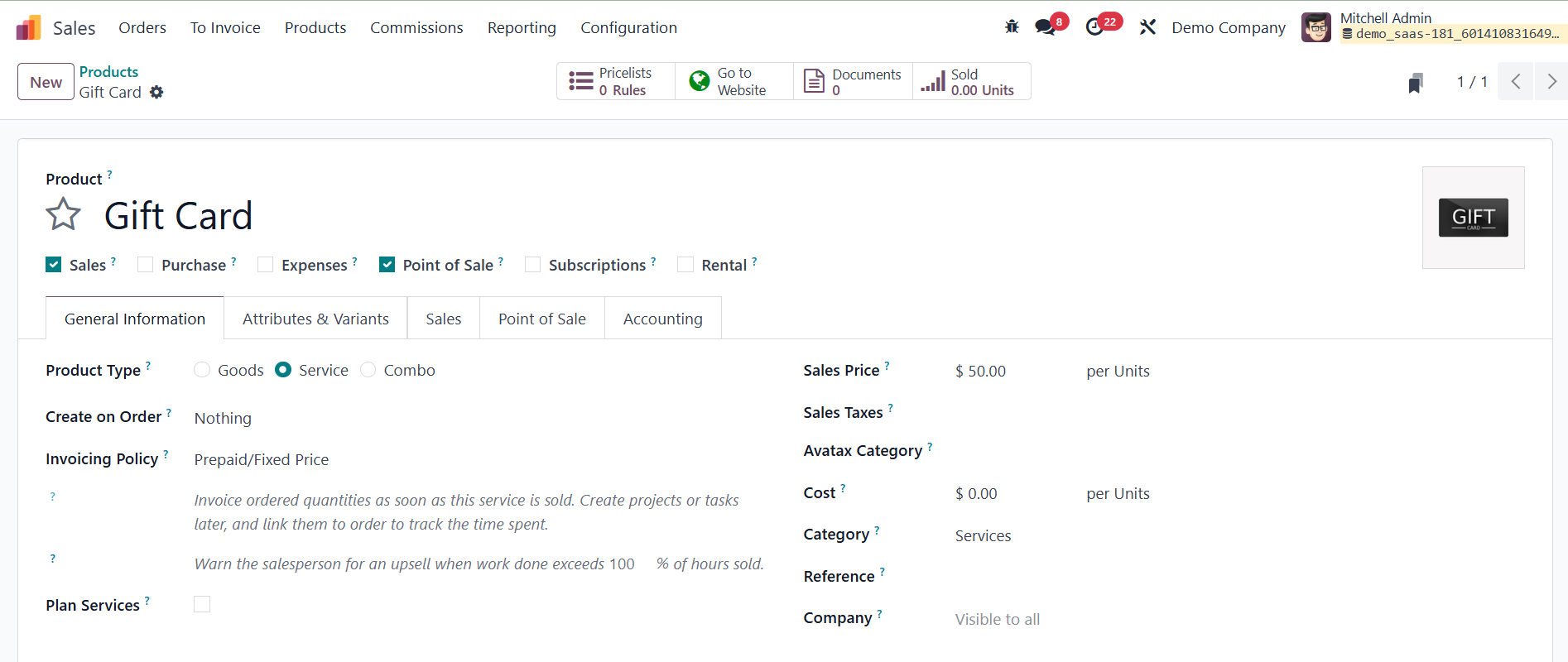
In the Product page, configure
the following options:
- Product Name: Enter a
suitable name for the
gift card product,
such as a $50 Gift
Card.
- Sale: Enable this option
to allow customers to
purchase the gift
card.
- Product Type: Select
Service, as gift cards
are non-physical
products that do not
require inventory
tracking.
- Invoicing Policy: Choose
Prepaid/Fixed Price,
ensuring that the gift
card is paid for
upfront.
- Sales Price: Set the
value of the gift
card, such as $50,
$100, or a
customizable amount.
Businesses can create
multiple gift card
products to offer
different
denominations.
Once the gift card product is
created, businesses can
proceed to configure the gift
card program in Sales →
Products → Gift Cards &
eWallets, enabling customers
to buy, receive, and redeem
gift cards seamlessly across
Odoo’s Sales, eCommerce, and
PoS platforms.
Start by entering a suitable
Program Name, such as
"Holiday Gift Cards" or
"Loyalty Gift Card Program."
In the Program Type dropdown,
select Gift Card to designate
it as a gift card program.
Under the Gift Card Products
field, select the previously
created gift card product(s).
If the business offers
different gift card amounts,
such as $25, $50, or $100,
each product should be added
separately to the program.
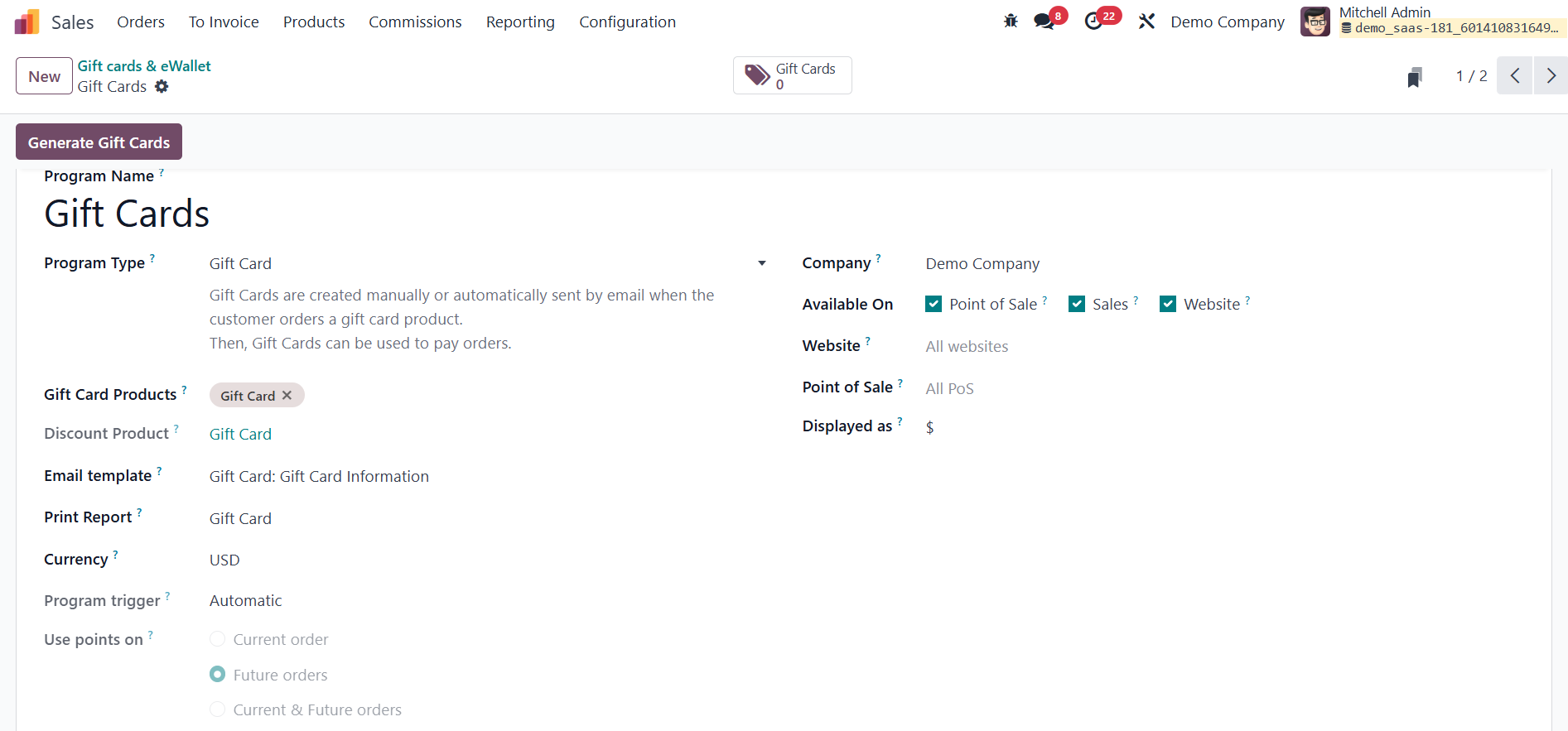
Next, configure customer
notifications by selecting an
Email Template that will be
sent upon purchase. The
default template, "Gift Card:
Gift Card Information," can
be used, or a custom template
can be created by clicking
"Search More" and selecting
"Create." For print-ready
gift card details, select
Gift Card under the Print
Report option. The Currency
field should be set to match
the currency in which the
gift card program operates,
ensuring accurate
transactions. If operating in
a multi-company environment,
specify the Company for which
the program is valid, or
leave the field blank to make
it available across all
companies.
In the Available On section,
select the applications where
the gift card program will be
accessible, including Sales,
Website, and PoS. If the
program is meant for online
use, specify a Website where
it should be available, or
leave it blank to apply it to
all websites. Similarly,
under Point of Sale (PoS)
Locations, select the PoS
locations where customers can
redeem gift cards. If no
specific locations are
chosen, the program will be
valid across all PoS systems.
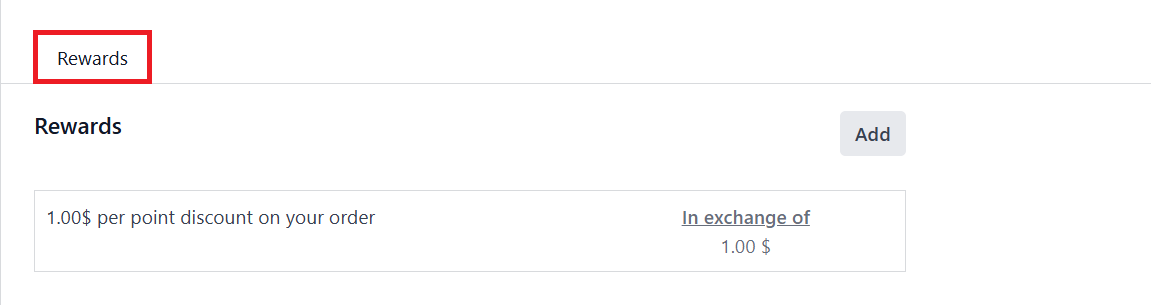
You can add Rewards under the
Rewards tab using the Add
button.
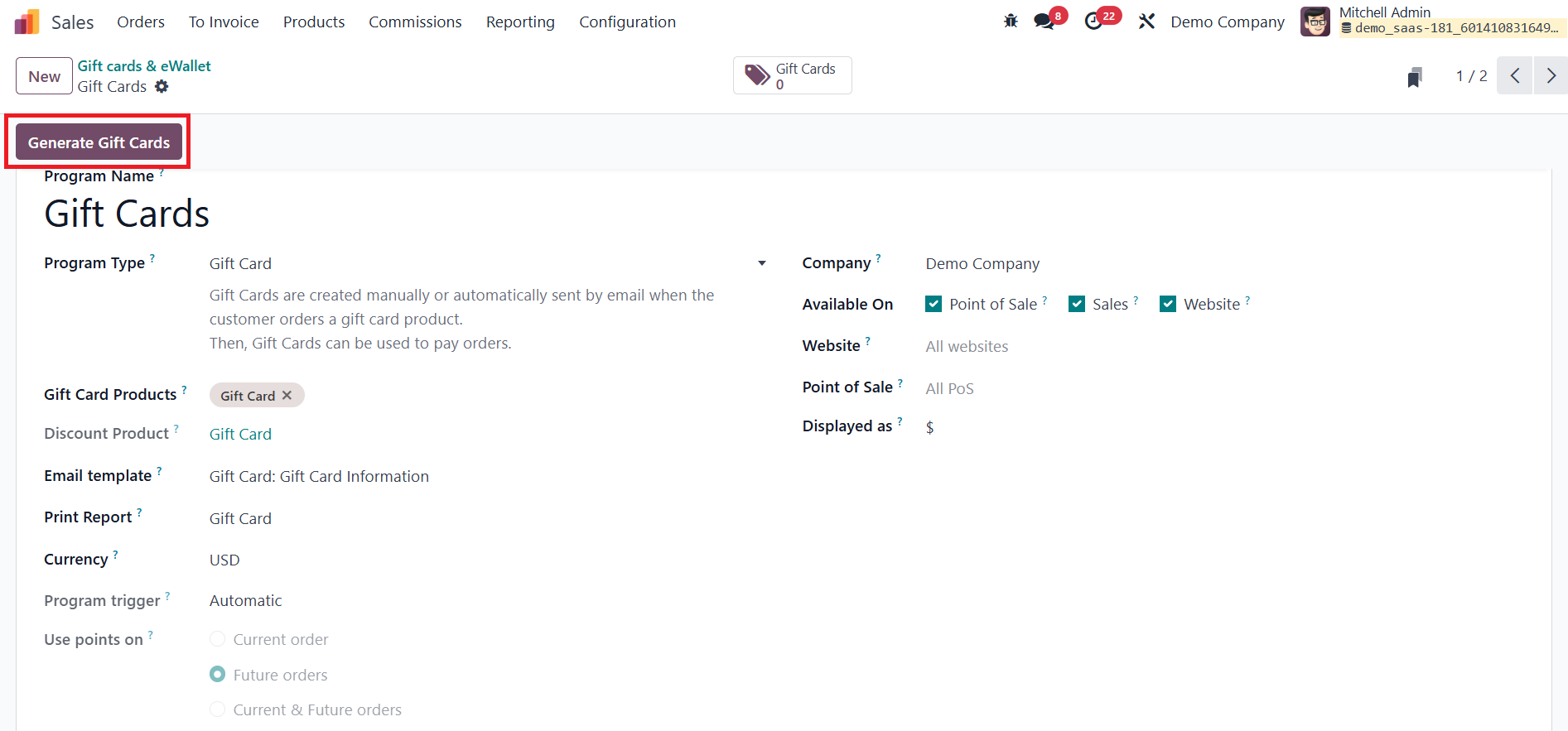
Once the Gift Card Program has
been fully configured, gift
cards can be generated by
clicking the Generate Gift
Cards button located in the
upper-left corner of the
program form.
This will open a new pop-up
window as shown below.
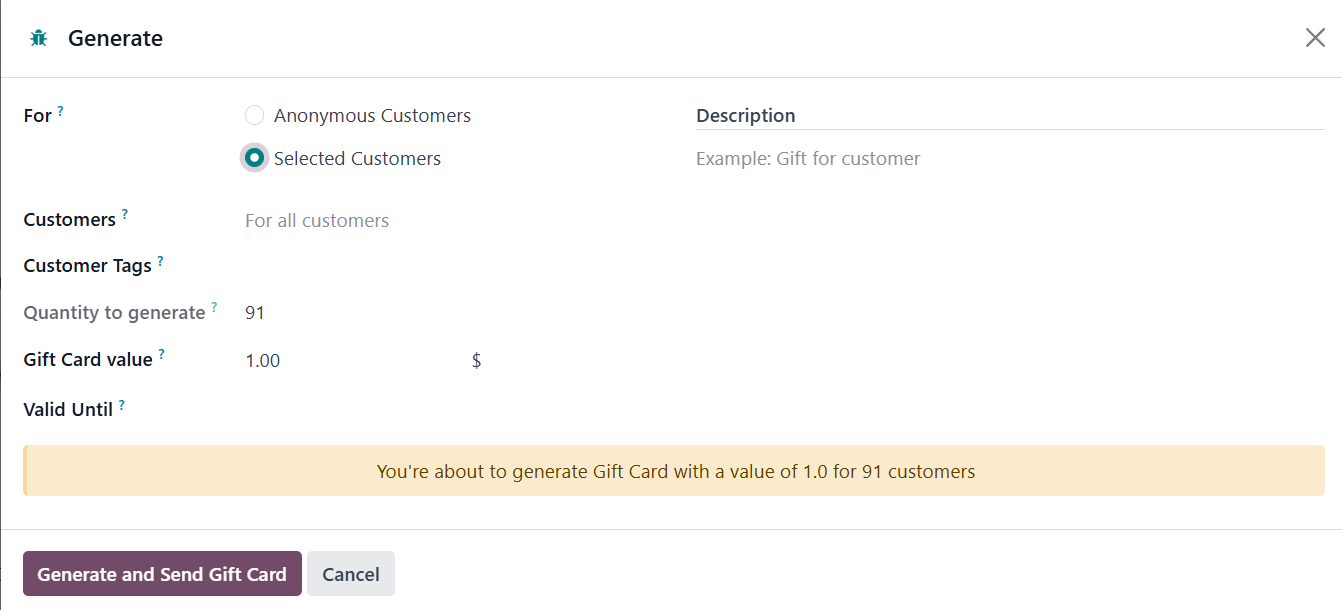
When generating gift cards in
Odoo 18 Enterprise,
businesses can choose between
Anonymous Customers or
Selected Customers. For
Anonymous Customers, simply
specify the quantity of gift
cards to be generated,
allowing the creation of
multiple unassigned gift
cards that can be sold or
distributed later. For
Selected Customers,
businesses can select
specific customers or use
customer tags to target
groups such as VIP members or
loyalty program participants.
After selecting the recipients,
define the Gift Card Value,
which determines the credit
amount associated with each
gift card. Additionally, if
the gift cards should have an
expiration date, specify the
Valid Until period to set a
deadline for redemption. You
can add a description also in
the given field.
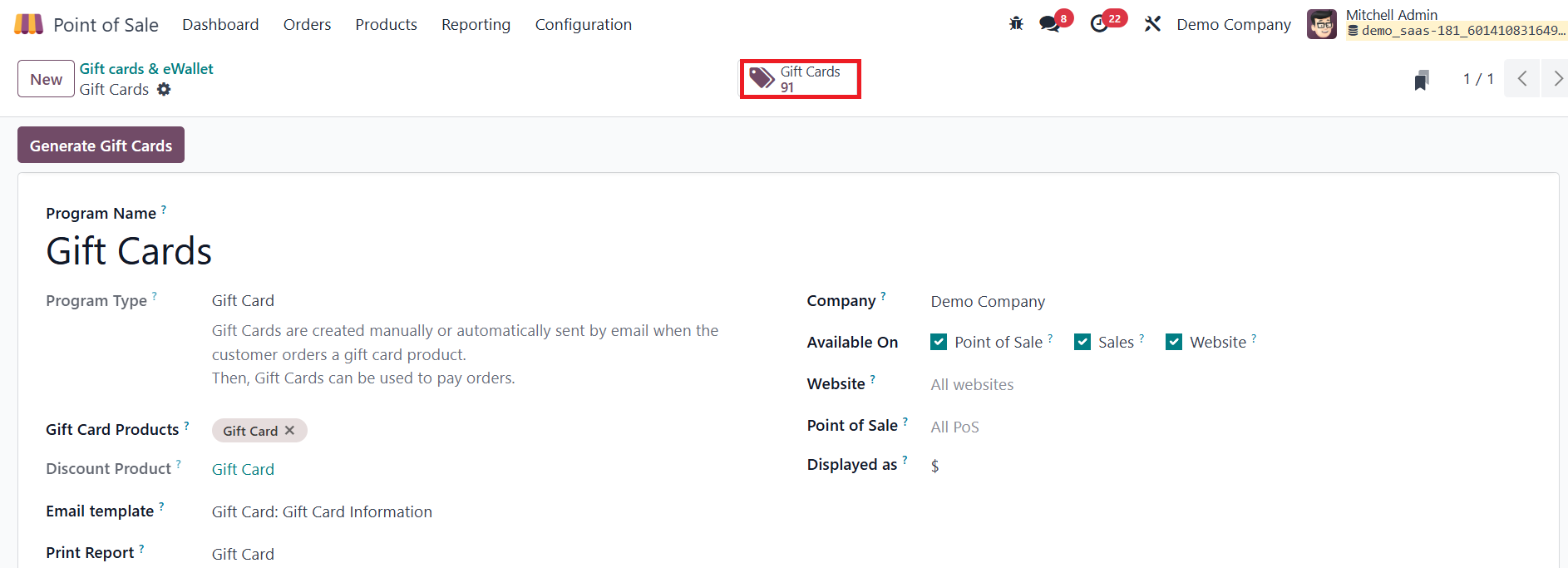
Once gift cards have been
generated, they can be
accessed through the Gift
Cards smart button located at
the top of the program form.
From this interface,
businesses can efficiently
manage their gift cards and
distribute them to customers.
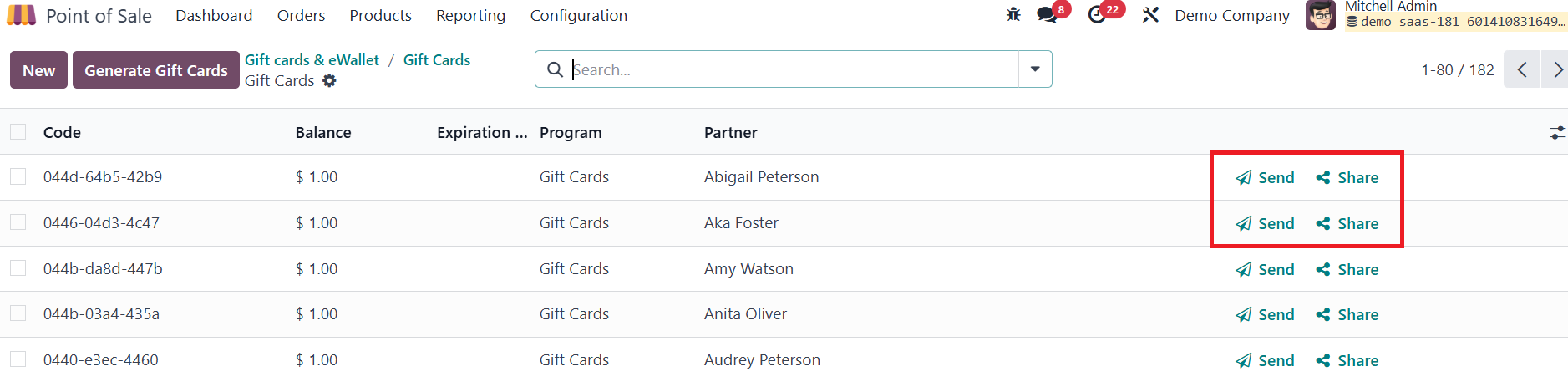
Gift cards can be sent via email
or shared through a generated
URL link, allowing for
seamless digital
distribution.
By clicking on an individual gift
card entry, users can modify
details such as the
Expiration Date, assign or
update the Partner
(customer), and adjust the
remaining balance if
necessary. However, to
maintain security and prevent
misuse, the Gift Card Code
cannot be altered, deleted,
or duplicated once it has
been generated. By leveraging
these management tools,
businesses can efficiently
track, distribute, and
regulate the use of gift
cards, providing a smooth and
controlled experience for
both the company and its
customers.