10. Quotation Template
Odoo 18 Enterprise Sales Module offers businesses the ability to
create reusable quotation templates, significantly improving
efficiency in generating and managing sales quotations. These
templates help streamline the sales process by allowing users to
quickly send pre-configured quotations without manually entering
details for every transaction.
To enable quotation templates, navigate to the Sales module, access
the Configuration menu, and open Settings. Under the
Quotations/Orders section, activate the Quotation Templates option
by selecting the checkbox.
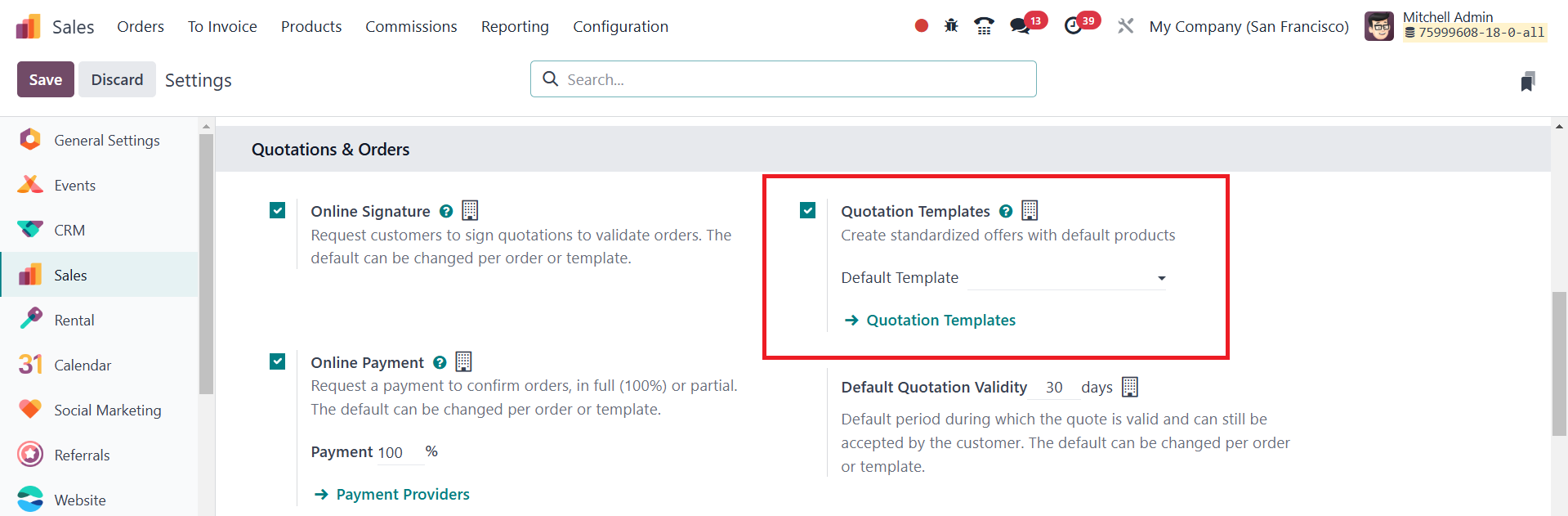
Once enabled, a Default Template field appears, allowing you to set a
default quotation template from the available options. Additionally,
an internal link labeled Quotation Templates will become visible
beneath this field, directing you to the Quotation Templates page
where templates can be created, modified, or reviewed. It is
essential to click the Save button to apply any configuration
changes.
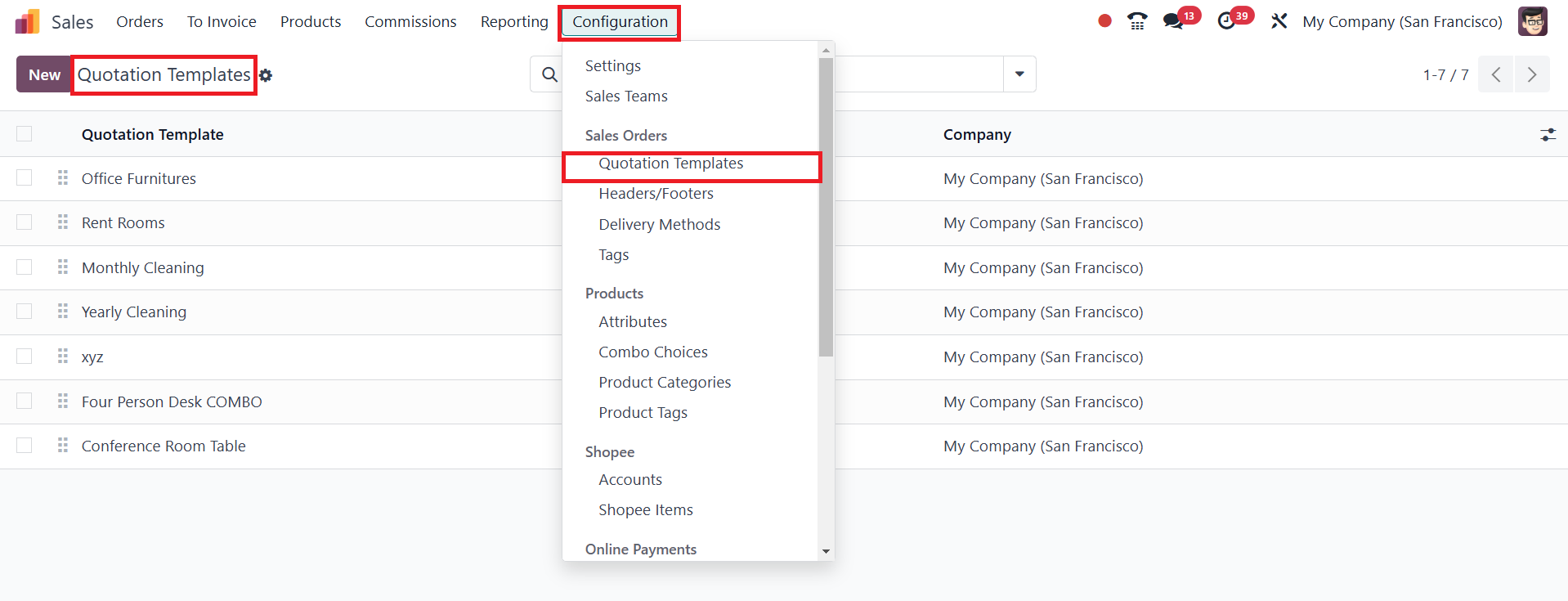
Creating a new quotation template begins by selecting the New button
on the Quotation Templates page, which opens a blank form for
customization.
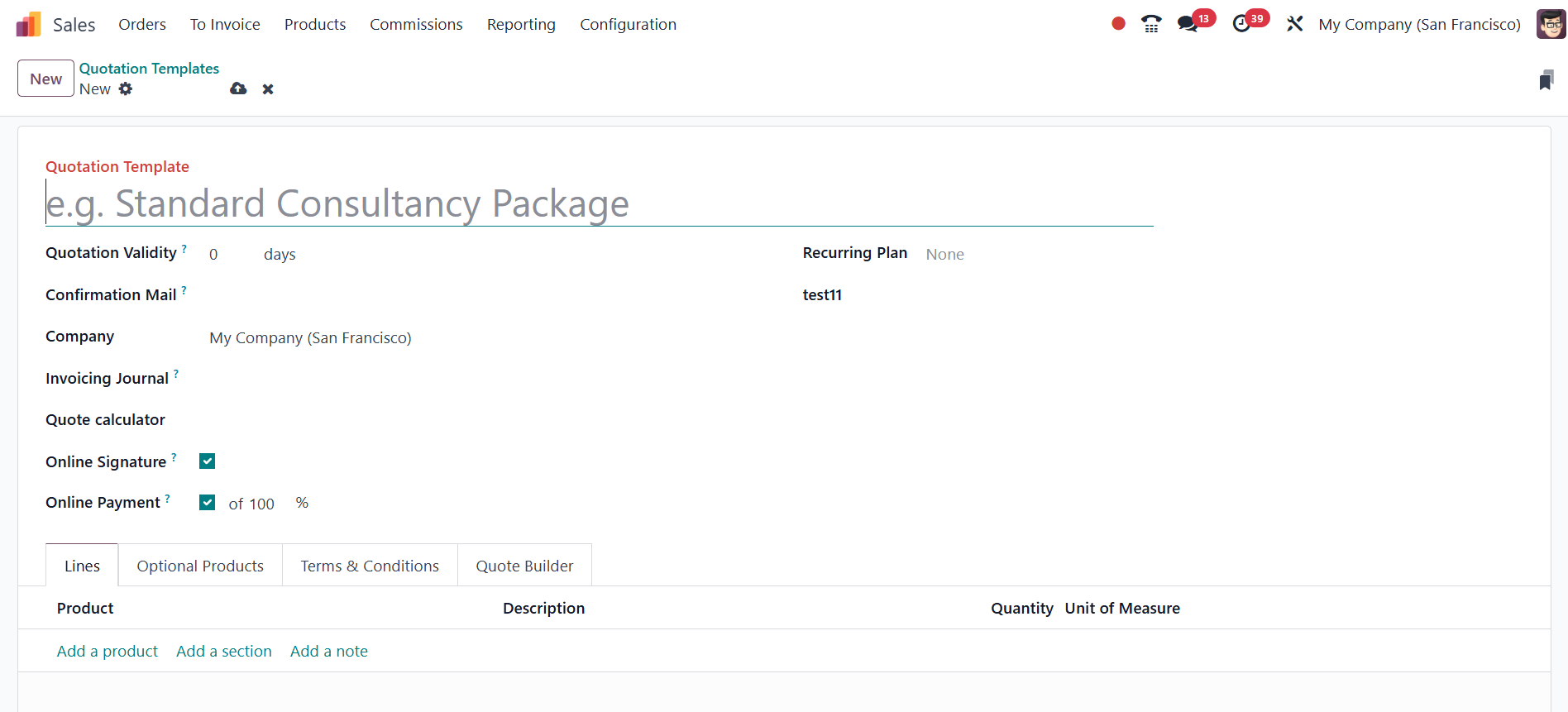
The first step is to provide a suitable Quotation Template name.
Next, the Quotation Validity field should be defined to specify how
long the quotation remains valid. Leaving this field at its default
value of 0 ensures indefinite validity. In the Confirmation Mail
field, a pre-configured email template can be selected to
automatically notify customers upon order confirmation. If operating
in a multi-company environment, the Company field must be used to
associate the template with a specific company. Additionally,
specifying an Invoicing Journal ensures that sales orders generated
from this template follow the designated invoicing structure. If
left blank, Odoo automatically selects the default sales journal
with the lowest sequence.
For businesses utilizing Online Signature and Online Payment
features, additional options become available within the template.
Enabling Online Signature prompts customers to provide an electronic
signature for order confirmation, while activating Online Payment
allows customers to confirm the order by making a payment. If Online
Payment is enabled, a percentage field appears, letting businesses
specify the portion of the payment to be collected online. These two
features can be used independently or combined, requiring both a
signature and an online payment for order confirmation.

Within the Lines tab of the quotation template, businesses can
structure the quotation by adding products, organizing them into
sections, and including relevant notes. Clicking Add a product opens
a selection field where users can choose items from the product
database. To improve clarity, sections can be added by clicking Add
a section and naming the category, helping to group related products
effectively. If specific details such as warranty terms or
conditions need to be included, the Add a note option allows for
additional textual input.

The Optional Products tab provides an opportunity to suggest
additional products or services that customers might consider
purchasing along with the primary quotation. These optional items
give businesses a way to upsell complementary goods or services,
offering customers greater flexibility in their purchase decisions.

Another crucial aspect of a quotation template is defining Terms &
Conditions to establish clear expectations regarding the
transaction. These default terms can be pre-set to ensure
consistency across all sales quotations.

Odoo 18 also introduces the Quote Builder tab, allowing businesses to
enhance the visual structure of their quotations by incorporating
header and footer pages. These elements contribute to a
professional-looking quotation document by including company
branding, product details, service descriptions, or legal
disclaimers. When generating a PDF quotation, Odoo compiles the
information using the specified header and footer settings. If no
custom headers or footers are provided in the Quote Builder, the
system defaults to the settings configured in the Company Settings.
Once the quotation template is designed and finalized, it becomes
readily available for use in future quotations, ensuring consistency
and efficiency in the sales process. By utilizing Odoo’s quotation
templates, businesses can minimize repetitive tasks, enhance
accuracy, and present well-structured sales documents to their
clients with minimal effort.