7. Sales Quotations
The process of creating sales
orders in a business
typically begins with sales
quotations, which provide
customers with detailed
information about the
products and services
offered, including pricing
and terms. A sales quotation
serves as a preliminary
agreement between the vendor
and the buyer, ensuring
transparency regarding costs
before finalizing a sales
deal. With the Odoo 18 Sales
module, businesses can
efficiently generate and send
sales quotations, allowing
customers to review pricing
details before making a
purchase decision. If a
customer is satisfied with
the quotation, it can
seamlessly be converted into
a confirmed sales order.
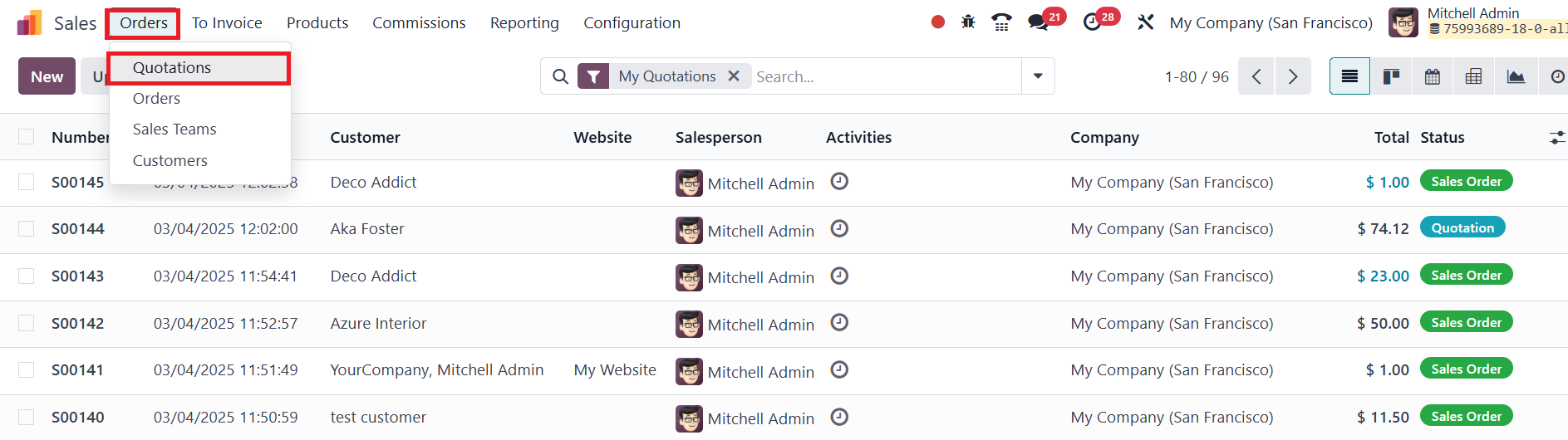
In Odoo 18, sales quotations can
be managed from the
Quotations option under the
Orders menu within the Sales
module.
This section provides an overview
of all previously created
quotations, displaying key
details such as the quotation
number, creation date,
customer name, website,
assigned salesperson,
activities, company, total
amount, and status.
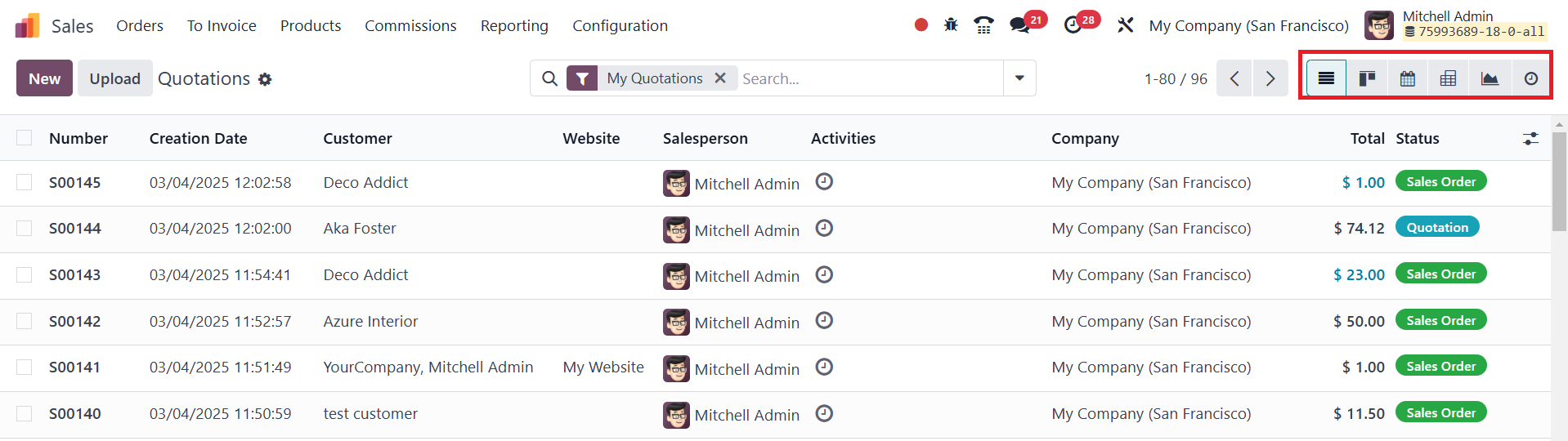
Additionally, Odoo 18 offers
multiple viewing options,
including Kanban, Calendar,
Pivot, Graph, and Activity
views, allowing businesses to
organize and analyze
quotations effectively. Users
can also filter and sort
quotations using built-in and
customizable sorting options
to quickly access relevant
records.
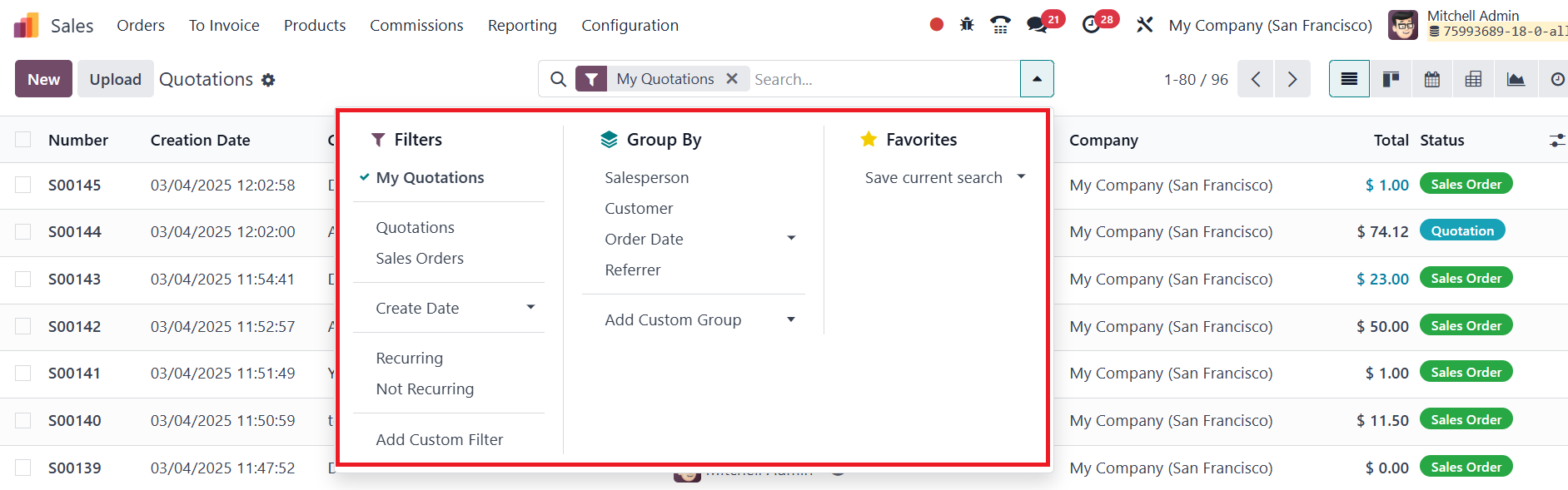
You can use My Quotations, Sales
Orders, Create Date,
Recurring, and Not Recurring
as default filters. In the
Group By option, you will get
Salesperson, Customer, Order
Date, and Referrer as default
options.
To create a new quotation, users
can click the New button,
which opens a quotation
creation form.
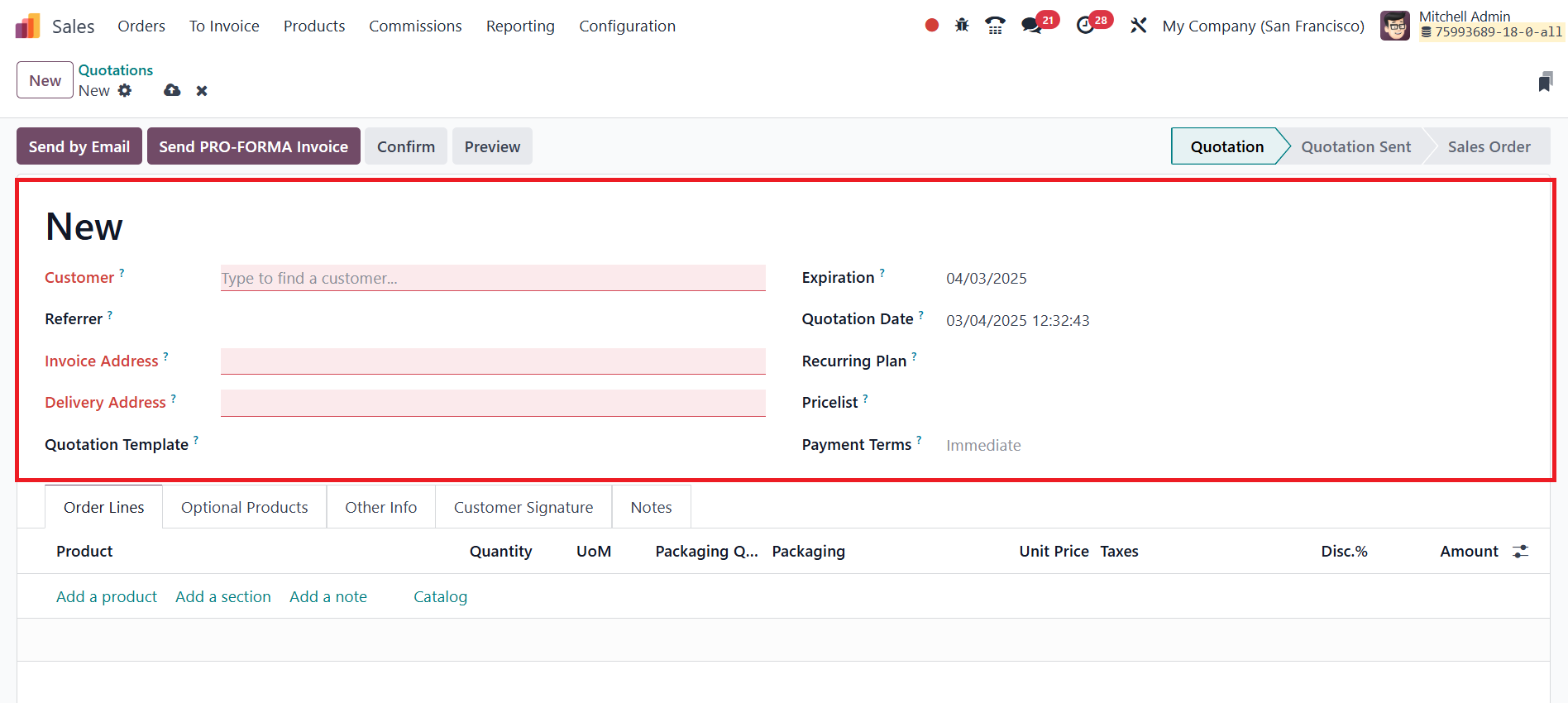
The customer’s name can be
selected from the provided
list, and once an existing
customer is chosen, fields
such as Invoice Address,
Delivery Address, Pricelist,
and Payment Terms will
automatically populate based
on the stored customer
information. Additional
details such as the Quotation
Template, Expiration Date,
and Referrer can also be
specified. The Quotation Date
field captures the creation
date of the quotation for
record-keeping purposes. The
Expiration field specifies
the validity period of the
quotation, ensuring timely
responses from customers.
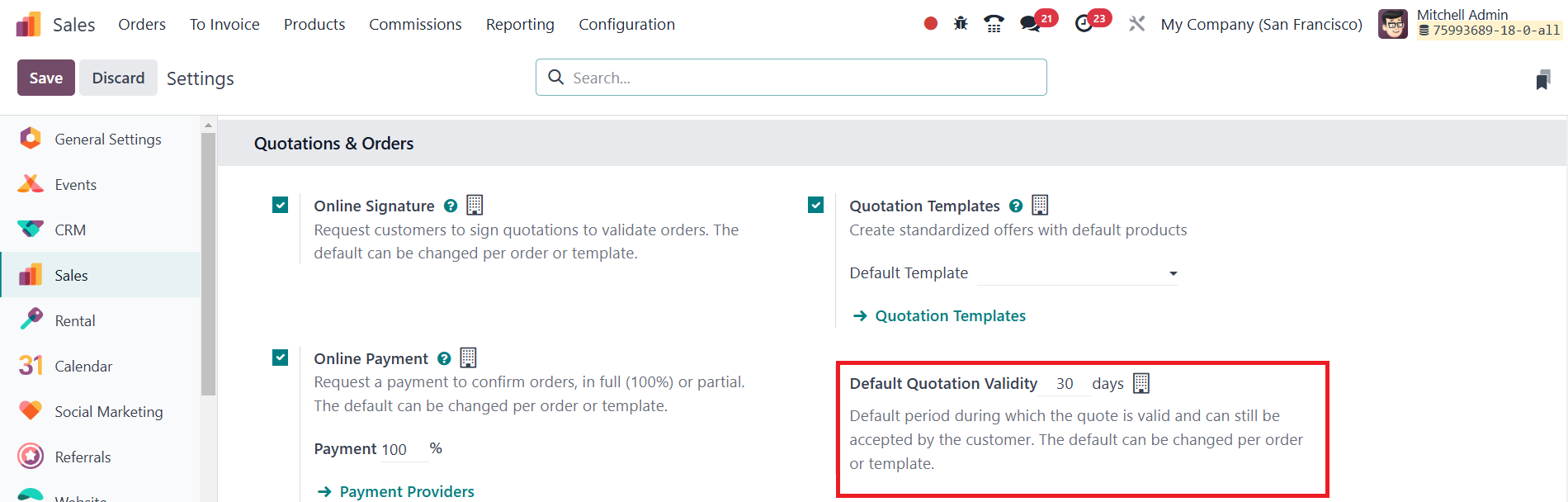
Furthermore, users can configure
Default Quotation Validity in
the Settings menu, allowing
the system to auto-fill
expiration dates based on
predefined settings.
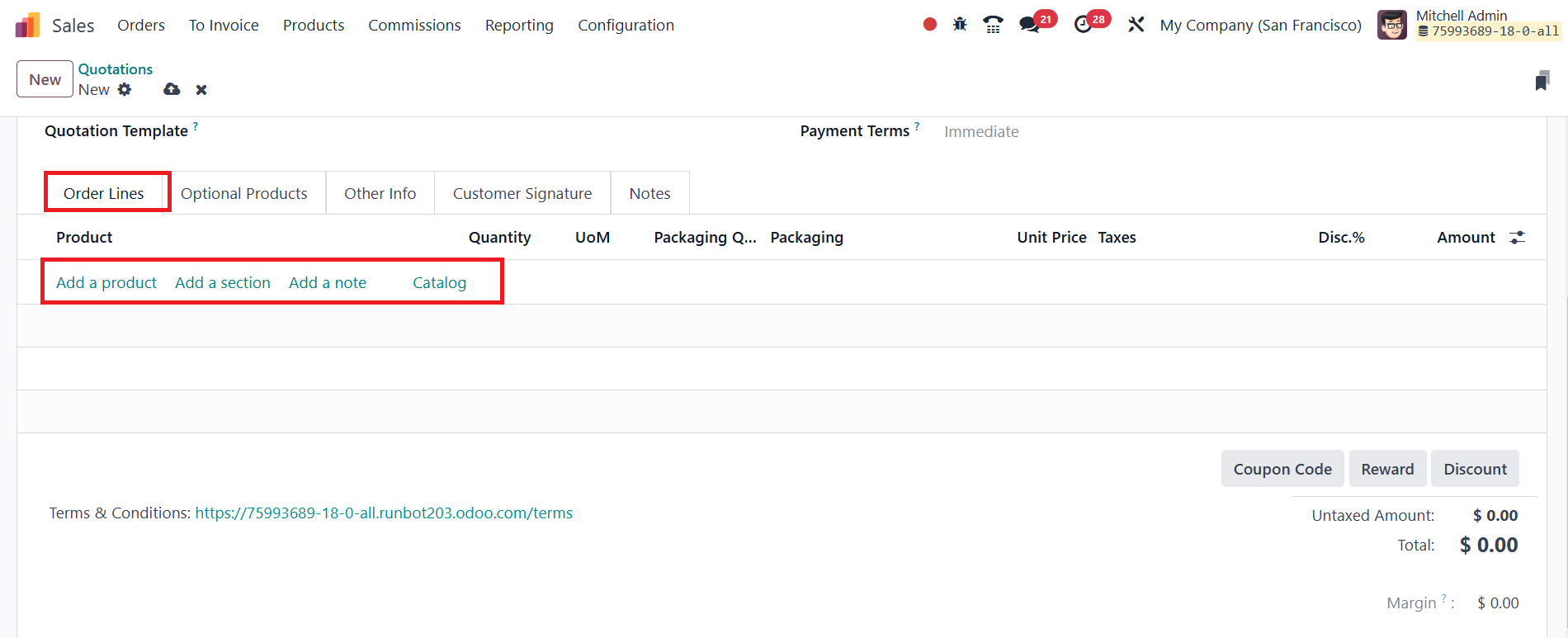
Under the Order Lines section,
users can add the products
they wish to include in the
quotation. By clicking the
Add a Line button, they can
enter product details such as
Product Name, Description,
Quantity, Unit of Measure
(UoM), Unit Price, Taxes,
Discounts, and Subtotal. Odoo
18 allows users to add
multiple products as per the
customer’s requirements.
Additionally, the Catalog
feature enhances product
selection by redirecting
users to a product catalog
page, where items are
categorized based on
attributes.
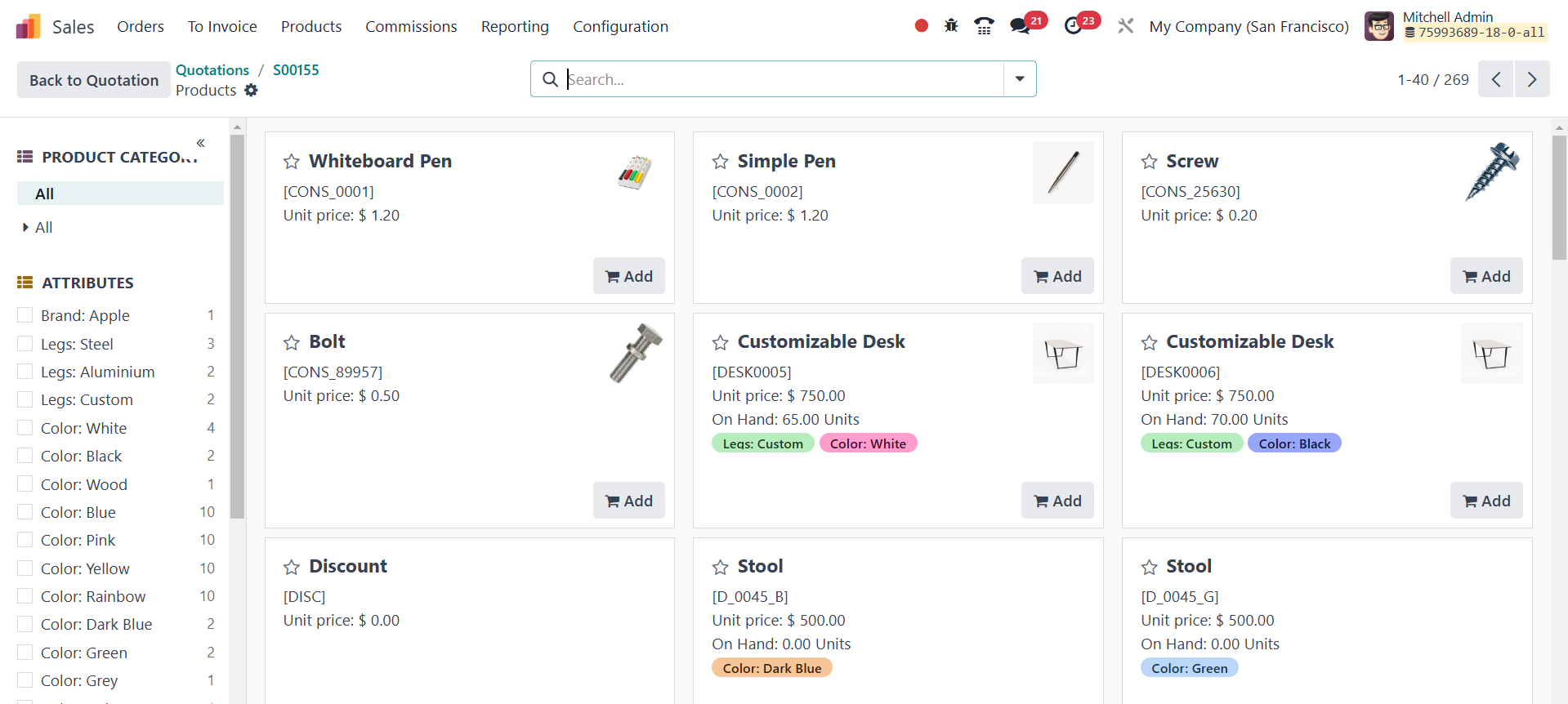
This feature simplifies the
selection process, enabling
customers to explore various
product categories with ease.
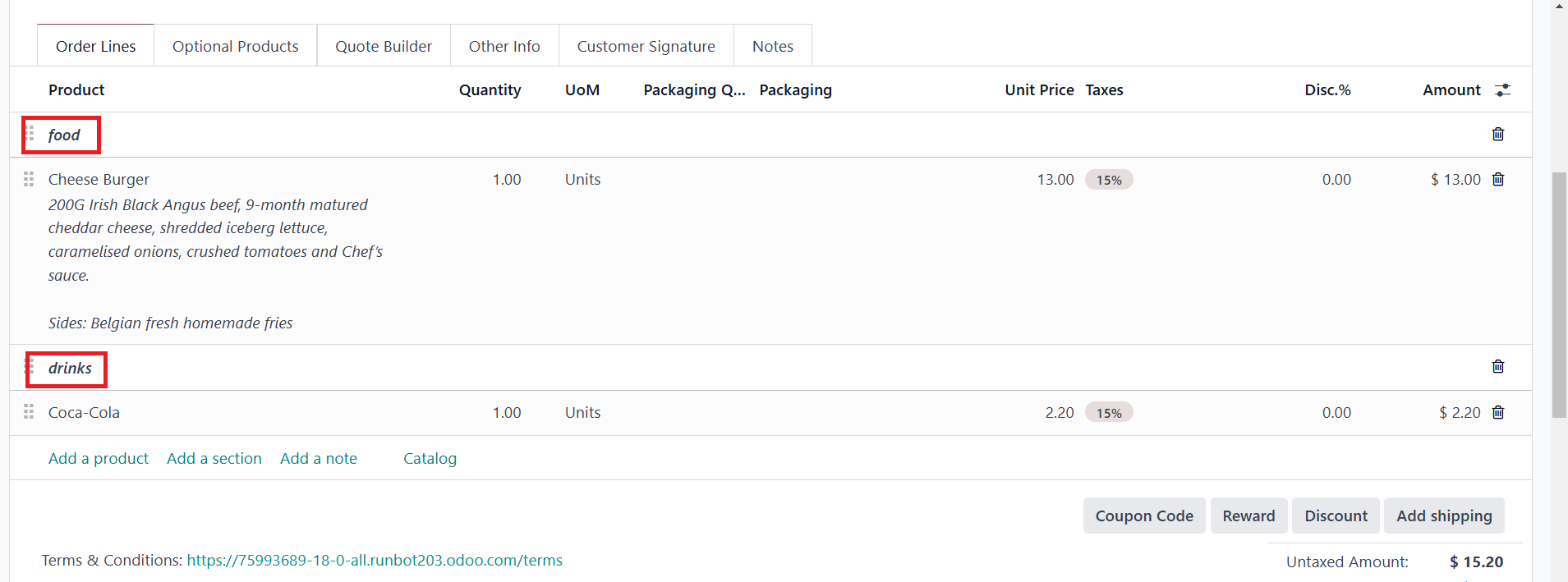
Odoo 18 also provides an Add
Section button, allowing
businesses to categorize
products within a quotation
into separate sections. Once
products are added, the total
quotation amount is
calculated and displayed
under the Order Lines
section.
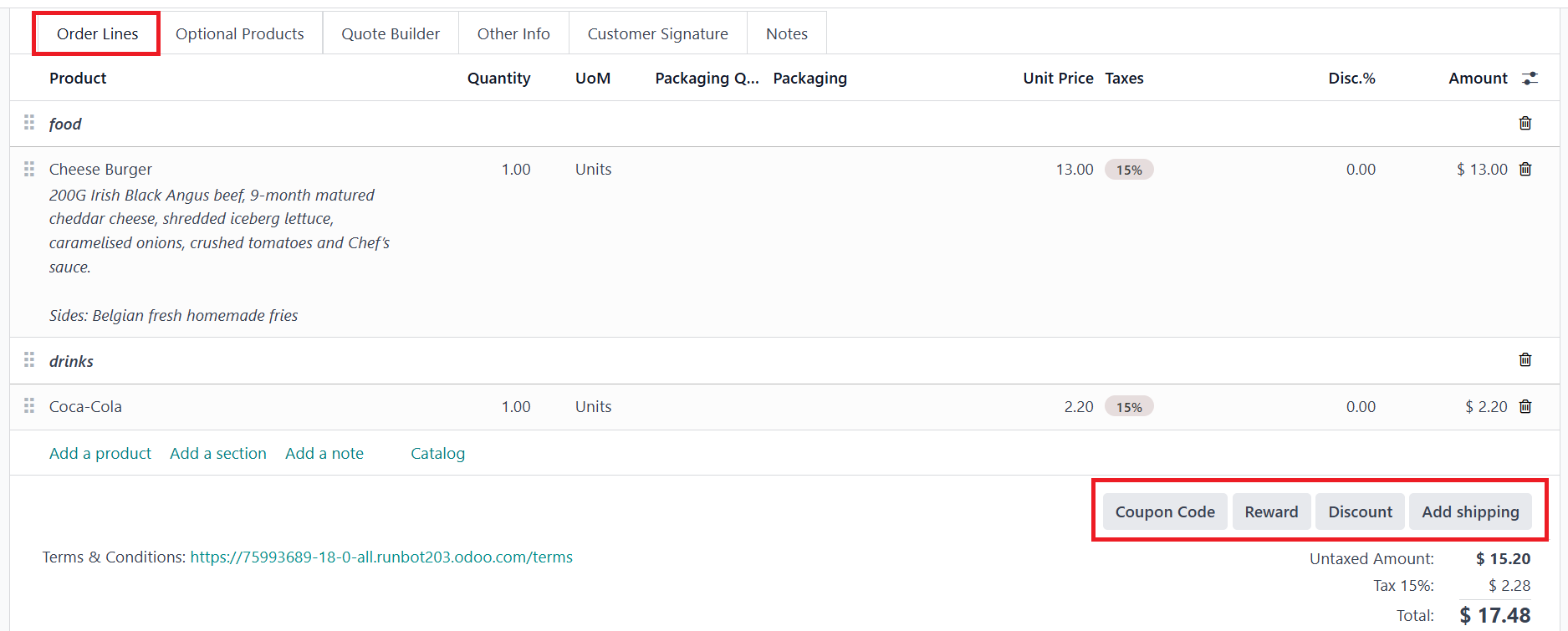
If the customer has Coupon Codes
or Promotions, they can be
applied directly from the
same section. Additionally,
users can configure Shipping
Methods by clicking the Add
Shipment button. Businesses
can also include extra
details through the Add a
Section and Add a Note
options, making it easier to
provide relevant instructions
or clarifications.
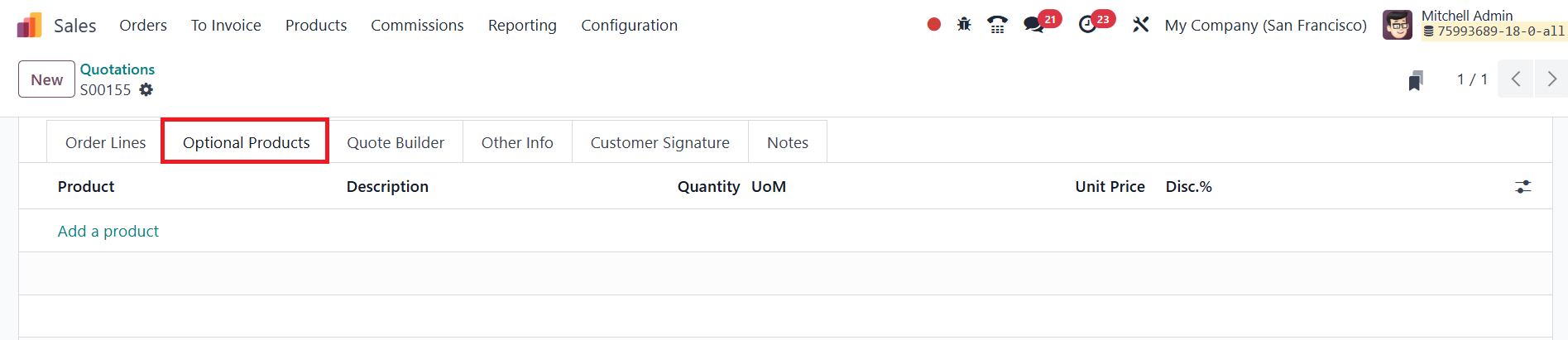
To support cross-selling
strategies, Odoo 18 includes
an Optional Products section,
where businesses can suggest
additional items that
complement the customer’s
purchase.
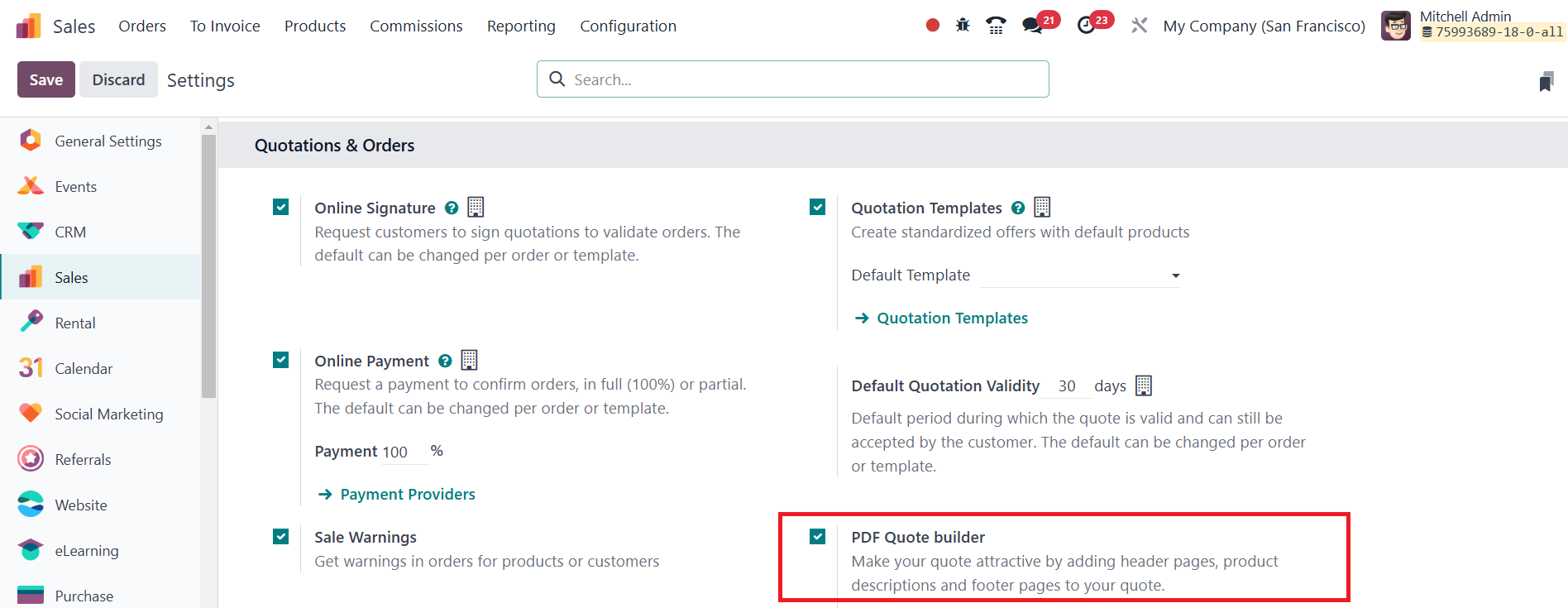
The PDF Quote Builder enables you
to enhance the visual
presentation of your
quotations by incorporating
header pages, detailed
product descriptions, and
footer pages. This feature
allows for complete
customization of the
quotation layout, ensuring a
more professional appearance
that aligns with your brand
identity.

You can manage and configure this
feature under the Quote
Builder tab.
Further customization is
available under the Other
Information tab, which
includes details related to
Sales, Deliveries, Tracking,
and Invoicing.
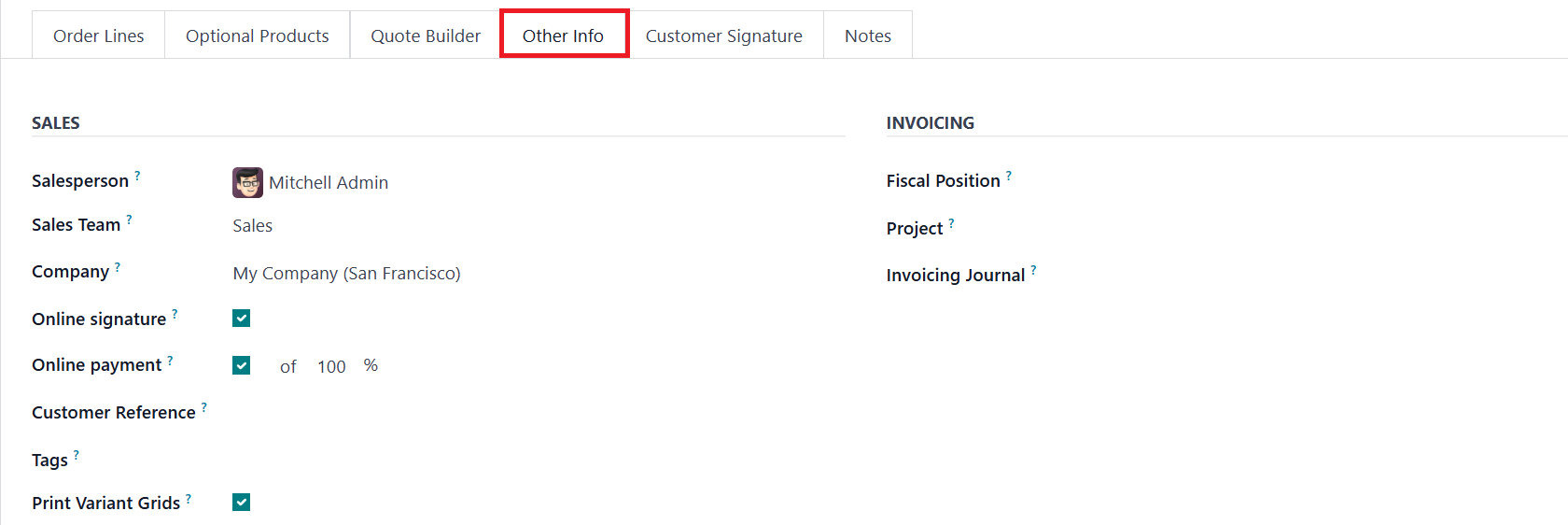
The assigned Salesperson and
Sales Team for the quotation
can be specified here,
ensuring accountability in
managing sales operations.
Additionally, Odoo 18 allows
businesses to enable Online
Signature and Online Payment
options, streamlining the
approval and payment
processes. If enabled,
customers can sign the
quotation digitally and
proceed with payment through
online methods. The system
also supports Print Variant
Grids, allowing businesses to
generate variant-specific
documentation.
The Invoicing and Payments
section within the quotation
enables users to define
Fiscal Positions, Project,
and Invoicing Journal. Fiscal
positions are particularly
useful for businesses that
need to adjust taxes and
accounts based on
customer-specific
requirements.
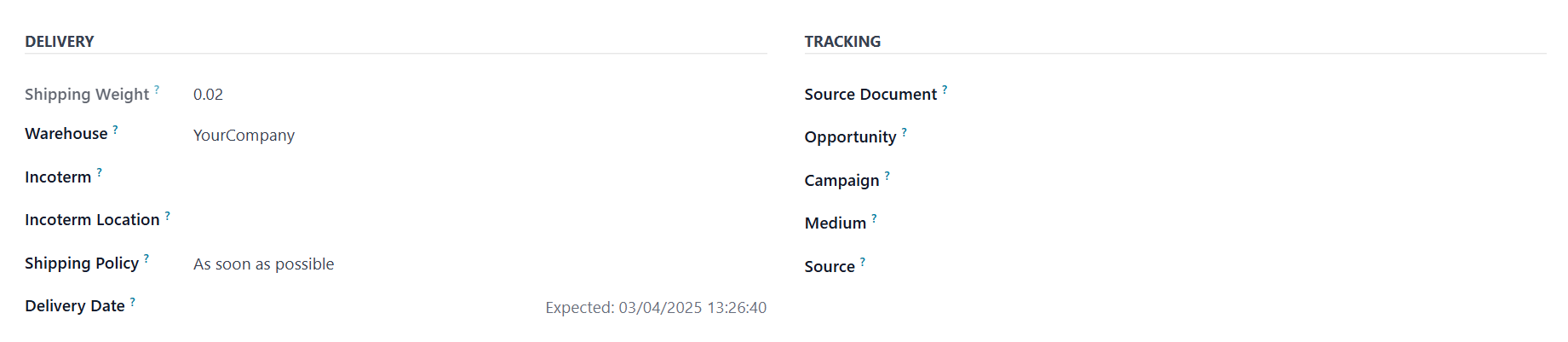
Moreover, Odoo 18 provides
flexible shipping policies,
allowing businesses to choose
between “As Soon as Possible”
or “When All Products Are
Ready” as their delivery
preference. If applicable,
the Delivery Date field can
be used to specify an
estimated shipment date.
For enhanced tracking, businesses
can record details such as
Source Document, Opportunity,
Campaign, Medium, and Source
under the Tracking section.
Additionally, when the Online
Signature option is
activated, Odoo 18 introduces
a new Signature tab within
the quotation window.
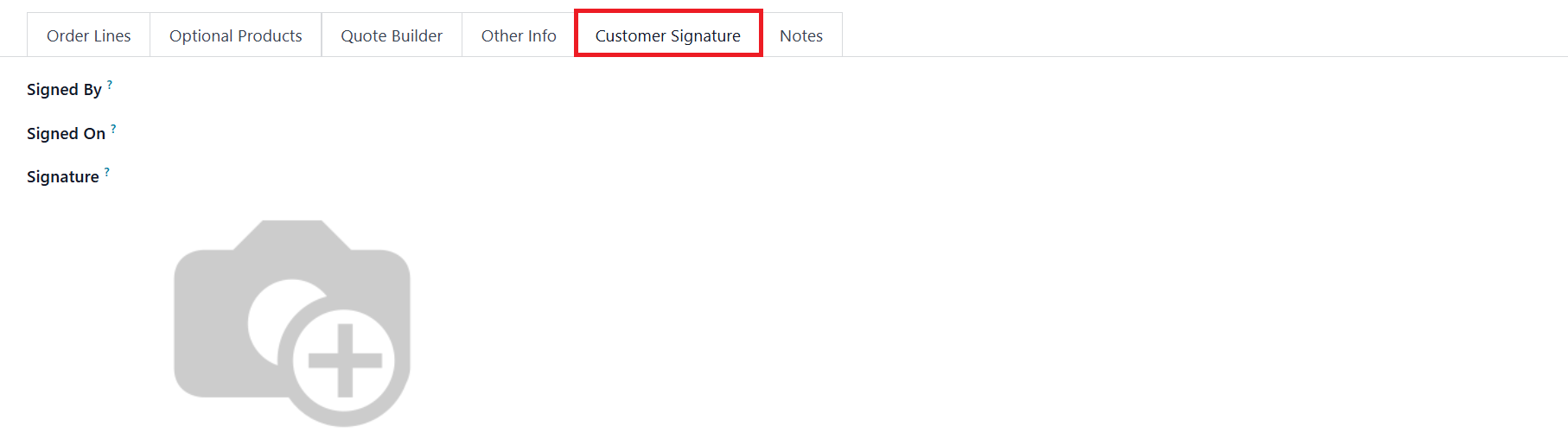
Once a customer signs the
quotation online, this tab
displays relevant details,
including Signed By, Signed
On, and Signature
information.
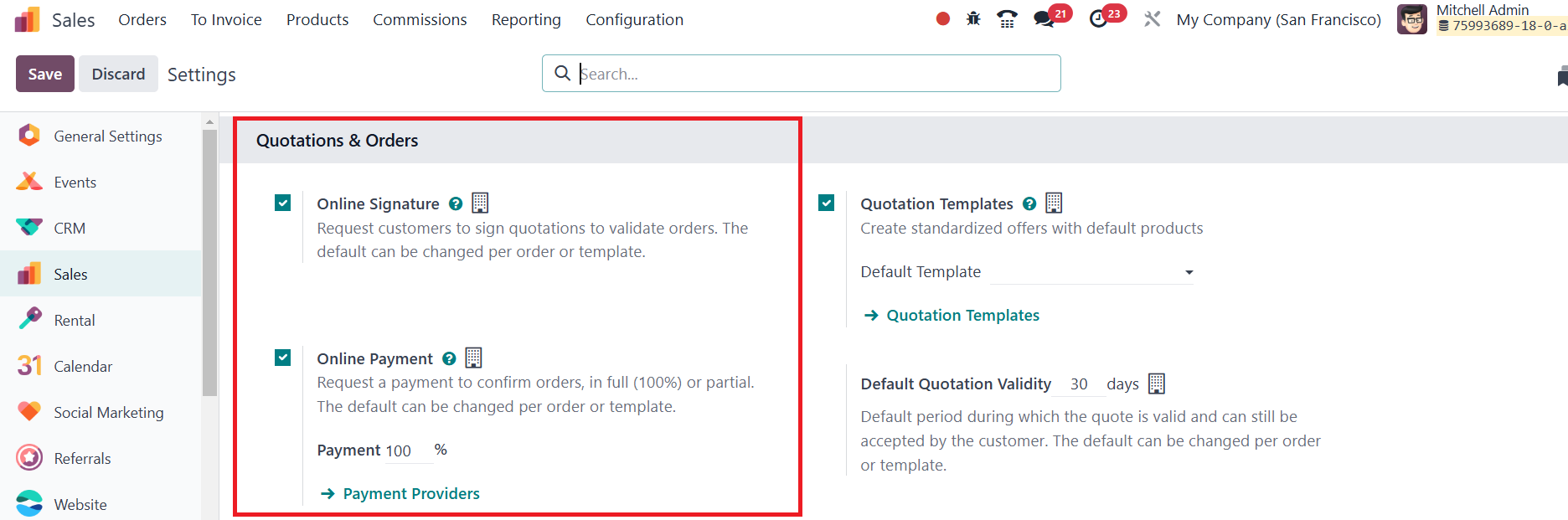
If the Online Signature and
Online Payment options are
enabled, customers can
conveniently sign and
complete payments directly
through the portal,
streamlining the quotation
approval and payment process.
Once the quotation is finalized,
it can be sent to the
customer using the Send By
Email option.
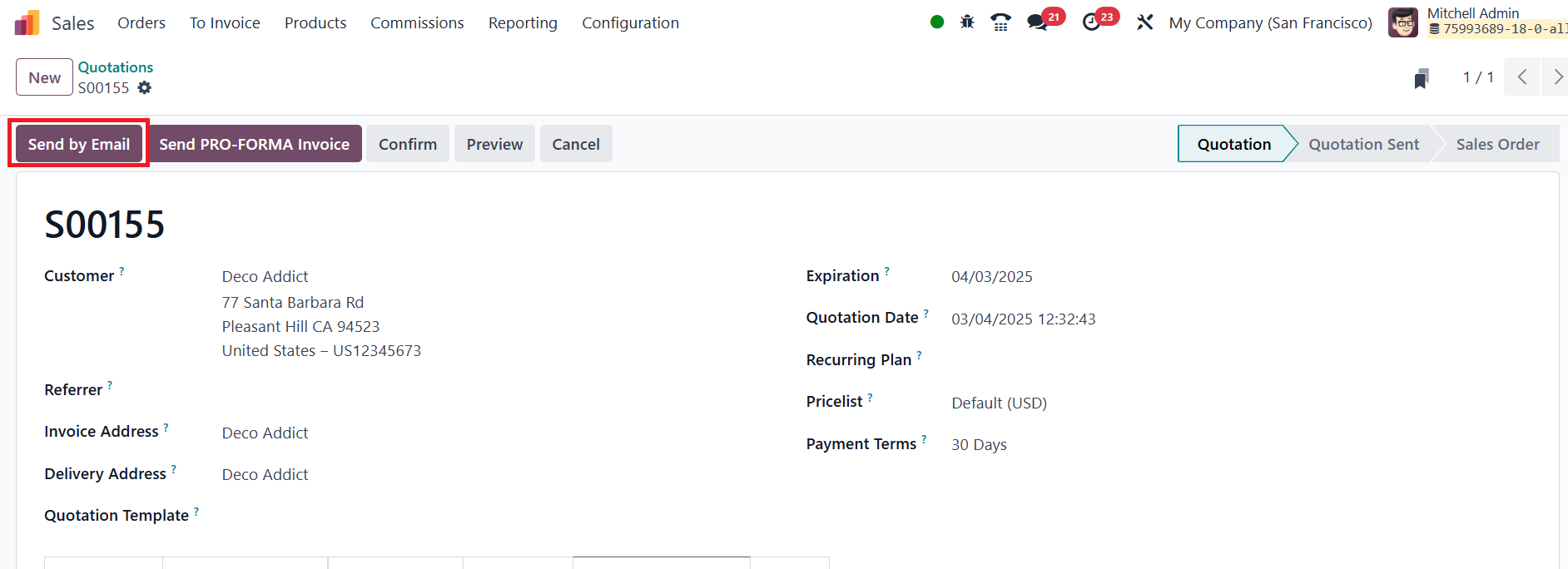
Clicking this button
automatically generates an
email with the quotation
attached, which can then be
reviewed and sent to the
customer.
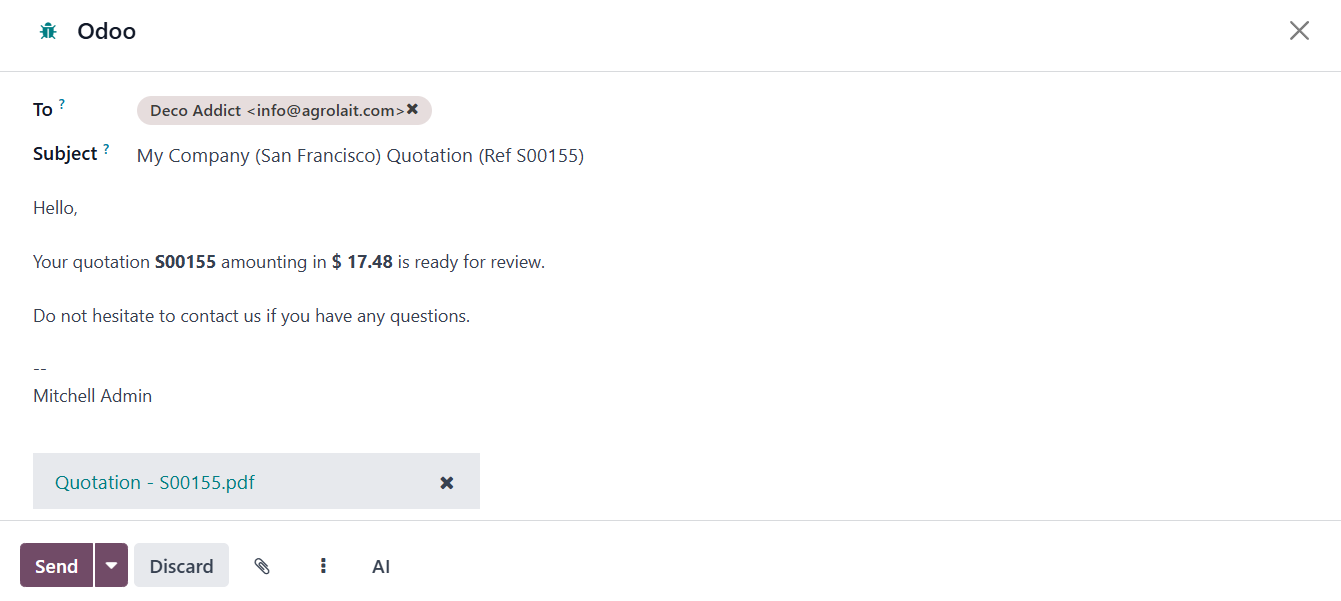
The system allows users to
customize the recipient
details and subject before
sending the email.
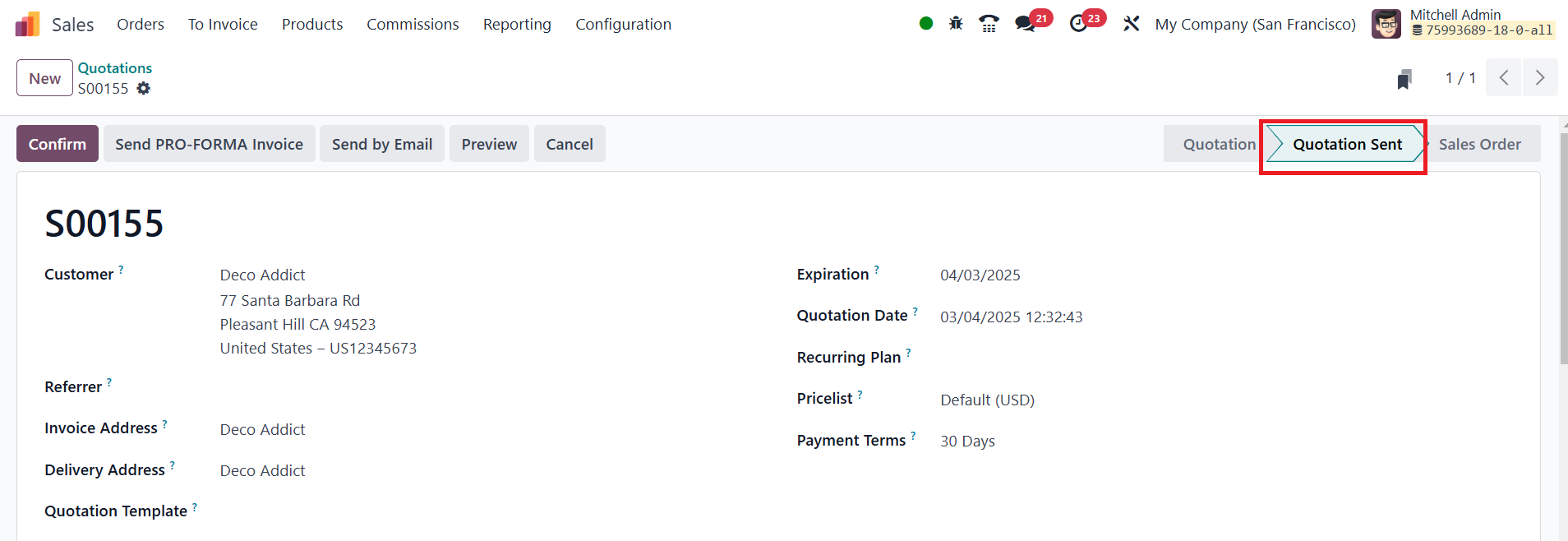
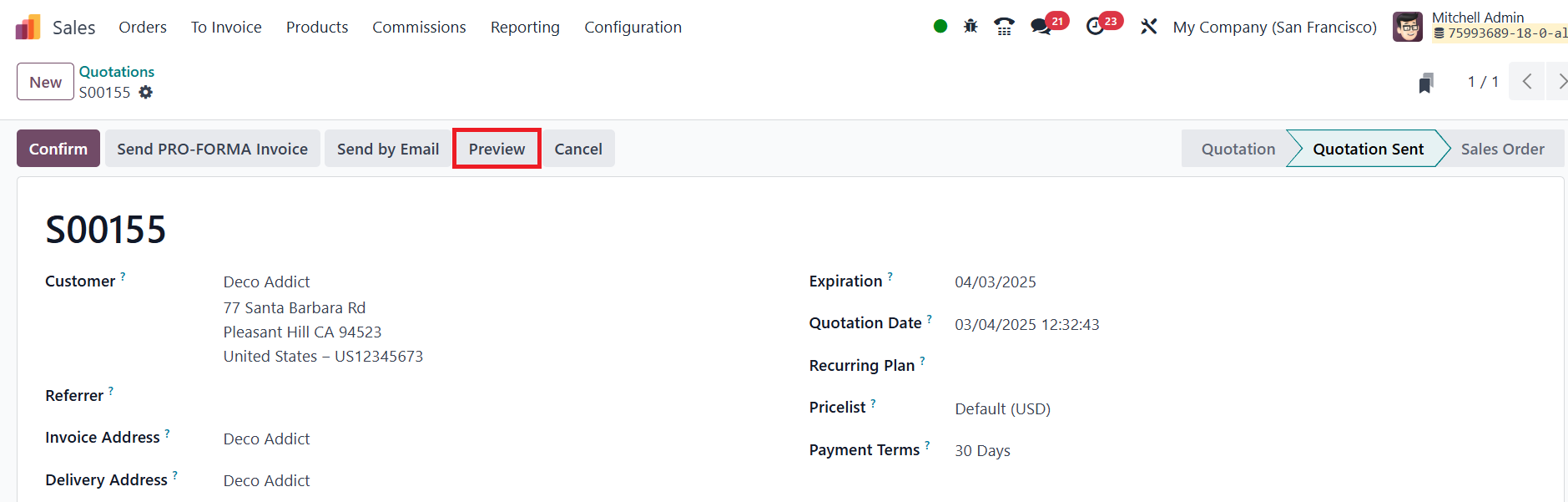
Once the email is sent, the
quotation status updates to
“Quotation Sent.” Customers
can access the quotation via
the Preview option, which
redirects them to the Odoo
customer portal.
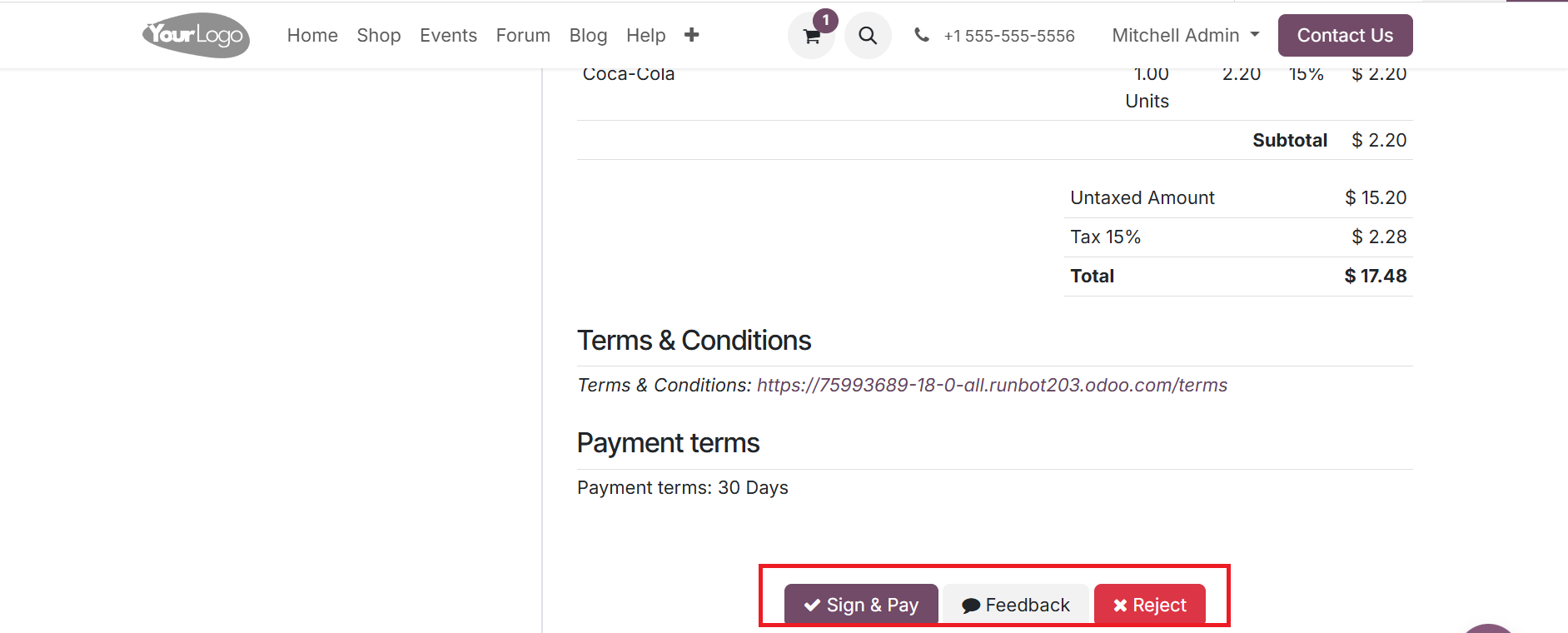
From here, they can review the
quotation, download or print
it, and proceed with signing
or making an online payment
using the Sign & Pay button.
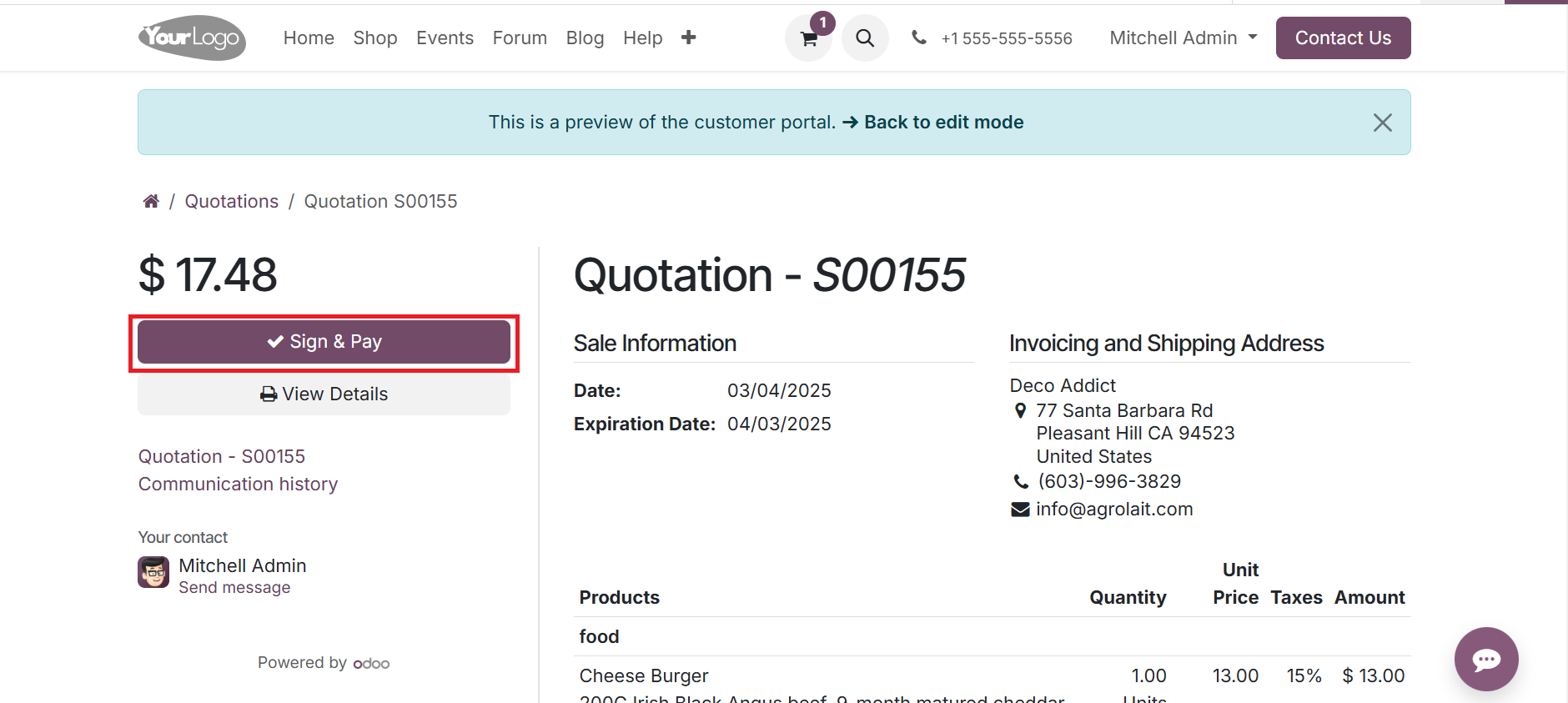
Additionally, customers can
provide feedback through the
Feedback button or decline
the quotation using the
Reject option if they decide
not to proceed.
If the customer accepts the
quotation, the business can
confirm the sale by clicking
the Confirm button, which
automatically converts the
quotation into a sales order.
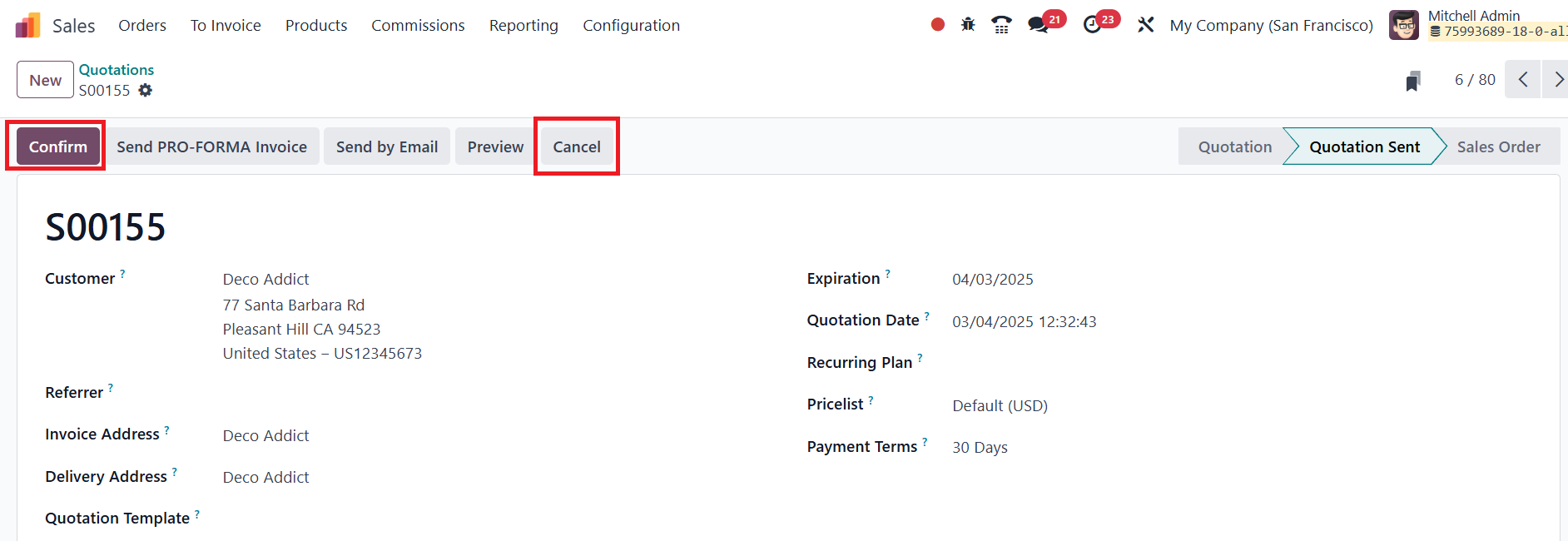
However, if necessary, users can
cancel the quotation at any
time by selecting the Cancel
button.
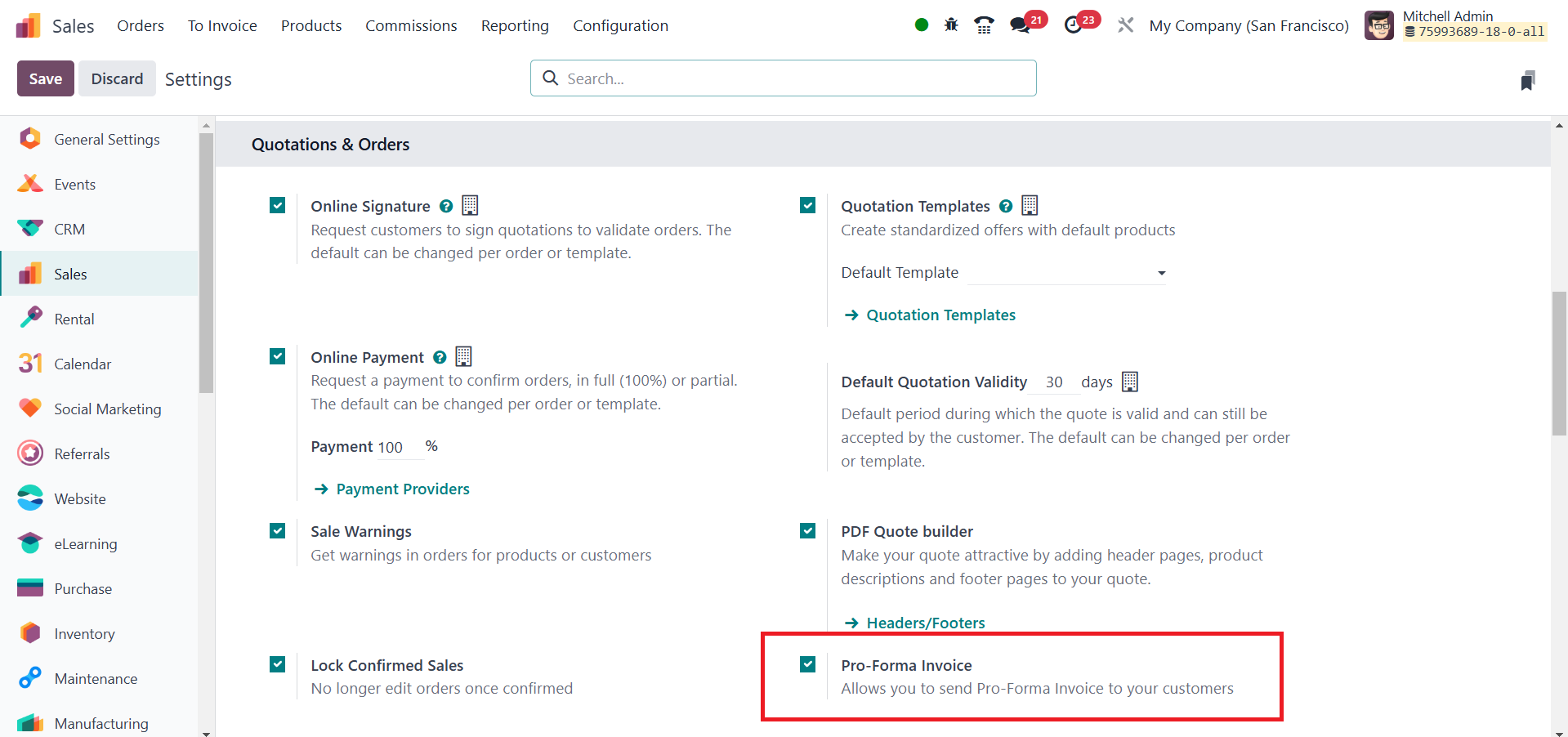
The Send Pro-Forma Invoice button
becomes available only if the
Pro-Forma Invoice setting is
enabled.
Pro-forma invoices are typically
used as preliminary invoices
alongside a quotation or
during the importation
process for customs
clearance. Unlike a standard
invoice, a pro-forma invoice
is not a request for payment
but rather an estimate or
preview of the final invoice.
It provides an outline of the
products or services, along
with their respective costs,
before the actual transaction
takes place.
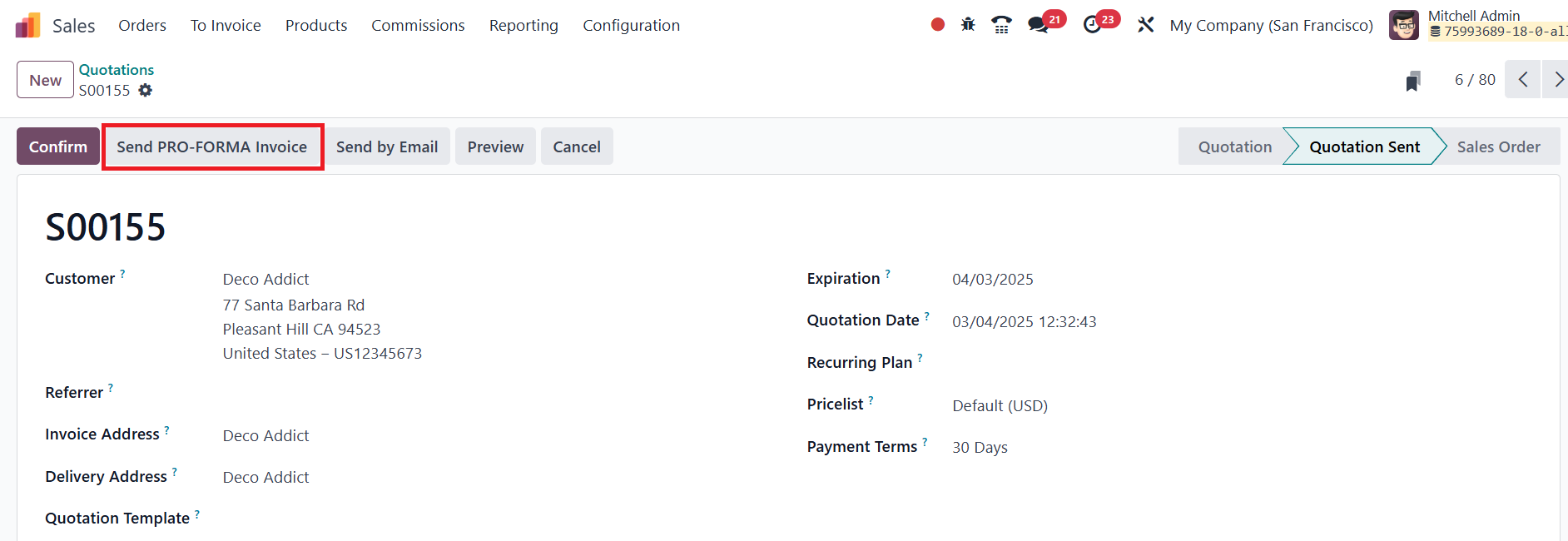
When this button is clicked, a
pop-up window appears
displaying the customer’s
name and email address in the
Recipients field.
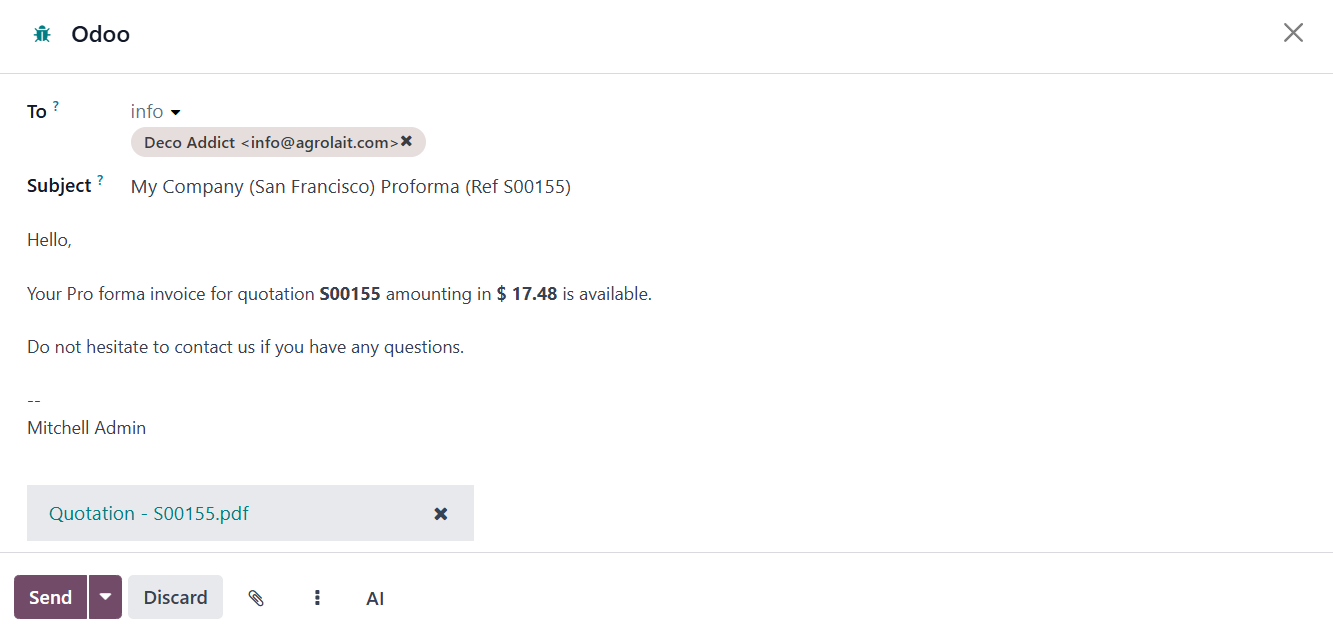
The Pro-Forma invoice, along with
its reference ID, is
automatically inserted into
the Subject field. The email
body contains a brief
message, which can be
modified as needed.
Additionally, a PDF copy of
the quotation is attached to
the email. Once the details
are reviewed and finalized,
clicking the Send button will
email the Pro-Forma Invoice
to the customer for review
and confirmation.
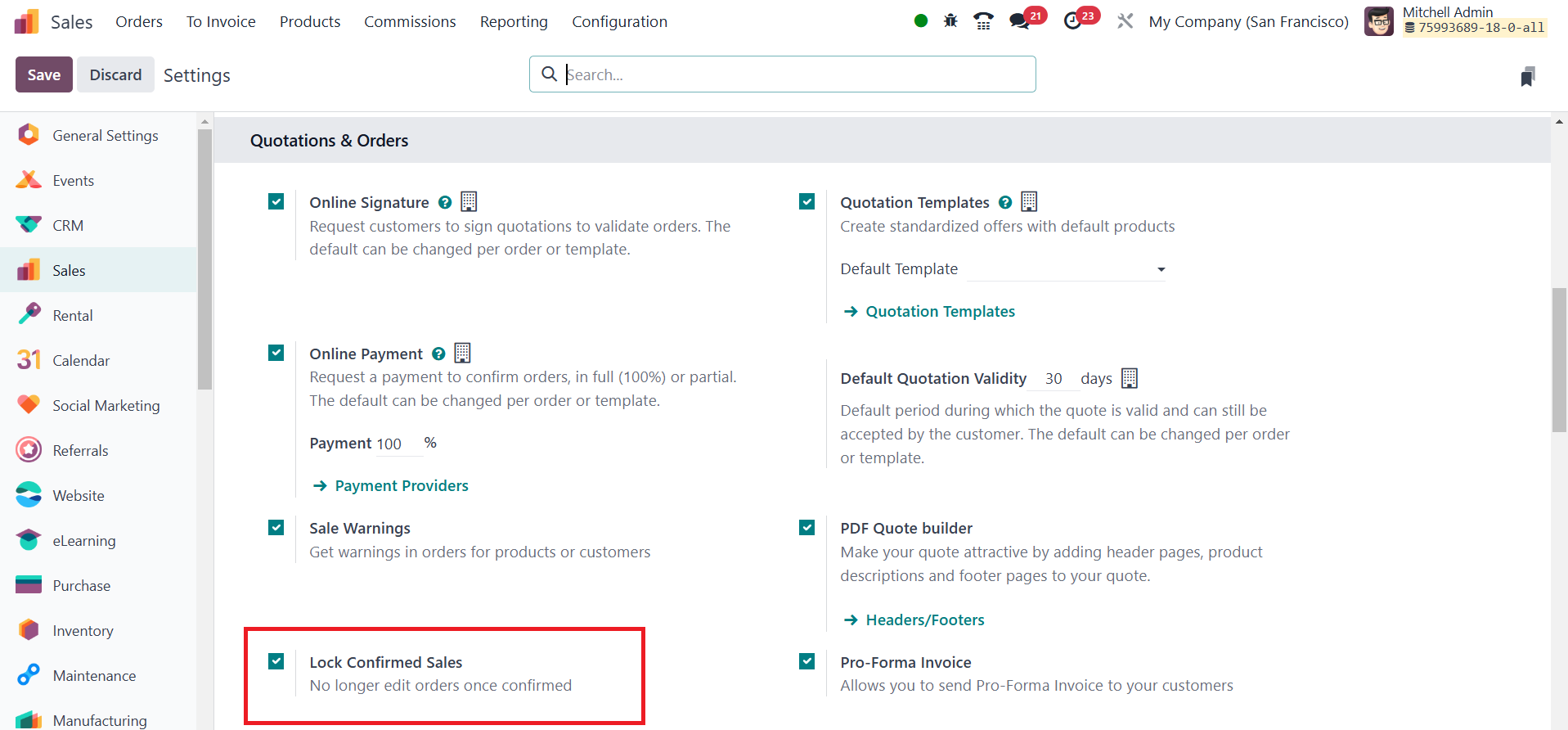
When the Lock Confirmed Sales
setting is enabled, the sales
order becomes locked upon
confirmation, preventing
further modifications to
ensure data integrity.
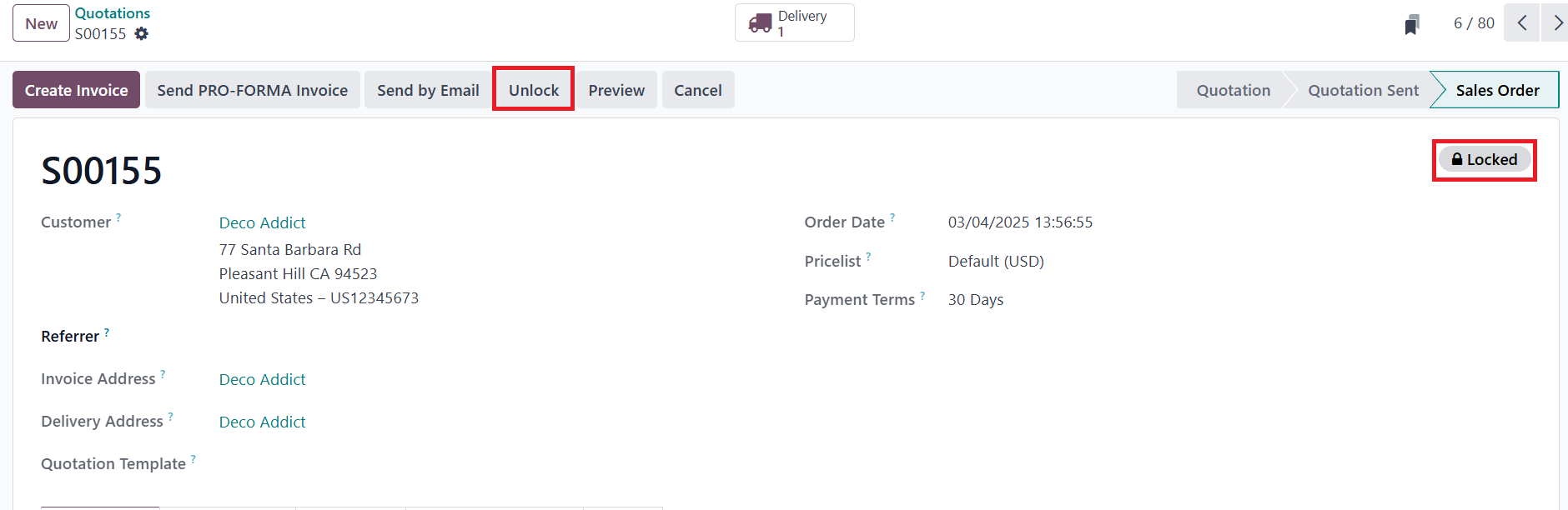
This lock status is visibly
indicated on the sales order
form, restricting users from
altering order details, such
as quantities and pricing,
after confirmation.
Once the quotation is confirmed
and converted into a sales
order, it is ready for
invoicing and payment,
streamlining the sales
process and preventing
unauthorized changes.