5. Configuration
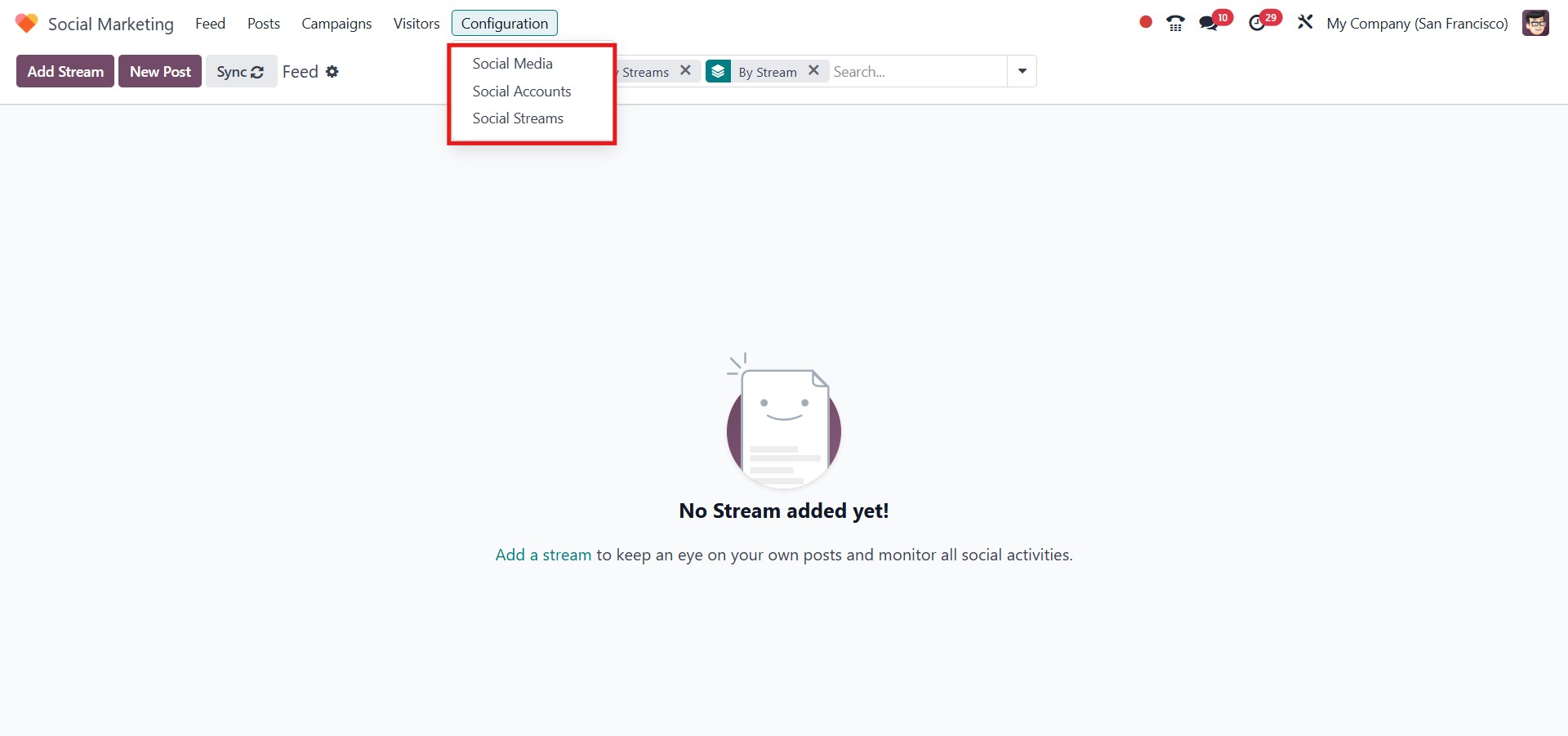
Through the Configuration menu in the Social Marketing module, you
can set up and manage your Social Media platforms, Social Accounts,
and Social Streams with ease.
Social media
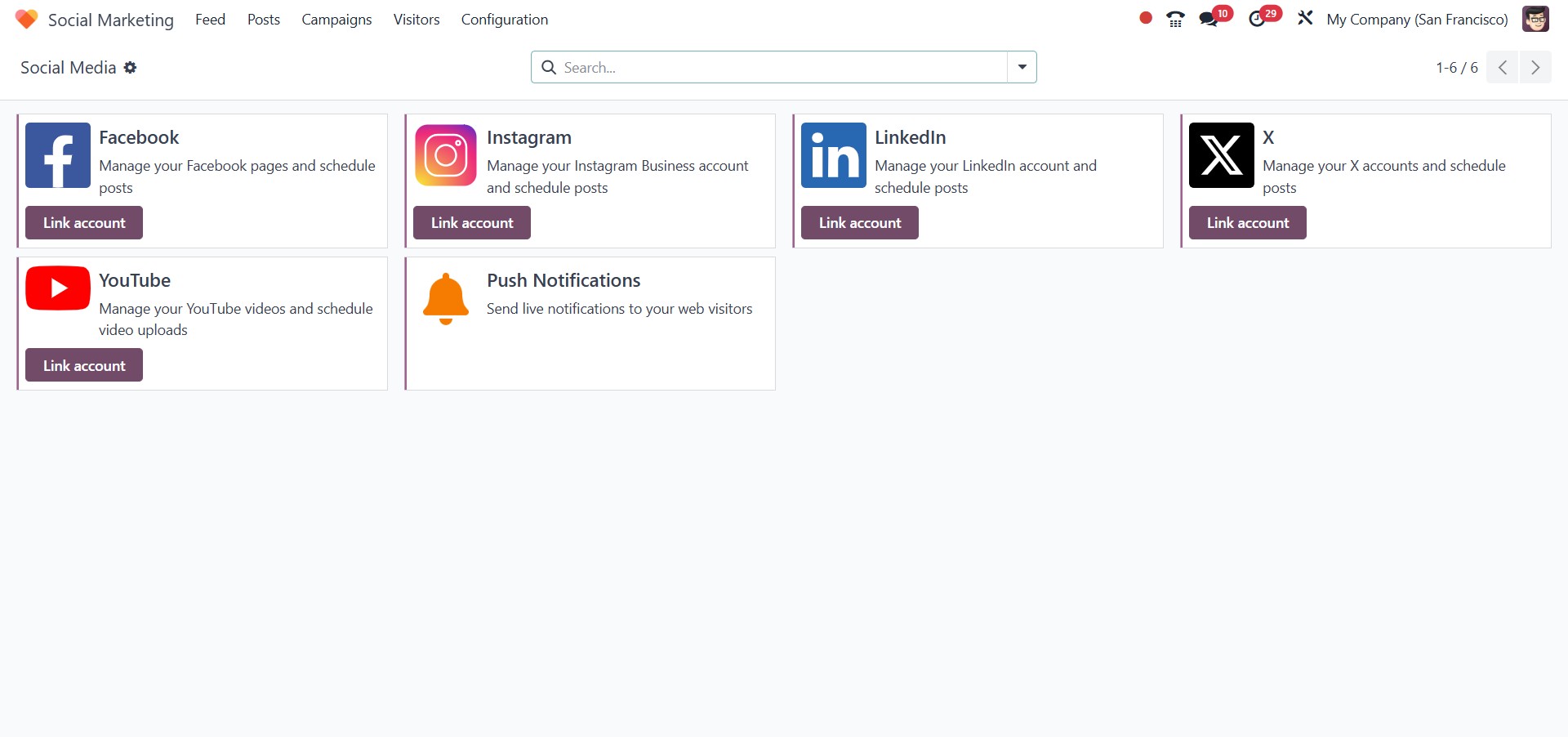
In the Social Media section, you will find a list of supported
platforms such as Facebook, YouTube, Instagram, and more. To
integrate any of these platforms with the Social Marketing module in
Odoo, click the Link Account button.
Social Accounts
The Social Accounts section displays all social media accounts that
have been linked across various platforms. The list view includes
key details such as the Account Name, Short Name, Social Media
Handle, Creator, and the associated Company.

Social Stream
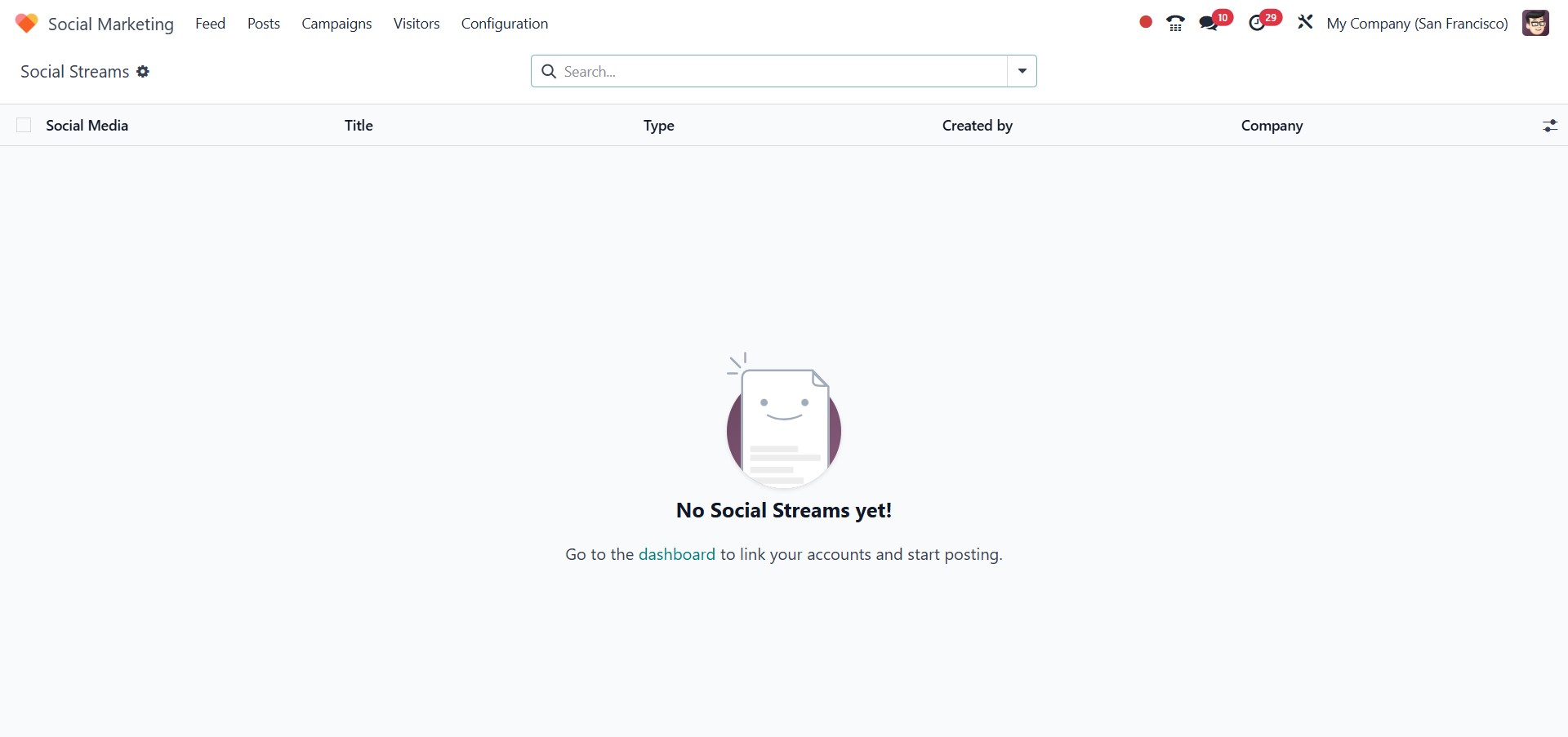
Lastly, the Social Stream section displays all generated streams. In
this view, you can see a list of the Social Media platform, Stream
Title, Stream Type, the Creator, and the associated Company details.
Settings
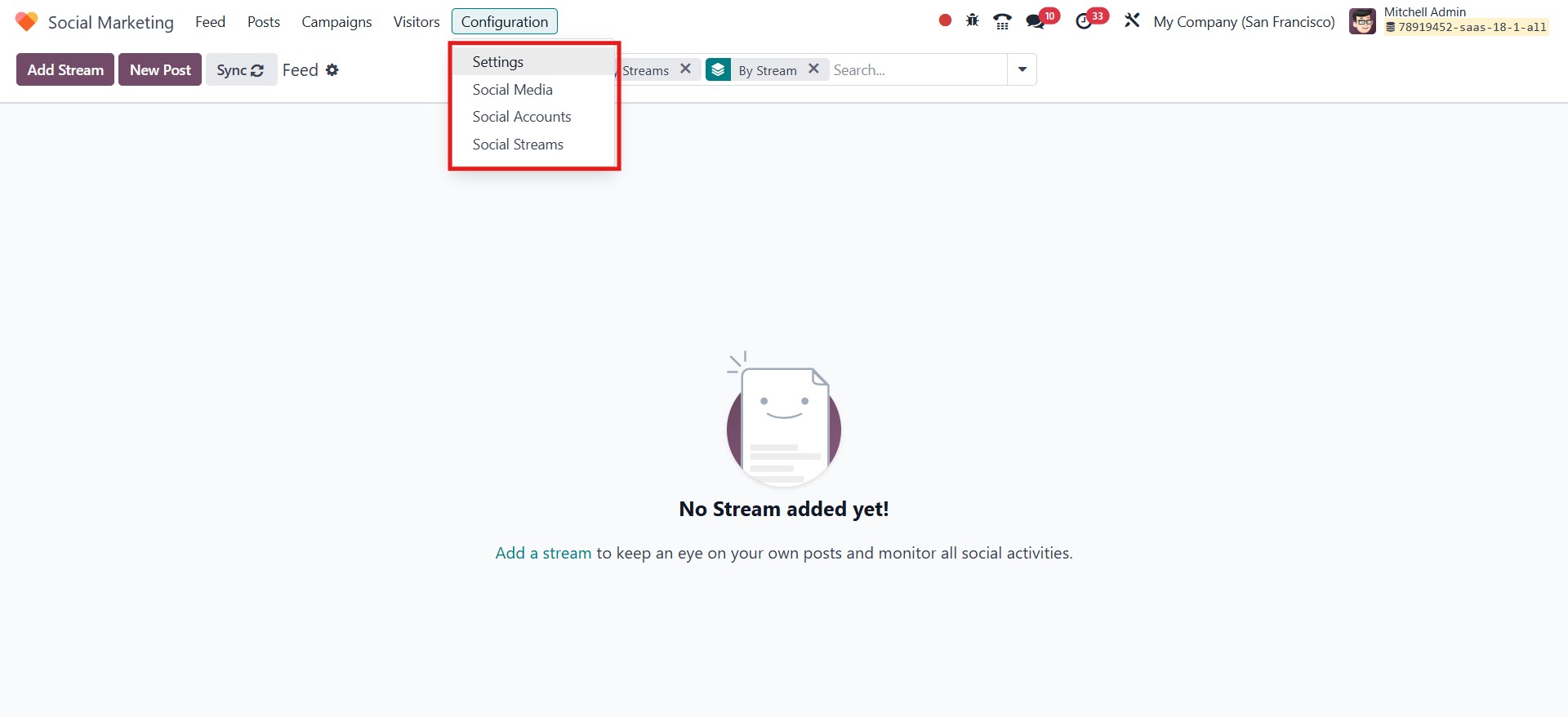
Under the Configuration menu, you will find the Settings option for
the Social Marketing module when the developer mode is activated.
This section is divided into two parts:
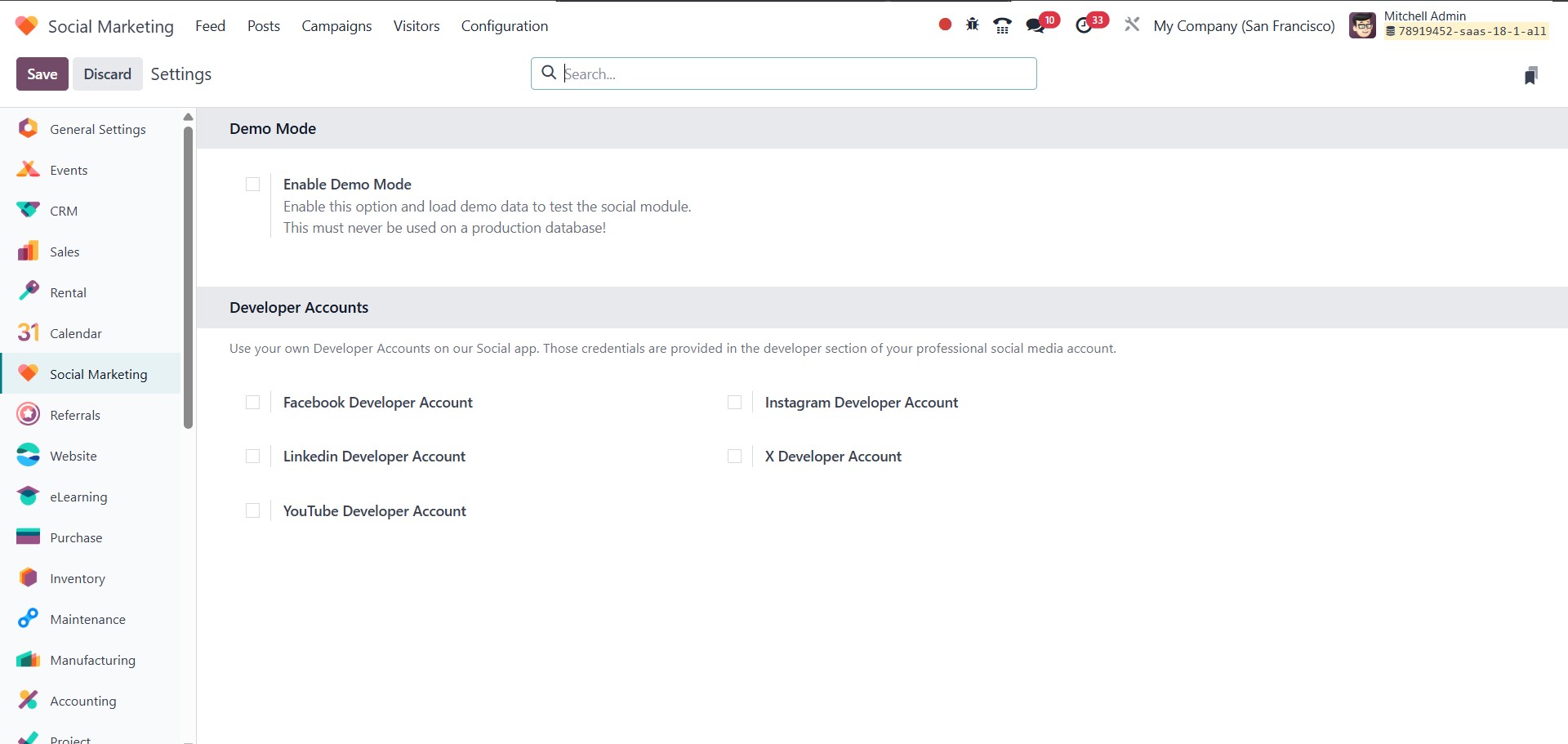
Demo Mode
Enabling Demo Mode allows you to load sample data into the Social
module. This feature is designed for demonstration and learning
purposes, enabling users to explore how social posts are created and
how metrics such as comments, views, and engagement are tracked
within the application. Note: Demo Mode is intended for testing
environments only and must not be used on a production database.
Developer Accounts
Below the Demo Mode section, you'll find the Developer Accounts
configuration. Here, you can add credentials from the developer
section of your professional social media accounts. Connecting your
developer credentials allows seamless integration between Odoo and
your chosen social media platforms, enabling you to schedule,
publish, and manage content directly from the Odoo interface.
With the Social Marketing module in Odoo 18, users can effortlessly
manage all their social media platforms from a single interface.