2. How Smart tabs can be added to
a Form
The use of Smart tabs in the Odoo18 applications is crucial for the
immediate activities that may be performed. The Odoo18 Studio module
will allow you to define a large number of smart tabs of operations
that may be utilized for direct functions. As seen in the screenshot
below, you may set the Smart Tab by choosing the Studio programs for
any module. The editing window will then appear. Here, you can
select the plus icon that is indicated in the screenshot below.
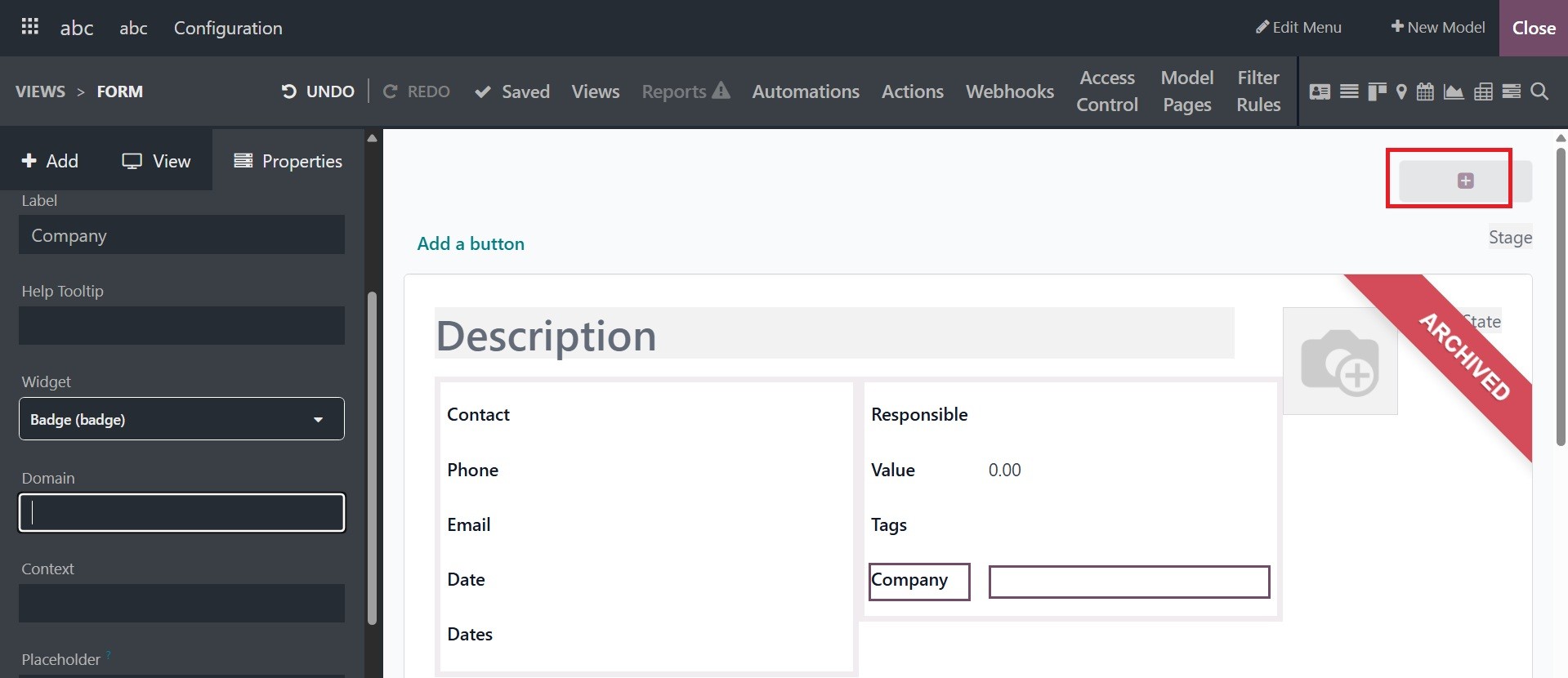
Clicking the + sign to add the smart tabs will bring up the settings
box. In this case, it is possible to select the Label and define the
Icon first.
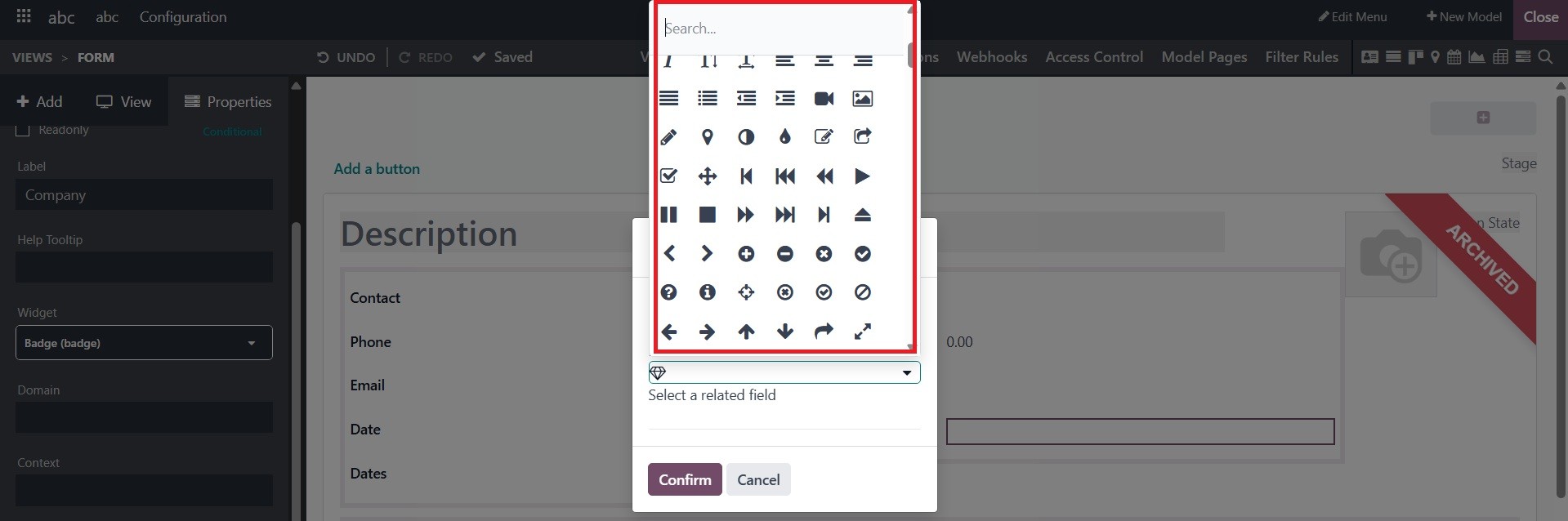
Furthermore, pick a pertinent field from those specified for the
platform on which the smart tab action will be based.
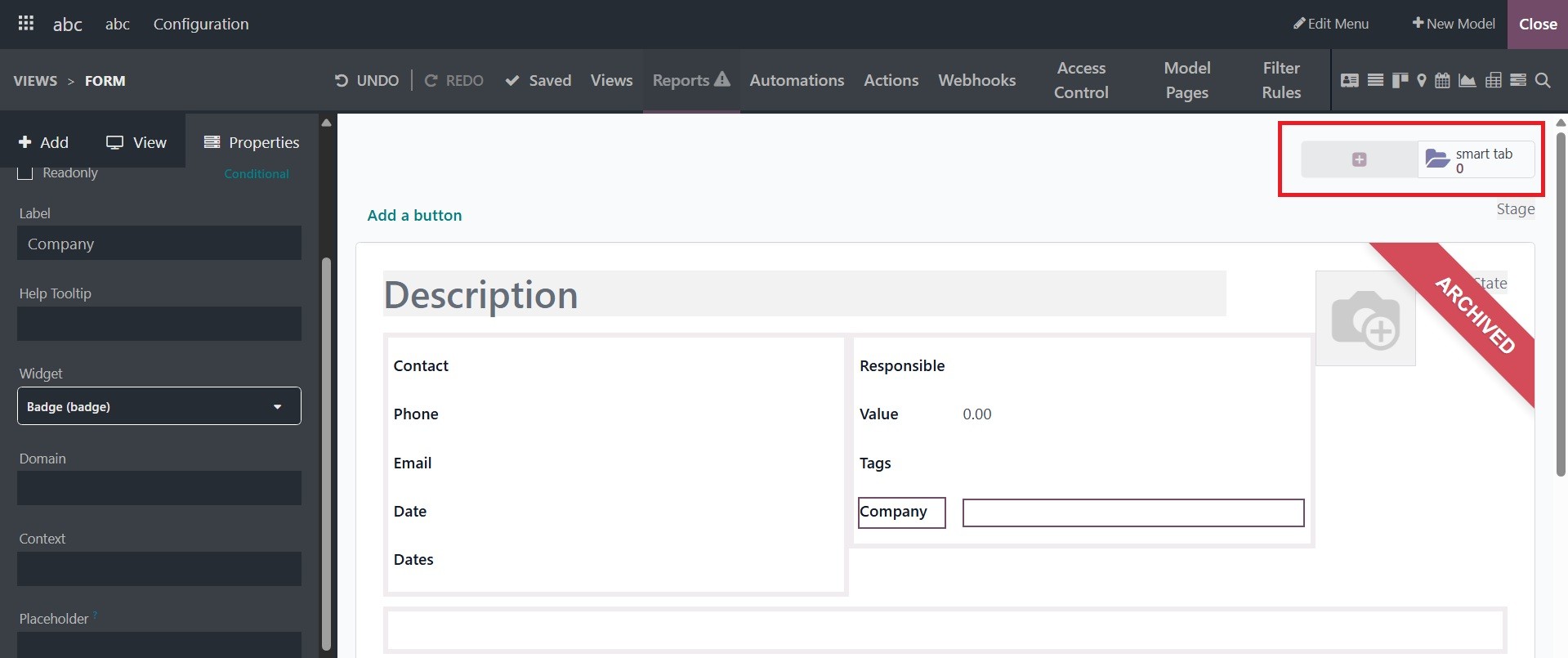
Clicking the Confirm button will finally specify the required Smart
tab. Additionally, the Studio module allows you to set up a large
number of smart buttons for a specific menu of both freshly created
and pre-existing apps. Let's go to the part that outlines the Odoo18
Studio module's Pipeline Stage Configuration features.