10. Reports Generation &
Customization
Reporting is one of the most advanced features of the Odoo18
platform, and each module has its own special tools for creating
reports. The Odoo18 Studio module will allow you to generate
customized operation reports that provide a distinct viewpoint on
key areas, thus improving user-friendliness. You can create both
simple and complicated reports with ease using the many choices
available in the Report menu of the Odoo18 Studio module.
It is possible to create or redesign the Odoo18 platform with
customizable features. In Odoo 18, we are now adding fields to the
report using "/fields" instead of the drag-and-drop feature that was
included in the prior version. Customizing reports for end users is
now easier.
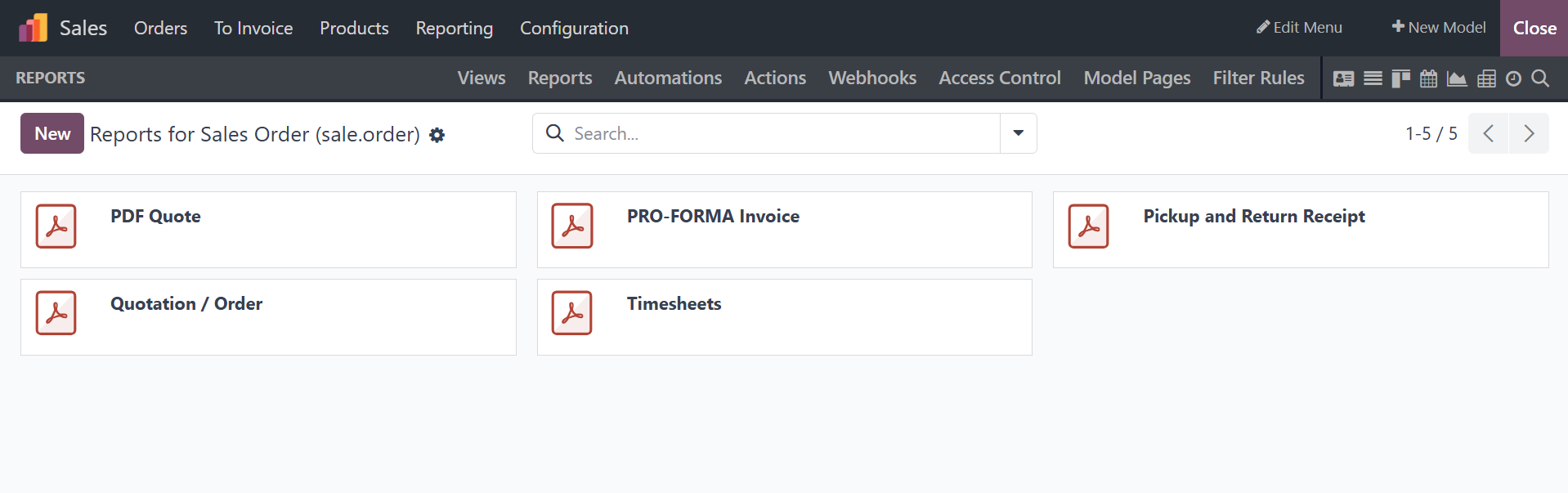
Additionally, the many reporting menus in the newly developed apps
can be configured using pre-made tools and digestive options. Here
are the definitions for every report made with the Odoo18 platform.
Additionally, the Search, Filtering, and Group by options might help
with the corresponding report in list form.
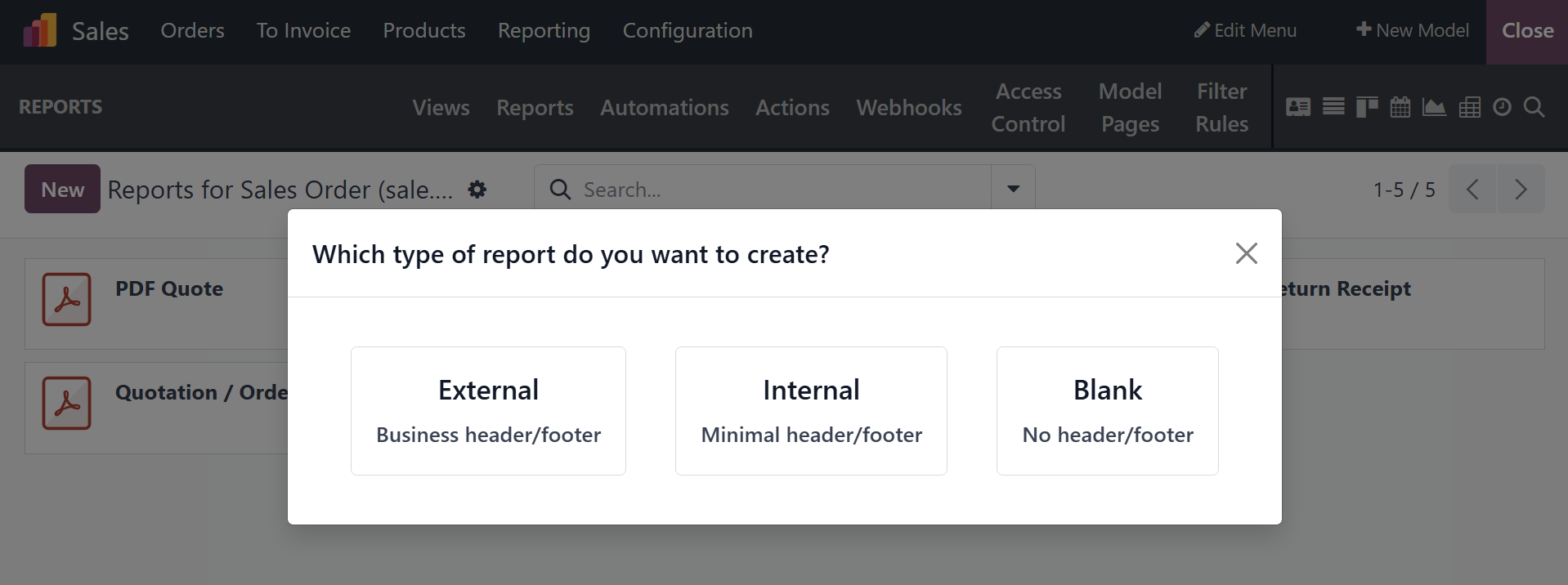
You can select the New option when creating new reports and decide if
you want to create internal, external, or blank reports. Depending
on the Report Type you choose, the setup menu will appear, allowing
you to specify all the necessary information for the Translate View
menu.
After choosing the type of report to be created, the platform will
display a window where you can finish the Report setup, as seen in
the accompanying image.
In Odoo 18, the pre-existing reports can also be customized. Take
sales reports as an example.
Select the report that needs to be altered. The view displays every
field in the report, allowing end users to add additional fields or
change the file name. Select the appropriate report based on the
"Proforma Invoice" customization.
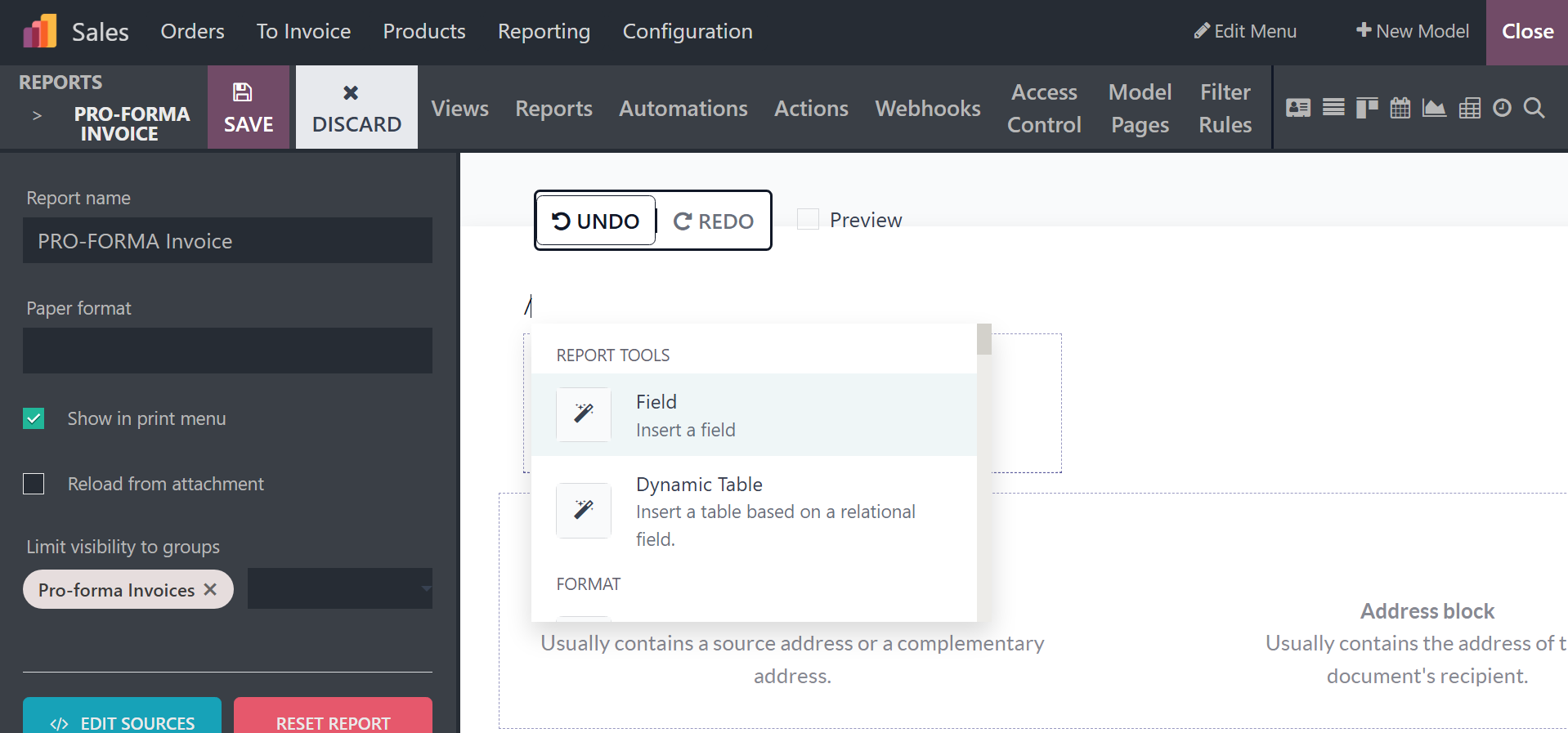
A new field can be added using the report tool Field. The fields to
add will appear when you click on the field report tool.
You can choose the Paper format and the report name that needs to be
specified before viewing it from the Report menu. By defining
distinct user groups for the platform, the Limit Visibility to
Groups settings make sure that these groups may be recognized. In
order to facilitate the user's ability to print produced reports
from the same report window, you may also make the Print option
visible.
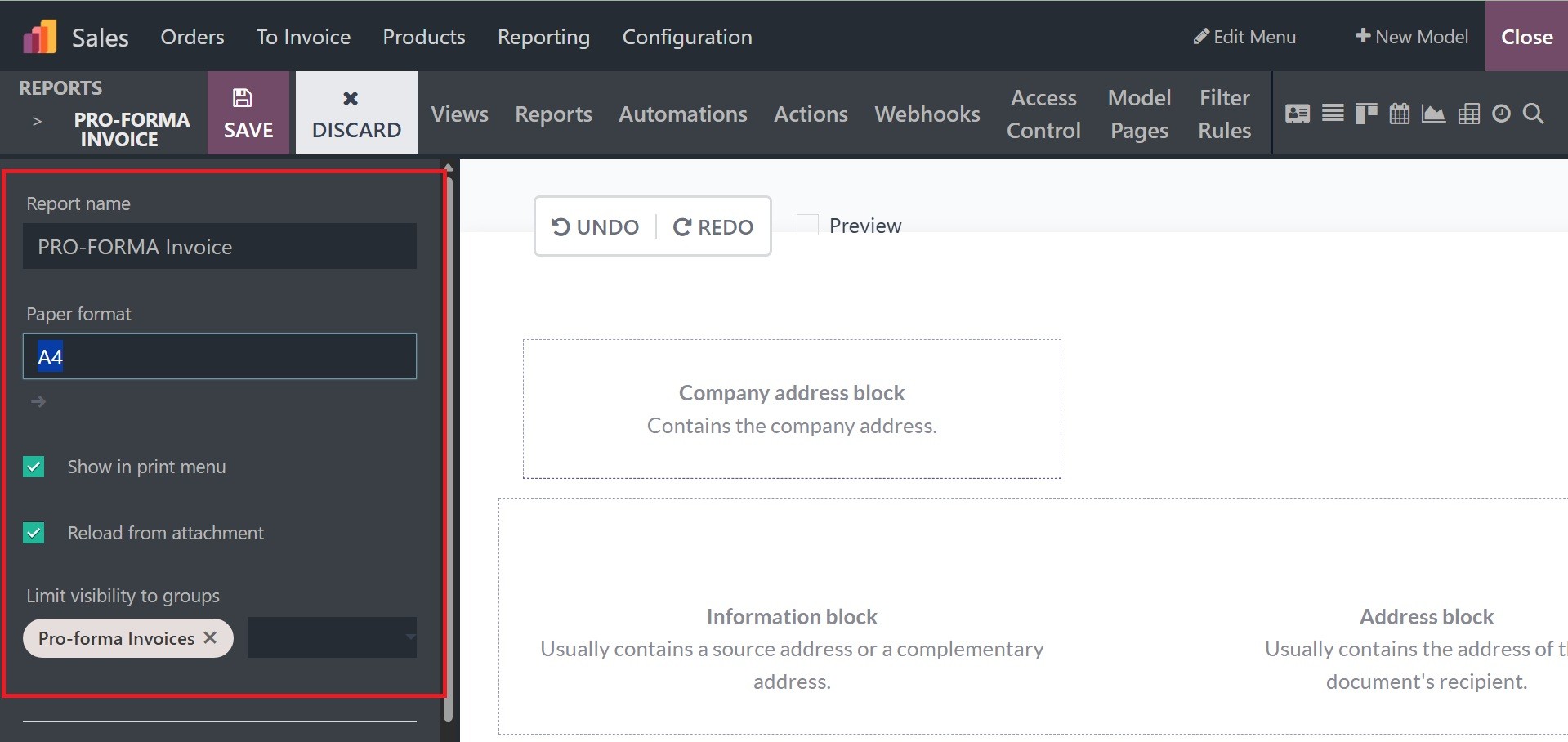
With the aid of the Odoo Studio module, you can configure a number of
operational tools that are useful for business operations in the
report menus. Simply selecting Add from the Print menu, followed by
the option to Reload form attachment, which can be enabled or
disabled based on operational needs. The Print option allows the
user to get a preview of the report that will be printed, allowing
them to verify the processes. The Reload form Attachment activities
will ensure that previously defined data is reloaded whenever new
items are defined in a particular report.
We'll talk about understanding the Translate View of the Odoo18
Studio module in the following section.