3.Timesheets to Validate
The 'To Validate' menu in the Timesheet module enables company managers to review
employees' timesheets. This menu contains two sections named ‘Last Period’ and ‘All
Timesheets.’
In the ‘Last Period’ window, all the newly uploaded timesheets that have been recently
added and are awaiting database validation are shown, so that the managers can verify
timesheets based on Daily, Weekly, or Monthly data. This functionality is available
in multiple views, including Grid, List, Kanban, Pivot, and Graphical representations.
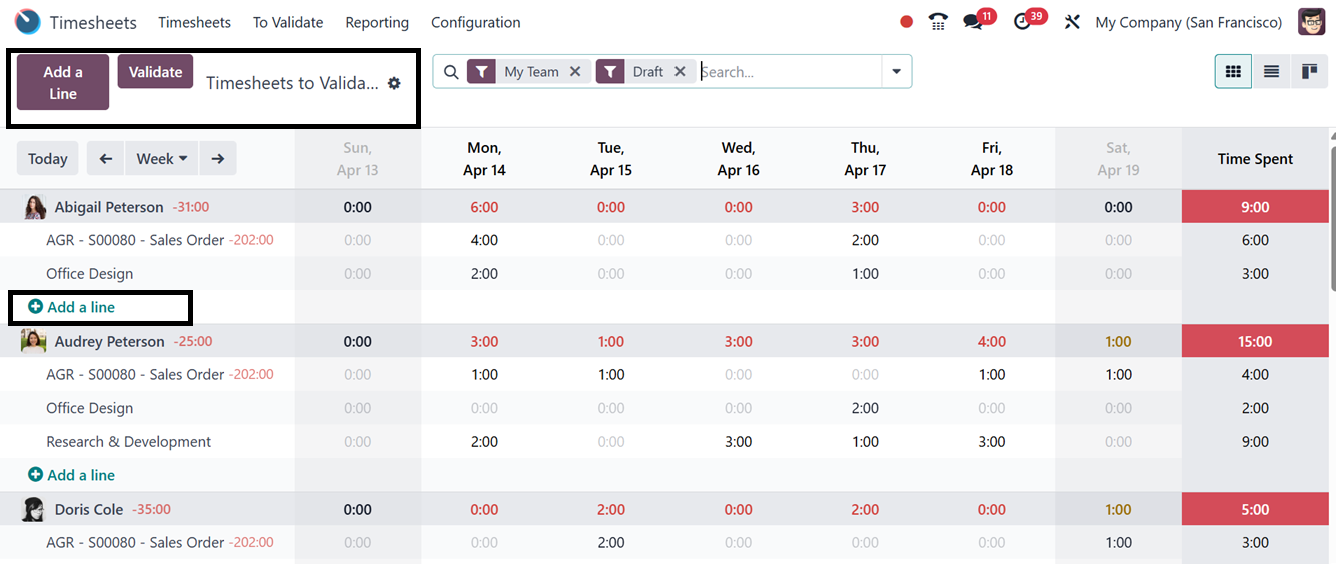
The ‘Add a Line’ button in the window allows you to create a new timesheet entry,
either for the general dashboard or for a specific project or task. Once entries
are added, you can use the Filter and Group By options from the search bar area
to locate specific timesheet records. After selecting the desired entries, click
the ‘Validate’ button to approve them individually, or simply press the button without
selecting any specific entry to validate all pending timesheets at once.
3.1 All Timesheets
The ‘All Timesheets’ in the ‘To Validate’ menu displayed all the available timesheets
pending to be validated as a Pivot view, as illustrated in the picture below.
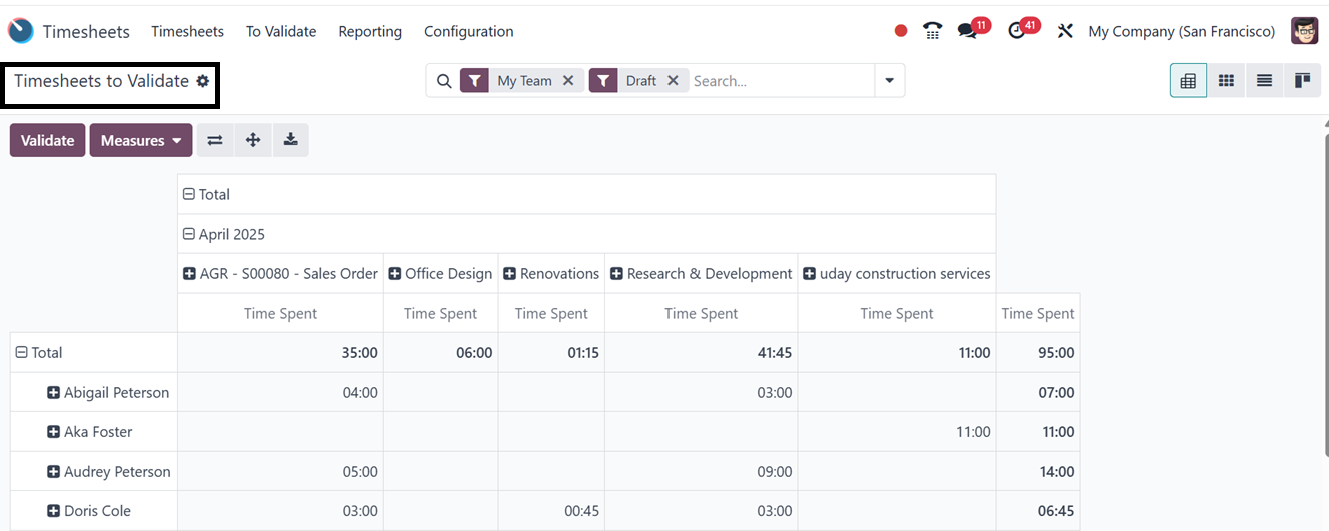
You can change the view into Grid, Kanban, or List view according to your preference
and validate the entries using the ‘Validate’ button
The system presents a comparison between the hours worked and the hours mandated
by the employee’s contract. Additionally, employee names and project details are
displayed. Managers can validate timesheets by selecting the 'Validate' button or
applying filters to locate specific records.