4. Customize the menu and
appearances
4.1 Menu Customization
The Odoo Website module provides
extensive customization
options for your website's
look. This can be
accomplished with a few
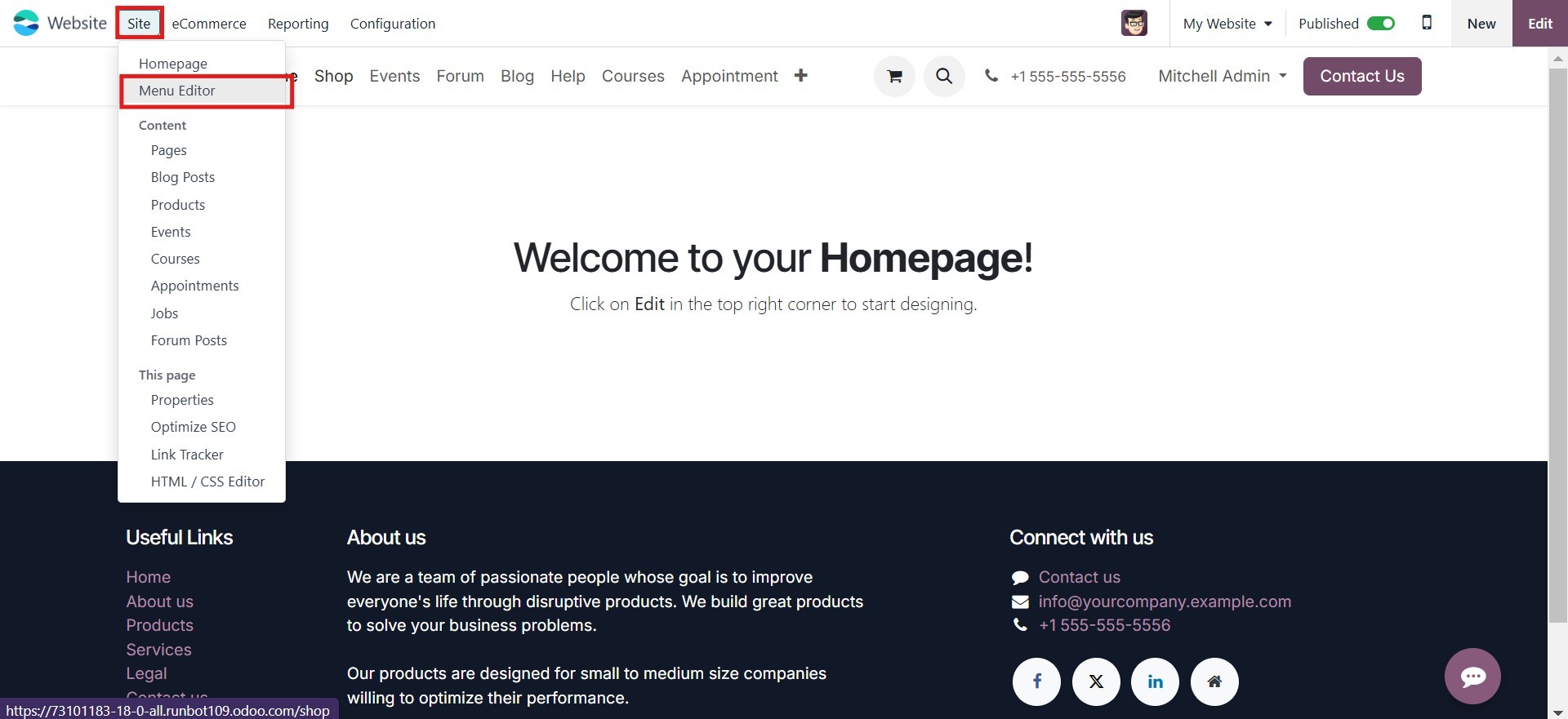
simple clicks. Click the
"Site" tab, which is found in
the upper right corner of the
window (see screenshot
below). This will open a
drop-down menu with options
for accessing sub-menus,
including "Home Page," "Menu
Editor," "Content," and "This
Page." The "Update Menu"
option allows you to modify
the main menu items, while
the "Control Pages" menu
provides control over your
website pages. The "Menu
Editor" option can be
utilized to create and modify
pages within the website.
The next stage is developing a
new menu. Let us look at the
steps of creating a new menu.
4.2 Create a New Menu
As previously stated, we may
create a new menu by clicking
on the Menu Editor button.
You will get a pop-up window
on the platform, like the one
in the image below, when you
select this option.
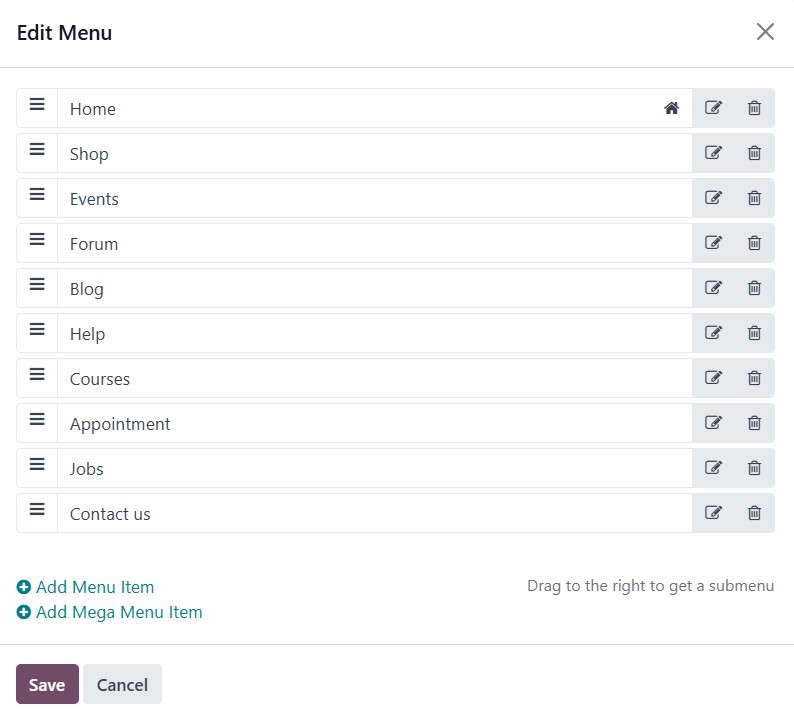
This pop-up window displays all
of the configured website
pages as well as the
associated Edit Menu Item and
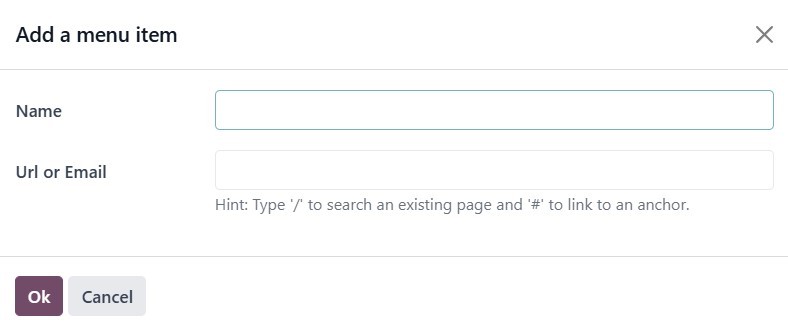
Delete Menu Item. A pop-up
box will appear when you
click the Add Menu Item
button, allowing you to enter
the new menu label and URL or
email. The Save button, which
is also available from the
window, can be clicked once
the data has been entered.
You may use the same process to
add a new menu item, but now
you need to click the Add
Menu Item button, located in
the window's lower-left
corner.
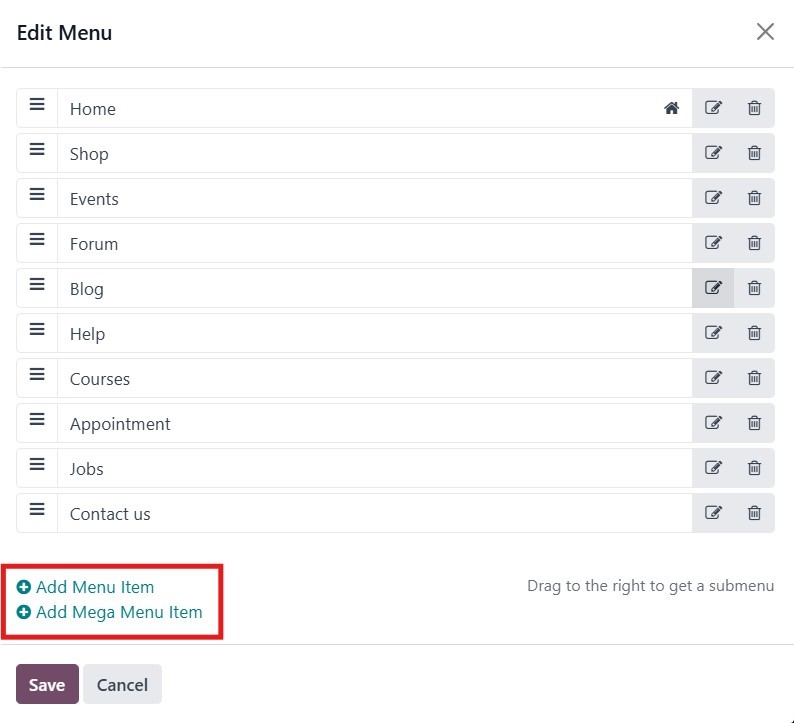
Furthermore, adding a mega menu
item to a page's website is
allowed. To do this, click
the Add Mega Menu Item
button, which is situated
just below the Add Menu Item
button. You can customize the
mega menu by selecting
different templates,
adjusting the number of
columns, adding background
images, inserting icons, and
organizing menu items with
titles and links, allowing
you to create a visually
appealing and user-friendly
navigation experience.
To add a new menu item, define
the "Menu Label" in the
designated field. Once you
have entered the label, click
the "Save" button. Next,
let's discuss managing
website pages.
4.3 Appearance Customization
The aesthetic appeal of a website
plays a crucial role in
attracting and engaging
visitors. A well-maintained
and polished website
effectively draws in clients
and visitors. Moreover, it
allows for a more accurate
and comprehensive
presentation of all relevant
data and features.
Recognizing this
significance, Odoo provides a
range of customization
options that empower you to
tailor the website's
appearance to perfectly align
with your business needs and
objectives. You may now
import your existing site
with a single click, and Odoo
will replicate it as
accurately as possible. Then,
you may personalize it with
additional building blocks
and previews to make editing
simpler.
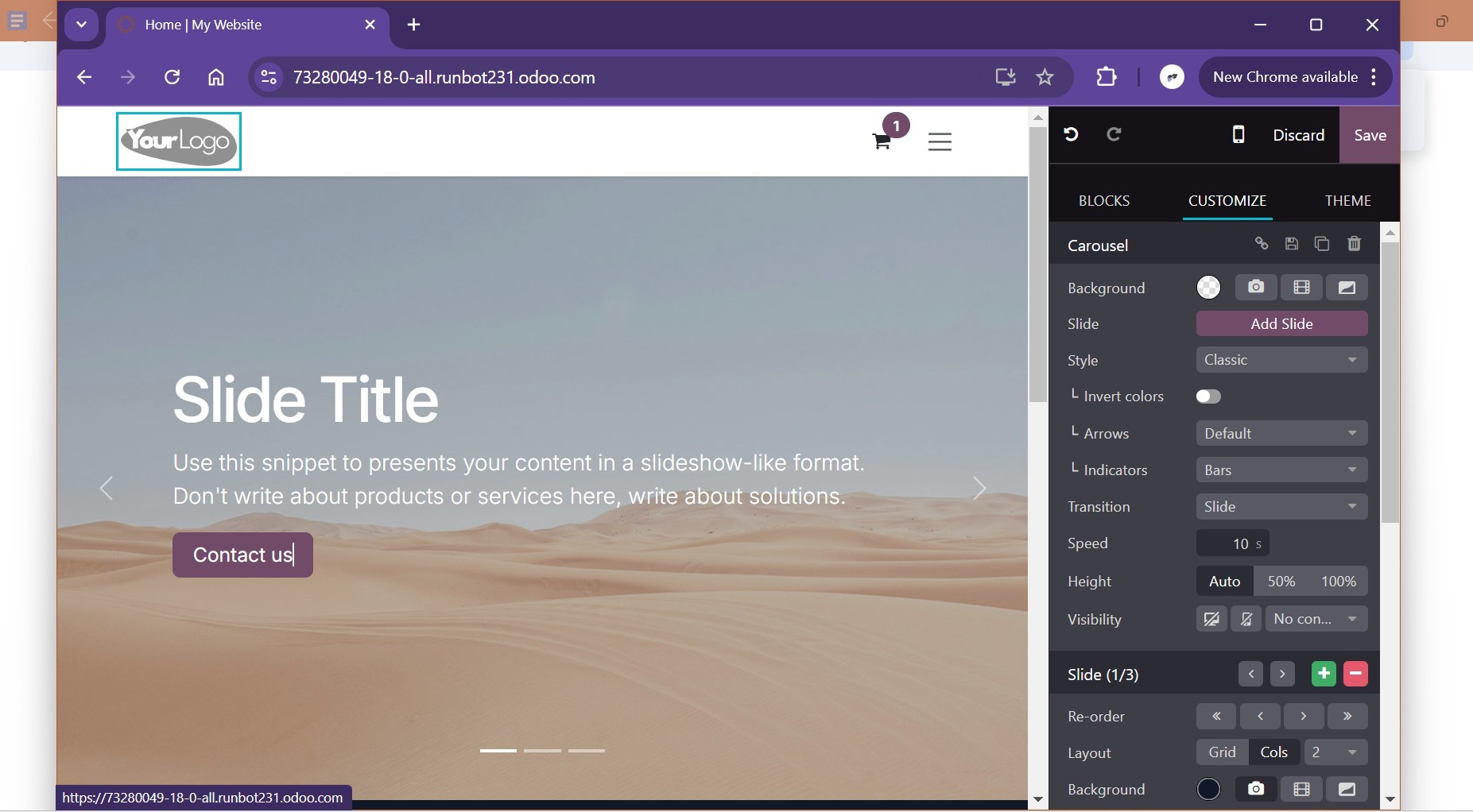
The Customize tab provides access
to the options for altering a
website's appearance. By
clicking the EDIT button
located in the top left
corner of the window, the
Customize section becomes
accessible.
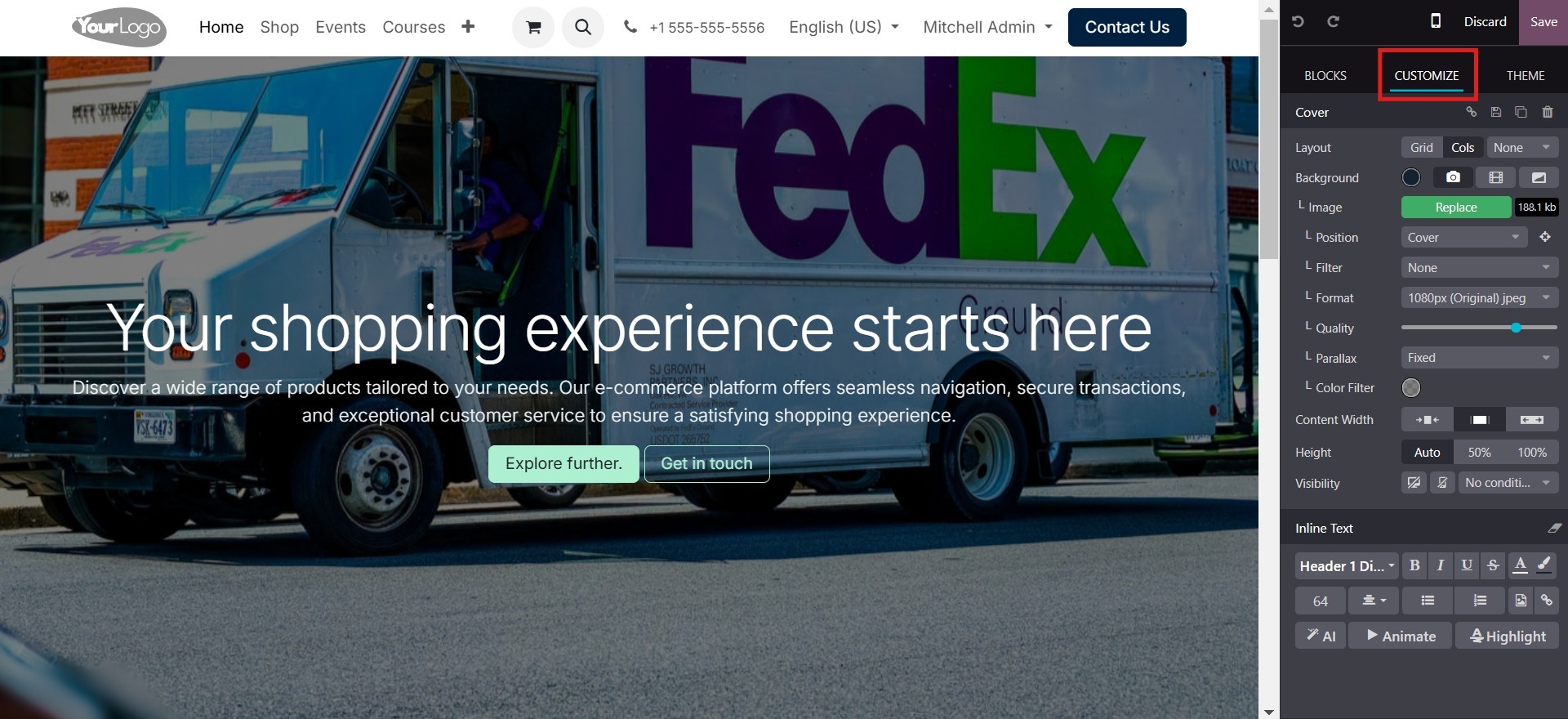
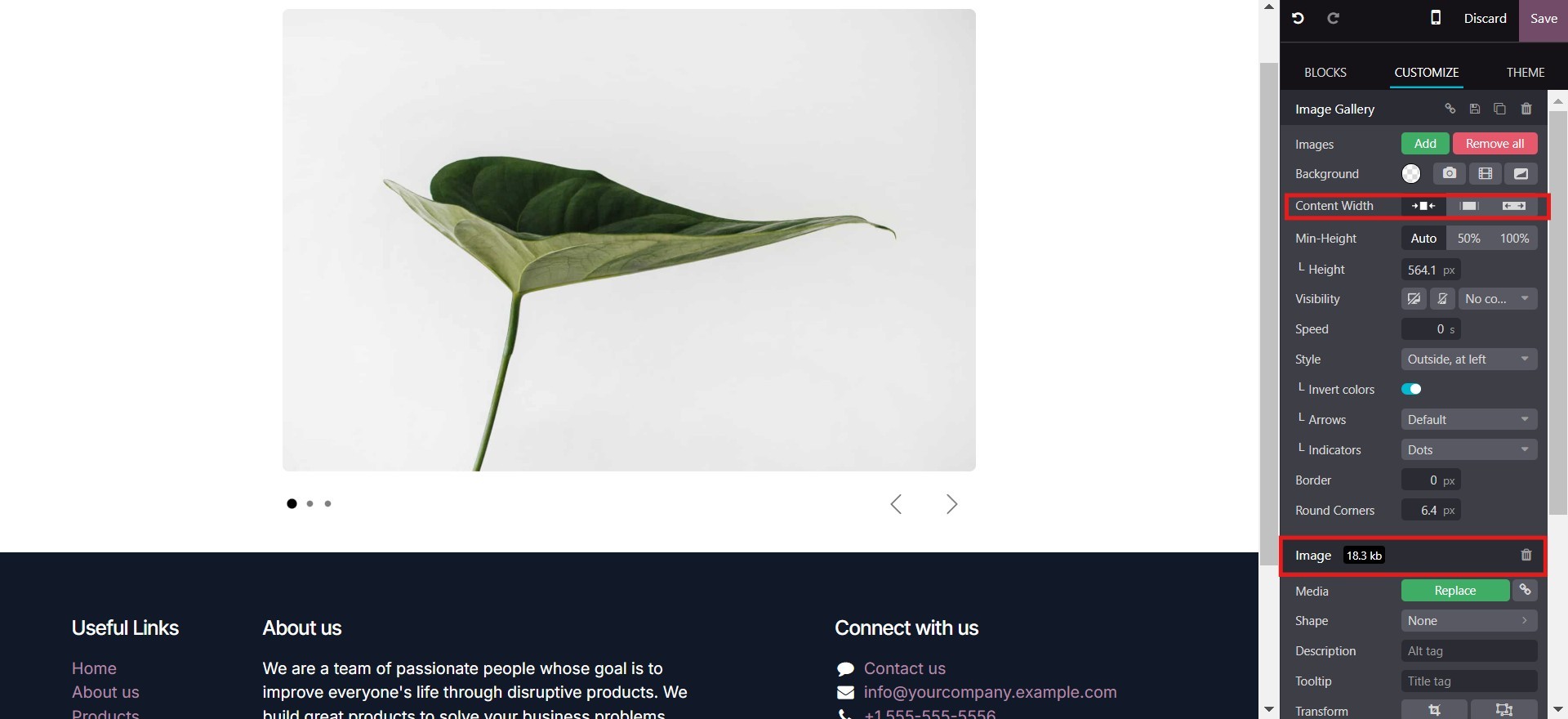
With Odoo 18, the appearance and
quality of images can be
finely tuned to enhance the
visual appeal of your website
pages. The image size is
clearly displayed within the
respective tab. The Content
Width field allows for
precise formatting, adjusting
picture width, and converting
the image format to a
web-optimized format,
resulting in a compressed
size for faster loading
times.
Furthermore, you can easily
adjust the image quality to
achieve the desired balance
between visual fidelity and
file size. Similarly, various
parameters can be customized,
including background images,
visibility settings,
animation effects, image
formats, and more.
Odoo 18 also has buttons, "Image"
and "Video" as inner
contents. Adding a button to
an existing block is made
possible by the button
snippet.
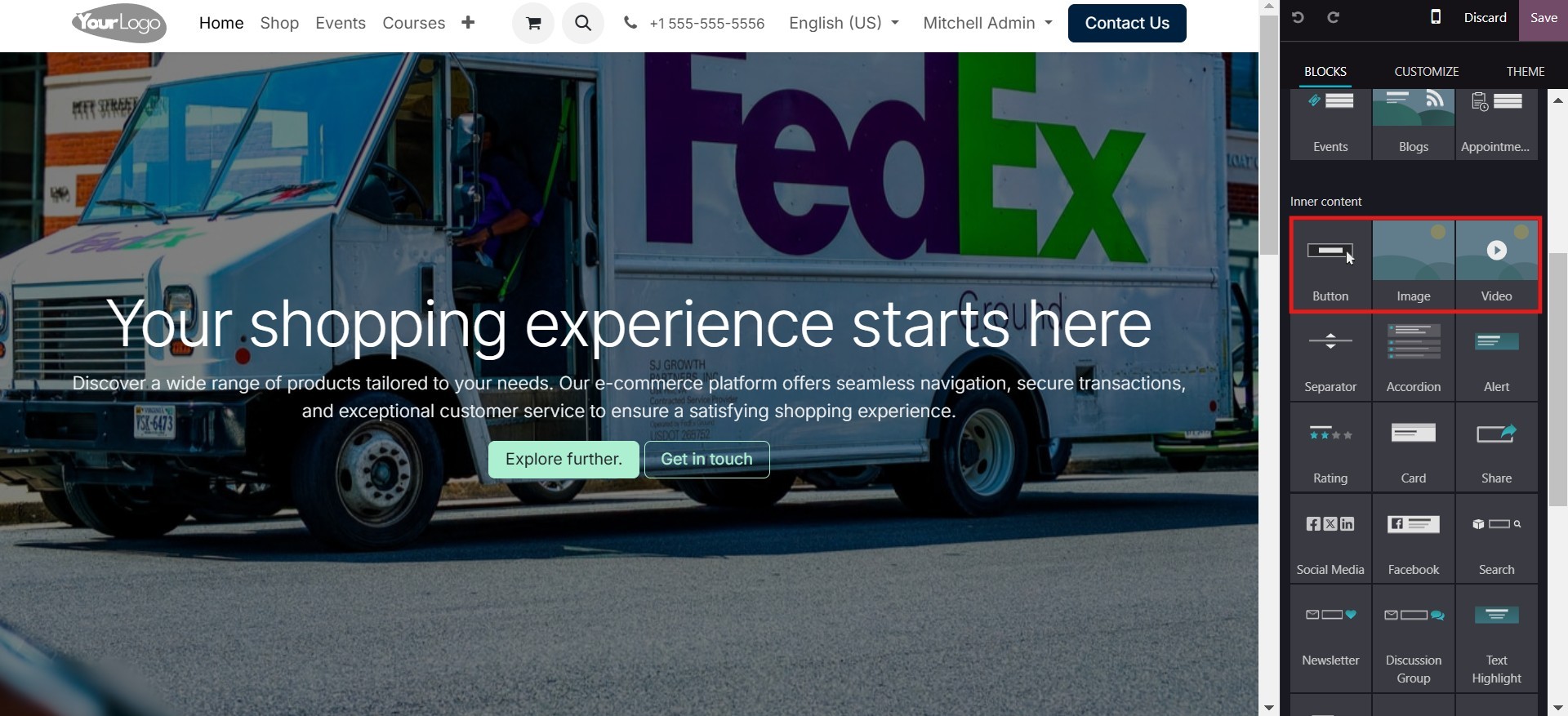
The 'Image' and 'Video' snippets
enable you to seamlessly add
images and videos to various
building blocks within your
website.
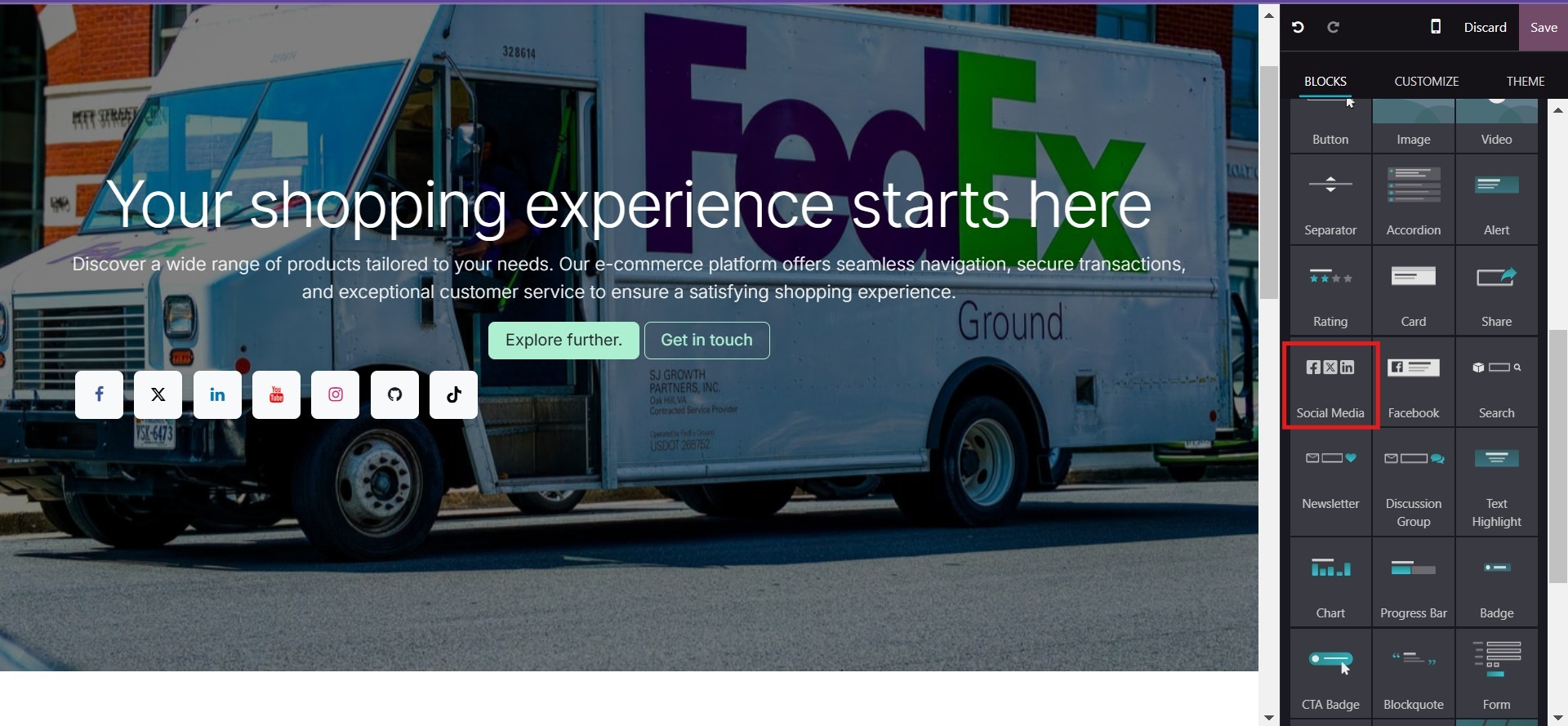
When it comes to dynamic content,
a notable addition to Odoo 18
is the 'social media'
snippet. This allows you to
effortlessly integrate your
social media account’s page
directly into your website.
For your social media page to
be included on an Odoo
website, it has to be public.
Another significant integration
in Odoo 18 is AI,
specifically with ChatGPT.
Users can now leverage AI to
generate content for new
pages, and they can easily
shorten, lengthen, or enhance
the professionalism of
existing content.
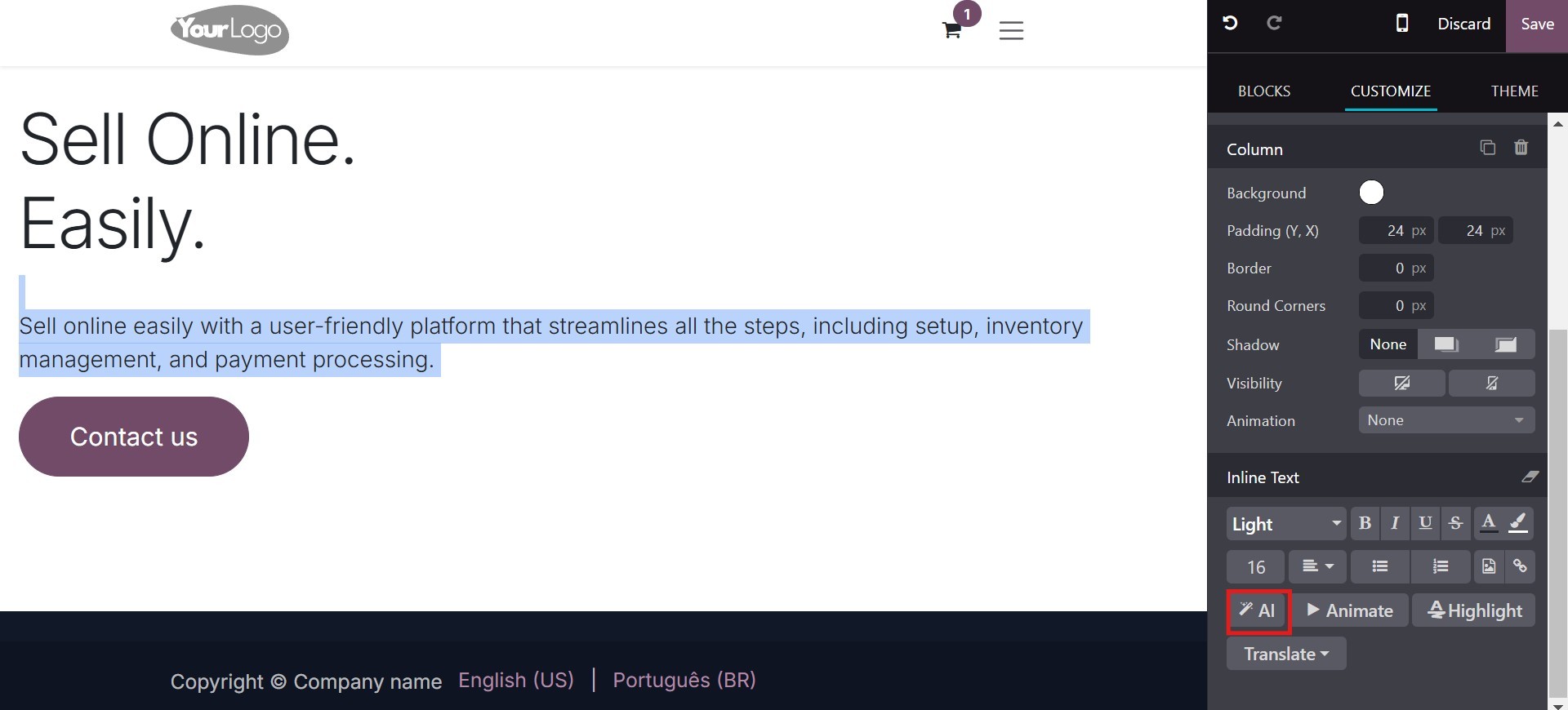
To utilize this feature, simply
select the content you wish
to modify or shorten and copy
it. Then, click on the AI
tool located within the
Inline Text section.
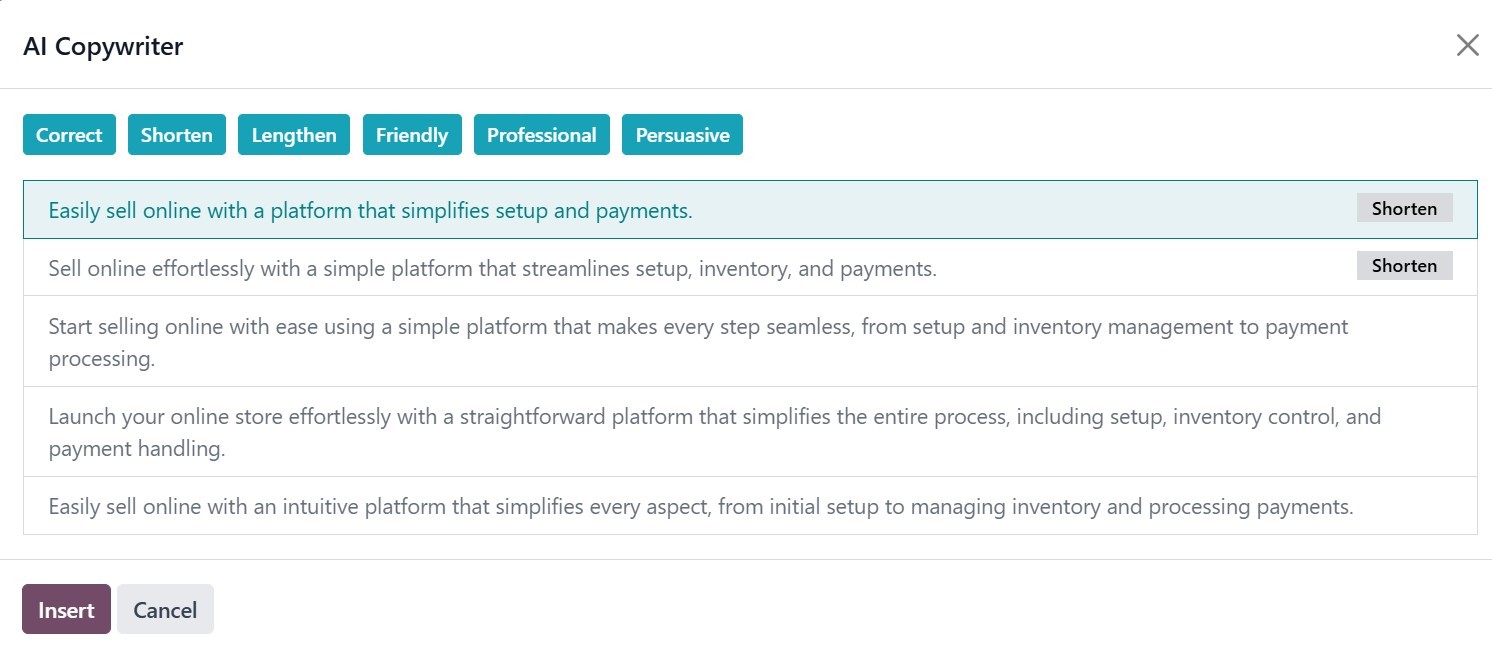
This will enable Chat GPT to
shorten the material. Paste
the material into the pop-up
box. The ' shorten' button
shortens the copied
information. As you click
shorten, again and again, the
information will be shortened
to fit your excerpt. The
Insert button then replaces
the old content with the new
one in your snippet.
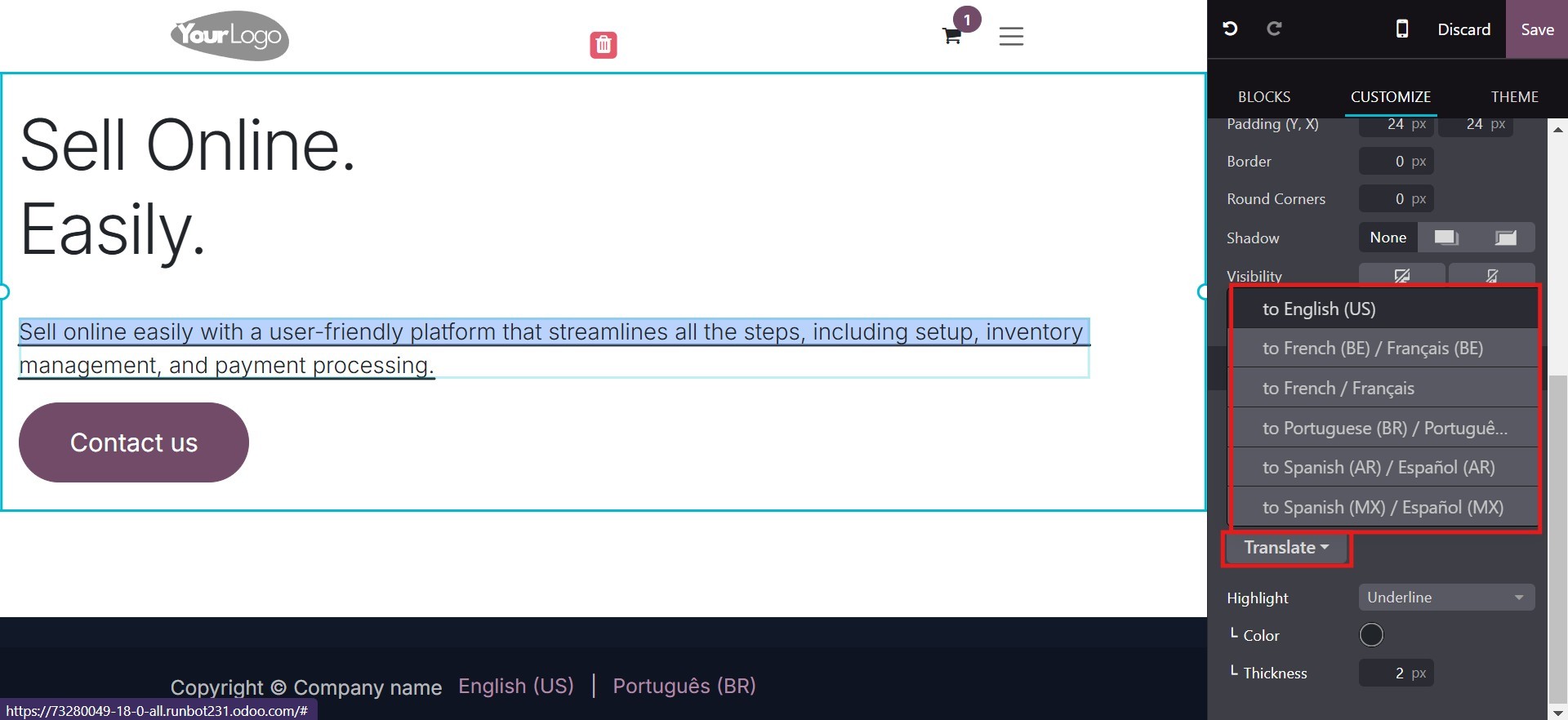
Translating texts is another
effective feature of Odoo 18.
4.4 Mobile Preview
Odoo 18 ensures seamless
operational effectiveness
across all aspects of your
business. You can
conveniently access and
manage your business
operations on your mobile
device through the system.
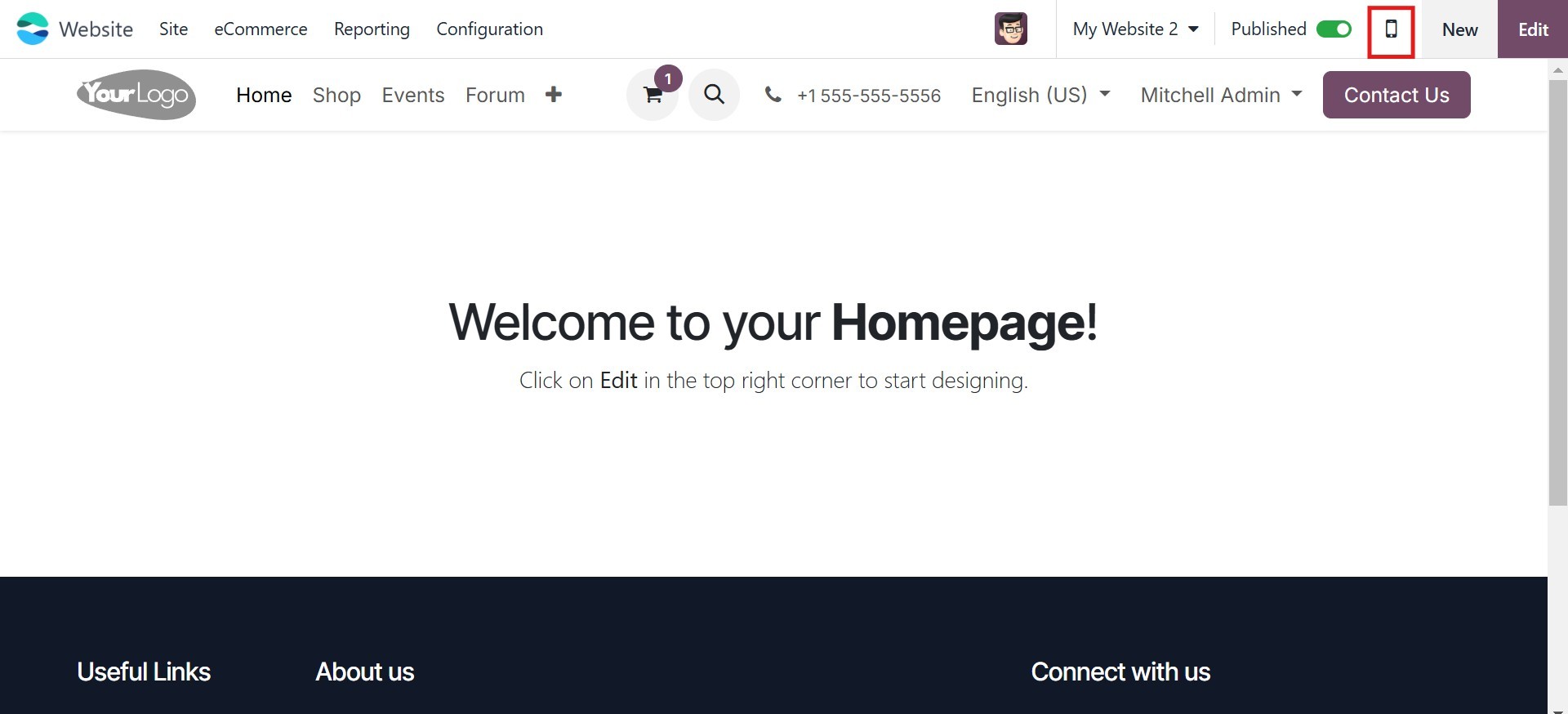
The "Mobile Preview" icon, as
depicted in the image below,
provides a quick and easy way
to preview your website on
mobile devices. Simply click
on this icon within the main
menu bar to access the Mobile
Preview feature.
Websites created with Odoo 18 are
designed to be highly
responsive across various
browsers and devices. They
seamlessly adapt to different
screen sizes, ensuring an
optimal viewing experience on
desktops, laptops, tablets,
and smartphones. By
minimizing the browser
window, the website will
automatically adjust its
layout to fit within the
reduced space, providing a
consistent and user-friendly
experience across all
devices.
Now that we have a firm grasp of
the accessible mobile preview
option, we can discuss how to
list the goods and services
in the module.