3. Design your website page
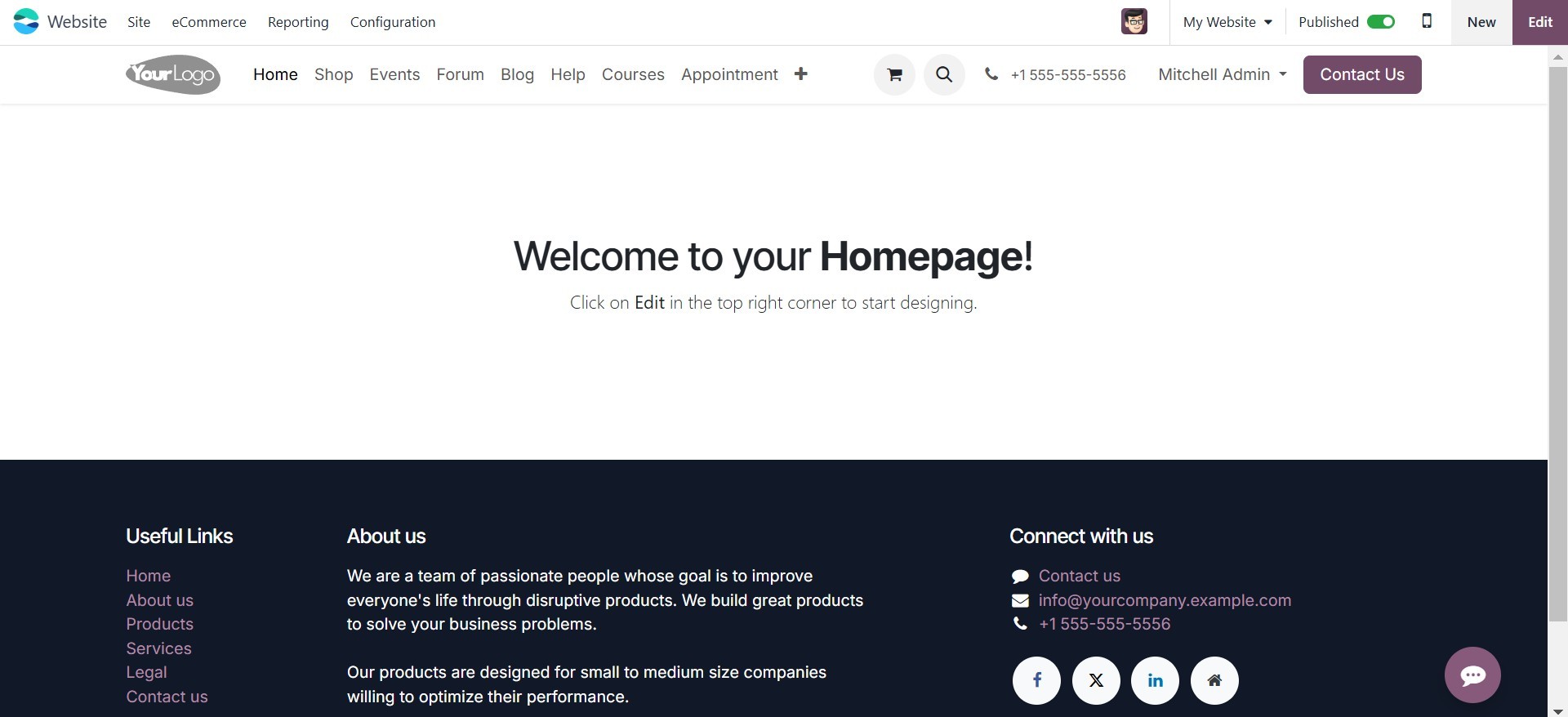
The Odoo 18 Website module provides a powerful platform for creating
and managing your company's online presence. You can leverage this
module to design and develop web pages that perfectly align with
your business needs. To begin creating a webpage, access the home
window of the Website module, as shown in the image below.
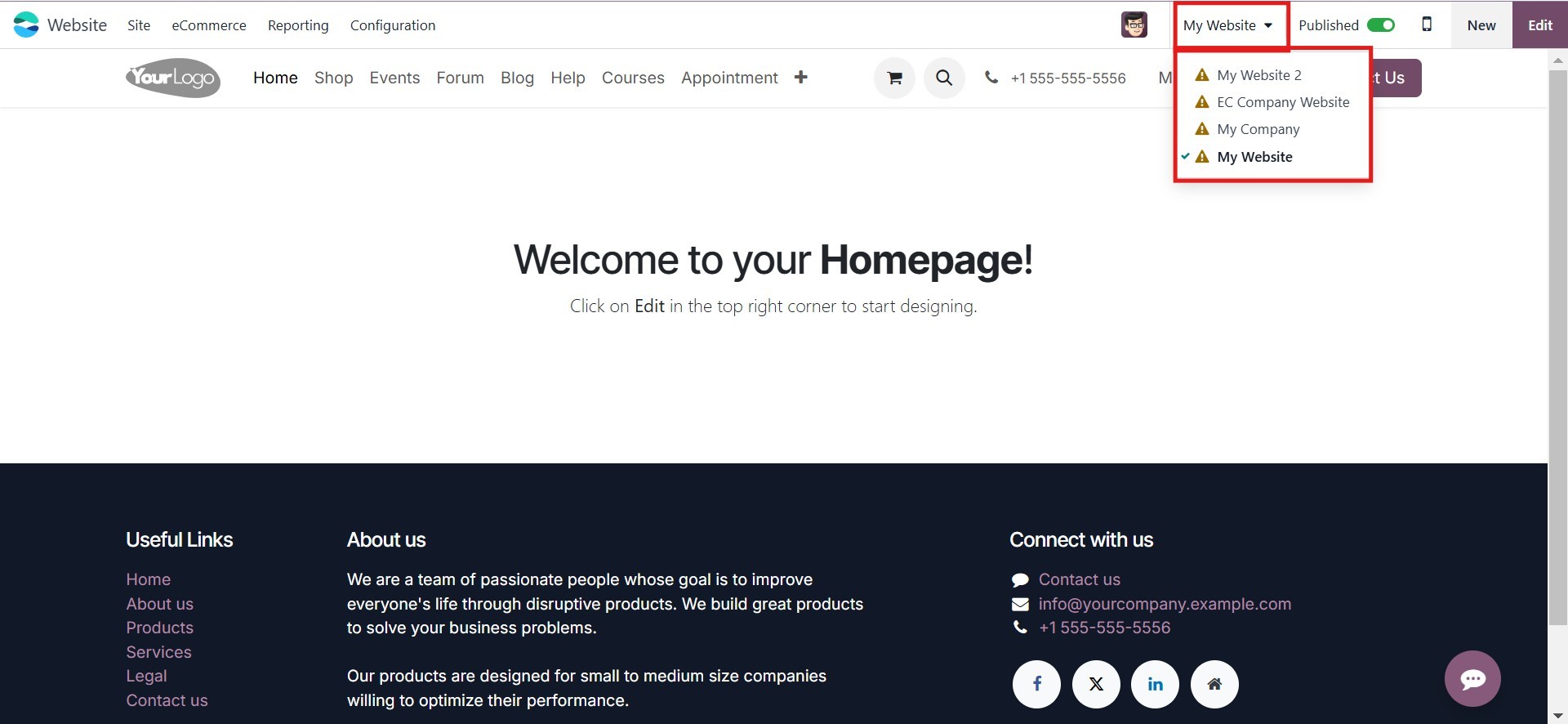
If you are managing multiple websites within the platform, you can
select the desired website from the homepage shown in the image
above. Click on the "My Websites" icon to view the available
options. After that, a list with the names of the different websites
will appear.
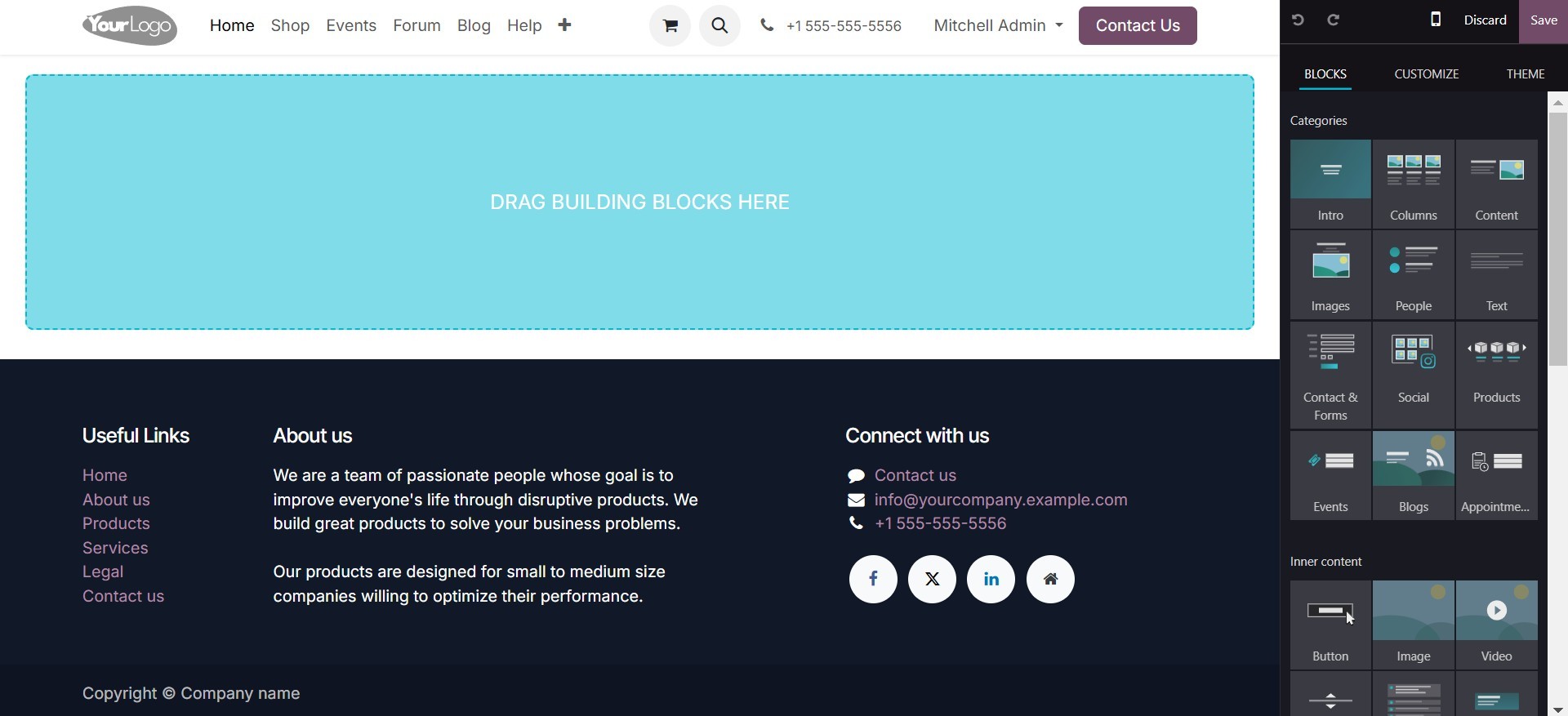
Additionally, you can customize and edit the website pages by
clicking the "Edit" button located in the upper right corner of the
window. The window will then transition into editing mode, enabling
you to utilize the editing tools provided on the left-hand side of
the window to construct the website page on the left.
To modify the look of your website pages, you may use the basic
settings that the Odoo Website module offers. These default tools
and features enable you to elegantly design your website pages,
ensuring they are visually appealing to visitors and effectively
communicate your messages.
The window provides a selection of drag-and-drop building blocks for
easy page customization. These building blocks are simple to use and
can be easily dragged and dropped into the designated areas of your
page. You can choose your preferred building blocks from the
right-hand section of the window.
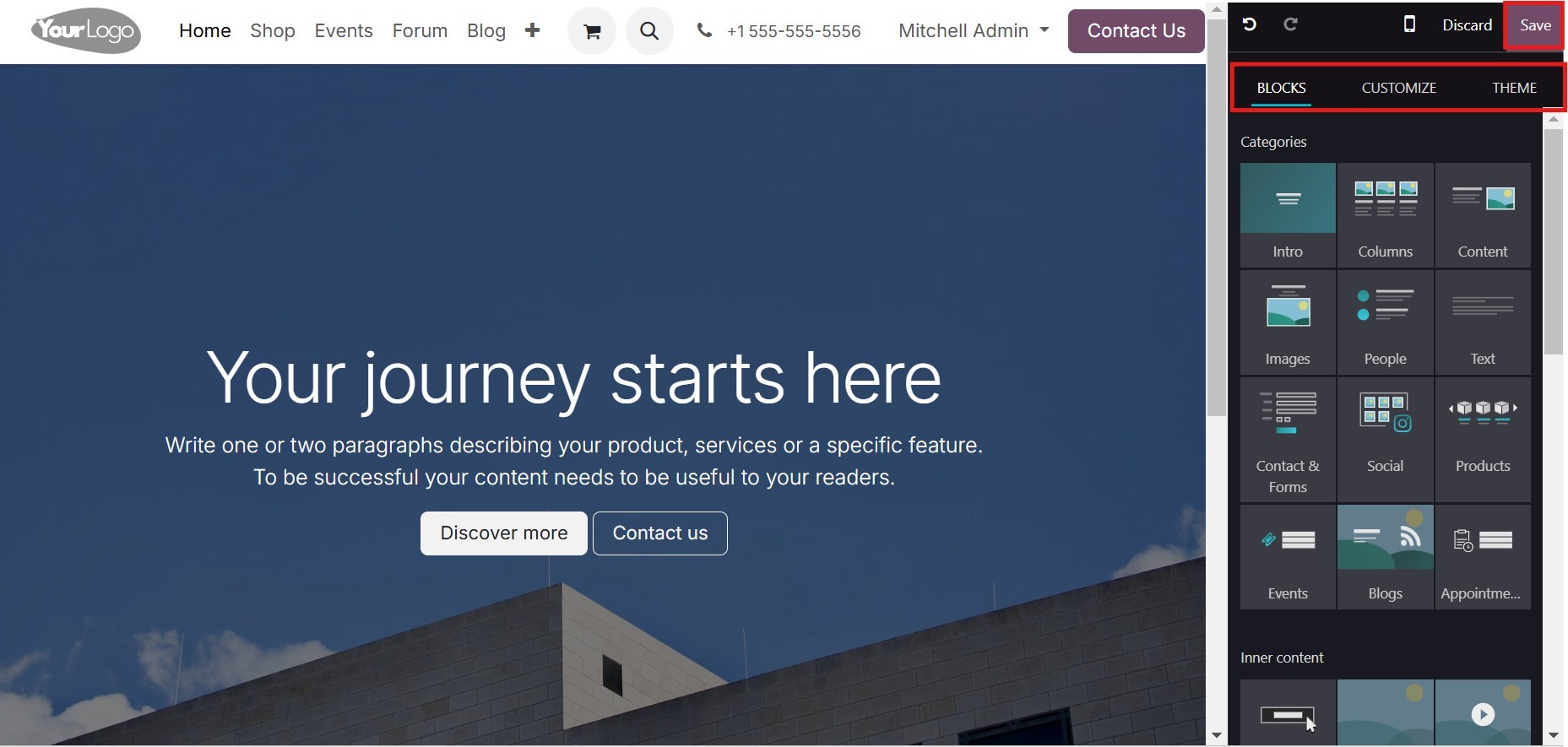
First, you may choose from the pre-made themes that are accessible in
the Odoo system or buy one from the Odoo App Store. Once a theme is
selected, you have the flexibility to customize various pages on
your website. Once the required blocks, style, and theme have been
defined, click the "Save" button to save the page.
3.1 Snippet Tools
The functionality of the website builder is based on block
operational concepts, as mentioned earlier. These building blocks
enable you to create optimal website designs and development.
Dragging and dropping blocks from the list provided within the Odoo
system is a straightforward process. Let's take a closer look at a
few of these blocks:
- Chart Snippet: This snippet allows you to express numerical or
qualitative data on your company website graphically using
numerous chart types, including bar, line, doughnut, pie, and
radar charts.
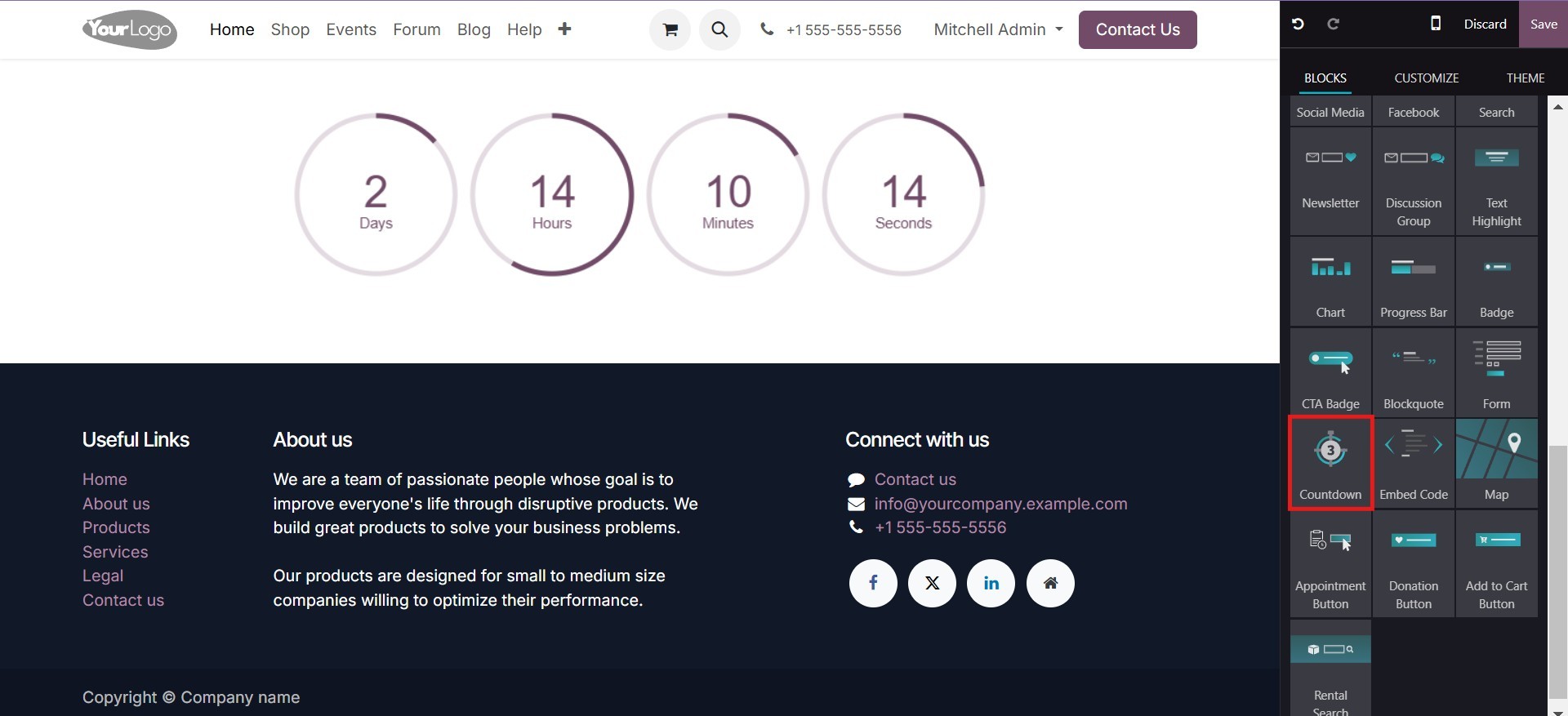
- Countdown Snippet: The Countdown Snippet is crucial for
generating immediate website traffic. Through the use of the
Odoo Website module's default countdown widget, you may
successfully boost product sales in your online store. You may
add inline text and tidy, ringed boxes to customize this widget.
- Step Snippet: The Step Snippet assists in clearly defining the
phases or steps involved in a particular operation. This is
particularly beneficial for explaining order delivery procedures
and various other processes.
- Product Catalog Snippet: This template facilitates the
modification of product descriptions according to specific
requirements within a pre-defined format.
- Auto Pop Snippet: The Auto Pop Snippet provides customers with
immediate support regarding discounts and promotions. This
widget allows you to quickly define the specifics of offers and
promotions.
- Progressbar Snippet: The Progressbar snippet, a reliable tool
within the Website module, enables you to visually represent
percentage data or the status of a corporate product. This tool
can significantly enhance your business's marketing efforts.
- Timeline Snippet: The Timeline Snippet within the Odoo Website
module allows you to visually represent the company's timeline
operations. This is highly beneficial for tracking product and
service development. It also serves as a valuable tool for
estimating the duration of projects or other tasks.
- Number Snippet: One essential tool for summarizing quantitative
data on your website, including company-specific information, is
the Number Snippet. Additionally, it can be used to showcase
achievements, the quantity of goods and services provided, or
the number of accolades received.
- Masonry Snippet: The Masonry Snippet allows you to explore the
specific details of a masonry layout.
- Big Box Snippet: The Big Box Snippet aids in optimizing the
functioning of your website.
- Product List Snippet: The Product List Snippet simplifies the
process of listing your products.
Additionally, Odoo 18 has organized all of these snippet tools based
on their purposes and attributes. To assist you in defining your
website's structure, Odoo provides snippets such as:
- Banner Snippet
- Carousel Snippet
- Cover Snippet
- Text Cover
- Text-Image Snippet
- Image-Text Snippet
- Title Snippet
- Text Snippet
- Number Snippet
- Masonry Snippet
- Column Snippet
- Images Wall Snippet
- Features Snippet
- Image Gallery Snippet
- Picture Snippet
- Big Boxes Snippet
- Media List Snippet
- Parallax Snippet
The following snippets can be effectively used to describe features:
- Showcase Snippet
- Comparisons Snippet
- Team Snippet
- Call to Action Snippet
- References Snippet
- Timeline Snippet
- Quotes Snippet
- Tabs Snippet
- Items Snippet
- Table of Contents Snippet
- Steps Snippet
- Features Grid Snippet
- Accordion Snippet
- Pricelist Snippet
Depending on your needs, you can utilize the following snippets to
add dynamic content to your website:
- Newsletter Block Snippet
- Events Snippet
- Facebook Snippet
- Search Snippet
- Products Snippet
- Dynamic Snippets
- Map Snippet
- Form Snippet
- Newsletter Pop-up Snippet
- Pop-up Snippet
- Countdown Snippet
- Discussion Group Snippet
- Donation Snippet
- Twitter Scroller Snippet
- Embed Code Snippet
- Blog Posts Snippet
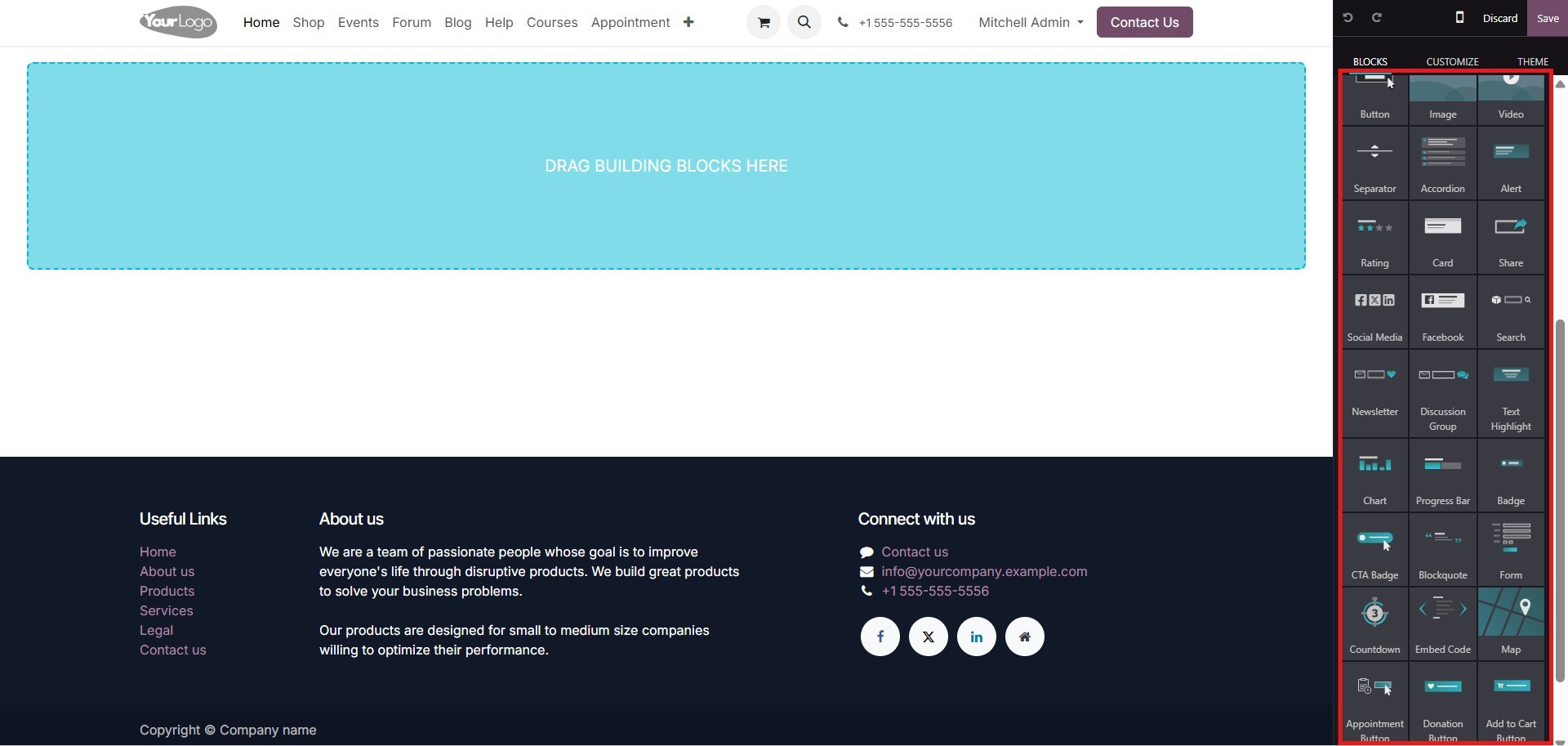
The following snippets can be used to include internal content:
- Button Snippet
- Image Snippet
- Video Snippet
- Separator Snippet
- Rental Search Snippet
- Donation Button Snippet
- Add to Cart Snippet
- Newsletter Snippet
- Search Snippet
- Badge Snippet
- Appointment
- Blockquote Snippet
- Text Highlight Snippet
- Progress Bar Snippet
- Card Snippet
- Alert Snippet
- Rating Snippet
- Share Snippet
- Social Media Snippet
Let's see how the Countdown sample appears on the webpage.