WhatsApp is a crucial tool for real-time communication in today's
business environment. This guide provides step-by-step instructions,
practical examples, and feature overviews for mastering WhatsApp
integration within the Odoo 18 Enterprise platform. It helps manage
sales, support, and marketing operations, streamlining messaging
workflows, boosting responsiveness, and delivering better customer
experiences directly from the Odoo system.
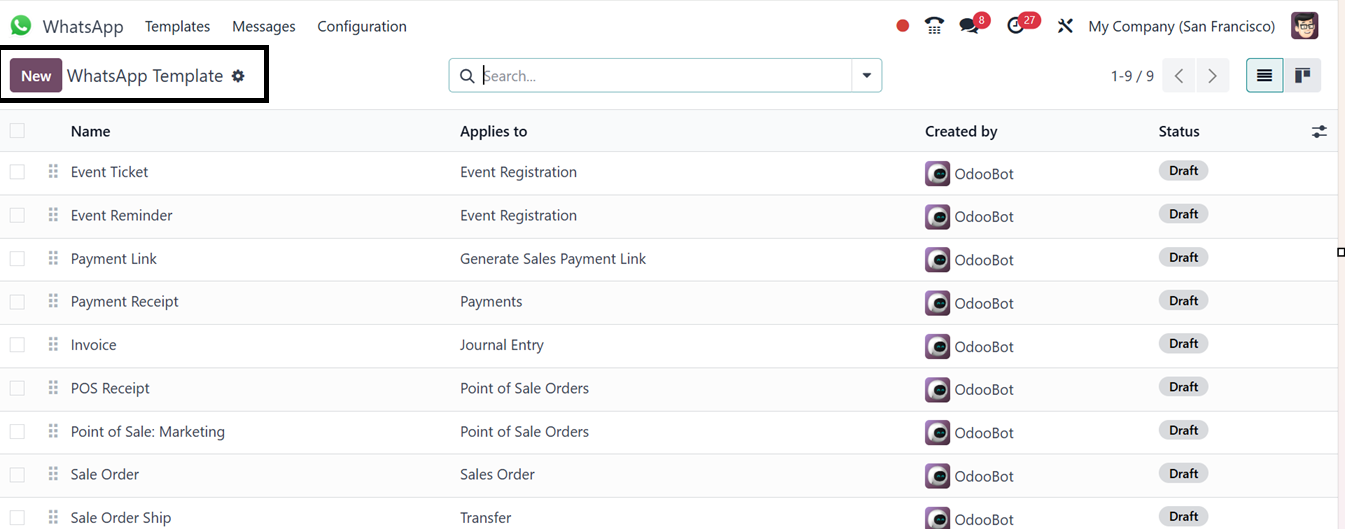
Upon launching the WhatsApp app in Odoo, you'll find a list of
WhatsApp templates. Here, you can review details such as the
template name, its target application, status, and creator.
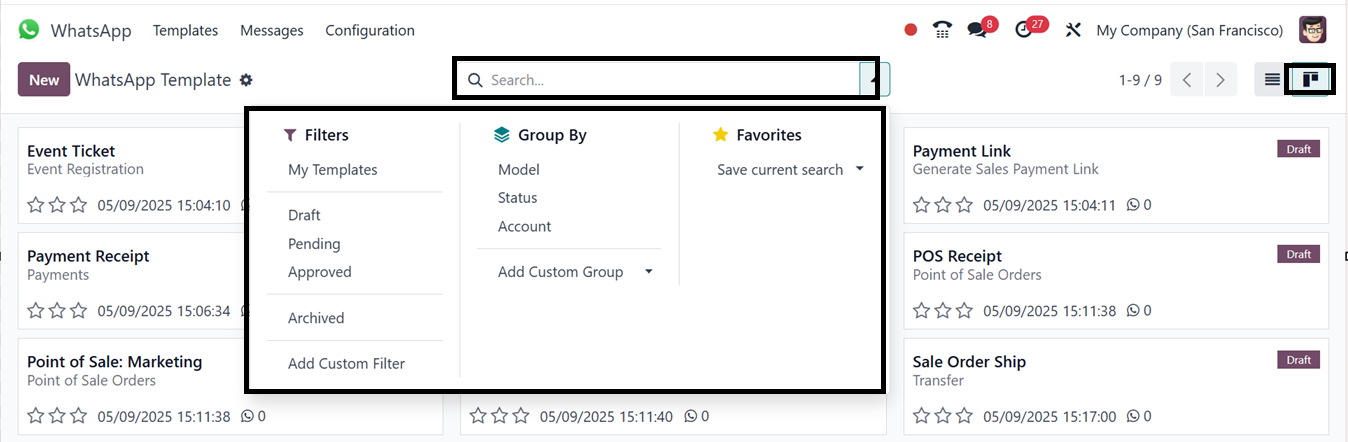
By selecting the Kanban symbol in the window's upper-right corner,
you can change the dashboard to a Kanban view. Use the Filters,
Group By, and Favorites options in the advanced
search bar to further hone the presented data. By selecting the
‘Add Custom Filter’ and ‘Add Custom Group’ buttons in
the filter settings area, you can also make your own filters and
groups.
To create a new template, simply click on the New button. The
displayed WhatsApp Template Configuration form of Odoo 18 consists
of several fields that define the functionality and permissions of a
template, where you can define required details. The ‘Name’
field identifies the template and its purpose, while the
‘Account’ field links it to a specific WhatsApp Business API
account. The ‘Applies to’ field specifies the document model
the template relates to, allowing contextual messaging. The
Phone Field determines the recipient's WhatsApp number, and
the Category classifies message type. The ‘Users’
field can restrict access to the template to specific individuals or
groups for better control. Then, mention the ‘Language.’ The
Header Type and Footer Message allows for setting any
messages or notes in the header and footer area of a WhatsApp
message template for richer content, as illustrated in the
screenshot below.
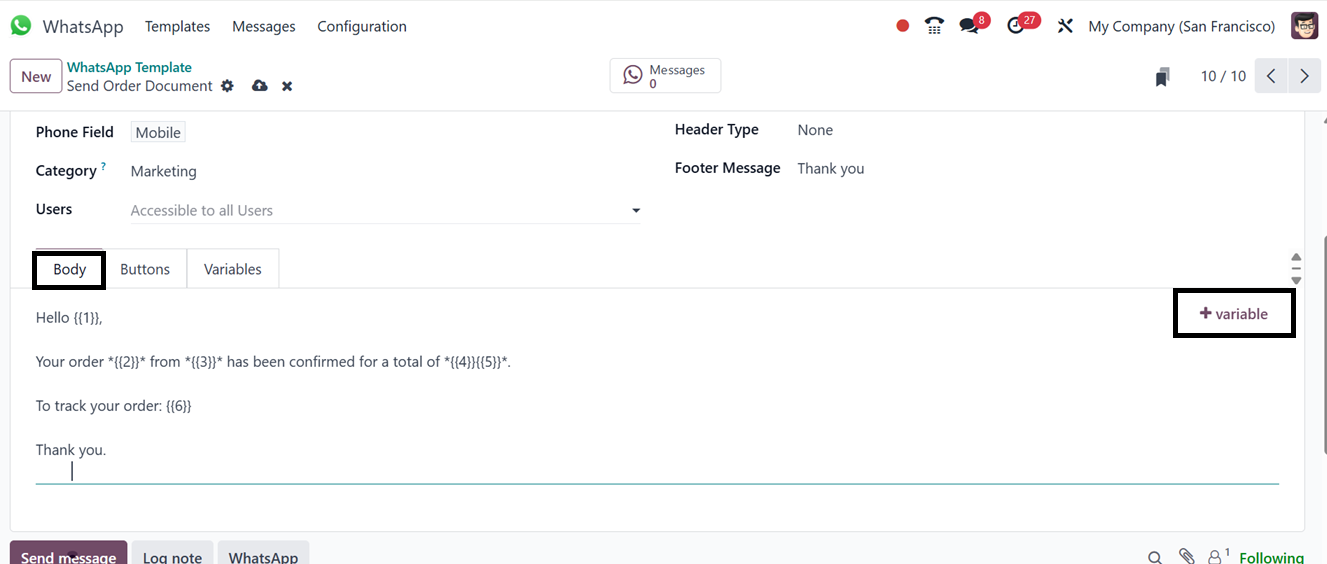
Inside the ‘Body’ tab, you can customize and compose the
message body according to your company standards or requirements.
WhatsApp message templates employ dynamic variables to retrieve
unique data from the Odoo database. These variables are added to the
message body using placeholders like {{1}}, {{2}}, and so on,
increasing the number for each additional placeholder. These dynamic
parts, including placeholders for names, dates, or anything, should
be set up by highlighting them in numbers by clicking on the
+Variables icon from the ‘Body’ tab, as depicted in the above
screenshot.
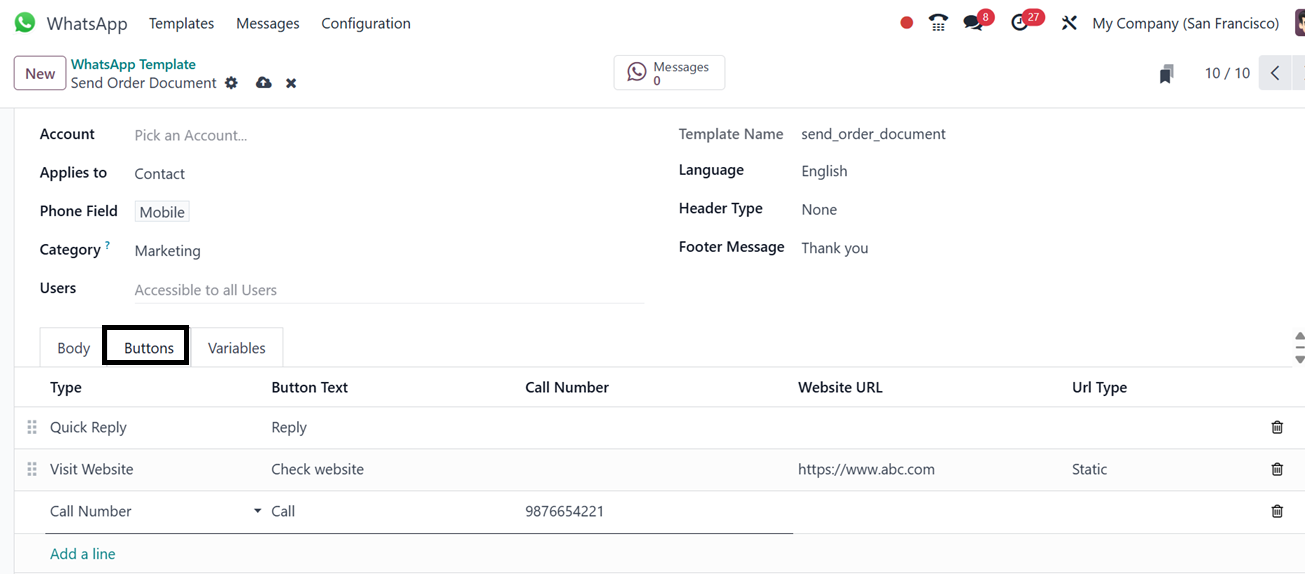
The ‘Buttons’ tab allows you to add buttons to the message
template. After selecting the button type (Quick Reply, Call Number,
or Visit Website) using the ‘Add a line’ button, you can
enter the relevant information, such as the button name, phone
number, website link and URL Type in the Button Text, Call
Number, Website URL and URL Type fields respectively.
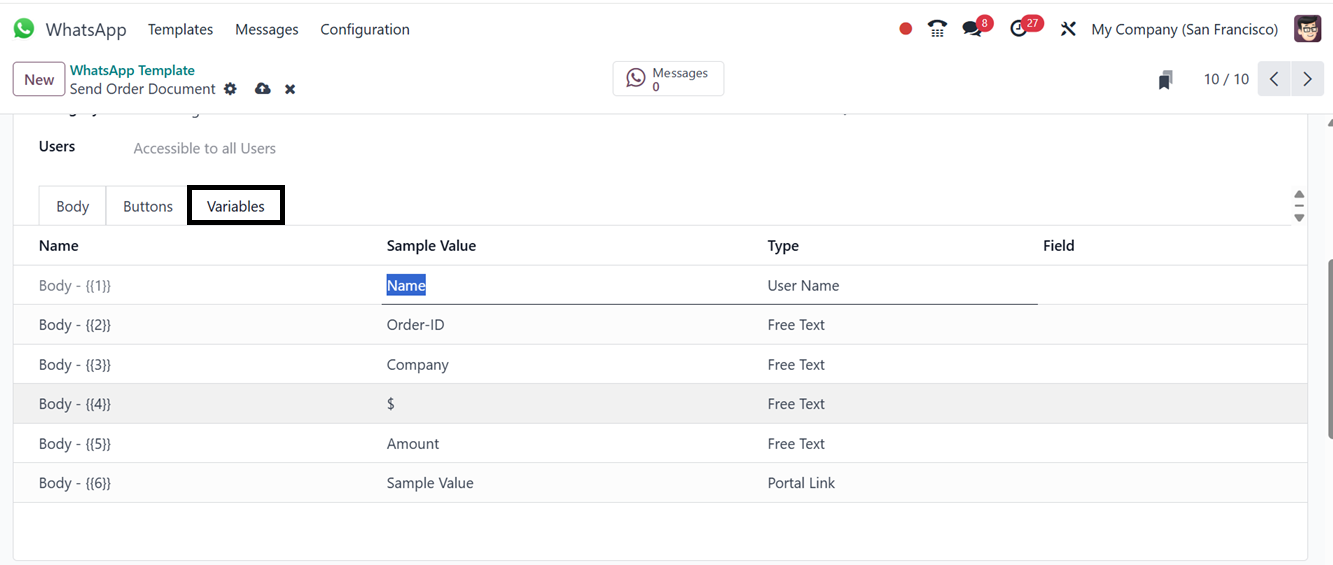
Each placeholder in the message must be defined in the
Variables tab, linking it to a specific field in a model.
Setting a dynamic variable's Type to Field of Model instructs Odoo
to retrieve data from a designated model field. Next, pick the
appropriate Field that corresponds to the placeholder. Verify that
the template's Applies to field is set appropriately so that it
refers to the appropriate model. After setting them up, save the
template before submitting it to Meta for approval.
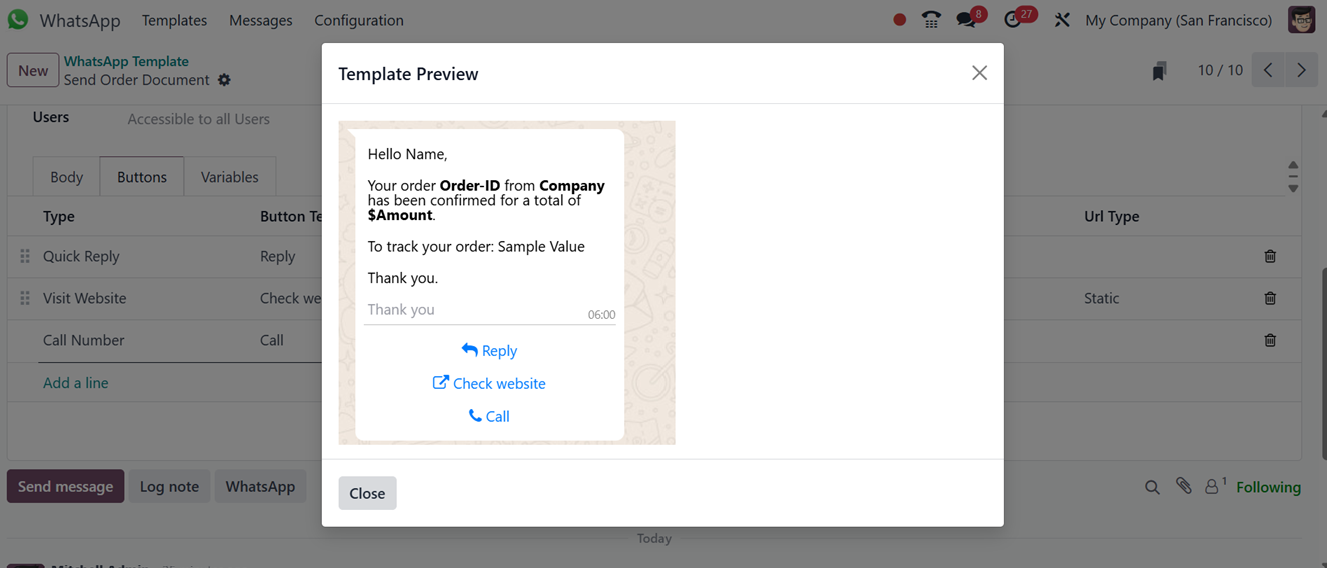
The ‘Messages’ smart button will see the messages sent with
this particular WhatsApp template. And the ‘Preview’ button
in the template configuration form can be used to check the WhatsApp
message preview, as illustrated in the screenshot below.
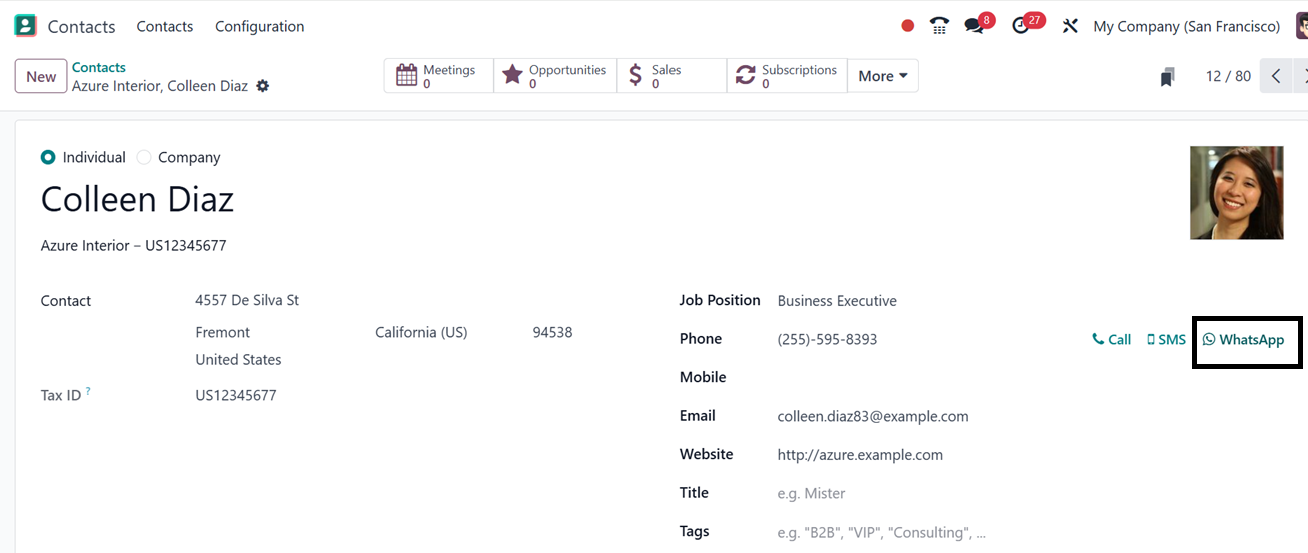
Users can then utilize these templates to send WhatsApp messages
directly to partners. On a partner’s record page in the Odoo
Contacts Module or any customer data form in Odoo, you can see a
WhatsApp button conveniently located next to the phone number
field.
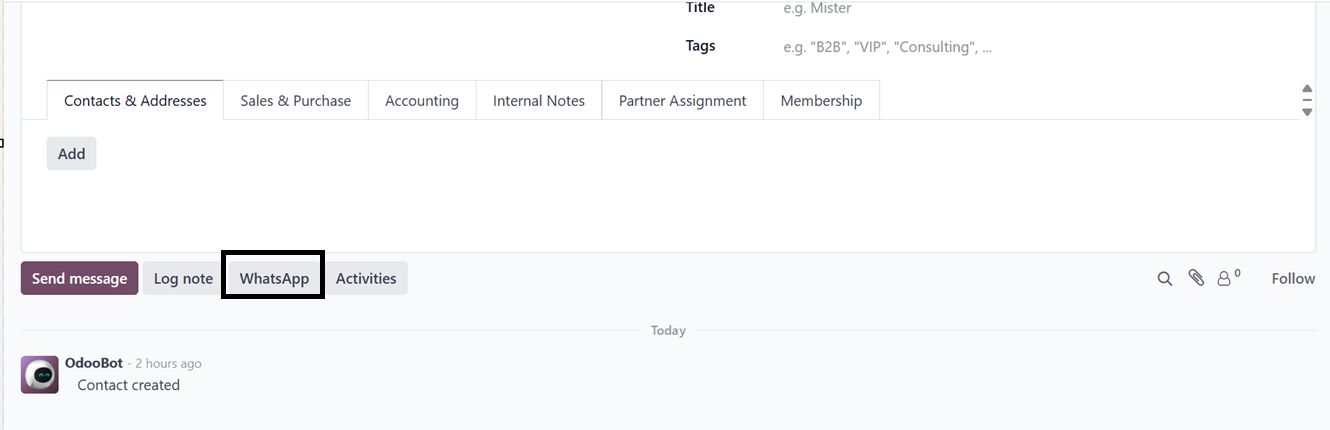
Additionally, in the chatter area, options like Send Message, Log
Note, WhatsApp, and Activities are available, further
enhancing communication capabilities. WhatsApp integration in Odoo
18 makes it incredibly easy to send quotes, updates, or other
important information directly to customers via WhatsApp.
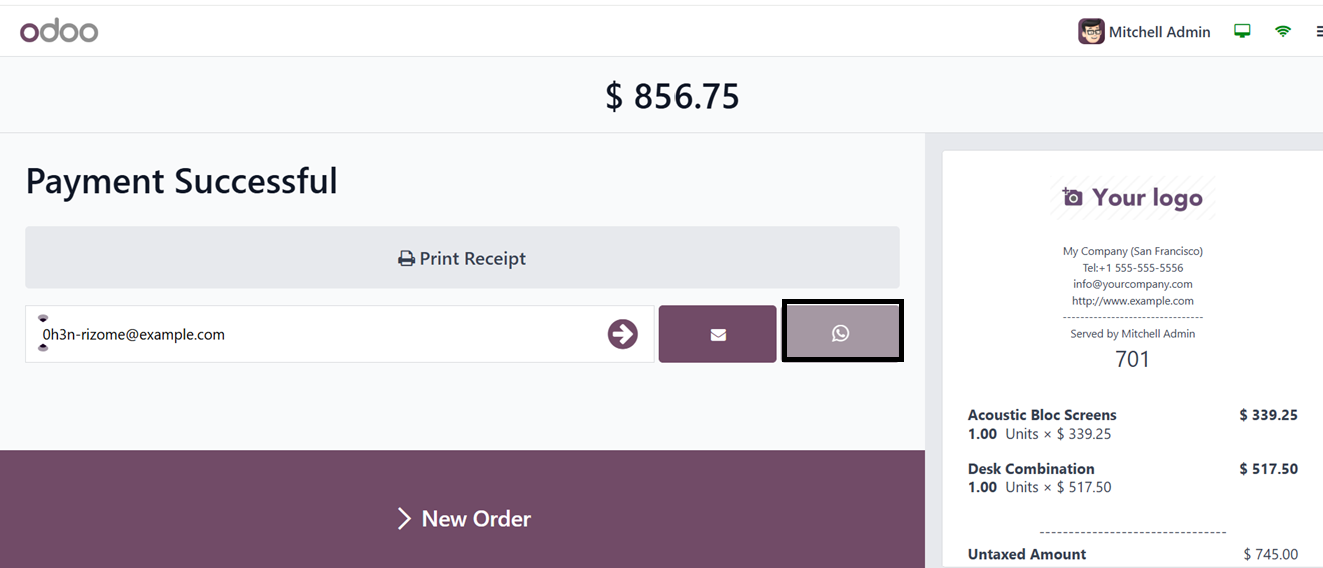
Odoo’s Point of Sale (PoS) module allows businesses to efficiently
manage retail transactions, streamline sales processes, and
integrate with inventory and accounting modules. When a customer
places an order and completes payment within the PoS, the user can
traditionally print or email the receipt. Now, with Odoo 18, the new
feature enables sending the receipt directly to the customer via
WhatsApp. Simply click on the ‘WhatsApp’ icon after
processing the payment to transmit the receipt instantly.
Moreover, the WhatsApp button is accessible across different tree
views within Odoo, making it easy to send event tickets, quotations,
invoices, and other documents seamlessly through WhatsApp chats.
This integration significantly improves communication and
strengthens engagement with customers and partners.