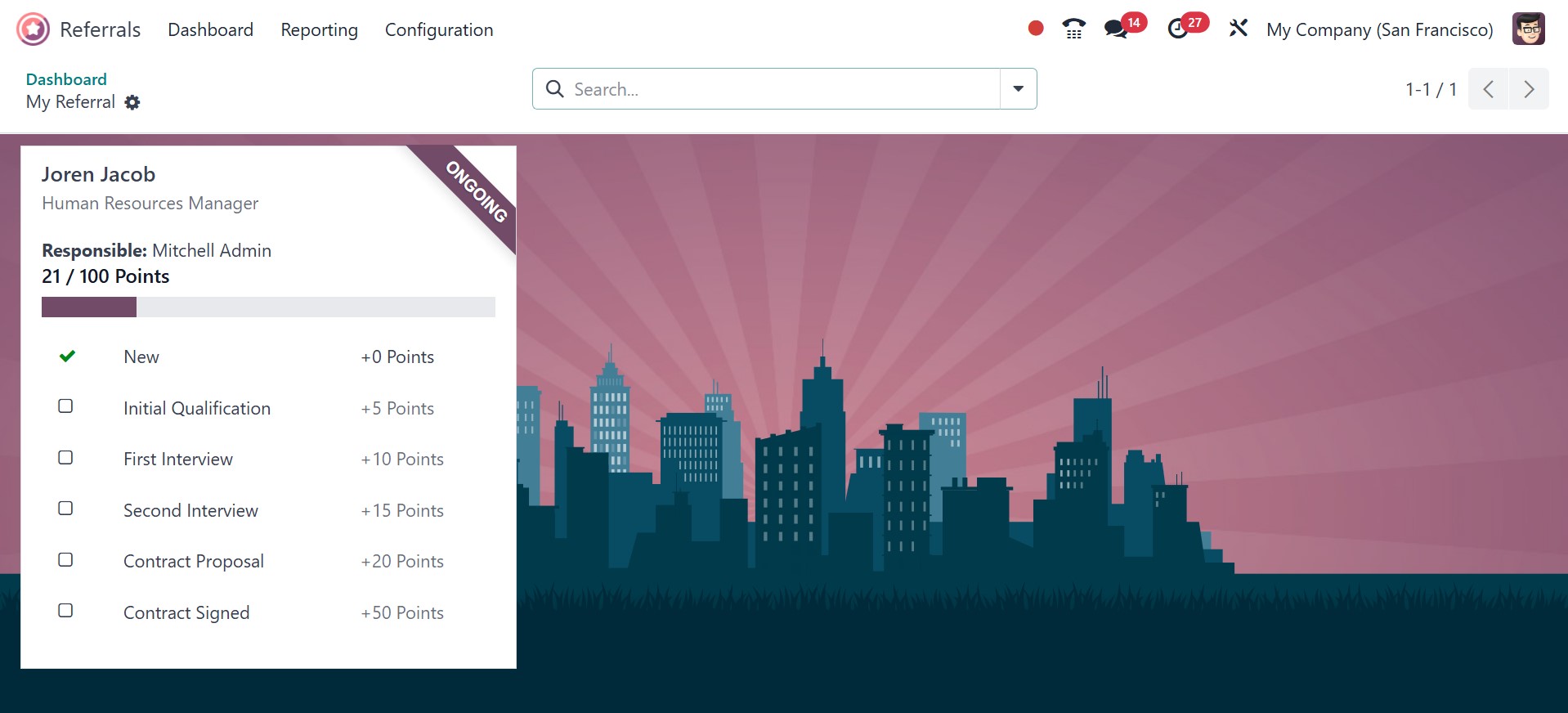
1. Dashboard
By choosing the Dashboard option, you can see the home screen page
for the Odoo 18 Referral module. For a more user-friendly
experience, the dashboard window provides additional features and
aesthetics. As seen in the screenshot below, the SKIP and NEXT
buttons are present on the screen.
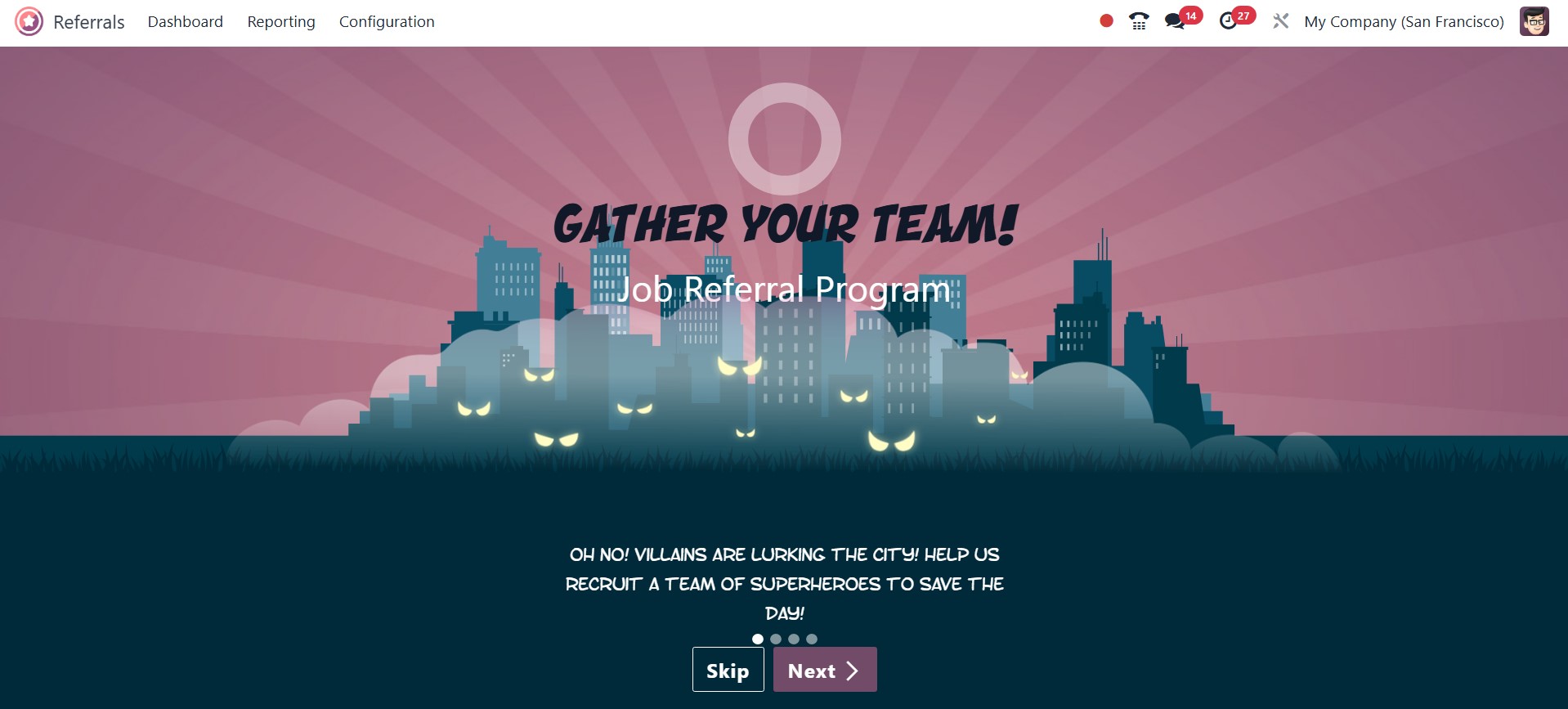
Clicking the Next icon takes the user to a new page containing
onboarding messages. Thus, by selecting the Next symbol, a user can
access the steps of the employment recommendation program. The home
page will be displayed if you click the Skip symbol. On the open
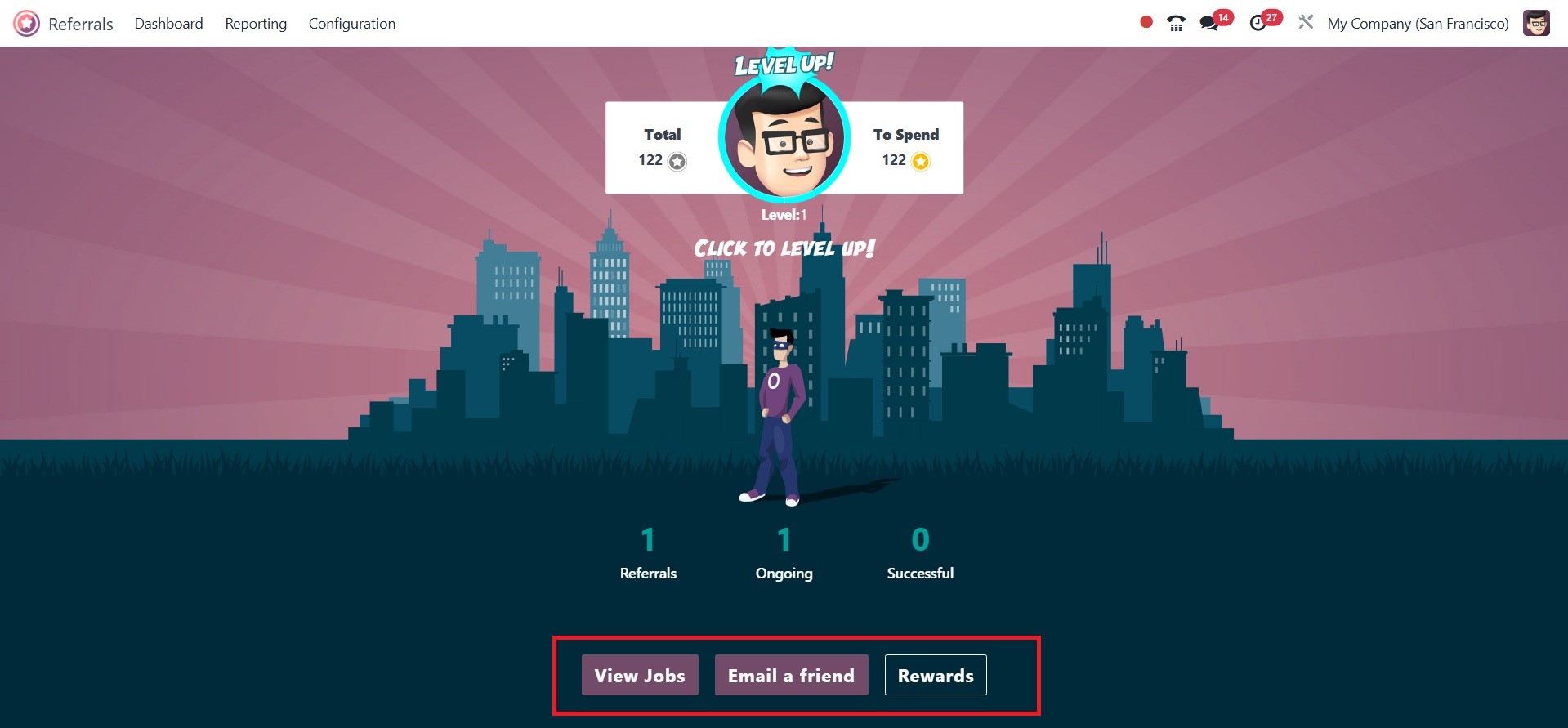
page, you can see the total number of suggestions as well as ongoing
and fruitful referrals. The symbols for View Jobs, Rewards, and
Email a Friend are also visible in Level 1.
The user can access all job positions after choosing the View Jobs
icon. We can check the number of open positions, job descriptions,
total points, recommend the position to a friend, and other
information on the Dashboard window's Job Vacancies page.
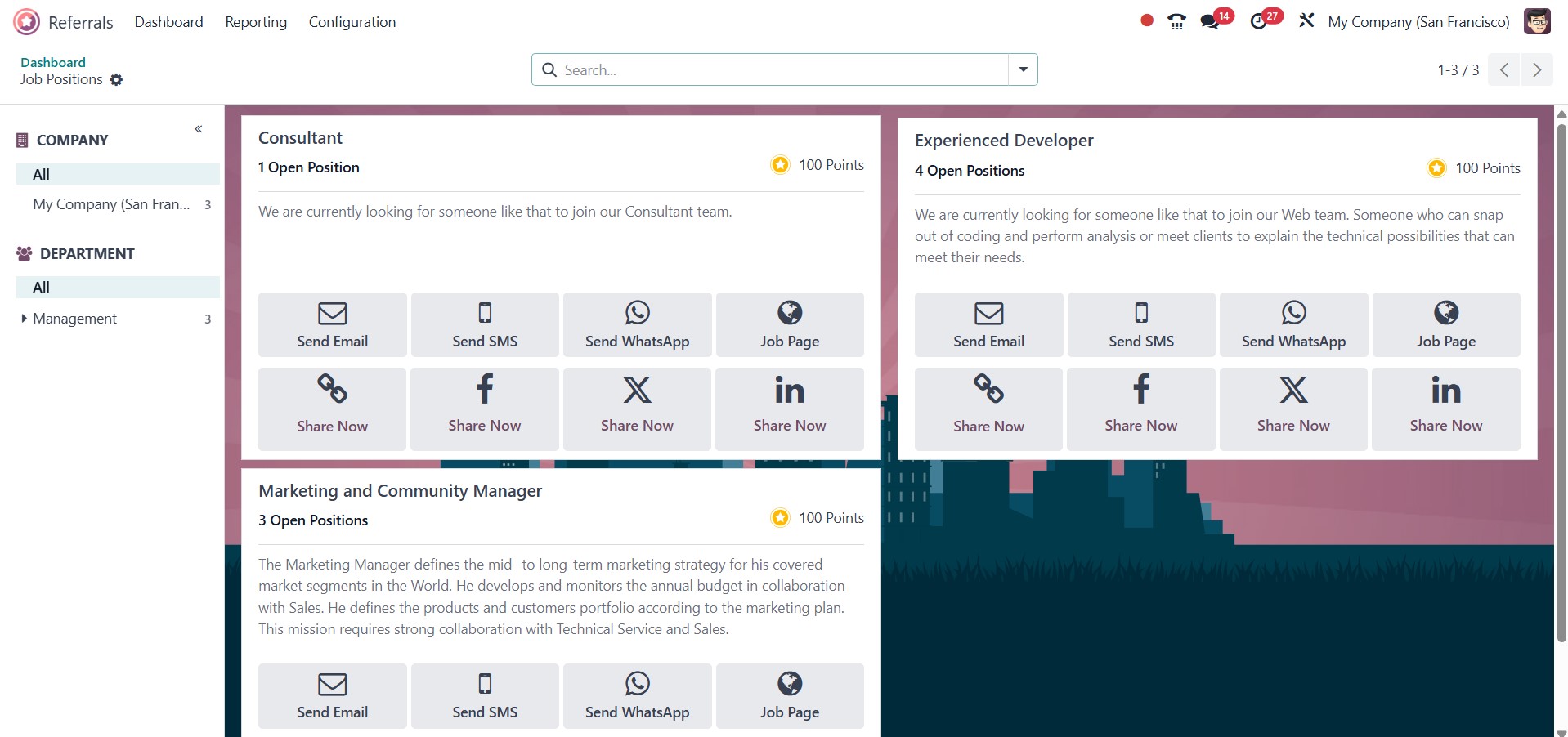
You can also spread the word about this position on Twitter,
Facebook, LinkedIn, and other platforms. The Email a Friend button
allows the user to send a job offer via mail. You can choose the
email address, subject line, and email content to send the job offer
to the right individual in the Send Job Offer by Mail window.
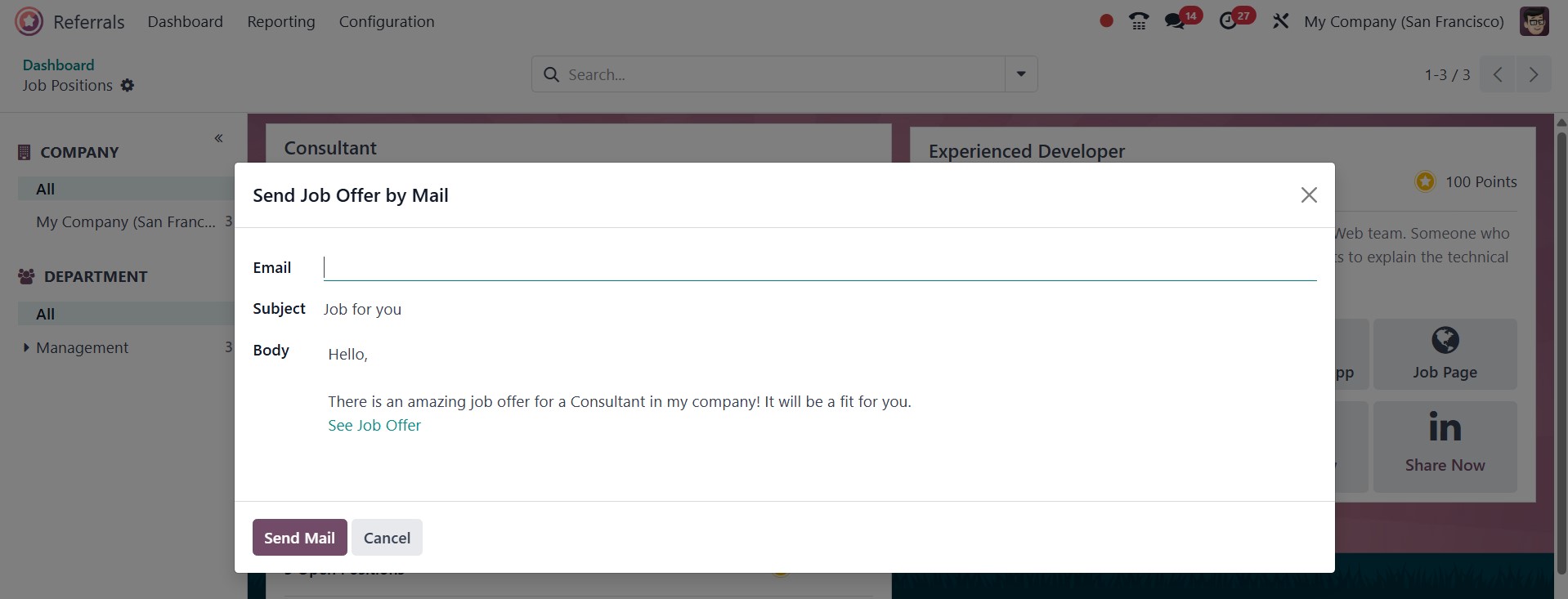
To submit the job offer to your reference after all the information
has been input, click the Send Mail button.
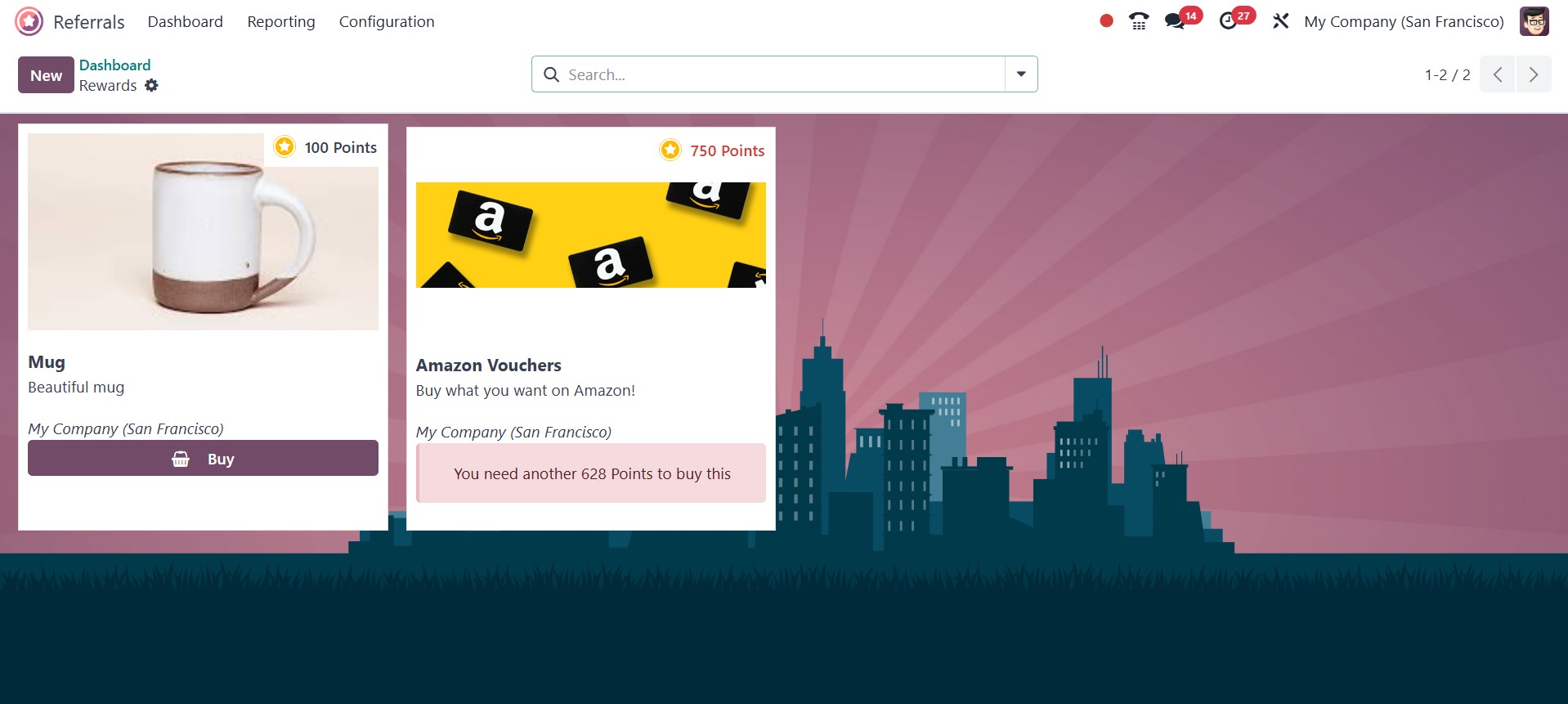
After choosing the Rewards symbol, you can see how many coupons the
user has access to overall. In the Rewards box, you can see the
total points earned for each award, along with a description and the
option to buy the gift.
Let's discuss the fundamentals of how the Odoo 18 Referral module
functions. Moving to the Dashboard screen of the Odoo 18 Referral
module will help with that. In relation to each employee profile,
the LEVEL UP option is present at the top of the Dashboard. If the
applicant advances to the next step of the recruitment process, the
reward will improve the referred individual employee. You may see
the Total and To Spend points in addition to the LEVEL UP option.
You can raise the level by using the LEVEL UP button.
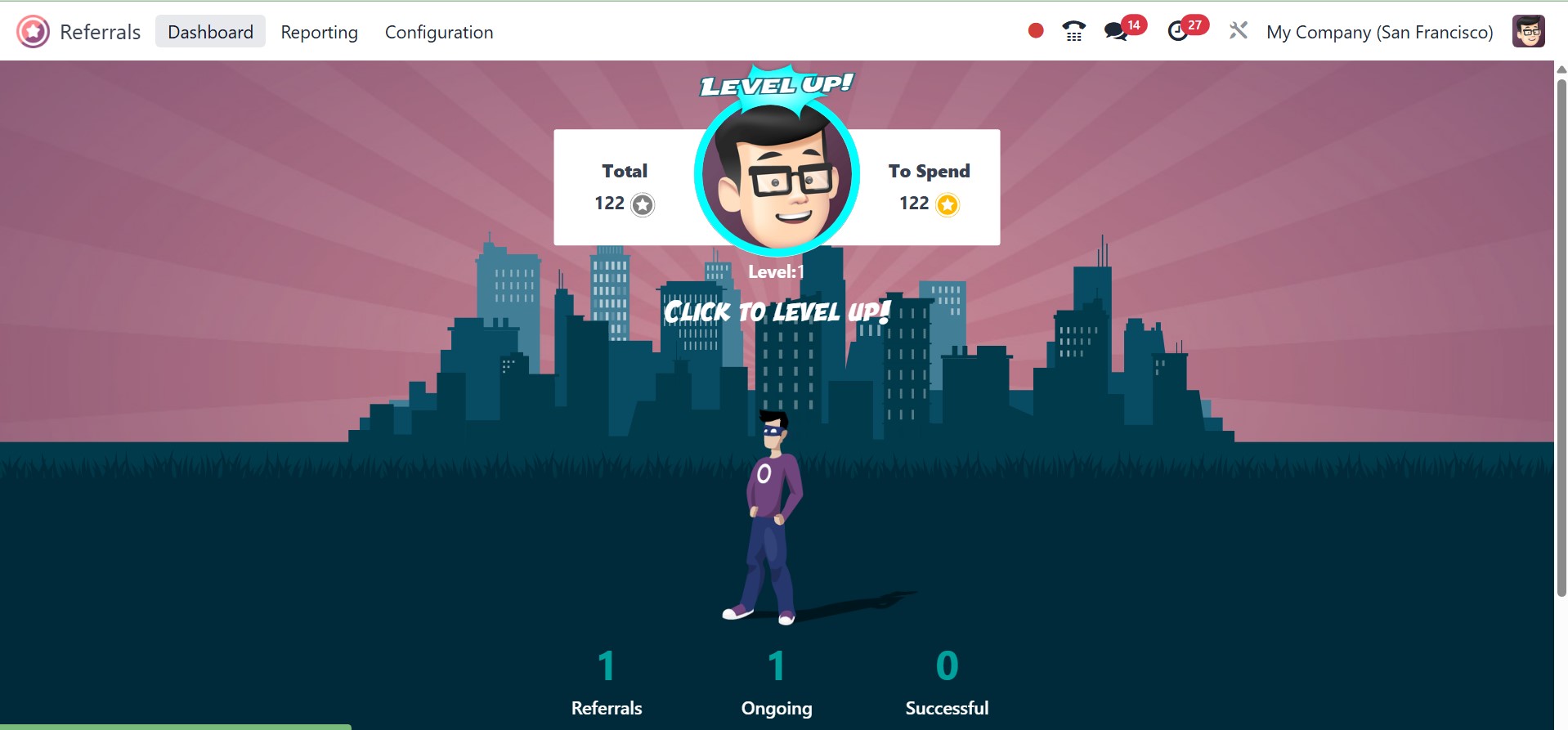
Referral status is displayed in the Dashboard window. You can find
the total number of successful, ongoing, and other referrals.
All employee references are shown when the referrals option is
selected. The employee's recommended person's details are shown in
the My Referrals pane. The referral's name, department, points
earned, job title, and other details are made available to you. At
each step, points are given based on the candidates' qualifications.
There are many degrees of stages, including first qualifying, second
interview, contract signing, first interview, and more.