4. Management Menu
Under the Management menu, HR managers can oversee personnel
allocations and absences through the Allocation and Time Off
submenus. The ‘All-Time Off’ section provides a complete list of all
accrued leave across the organization, including employee names,
leave methods, descriptions, dates, and statuses. Managers can
approve or deny leave requests directly from this interface using
the ‘Approve,’ ‘Validate,’ or ‘Refuse’ buttons, respectively.
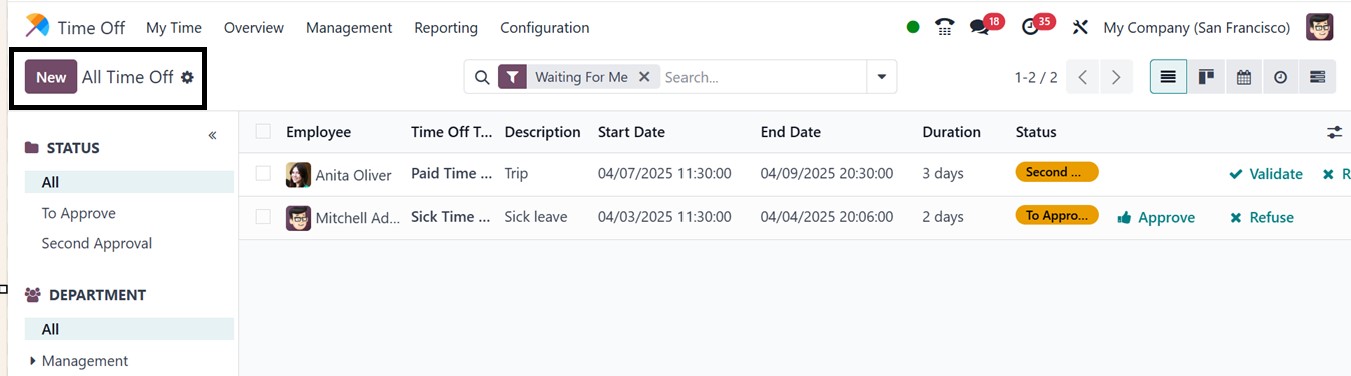
Filters for DEPARTMENT and STATUS on the left side of the window
further simplify easy navigation. You can also utilize the advanced
search bar options to effectively filter, Group, and mark Favorite
data for effective data management.
To add new leave requests, users can click the ‘New’ button and
select a method (By Employee, Company, Department, or Employee Tag),
input dates and types, and optionally check Half Day for half-day
leave requests.
To ensure correct payroll processing, the Odoo 18 Time Off module's
'Payslip State' feature shows the state of time-off entries with
respect to employee payslips. Payroll management is streamlined
while authorized time off and compensation changes remain
consistent. 'To Compute in Next Payslip' indicates that the request
is planned for the next payroll; 'Computed in Current Payslip'
indicates that the entry has been processed; and 'To Defer to
following Payslip' indicates that the request has been postponed to
the following cycle if the period has already been handled. Finally,
the managers can validate or reject requests using the Approve or
Refuse buttons.
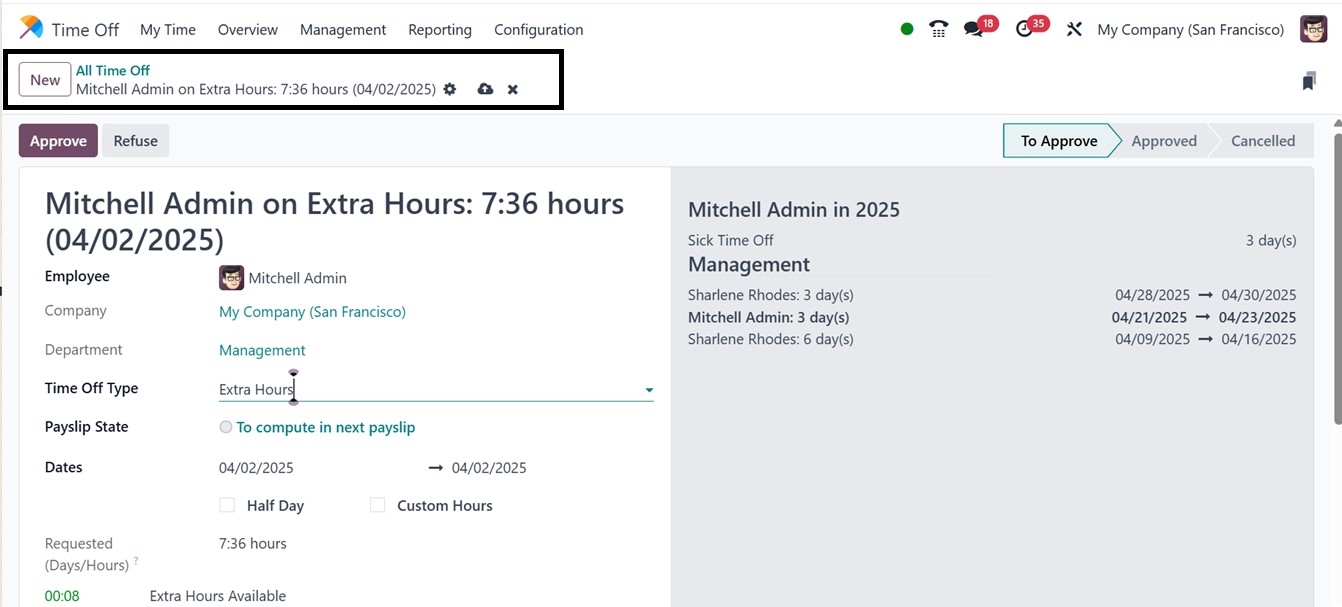
The 'Action' button at the top left of the form includes new features
alongside the Duplicate and Delete options, such as Request
Signature, Multiple Requests, Manager Approval, HR Approval, and
Mark as Deferred.
The ‘Request Signature’ allows employees to sign the attached
documents in a Time-off request form for compliance. This button
redirects you to the document editing section, integrated with
Odoo's Sign module platform. The ‘Multiple Requests’ restricts leave
requests, Manager Approval ensures the manager approves time-off
requests, HR Approval adds the HR approval to the request, and Mark
as Deferred allows managers or HR to postpone requests to future
payroll periods, enhancing efficiency and policy enforcement. These
features enhance workforce planning and payroll calculations.
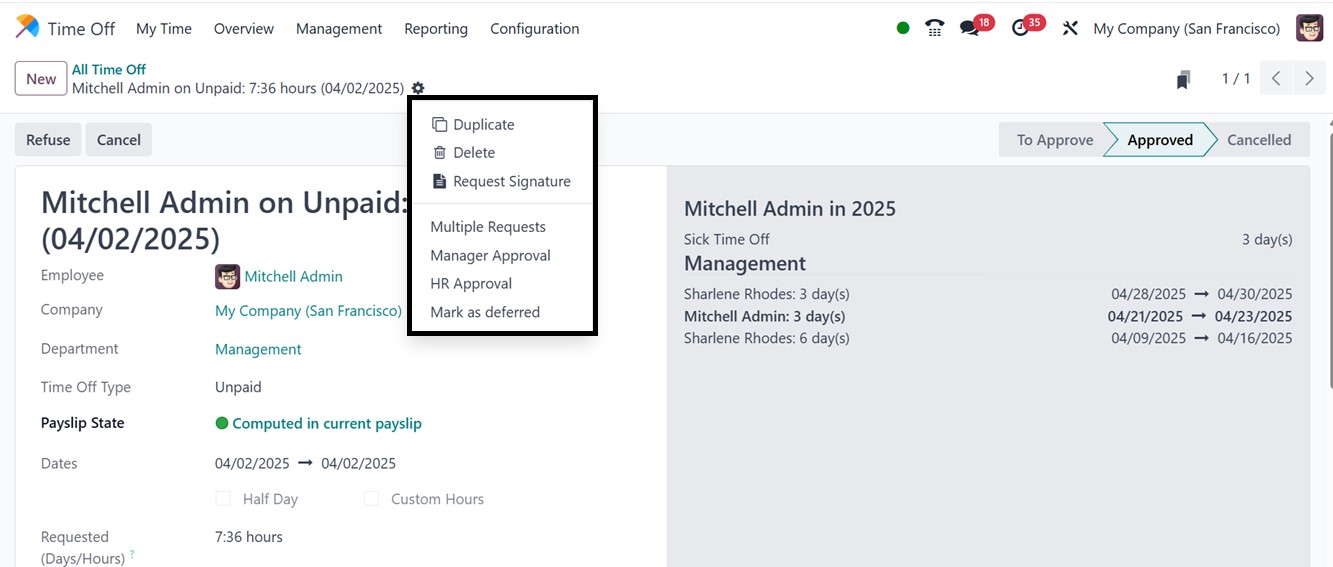
Similarly, the Allocation menu section displays all leave allocations
per employee, with details such as Employee, Time Off Type,
Description, Allocation Type, Amount, and Status.
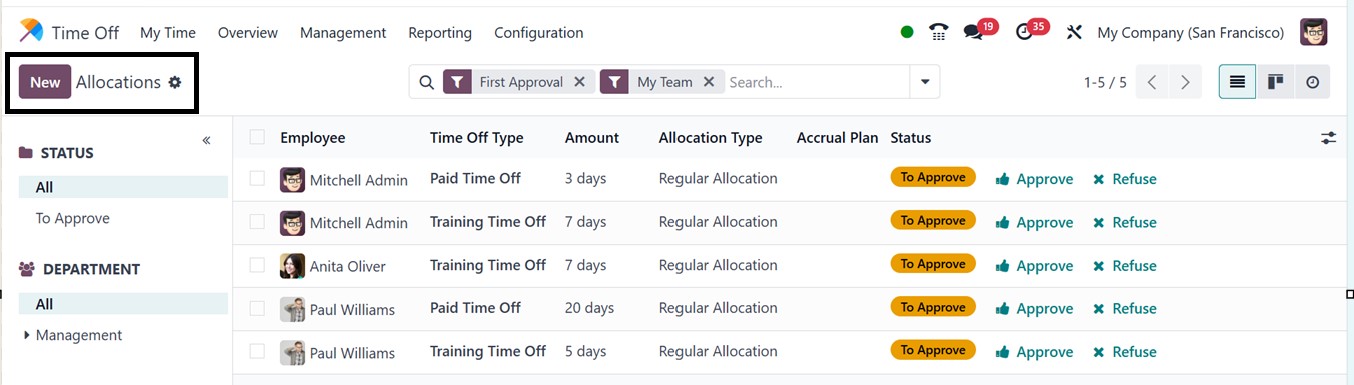
You can sort out the allocations based on their Status and Department
using the STATUS and DEPARTMENT categories. Managers can validate or
deny allocations using the ‘Approve’ and ‘Refuse’ buttons provided
on each allocation column. Also, create new ones by clicking New and
completing a form with relevant information.
4.1 Accrual Allocations
The module includes tools for setting up accrual plans, enabling
employees to accumulate leave over time based on specific rules.
Milestones can be defined to automatically grant leave allocations
after a certain period, such as monthly or yearly. Carry-over
options ensure that unused leave can be transferred to subsequent
periods
So, after opening a new Allocation request form, fill in the details
including Time Off Type, Allocation Type, Accrual Plan, Start and
End Dates, and Allocation period. If an employee needs extra time
off beyond their current allowance, they can choose the “Allocation
Type” as an Accrual Allocation request.
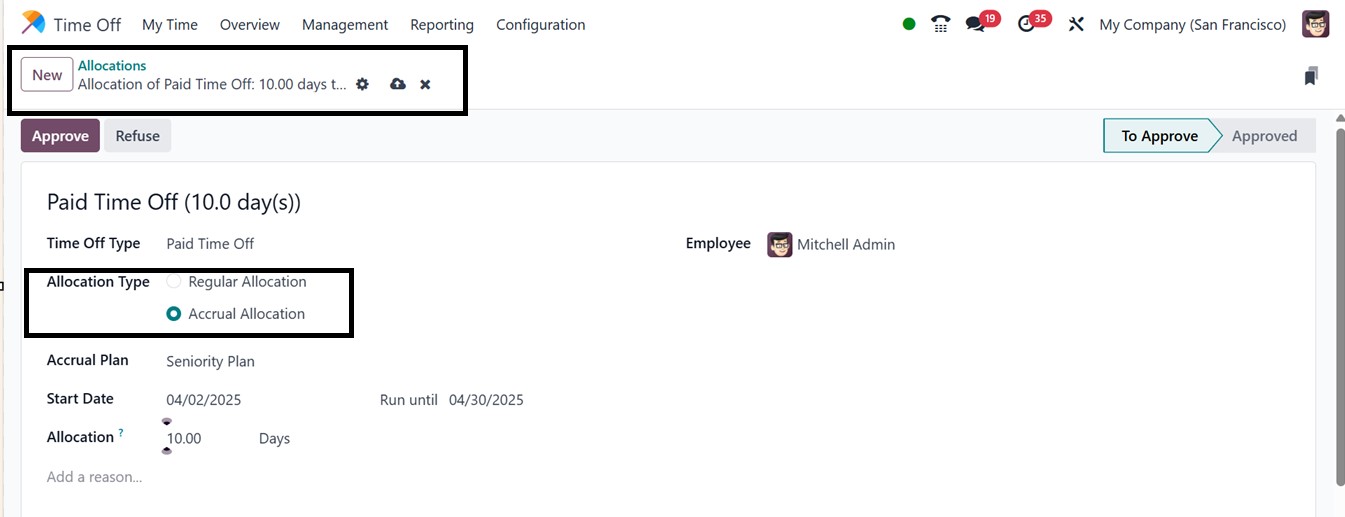
You can also provide the reason for this time off request inside the
text area provided in the form view. After editing and saving the
data, the allocation is still undergoing approval. So, it will be
under the ‘To Approve’ stage. When you hit the ‘Approve’ button, the
Allocation step transitions to the Approve stage. This approved
accrual plan can be viewed inside the Time Off Dashboard window.
The balance that is still outstanding will be displayed on the
dashboard alongside the leave allowance from the prior year. A date
may now be added to the “Balance at the” column to confirm the
employee's future leave allocation.
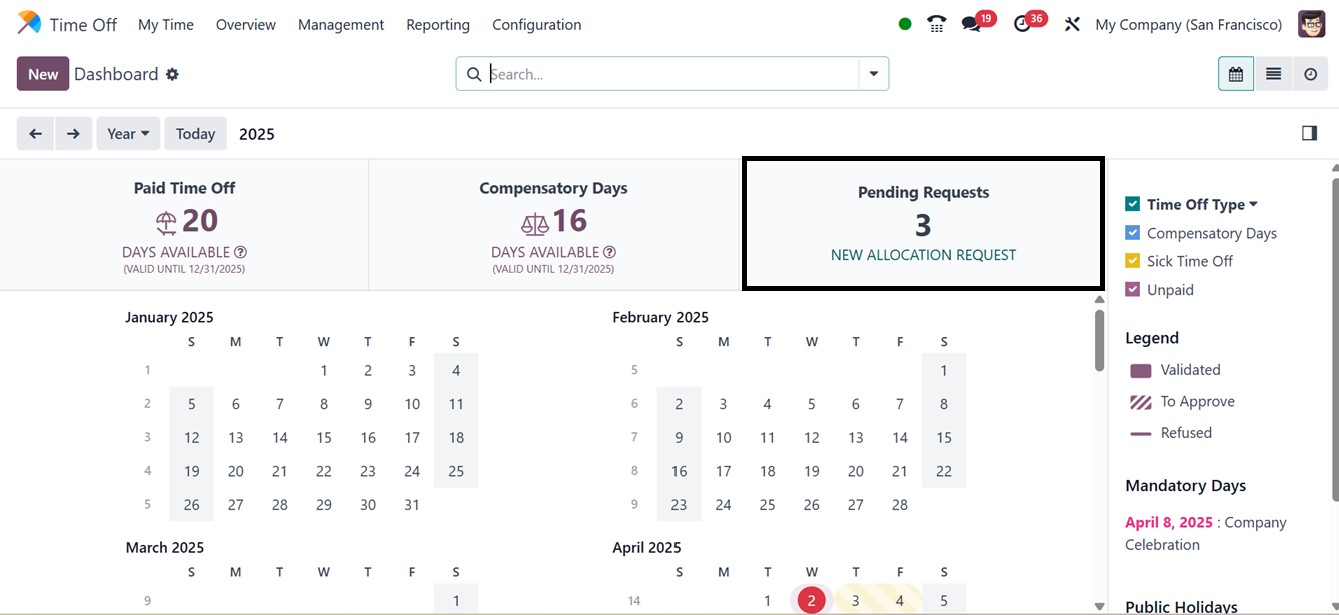
Pending allocations from previous years are also visible on the
dashboard along with any negative balances when employees exceed
their allotted leave. For example, if an employee takes 7 days of
leave when only 4 are available, the dashboard shows a negative
balance of -3 days.