3. Overview Menu
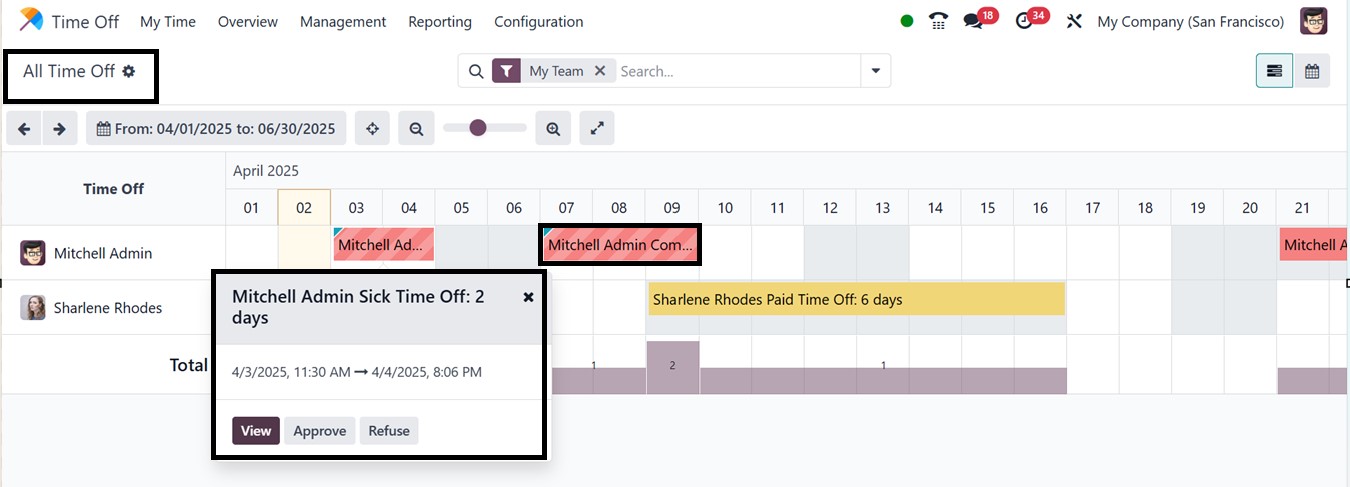
The All Time Off “Overview menu offers an HR-centric view of all
employees’ time off schedules. Displayed in a Gantt chart, it shows
all created time off data of all the employees, categorized by
Employee name and Status. The time-off data of each employee is
represented in different colors.
To gain a general idea of your employees' leave patterns and for
effective payroll management, you may examine all of the time off
that each employee has taken by day, week, month, and year. Then,
you can simply click on a Time Off Request’s card to view its
details. The small pop-up window shows a quick overview of the leave
dates and time along with a View, Approve and Refuse buttons, as
illustrated in the above screenshot.
The updated 'All Time Off' window offers more icon features to
enhance navigation and visualization in the Time Off module in Odoo
18. The ‘Focus Today’ icon concentrates the calendar around the
present day. While Zoom In and Zoom Out change the degree of
information to provide a more comprehensive or detailed view of time
off entries, In order to fit more information on the screen, Active
Dense Mode maximizes display density. While Collapse Rows conceals
data for a more condensed perspective, Expand Rows exposes specific
records inside more general categories.
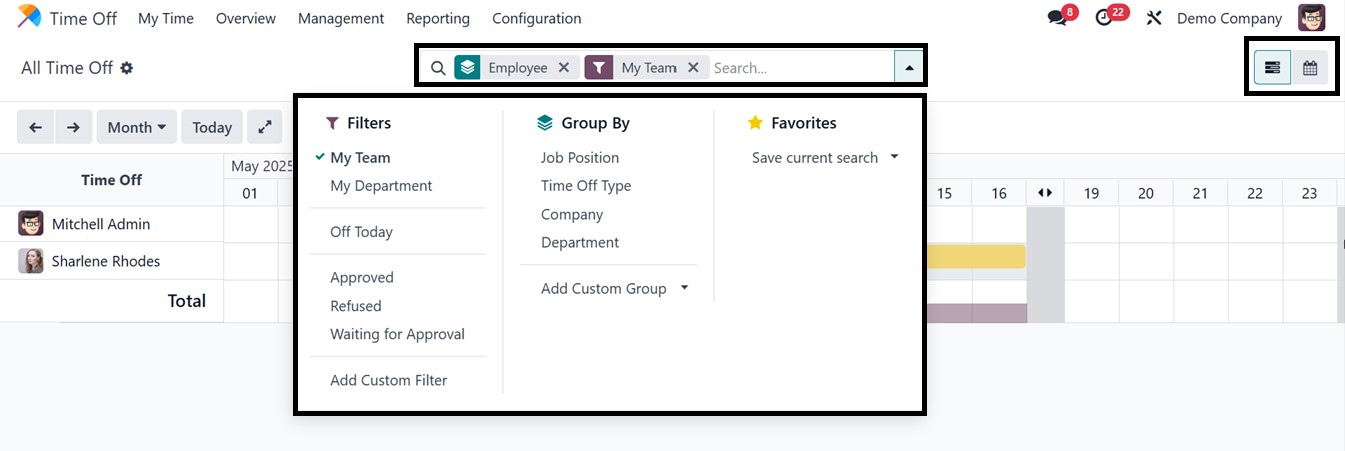
Inside the advanced search bar area, you can see various Filters,
including My Team, My Department, Off Today, Approved, Refused, and
Waiting For approval options to get targeted time off data entries.
Also, it is possible to create customized filters using the ‘Add
Custom Filter’ option. The ‘Group By’ option can be used to group
data based on Job Position, Time Off Type, Company, and Department,
as well as you can create customized groups using the ‘Add Custom
Group’ option. Finally, you can save current or important searches
using the ‘Favorites’ filter option, highlighted in the screenshot
below.