Analytical Accounting
The Odoo 18 Accounting module has a feature called Analytical Accounting that lets users keep a closer eye on financial data. This is achieved by including additional dimensions, including departments and projects, that can be utilised to categorise and analyse financial data. By keeping an eye on the financial performance of certain projects or departments, users of analytical accounting may make more informed business decisions. In-depth financial reports that are useful for budgeting, forecasting, and other financial studies can also be produced by users. It provides you with a more detailed view of your income and expenses, allowing you to understand where your money is coming from and going. Use this module to create financial reports, budget for future costs, and track spending patterns over time.
The analytical accounting capacity can be utilised in conjunction with other financial components such as the general ledger, accounts payable, and receivable. It can also be used with the Sales and Purchase modules to manage vendor bills and customer invoices. By using analytical accounting, businesses can also keep an eye on their inventory levels and ensure that they have enough products on hand to meet the needs of their clients.
This state-of-the-art accounting system can be used by any industry to oversee its financial operations. The tool also allows you to filter or examine particular tales without writing a journal article. This implies that if it is important to understand the intricacies of a given product or service's cost in relation to the cost of all products and services, a separate analytical account can be created for that product or service. Even the most complex accounting procedures will be simplified by the analytical accounting aspect's clearly defined tools and functions.
To analyse and manage the analytic accounts in Odoo 18, you must enable the 'Analytic Accounting' function from the Accounting module's Configuration Settings. As shown below, you may find the menu in the Analytics area.
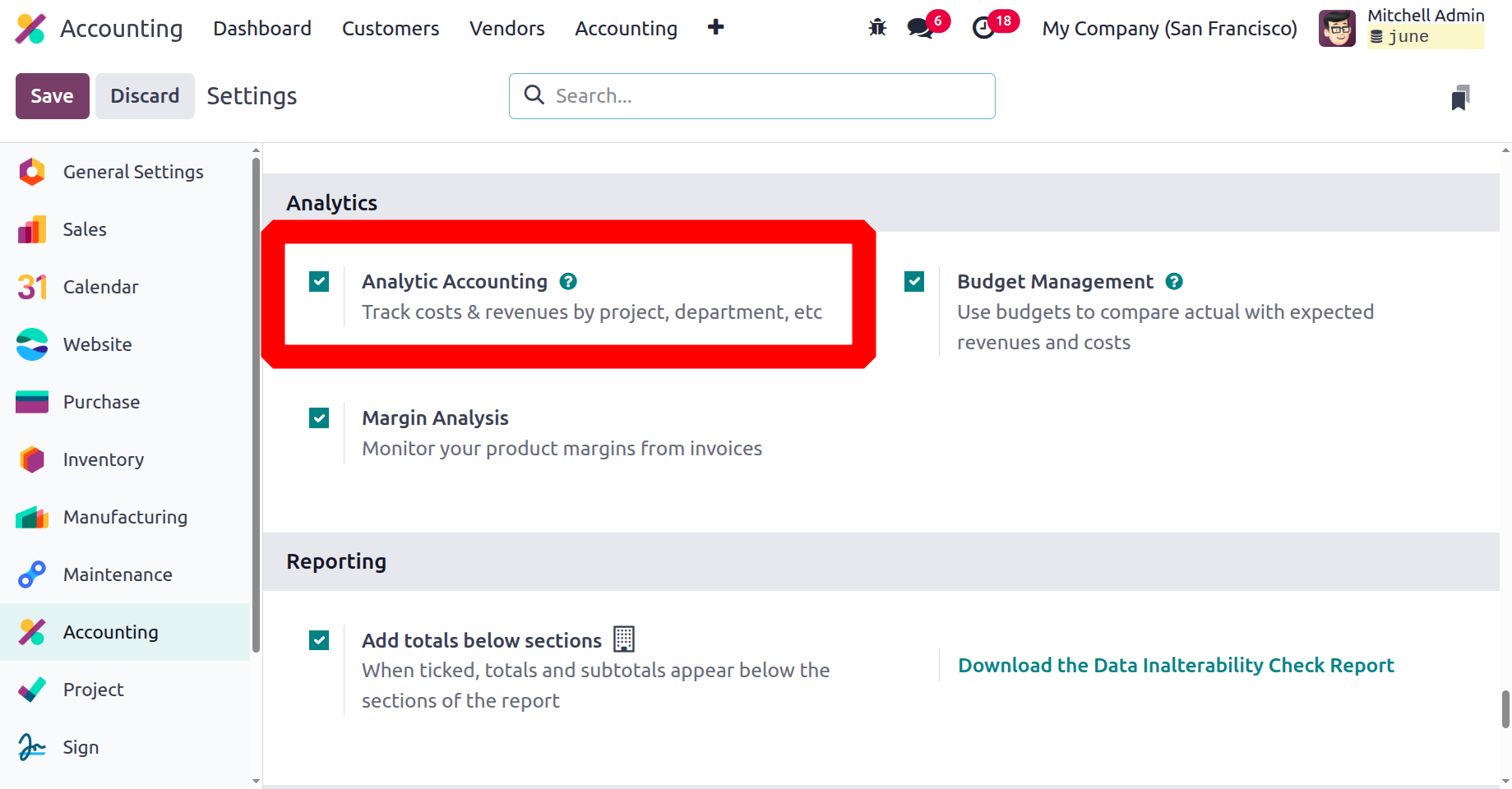
Additionally, the Odoo18 Accounting module supports Analytical Accounting activities with a special section and state-of-the-art functionality. The primary management tools and features included in the Odoo18 Accounting module will be thoroughly examined in the section that follows.
Analytic Plans
Perhaps the best and most often used module in Odoo 18 is the Accounting module. This module has continuously been one of the most popular since its inception. It allows the user to manage their accounts and finances more effectively. One element that assists you in managing financial data as practically as possible is Analytic Plans. This feature allows you to create and manage your financial plans. You'll be able to keep an eye on your financial situation and make better financial decisions if you do this.
As shown in the figure below, you can look at the Analytic Plans menu in the Analytic Accounting section of the Configuration tab of the Odoo18 Accounting module. The Analytic Accounts menu may provide you with a list of all required analytic account plans.
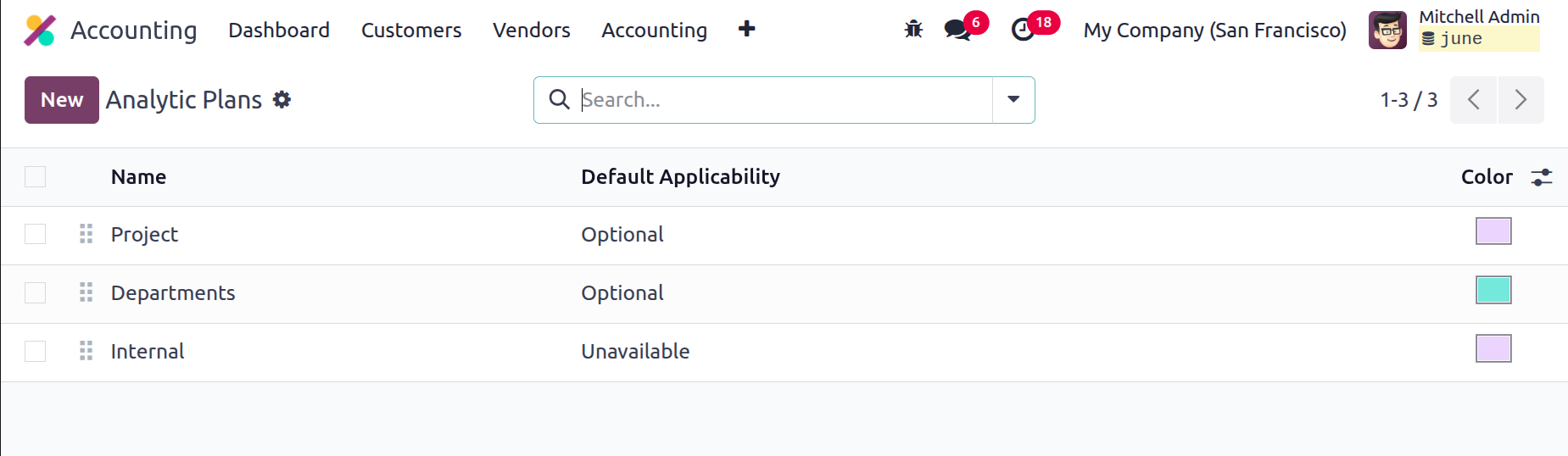
All preset Analytic Plans will be systematically saved and maintained by the Analytic Plans panel, which also displays the important information for each plan, such as Name, Default Applicability, Colour, and Company. To view any of these records in further detail, you can select it. With this skill, you can oversee numerous analytical strategies. With the help of the numerous pre-made and custom Filters and Group By options, you can quickly choose the relevant Analytic Plans data from the complete list. To create a new financial plan, you have to choose the "NEW" option. As seen in the screenshot below, clicking the NEW button will bring up the Analytic Plans creation box.
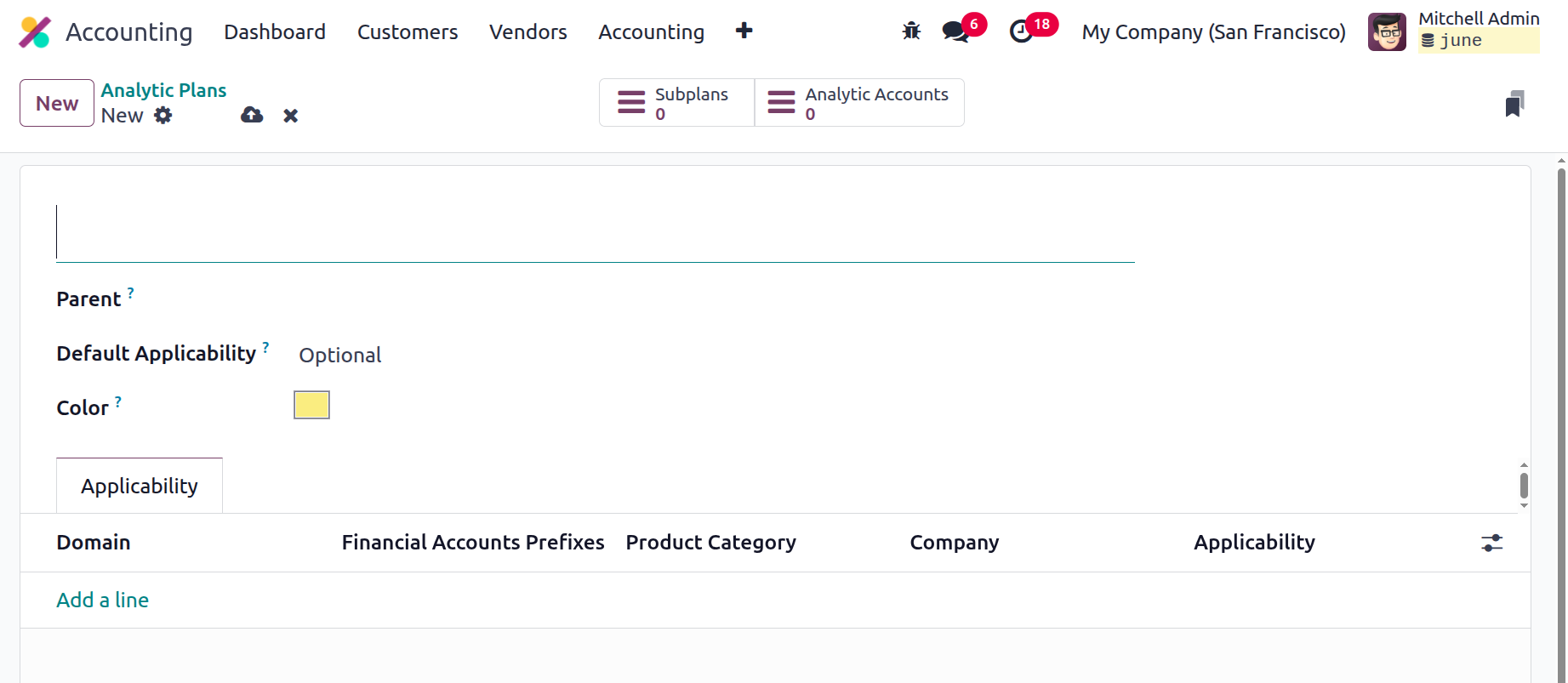
In the Creation window, you can mark the plan as optional, required, or unavailable and input its name, parent, and default applicability. The analytical plans have been improved in Odoo18 when compared to previous iterations. The application of these plans across many domains can be specified under the applicability tab. Costs, purchase orders, sale orders, vendor invoices, and other elements can all be included in plans. Furthermore, we will be able to indicate if these plans apply to a particular product category or bank accounts with a particular prefix, as well as whether they are required, optional, or unavailable for the designated analytical plan.
Furthermore, an analysis plan can have sub-plans set up, as shown in the analytical plans smart tab.
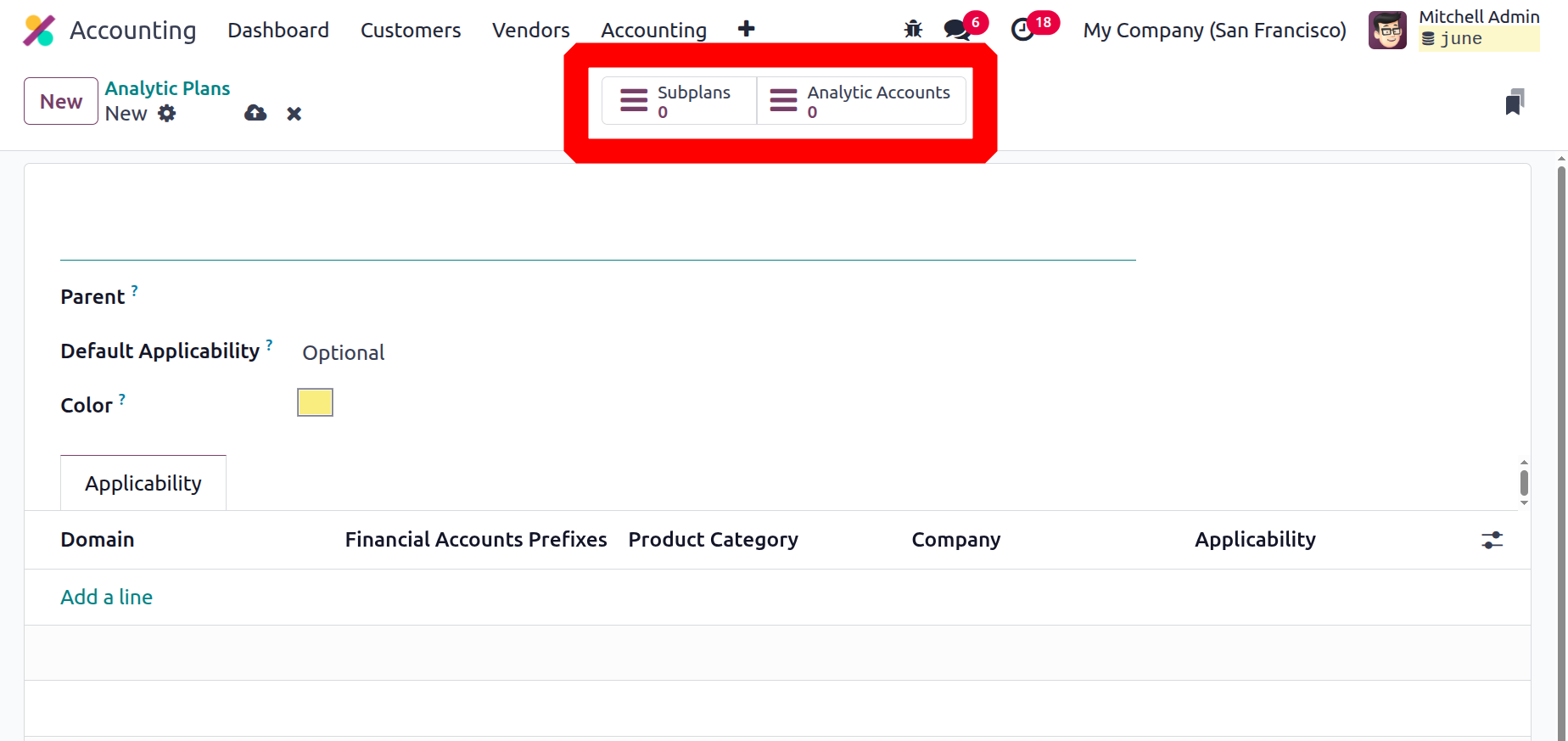
Once they are opened, analytical subplans will instantly update where you view the parent. In the example above, the analytical plan "Project" has two subplans: "Project Planning" and "Project R&D." Later, when analytic accounts are allocated with these plans, any expenses incurred throughout the project will be documented in the analytic account under the planned project.
Now that we understand the Analytic Plan tool in the Odoo 18 Accounting module, let's move on to the next chapter of the book to grasp the Analytics Tags, the next management choice.
Analytic Accounts
Maintaining and tracking your company's financial data is the primary goal of the Analytic Accounts function. You have the ability to look at your financial data graphically and may also use it to analyse it. The initial stage in managing analytical accounting in Odoo18 will be the denotation of the analytical accounts. With this program, you can create, modify, and remove your own analytic accounts. This function also allows you to view your analytical accounts in tabular, graphical, and pivot forms.
You can easily find the Analytic Accounts option under the Analytic Accounting section's Configuration tab. This Analytic Accounts pane will be used to handle all of the accounts set up for the company's Analytic Accounting procedures. There are also options for Filters, Group By, Favourites, and Search in this box.
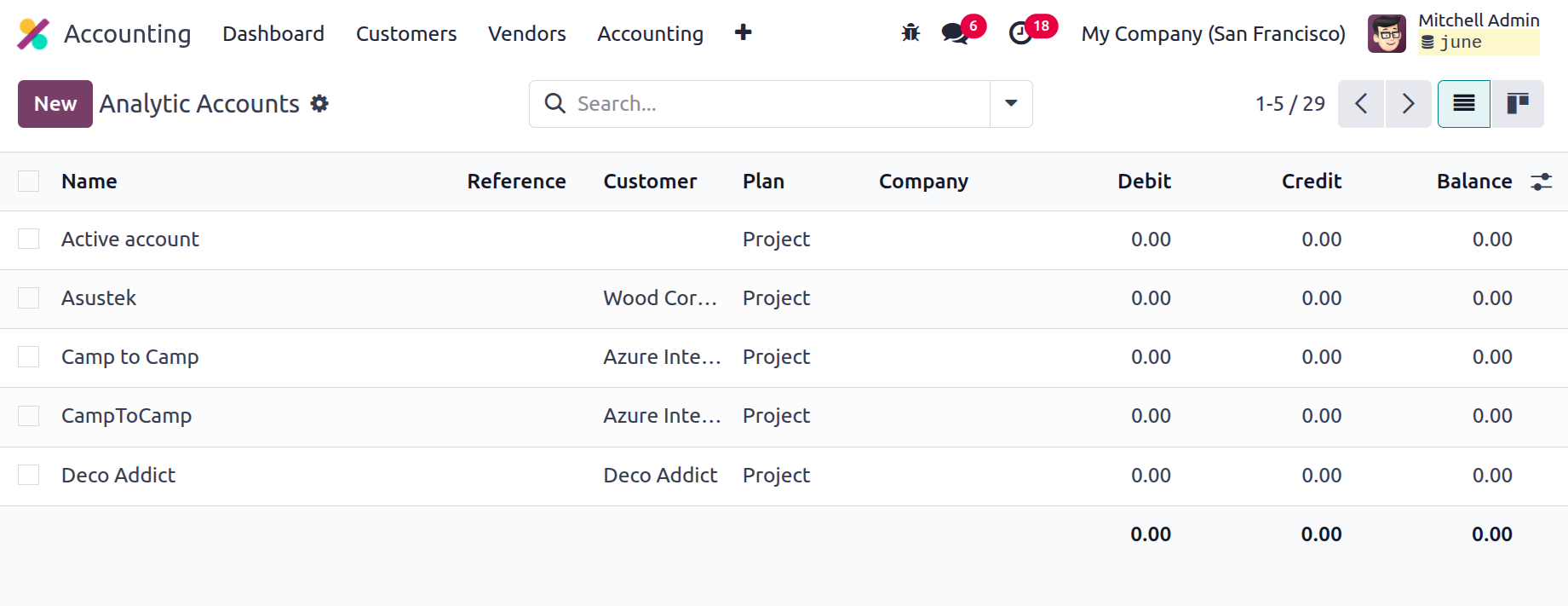
By choosing the Kanban view menu item, you can also view the window in Kanban format. Each analytic account's identities, references, clients, plans, businesses, debits, credits, and balance amounts are listed here. You have the option to update any of these account data by clicking on them. You can mention a new one by selecting the NEW button, which will take you to the creation form displayed in the image below.
The Analytic Account field in the form view of the Analytic Accounts creation window requires you to specify the name of the analytic account. After that, you can enter the Customer, Reference code, and Plan in the appropriate fields. The Company and Currency fields will be automatically assigned based on their operational bases. The Add a Line option, located under the Budget Items menu, allows you to add the required budget items. Here, you can add the budget, the budgetary position, the start and end dates, the planned and practical amounts, and the accomplishment. This option allows you to add a variety of budget elements to the analytical account.
To perform the necessary actions, the Action button at the top of the window will also display the Dashboard, Archive, and Duplicate options. Users can also check the Gross Margin and the overall Budget of the different Analytic Accounts using the smart buttons at the top of the form, as shown in the screenshot below.
Therefore, in this chapter, we went over every facet of the special configuration tools and menus that are available in the Odoo18 Accounting module. The next chapter will focus on the many tabs and operations in the Odoo18 Accounting module that facilitate effective financial management.