Accounting Firm Mode
Another innovation of Odoo 18 is Accounting Firm Mode, which modifies the encoding of invoices and bills. The editability of a specified sequence of documents is determined by the encoding. You can specify the accounting firm mode in the configuration settings of the accounting module.
The Accounting Firm Mode area is where the document can be encoded. You can choose "Customer Invoices," "Vendor Bills," or "Customer Invoices and Vendor Bills."
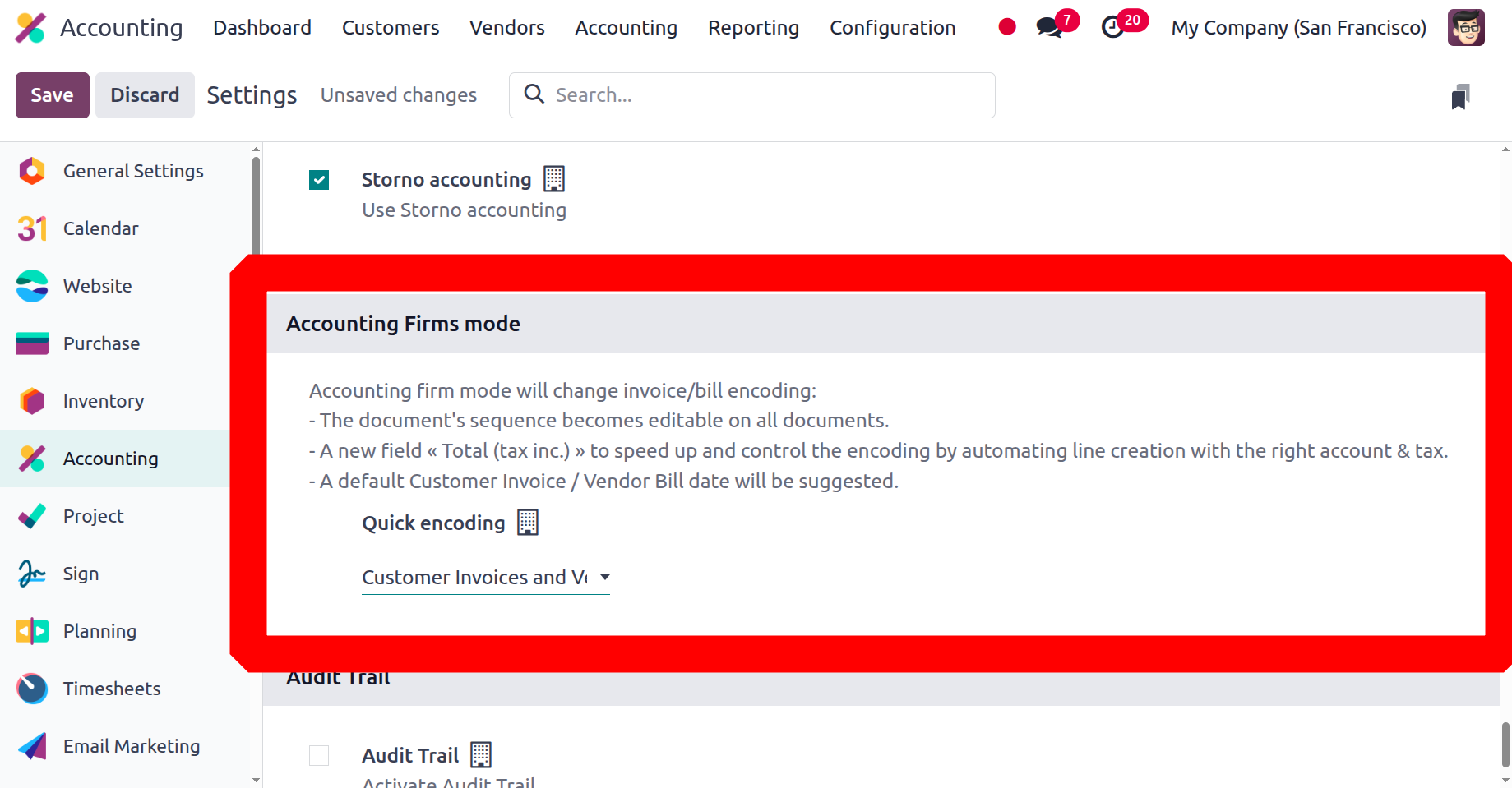
After selecting the encoding document, save the changes. Bills and invoices will be encoded differently when in accounting firm mode. All bills and invoices now allow you to change the order of the document.
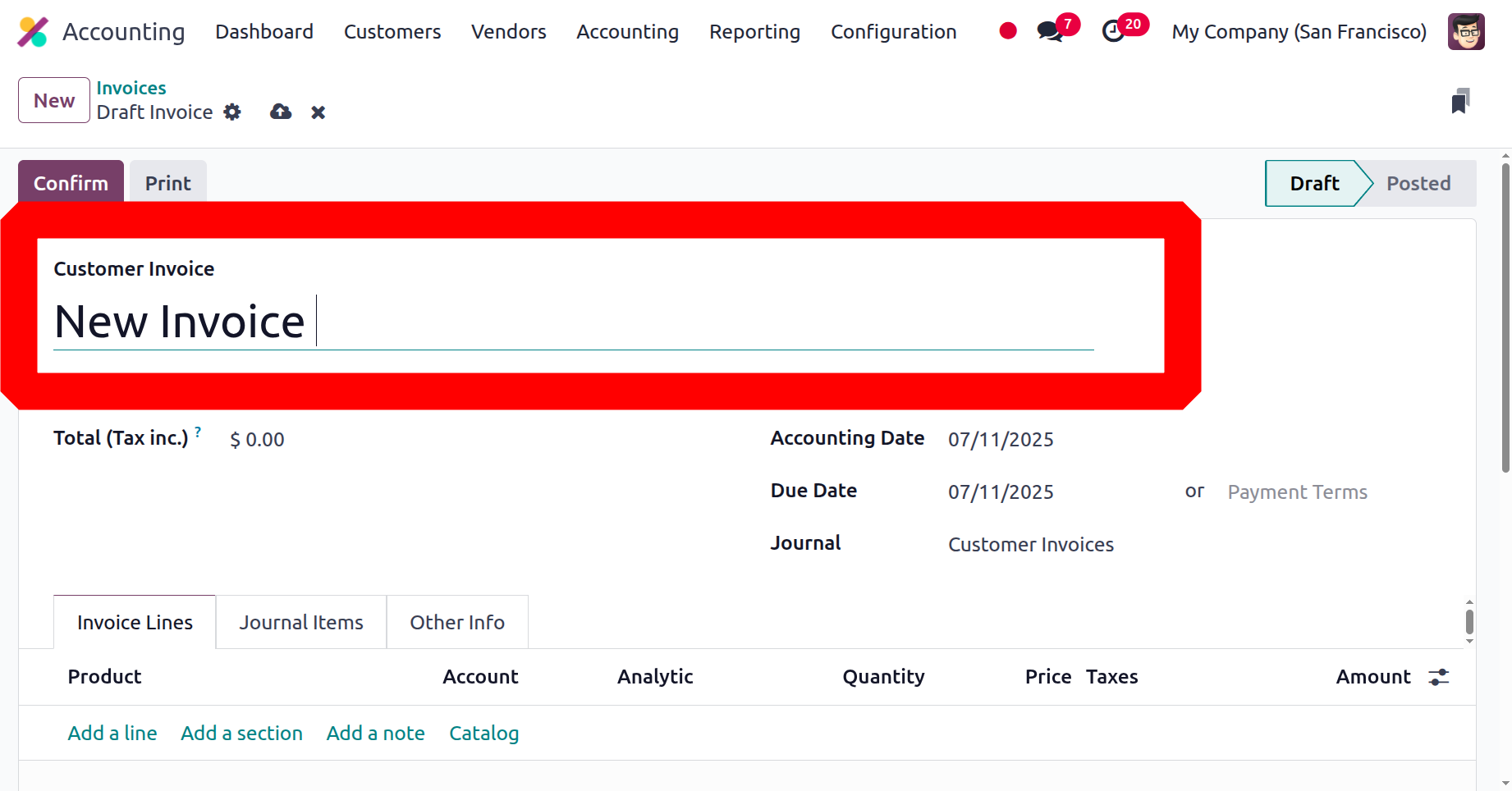
The new "Total (tax inc.)" field on bills and invoices will show up in the document with the correct tax and account information, speeding up and controlling the encoding. The order of these documents can be changed if 'Customer Invoices and Bills' is chosen as the fast encoding option. The gap between the bills and invoices can also be discovered. Therefore, while establishing an invoice, a new field called Total (tax inc.) must be included, and the sequence number might be altered. The invoice's total amount is encoded in the 'Total (tax inc)' field. Odoo will automatically create one invoice line with default values that match. Additionally, the invoice date is automatically forecasted.
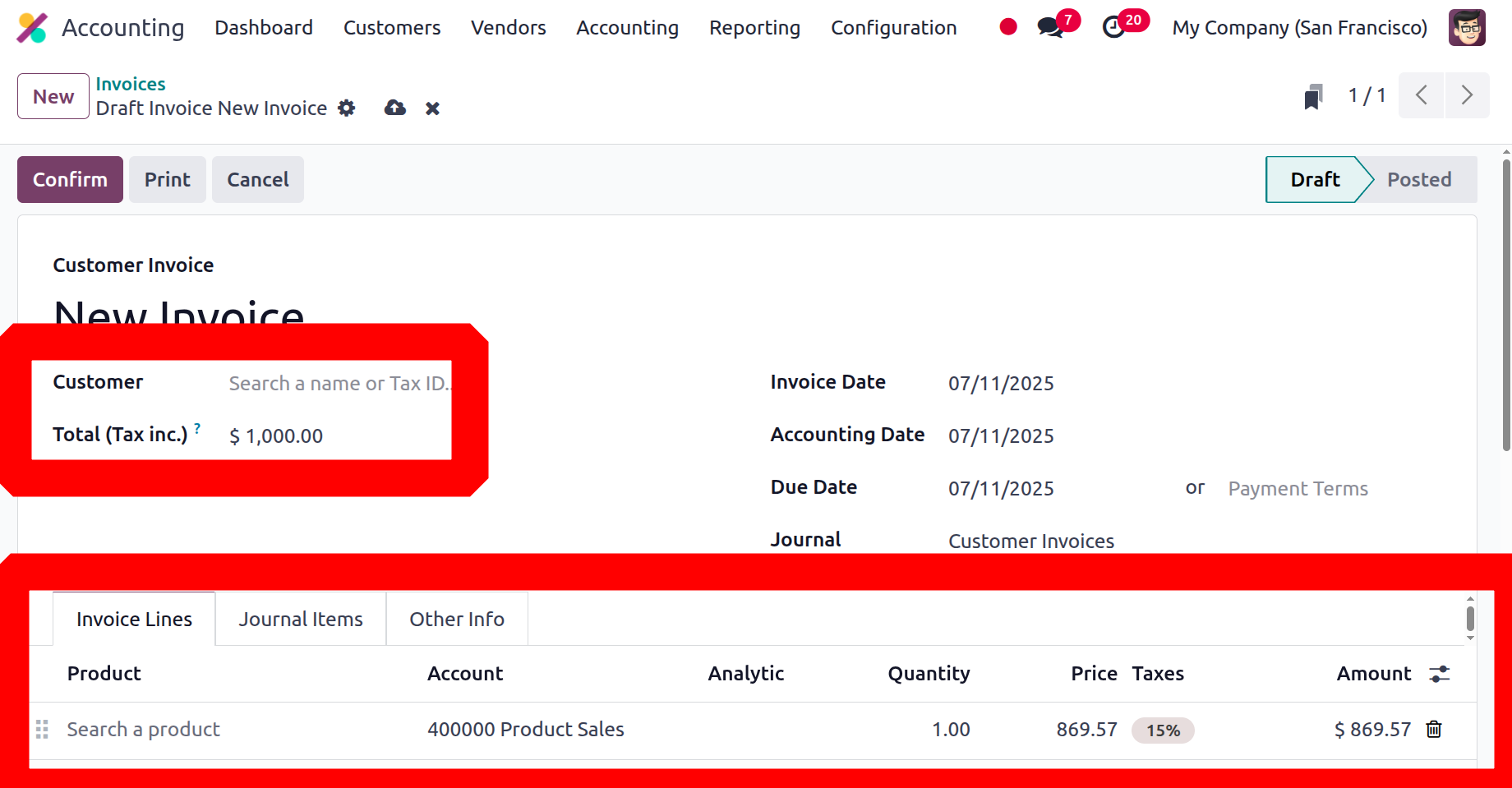
Even if the customer isn't listed, think about altering the invoice number in the screenshot below to "New Invoice" and setting the "Total (tax inc)" field to $1000. The cost is $1000, tax included. As a result, even though there is no product, a line is automatically added beneath the bill's line; instead, the untaxed amount is 869.57, and a 15% tax is imposed, making the total $1000.
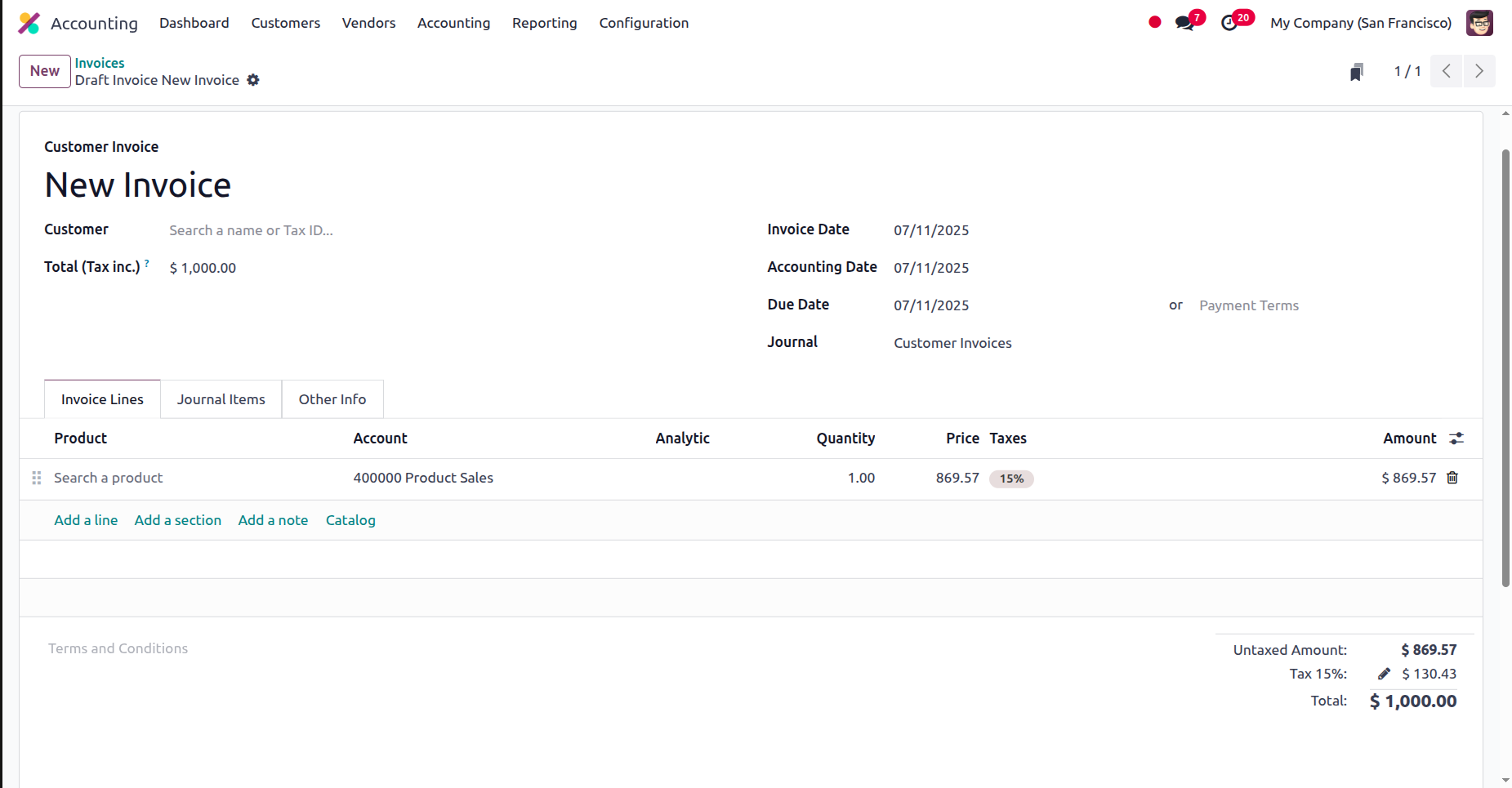
Fast encoding documents will also be available for vendor bills, since they were chosen as 'Customer Invoices and Vendor Bills' in the accounting setup settings. Any gaps in the invoice or bill sequence will be indicated by the accounting dashboard for the appropriate journal.
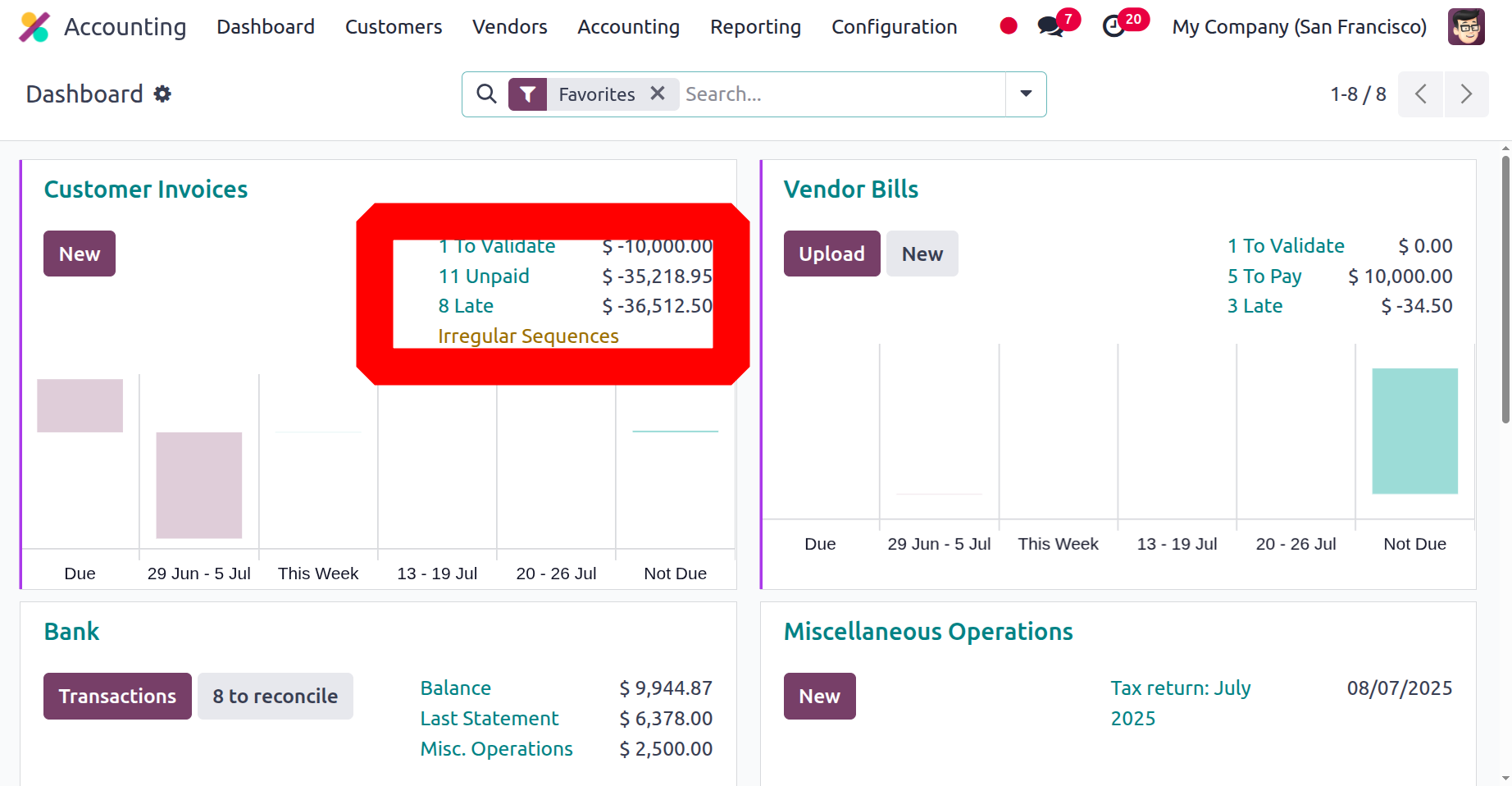
In the list view, invoices with sequence gaps will be highlighted in red.
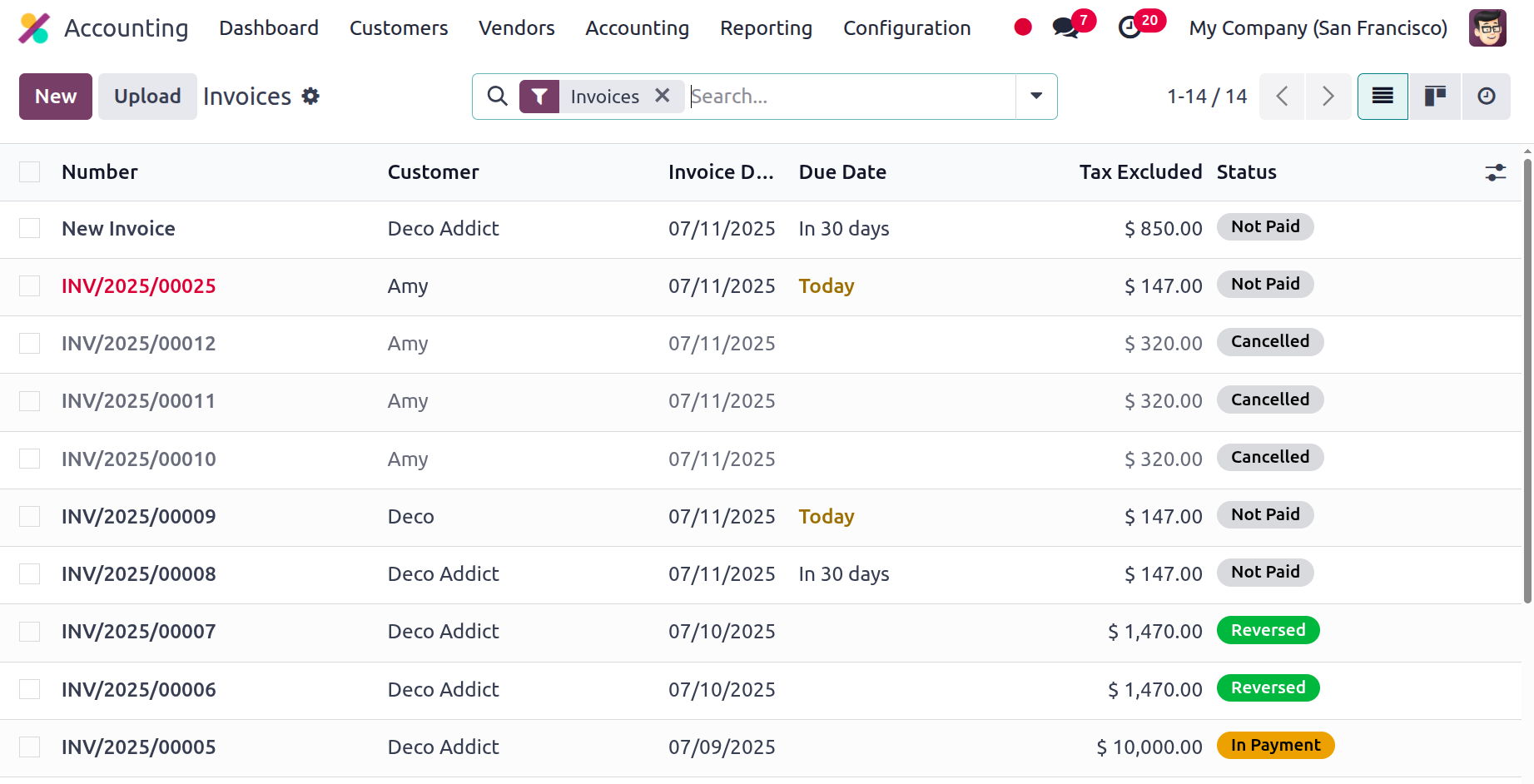
The invoice or bill number can be rearranged if necessary. The actions menu's 'Resequence' option will show up once you choose the records whose sequence needs to be altered.
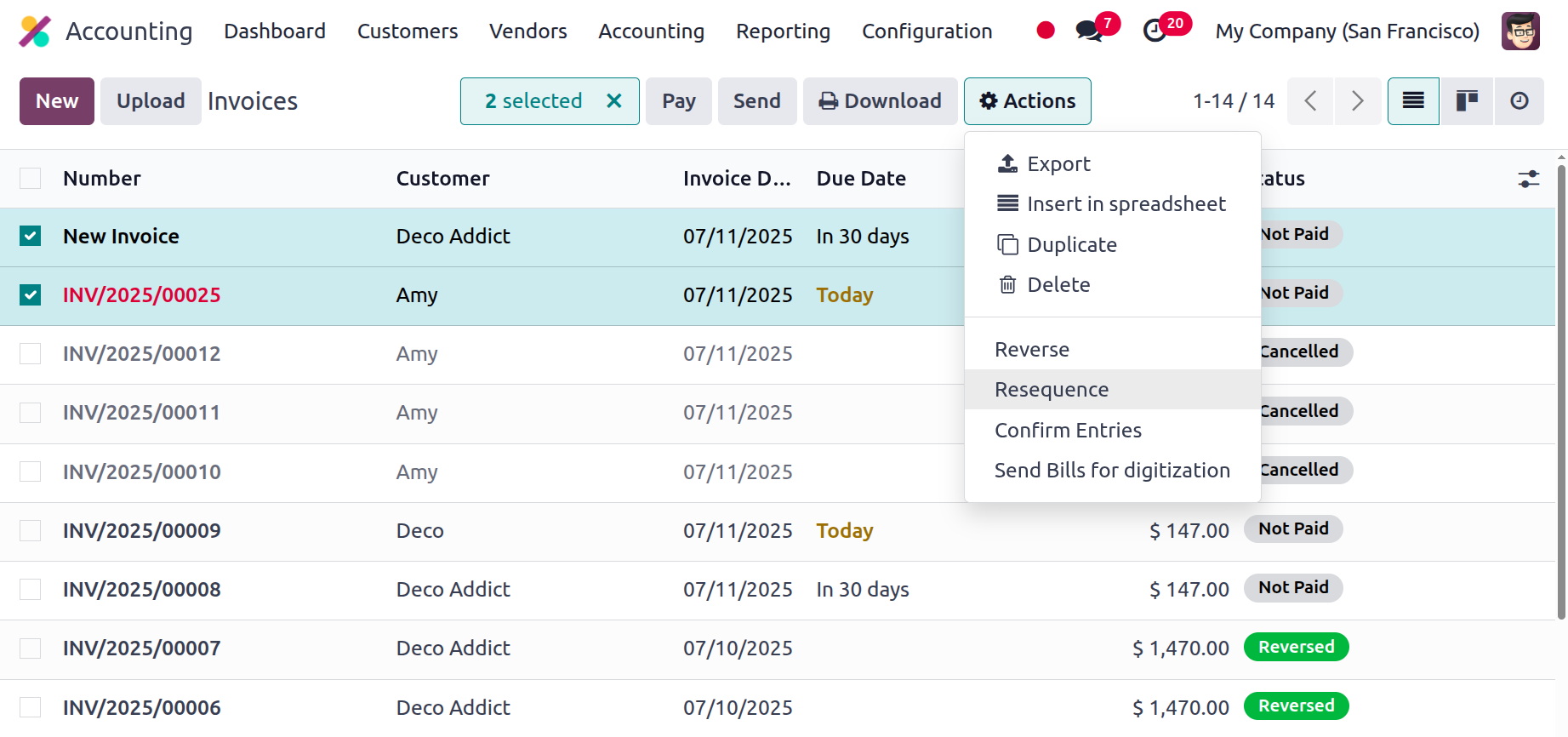
Upon selecting 'Resequence,' a pop-up window appears where you can provide details to request the data. The invoice numbers 'New Invoice' and 'INV/2023/00025' in the screenshot above. We can therefore resequence to close this gap.
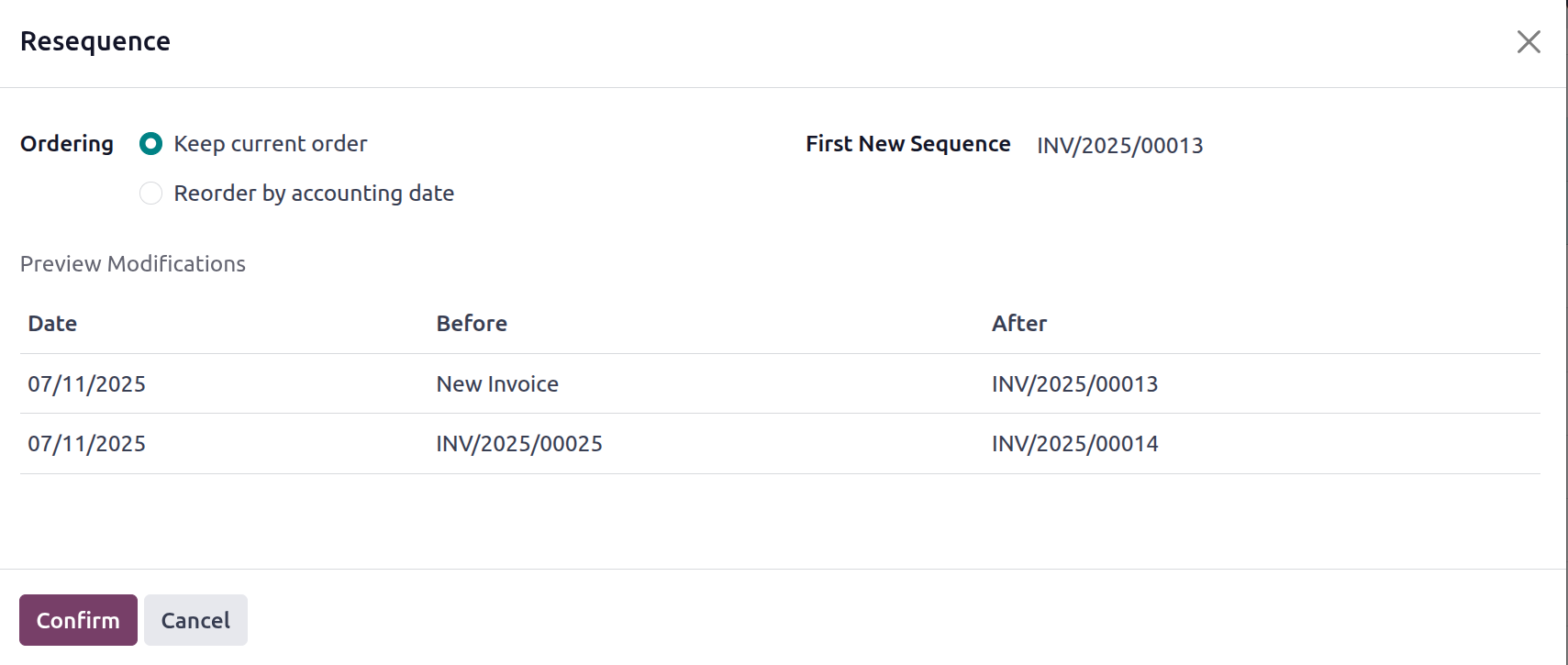
We will be able to add the subsequent sequence number to the pop-up, so records “New Invoice” as INV/2023/00013 and “INV/2023/00025” as “INV/2023/00014”. You can also use the "Reorder By Accounting Date" or "Keep Current Order" criteria to rearrange documents.
The sequence gap signal on the accounting dashboard is also removed once it is verified that the sequence is in consecutive order.