Statement Reports
The widely used Universally Accepted Accounting Principles (GAAP) were developed by the US Securities and Exchange Commission. The GAAP standardised the accounting elements that are included in the business operations of the corporation, including currency rates, interest rates, and taxes, in the event of an overseas transfer. Every nation has its own national tax in addition to import and export taxes. Additionally, GAAP is a commonly used standard or process for recording and sharing accounting-related data within a company. They were created by a policy board. This standard approach will guarantee that all aspects of the business's accounting are recorded, and that documentation is produced and examined. Any firm must have these three essentials in order to function.
Since GAAP-based report-generating tools are essential for any business operating globally, they are included by default in the Odoo Accounting module. Additionally, you will have a new menu to let you prepare and save all US GAAP reports under the Reporting page of the Odoo Accounting module. You may automatically create US GAAP reports in the Odoo Accounting module, including balance sheets, executive summaries, cash flow statements, profit and loss statements, and cheque registers.
We'll go into more detail about each of the US GAAP reporting choices offered by the Odoo 18 Accounting module in the sections that follow.
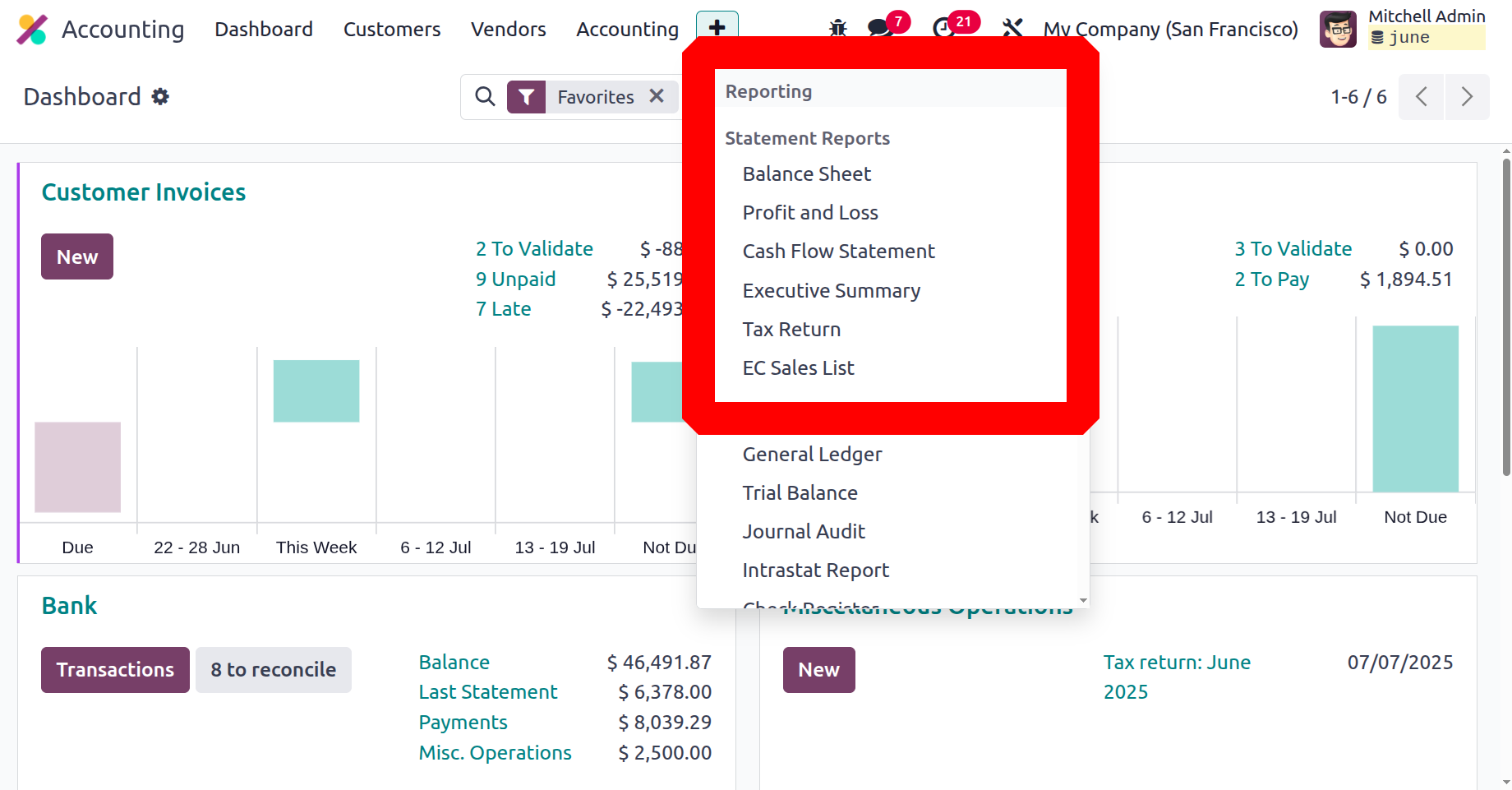
Figure 1: Statement Reports Overview
Balance Sheet
The second most crucial document for the company's accounting operations is the balance sheet, which offers a comprehensive summary of the assets, liabilities, and shareholders' equity of the organisation. A balanced summary of a person's, company's, or organization's financial activity that offers thorough details on the total amount attained as well as transactions and depreciations throughout a fiscal year of business activities is another way to define it. An organization's balance statement is explained for every fiscal period and as needed. Additionally, these reports will offer current data on the business's financial operations and will be essential in guiding financial management choices.
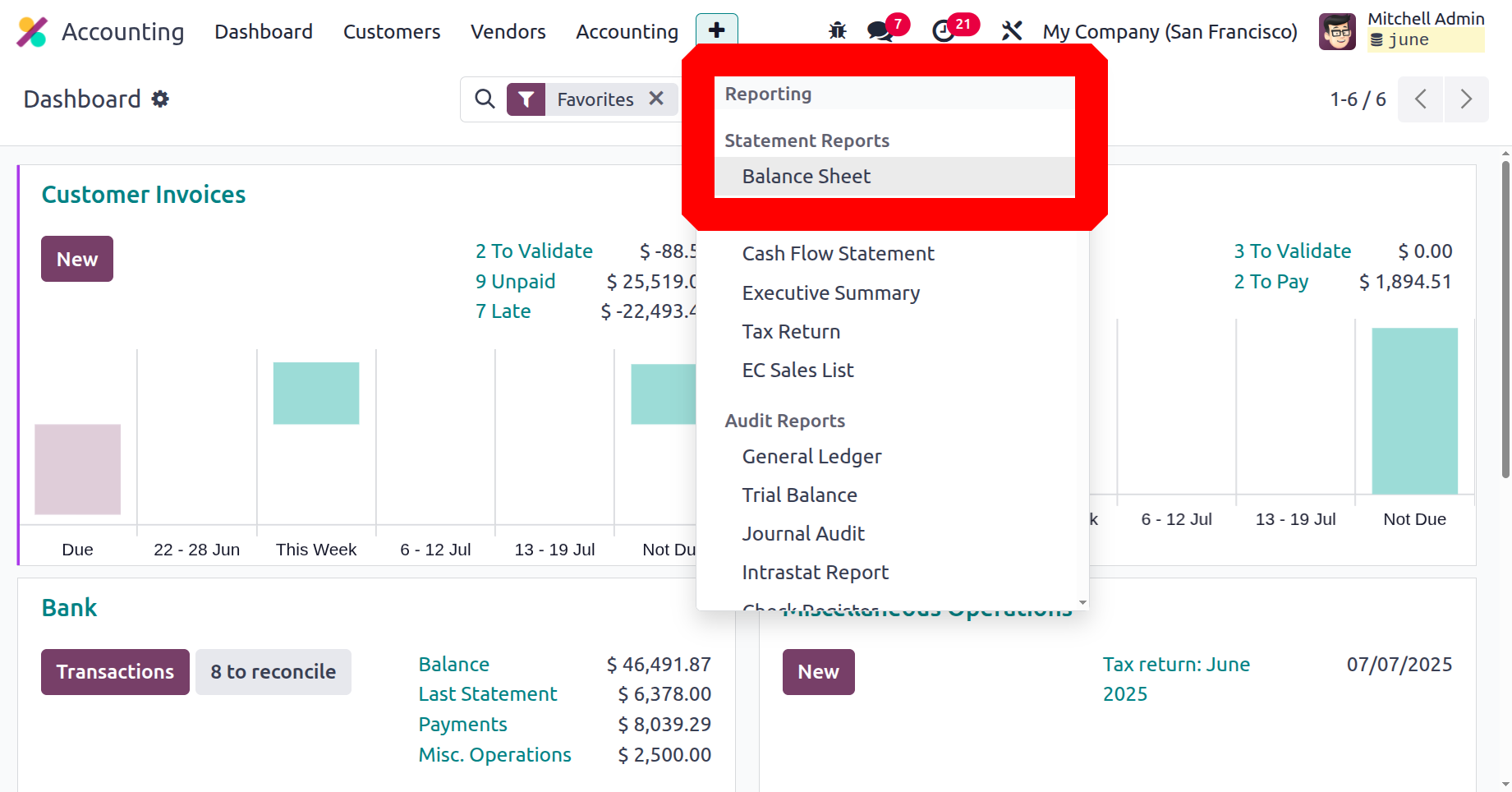
Figure 2: Balance Sheet Screenshot
You can create financial reports for the company, including a balance sheet, using the sensitive menu on the Odoo platform. As seen in the image above, you can look at the Balance Sheet menu, which can be accessed through the Reporting menu of the Odoo Accounting module. Here, the assets, equity, liabilities, and other components of the balance sheet are shown separately, along with the amounts and components that correspond to them, including cash and bank accounts, receivables, and current assets or liabilities. Like all other report-generating options in the Odoo Accounting module, you will have access to filtering, grouping, and comparison features. This is where you can filter by fiscal year or operating term.
Journals, analytical accounting components, posted and unposted articles, and other materials may also be chosen and combined according to the requirements. Additionally, you may compare the balance sheets of one fiscal year with those of another using the Comparison tool, which gives you comprehensive details on the company's depreciation progress. They have the same choices and processes, so you won't have any trouble understanding it. Information on how to set up these Filtering, Grouping, and Comparison tools can be found in the previous report discussed in this chapter.
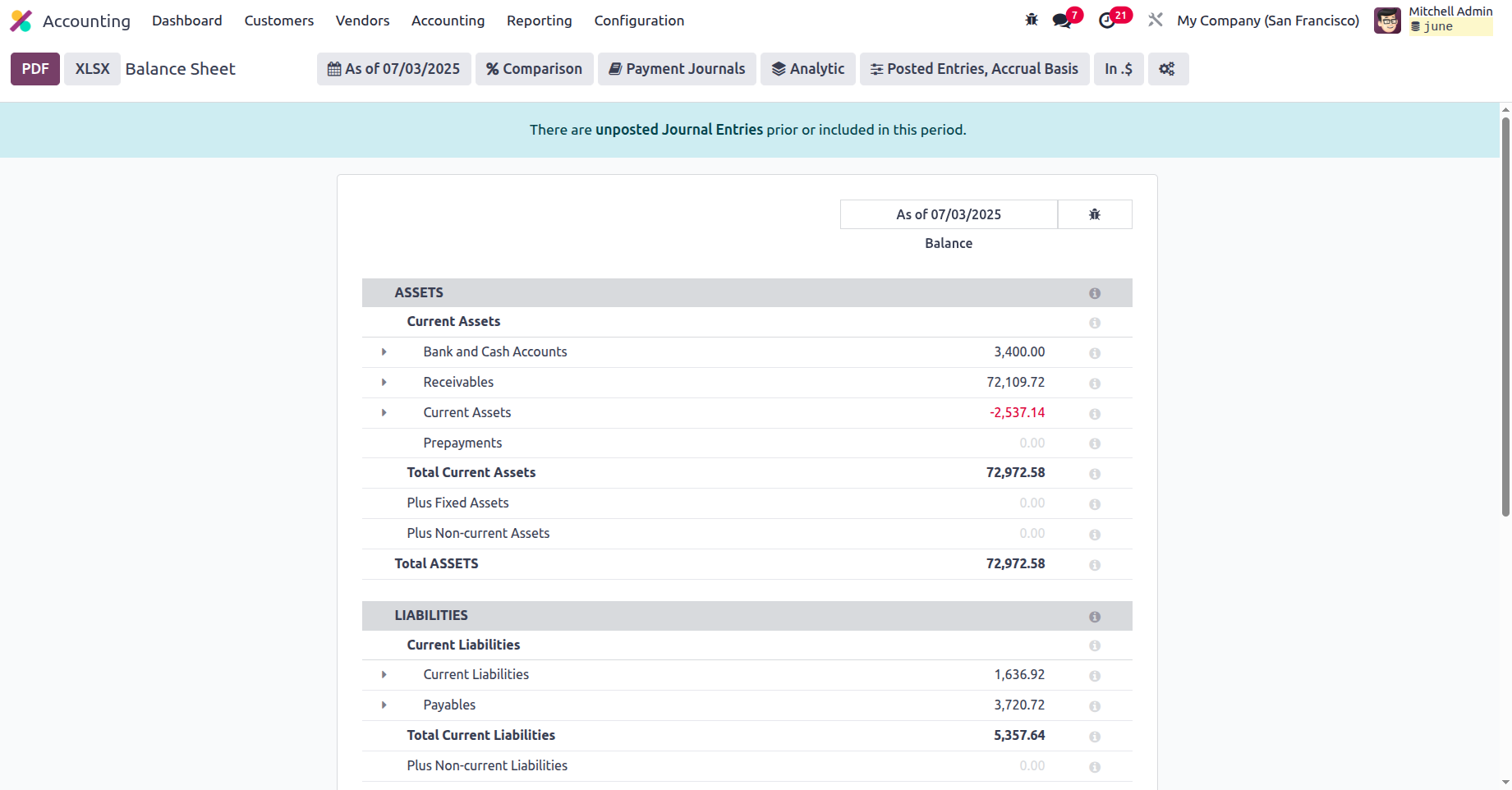
Figure 3: General Ledger Example
You will see two menu options, General Ledger and Annotate, after choosing the drop-down option found in the detailed entries. Let's begin with the General Ledger option, which, as seen in the figure below, will instantly display the ledger details of the required entry from the balance sheet.
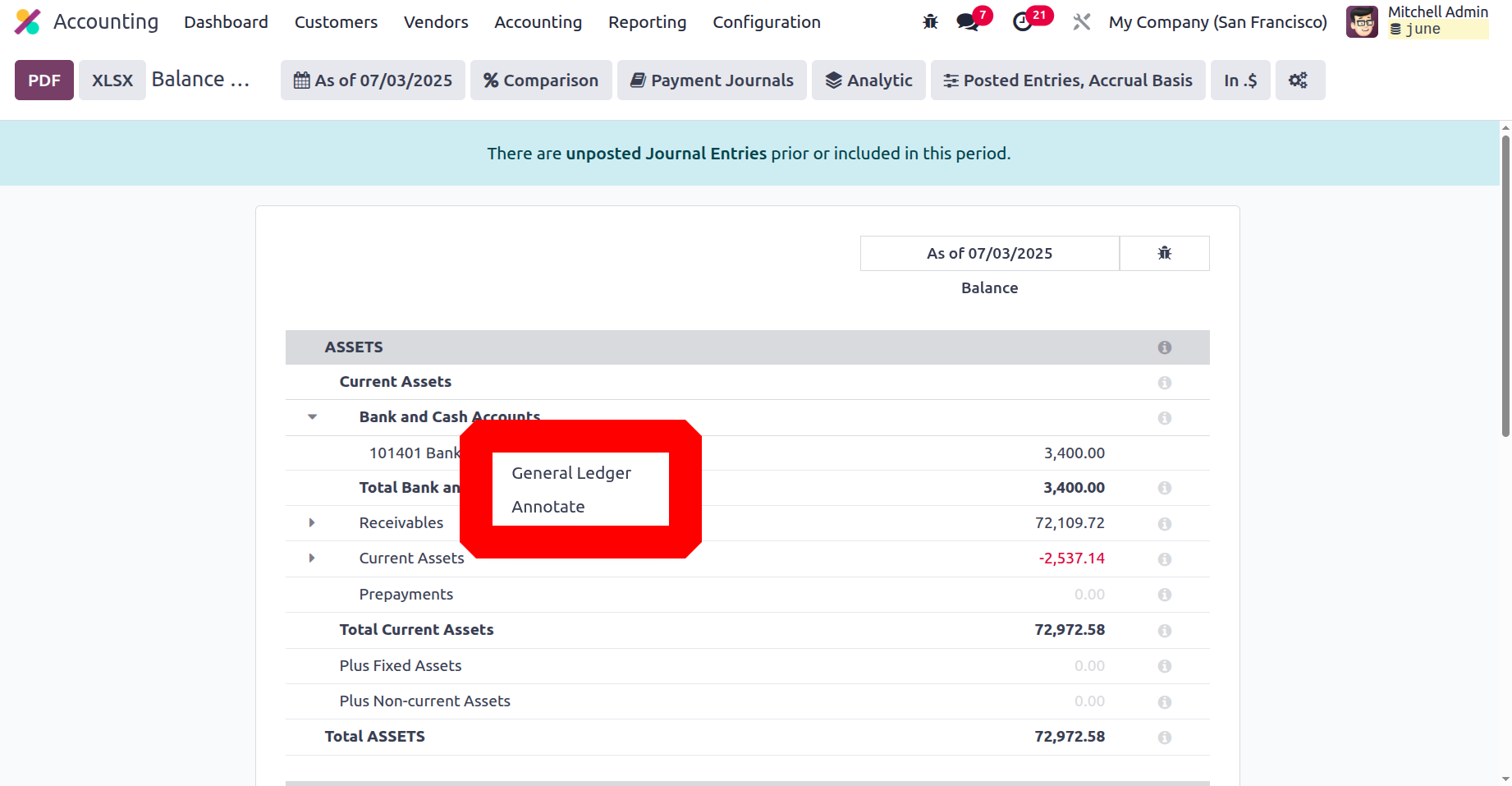
Figure 4: General Ledger Filters
Like all other reporting choices on the Odoo platform, filtering and the Group by option are available here. Along with a search option, the ability to view Print Preview, export the entries, and other capabilities, you will also have access to a save option that allows you to save the General Ledger based on the configuration components that are being completed.
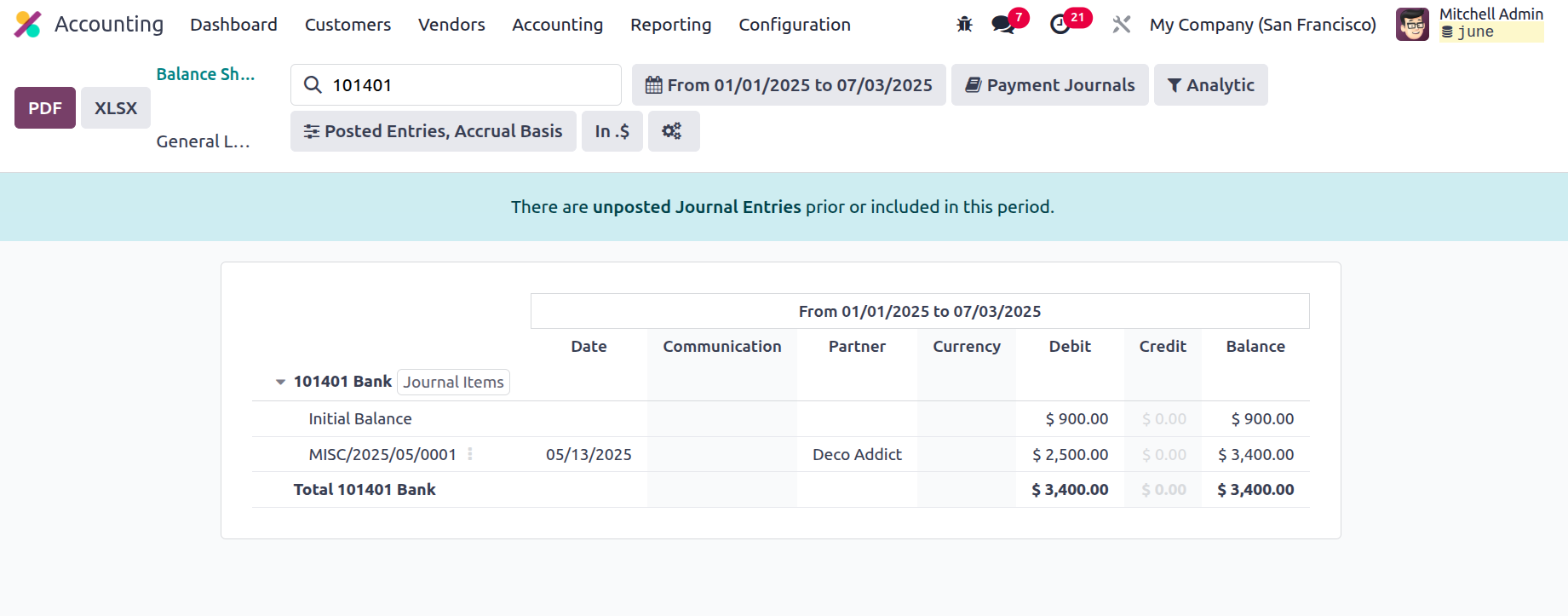
Figure 5: Annotate Window
Once unfolded, each ledger's Journal Items can be accessed via the drop-down menu. You will read the journal entries to find the relevant entry. Additionally, you may use the default Filters and Group by options to sort the defined components. It is also possible to apply custom entry-based filters and grouping choices, which can be saved as favourites for later use.
You will see a pop-up window like the one in the image below after choosing the Annotate option from the Balance Sheet. For the annotating that needs to be done before saving it in this section, you can give descriptions. Additionally, the provided delete option can be used to remove the annotation.
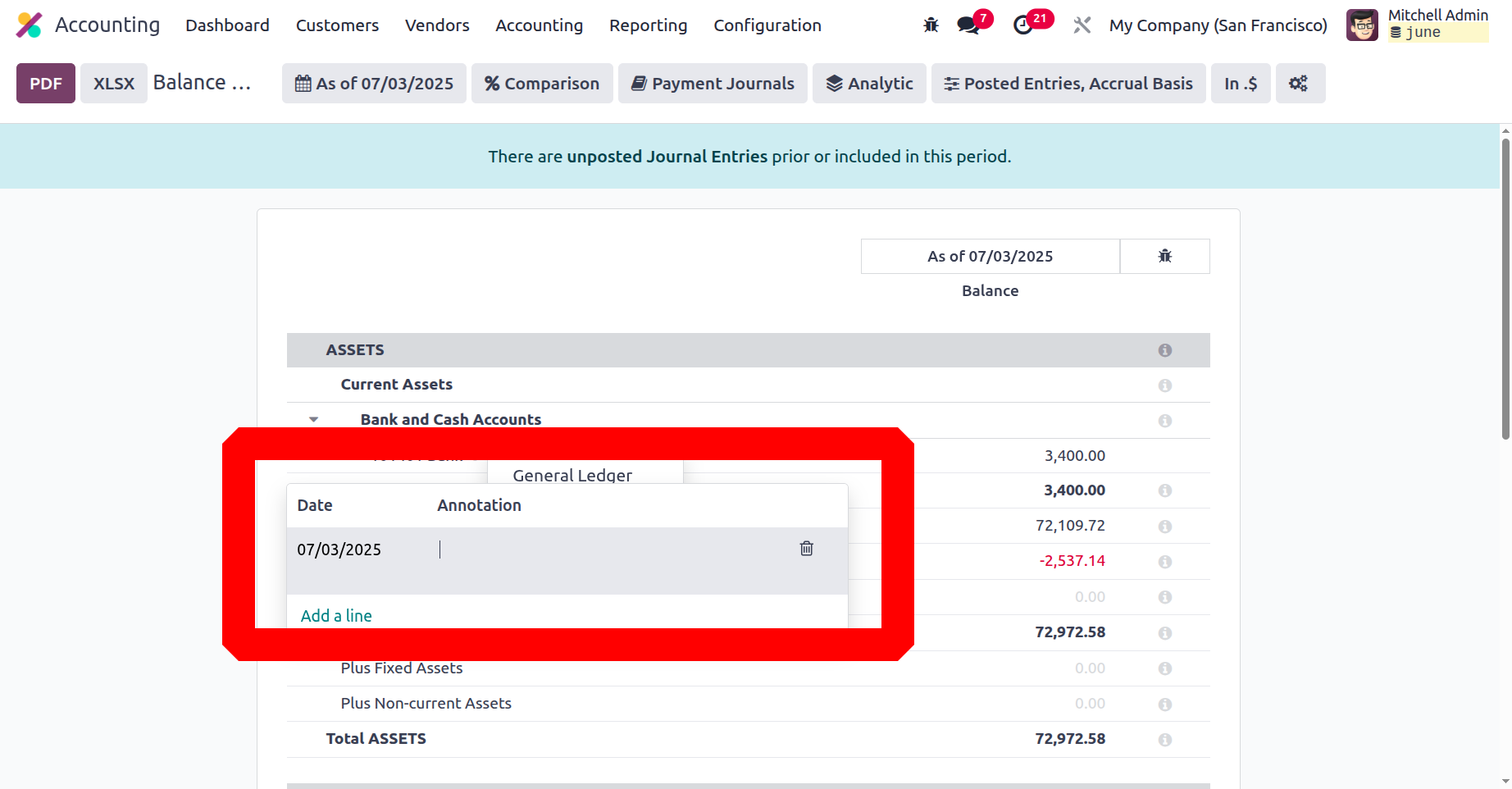
Figure 6: Additional Illustration
A company's accounting balance sheet is essential to its financial management positions. With a specialised tool like Odoo Balance Sheet reporting, you can easily create and view the balance sheets of any fiscal users of the business activities. After discussing the components of the Odoo Balance Sheet reporting menu, we will now discuss the Odoo Profit and Loss reporting menu under the US GAAP Reporting tools.
Profit and Loss Reports
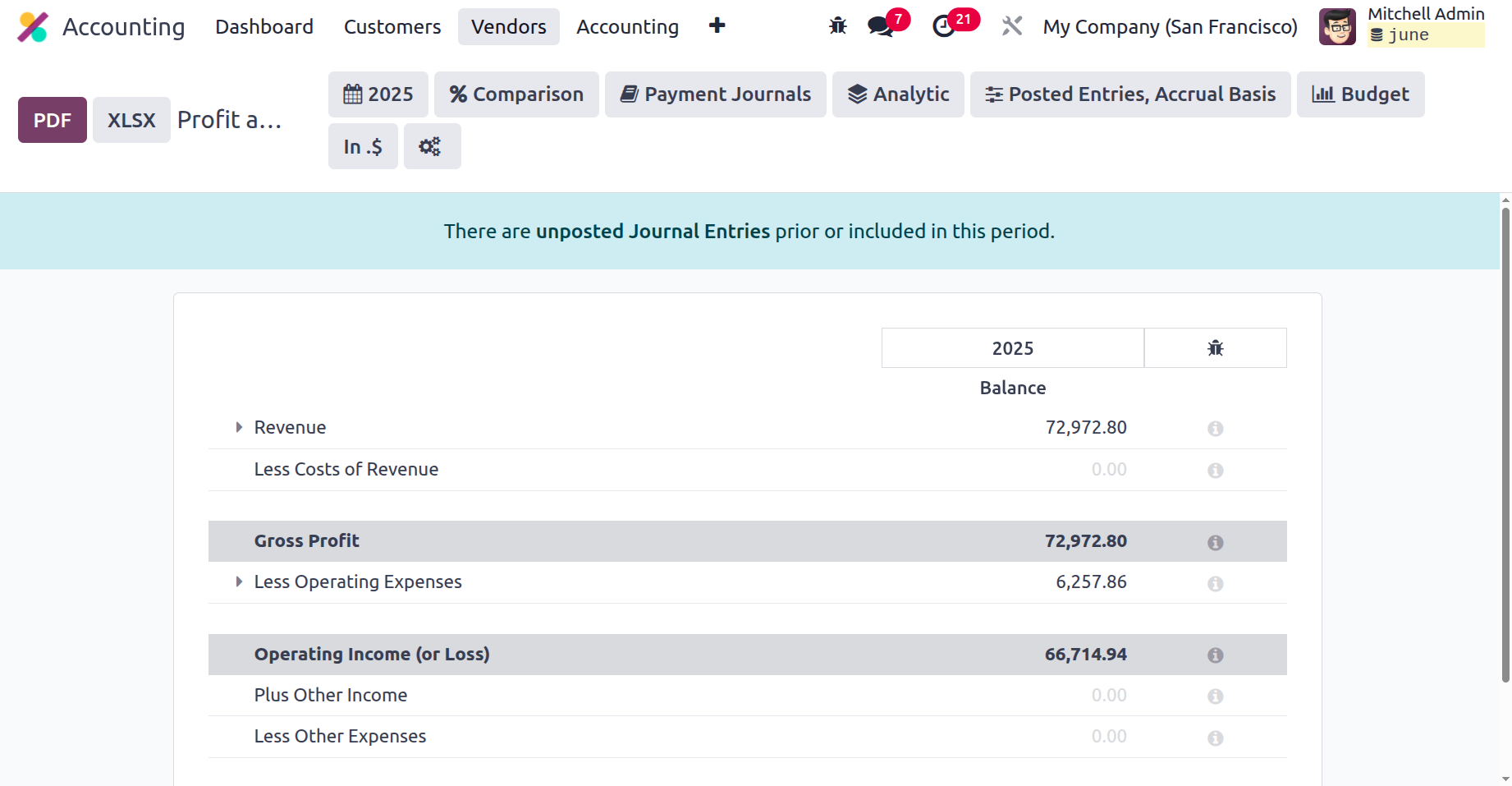
Each company will produce profit and loss statements, which are the foundational US GAAP-based reporting. The company's financial operations and whether it is profitable or losing money are described in detail in the profit and loss accounts. The Odoo platform acknowledges that profit and loss statements are crucial parts of any company's accounting operations. Consequently, there is a distinct option for generating Profit and Loss Reports in the Odoo Accounting module. The Odoo 18 Accounting module's reporting menu provides access to profit and loss reports; selecting one will show the report seen in the following image.
As can be seen in the example below, the report will show all revenue, expenses, and the net profit or loss. The Gross Profit data, including Operating Income and Cost Revenue, will be examined under the Profit aspect. The selected Other Income will be covered in a second section. Furthermore, expense information will be provided, including the company's expenses and the value based on depreciation. You will see each Chart of Accounts associated with the specified feature, giving you further details.
All other reporting menus on the Odoo platform will have filtering, grouping, and comparing capabilities. This is where you can filter by fiscal year or operating term. Additionally, the requirements may be used to choose and categorise the Journals, Analytical Accounting Aspects, and Posted and Unposted items. Additionally, you may compare the Profit and Loss Reports from one fiscal period with those from another using the Comparison tool, which gives you comprehensive details on the company's depreciation progress. To understand the organization's future plan, research is necessary.
A company's profit and loss reports are crucial to its financial management operations because they give you a clear picture of the company's past performance and a glimpse into the future. This information helps you plan your budget and other financial operations in a way that ensures the business runs smoothly. After discussing the Profit and Loss Reports menu in the Odoo Accounting module, let's go on to the following section, which discusses Odoo Accounting's Cash Flow Statement reporting features.
Cash Flow Statement
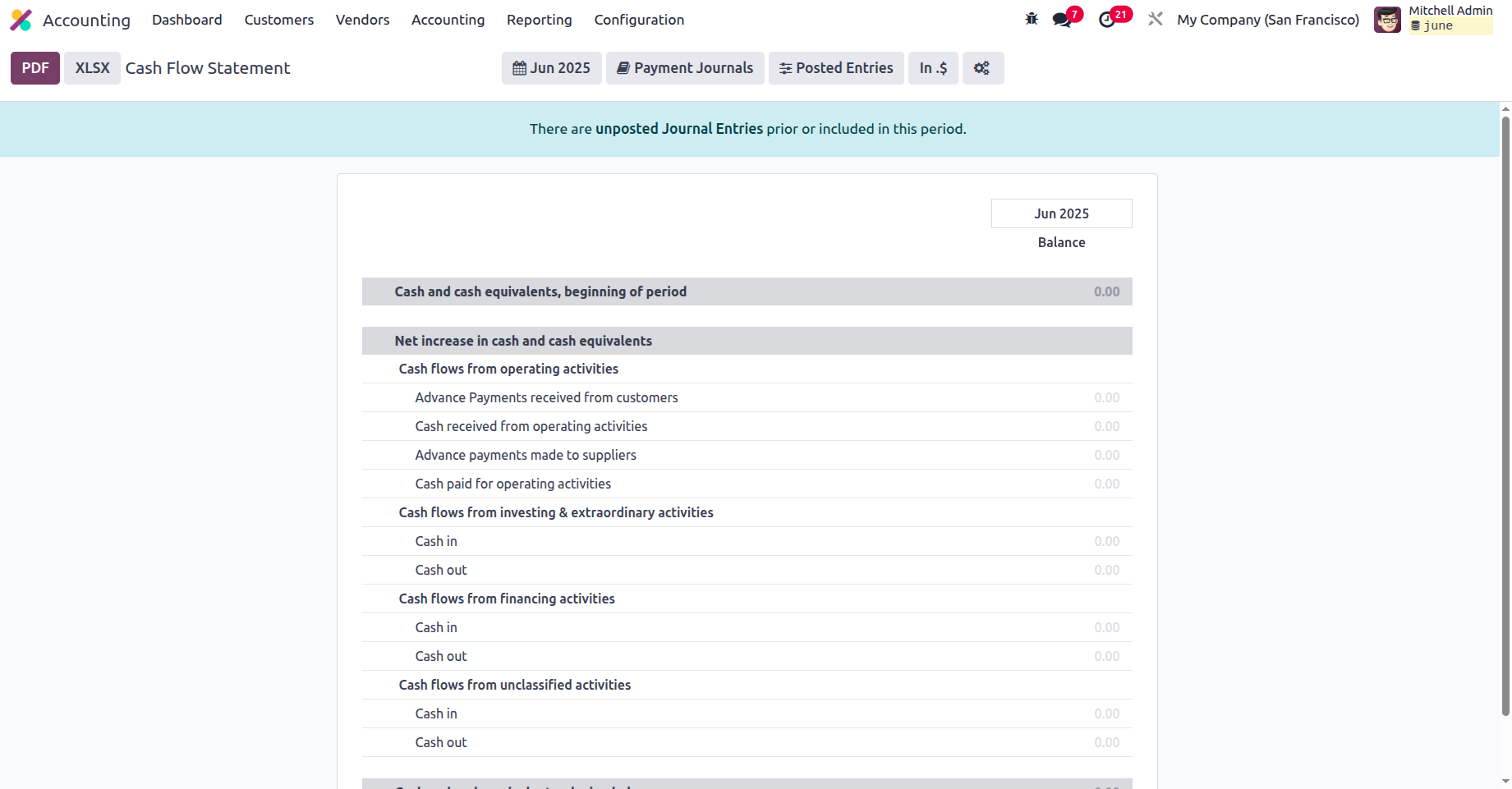
You need to know how and where your money is spent in business operations. This also applies to you. The Accounting module of the Odoo 18 platform has a dedicated management tool for controlling the cash flow of the company. This section will help you understand the various aspects of cash flow and the ways it has been used in your company's operations. The cash flow activities of your business are defined by a particular Cash Flow Statement that is available in Odoo 18 reporting parts of financial operations. As seen in the following screenshot, the Cash Flow Statement, which can be accessed through the Odoo Accounting module's Reporting tab, will present the cash flow characteristics (both cash coming into and going out of the business) as a report.
In order to give a better picture of how the profits and the money involved are used for the business, the different components of the cash flow will be shown here, including cash and cash equivalents, the beginning of the period, net increase in cash and cash equivalents, and cash and cash equivalents, closing balance. Investors will gain from these reports since they will be able to understand every aspect of the cash flow company as needed. The Cash Flow Statement window has the same filtering and grouping options as all other Odoo Accounting Reporting panels. The Fiscal Periods and Journals that need to be included in the Cash Flow Statement can be chosen here. Additionally, the special filtering options available allow the entries to be specified based on both posted and unposted ones.
Additionally, the right side of the menu will describe the cash balance linked to each transaction. The description of the Cash Flow Statement can be dropped down, and you can view the three menu options—General Ledger, Journal Items, and the Annotate option—that are available in many of the reporting menus that were previously covered in this chapter. It will also be added under the line Advance Payments received from Customers if we add a customer payment through Accounting Module > Customers > Payments. After a certain amount is matched with invoices, it will be displayed under Cash received from operating activities. In a similar vein, bills and vendor payments are classified as cash paid for operating activities and advance payments made to suppliers, respectively.
The Cash Flow Statement Reporting menu in the Odoo 18 Accounting module is a great way to comprehend the cash flow elements of your company and the remaining sum. We may now proceed to the following section, which will cover the Executive Summary reporting option, now that we have a better understanding of how the Cash Flow Statement report operates.
Executive Summary
A comprehensive overview of the business's financial operations for the entire fiscal period can be found in the Executive Summary of a company's accounting. Additionally, it provides executives and investors with a thorough estimate of all the specifics of the business's financial operations. The company's operational strategy and financial management will be thoroughly outlined in the Executive Summary.
The Odoo platform's Executive Summary reporting option may be accessed through the Odoo Accounting module's Reporting page, which presents a report on the company's operations, as illustrated in the image below. Here, the various aspects of the business's operations—cash operations, profitability, balance sheet, profitability data, and many more—will be explained. Additionally, the Executive Summary's content and structure can be separated into two groups: position and performance. The gross profit margin, which is the sum of all direct expenses incurred during a direct sale, will be used in the case of performance-based components.
The company's fixed overheads, which include rent, energy, other utility costs, taxes, and many other expenses related to a single transaction, are added to the gross profit margin to determine the net profit margin. Moreover, the corresponding ratio of net profit to the quantity of assets utilised to generate the profit is known as return on investment.
Additionally, the executive summary's position-based words will include details on the company's financial assets and the state of the sale or the business as a whole. The amount of days it takes for your clients to pay is known as the average debtor days. The average number of days used to credit the amount owed for vendor invoices will be provided by the Average Creditor Days. Additionally, a forecasting tool that offers information on the money that will enter and exit the accounts is the short-term cash prediction.
In addition, the current assets to liabilities ratio compares current assets to liabilities that might be paid off in less than a year. The financial operations components associated with each of these divisions will also be described, along with the capital invested in them.
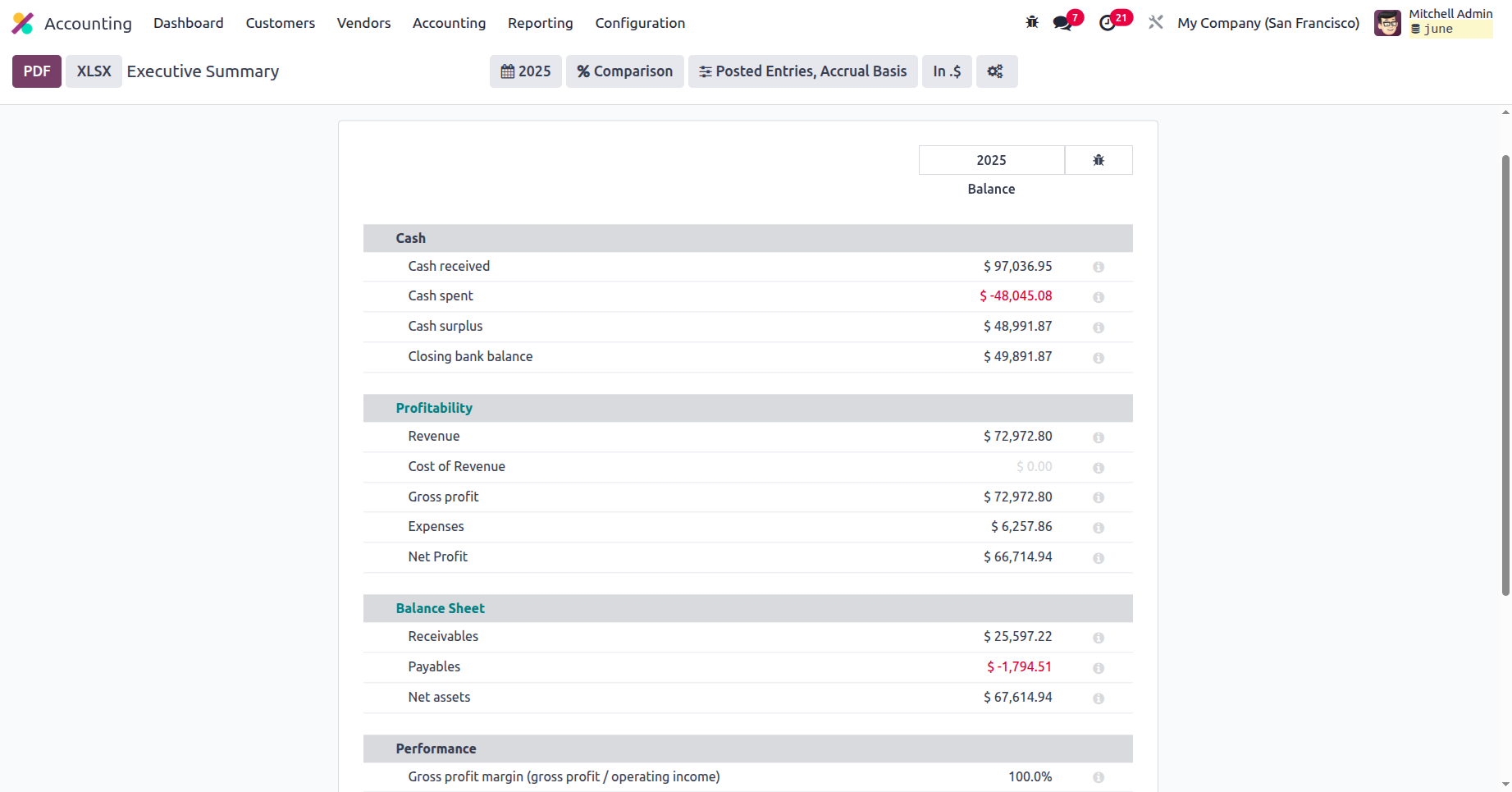
To help with the sorting out of the defined Executive Summary entries, there are filtering and grouping options available. Grouping by uploaded entries and fiscal seasons of operation will be possible. Additionally, as shown in the image below, you can compare the Executive Summary data of the business's financial activities from one fiscal period to another using the Comparison options. The Previous Period and the Same Period Last Year are two of the basic comparison options. Additionally, based on the circumstances, the Custom Comparison choices may be created.
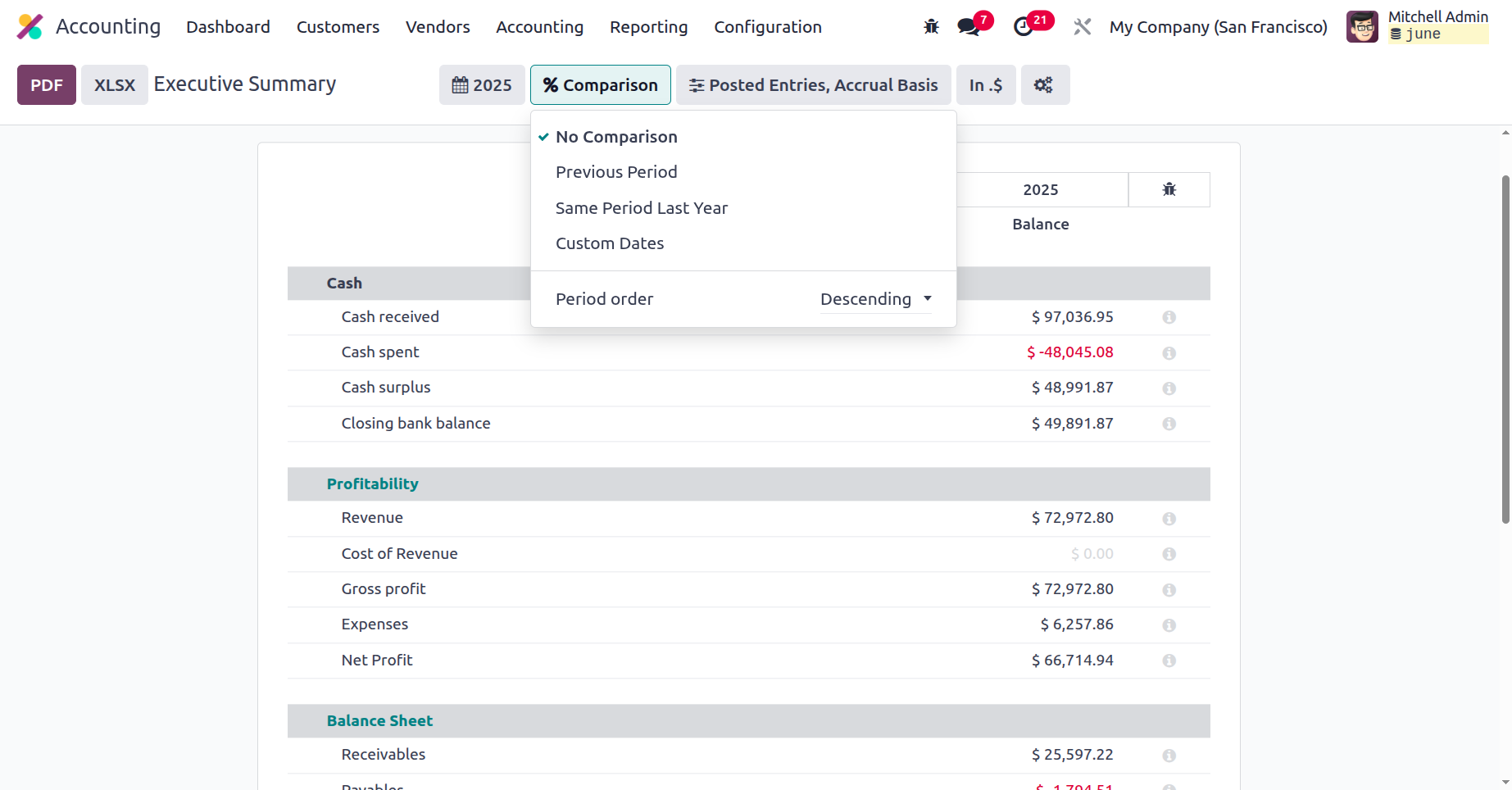
A company's financial operations can be fully understood from the Executive Summary, which can also be utilised as study material to comprehend the company's past and present operations. This will assist management in making decisions that are appropriate. After discussing the Odoo platform's Executive Summary reporting option, let's go on to the following section, which will discuss the tax reports.
Tax Report
Unavoidable aspects are taxes and the way they are applied in business, which is done all over the world. Because governments all throughout the world fabricate records to ensure that taxes are paid on time and precisely, businesses like to closely monitor how these taxes are applied to their financial operations. The Tax Management window in the Odoo Accounting module is described in detail in Chapter 3 of this book, Section 3.1.2 Configuring Taxes. To learn how tax management activities are conducted for a firm in Odoo, you can study the relevant portions of the book's history.
The Odoo Accounting module's Reporting tab offers a Tax Report option for reporting on taxes related to the financial operations of Odoo-using businesses. The screenshot below shows how the operation, net worth, tax amount, and all financial elements related to the defined taxes would be displayed. Additionally, there are buttons to print reports in XLSX and PDF formats. You can save the Consolidated Journals report after the Filtration Group using an additional setup option.
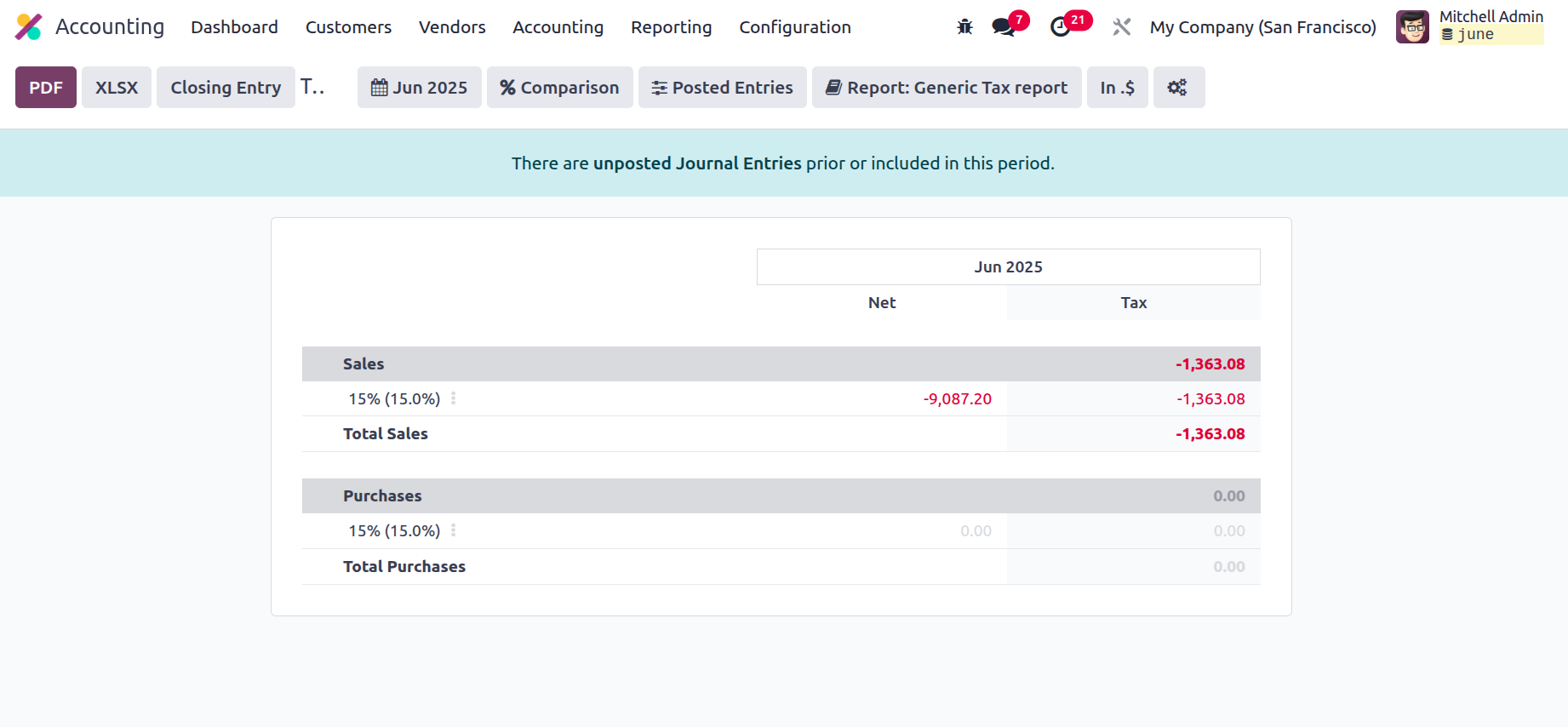
Additionally, the journal entries associated with tax activities can be closed and submitted using the closing journal entry option. You will also have access to filtering and grouping options in the Tax Report menu, as seen in the accompanying image. To learn more about the common tools included in the reporting menus, such the Period based Filtering, Comparison filter, and Options filter, read the sections that come before this one. Other possibilities for organising tax reports include grouping them by account, grouping them by tax and account, or grouping them as a worldwide summary.
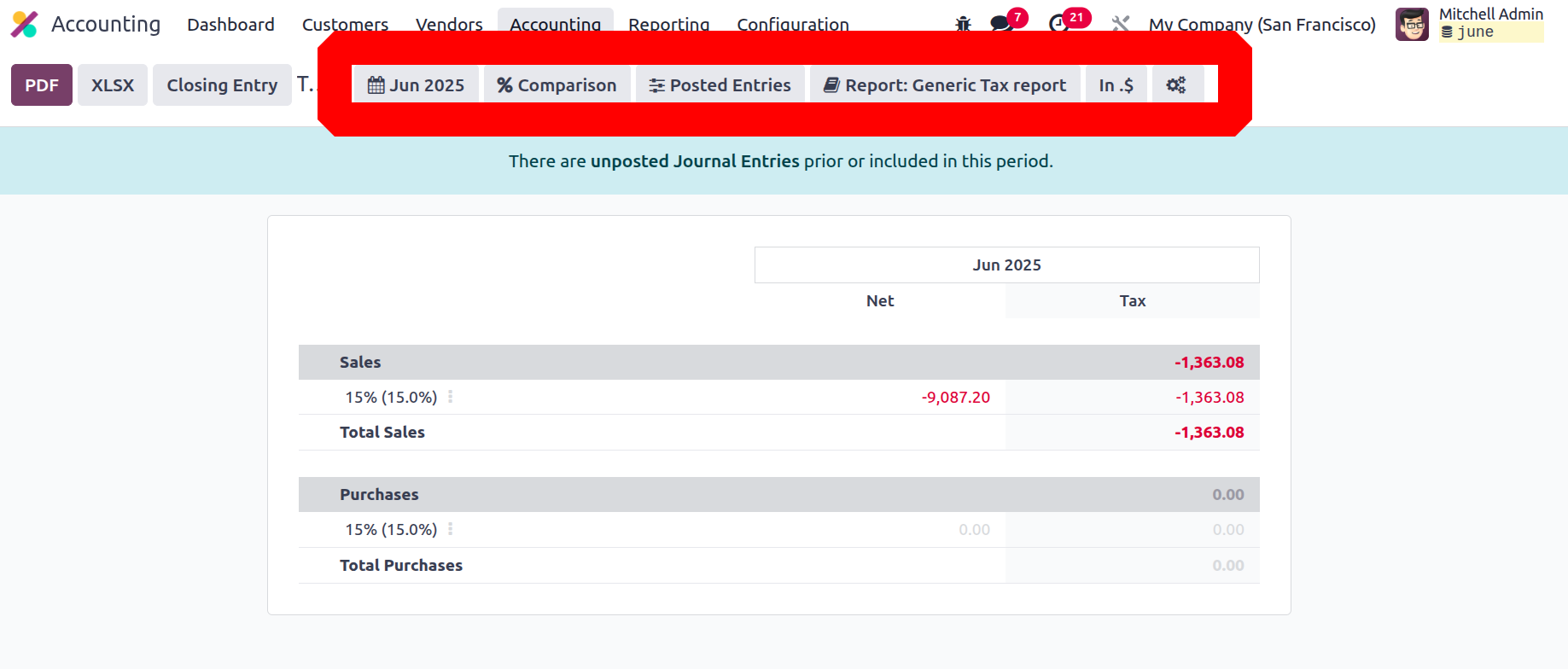
The Tax Reporting option on the Odoo platform provides an overview of the tax processes related to the business's accounting and financial operations. The section that describes the EC Sales List Reporting tool will now be discussed.
EC Sales List
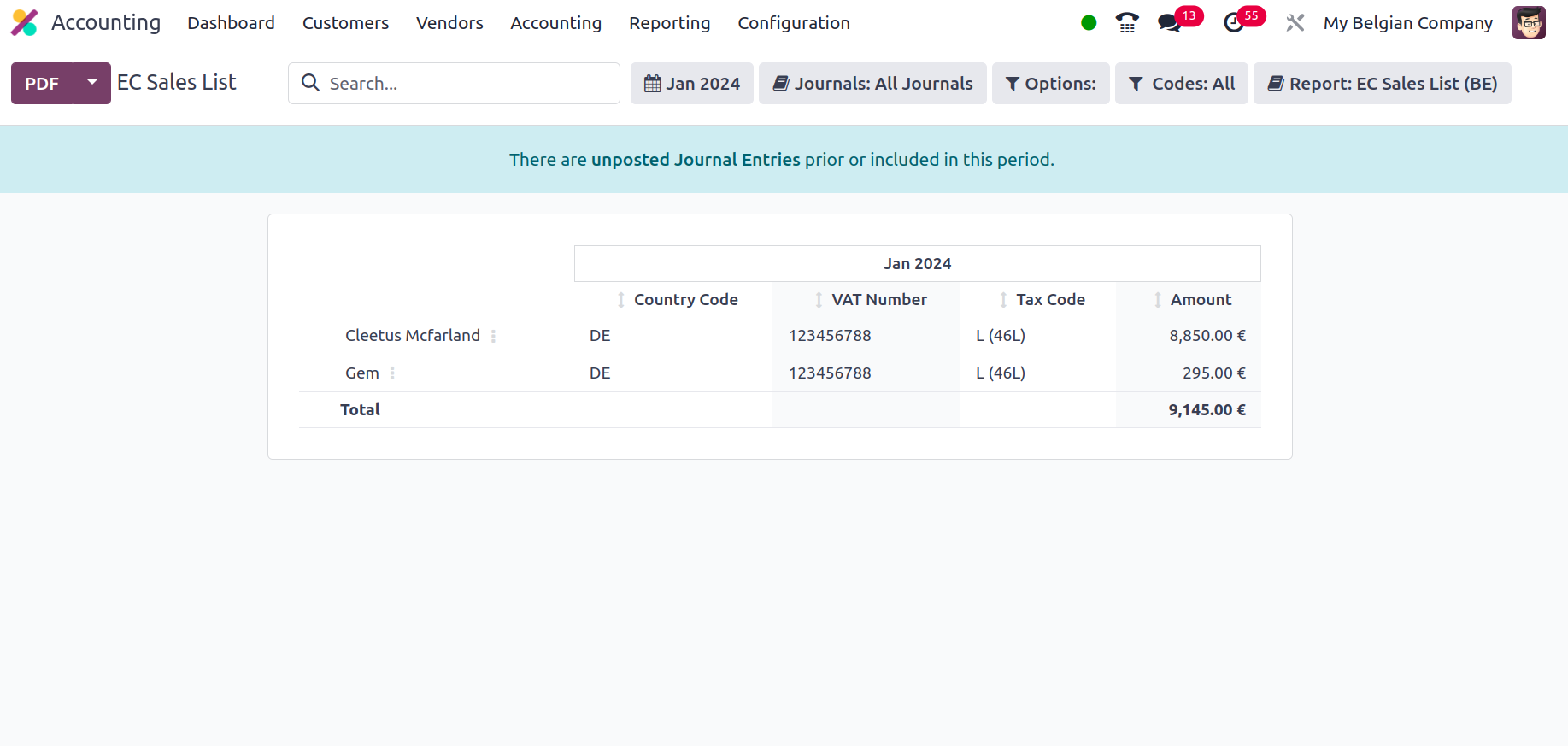
Another reporting tool that can provide you a thorough understanding of the business's financial activity is the Odoo EC Sales List reporting feature. One of the documents that must be given to the UK government's Her Majesty's Revenue and Customs is the EC Sales List reporting, which is based on the sales of goods and services made by VAT-registered companies in the UK to other companies in the European Union. The EC Sales List Reporting is accessed through the Reporting page of the Odoo Accounting module. Here are the details for every entry on the EC Sales List.
To assist you arrange the data by fiscal years and designated journals, you will have access to filtering and grouping capabilities. The reporting options covered in the sections before this one are available for your reference. Additionally, there are buttons to print reports in XLSX and PDF formats. In order to preserve the financial records that are accessible from the EC Sales List menu and will be crucial for the business's financial management operations, you may save reports to the relevant workspace in the Documents module using the SAVE option.
After you have a better understanding of the Odoo platform's EC Sales List reporting management menu, let's proceed to the next stage, which involves setting up the Journal Audits.