Accounting Configurations
You can select from a variety of accounting options in Odoo18 to handle your company's money and bookkeeping. It has the highest priority compared to other parameters. With Odoo18's accounting configuration tool, you may set up the system's financial records. It can be used to balance your bank accounts, create invoices, set up taxes, and manage your accounts. It also lets you create charts of accounts, manage budgets, and set up multi-currency accounting. It provides a range of options for managing payment arrangements and may also be used to generate reports.
Establishing the accounting settings is necessary before starting the organization's financial management operations. It will be difficult to change the accounting setups once they are established because they impact every aspect of the business's operations. The two main elements that must be put up first under this page are the Chart of Accounts and Taxes. We may completely understand accounting's configurational aspects in the sections that follow.
Chart of Accounts
The Chart of Accounts is an essential part of a business's financial management procedures. It is a list of every account or ledger that a business uses to keep tabs on its earnings, outlays, assets, liabilities, and equity. In addition to asset accounts like cash, accounts receivable, inventories, and fixed assets, the Chart of Accounts typically includes equity accounts, sales and expense accounts, cost of goods sold, and operational expenses. Loans and accounts payable are examples of liability accounts. The chart of accounts, which guarantees that financial transactions are reported in the correct accounts, is an essential part of financial reporting.
A chart of accounts, which is important in accounting, defines the format of the accounts used in the financial reporting. It is an essential tool for tracking a business's financial well-being and allows users to quickly assess their entire performance. It also helps to guarantee that financial transactions are reported honestly and accurately. You will be able to manage and personalise your financial statements and reports, as well as easily create, update, and see all financial accounts.
Odoo18's Chart of Accounts, a conventional double-entry accounting system, has balance sheets, income statements, and other accounts. Because of its flexibility, you can create your own accounts and categories and modify the system to meet your unique accounting requirements. The system will always guarantee that the records of your financial operations are correct and suitable for future use. The first and most important step in beginning your accounting and financial management with the Odoo18 accounting system is configuring the Chart of Accounts. The reason for this is that it forms the basis for all subsequent operations. Odoo18 provides the ability to create a custom chart of accounts according to the requirements of the company for complete control over the management of the financial operations.
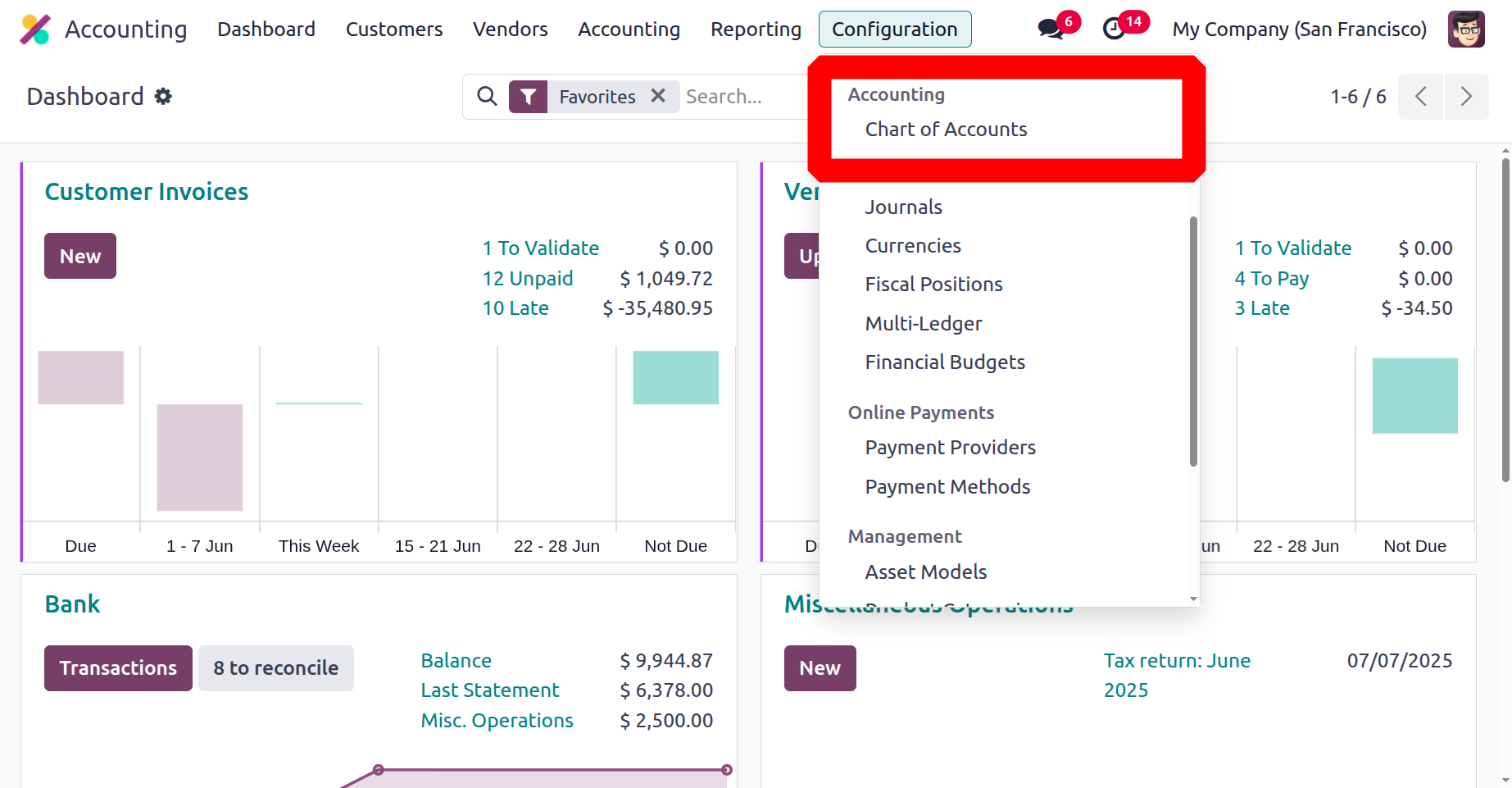
The chart of accounts in Odoo is rather simple to define. You only need to select the Chart of Account menu in the Accounting section of the Configuration tab of the Odoo 18 Accounting module, as shown in the image below.
The Chart of Accounts window displays all of the pre-configured chart of accounts details displayed below. All of the created Chart of Accounts records are shown with the relevant details, such as Code, Account Name, Type, Account Currency, Company, and others, as can be seen in the screenshot below.
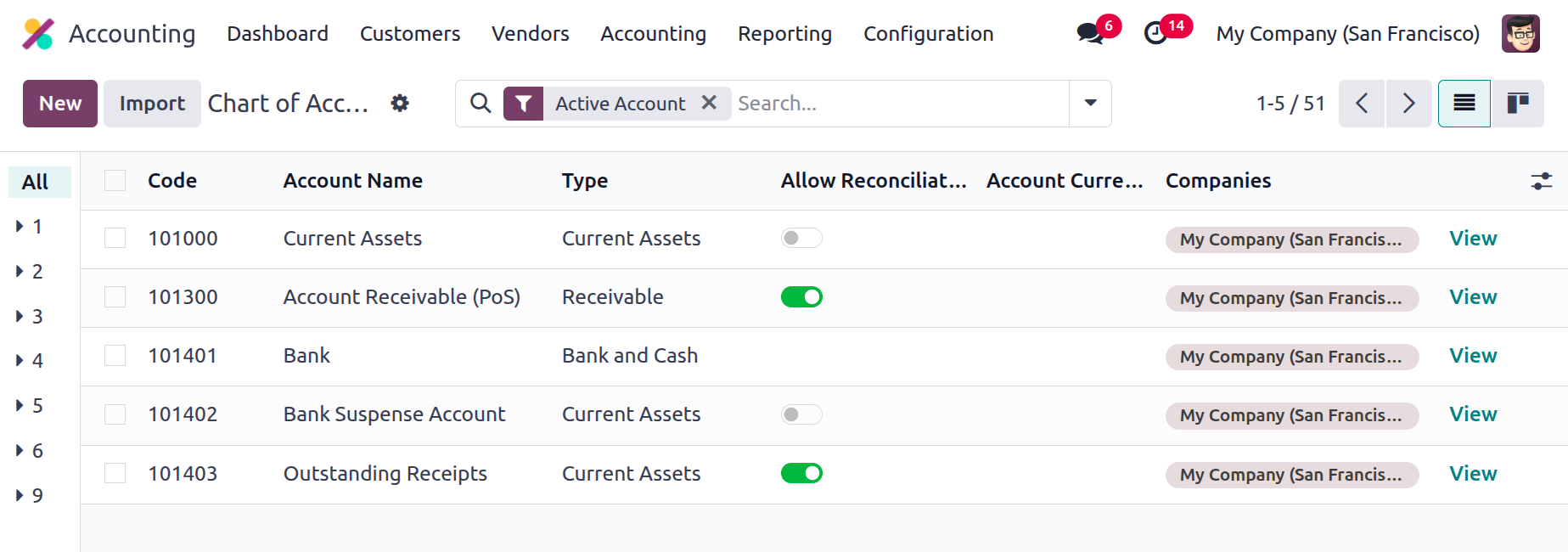
Additionally, you can see a setting that has a toggle switch. If you choose this option, you can configure reconciliation for the particular chart of accounts. Since the Kanban view is a list view, you can access the details by selecting the Kanban view menu icon. Strong sorting features like Filters, Group By, and Search options can be used to retrieve any particular Chart of Accounts. The collection By option allows you to define a collection of entries according to resemblance or other criteria.
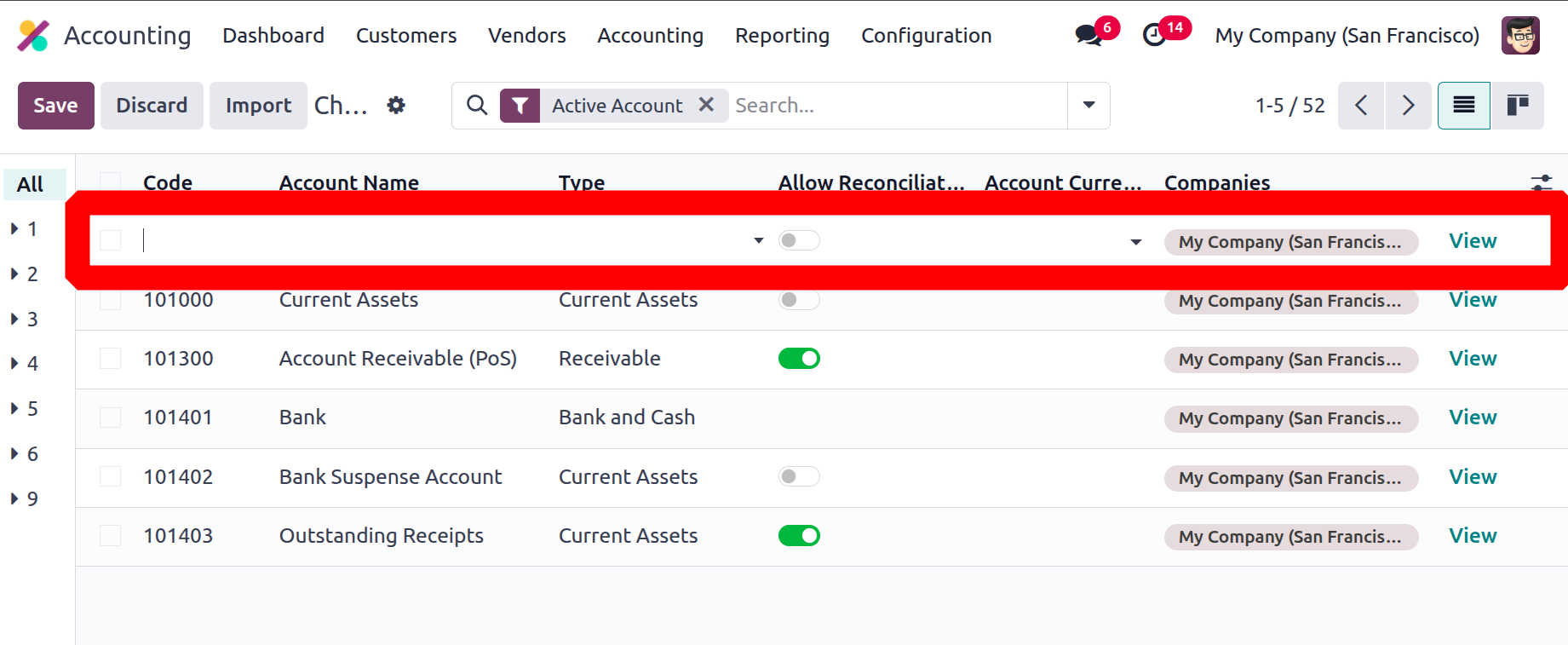
To begin a new Chart of Account, click the New button in the upper left corner of the window. The system will now create a new chart of accounts by displaying a new row in the same window, as can be seen below.
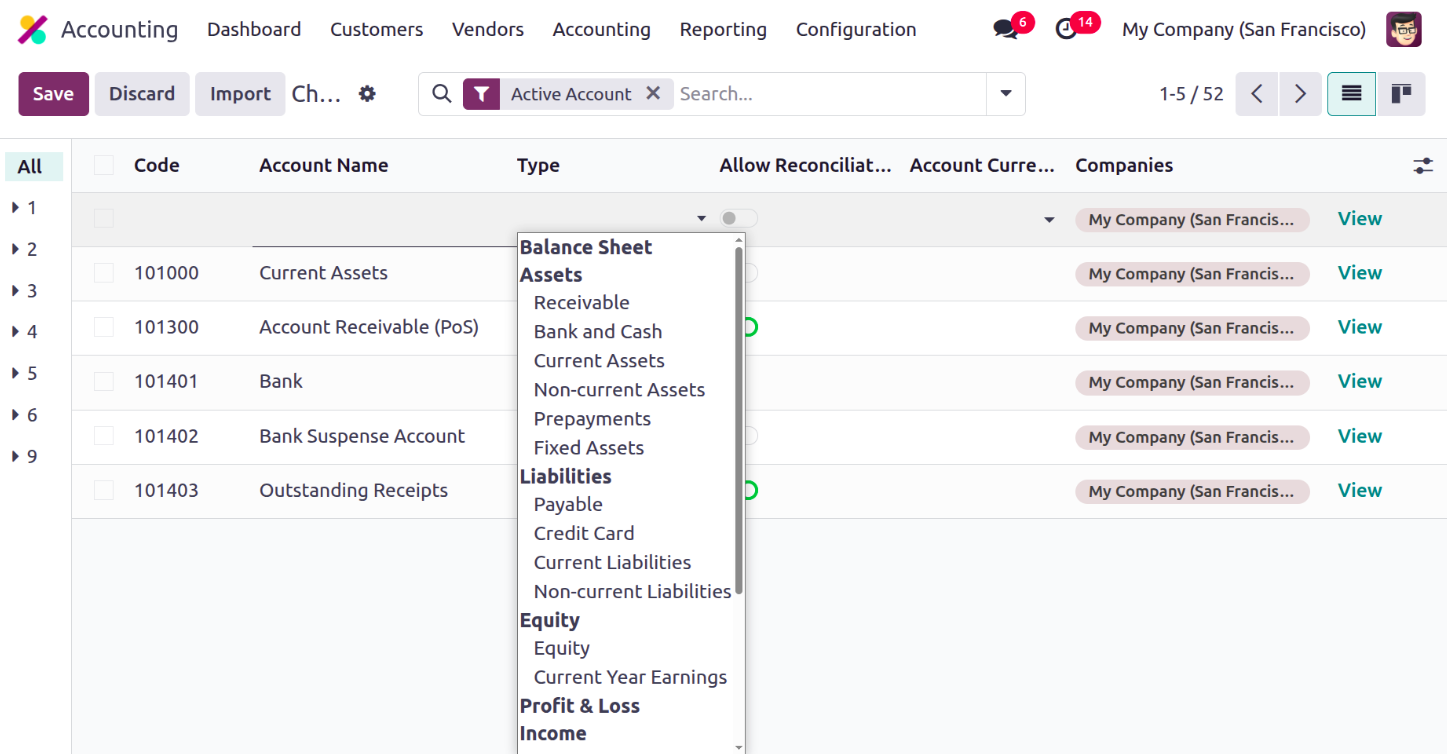
You can input the Account Name in the designated field. Next, select the Account Type in the Type field using the dropdown menu. The dropdown menu will display all of the preset types. The categories could be Asset, Liability, Equity, Profit Loss, Expense, Income, or Other. As can be seen in the screenshot below, each account type will also have several subcategories.
You can also enable or disable the Allow Reconciliation area based on your choices. Add the account currency and the company as well. The hierarchy of the Chart of Account activities for the Odoo18 platform may be easily defined at the start of the process. Once your business activities are identified, the appropriate team can build up the hierarchy of operations for the particular chart of accounts.
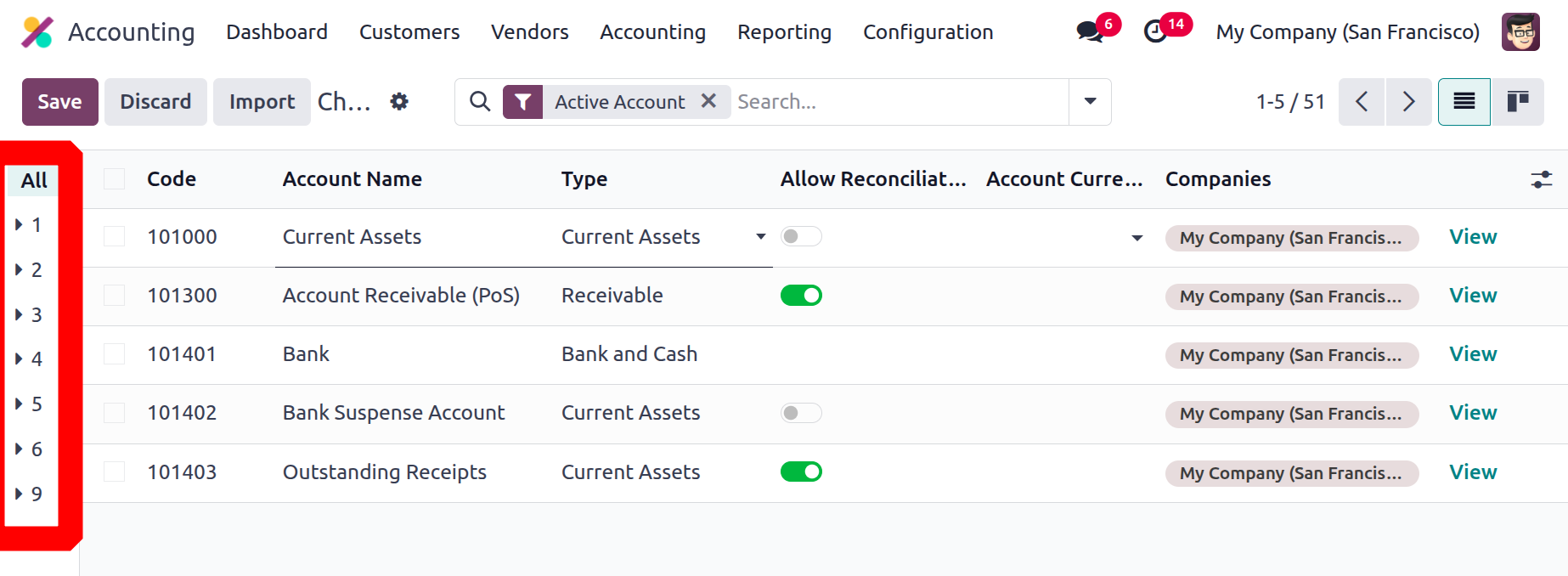
On the very left side of the Chart of Accounts box, you can see the numbers in relation to the hierarchy. For that, you only need to select the arrow options that appear on the left side of the window, as seen in the figure below.
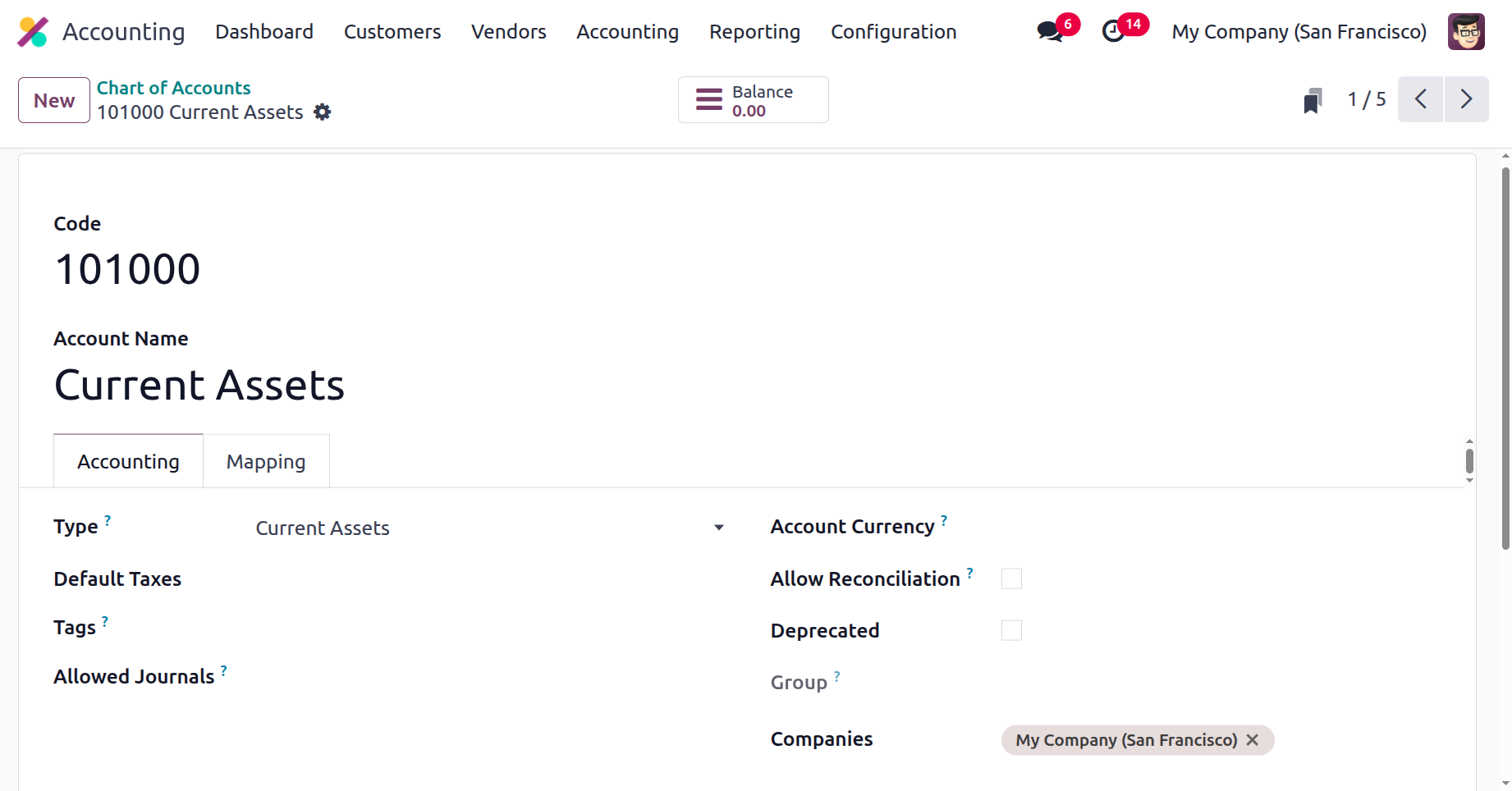
Additionally, by choosing the 'Deprecated' option, you can limit the use of this particular chart of accounts. As illustrated in the example below, choose the Deprecated option from the Chart of Account menu to accomplish this.
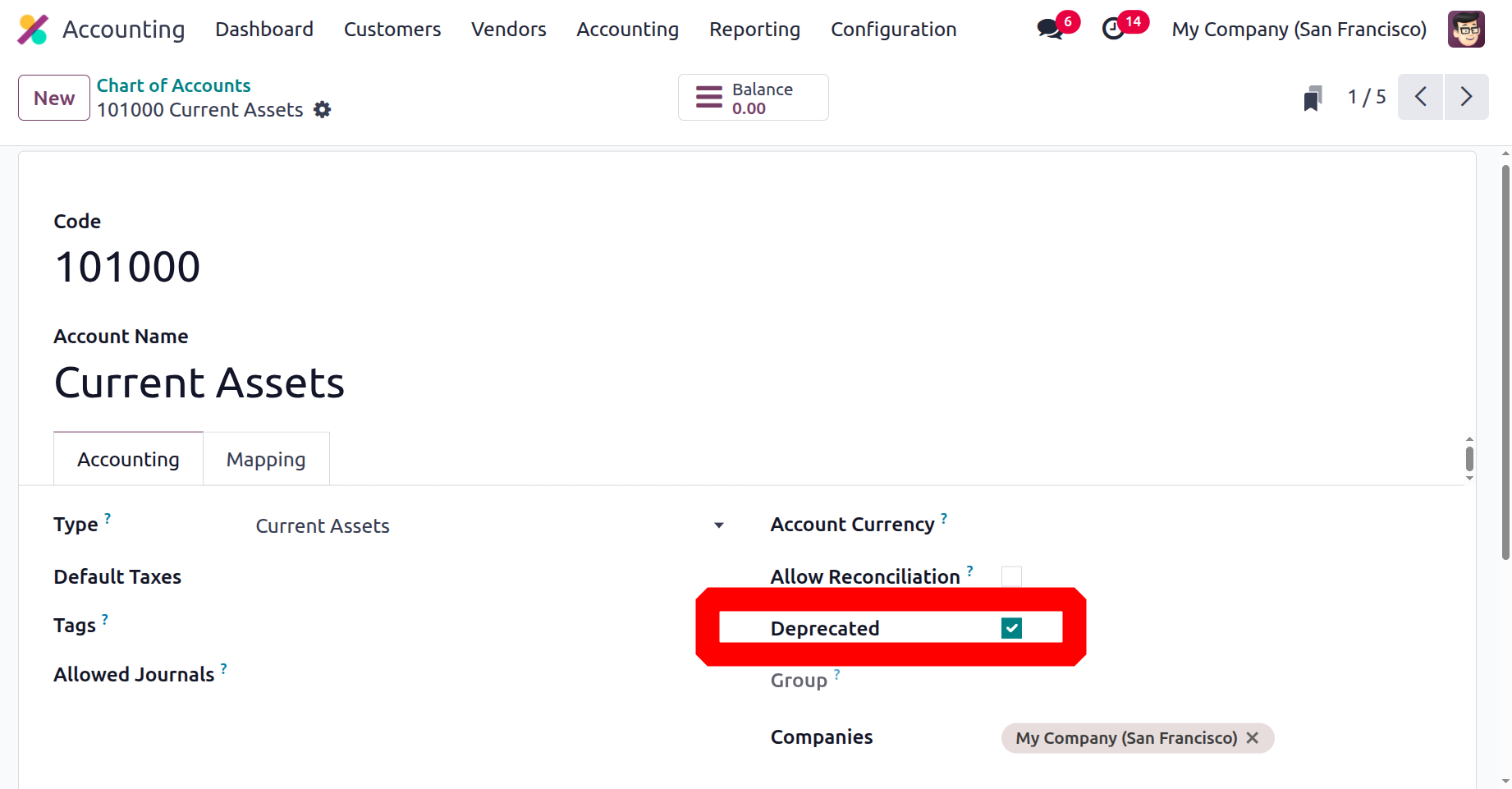
This unique feature is only visible in the Chart of Accounts that are currently in use. Since a chart of accounts contains all of the financial data for the operations that were in use and will be quite valuable in the future, you cannot immediately stop using and functioning with one if you are forced to. In some situations, the Deprecate option might be very helpful. By turning this option on, you can halt its action in finance management. The matching chart of account entries and data will still be sent to you.
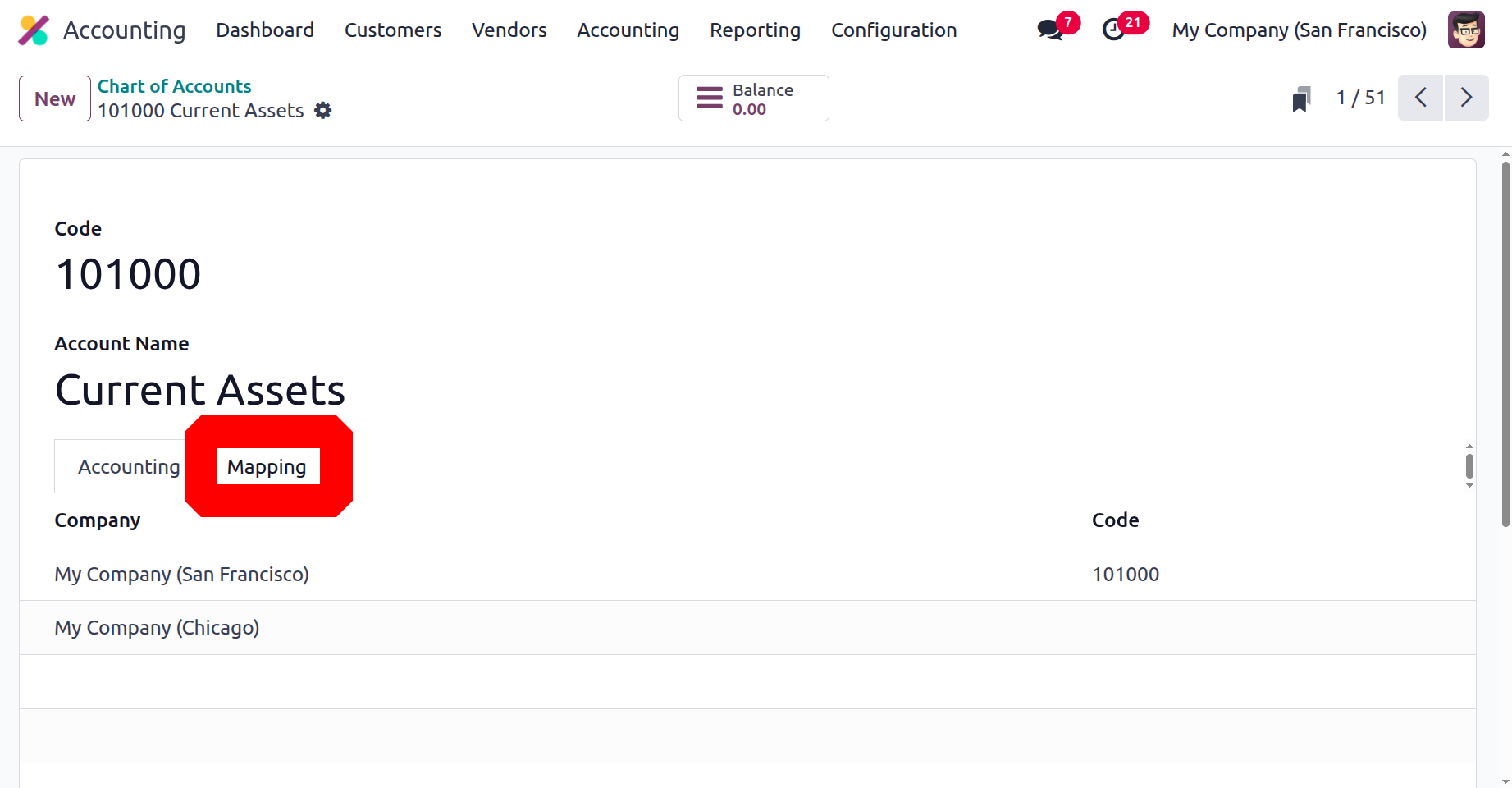
Here the Mapping tab used to share the chart of accounts among multiple companies. So add the company name and code of the chart of accounts on that company inside the Mapping tab.
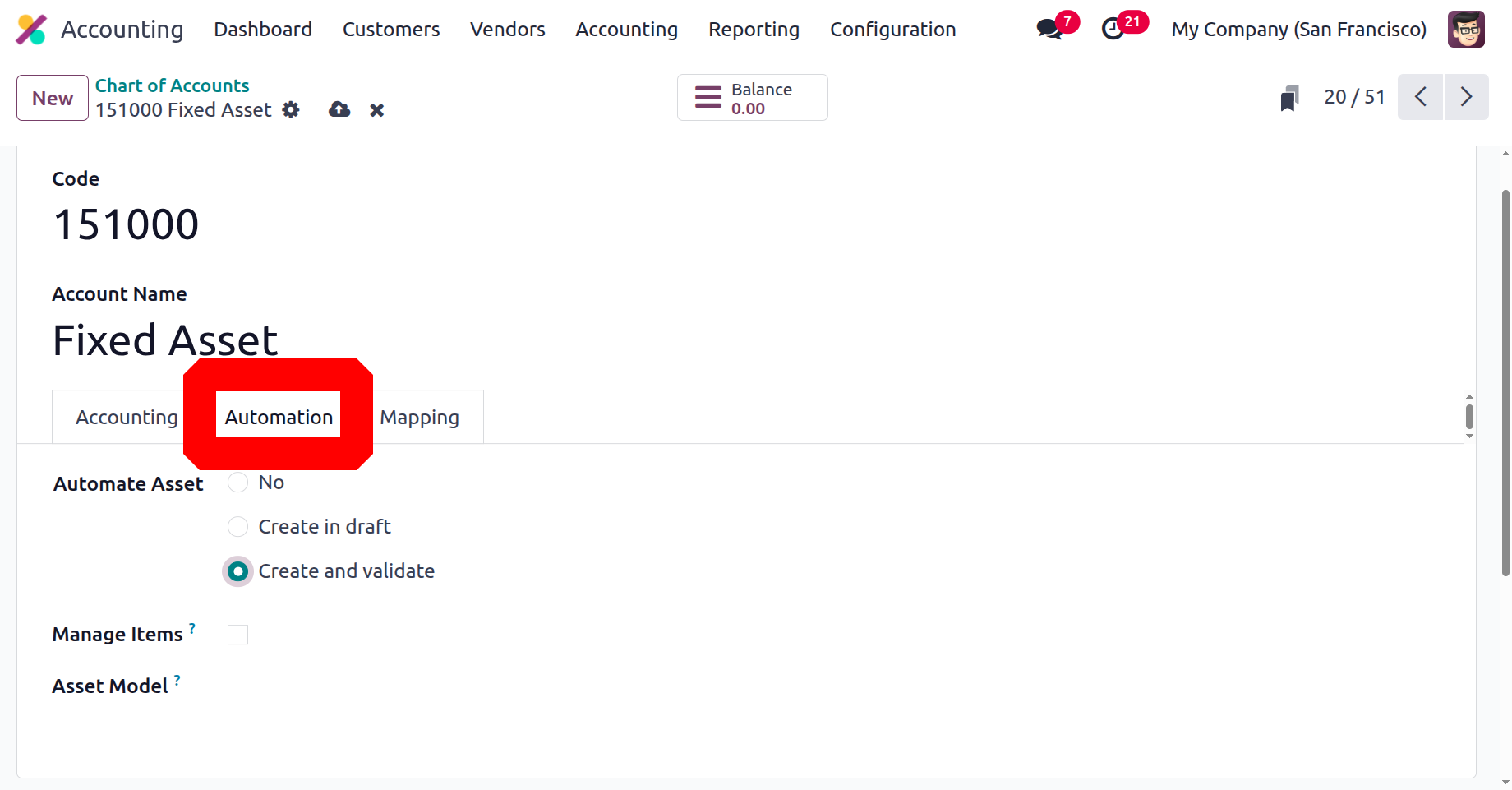
Consider the fixed asset account, where a tab is available for asset automation. Automate Asset has three options: No, Create in draft, and Create and validate. Multiple asset items will then be generated based on the bill line quantity of a single global asset if the Manage items option is selected. After that, anytime this account is used on a vendor bill or a refund, an asset will be produced for each asset model.
How to create a new Chart of Accounts?
All you have to do with the Odoo 18 Accounting module is click the CREATE button, which is on the Chart of Accounts screen as we said earlier. On the newly displayed line, you can describe the updated Chart of Account. Once the Code, Account Name, and Chart of Account Type have been entered, you can configure the Reconciliation option. Then, under each of the Chart of Accounts shown in the attached image, you can select the View option.
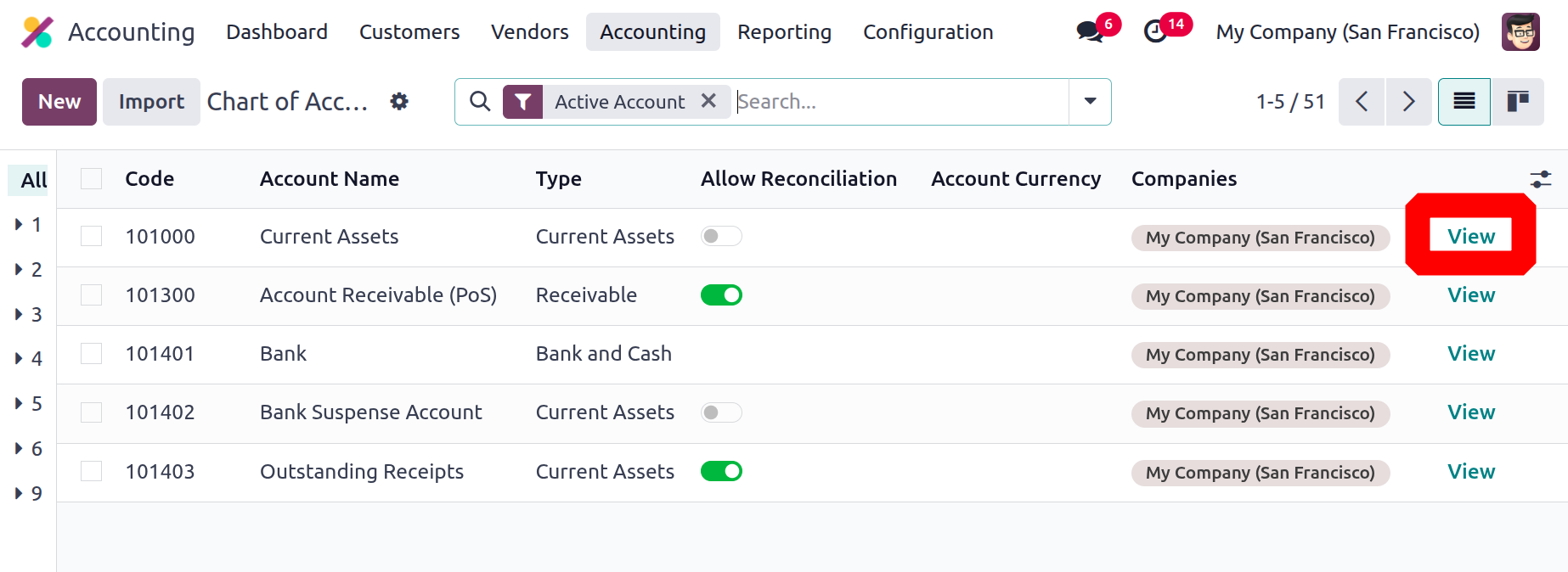
You can adjust the pertinent Chart of Account in a separate window by selecting the "View" menu item. The screenshot below displays the aforementioned window.
This Chart of Account configuration box allows you to specify the relevant information. The previously entered data, such as Code, Account Name, and Account Type, will be shown. Settings can also be found on the Automation and Accounting tabs.
The Accounting tab allows you to define the Account Type. The account type serves informational objectives by producing opening entries, establishing the rules for concluding a fiscal year, and providing legal reports prepared for certain nations.
The Default Taxes choice, which we just discussed, comes next. In the Tags section, you may then list the optional tags you must use for custom reporting. The Allowed Journals section now allows you to list the journals that this account may be used in. If this account is left empty, it can be used in any journal. You can then choose to mention the Account Currency. in order to compel the journal of this account to use this specific currency throughout. If no currency is selected, entries may be made in any currency. You can then activate the Allow Reconciliation field if this account allows journal items to be matched to invoices and payments. Additionally, there is the Deprecated option, which was discussed earlier.
You can also alter the Chart of Account by simply moving the pointer over the relevant fields. To save your changes, an upload icon will appear at the top. Making a chart of accounts is also made easier with the addition of a 'NEW' button in the upper right corner of the form view. The balance amount in that account, which is based on many journal entries, is also shown on the 'Balance' smart tab.
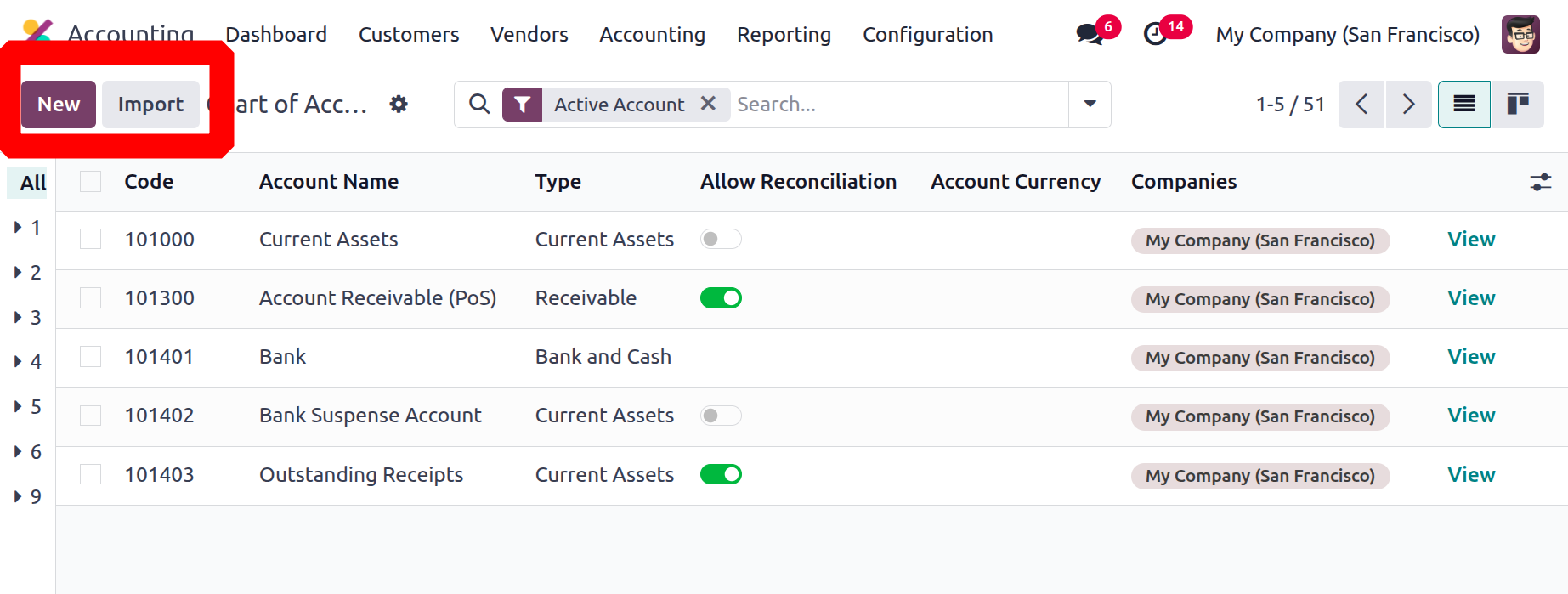
With the Odoo 18 Accounting module, you may import or create a range of Charts of Accounts based on the requirements of the business operation. This feature makes it simple and quick to summarise the accounting procedures used by each financial management. Finding the option to import records is easy. You can import Chart of Accounts data in CSV or xlsx format by selecting the 'import records' option, which is located next to the New button.
We can examine the different facets of imposing taxes on business operations according to the region in the next session, which will be about creating taxes. We have been discussing the Chart of Accounts option up to this point.