Journal Configurations
Journal entries, the initial stage of the accounting cycle, are used to document all financial transactions in the accounting system. A "journal entry" is a straightforward accounting document that reports the details of a business transaction, such as the date, amount, account affected, and a brief explanation. Journal entries are essential to the double-entry accounting system, which requires that each financial transaction be recorded in a minimum of two accounts.
In Odoo 18 Accounting, journals are the documents used to document accounting transactions. Journals are used to record sales, purchases, receipts, payments, and other transactions that affect the company's financial situation. The journals also provide an overview of the company's financial status at any particular point in time. It is possible to compile reports, analyse financial trends, and reconcile accounts. It will provide a record of each transaction's purpose, amount, and occasion. Journals can be created for specific time periods, including monthly, quarterly, or annual.
As everyone knows, journals are essential to any company's accounting procedures. They form the basis of financial operations and aid in the classification of specific procedures. Journal entries are necessary for all types of companies. The ability to create and manage custom journals is a powerful feature of the Odoo 18 Accounting module. Each journal can be specified using this option. To manage it, Odoo18 has a separate option called Journals in the Accounting section of the Configuration menu. A screenshot of the Journals window can be found below.
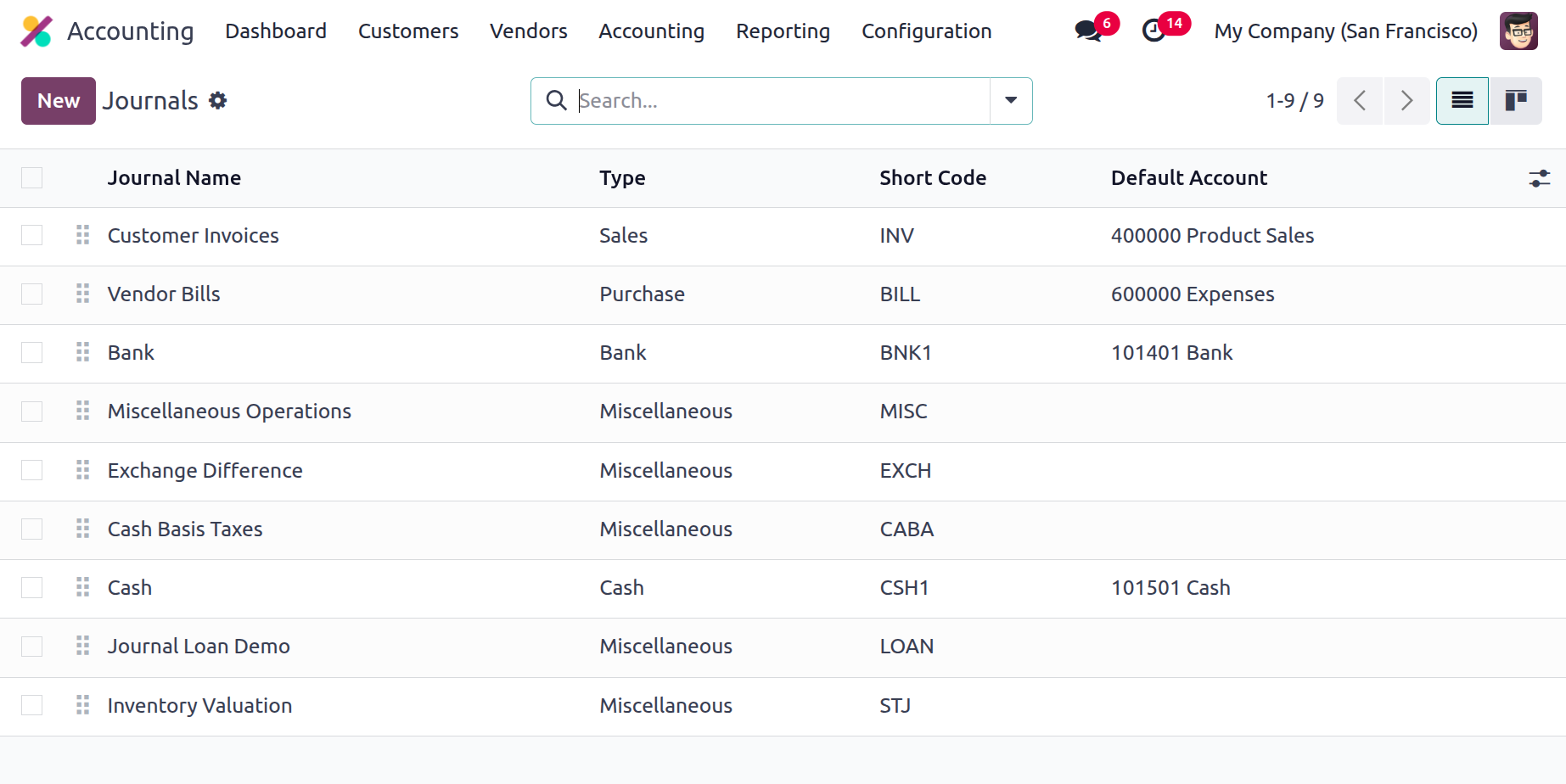
In addition to providing a clear glimpse of the previously created journals, the Journals window offers the opportunity to start a new journal. The pane displays crucial details about the journals, such as the short code, default account, and journal names, types, and groups, as can be seen in the image above.
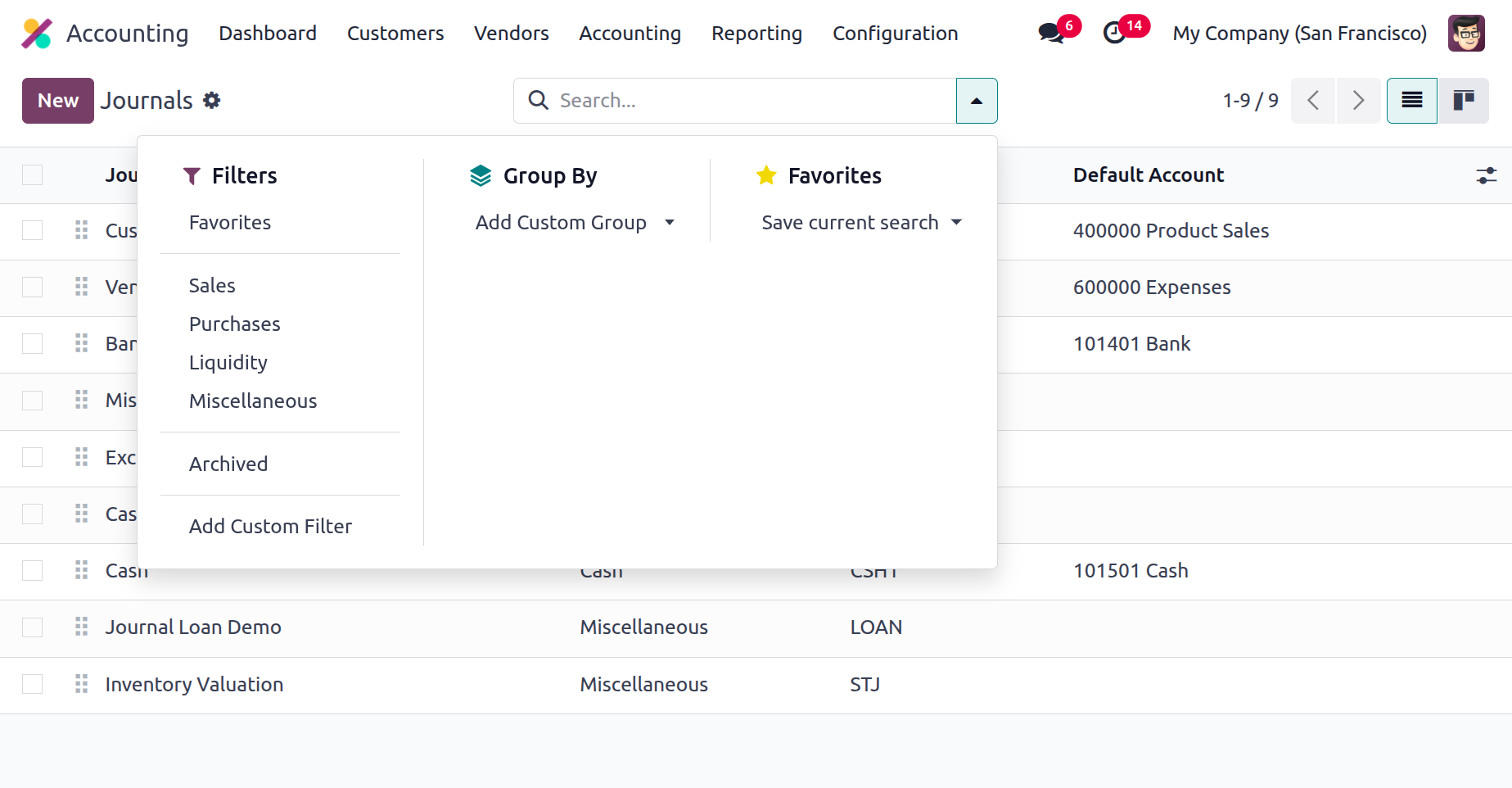
You can alternate between the Kanban and List views of the window by clicking on the corresponding menu icon in the upper right corner. In addition to the search box, the Filters and Group By options under Favourites can be customised or left as default, performing the required tasks, such as saving current search.
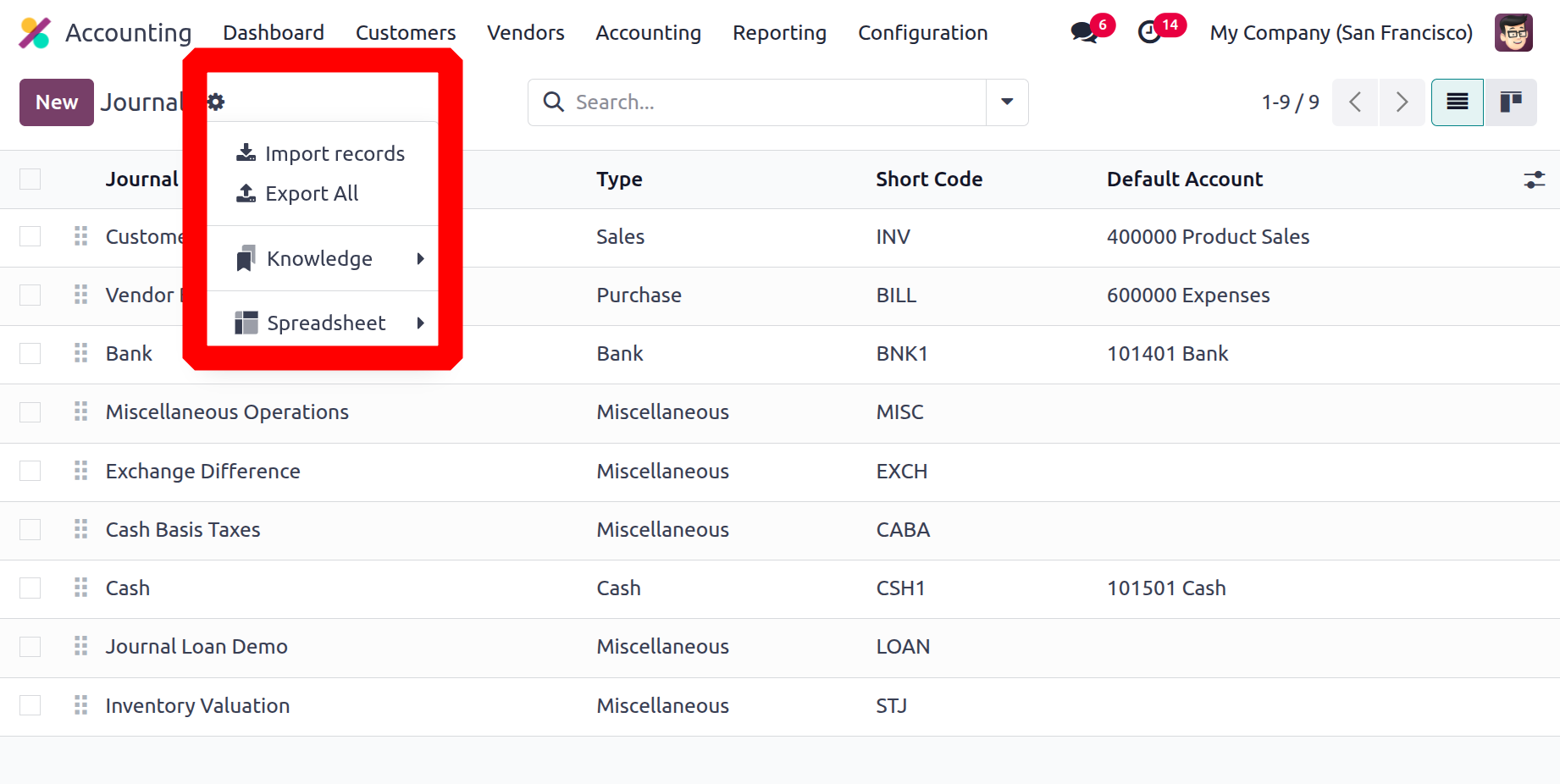
With knowledge capability like "Insert view in article" and "Insert in article," one can import and export records from the activities. Additionally, journals can be added to "My Dashboard," and the spreadsheet feature allows users to add details by utilising the "Insert list in spreadsheet" and "Link menu in spreadsheet."
All of these choices are highly beneficial for quickly locating the needed journal from the longer list of selected journals. Furthermore, specifying journal types based on those that are already set as defaults is made very simple by the particular Odoo18 module. Furthermore, a journal type can be chosen for every defined journal. Journal types include cash, bank, sales, purchases, credit card and miscellaneous.
In Odoo18 Accounting, every sales transaction in a business is documented in the sales journals. These transactions may include partner payments, invoicing, and any other related transactions. Sales journals facilitate the management of all sales-related information and can be used to generate a variety of reports, such as sales reports and trend analysis.
You can use purchase journals to keep track of every business-related purchase transaction. These journals are employed to keep tabs on the price of the products and services acquired as well as to produce financial statements. The debit and credit sides of the purchase are recorded in the journal entries, and the entries are subsequently posted to the general ledger. The cost of the products and services, as well as any applicable taxes, are noted in the purchase journals. The buy diaries record the purchase of inventory, raw materials, and finished goods.
Similar to how the sales journal is used to specify all of the sales operations entries, the purchase journal specifies all of the company's purchase activities. In a similar vein, the Cash Journal will describe each cash operations entry in terms of how cash payments are used to run the firm. It is also identical to the Bank Journal, which is where all transactions involving banks are recorded. The Credit Card is also the same as the Bank and Cash journal.
In Odoo18 Accounting, any transaction that does not fit into one of the predetermined transaction categories is entered as a miscellaneous journal entry. It can be used to enter bank charges, allowances, returns, discounts, and other incorrect information. This method can also be used to adjust the balance of any accounts that require adjustments outside of the regular accounting period. Among the Miscellaneous Journals in Odoo18 Accounting are:
- Salary Journal
- Adjustment Journal
- Inventory Adjustment Journal
- Currency Exchange Journal
- Stock Valuation
- Expense Journal
- Miscellaneous Journal Entries
- Tax Journal
The Miscellaneous journal is where you can arrange all of the entries that don't belong in any other journals. To create a new Journal, click the New button located in the upper left corner of the Journals box. In the creation form, you can start by mentioning the journal name. Next, choose the relevant Journal Type from the dropdown menu. The dropdown menu includes all of the journal type, such as Sales, Purchase, Cash, Bank, Credit card and Miscellaneous.
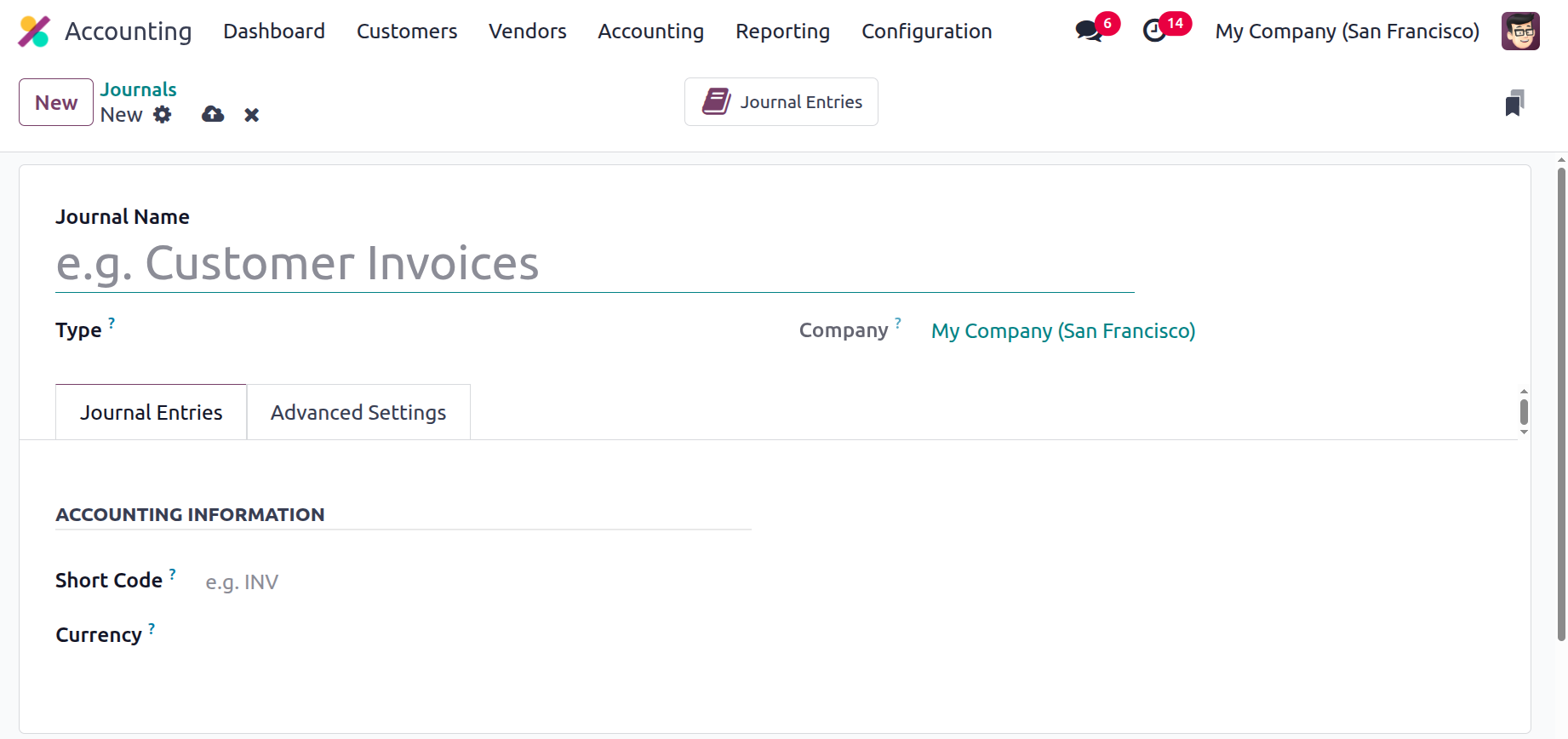
Using the Journal Entries option, you can additionally specify the accounting data, including the currency and short code. In the Short Code field, you can provide the abbreviated name you like to appear. The items in this journal will also be named with this prefix by default. Making sure that invoices and credit note entries start with the correct code is quite beneficial. Invoice creation will start with the term "INV" before proceeding to the sequence number, for example, if we define a short code like such.
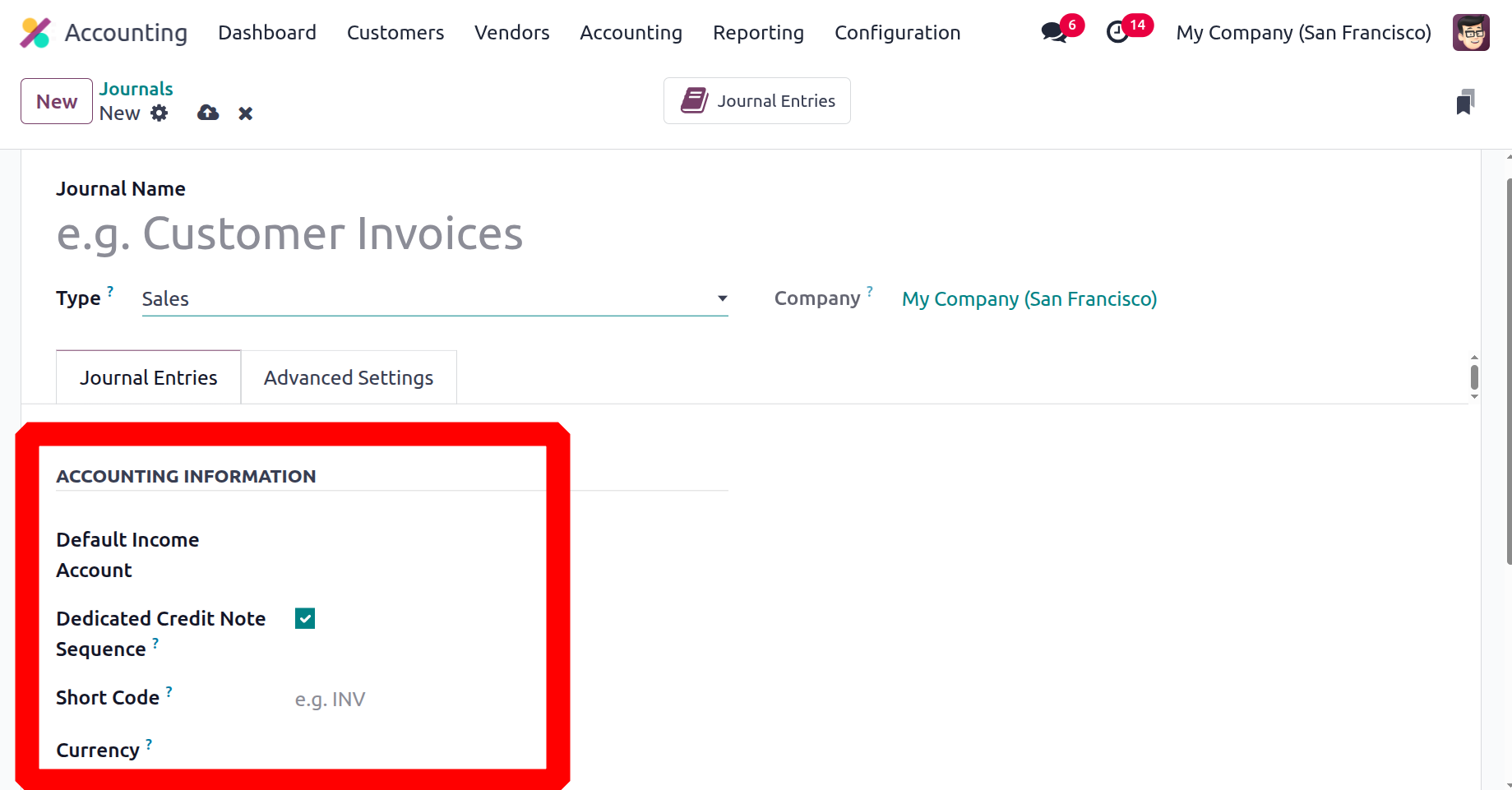
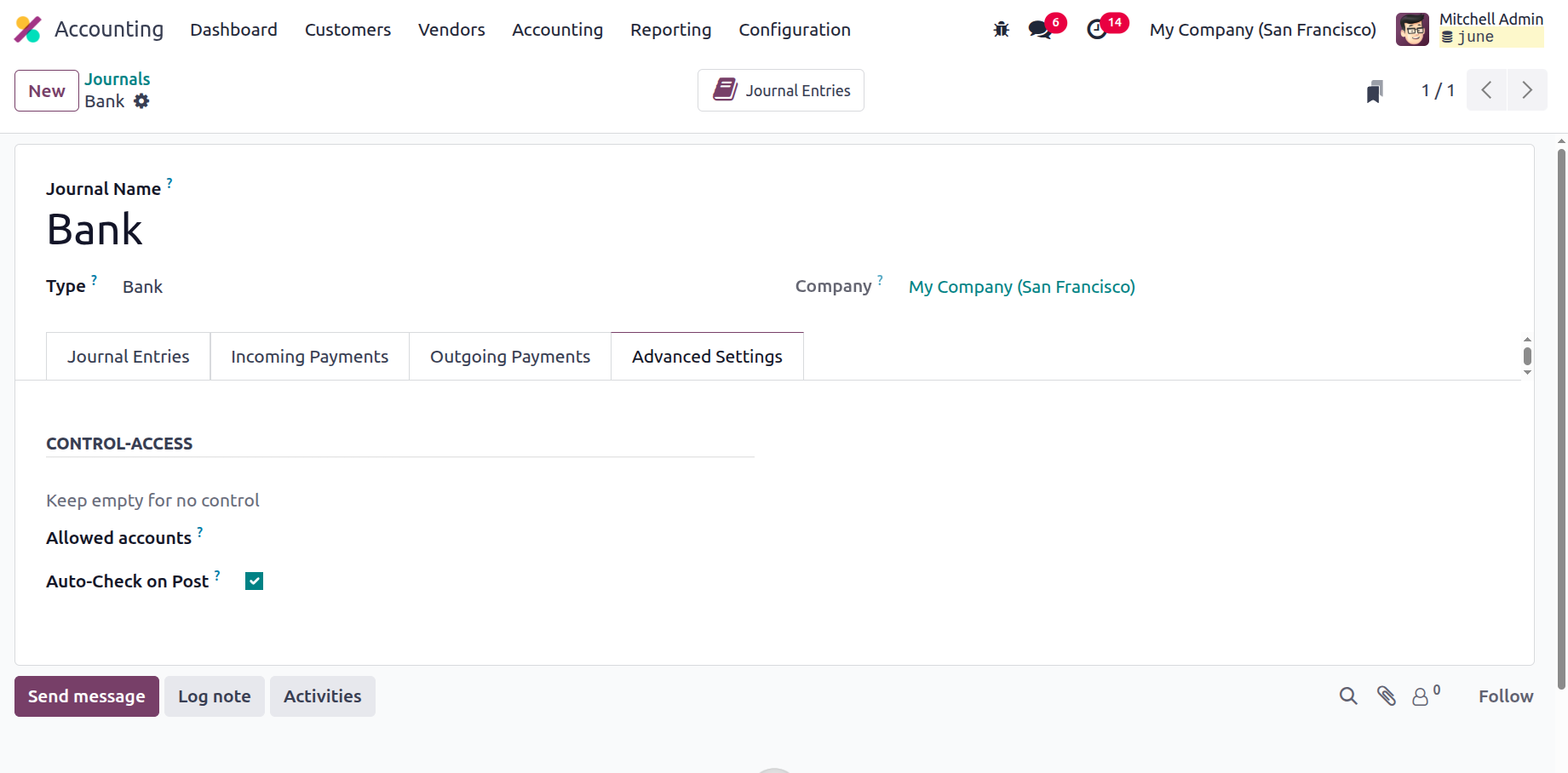
Additionally, you can use the dropdown menu in the Advanced Settings tab's CONTROL ACCESS section to select the Allowed accounts in the relevant box. If you do not want to have any control, you can leave these fields empty. The "Lock Posted Entries with Hash" box can be turned on or off. If this field is enabled, the invoice or accounting record is hashed upon posting and cannot be altered. This is an excellent method to ensure that no invoice generated under a certain journal gets changed. It cannot be altered to a different format or put back into draft status once it has been posted.
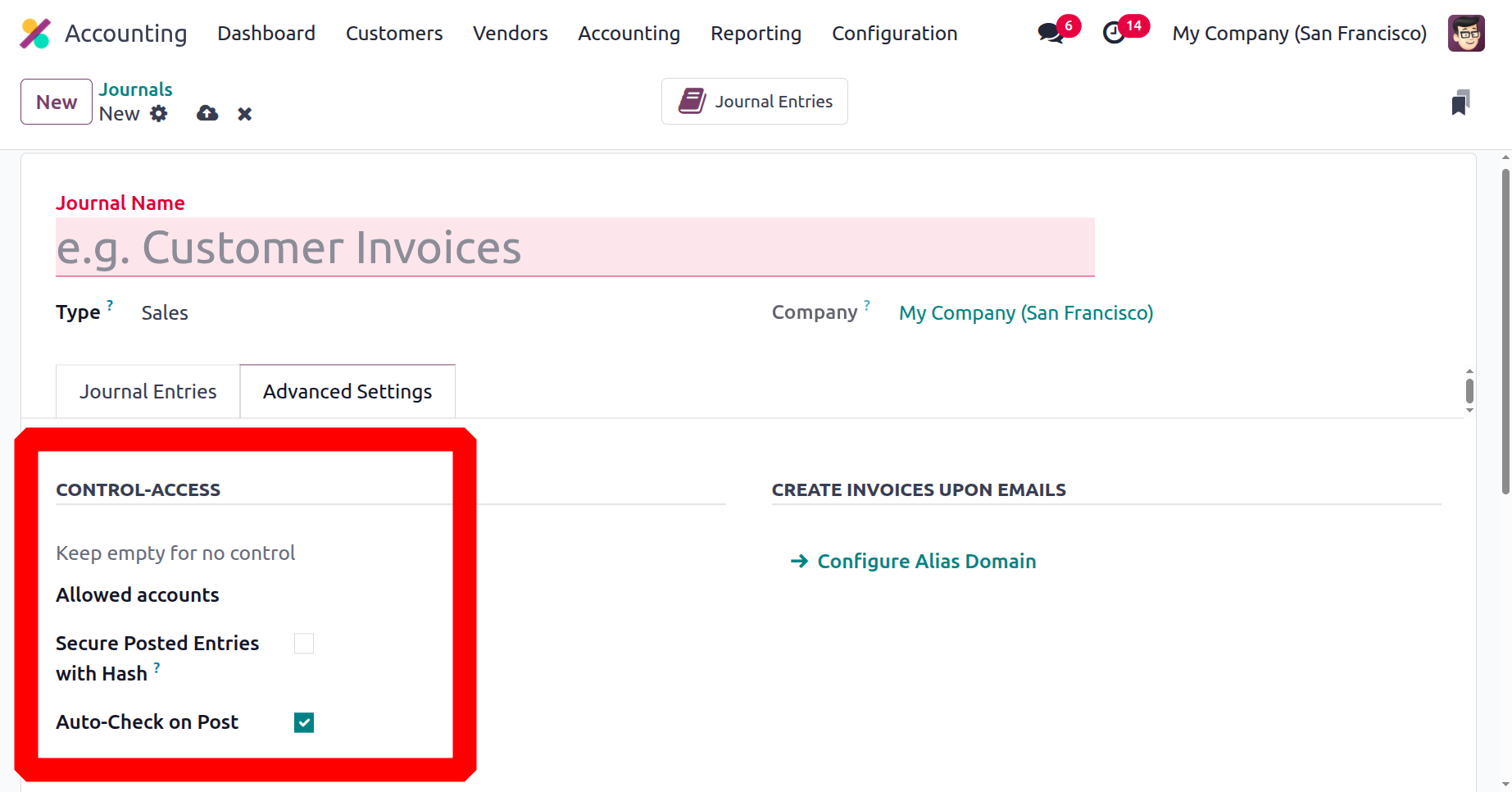
You may also set up Email Servers in the CREATE INVOICES UPON EMAILS section. If the email is received under the correct server domain, it will be effective in ensuring that an invoice is generated.
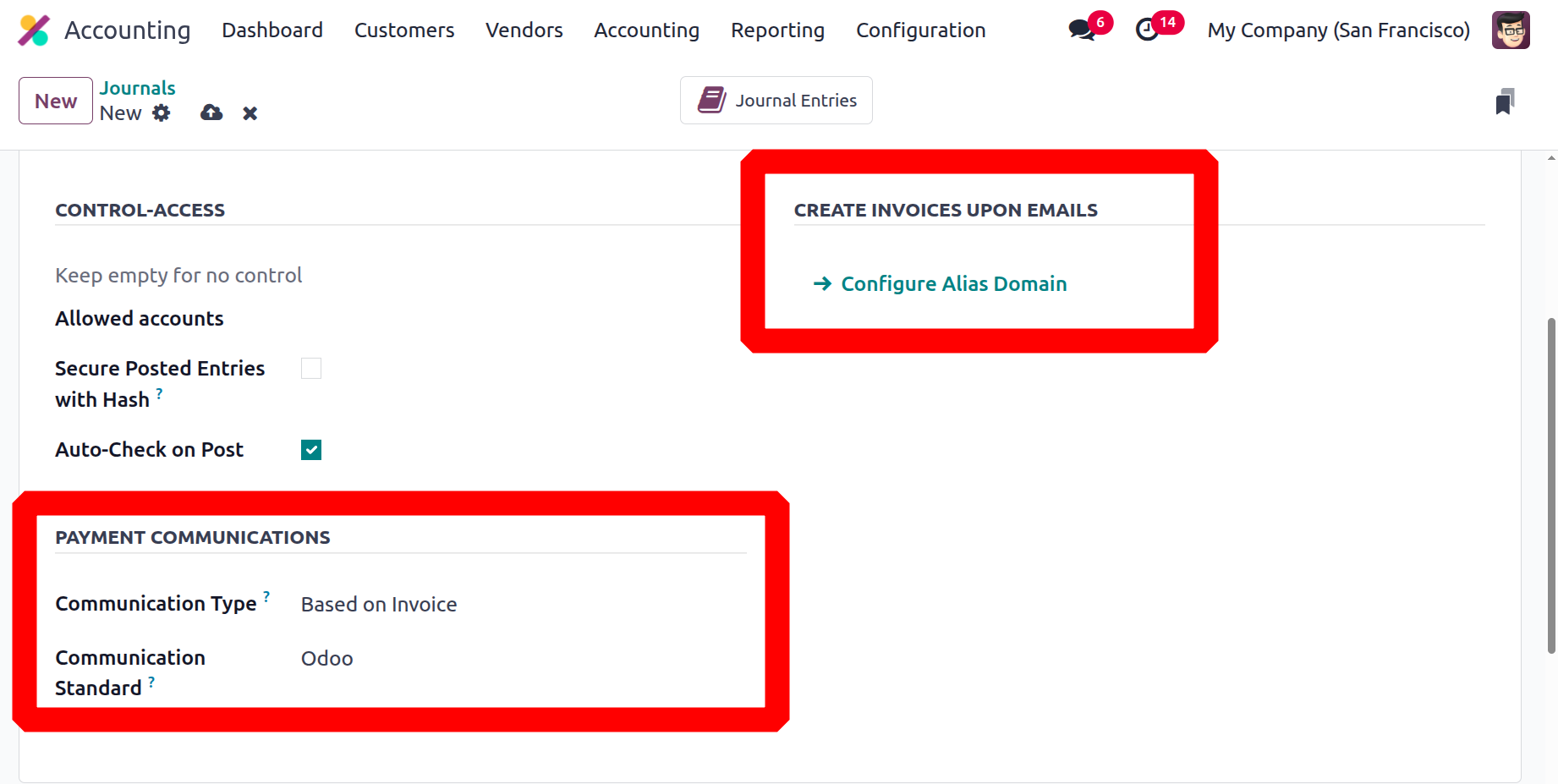
The PAYMENT COMMUNICATION section has the fields for Communication Type and Communication Standard. You can specify the default message that will show up on customers' invoices after they have been validated in the message Type section, which will help them remember to refer to a particular invoice while they are paying. Here, there are three options: Open, Based on Customer, and Based on Invoice. For the Communication Standard field, you can follow the same procedure. This field allows you to choose a different model for each type of reference; the "Odoo reference" is the default choice.
Followers could be other Odoo 18 platform users, such as employees or affiliated members of your company. While the Send Message option is quite useful for informing anyone of any relevant information, the Log Note option lets you document the modifications made by the staff and includes a description of them along with the time and date.
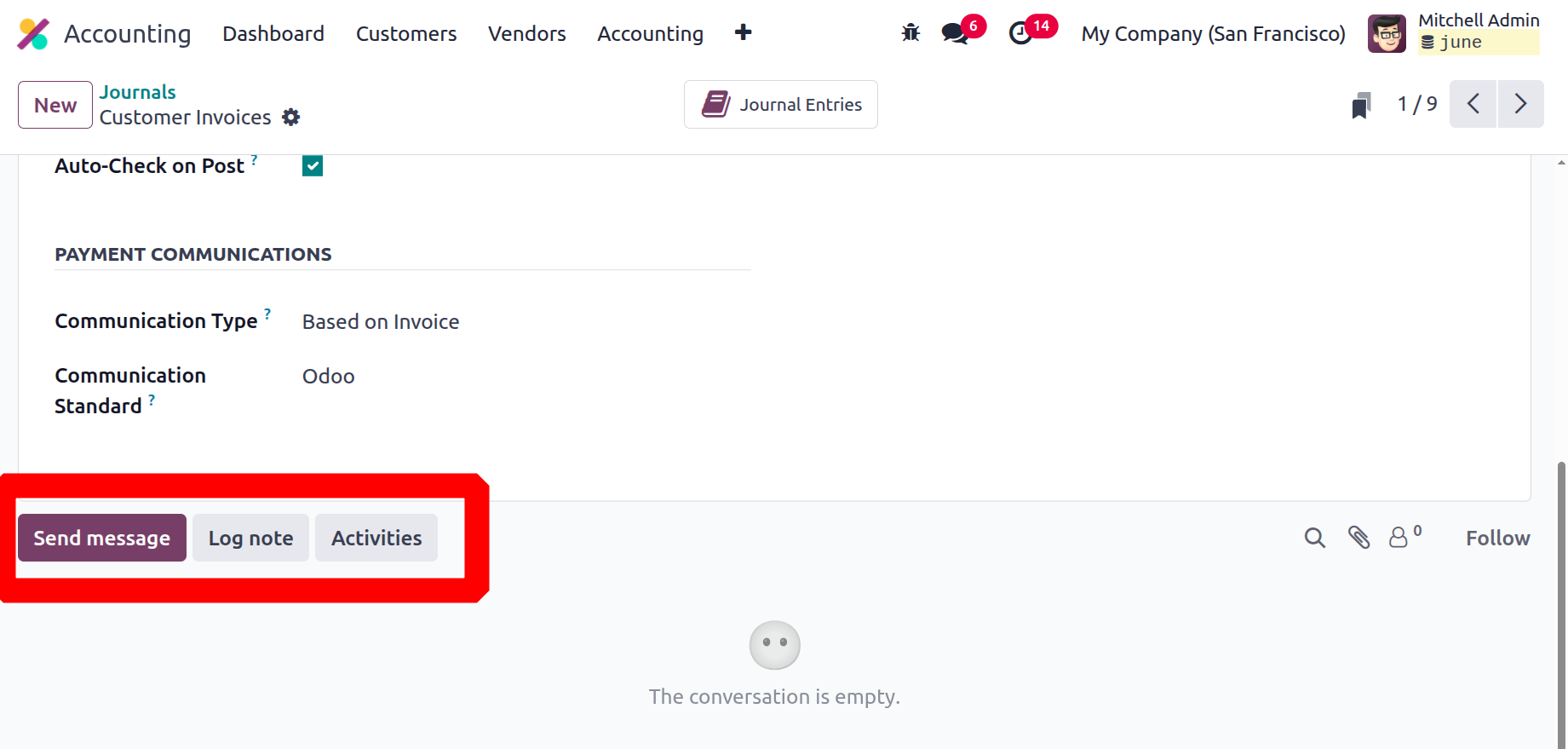
Along with all of these options, the smart tab is also visible in the upper right corner of the window, as shown in the example below. Every entry made in that particular journal will be shown on the 'Journal entries' smart tab.
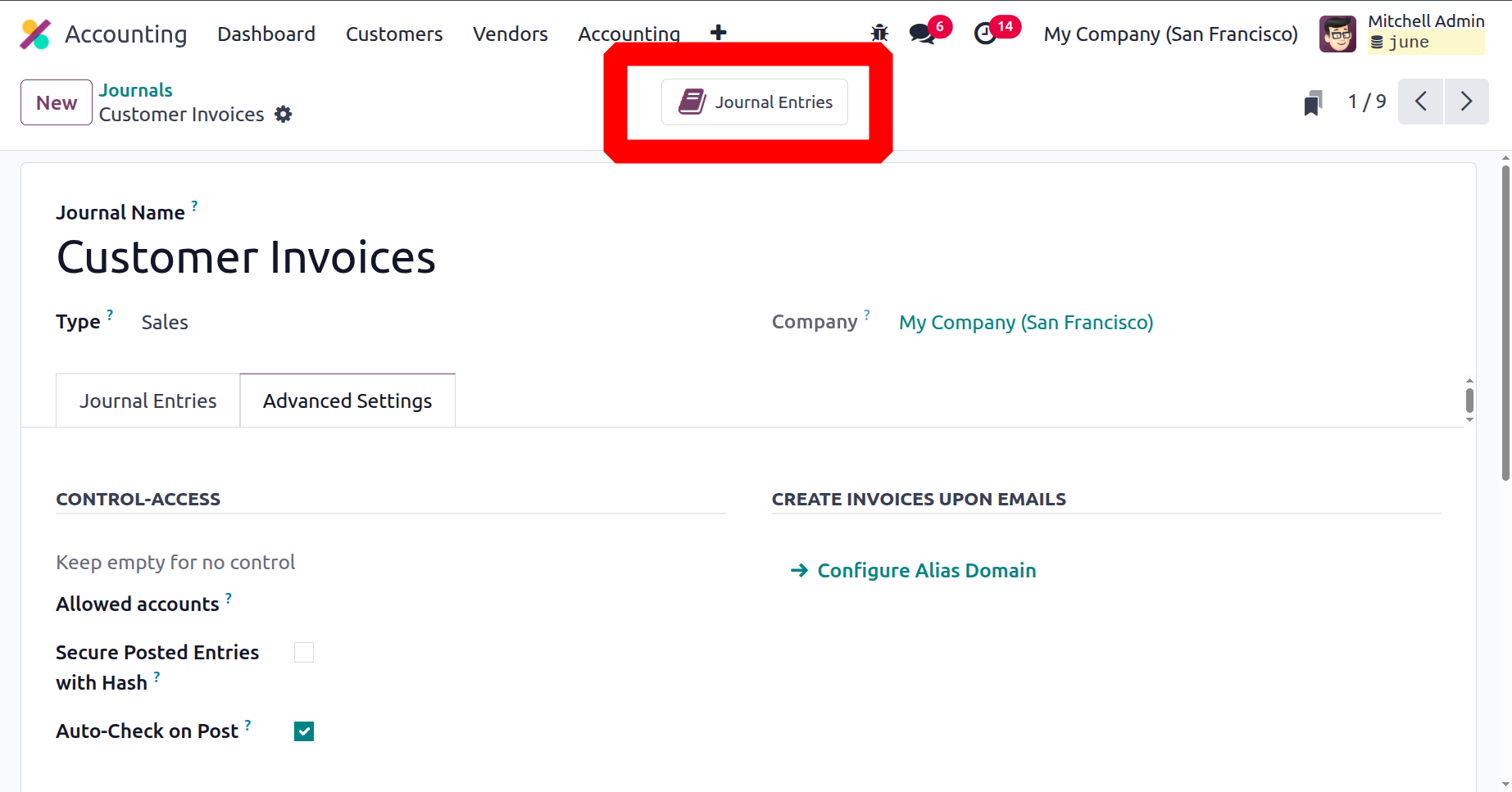
The Sales journal type configuration is now clear to us. The procedures for establishing the Purchase, Sales, and Miscellaneous journals are identical in Odoo18. The setting procedures for the Bank journal are different from those for the Sales, Purchase, and Miscellaneous journal types.
When you select Bank as the Journal Type, the creation window will display the different parts, such as Journal Entries, Incoming Payments, Outgoing Payments, and Advanced Settings.
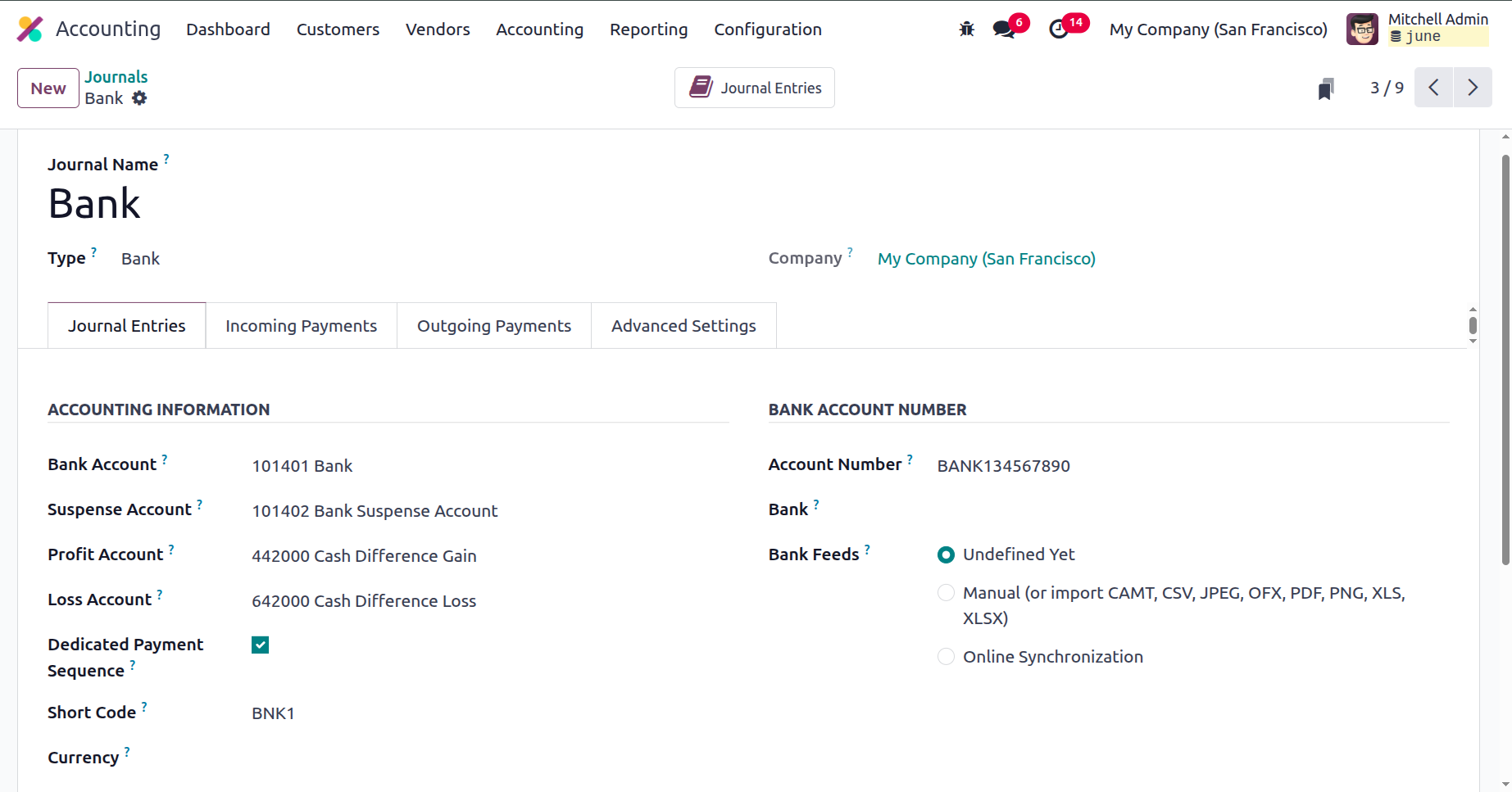
The "Journal Entries" tab requires you to enter information about journal entries. The ACCOUNTING INFORMATION, which includes the Bank Account, Suspense Account, Profit Account, Loss Account, Short Code, and Currency information, can then be provided. The Suspense Account is used to post bank statement transactions until the bank account is balanced with the payments, and it acts as a temporary account until the bank statement transactions for each journal activity are reconciled.
When the cash register's final balance differs from the system's calculation, a profit is also recorded in the profit account. It is beneficial to record a loss in the loss account when the closing balance of the cash register is different from the amount determined by the computer. This section also displays the Dedicated Payment Sequence activation option.
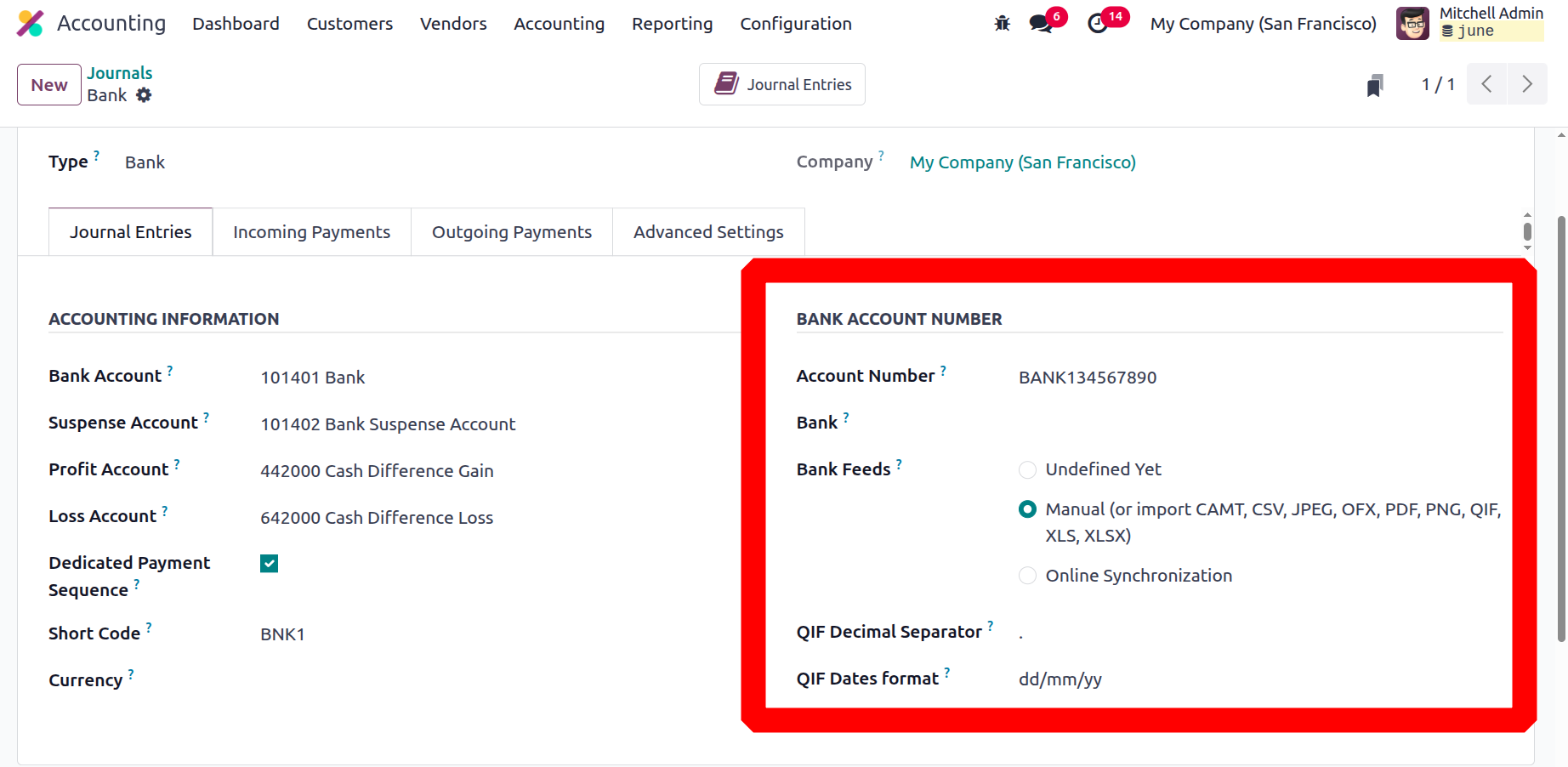
The Account Number can also be entered in the relevant area in the 'BANK ACCOUNT NUMBER' section. Furthermore, you can choose which Bank Feeds to use, and the registration of bank statements will be done in line with your selection. Here, you have three choices: Import (CAMT, CODA, CSV, OFX, QIF), Automated Bank Synchronisation, and Undefined Yet. Additional fields will appear when you choose the Import option. These include the QIF Decimal Separator, which is required to avoid conversion issues, and the QIF Dates format, where you can choose between dd/mm/yy and mm/dd/yy, depending on the firm. To divide group payments for CODA files, activate the third field, Split Transactions. The Import option allows you to import data from the dashboard.
By choosing Automated Bank Synchronisation, the Odoo 18 platform may be made available for directly receiving the invoice payment details from the bank servers. Additionally, you will be in charge of using the Dashboard to review the synchronised operations.
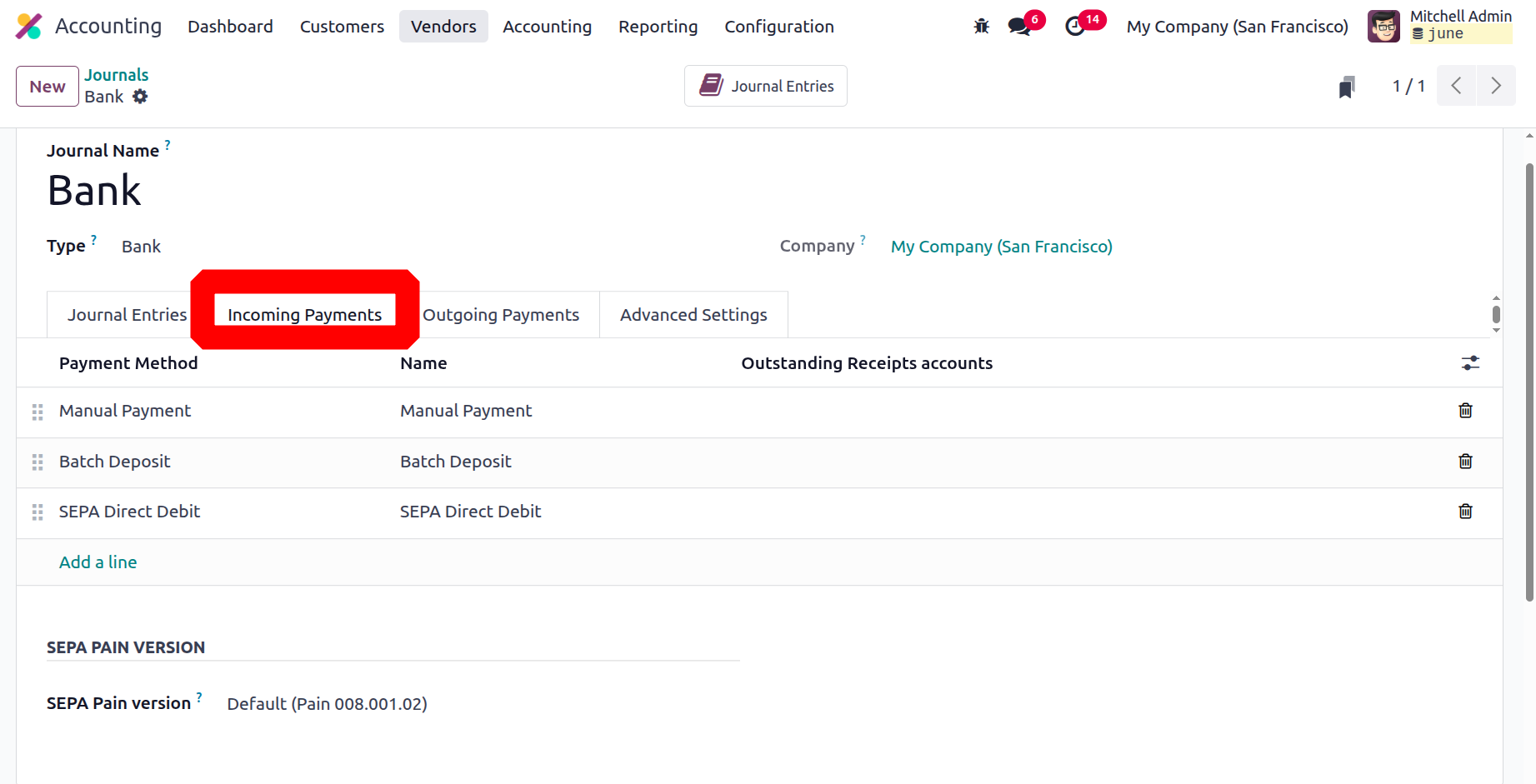
The Incoming Payments tab now allows you to configure the incoming payment setup information. Thus, you can use the Add a line option to provide the Name and Payment Method.
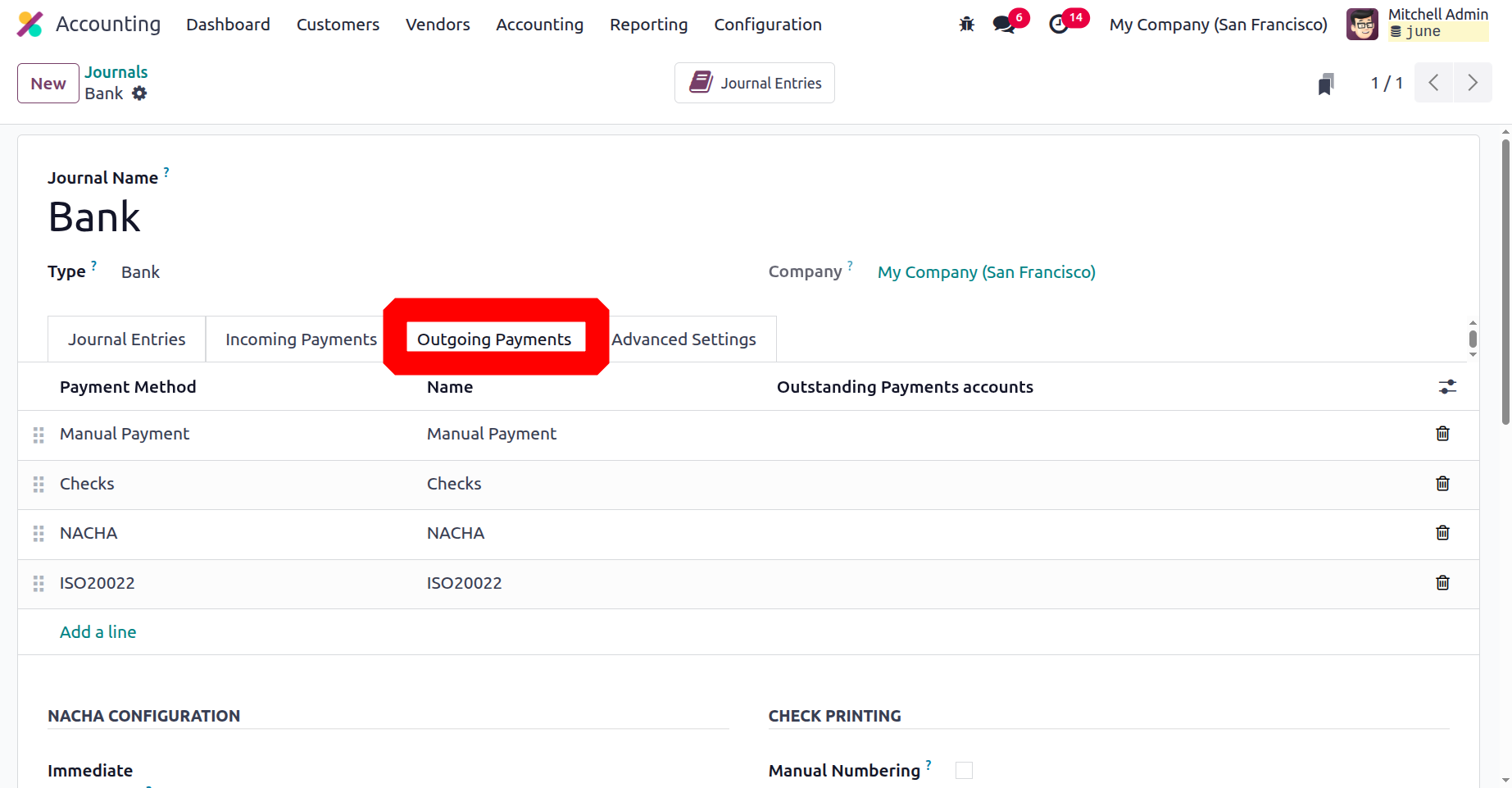
The Outgoing Payments page is where you must configure the outgoing payment methods. Since it is nearly identical to the Incoming Payments option, the 'Name' and 'Payment Method' can be specified using the Add a Line option. From the drop-down menu, you can choose a method and then use it. It won't be difficult to configure if the payment method is new.
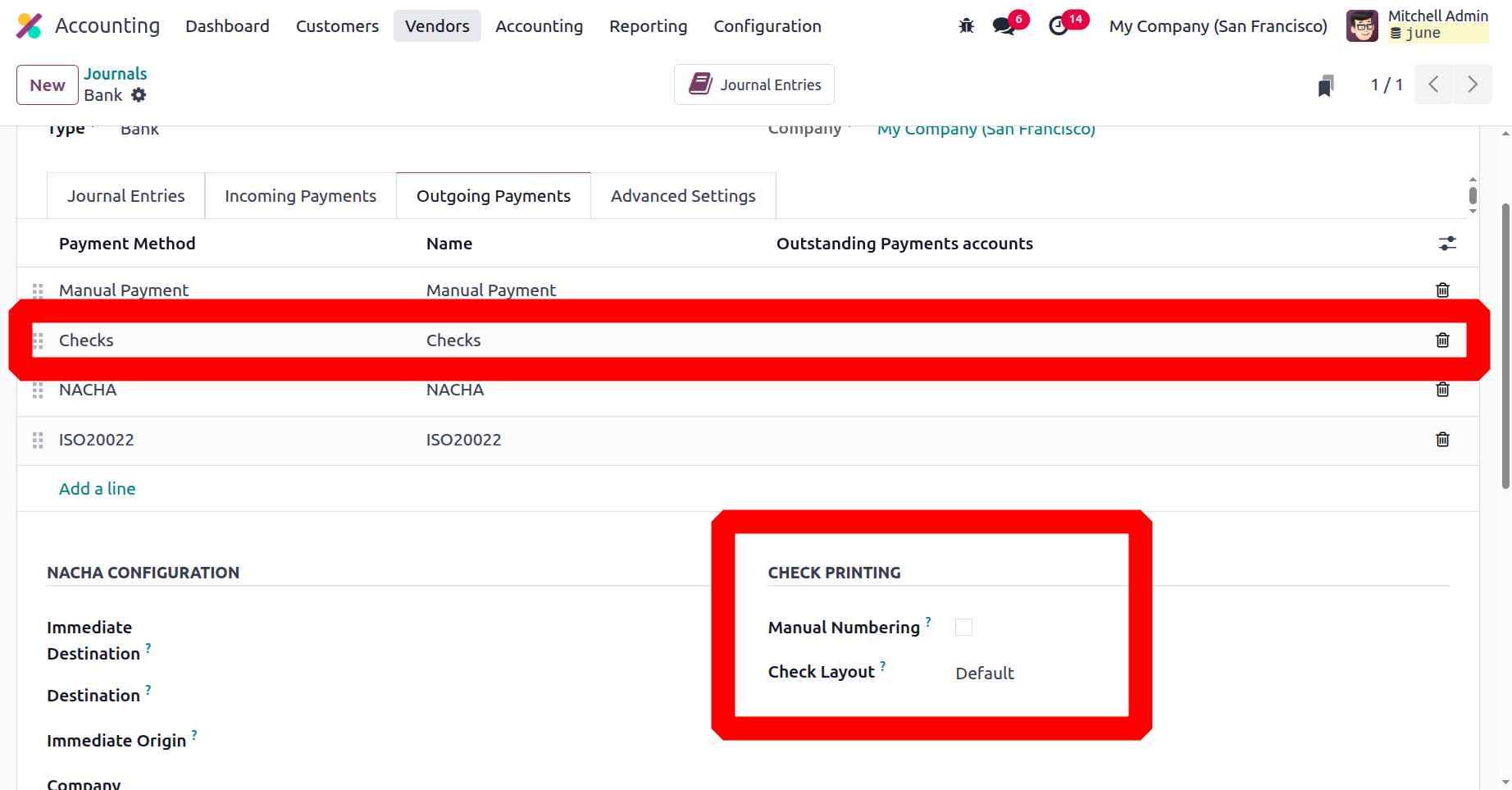
Additionally, you can activate the Manual Numbering field in the CHECK PRINTING section if your pre-printed checks aren't numbered.
There are also several fields available in the NACHA CONFIGURATION, such as Immediate Destination, Destination, Immediate Origin, Company Identification, and Originating DFI Identification. All of these details will be provided by the bank.
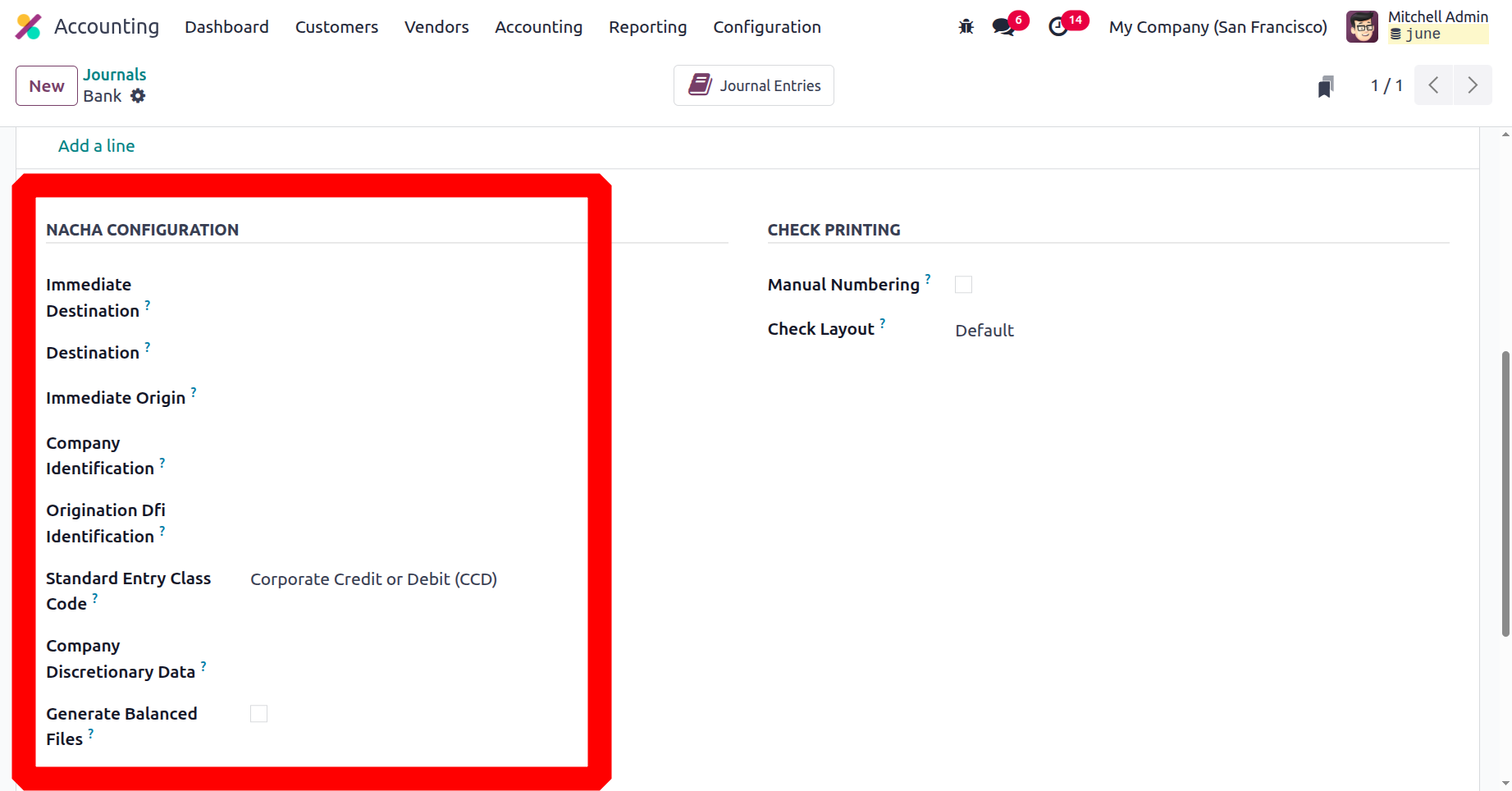
NACHA CONFIGURATION: The National Automated Clearing House Association compliant ACH file, or NACHA for short, will be created with US localisation. Information like the corporate identification, the origination DFI identifier, the immediate destination, and the immediate origin can be given at the right place. You will often be notified by your bank when you are permitted to use ACH to transfer payments. You can pay a vendor and generate the associated NACHA file using this payment mechanism.
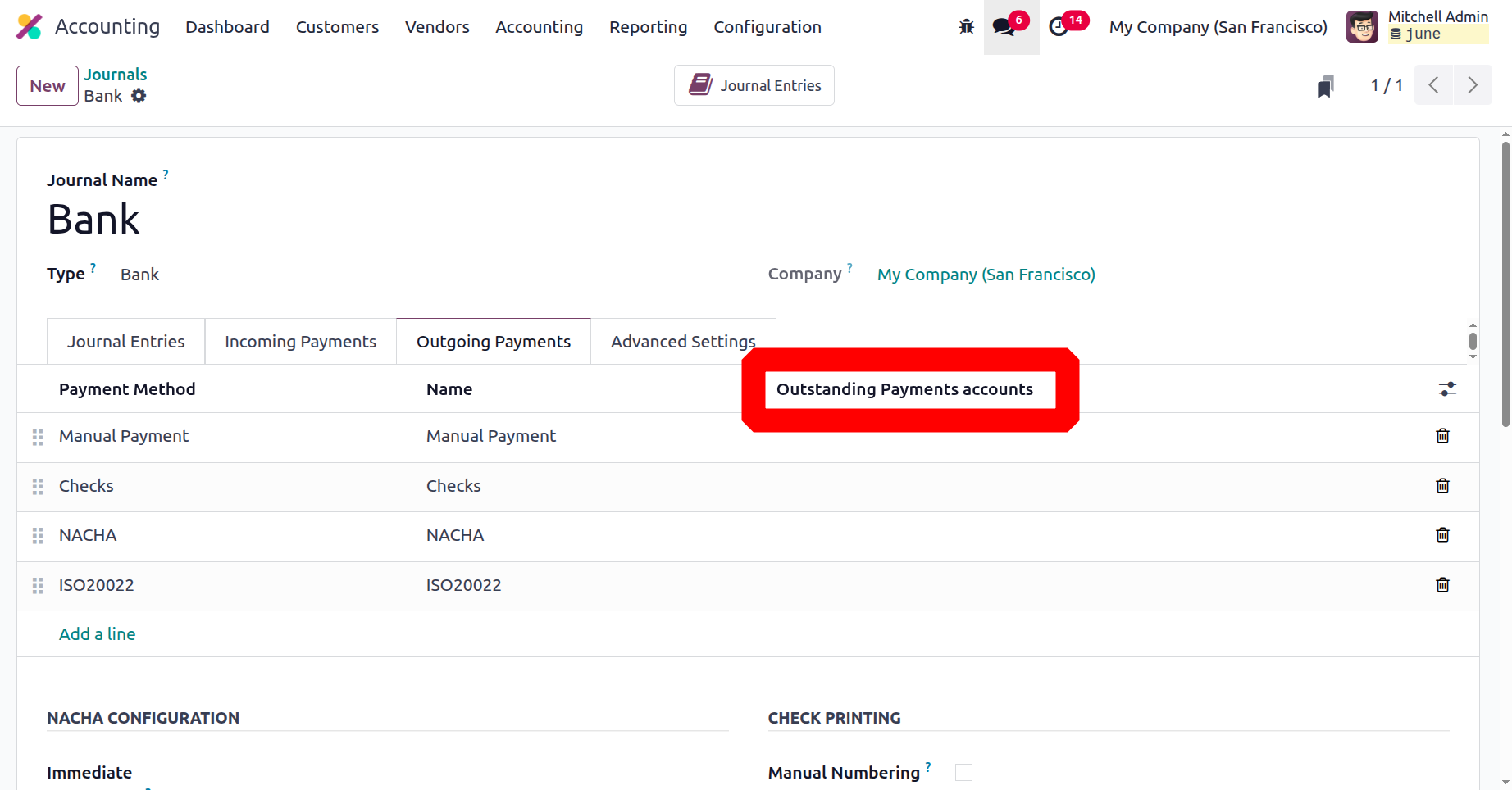
When a customer pays an invoice, the money is deposited into the Outstanding Receipt Account, which is explained here, rather than being immediately credited to the bank account. Only once the bank statement has been reconciled, either automatically or manually, will the money be deposited into the business's bank account. When the bank statement reconciliation process is performed in relation to the vendor bill, the bank will be reconciled with outstanding payment entries rather than the payable account. In the event of a purchase payment, the amount for the vendor bill will also be generated from Accounts Payable and moved to the Outstanding Payments Account.
The last option, Advanced Settings, is the same as the Journals configuration's Sales, Purchase, and Miscellaneous accounts. The account operation data for the Cash and Bank journals can therefore be changed in accordance with the operational requirements.
Journal entries for an organization's financial administration can be created using these appropriate techniques for journal creation and editing. After discussing each element of journal design, we can now look at Currency management.