Accounting Management Actions
This section describes the features of the Odoo platform that assist with accounting and financial management. The Odoo Accounting module offers some noteworthy Action management features in addition to its own tools and features that will help the business's financial administration run more smoothly. You can establish the dates for the financial operations and construct the reconciliation operation with the aid of a variety of activities. The two Accounting Action tools that Odoo offers will be examined now.
Reconcile
With the help of the reconciliation tool, you may align the ledgers and the designated chart of accounts with the accounting and financial management practices of your business with those of a bank account operation. You will undoubtedly benefit from the Reconciliation option in all Finance Management operations pertaining to purchases, sales, and other business procedures. The Reconciliation window will open after you select the option, which can be accessed from the Accounting tab of the Accounting module's Actions tab, as seen in the illustration below.
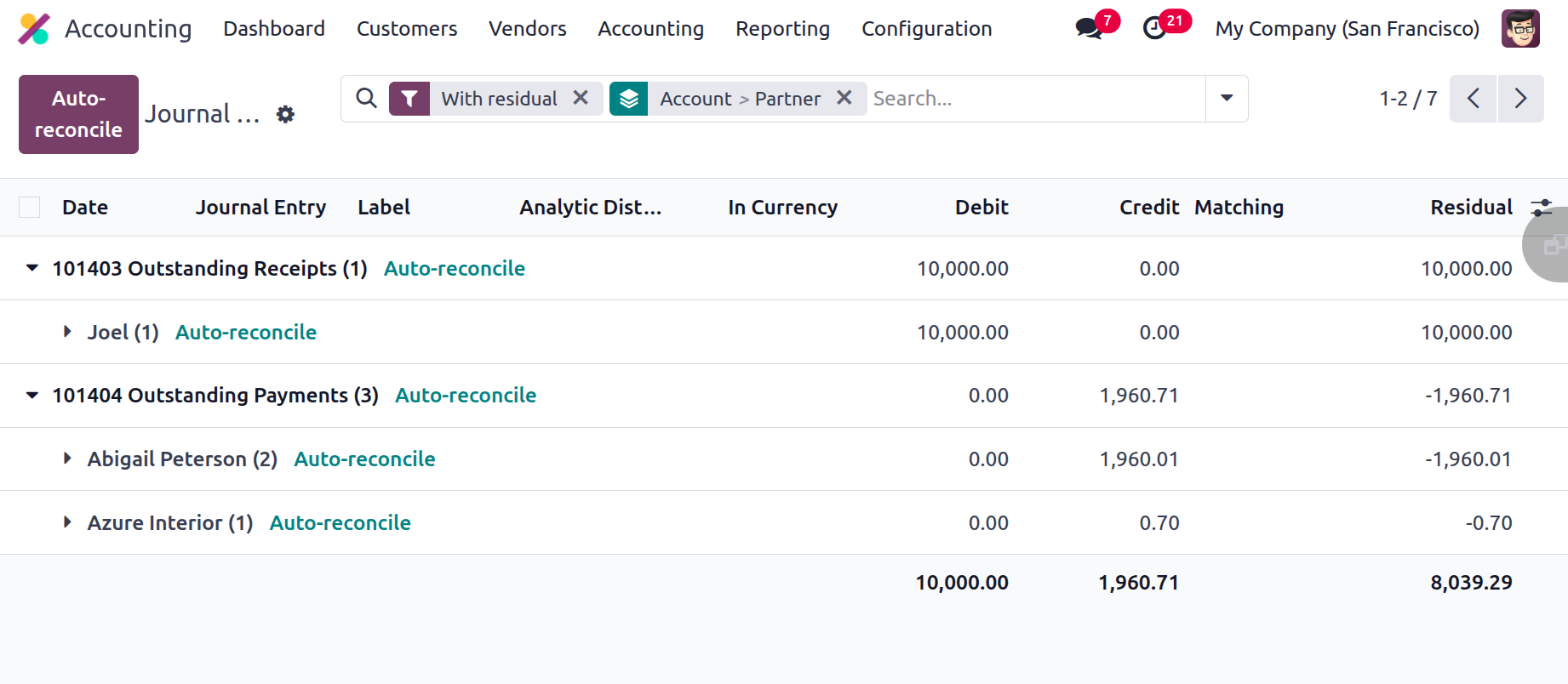
This section will include the company's operating Chart of Accounts and all payment-related information. The amount involved and each Chart of Accounts invoice will be available for selection.
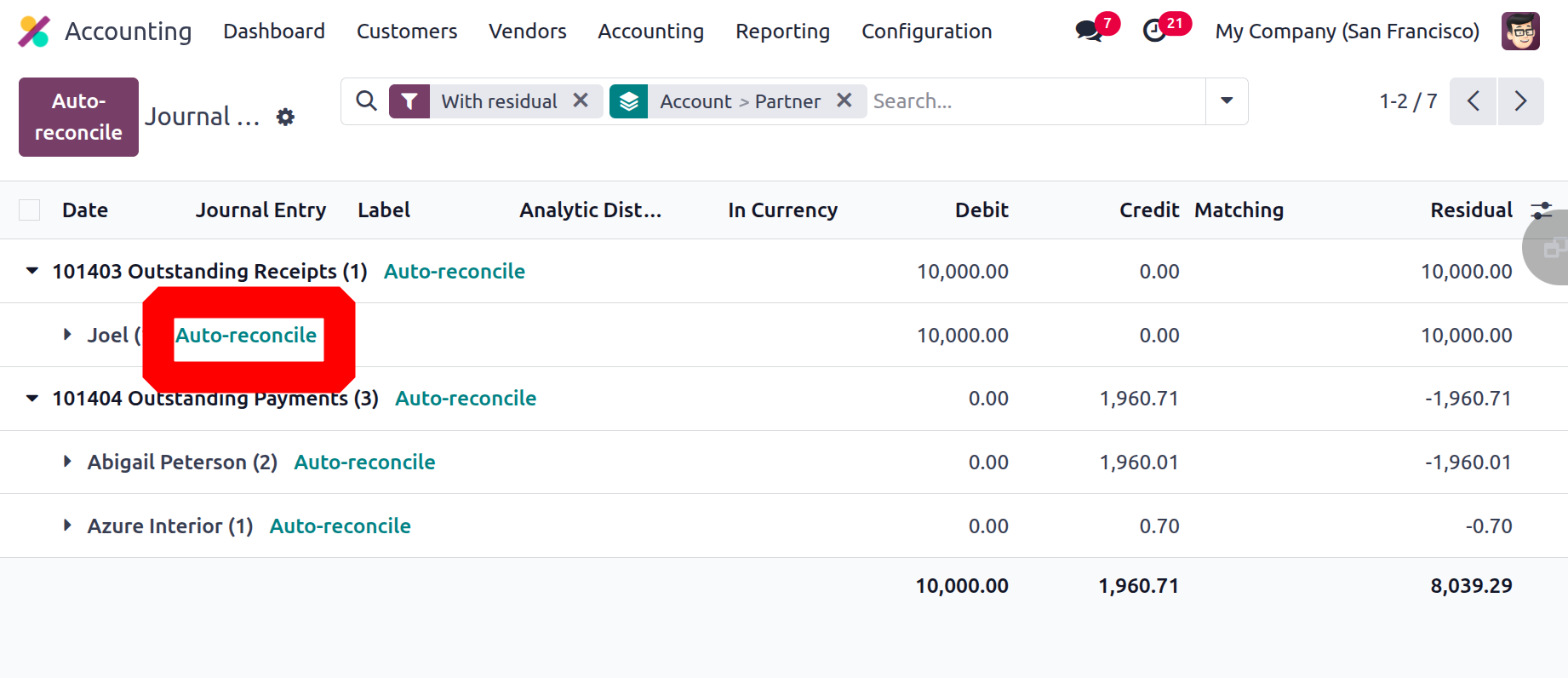
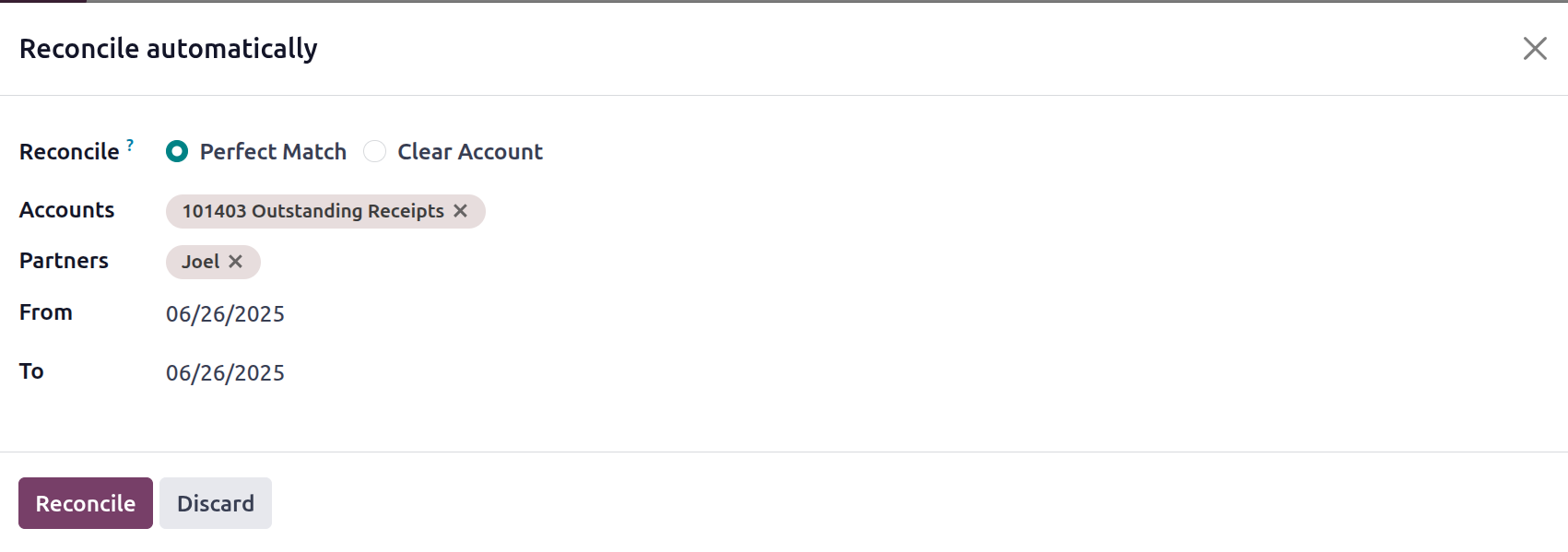
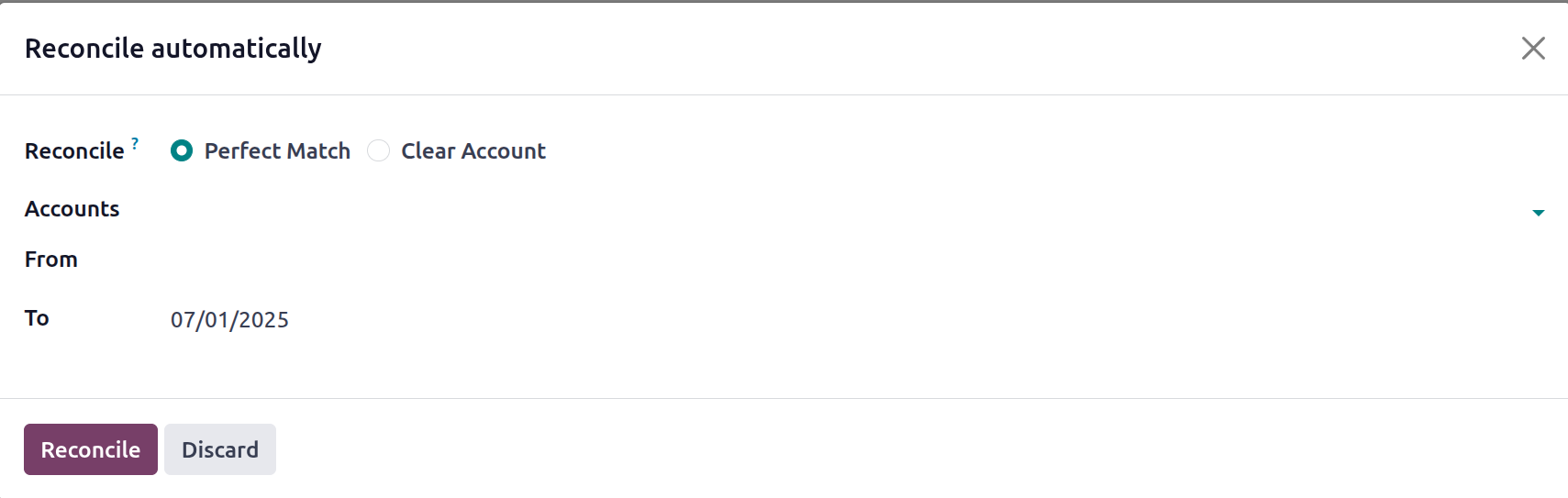
Selecting the Auto Reconcile option in each account will open a new window containing the entries that require automated reconciliation. Once the window with the dates from and to opens, choose the search mode from within the Reconcile field. The Partners and Accounts can then be chosen. Click the Reconcile button to reconcile the entries.
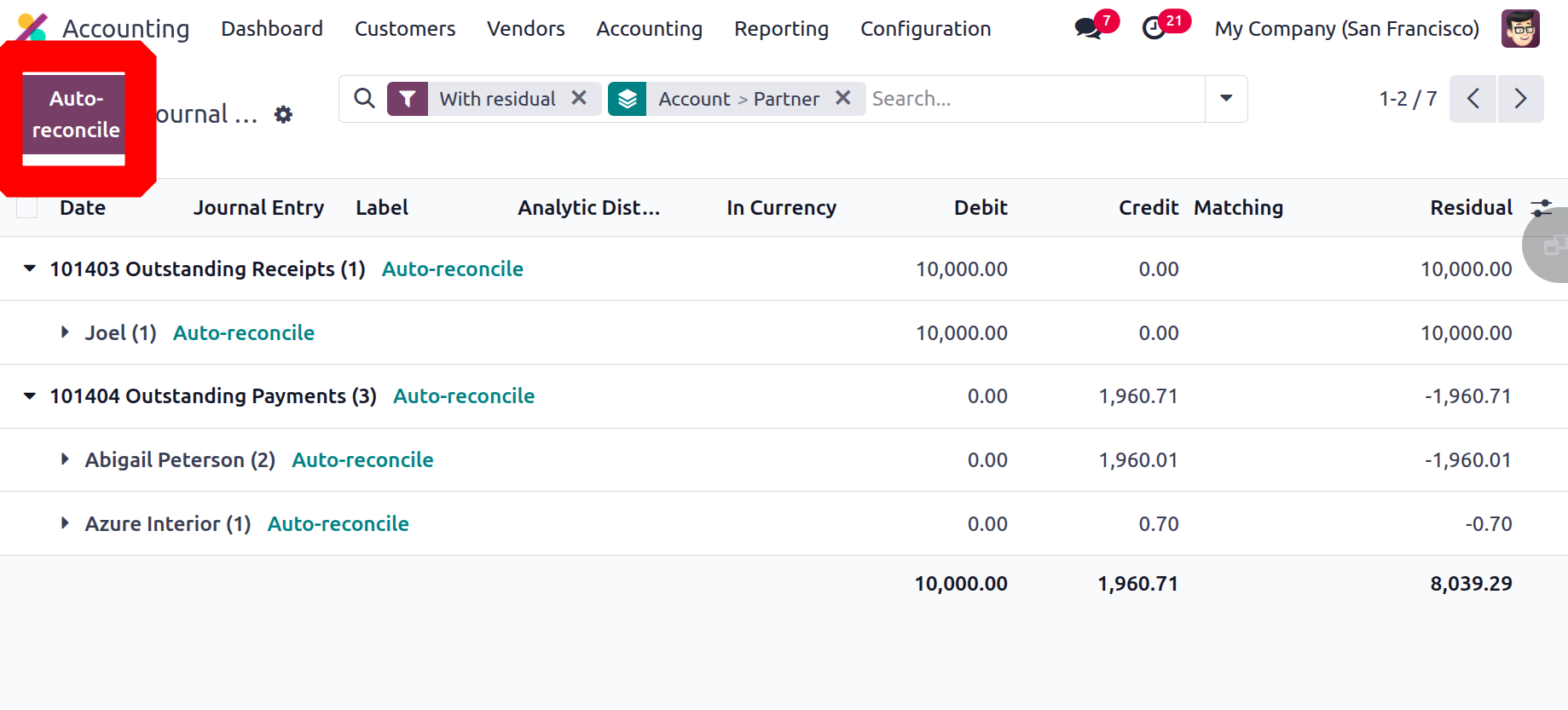
Additionally, there is an Auto-reconcile button in the top left corner of the screen, as seen in the image below. That allows the users to reconcile the entries fast.
Choose the accounts with zero balances or the opposite balances one at a time to reconcile after adding the from and to dates. Accounts should be included. Press the Reconcile button after that.
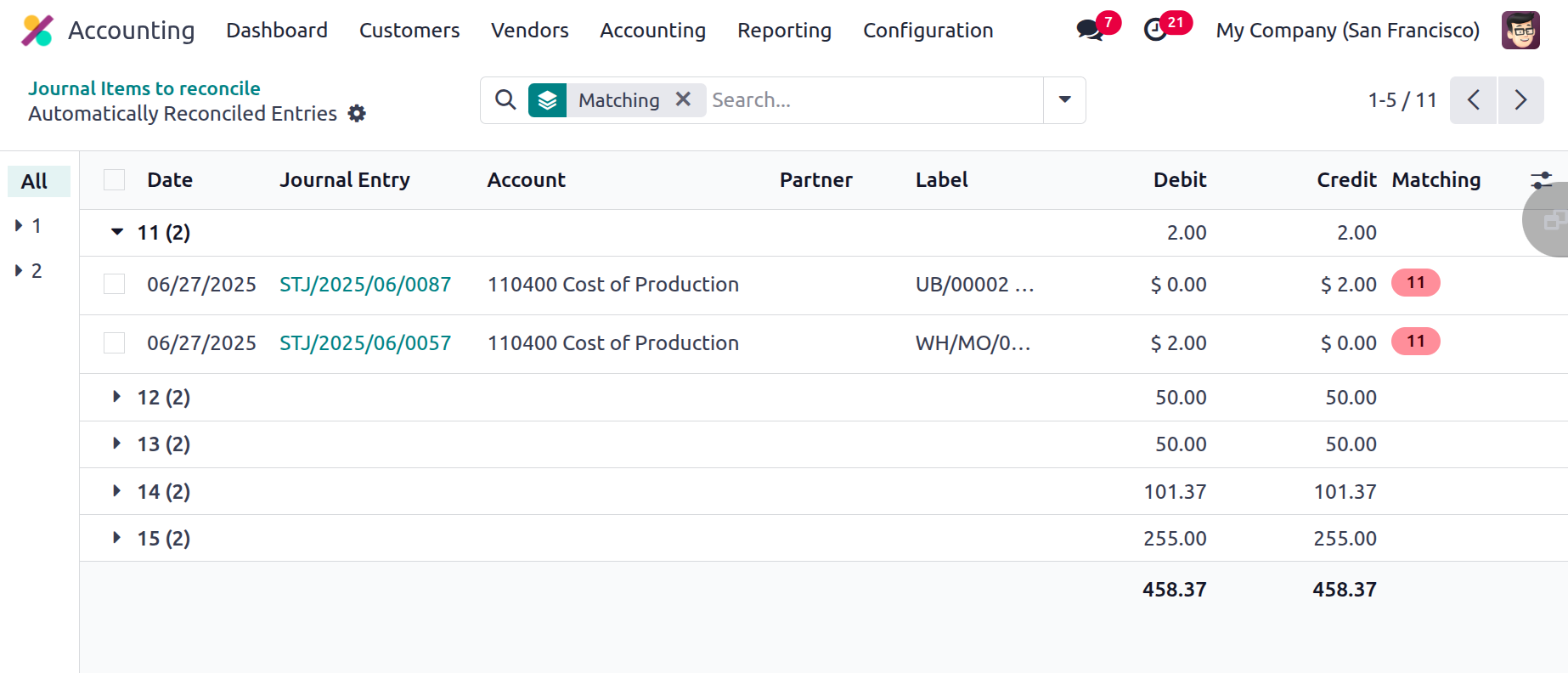
There, the automatically reconciled entries are shown.
The Chart of Accounts' Reconciliation menu is displayed in the screenshot below. This section defines the Code of Account, Account Name, Type, Group, and Account Currency. Furthermore, the associated Chart of Accounts can be reconciled using the available reconciling alternatives.
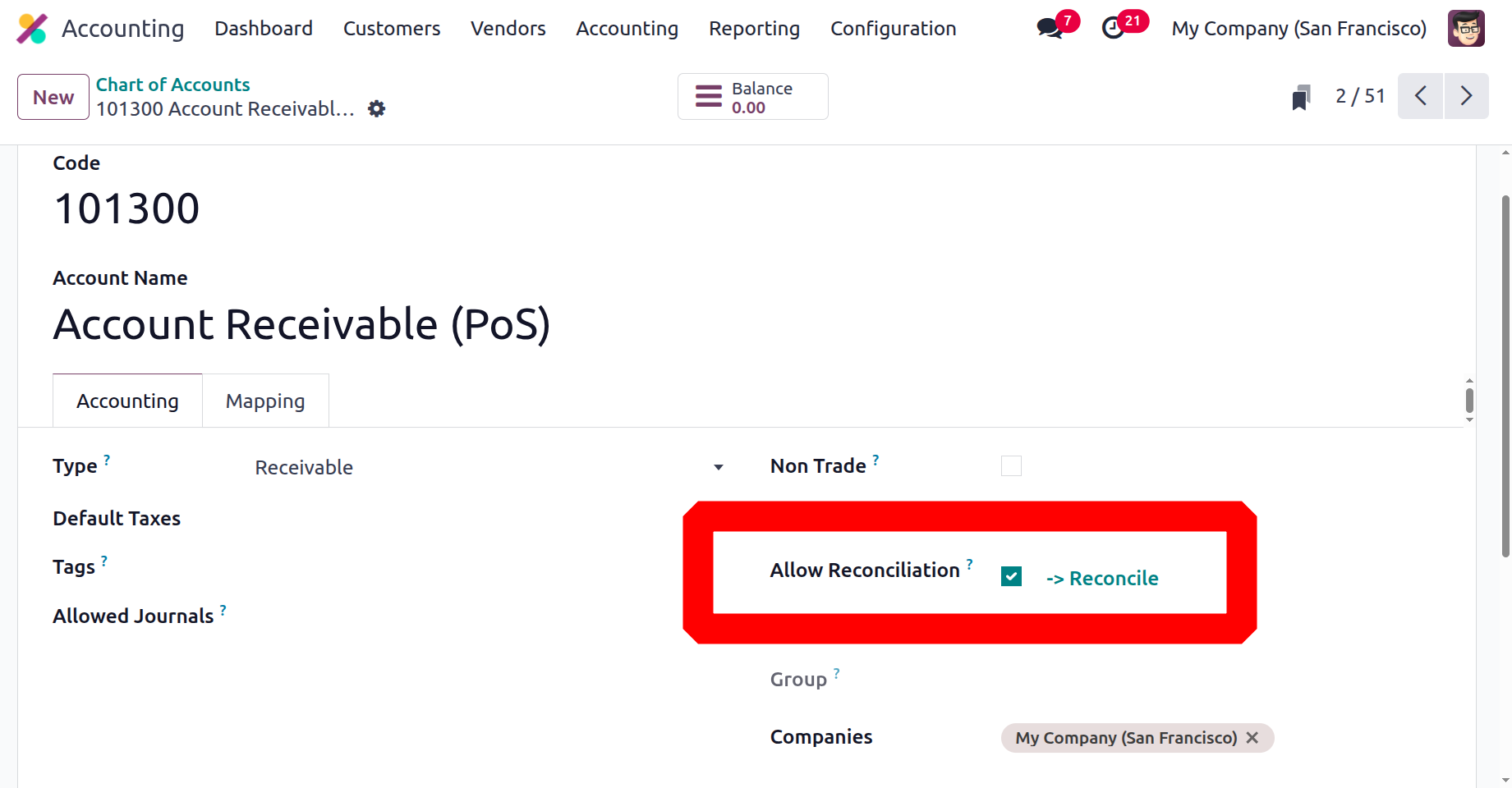
A helpful action tool for defining the financial operations pertinent to each Chart of Accounts that a company has set up to run efficiently is the Reconciliation menu in Odoo 18 Accounting. After discussing the Odoo Accounting Action tools' Reconciliation menu, let's proceed to the Lock Dates menu in the following part.
Lock Dates
You can set up the activities of the Fiscal Periods of operation for the business operations by using Odoo Accounting's Lock Dates feature. Management of the organisation will benefit from this capacity since they may need to change the Fiscal Periods in response to their needs. The Accounting module's Actions tab contains the Lock Dates option. A pop-up window will appear when you select the menu, as shown in the image below. Depending on your demands, you can lock your fiscal period here.
You must first select a date from the calendar that displays after selecting a drop-down option in order to establish the Lock Sales, Lock Purchase, Lock Tax Return, Lock Everything, and Hard Lock.
Users in the following categories have different levels of access inside the Odoo Accounting module: Invoicing, Read-only, Invoicing & Banks, Bookkeeper, and Administrator. Each of them is able to use the Accounting module in accordance with their own permissions. Likewise, until the Lock Date is set for every user, no one can update the papers. Lock dates are frequently set to prevent users from making changes after the fiscal year ends or during the company's financial operations auditing period.
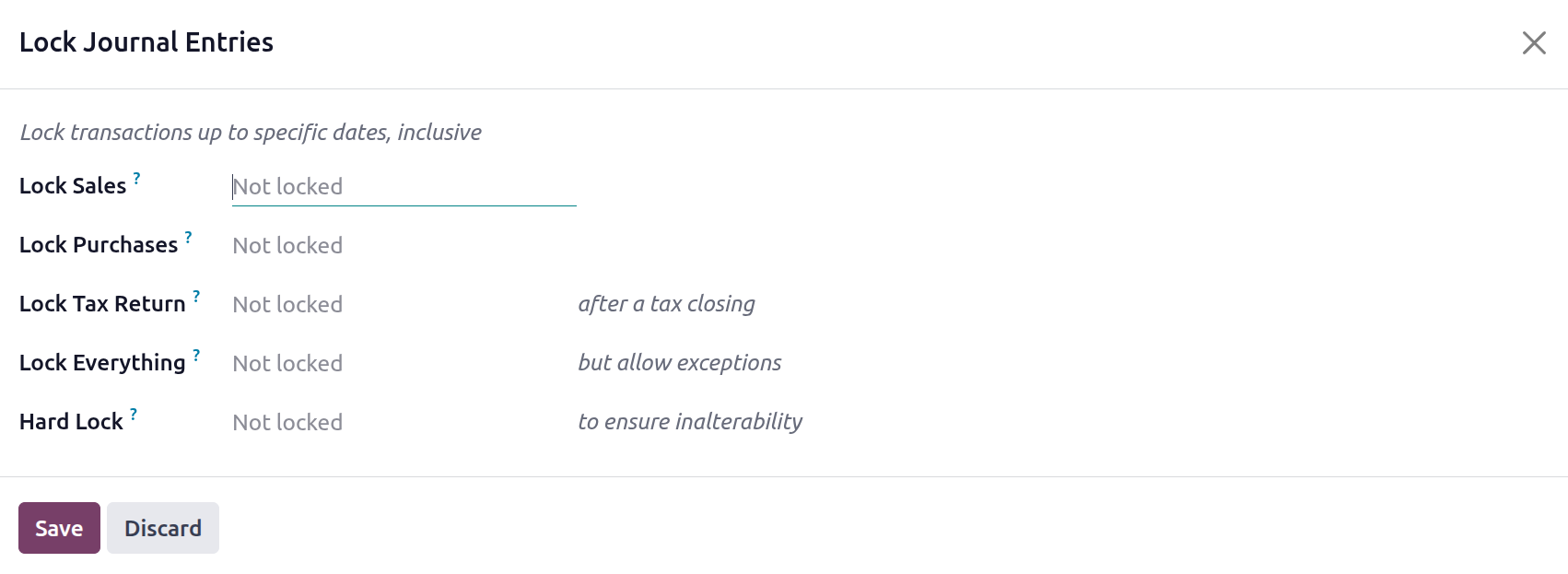
- Lock Sales:According to its journal's sequence, any sales entry made before and including this date would be delayed.
- Lock Purchases: According to its journal's sequence, every purchase entry made before and including this date would be delayed.
- Lock Tax Return: According to the journal's sequence, any entry taxes due up until and including that date will be delayed. When the tax closing entry is posted, the tax lock date is immediately established.
- Lock Everything: According to its journal's sequence, any entries made up until and including that date would be delayed. There are certain exclusions, including a reversible lock date.
- Hard Lock: According to the journal's sequence, any entry taxes due up until and including that date will be delayed. There are no exceptions to this lock date, which is final.
Lastly, you need to choose the Save option if dates are being defined. If you have the necessary authority, you can also discard the lock dates at any time.
Additionally, as seen in the image below, the Odoo Warning box will appear as a pop-up in your direction if there are specified Unposted entries in the pertinent Fiscal Period. Alerts are automatically created since the Odoo platform is made to support the business's financial management processes. Conversely, unposted entries ought to be specified prior to the conclusion of a fiscal quarter. You can choose Show Unposted Entries or Cancel to stop the Lock Dates posting from going live.
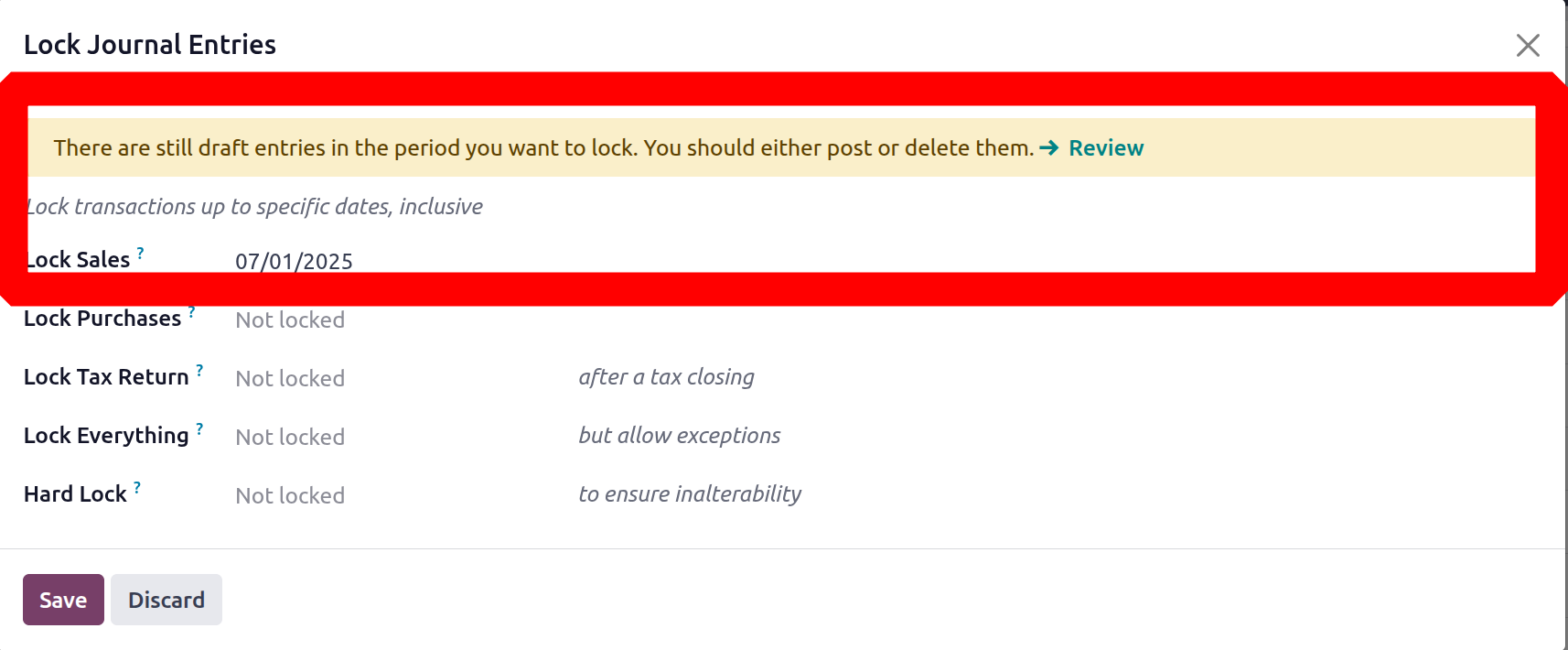
If you choose "Review," a menu will appear with all of the unposted entries related to the fiscal quarter's financial operations.
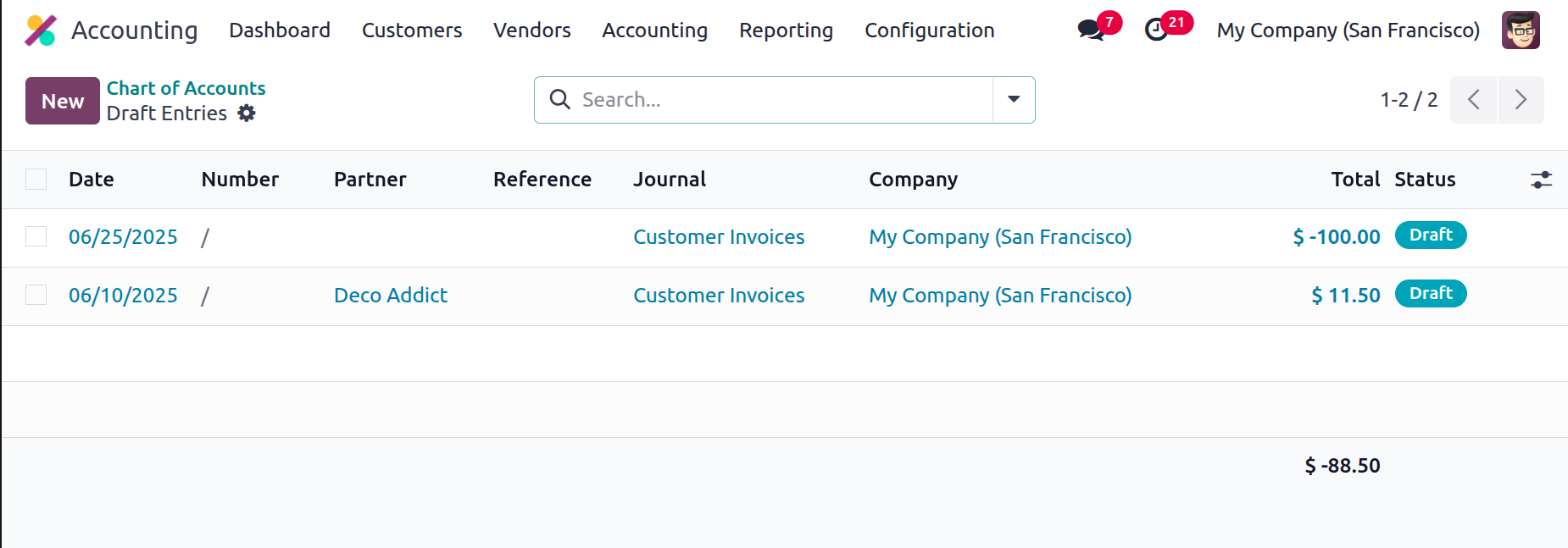
As with all other Odoo platform menus, there will be choices to filter and group by, which will help us locate the pertinent Unposted Entries from the menu under description. Let's move on to the next section, which covers Accounting Ledgers, now that we have a better understanding of how the Accounting Action tools in the Odoo Accounting module work.
Secure entries
To maintain data integrity and compliance, Odoo 18 Accounting's Secure Journal Entries feature forbids users from editing published journal entries. By locking entries after posting and preventing unauthorized users from making adjustments through reversal or adjustment inputs, it improves financial security once enabled.

Once a secure entry has been made on a particular date, all journal entries till that day will be locked and immutable. To rectify the issues with the secured entries, a reverse entry is required, and later, the correct accounting entry. But it is allowed to create new accounting entries on that date. If any entries have been created before the secure entry date, the secure date automatically moves to that prior date.
In conclusion, you can easily use the accounting management features in the Odoo Accounting module to complete a range of finance management duties related to any department inside the business. Additionally, additional regulatory functions are offered by accounting management solutions. The reporting features of the Odoo Accounting module will be covered in the upcoming chapter.