Accounting Module Dashboard
Working in a modular fashion, Odoo has a dedicated Accounting module that allows you to handle the company's finances with a wide range of menus and options. We will continue to understand the dashboard of the Odoo 18 accounting module, where users will be led when visiting the Accounting module, because the configuration components were described in the previous chapter. You may obtain comprehensive information about the numerous functional characteristics of the different functions with the Odoo 18 accounting module's well-defined dashboard.
Understanding the Accounting Module Dashboard in Detail
The Dashboard of the Accounting module provides you with a summary of the financial operations that are conducted within the company using Odoo accounting. Additionally, you can see how operations are carried out and what happens to the financial components of each tab by using the various tabs. When you initially access the dashboard, you will see data that has been filtered according to the configuration that was established during platform construction. You can also take out the filter if you need to. A variety of custom filters, some of which are preconfigured, are also available for you to add to the panel.
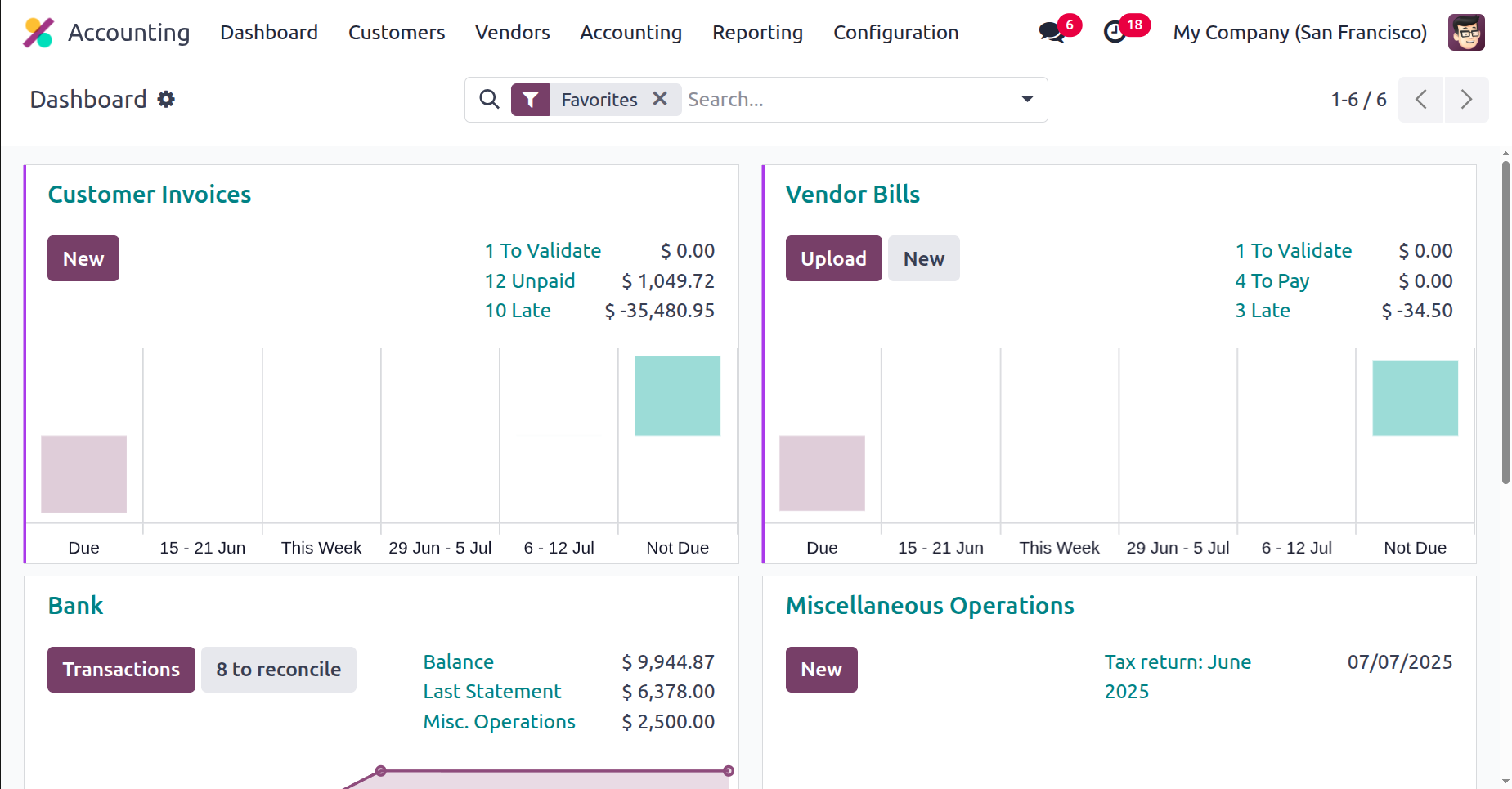
Using the Dashboard's Group By option, you can modify the data in the menu to suit your functional requirements. A table that shows the arrangement of the accounting module and the ensuing financial operations of the business will also be visible to you. Information regarding the proper organisation of all financial management-related tasks can be obtained from there. The following image displays the accounting module's dashboard with the configuration description pane.
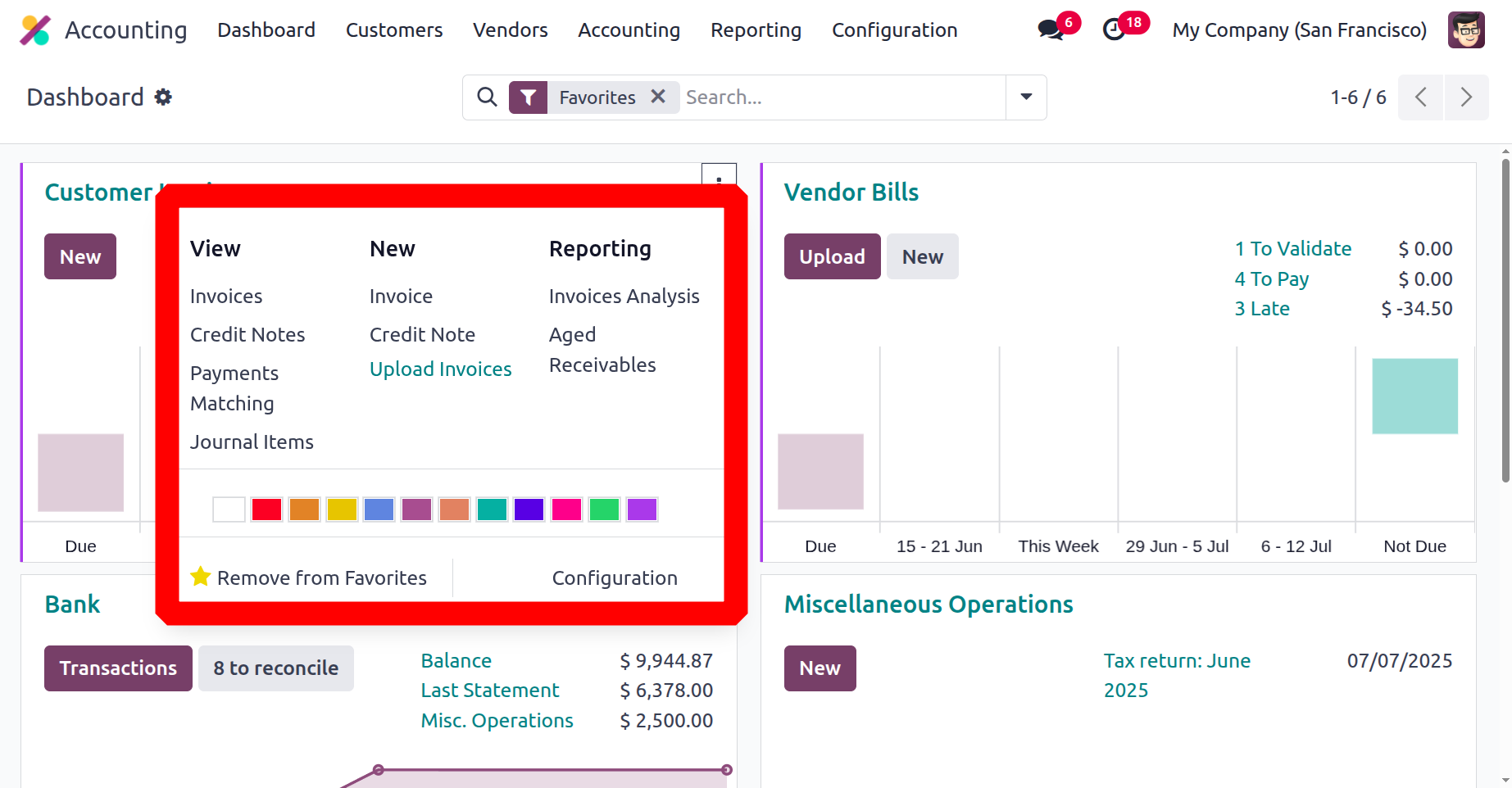
Additionally, each of the designated tabs has shortcuts to its corresponding menu. Additionally, depending on how each tab functions, distinct configuration options have been created beneath each tab. If there are a lot of tabs, you can clearly categorise them thanks to the colour configuration options that allow you to create different colour coordination for each tab.
You can remove the associated tab from favourites if you wish to remove it from the Dashboard of the accounting module. Additionally, you may generate new documents, obtain reports for documents in each journal, and view pertinent documents for each journal, including bills, invoices, and credit or debit items, from the overview. Additionally, this tab contains a settings option that will direct you to the settings menu. You often need to configure the journals for the tab you are configuring, and each tab has its own configuration settings.
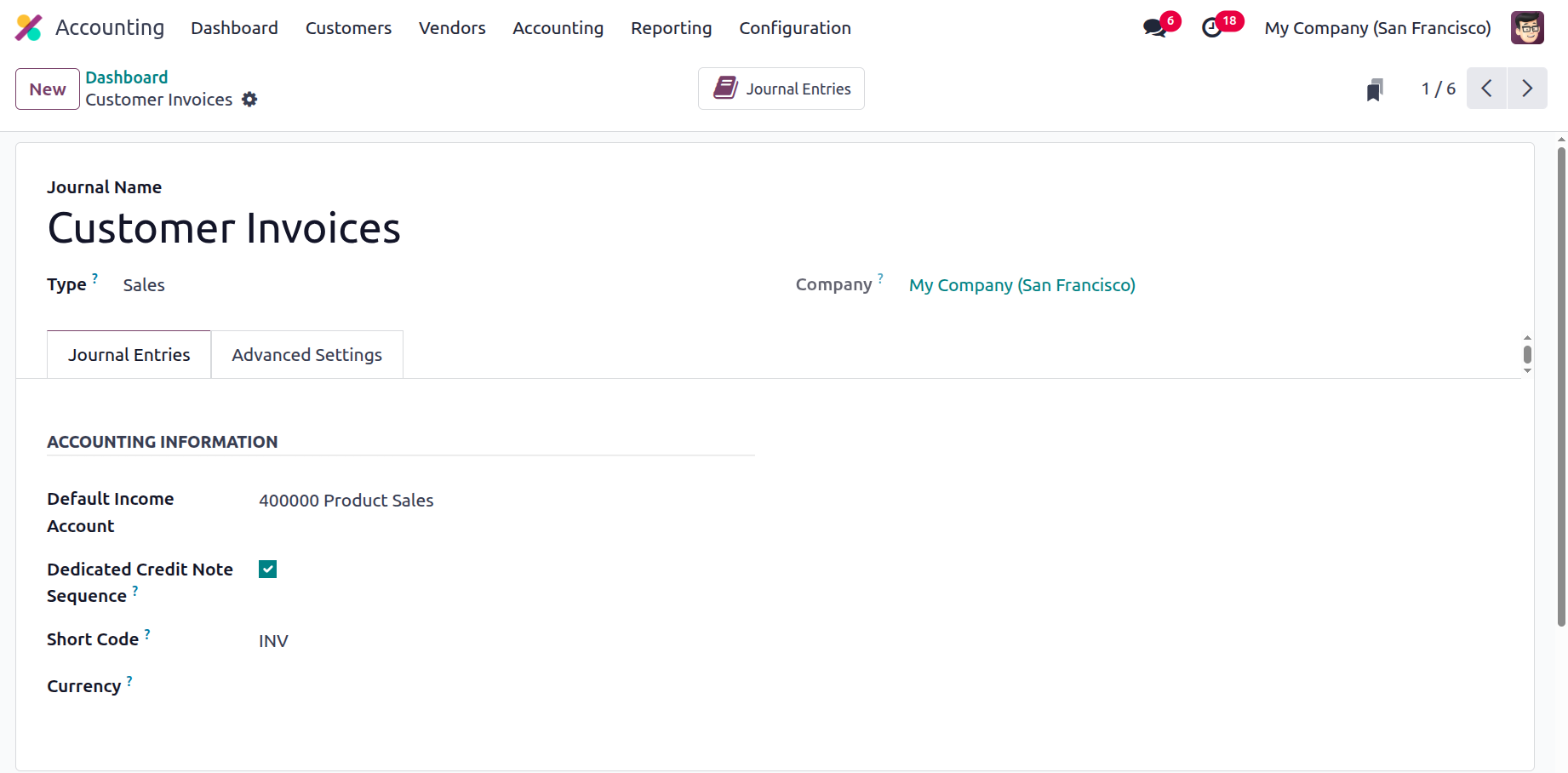
For instance, the accompanying screenshot displays the Settings menu for the Customer Invoices tab, which is now chosen. Visit this page to find out more about each journal, including its types. Additionally, details about the journal entry settings, such as the short code, currency information, Dedicated Credit Note Sequence, and Default Income Account, are provided. You can modify all of the necessary journal data by choosing the Edit option in the settings window.
Furthermore, you may modify the Advanced Settings of the designated Journal, which lets you change menu items like Control Access details like Allowed Account Types and Allowed Accounts, and enable or deactivate the Auto-Check on Post function. By mentioning permitted accounts, you can only make journal entries to those specific accounts. Additionally, Odoo limits alteration of the posted entries by turning on the Lock Posted Entries option. By using the Configure Email Servers option, you can also add the email servers from which accounting emails are sent.
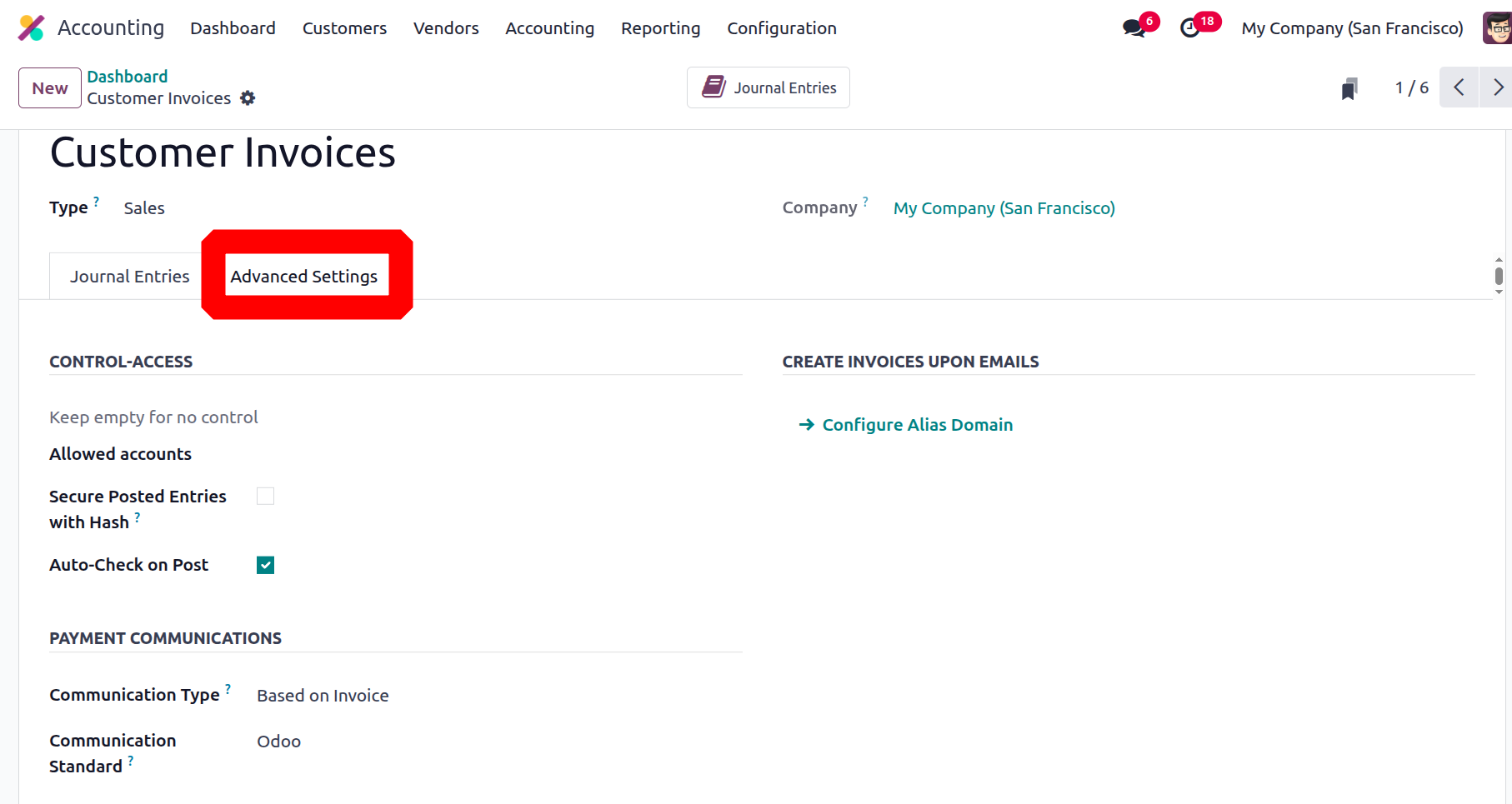
Additionally, it is possible to modify Payment Communication options, including Communication Type and Communication Standard. Which form of communication appropriate for paying the invoice is indicated by the communication type. It can be Open, Based on Invoice or Based on Customer.