Fiscal Position
The Fiscal Position section of the Odoo 18 Accounting module lays out the tax laws that may be applied to a client, vendor, or item. You can allocate clients to different tax laws based on their country, state, and other criteria. This makes it easier to manage the different tax regulations in different countries. Businesses that sell products or services to customers overseas can benefit from this. This is quite beneficial since it makes it easy to comply with the tax regulations of many different countries. This feature allows you to set up tax laws differently based on the region or kind of product the customer bought. For certain customers or products, it can be used to set different tax rates. The best option for a business's worldwide financial administration is this account management company. This tool allows for the automatic adjustment of the bank accounts and taxes associated with the transactions.
Fiscal Positions is a menu that can be accessible in the Odoo18 Accounting software's Accounting section of the Configuration tab.
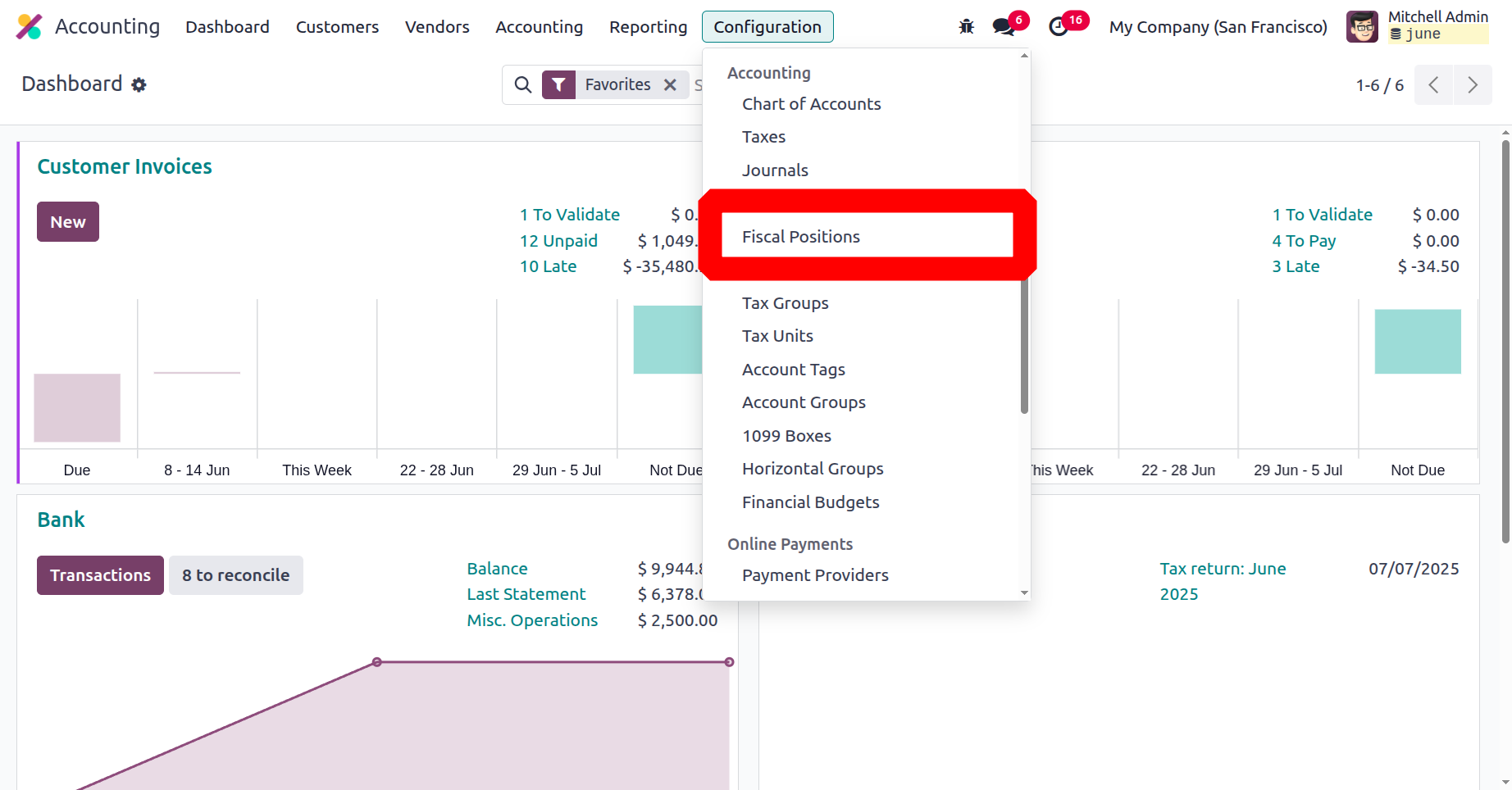
Using the Fiscal Positions menu as its key, you can control every fiscal position entry in the Fiscal Positions window. As seen in the picture below, the window will display each predefined fiscal position.
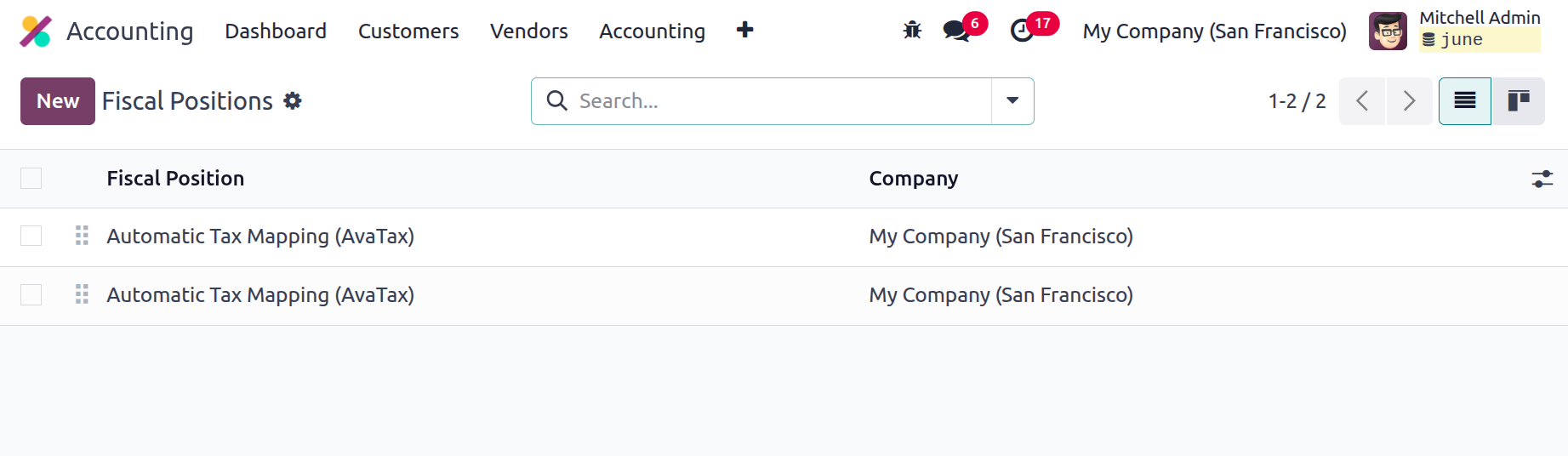
Every field in the window's display can be selected, and you can view all of the data for a specific fiscal position record by selecting one from the defined fiscal position records. The Filters, Group By, and sophisticated Search tools, as well as the ability to Save Current Search, can also be used to retrieve the required Fiscal Position if the platform manages several Fiscal Positions. Importing records, linking menus in spreadsheets, inserting views and links in articles, adding lists to spreadsheets, and adding options to my dashboard are all made easier by the gear wheel symbol.
The pane can be accessed in both List view and Kanban view. Below is the Kanban view of the window. Using the NEW button is a great way to offer the required Fiscal Positions. Below is the Fiscal Positions creation form.
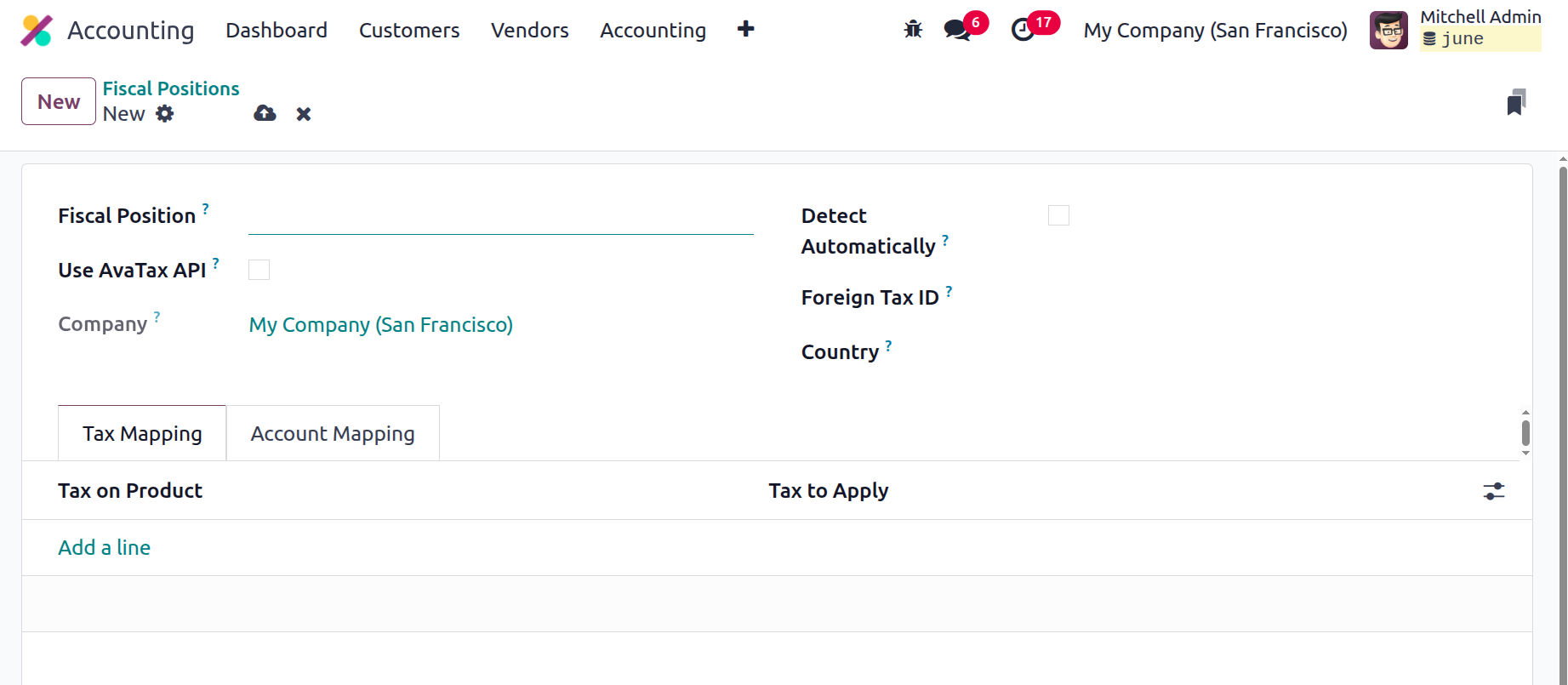
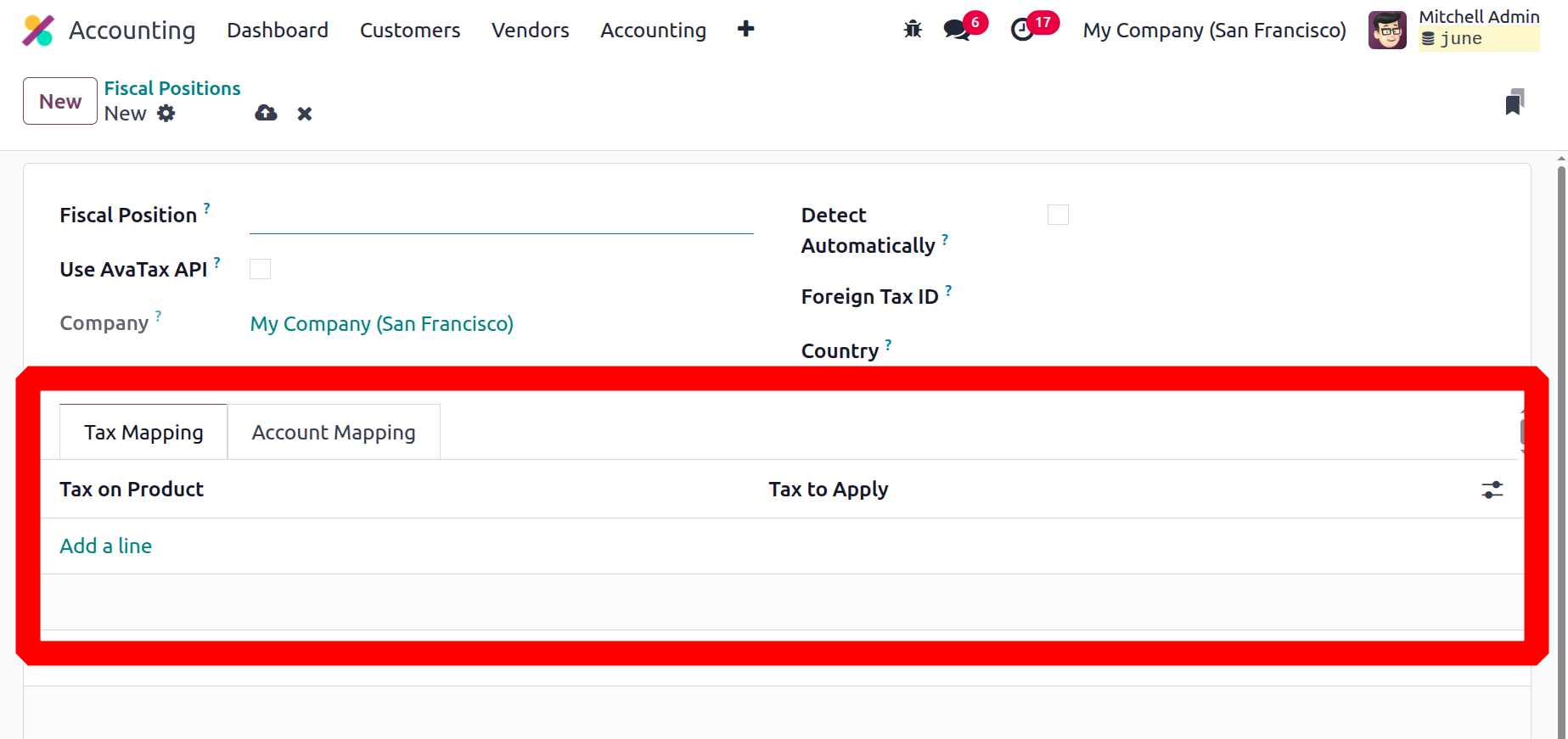
You can enter the name of the fiscal position in the Fiscal Position area. Other fields to set, such as Use AvaTax API, Detect Automatically, and Foreign Tax ID, may then appear. Each of these fields has the option to be enabled or disabled. You can apply this financial situation automatically to the country, country group, cities, or federal state of the partner business by checking the Detect Automatically option. You also have the option to indicate the country Group and Country where you wish to apply if you just want to apply to that nation. Vat required, Foreign Tax ID fields are shown there.
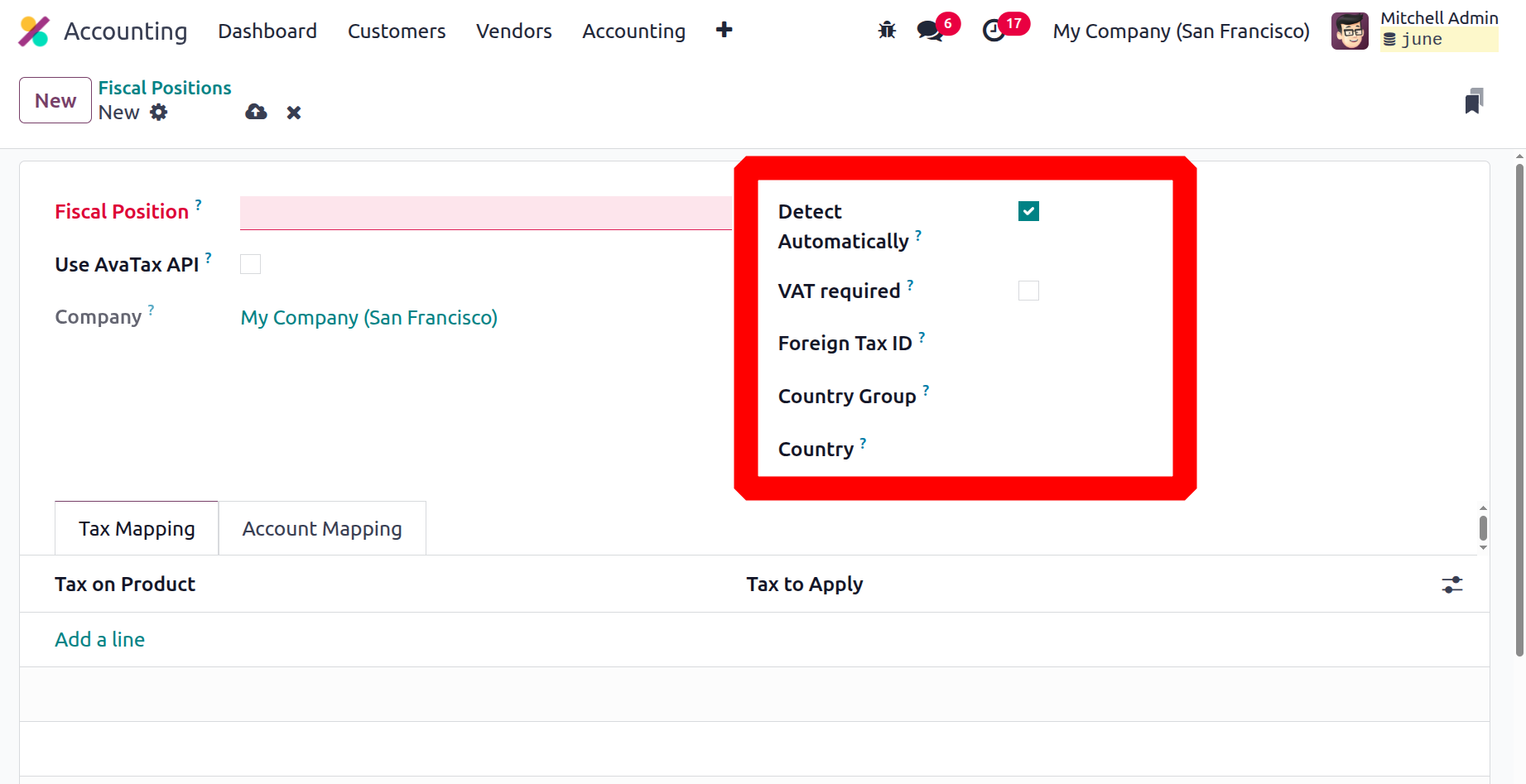
The "Tax on Product" and the "Tax to Apply" can now be defined on the Tax Mapping tab of the setup window. This makes it possible to declare the applicable tax that needs to be imposed to the products. Furthermore, if the fiscal mapping is accepted by the Odoo18 system at the time the partner is assigned for the operation, the matching product tax will be applied in line with the fiscal position.
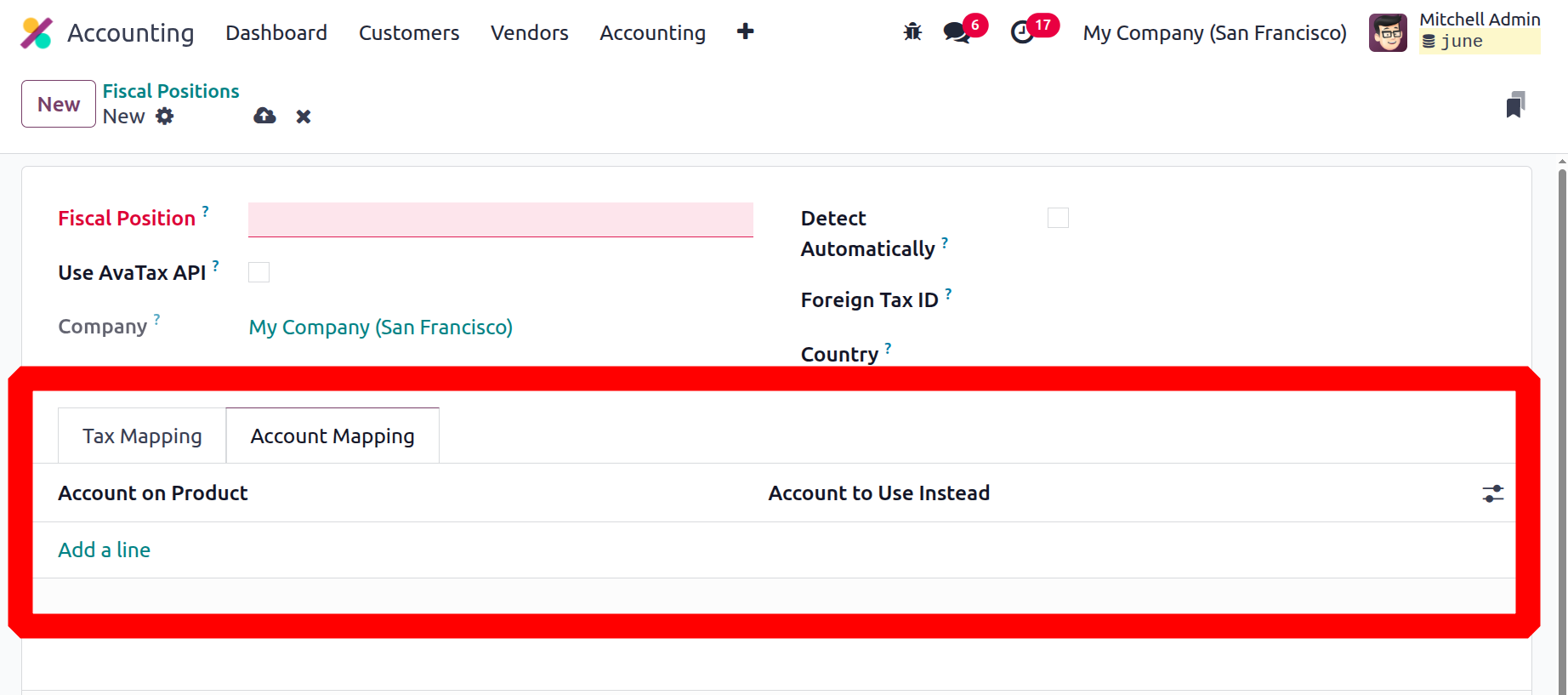
The Accounting Mapping tab allows you to select the Account on Product and the Account to use in place of the "Add a line" option. Additionally, you may use the designated Legal Note line to include the legal notes that need to be printed on the invoices.
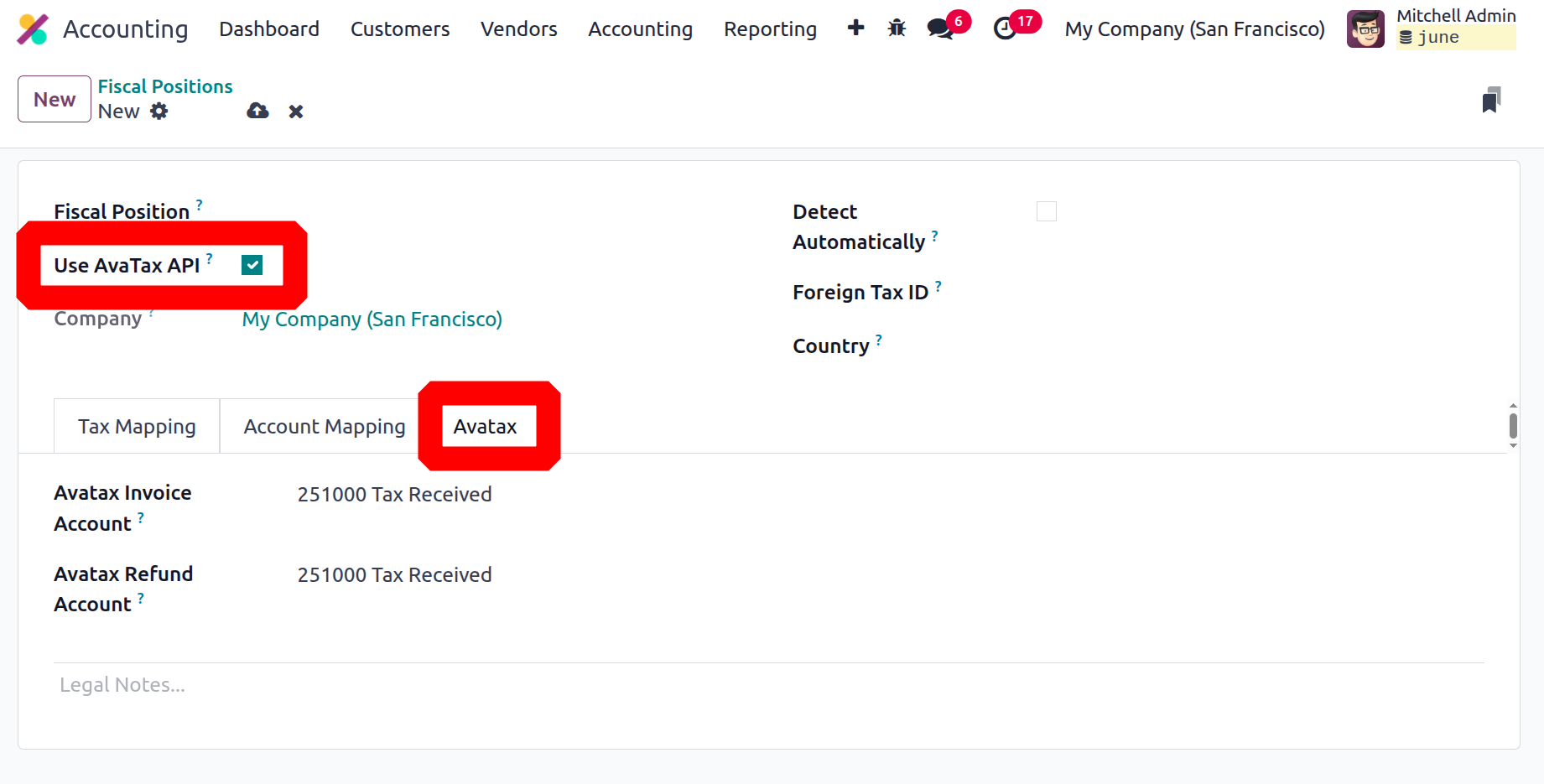
The Avatax settings tab of the Fiscal Positions creation form allows you to specify the Avatax Invoice Account and Avatax Refund Account, which are the accounts that Avatax will use for invoices and refunds, respectively. You can also include Legal Notes in the designated space.
Once all of these elements are set up, you can apply them to bills and invoices to map the accounts and taxes according to the rule specified in the example.
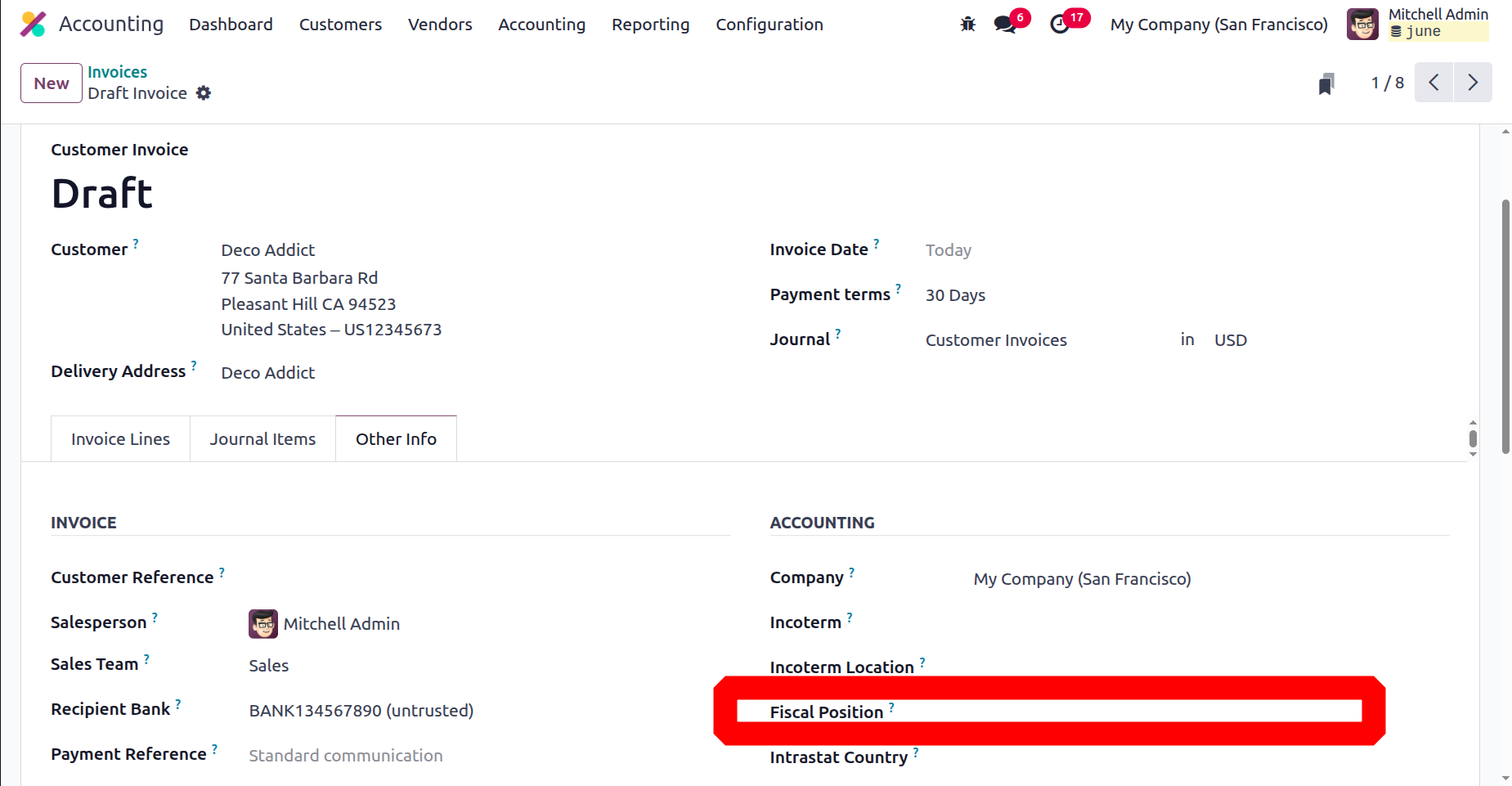
Partners' financial position is automatically assessed depending on the federal states, country, and country group that are provided.
Now that we understand the Fiscal Position menu and its adjustable elements, let's move on to the Odoo18 Accounting module's Multi ledger feature.