Tax Configurations
Taxes are an essential part of the business process that needs to be properly managed in order to ensure that the firm complies with local regulations. The Odoo 18 Accounting application allows for the setup of taxes. You will learn how to configure taxes in Odoo 18 in this section. Taxes are an essential component of accounting since they are an expense that needs to be reported on financial statements. Accounting for taxes requires an understanding of the numerous tax laws and regulations. Accurately recording, submitting, and paying taxes to the proper tax authorities is another need. In tax accounting, accounting and tax expertise are merged.
The proper tax liability must be ascertained, tax returns must be prepared, and returns must be submitted to the appropriate tax authorities. It also involves keeping track of all tax-related transactions, such as credits, deductions, and payments. Moreover, financial statements are prepared to show the tax liabilities of an individual or business.
Tax accounting is also used to calculate the amount that must be withheld from employee wages in order to pay taxes. Determining how much money should be taken out of employee pay cheques for benefits and other deductions is another purpose for tax accounting. It also involves developing tax predictions and budgets that an individual or organisation can use to plan their cash flow and tax liabilities.
Tax planning is essential to ensuring that a company or individual conforms with the applicable tax laws and regulations. However, it is a complex subject that requires a thorough understanding of the many tax laws and regulations. Qualified accountants and tax preparers can assist with tax preparation, filing, and payment. Software programs like Odoo18 Accounting may also automate the tax preparation, filing, and computation processes.
Taxes are considered a debt that the customer owes the service provider in return for a favour. The organisations are required to pay the same amount to the government or other authorities when they file their taxes. Every country has a different tax system, with different percentages, and it is entirely up to the local government in each country. The Odoo18 Accounting software is excellent at configuring specific taxes for different operations, which is why your company's accounting management tool must have this capability.
The Odoo 18 Accounting platform is highly useful for creating all tax types for their sales, purchases, and services provided. It may be defined according to the country in which the business operates. This feature might be offered by one of the Odoo18 platform's localisation tools.
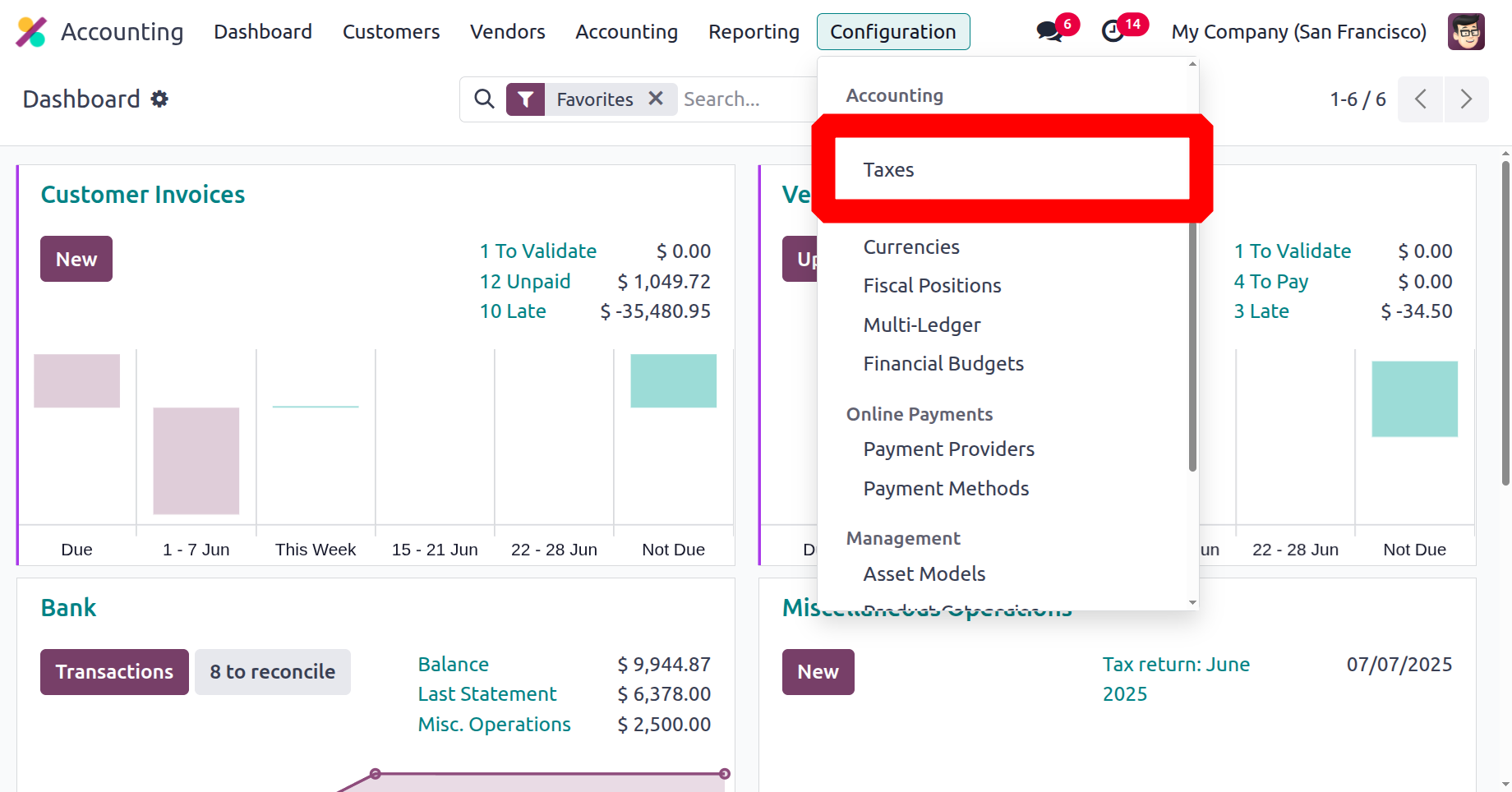
The following steps can be used to set up taxes for your business. Choose the "Configuration" menu from the menu list on the left after navigating to the Accounting module. Choose the 'Taxes' menu from the Accounting section of the Configuration menu, as shown in the picture below.
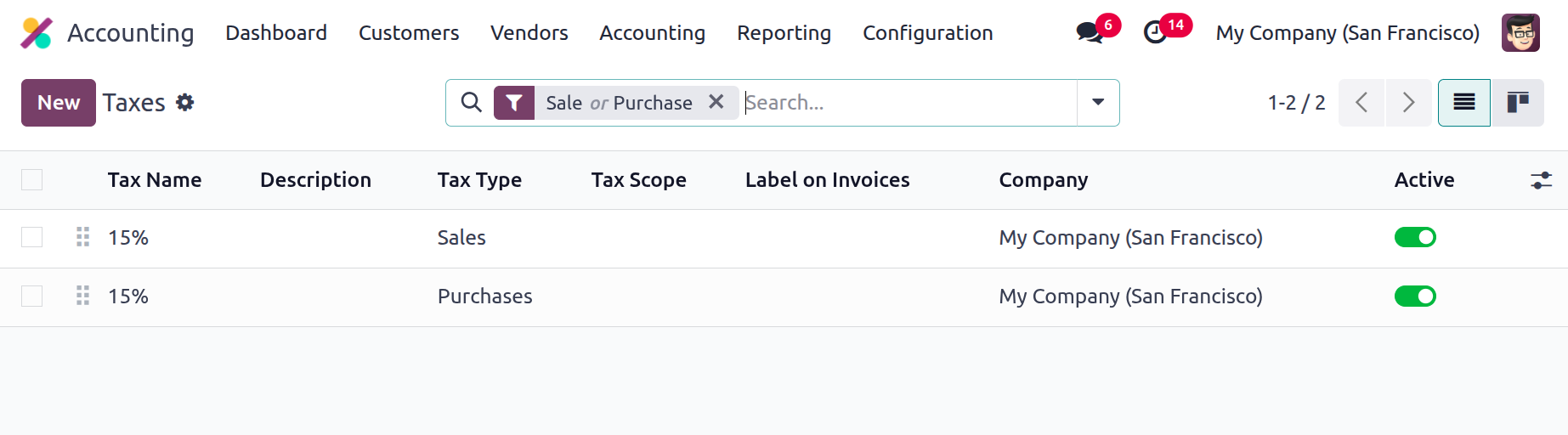
Click the NEW button in the Taxes window to add a new tax. Furthermore, the Taxes window will provide the details of all previously configured taxes, as shown in the image below. It is also possible to alter the current taxes. The window will display the important details regarding the configured taxes, such as the company, invoice label, tax name, tax type, and tax scope. To enable or disable the specific tax, you may also view a boolean field called Active in addition to these options.
As a result, using the Odoo17 platform to develop tax computation for the applicable taxes that are already defined is very simple. Other default tax computations offered by the platform include Fixed, Percentage of Price, Percentage of Price Tax Included, Group of Taxes, and Percentage of Price.
- Fixed Tax Computation: In Odoo18 Accounting, the automated tax computation technique called Fixed Tax Computation makes it possible to compute taxes using a predetermined set of rules and tax rates. This system can be used for payroll and other financial activities, as well as for tax, sales, and purchase computations. This solution is useful for companies who have a lot of transactions and need to quickly and accurately calculate taxes. Fixed tax computation in Odoo18 may be advantageous for companies that must maintain correct records for tax compliance.
- Group of Taxes:Odoo18 Accounting's Group of Taxes Computation tool allows you to configure and control different tax rates. Taxes can also be applied to transactions and grouped. Users have the ability to create different tax groups, assign taxes to them, and then use those taxes in their transactions. This makes it simpler to ensure that all taxes are computed consistently and accurately.
- Percentage of Price: The type of tax being used in the Percentage of Price Tax Computation determines this. For example, a custom duty rate may be 10%, but a standard VAT rate may be 20%. A certain tax at a particular rate may apply to many types of transactions. It will depend on the fixed proportion of the total amount that has been predetermined.
- Percentage of Price Tax Included:Lastly, the calculation of the Percentage of Price Tax Included is influenced by the structure of the tax regulations. When the tax regulations are set up, the proportion of tax that is included in the price will be automatically calculated based on the applicable tax rate. The percentage of price tax included in the calculation is contained in the tax setting options in Odoo18 Accounting. The tax amount will be included in the award amounts.
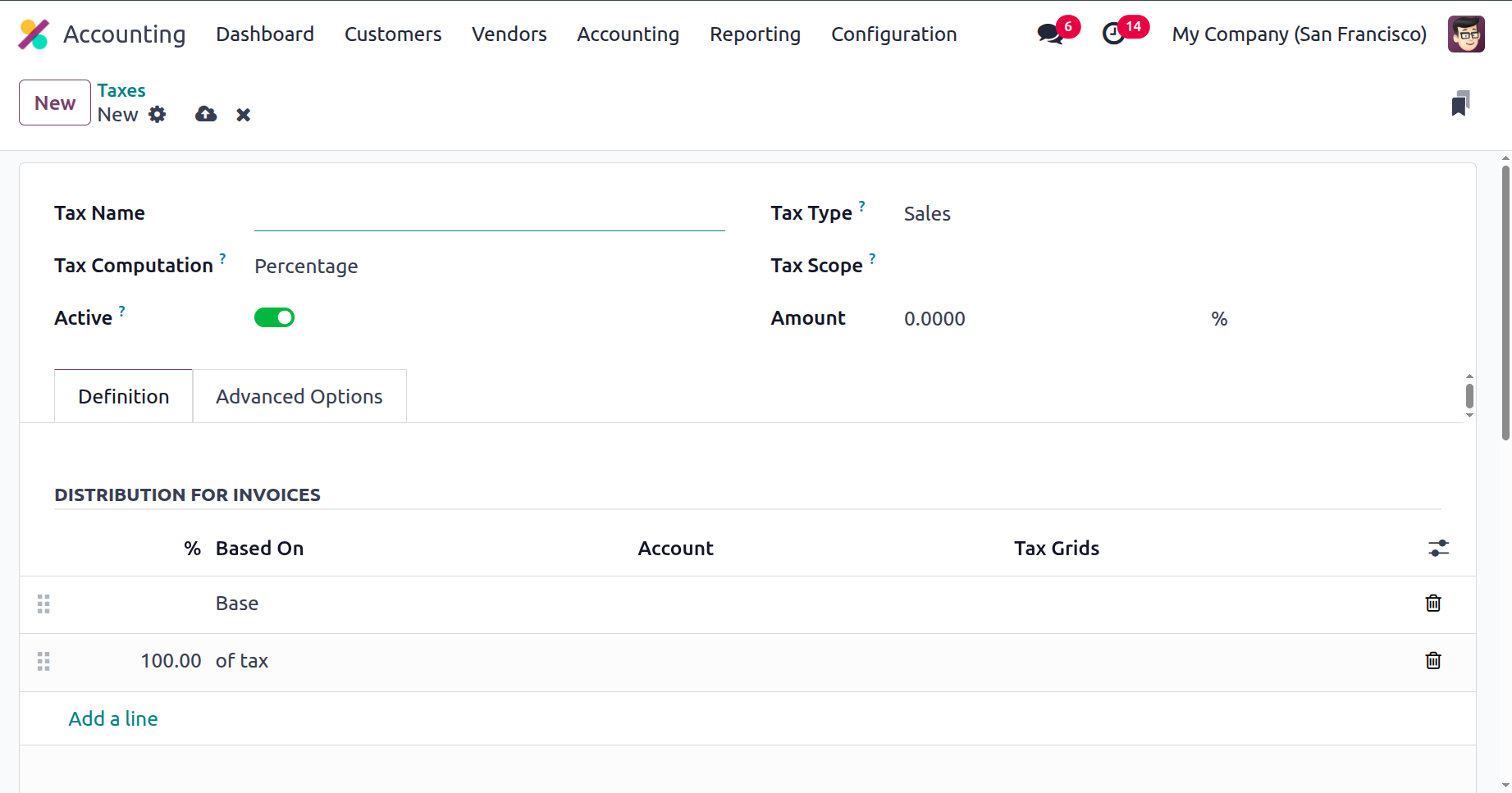
You can see the many fields that need to be completed in order to create a tax in the Taxes Creation window by going back to the Taxes window. A screenshot of the creation form can be found below. You can start by entering the tax name in this window's Tax Name field. After that, the Tax Type might be indicated. You can select Sales, Purchase, or None using the dropdown option. This Tax Type determines where the tax is selectable. The tax is ineffectual on its own, according to the 'None' option. A group can still use it, though.
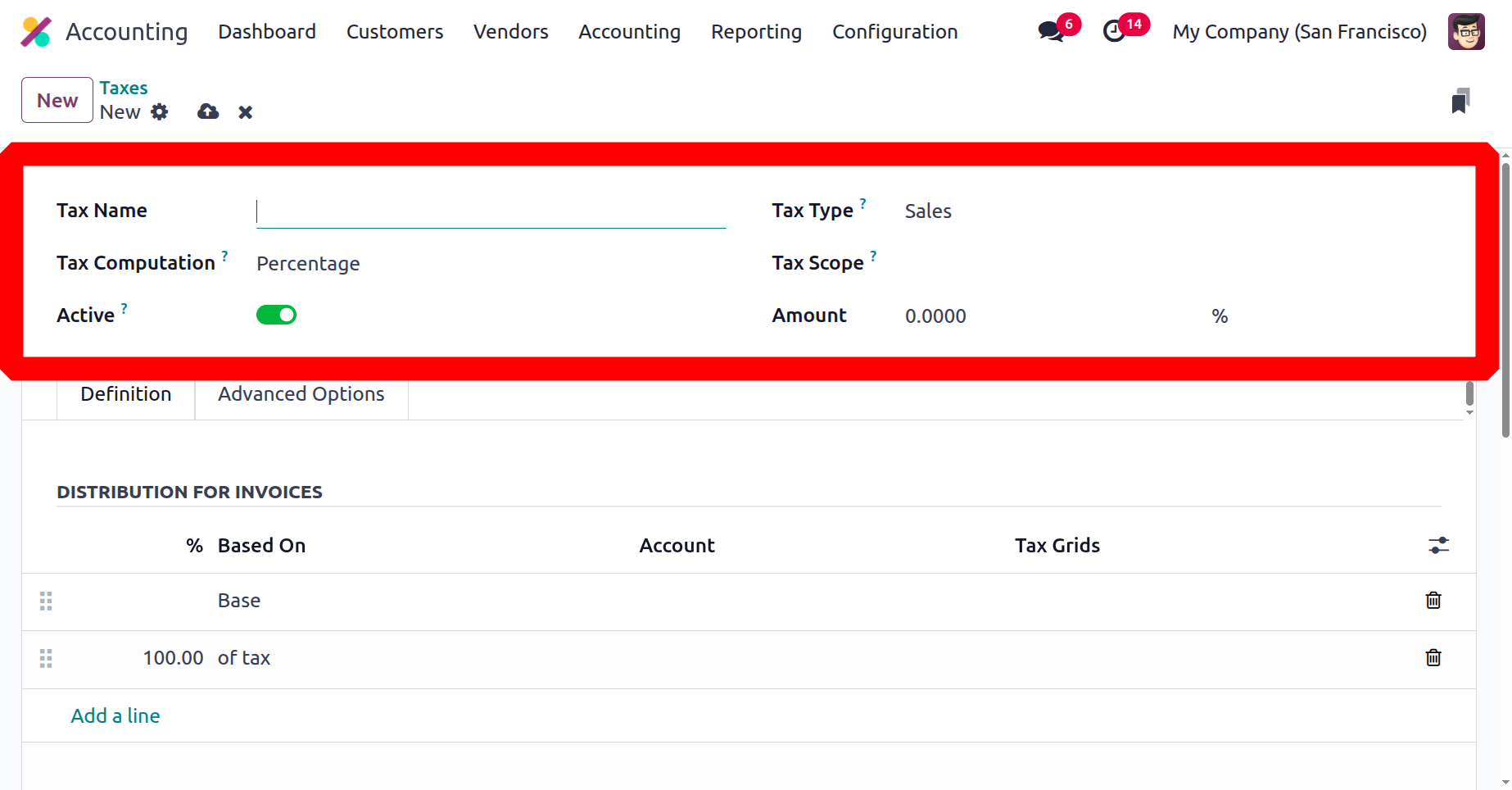
After choosing the relevant choice in this section, you can complete the Tax Scope form. One can select either commodities or services. This option allows you to restrict the application of taxes to a specific product type, such as goods or services. You can then enter the tax amount as a percentage in the Amount field.
You can also choose the Tax Computation from the dropdown menu. The drop-down menu contains options such as Group of Taxes, Fixed, Percentage of Price, Percentage of Price Tax Included, and Python Code. The Definition tab can be specified according to the selected option. Therefore, you can hide the tax without actually removing it by choosing to set the boolean field of the Tax active to false.
You may also define the definition of the tax on the various facets of business operations under the Definition tab. Any tax computations other than the Group of Taxes should include a description of the Distribution of Invoices in the DISTRIBUTION FOR INVOICES section. Here, you can explain the tax definition, the "% based on," the account that should be used to post the tax amount, and the tax grids using the "Add a Line" option.
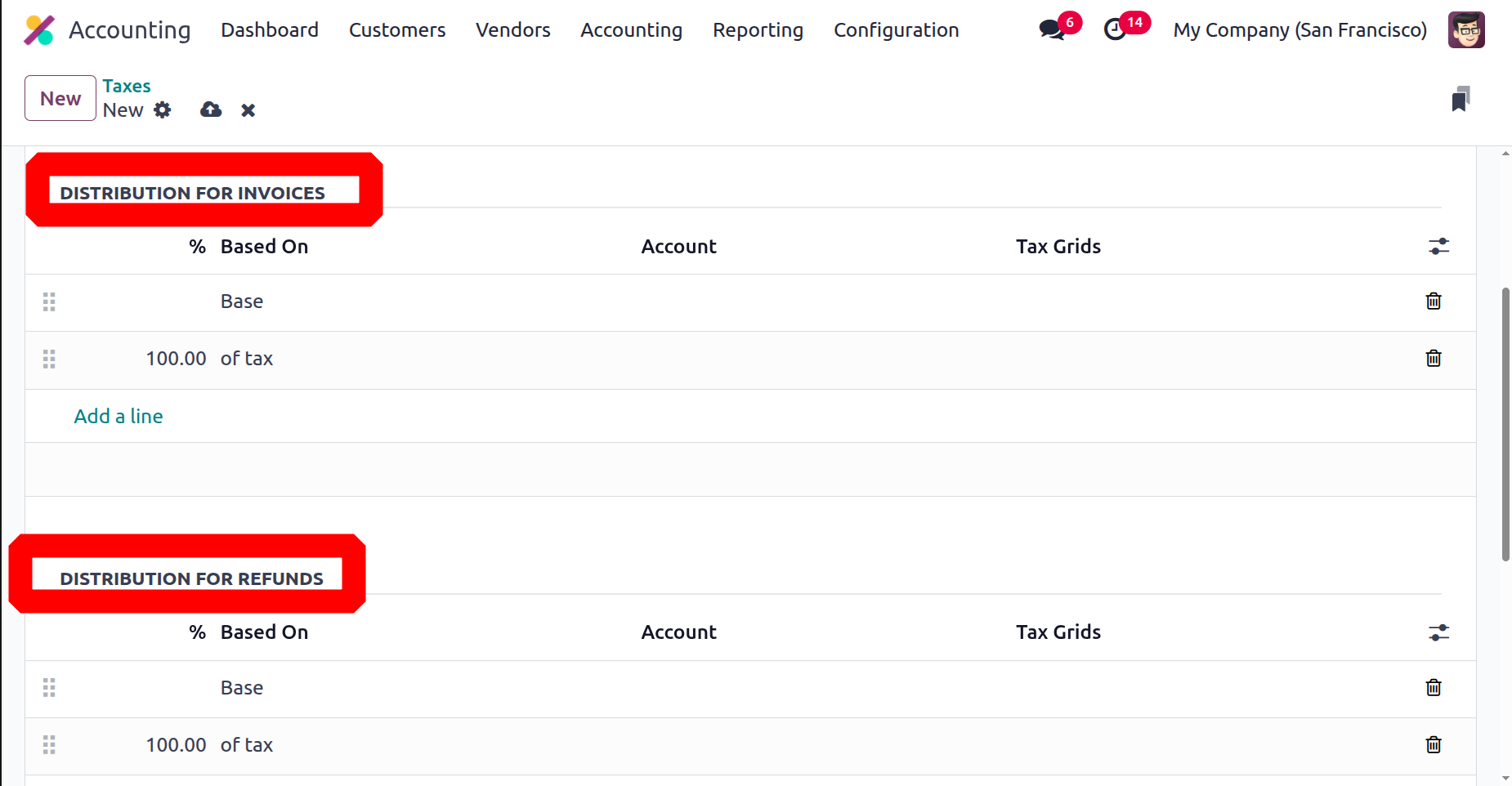
It is also possible to remove the existing definition and build a new one with the help of generating a line. The same method can also be used to define the DISTRIBUTION FOR REFUNDS.
Additionally, the Advanced Options tab in the Taxes creation window offered a number of other fields, such as Label on Invoices, Description, Tax Group of the defined tax, Include in Analytic Cost, and many more.
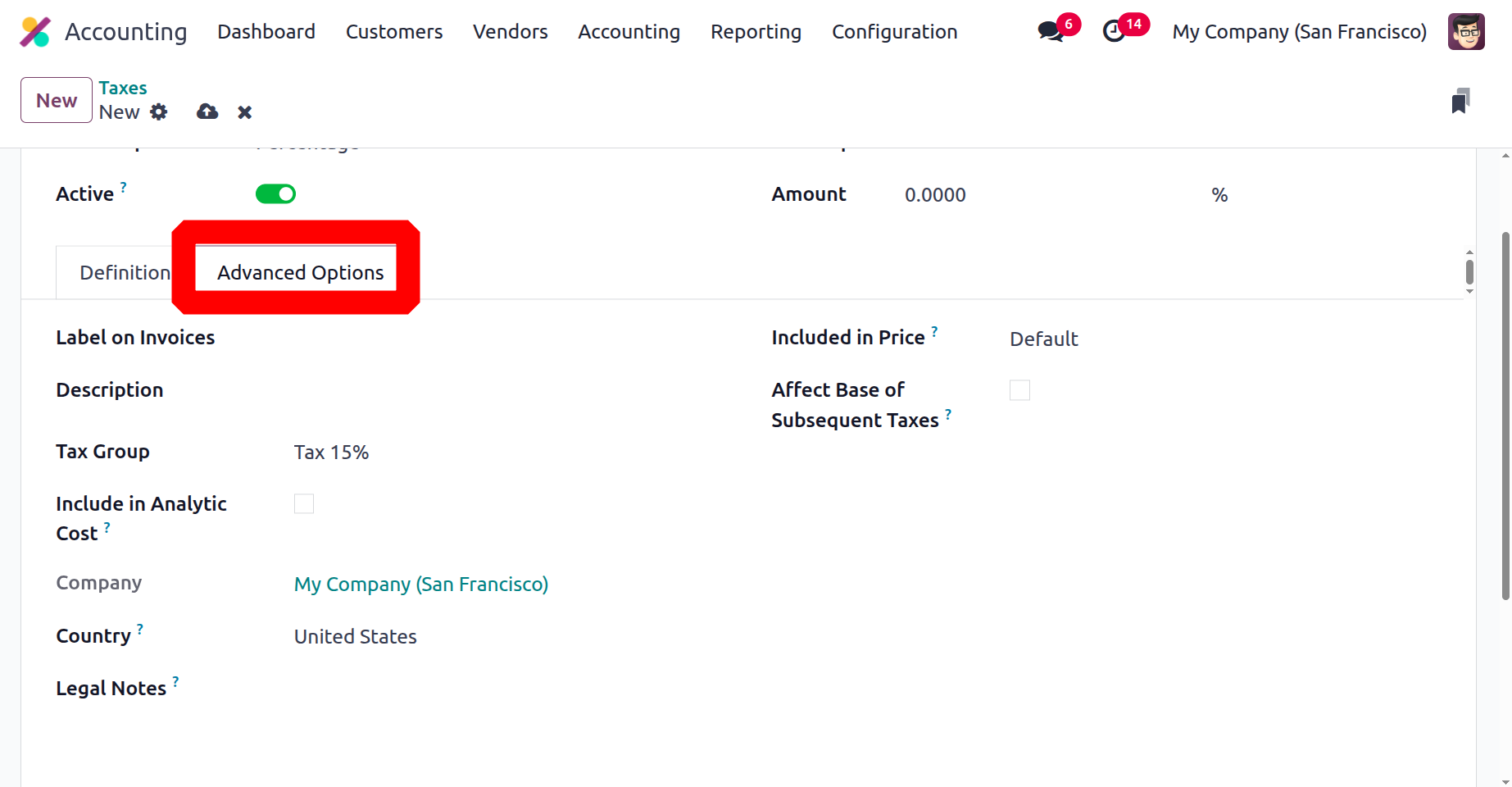
'Include in Analytic Cost' is an option that you can select or uncheck. If you choose this option, the amount determined by this tax will be allocated to the same analytical account as the invoice line. Only when Analytic Accounting is enabled is the 'Include in Analytic Cost' option available. The relevant elements can then be used to specify the company and the country for whom this tax is applicable.
The legal notes that must be printed on the invoice are known as the legal notes. You can also select the box next to the "Included in Price" option if the pricing you use on the goods and invoices includes the tax amount. Additionally, if you enable the "Effect Base of Subsequent Taxes" field, taxes higher in the series than this one will be impacted.
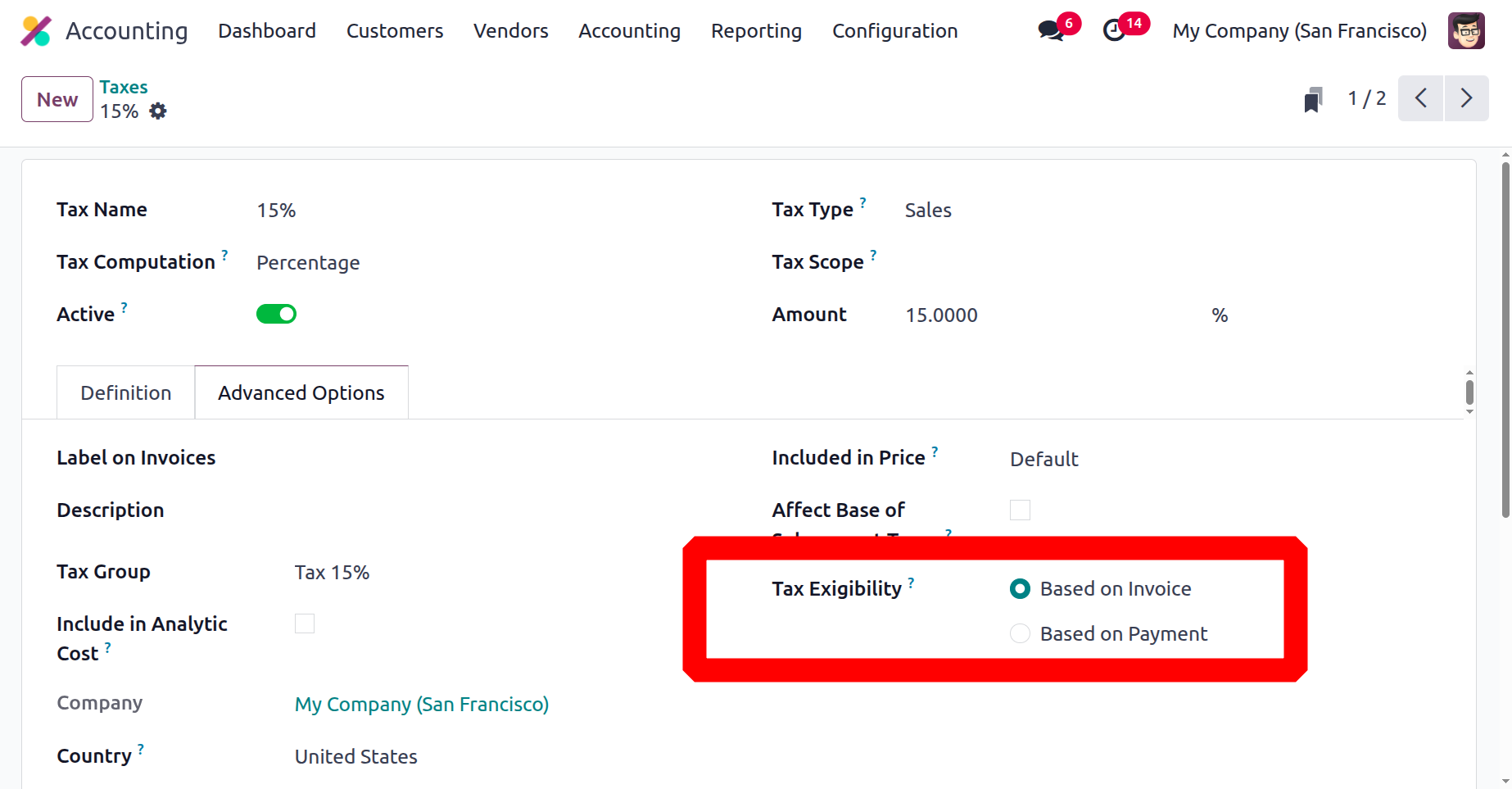
The final one is the Tax Exigibility field, which offers the choices "Based on Invoice" and "Based on Payment." If you select Based on Invoice, the tax is owed as soon as the invoice is verified. If payment is required for tax exemption, it must be made as soon as the invoice is paid.
This contains all of the information related to the Tax Configuration. You can use a successful tax configuration for business purposes. You can specify all sales taxes, purchase taxes, and service taxes with this function, and they will be applied to each good and service in line with the specifications.
Cash Basis Tax Configuration
Revenue is recorded upon receipt of funds and costs are recorded upon disbursement of funds when utilising a cash basis tax structure. This type of accounting is useful for companies with high expenses but little sales. When your business uses cash, this is one of the most important factors to take into account. According to the definition of Cash Basis in Odoo18, taxes are recorded at the time of payment completion rather than upon delivery of the goods or services or invoice validation. Rather than using an accrual basis, you can use this feature to record and report your taxes using a cash basis. This could be useful for smaller businesses who have to report their taxes right away or that have to follow particular regulations. Under the cash basis tax system, Odoo 18 Accounting will track your taxes as you pay them, giving you a more accurate and current view of your financial situation. This might help you ensure that you pay your taxes on time and create better tax payment plans.
To enable the Cash Basis Taxation function on your Odoo18 platform, you must first enable the Cash Basis option from the Configuration Settings window of the Odoo Accounting platform. Here in Settings is where you'll find the 'Taxes' section, as seen in the figure below.
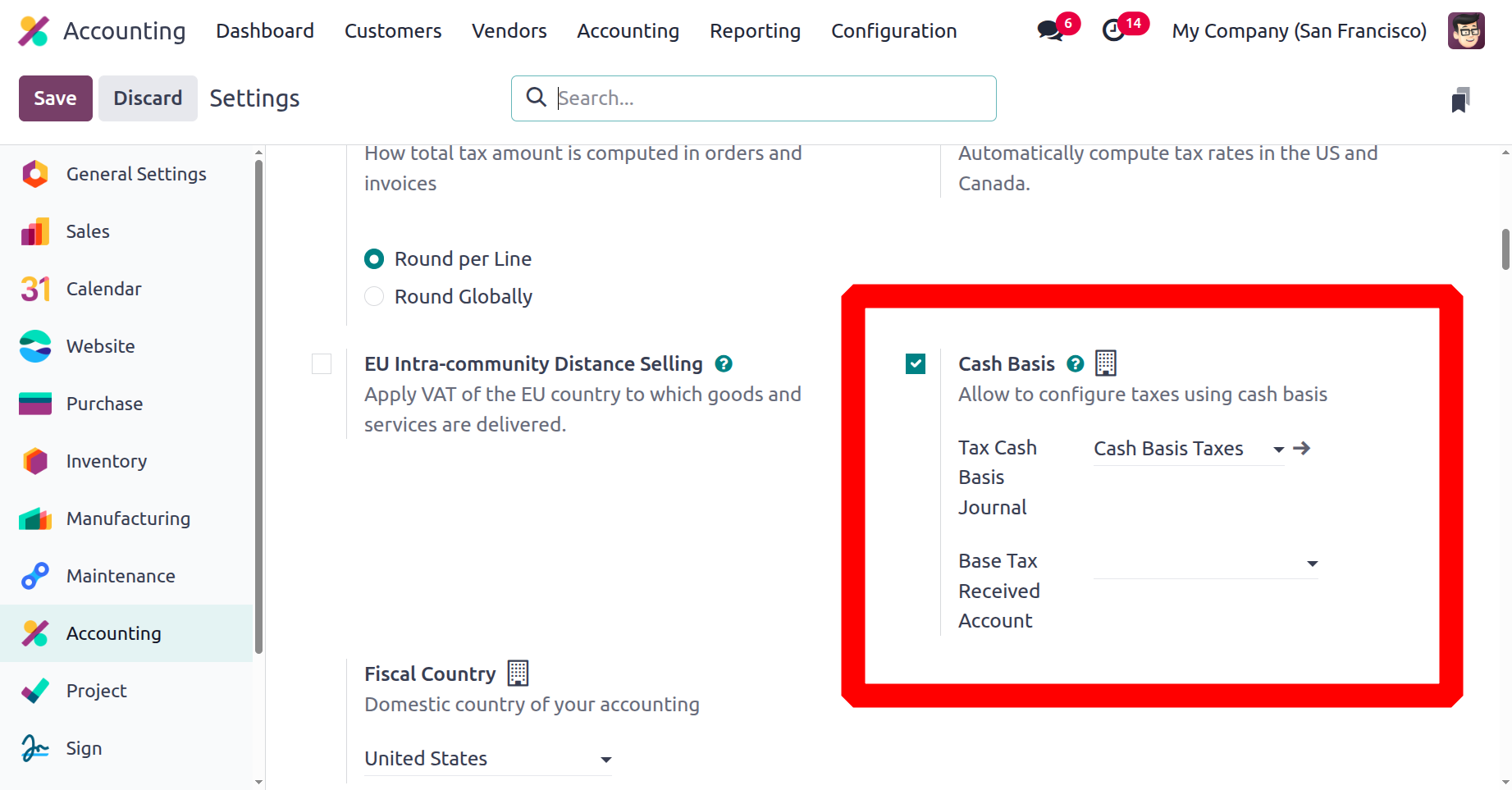
If you wish to set up taxes on a cash basis, you must define the Base Tax Received Account and the Tax Cash Basis Journal. As a result, it will record these taxes on the designated account during reconciliation.
Once you choose the option from Settings, the Tax settings box will only allow you to specify the tax owed, as we previously mentioned. This means that when configuring taxes, the Tax Exigibility option will show up under the Advanced Options tab, as shown below.
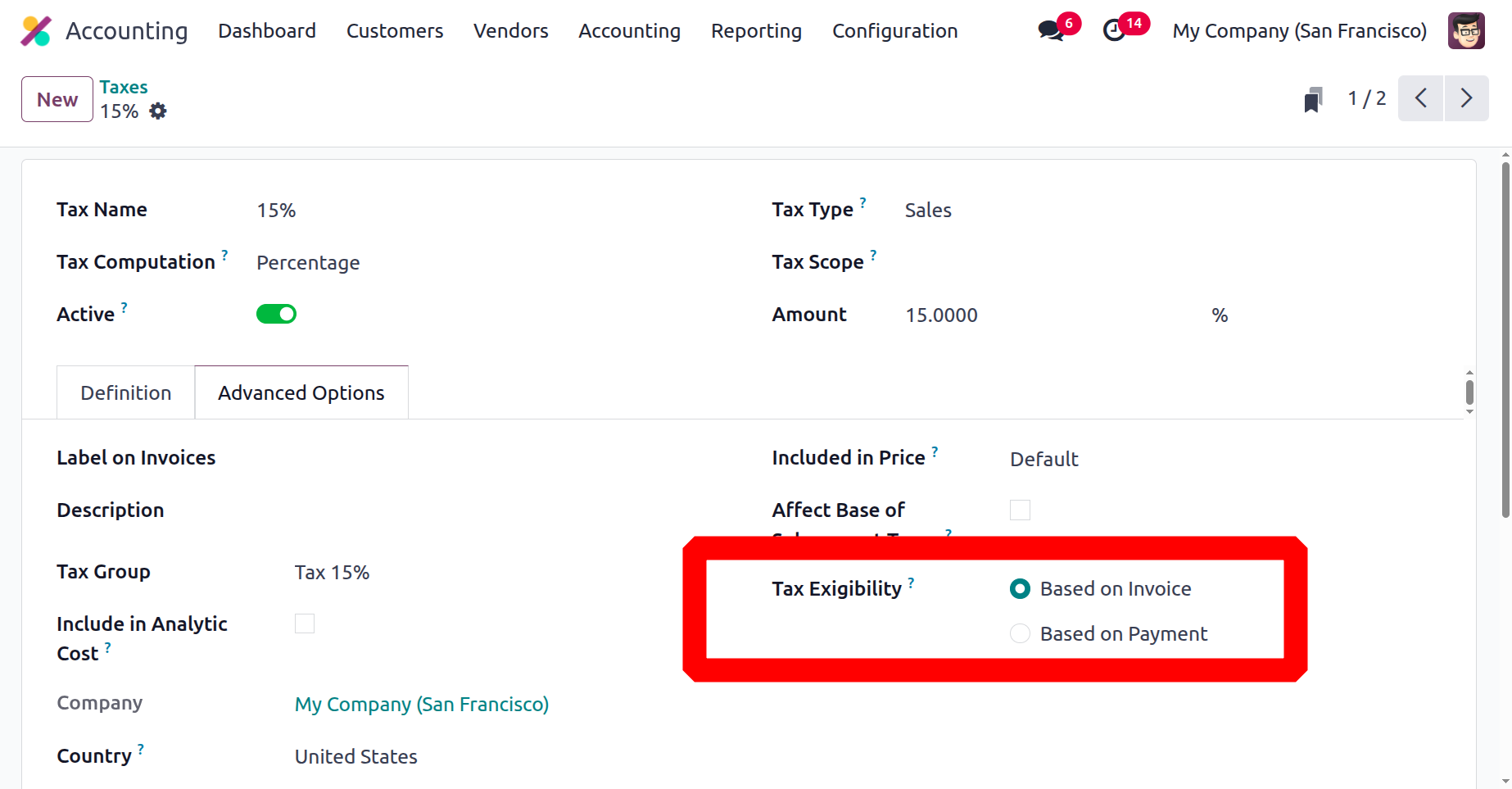
If this option is selected to meet local or state requirements, it will negatively impact a company's tax structure and financial management. Therefore, after the Cash Basis Tax has been determined, the tax on the good or service will be credited to the temporary tax account upon reconciliation. The corresponding amount will be credited to the Tax Received Account.
Now that everything about the tax structure is very obvious, let's go on to the next section, where we'll discuss the Tax Group.
Tax Group
In the advanced tax setting options, tax groups are used to classify different taxes.
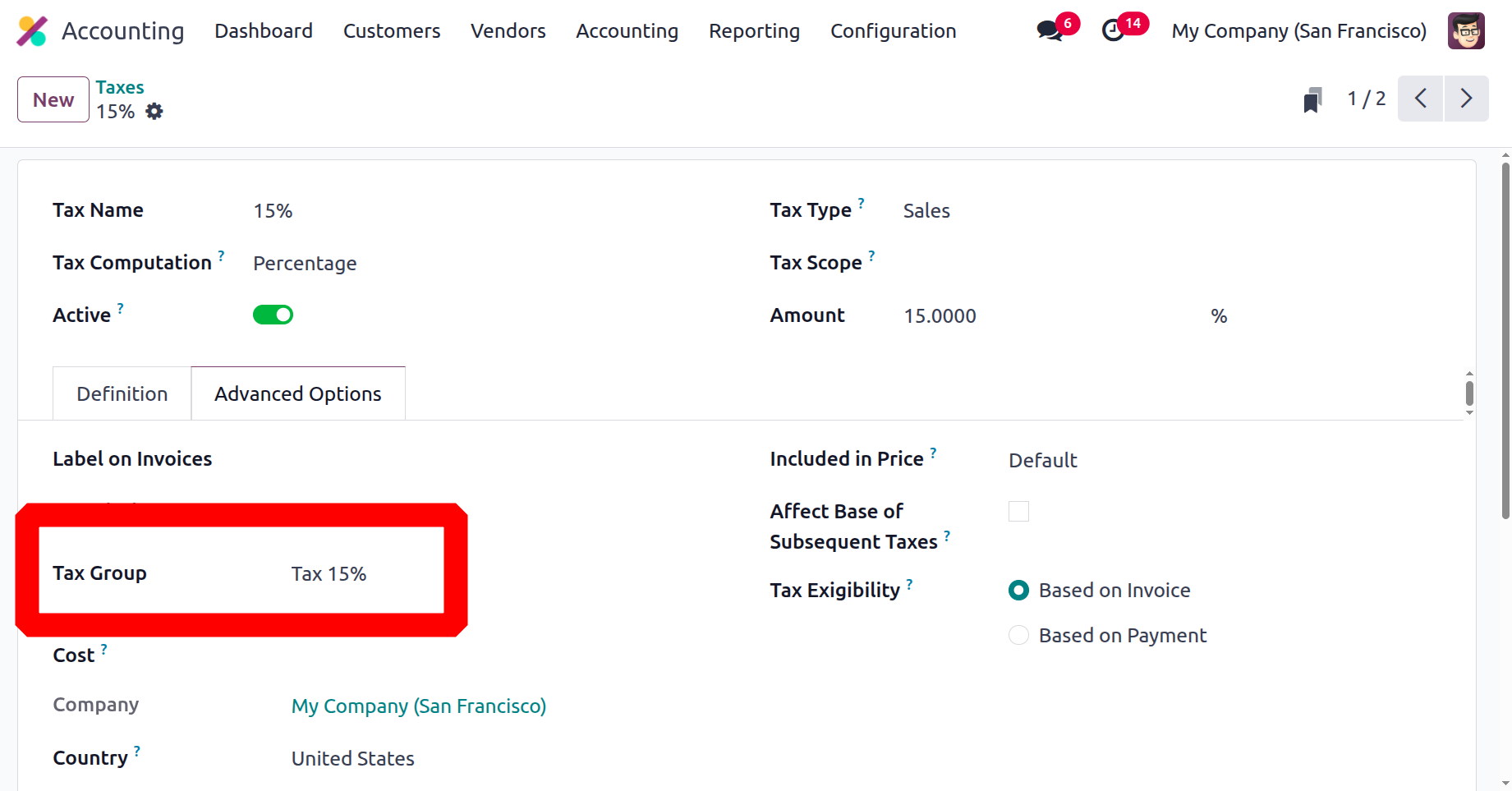
Depending on the country, there are a variety of tax kinds, including GST, CESS, VAT, and retention taxes. The total, which includes the tax amount, is calculated by applying Odoo18's tax setting to invoices and bills.
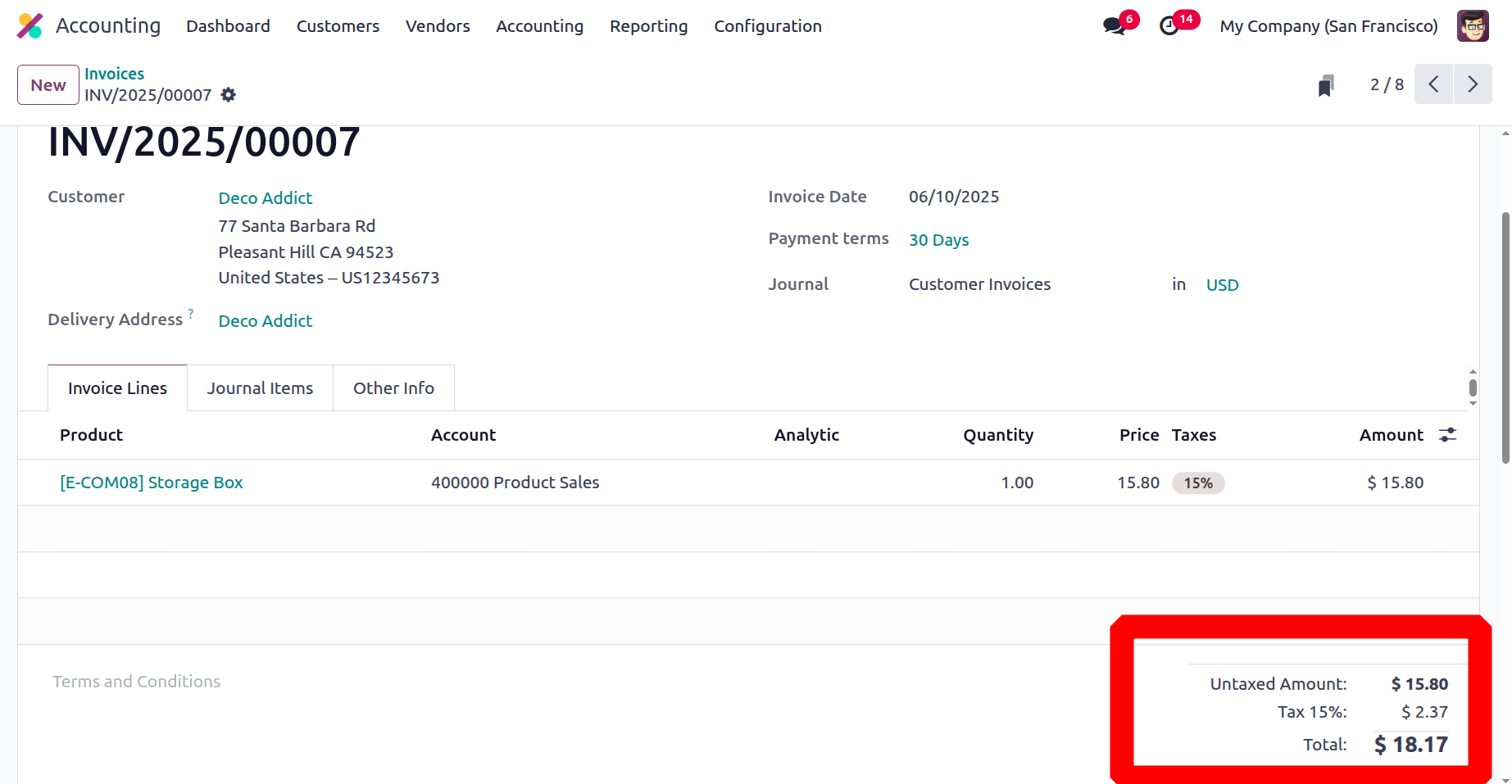
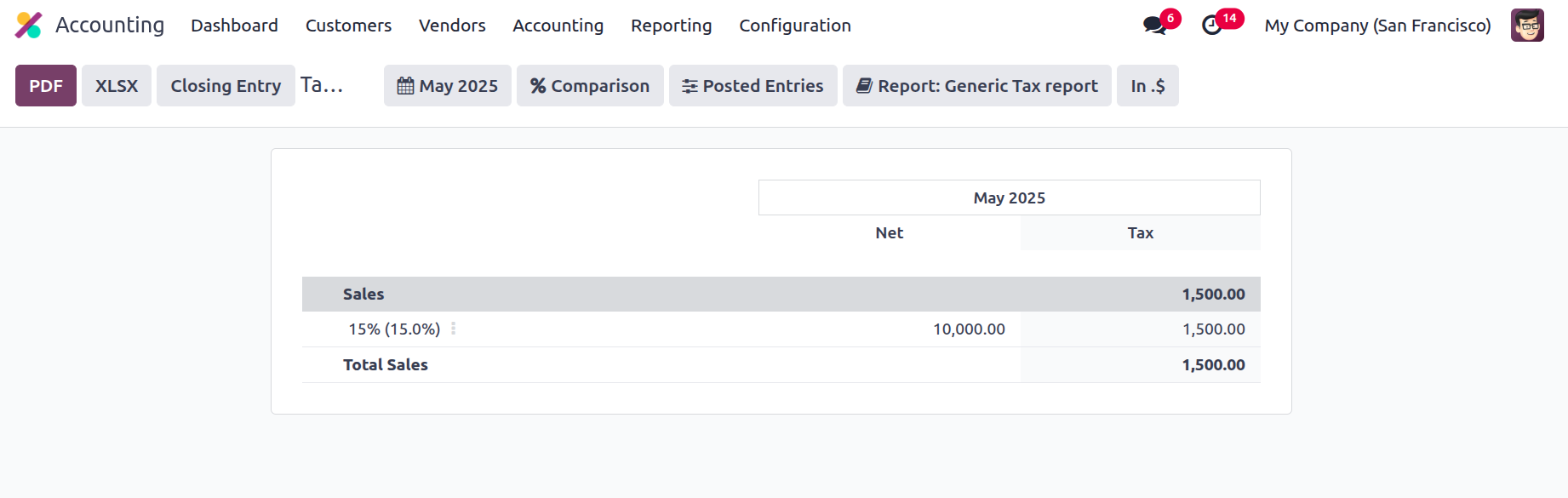
In certain situations, an invoice may be charged with multiple taxes. Therefore, we may specifically identify each tax by using a tax group. As a result, the tax report and invoice display individual taxes.
Let's go on to the journals in the next section now that we have a firm grasp of tax.