How the Opening Balance Added?
To show the amount of cash that is easily accessible in each account of operations, the Opening Balance for the Business Operations should be implemented. The opening balance's components will give you details about the available funds when the business is just starting off. Let's continue by learning how to specify the firm's initial balance in Odoo 18.
Step 1: We will be able to review and add initial debits and credits for your chart of accounts in the Accounting module's Settings. Thus, navigate to the Configuration and access the settings. then select from the Initial Setup the Review Manually option. You can add initial balances on the screen that appears when you select the Review Manually option.
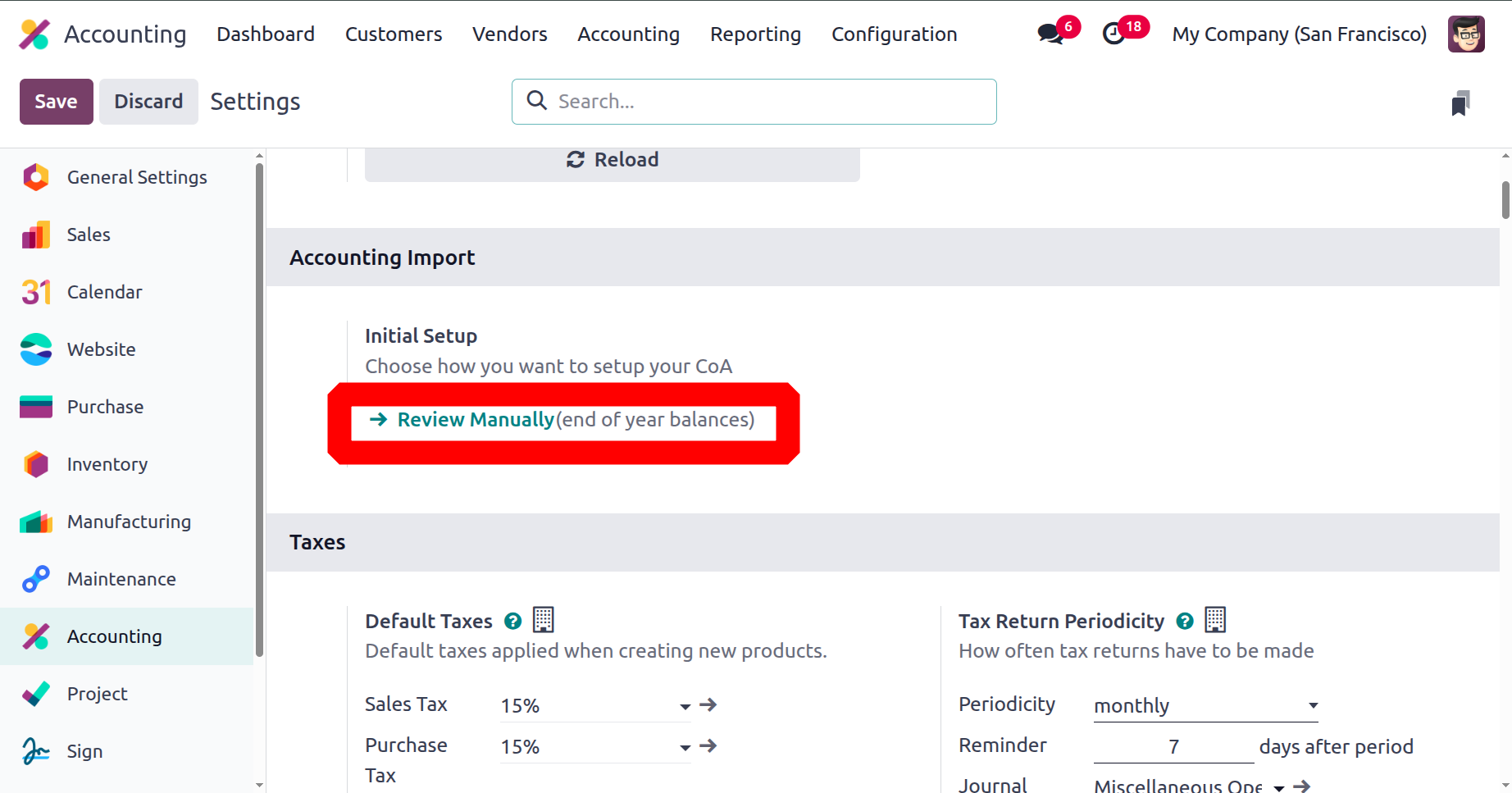
Step 2: By noting the debit or credit amount in the corresponding ledgers, the opening balance can be added. After adding each account's balance, save the information.
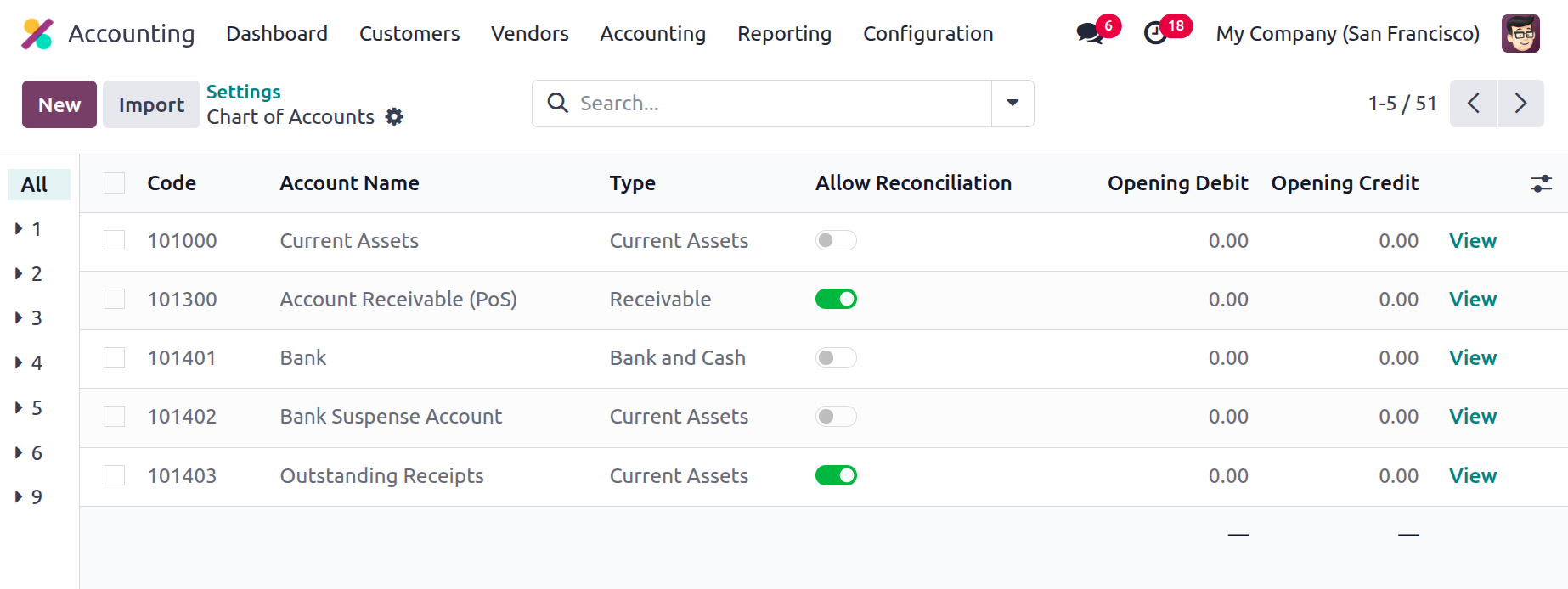
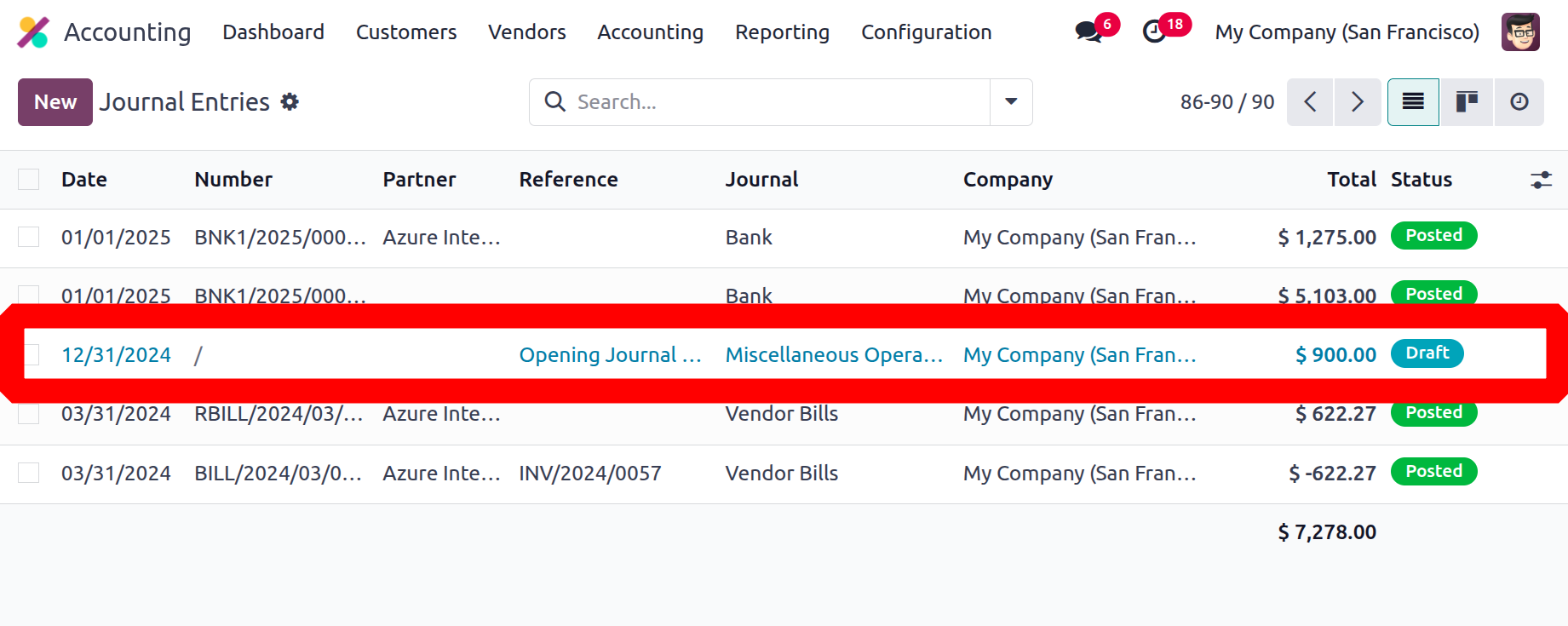
Step 3: After saving in the Accounting menu > Journal Entries, a new Journal Entry with the reference "Opening Journal Entry" is immediately created in draft state.
Step 4: A journal entry that has previously been written can be modified to add an account opening debit of credit if it does not add. With a reference to the "Opening Journal Entry," we can see every entry we made into every ledger after a draft journal entry has been opened. The '999999 Undistributed Profits/Losses Account,' which Odoo offers for automated balancing, receives the difference between the Credit and Debit values right away.
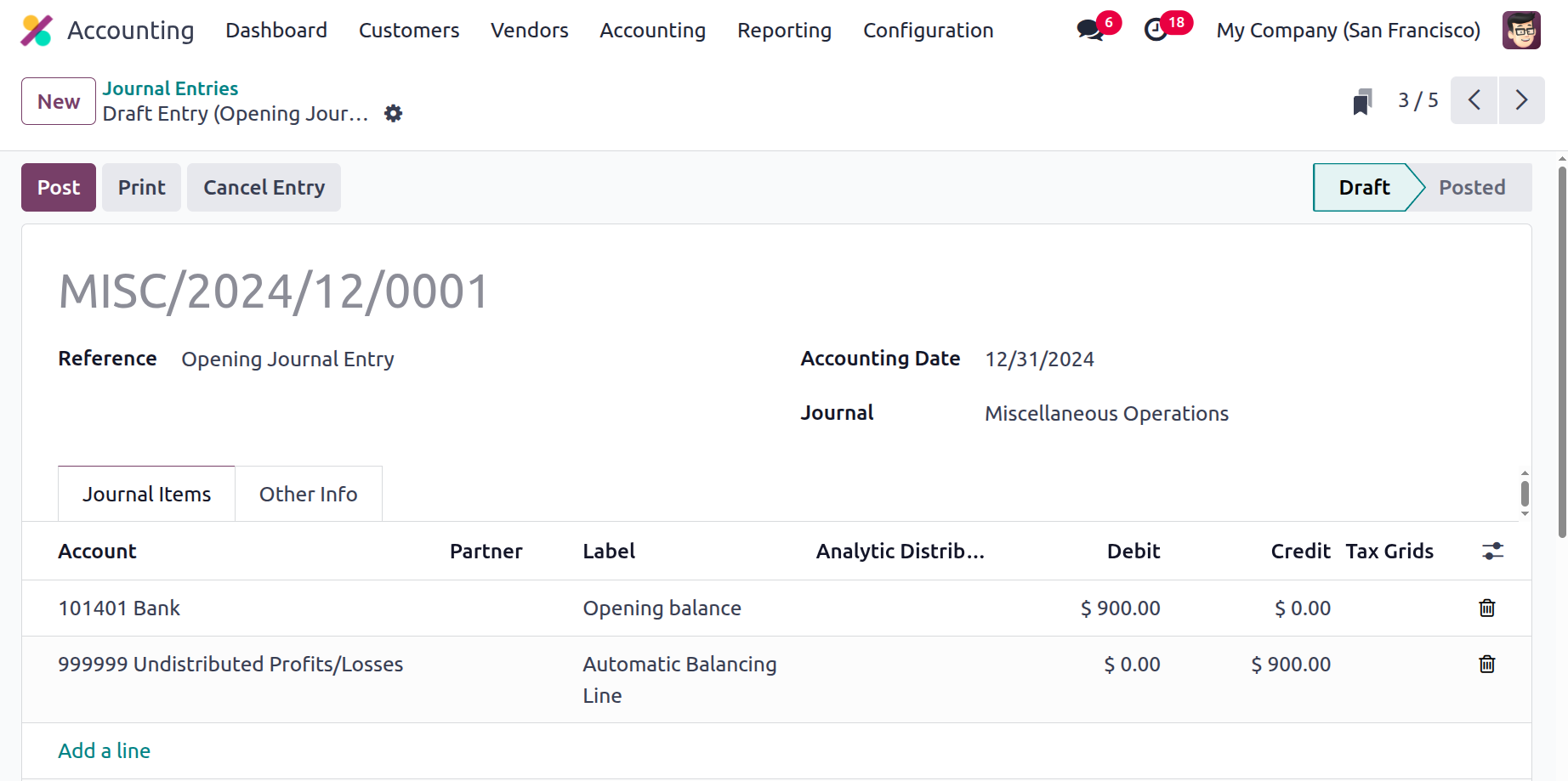
Step 5: Additionally, change the accounting date to reflect the addition of the Opening Balance and its impact on the account ledgers. The journal entry should now be posted. After the data is posted, it is included in the balance sheet.
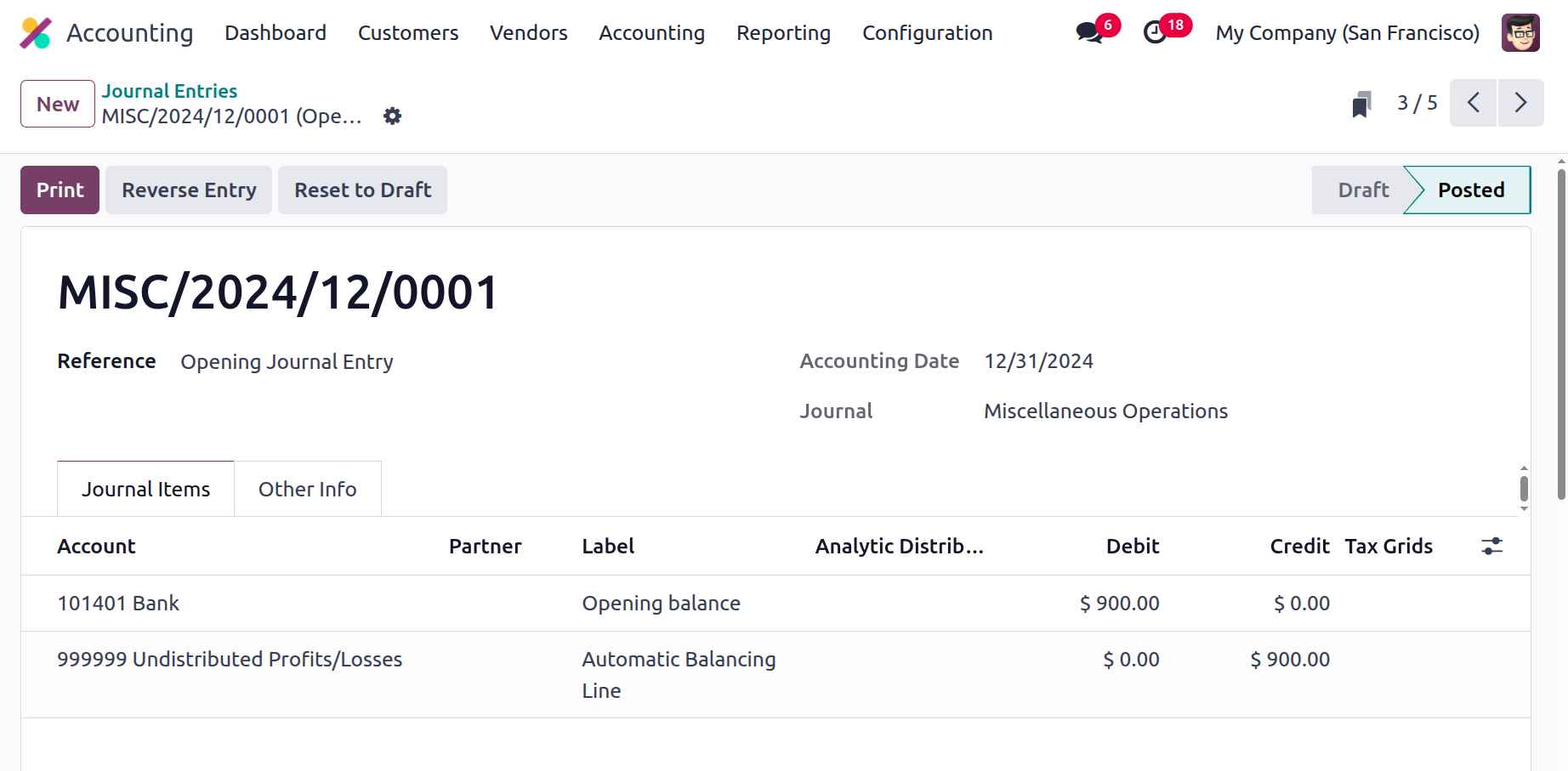
Opening Balance can be manually entered in a journal entry with the reference "opening journal entry" if we need to update account ledgers with a specific credit or debit balance that was overlooked while writing the Opening Journal. It's important to keep in mind that you need to provide the correct accounting date when posting, and that date needs to match the date the entry was made on the balance sheet.
We can assess and import data from the accounting module's configuration settings using Odoo 18.
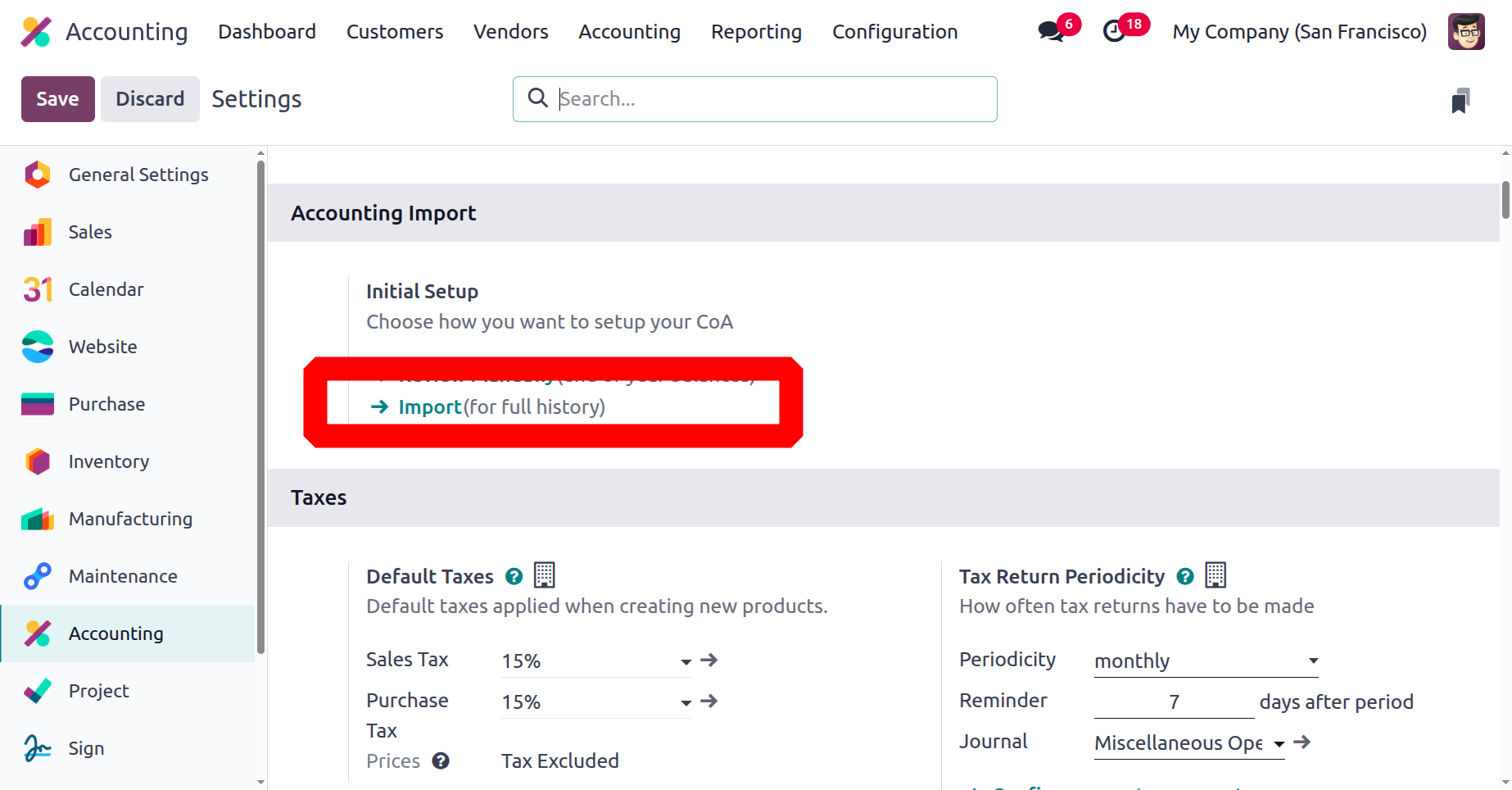
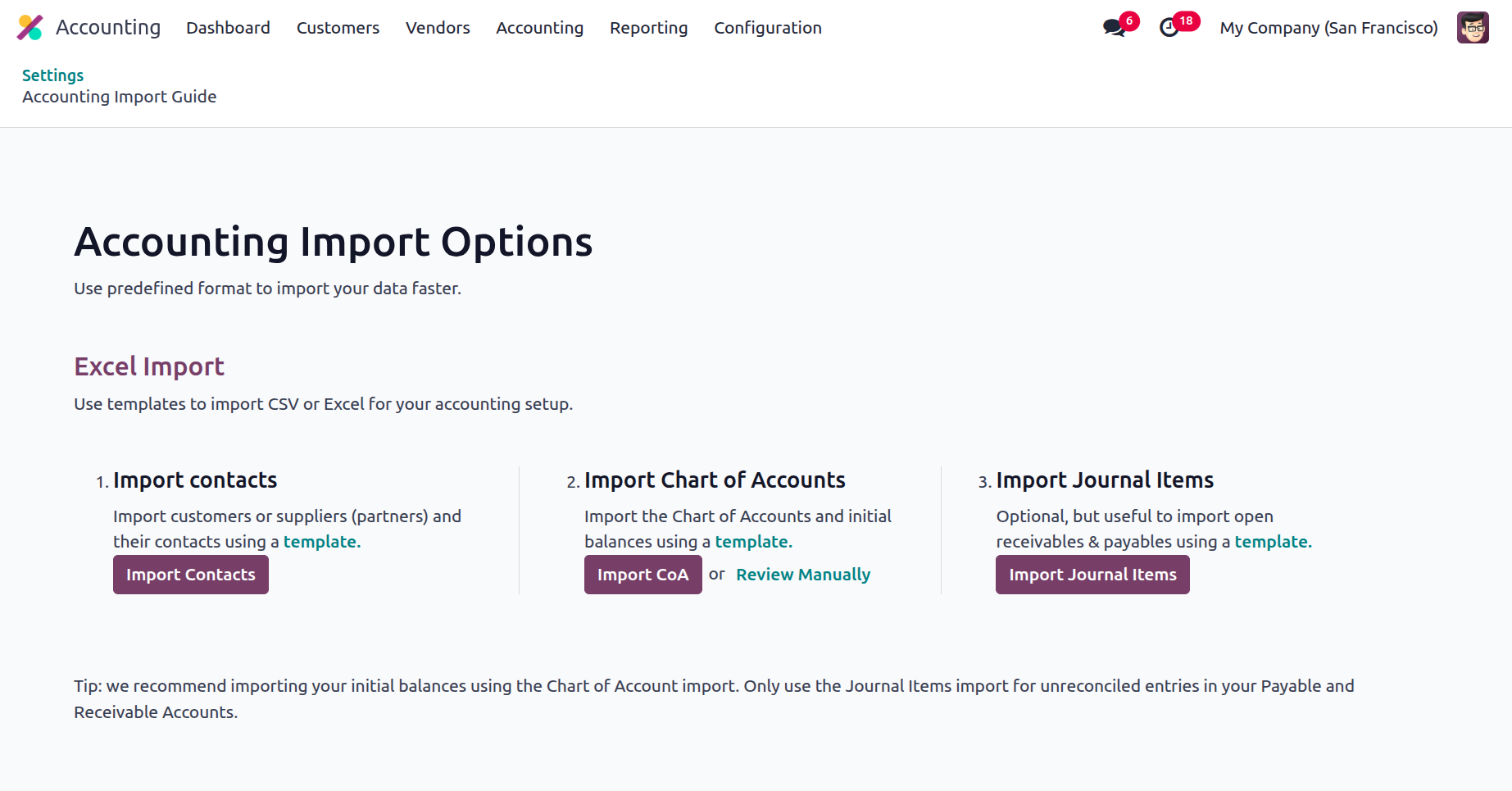
Contacts, charts of accounts, and journal entries can all be imported using the 'Import' function.
The advanced dashboard of the Odoo Accounting module offers a thorough overview of all the activities pertaining to the firm's accounting administration. Now that you fully comprehend it, let's go on to the section that discusses the client financial management component of the Odoo Accounting module.