Audit Reports
Auditing is an essential part of finance management duties in business accounting. Throughout the currently being constructed budgetary periods, this inevitable component is acknowledged as a priority. Additionally, the complete fiscal year's financial operations are examined, documented, filed, and audited in accordance with regulations. Typically, this is carried out once each fiscal year. To assist you in managing the finances and accounting operations of your business, Odoo's Accounting module offers you specific Audit Reporting tools.
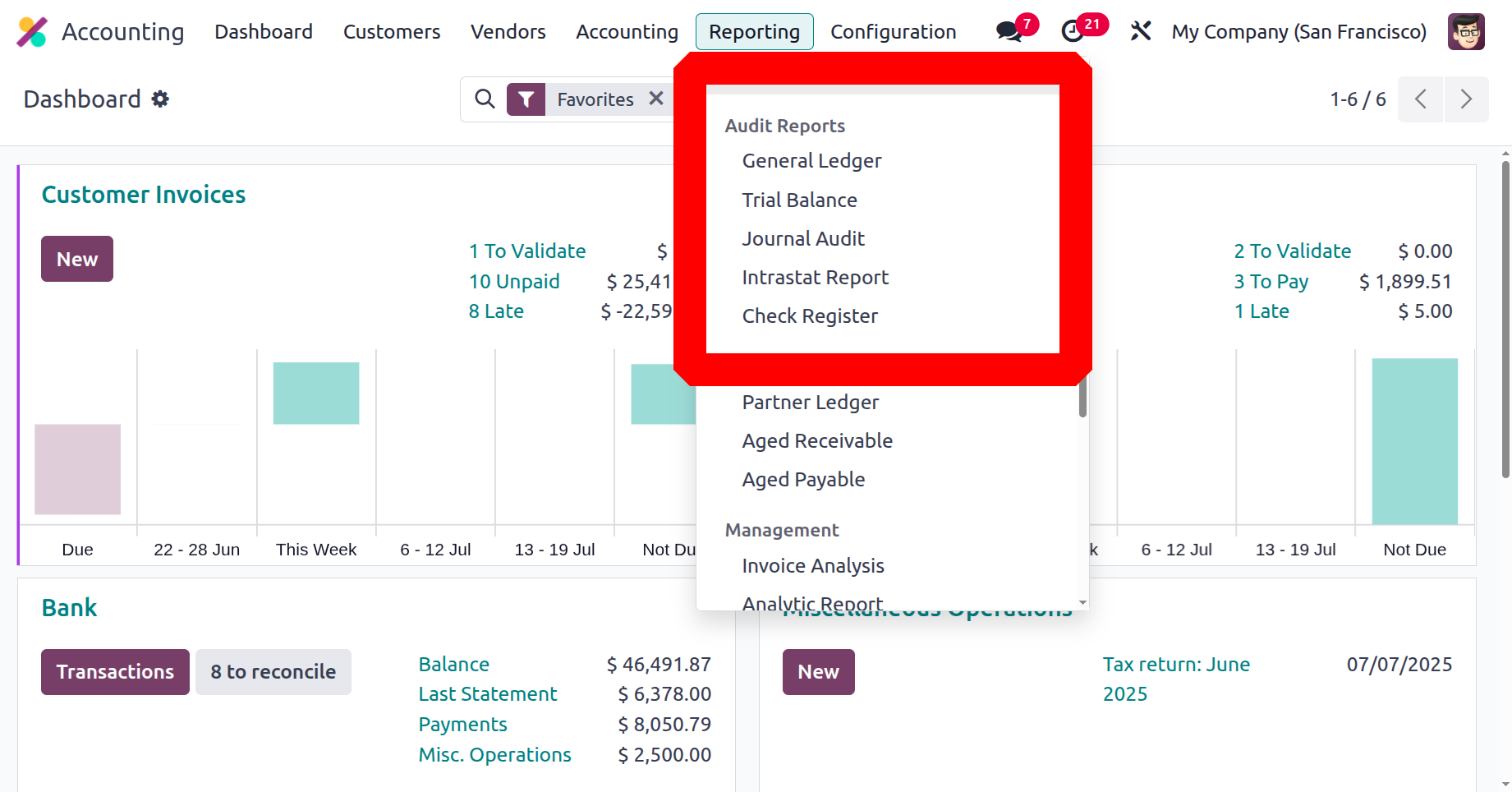
The Odoo 18 Accounting module's reporting page provides access to a specific category of audit reporting tools, such as the General Ledger, Trial Balance, Journal Audits, Intrastat Report and Check Register. In the following section, let's examine each audit report in turn.
General Ledger
The general ledger of the business will contain all accounting information pertaining to business activities. Additionally, the general ledger shows all business transactions from all of the firm's account ledgers, and filters can be applied to dynamic reports. Here, every financial transaction related to the business's sales, purchases, and other operations will be explained in a special style to aid the viewer in understanding them right away. Additionally, the well-structured menu can be used to research and find particular data related to the business's financial management practices.
By choosing the Reporting option in the Accounting module, as seen in the screenshot below, you may view the company's general ledger. This will show all of the financial operations items that have been filtered to show for the specified period of time. Along with the invoice and bill details for each posted journal, an explanation will be provided.
You can also choose to Print Preview, which will show you a preview of the General Ledger Report before you print it. By choosing the Export(XLSX) option, you can export the report in XLSX format for use in other business endeavours in addition to exporting General Ledger data. The reporting menu's saved filtering settings and configuration details are guaranteed by the Save option. You can choose to enlarge a journal, which will show all associated invoices and bills. Sample has also been chosen as the Journal filter, and the ledger entries in the figure below have been filtered to the month of July in 2025. Additionally, only posted entries undergo screening.
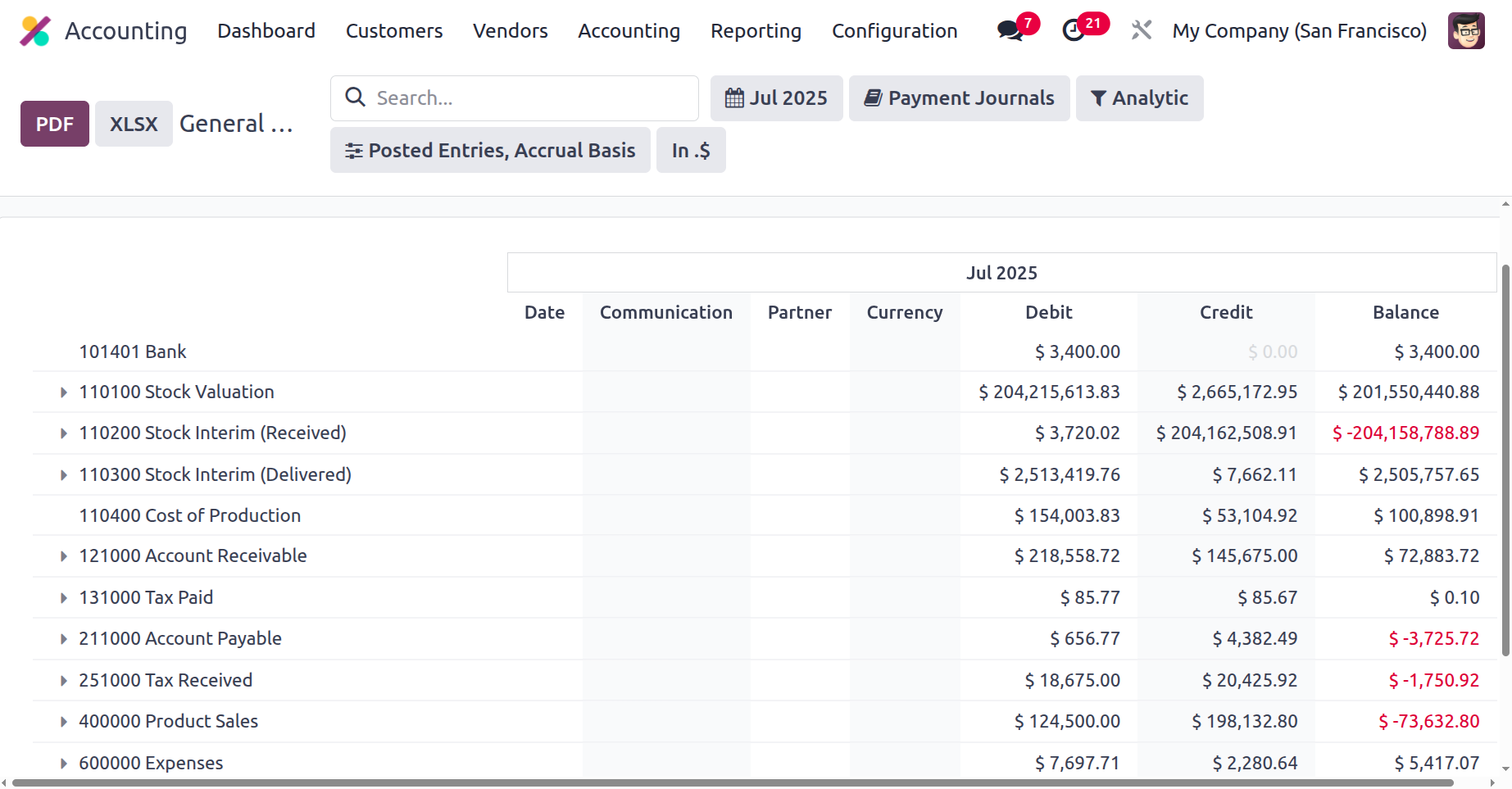
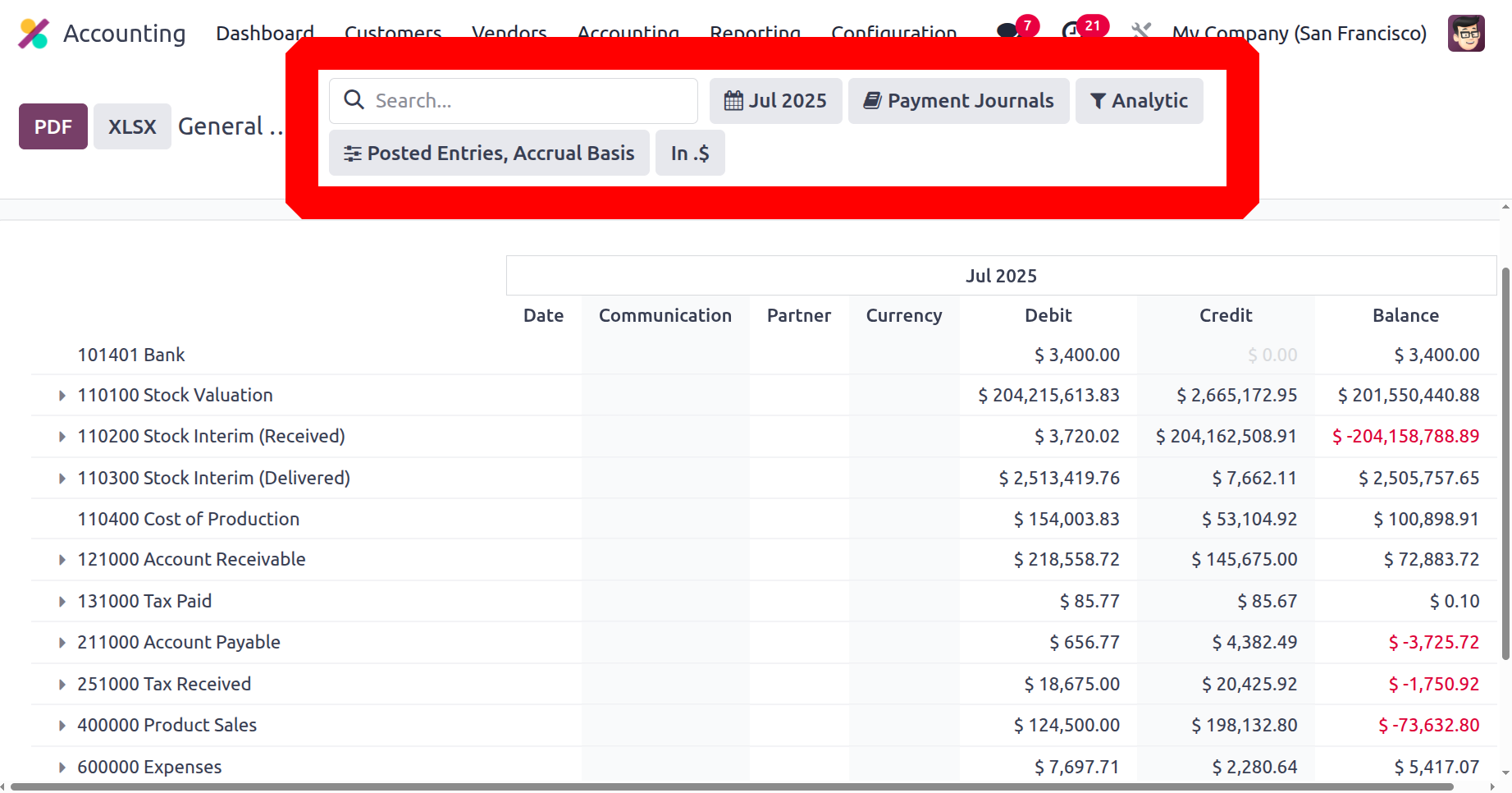
The affected journal entries are shown together with the date, partner details, currency, debit/credit amount, and balance when an account is opened. You may also see and comment on the Journal Entries (add comments on each entry) with a right-click. At the bottom of the General Ledger, you can examine and amend the comments made to the journal entries. If you need to establish a custom filter date of operations, you can filter the date or month of operations as This Month, This Quarter, This Financial Year, Last Month, Last Quarter, or Last Financial Year. The screenshot below displays the Filtration menu in the General Ledger menu.
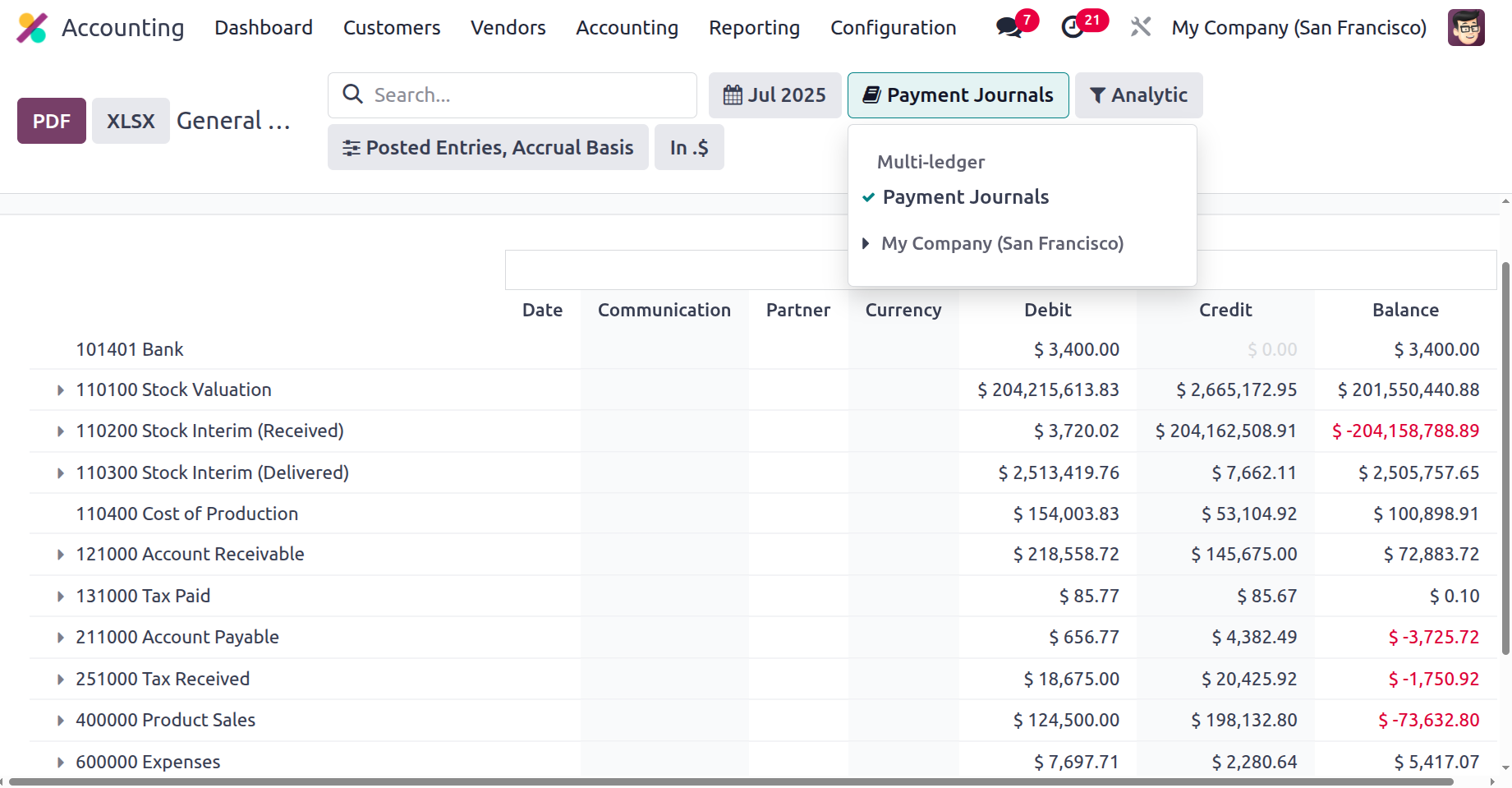
As an alternative to filtering the journals, you can choose which specific journals to filter as well as which defined journal groupings to use as the filter.
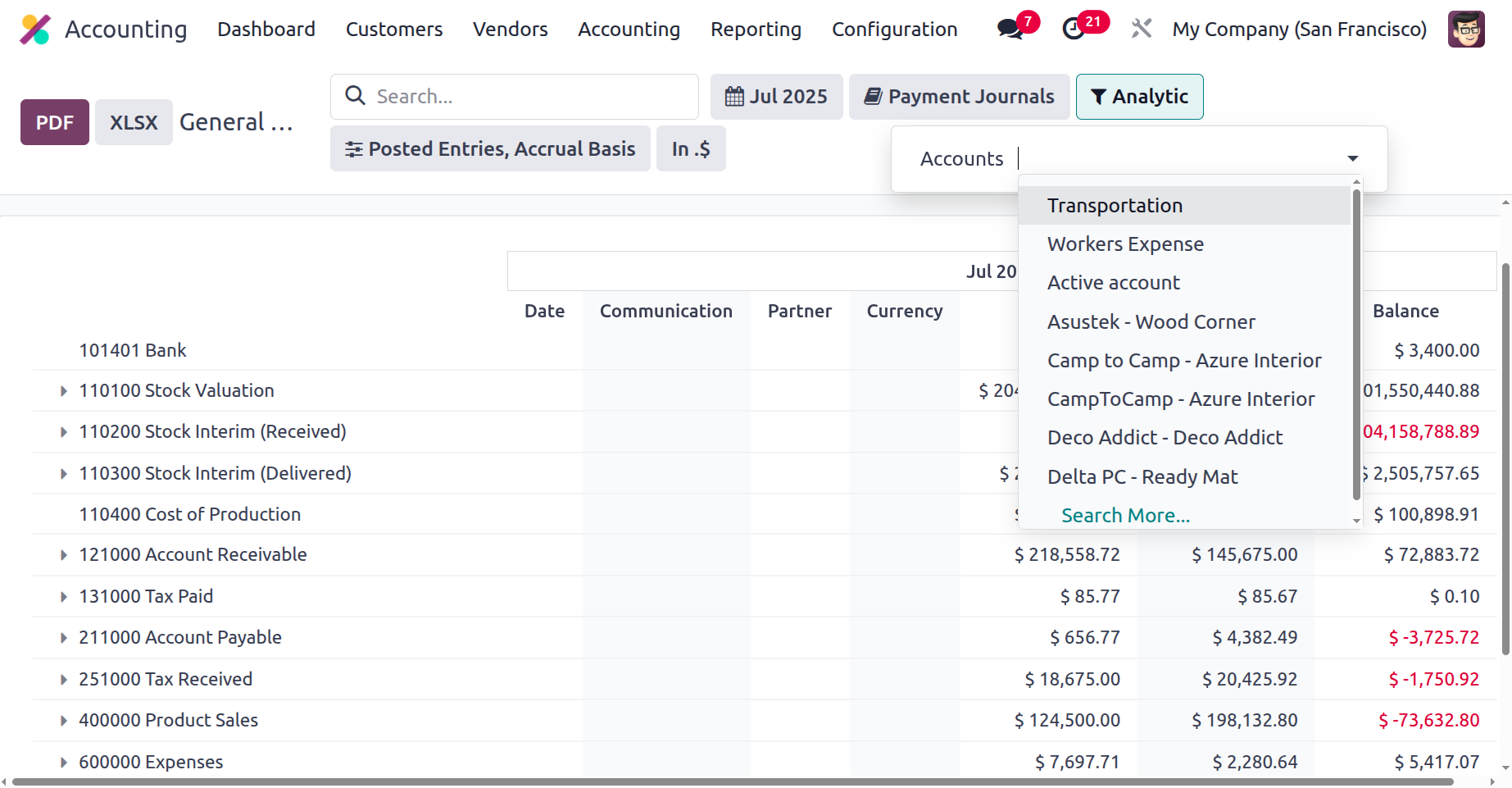
Additionally, the filtration can be carried out in relation to the Analytical Accounting portions of the firm's financial management utilising the Analytic option that is offered. To remove entries from the General Ledger, define the Analytical Accounts and Tags here.
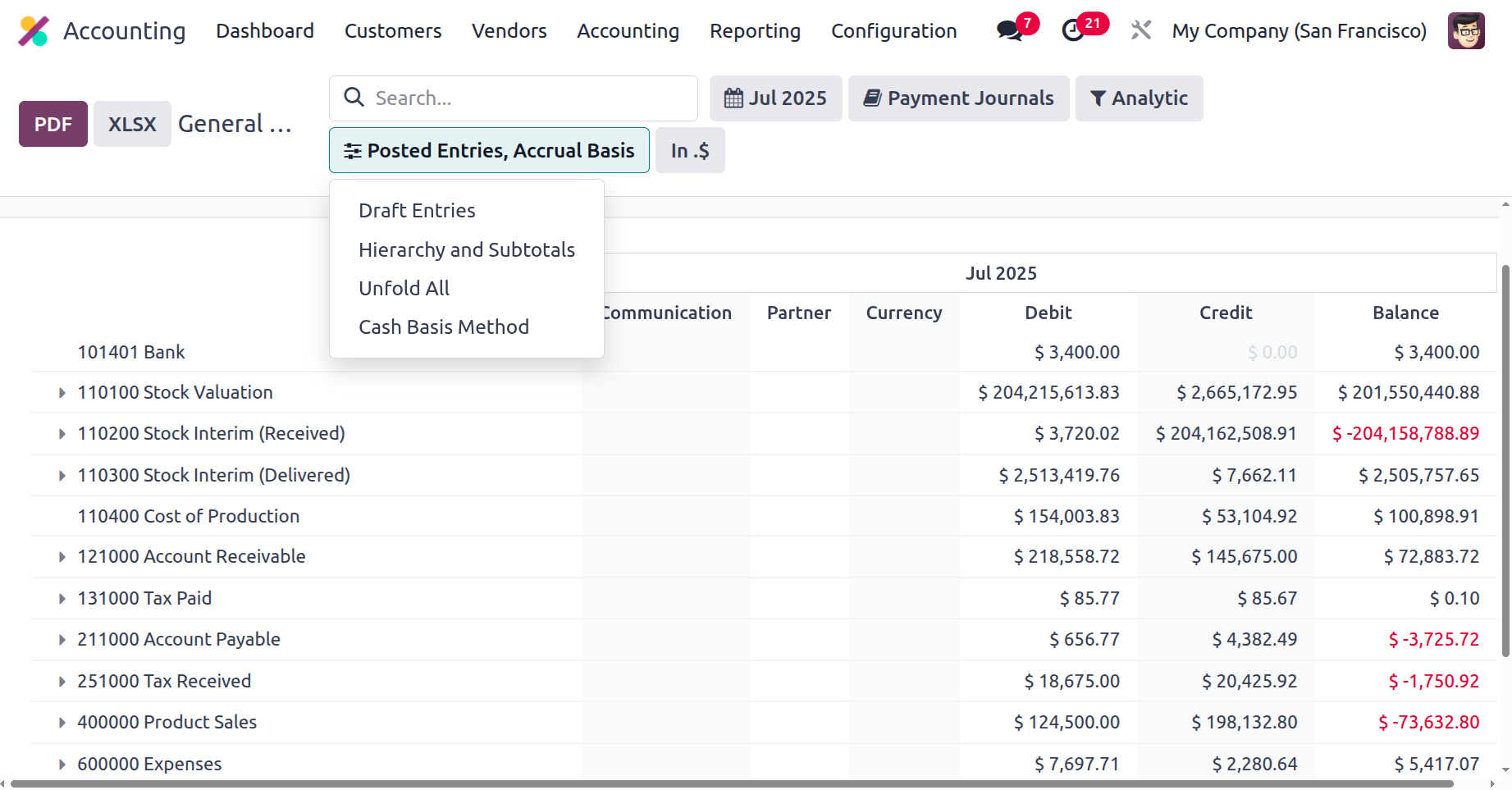
Additionally, a specific filtering tool is offered. By default, this filter only shows Posted Entries, but it also gives you the option to Include Unposted Entries, Use Cash Basis Method, Use Accrual Basis, and Unfold All. The necessary General Ledger entries can be defined in operation with this option. Additionally, there are buttons that let you print reports in XLSX and PDF formats. You may save financial information by using the Store button to save reports to the appropriate location in the Documents module.
All posted and unposted accounting operations related to the firm's operations are started by the general ledger report. The Odoo Accounting module will automatically display all entries pertaining to the corporate activities of the various Journals, replacing the specialised book known as the General Ledger that was kept in the early days of the organisation. Let's go on to the following section, which describes the Odoo Accounting module's Trial Balance Report, after discussing the General Ledger reporting option.
Trial Balance
In terms of the accounting operations of the company, a trial balance is a type of bookkeeping tool that shows the balance of each account in terms of credits and debits. The particular Trial Balance reporting tool for the Odoo Accounting module is described in the module and accessible through the Reporting tab of the module. Along with the operations' starting balance data in the form of a debit and a credit, all filtered journals will be shown in the Trial Balance report option. Following that, the entries' credit amounts and debits for the relevant time period will be shown, together with the total debit and credit amount. Additionally, the Trial Balance report will allow you to search for a certain account.
Additionally, a Print Preview option is available, which shows the Trial Balance Report in preview form prior to printing. By choosing the Export(XLSX) option, you can export the report in XLSX format for use in other business activities in addition to exporting the Trial Balance details. The reporting panel's filtering options and set details are saved by selecting the Save option.
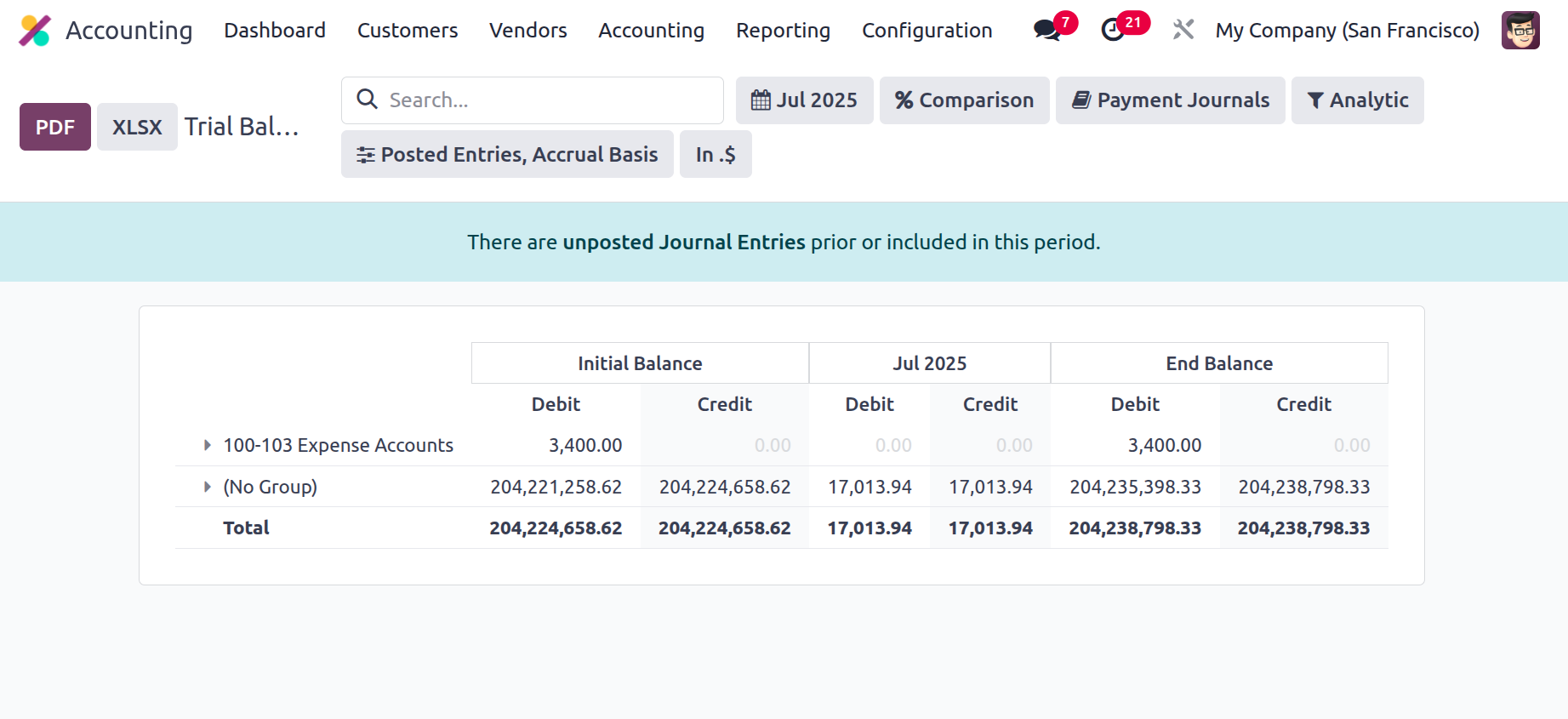
You can specify the Trial Balance for This Month, This Quarter, This Financial Year, Last Month, Last Quarter, and Last Financial Year under the Group by feature. You can also add Custom filters as necessary. Depending on how long the company has been in business, the Group by choice is shown in the accompanying snapshot and can be used to filter the Accounts.
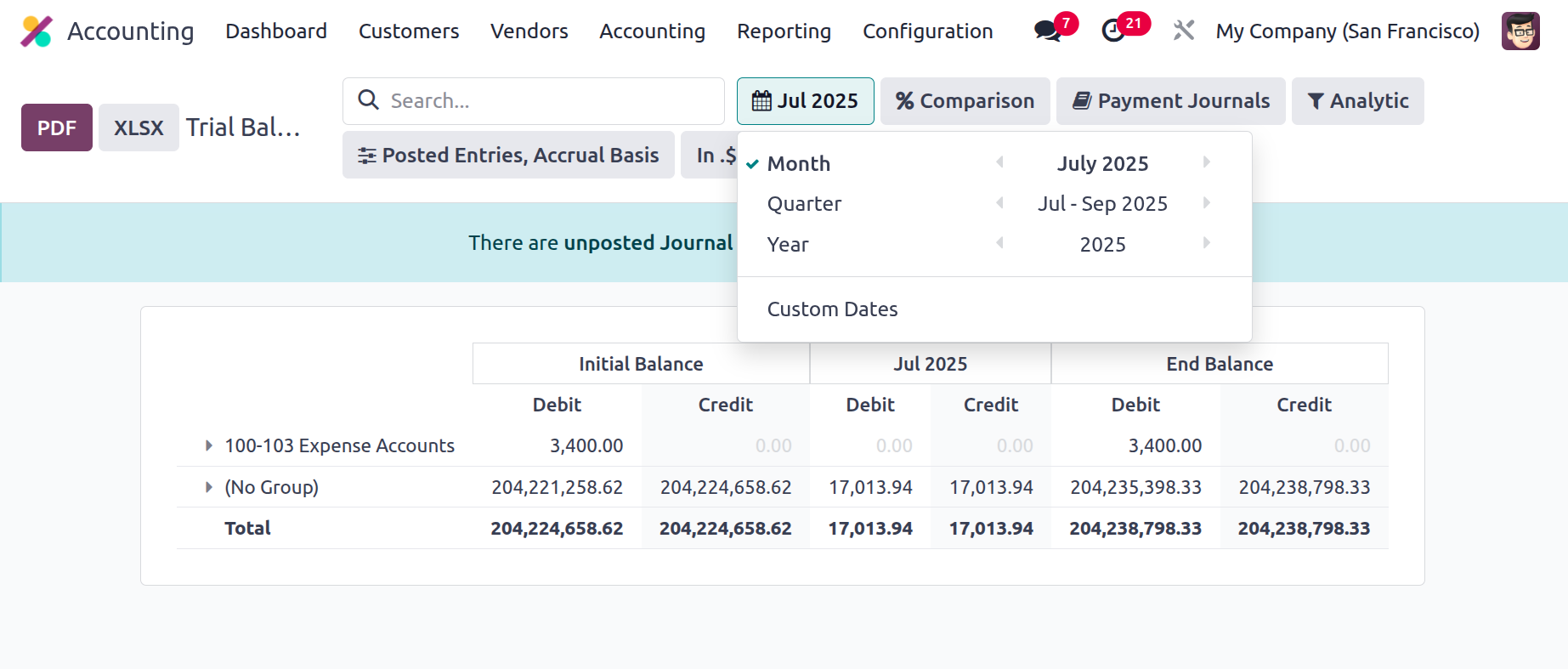
To create a comparison between the company's journal entries, you can also utilise the additional Comparison option. Either the same period from the prior year, the previous period, or a custom comparison determined by the needs could be used.
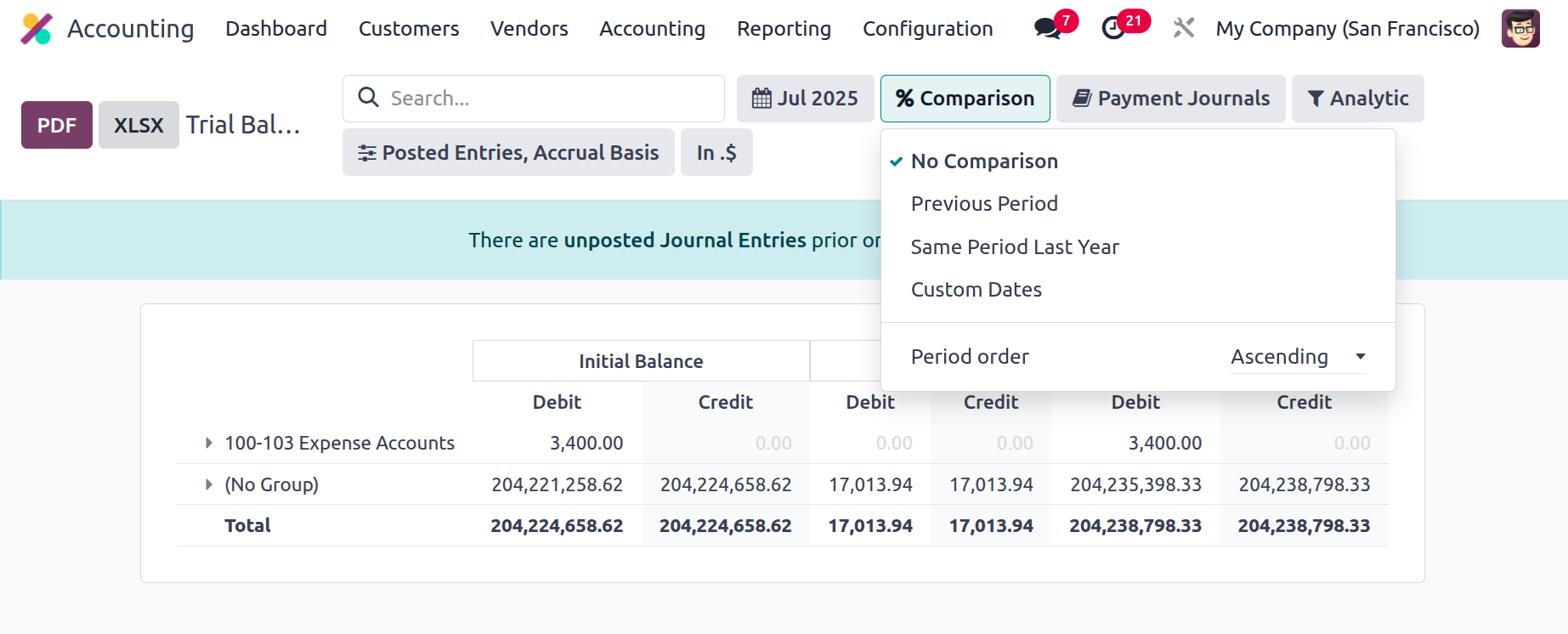
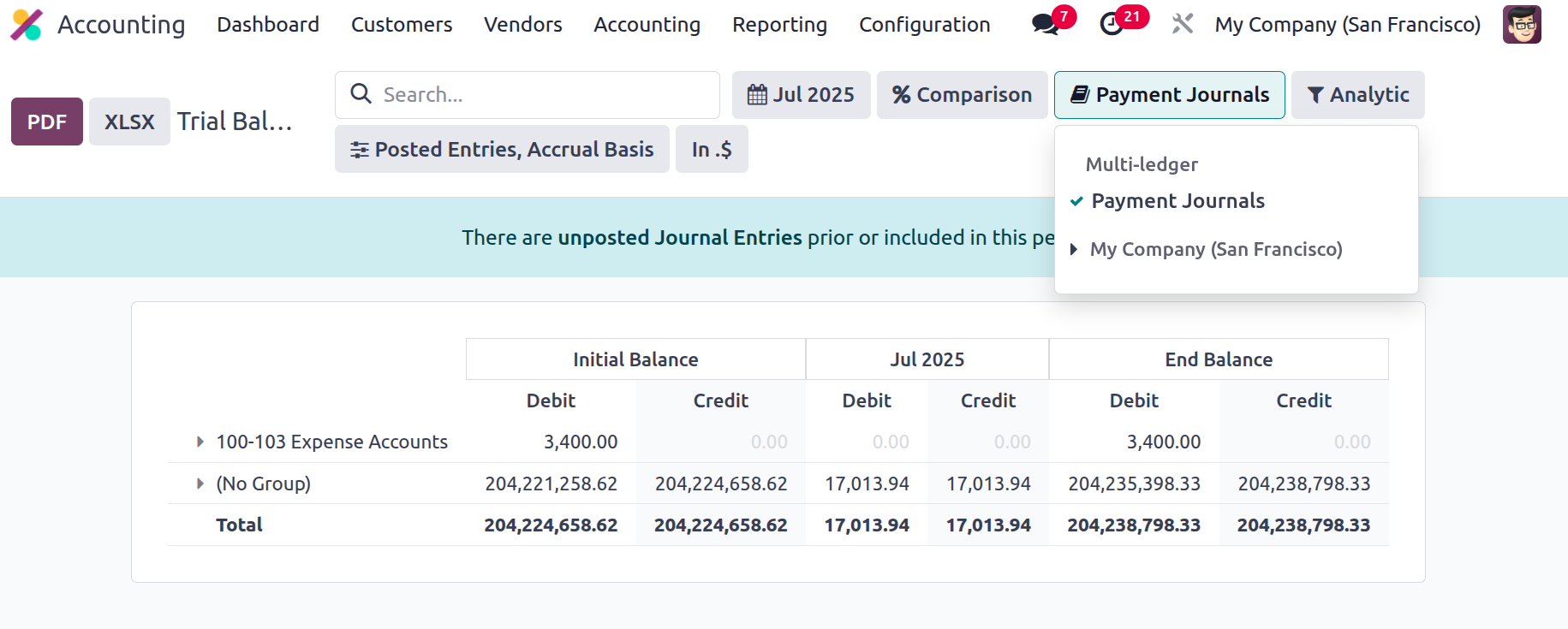
The journals can also be grouped using the Journal Groups and specific journals listed. You will have a better grasp of the Trial Balance components in connection to each of the operational Journals if you use this grouping technique.
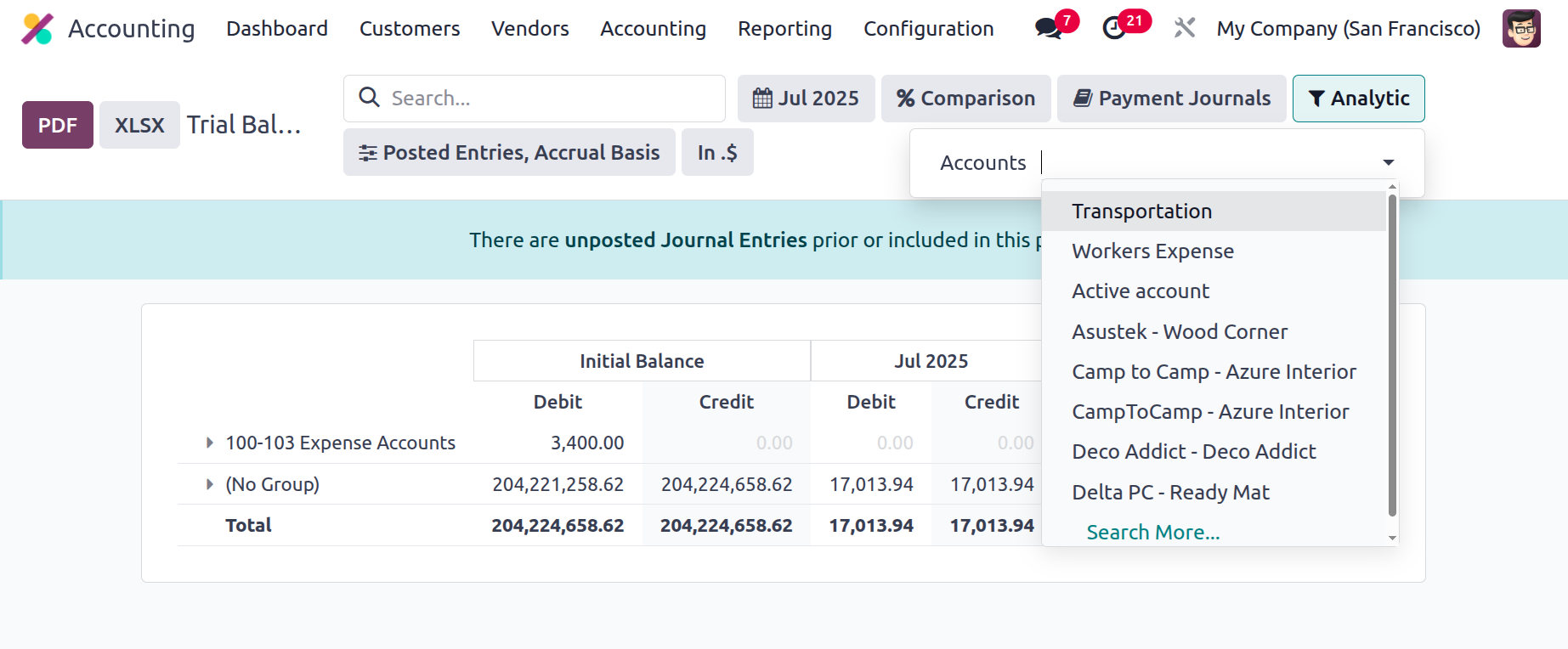
Using the available Analytic option, the filtration can also be carried out with reference to the Analytical Accounting portions of the business's financial management. To filter the items in the Trial Balance report, define the Analytical Accounts and Tags below.
Additionally, a specific filtering tool is offered. By default, this filter only shows Posted Entries, but it also gives you the option to Include Unposted Entries, Use Cash Basis Method, Use Accrual Basis, and Unfold All. The required Trial Balance entries can be defined in operation with this option. Additionally, there are buttons that let you print reports in XLSX and PDF formats. You may save financial information by using the Store button to save reports to the appropriate location in the Documents module.
Comprehensive details on the Credit and Debit amounts pertinent to the organization's operations can be found in the Trial Balance report of the business's financial activity. Understanding and getting a general idea of the business's financial activity will also be aided by the Trial Balance report. Let's proceed to the section that describes journal reports in Odoo in relation to the company's accounting procedure.
Journal Audit
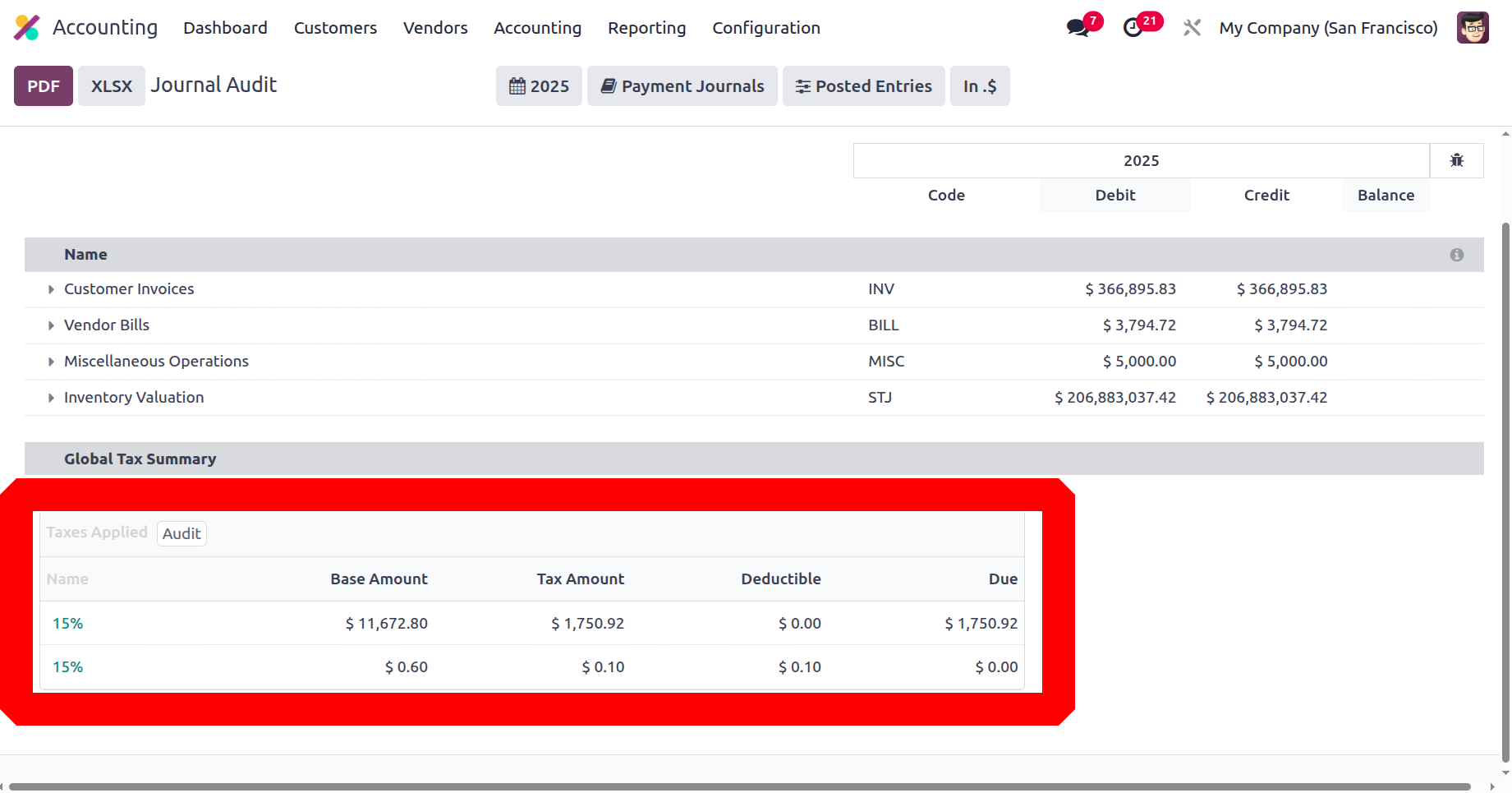
The Journal report option in the Odoo Accounting module defines the journals of your accounting operations that are designated as Consolidated for the operations. The menu will display each operational journal together with the corresponding operating month. By choosing Print Preview, you may also generate a preview of the Consolidated Journals report. Additionally, the Consolidated Journals in the XLSX report can be exported by using the Export(XSLX) option. You can use the Store option to store the Consolidated Journals for reporting after filtering and aggregating them based on another configuration element.
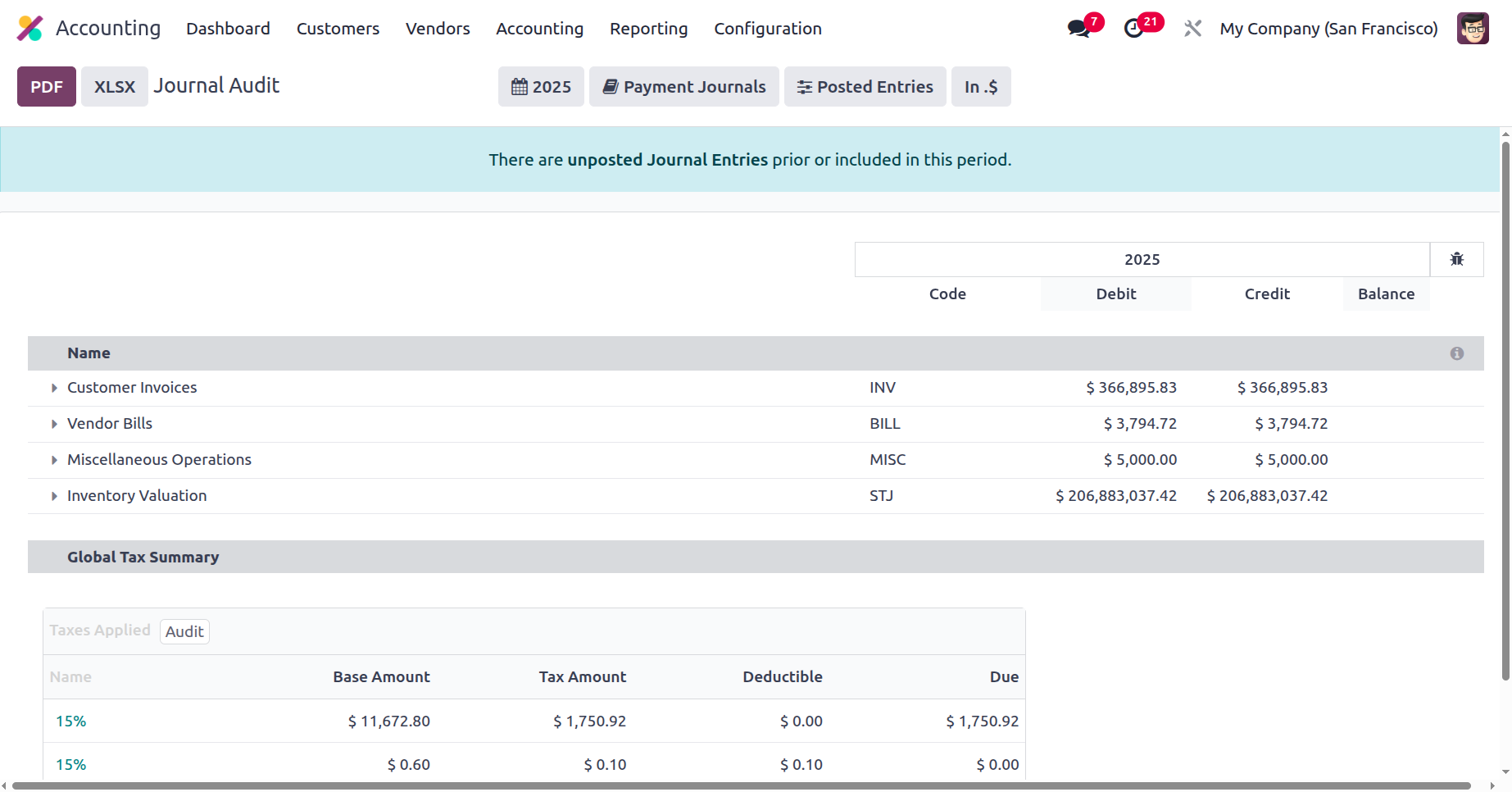
As can be seen in the screenshot, a tax declaration will also be included at the end of the sales and purchase journal entries.
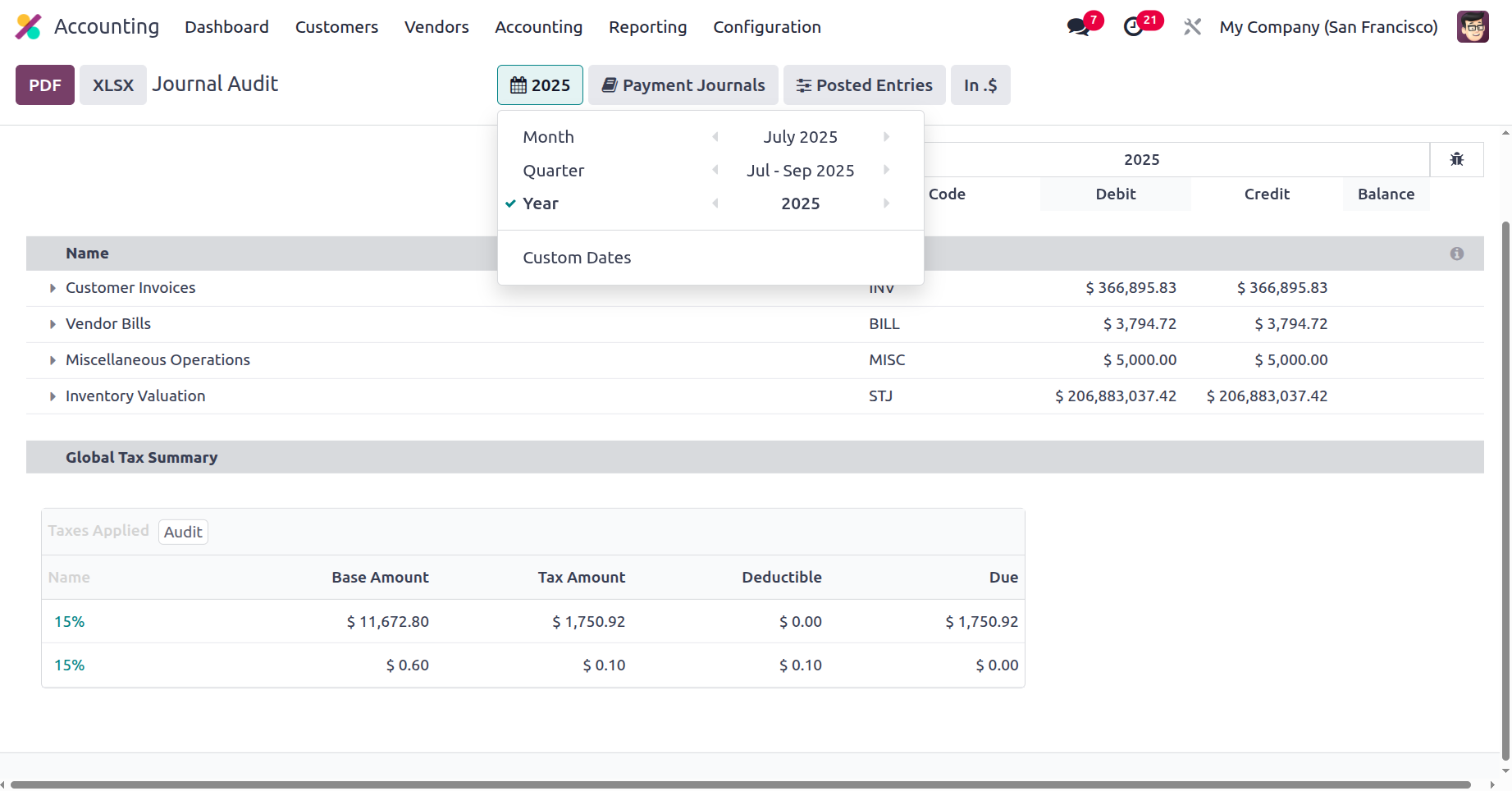
You can group the entire set of data shown in the Consolidated Journals according to the time period of the operation. You can also add custom filters of operations as needed, or you can use filtration options like Month, Quarter, Year and Custom Dates. The screenshot below shows the Group by choices that you may use to filter the Accounts according to the length of time the firm has been in operation.
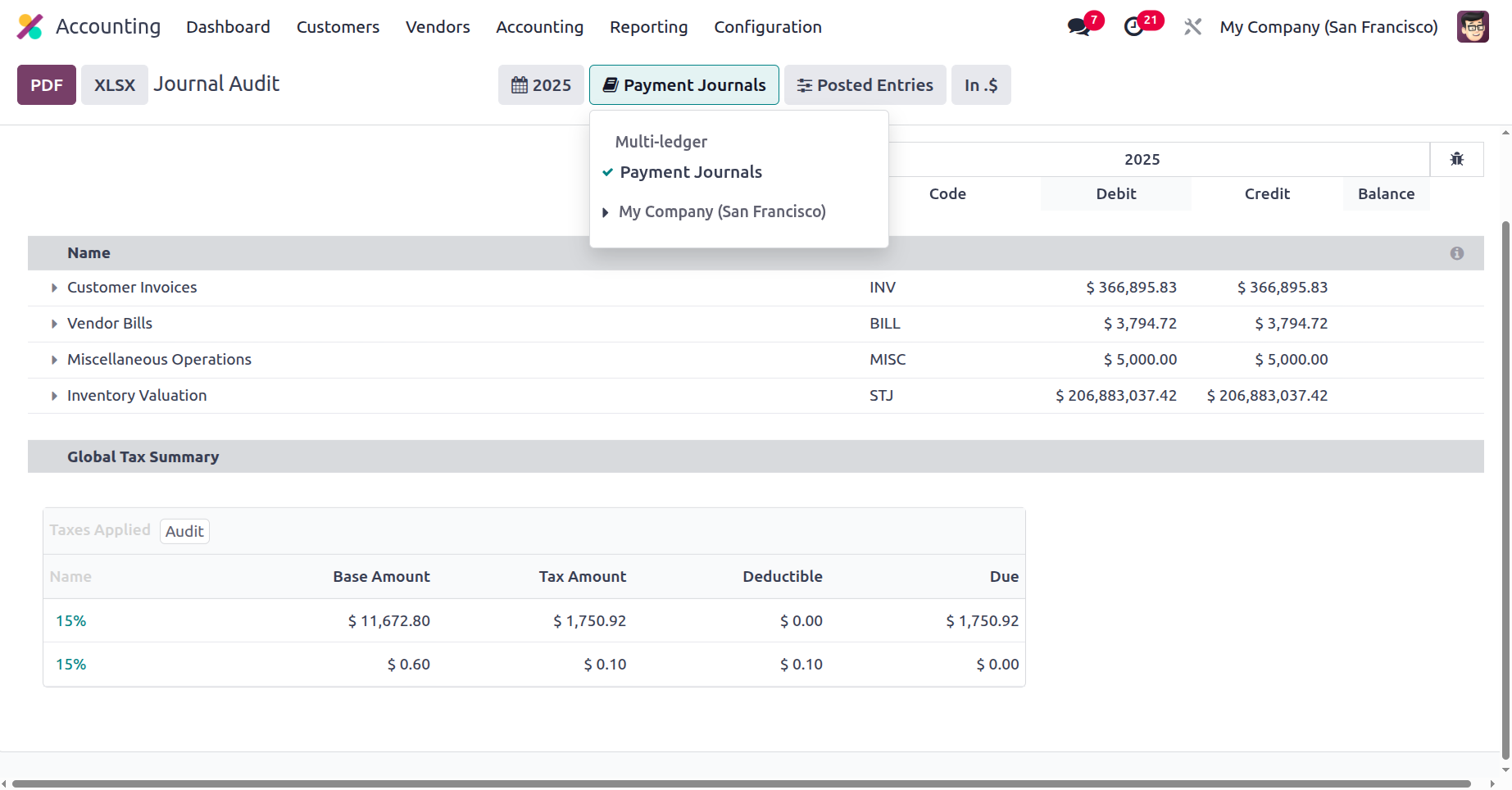
The journals can also be grouped using the Journal Groups and specific journals listed. You may have a better understanding of the Consolidated Journals elements in relation to each of the operational Journals being constructed by using this Journal-by-Journal grouping approach.
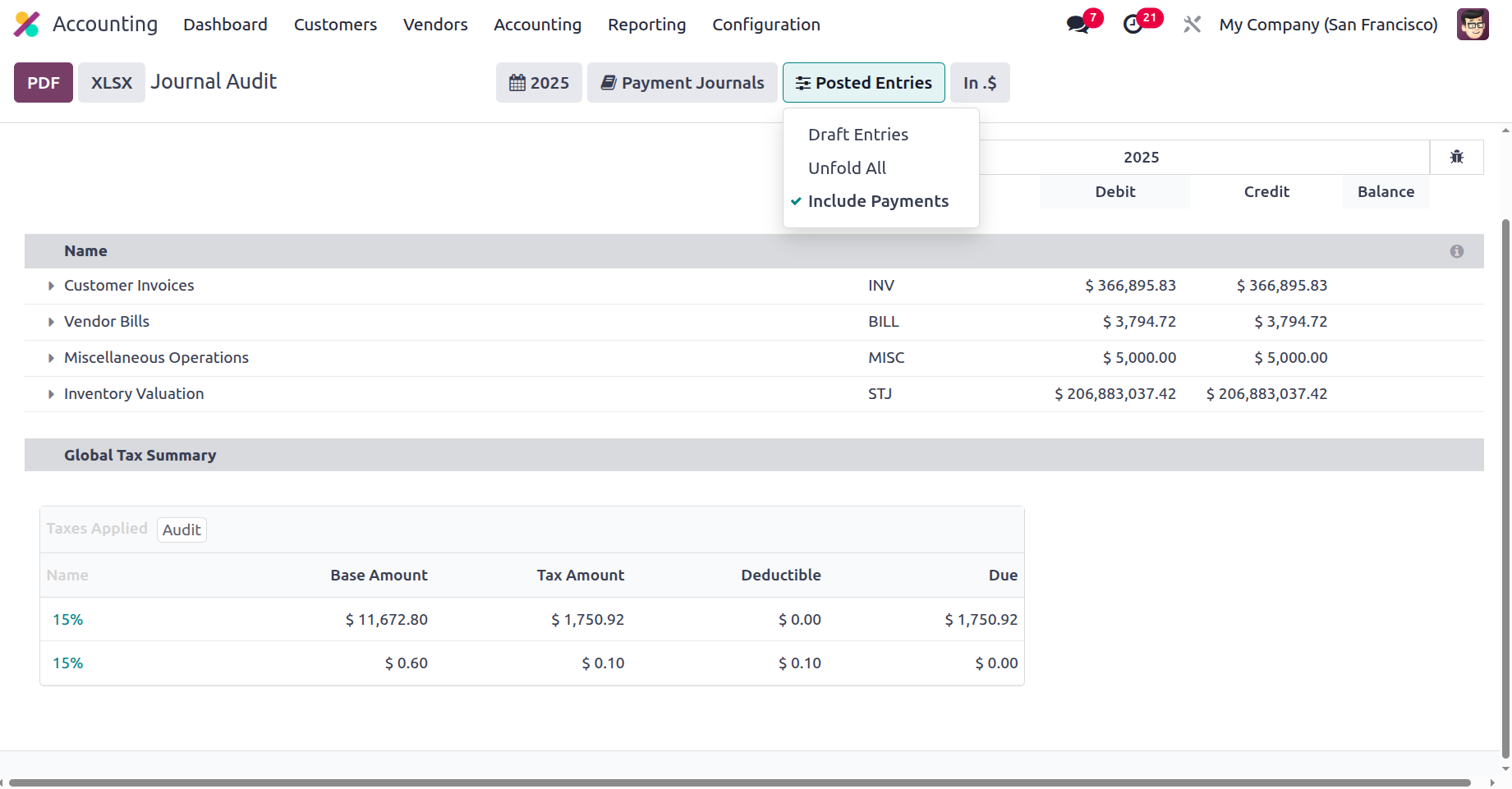
You may also use the Posted Entries Only, Include Unposted Entries, and Unfold All options in the settings tool to filter entries. You will have well-defined alternatives for sorting and excluding the Consolidated Journals entries because of these filtering tools and selections.
The viewer is guaranteed to comprehend all of the financial entries and their assigned components of the business's accounting activities thanks to the Consolidated Journals reporting window. The next section of this chapter will cover the Intrastat report, which is the next reporting tool in the Odoo 18 Accounting module.
Intrastat Report
One of the most extensive reporting choices offered by Odoo's Accounting module is the Intrastat Report. The Intrastat reporting mechanism allows the European Union and its member states to follow commerce and trade statistically. The Intrastat Report menu is accessed through the Reporting tab of the Odoo Accounting module. All of the Intrastat Reporting elements pertaining to business activities will be shown on this page. Additional Group by and specialised Filtering options are available in the menu to help with the sorting process.
Depending on the option and the company where business is conducted as partners, vendors, or customers, filtering tools will help the Filtering component of the Intrastat Reports in the Odoo platform with regard to the Fiscal Periods of Operations, defined journals, types of journal entries, and filters.
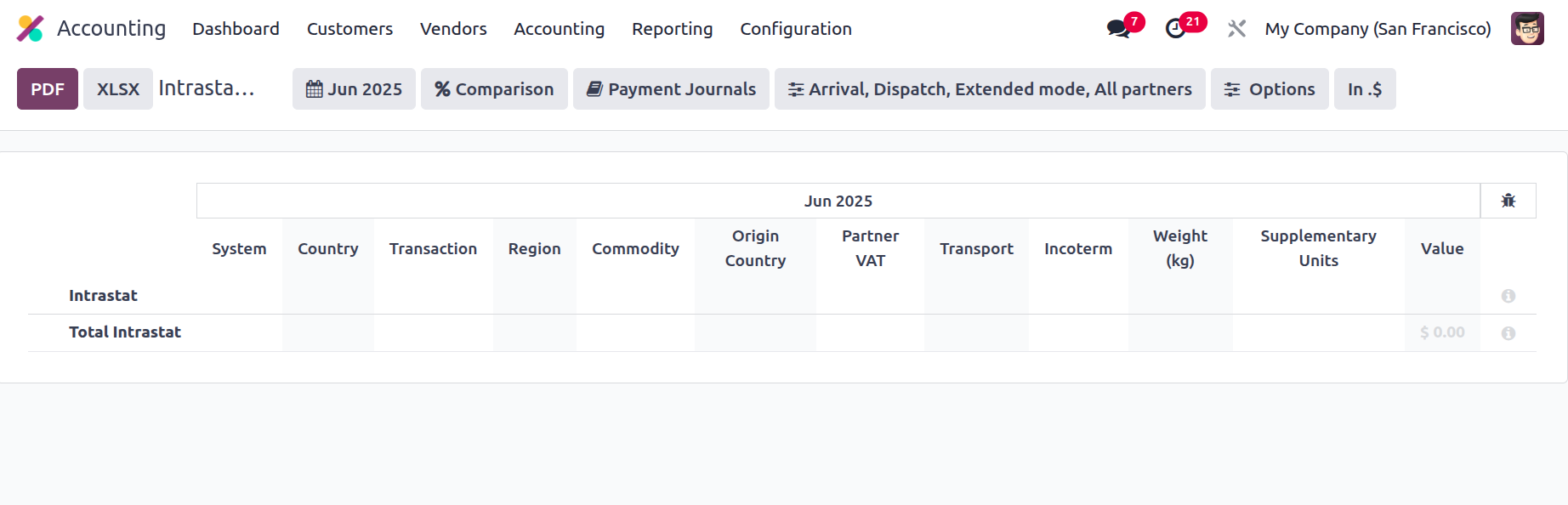
You can consult the reporting elements given in the previous sections to find out more about the filtration features of the entries listed in the report. Additionally, there are buttons that let you print reports in XLSX and PDF formats. You may save financial information by using the Store button to save reports to the appropriate location in the Documents module. Let's go on to the following stage, where we will provide the EC Sales List reporting feature for the Odoo platform.
Check Register
You can learn more about your company's Bill Register by selecting the Bill Register option, which is the final one under the Audit Reporting tools in the Odoo Accounting module. Every financial transaction related to the operation of the company will be detailed in a check register, and the report will analyse these transactions to provide you a comprehensive understanding of how everything operates.
The many functional Charts of Accounts that have been set up in the platform will be used to display the Accounts Register report. The date of operation, communication details, partner, and currency used will all be listed here, along with each operational Chart of Accounts. Additionally, each Chart of Accounts' Balance, Debit, and Credit amounts will be explained as they appear in the screenshot that follows.
Similar to other reporting options in the Odoo18 Accounting module, filtering and grouping options are available. The information in the check register can be filtered using the following criteria, which include fiscal periods, journals, analytical accounting features, and posted and unposted entries. Depending on the information you have, you can also use a serving tool to search the Bill Register entries. Additionally, there are buttons to print reports in XLSX and PDF formats. You may preserve your financial data by using the Store option to store reports to the appropriate spot in the Documents module.
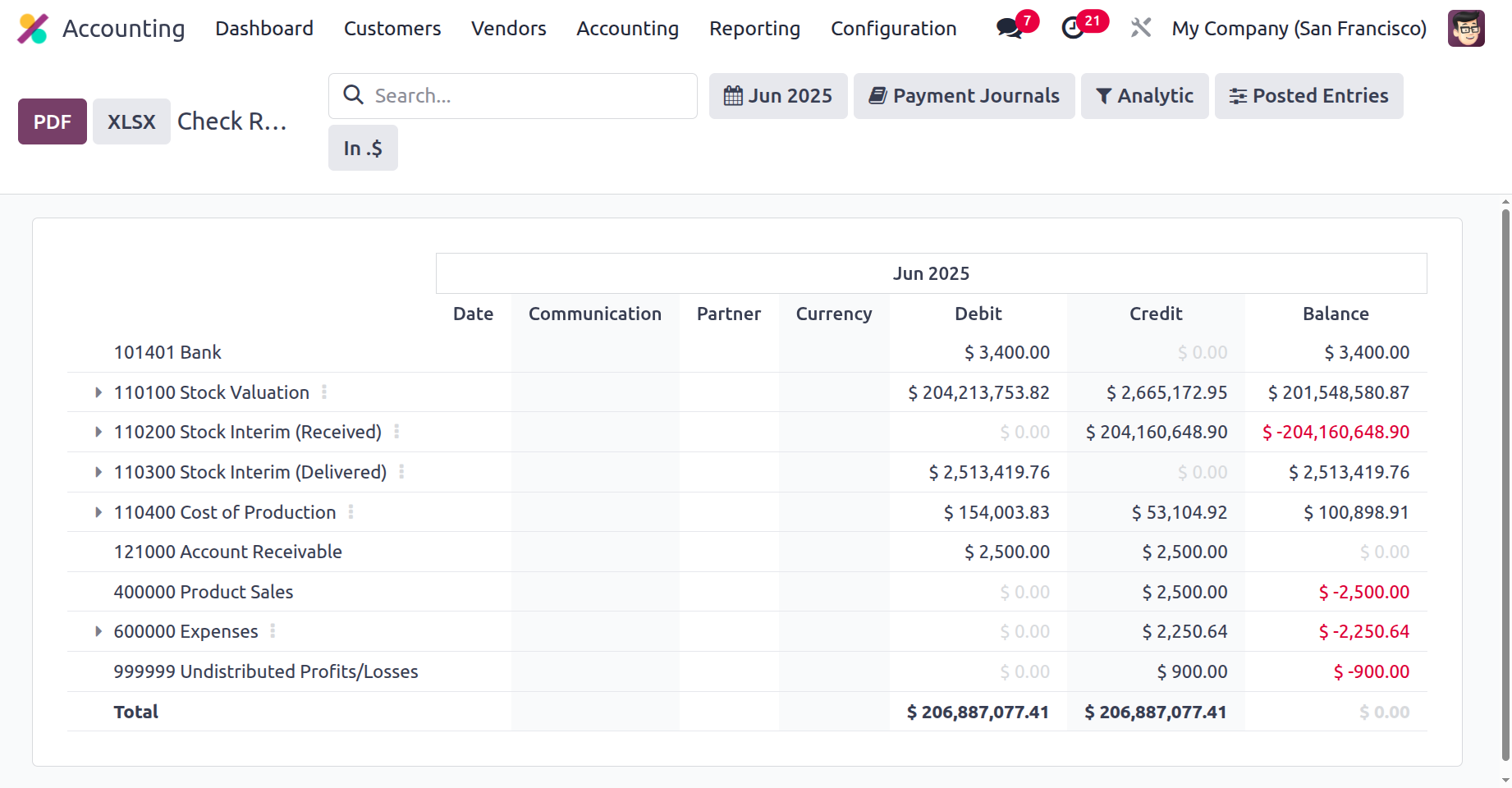
The Check Register reporting menu in Odoo will be a useful accounting tool and play a significant role in carrying out each operation's components in terms of the company's financial management. The Odoo 18 Accounting module's reporting features are completed with the Bill Register.