Company Settings
Any company or organisation that wants to improve its business structure and ride the wave of rapid development in the business environment must upgrade to better technology and systems. In addition to reducing expenses, a robust ERP system streamlines business operations. As we mentioned earlier, Odoo ERP is easier to set up and use than other ERP systems. Any kind and size of business can install Odoo ERP, a fully integrated software solution. You must first set up the company and the related data required for Odoo to carry out all of your company's essential tasks, after successfully integrating Odoo for the smooth operation of your company. Outlining every facet of the business's operations and activities is essential.
You may appropriately build Odoo's setup features with the help of its robust and specialised Settings menu. All of these features can be controlled from this menu. You may efficiently construct many company-related parameters using the unique Companies management menu found on the General parameters page of the Odoo system. This menu makes it simple to establish the business and set up the required operations consisting of both parent and child businesses on a single platform.
With Odoo's support for multi-company operations, you can set up and run numerous companies from a single database. If you need to manage multiple enterprises from a single platform, this feature is crucial. You can assign users to different companies, create and manage several businesses fast, and securely handle each company's data with Odoo. Additionally, you may use Odoo's multi-company feature to move data between businesses, including financial, customer, and product information. In terms of managing numerous businesses, this will help save time and money.
Today, a company can open multiple branches. It suggests that branch management for the corporation is now rather easy. Additionally, the main business may add more than one branch. Sharing sales and purchase processes between businesses in the same Odoo database is made simple by Odoo's multi-company setup. Invoicing between businesses engaged in inter-company operations is another application for it. We shall fully understand the various facets of the Odoo platform's company administration settings and configurations in the following section.
Creation of a Company
It's easy to navigate and manage the company's menu on the Odoo 18 platform. You may access the Manage Companies option and other company-related functions by heading to the Settings module, which has the menu shown in the picture below. Additionally, there is a tab for Companies that is prominently displayed.
You can change the businesses and the parameters that go with them by selecting the companies tab in Odoo 18's General parameters window, which is visible above. Every firm in your Odoo instance is summarised, and you can edit, remove, and add new companies. You can also see the company's settings on this tab, including its name, currency, time zone, and logo, along with its address, phone number, and other relevant details. Additionally, it provides access to the organization's security settings, such as roles, passwords, and user access levels.
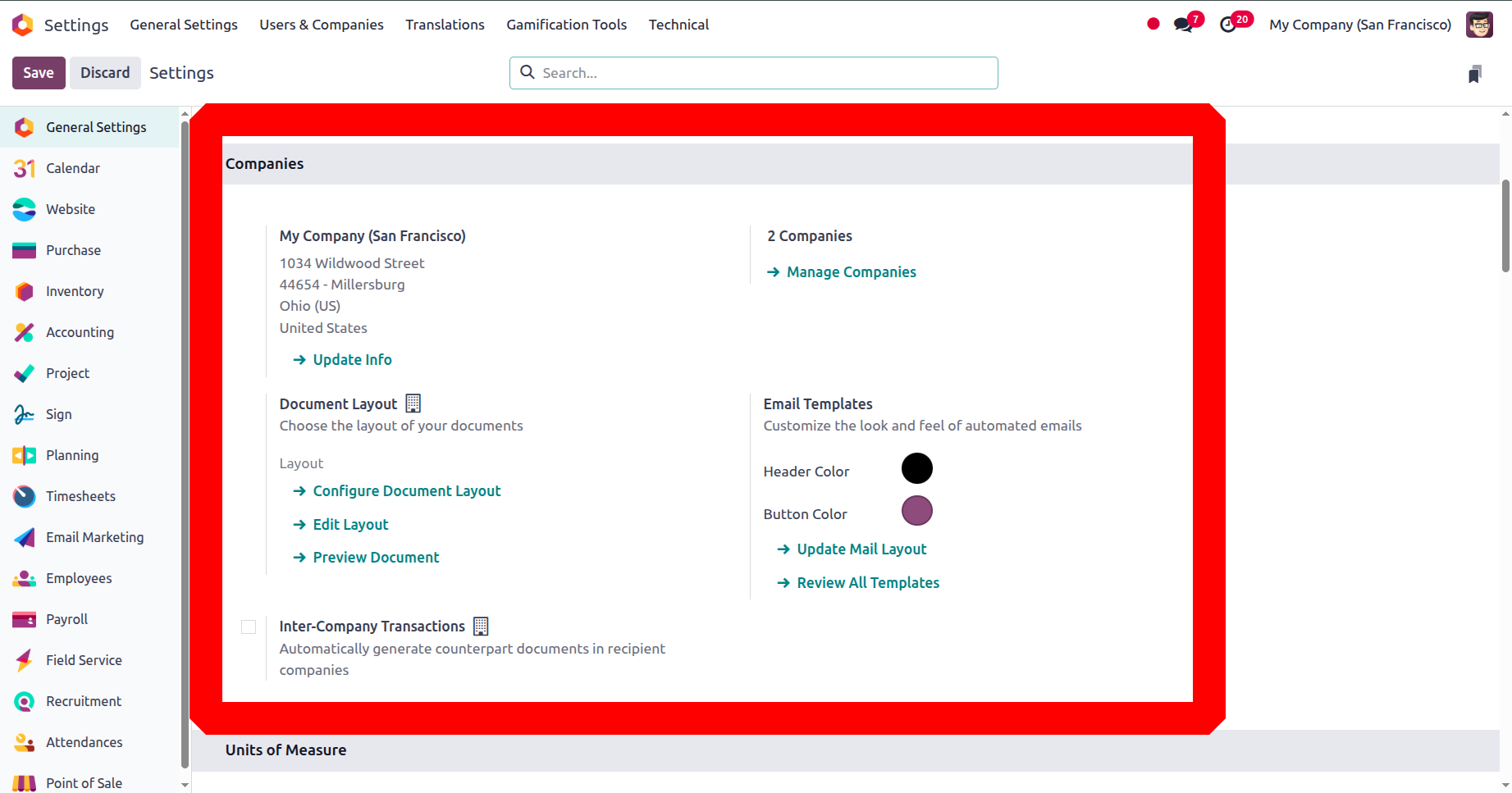
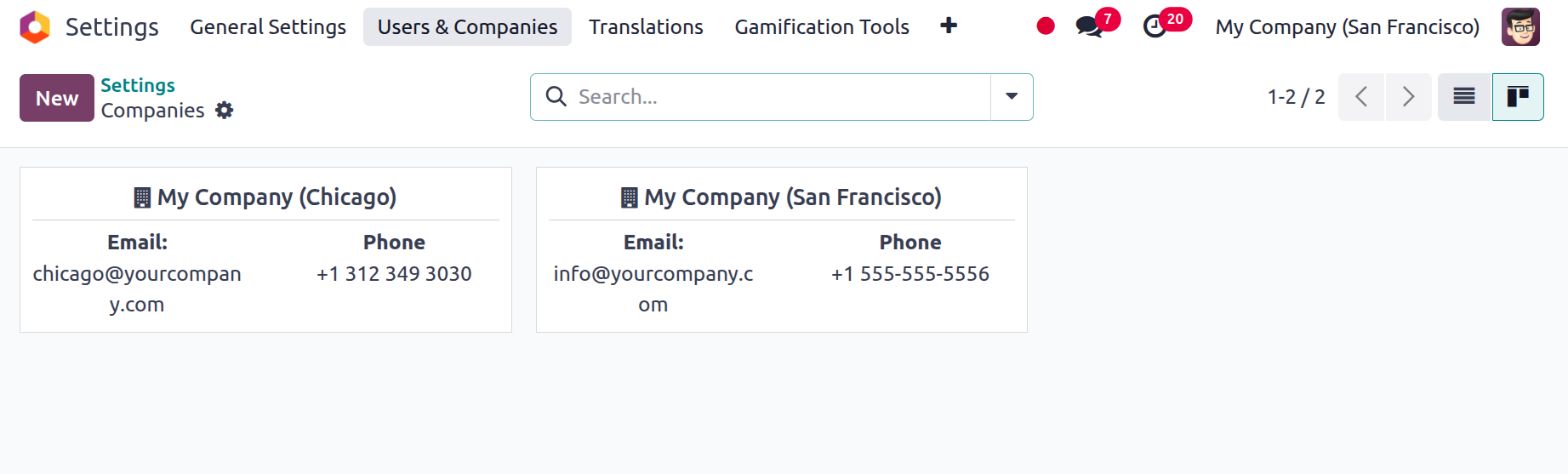
Clicking on the Manage Companies arrow under the Companies menu will bring up the Companies window, as shown in the image below.
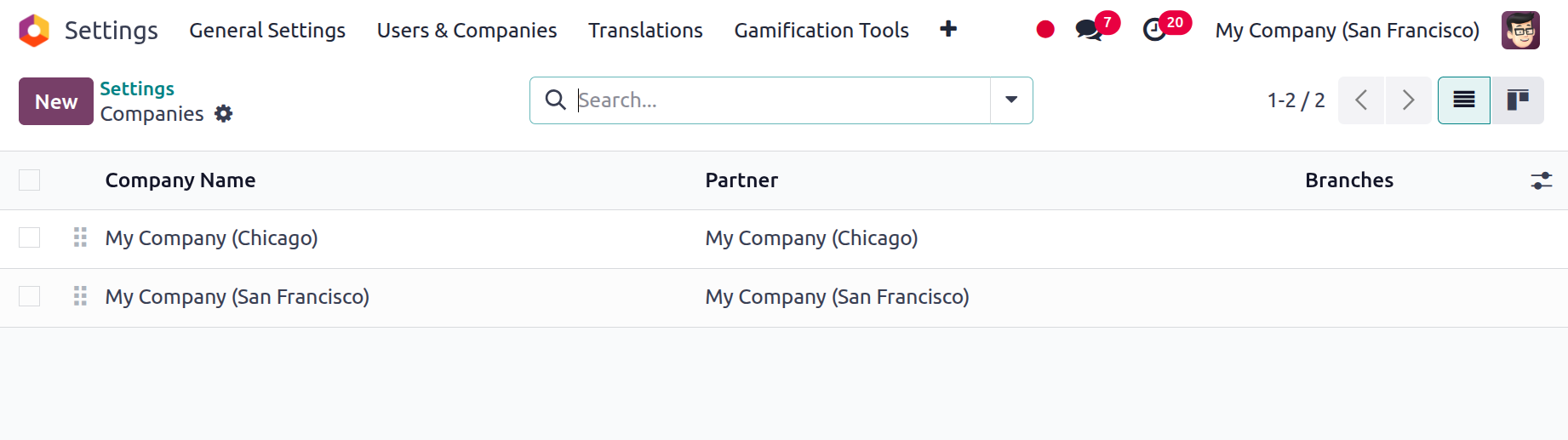
As you can see, two companies have already been established on this platform; the details are displayed below. In a similar manner, this window will display the information for all configured firms. You can access and see this data in either list or kanban format by navigating to the relevant menu icon that appears in the top right corner. The company name and partner information will be shown in the window.
When managing numerous businesses on a single platform, the Filters, Group By, and Search functions will be very useful for rapidly finding and categorising enterprises. You can modify the sorting features to suit your tastes. The Favourites tab offers useful options for completing a number of tasks, which is essential for the effective management of your organisation. The menus have the following options: Link Menu in Spreadsheet, Insert List in Spreadsheet, Import Records, and Save Current Search. Quickly exporting data into an Excel file is simple with the Export All button, which is next to the CREATE button. You can also select a particular firm record. Just tick the box next to the relevant firm to accomplish this.
The system will now offer an Action button with the Export, Archive, Unarchive, and Delete options, as shown below. The Action menu on the left also displays the Print option.
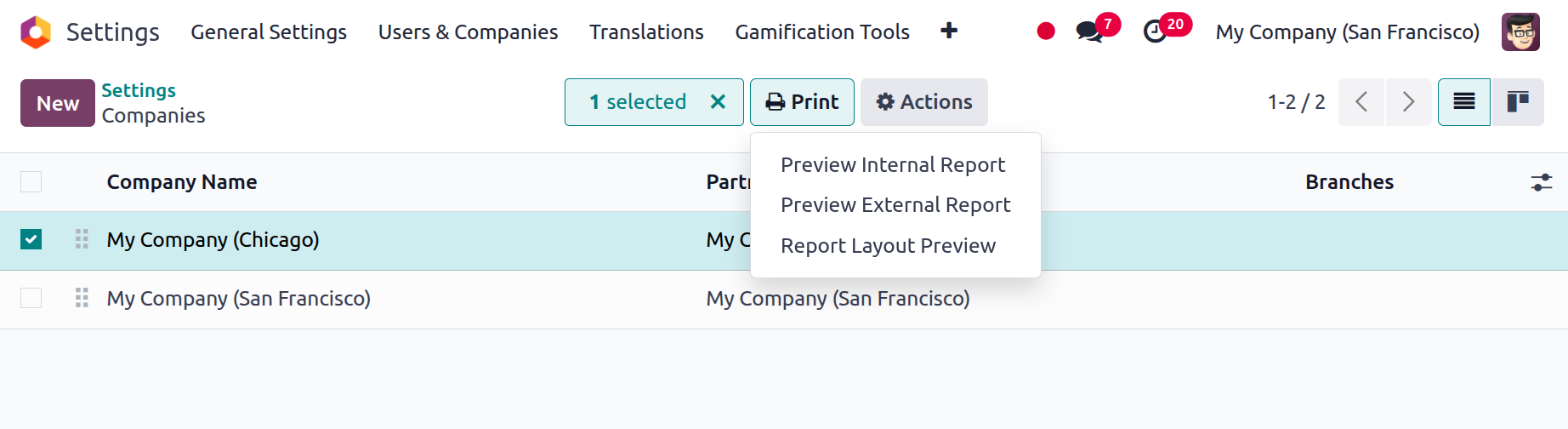
The Print menu has sub-menus including Preview Internal Report, Preview External Report, and Report Layout Preview, as seen in the image above. The Kanban view in the company window will look like the illustration below.
Along with other keys and settings, the Kanban view will provide the firm name, phone number, and email address. Creating a new company record in your Odoo platform is easy using the New button. The New button takes you to the Company configuration form, as shown in the screenshot below.
First and foremost, you must enter the name of your organisation in the organisation name area of the formation form. You can then put your company's logo to the appropriate spot in the following step. This is essential if you want to set your company apart from the competition. By selecting the Your logo option and selecting to attach it, you can upload your logo from the system. Once these two pieces of information are specified, you can modify the general information and the VAT Units data under the appropriate tabs.
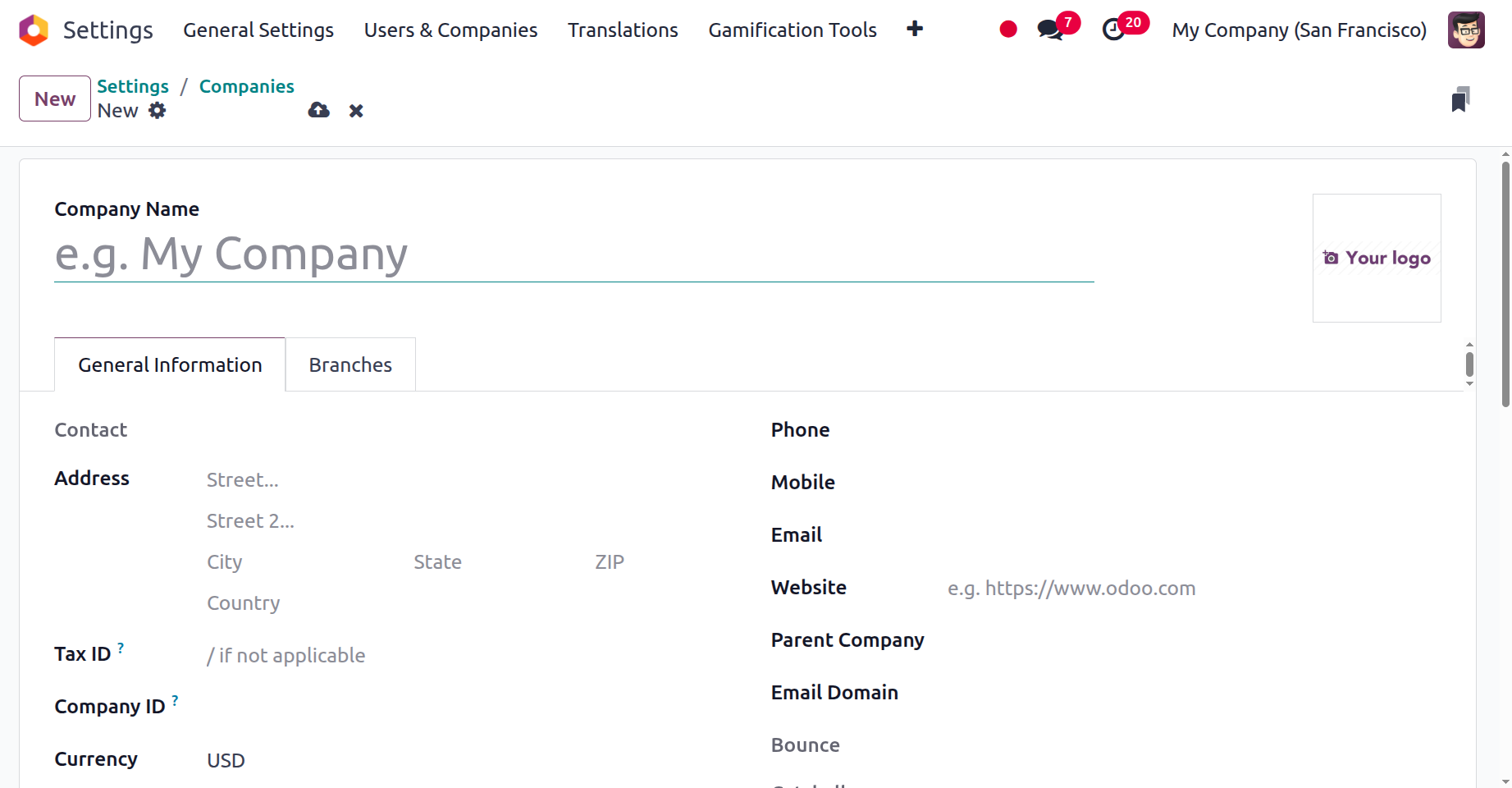
You can describe the company's address in the Address section under the General Information page. Details such as your street address, city, state, zip code, and country of business must be entered here. Next is the Tax ID box, which gives you control over the company's tax identification number. This number will be used to identify the business in legal documents and tax procedures. This section needs to be completed if the company is subject to government taxes. The Company ID box can then be used to assign the company's register number. It functions as the company's distinct internal Odoo ID. You can then enter the appropriate currency in the Currency field.
Additionally, the given space can be used to include the Parent Company, Website details, Email address, Phone number, and Mobile number. You also need to include the Company Favicon, which is used to set up the logo or favicon that appears next to the company name in the title bar of the web browser when the company's website is open. It is quite useful for quickly finding the company and its associated website.
Social media data, including a Twitter account, Facebook account, GitHub account, LinkedIn account, YouTube account, and Instagram account, can then be defined in particular fields.
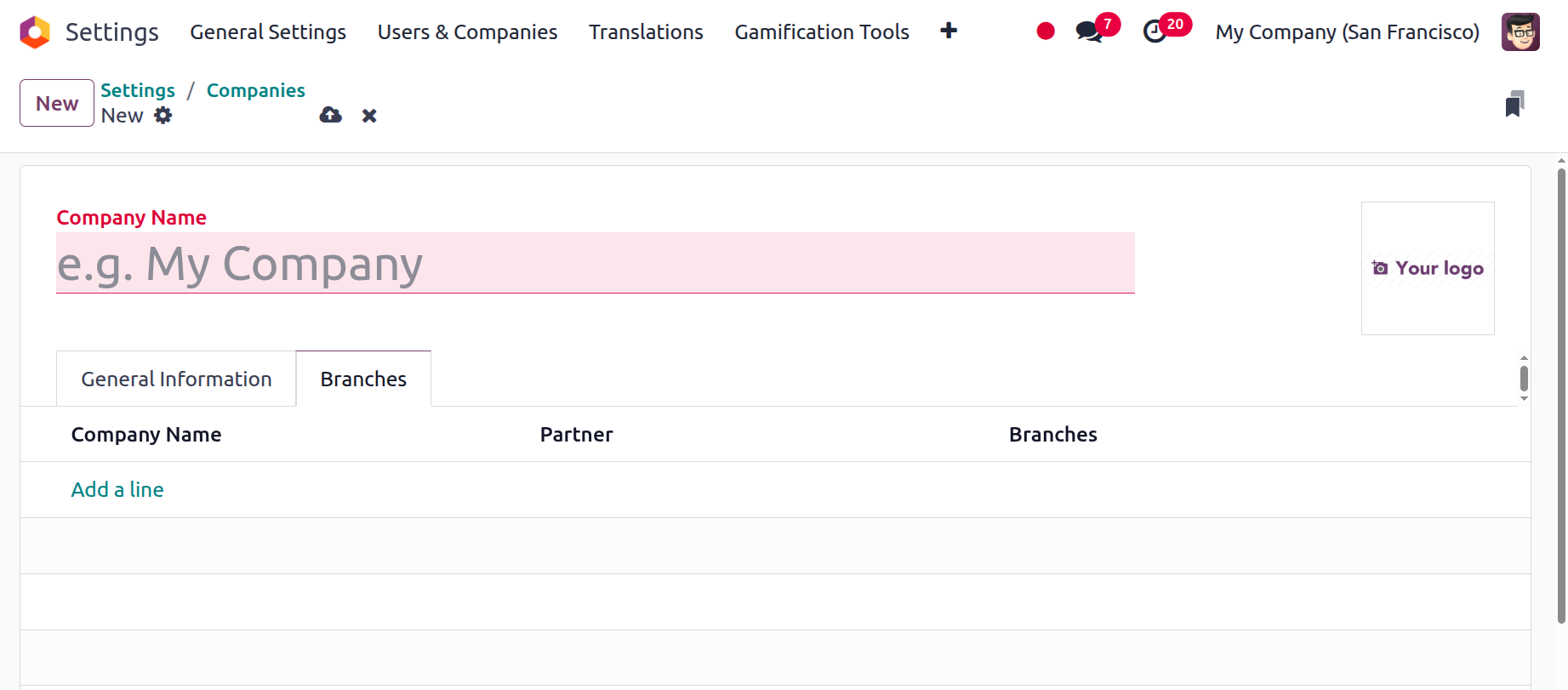
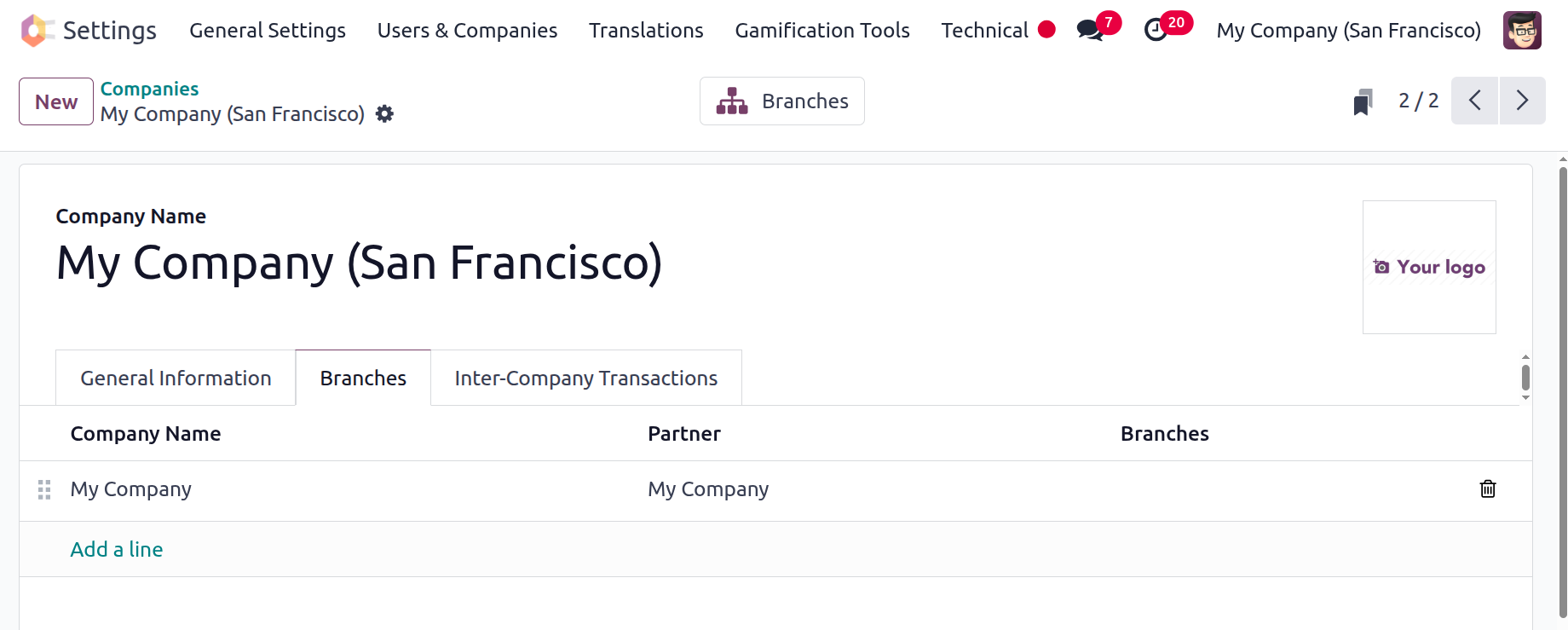
To list the branches of the parent firm, users can select the Add a Line option on the Branches page. Clicking the Add a Line button will open a new window. When the branch firm is added, it will appear inside the Branches tab, as seen in the figure below. By simply choosing the Add a line option, you can list any number of the parent company's branches there.
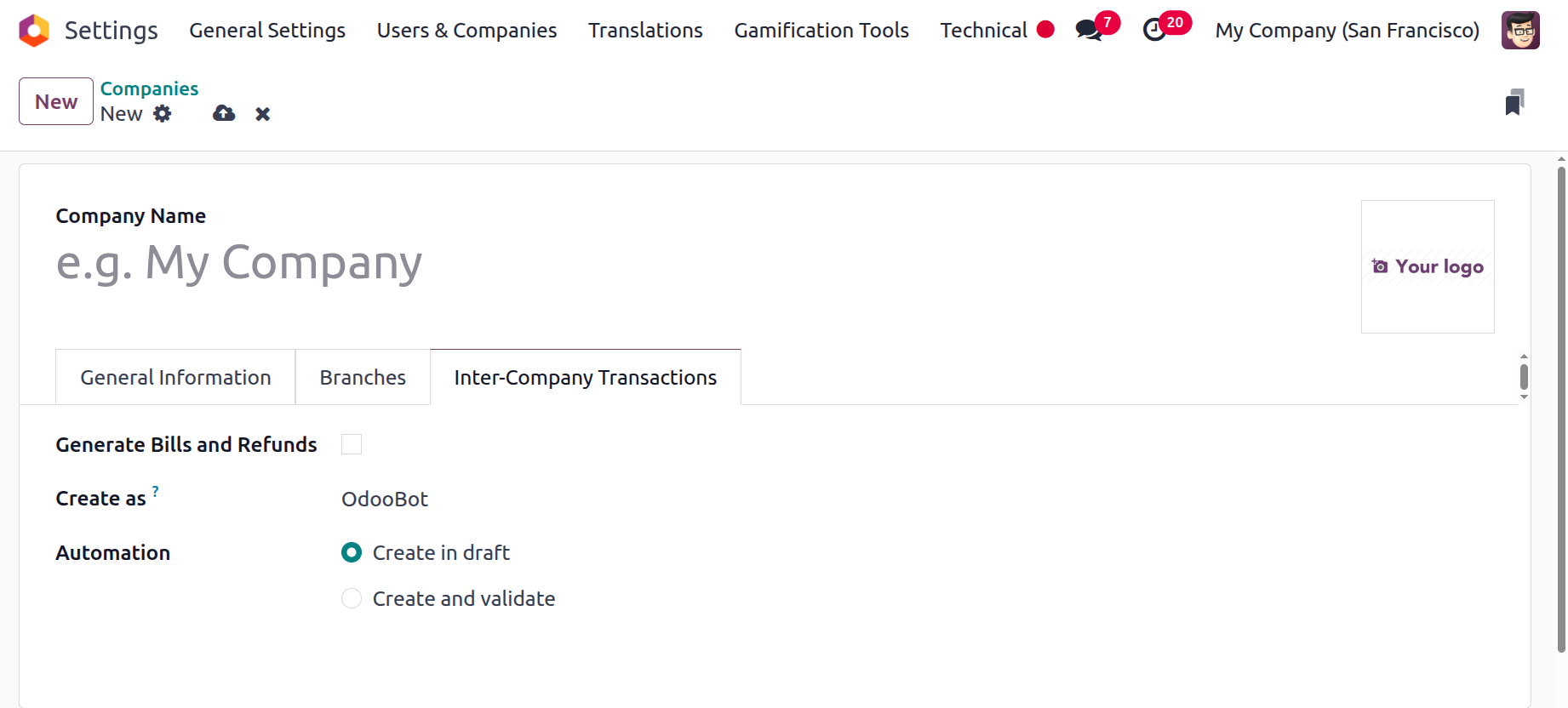
The Inter-Company Transaction tab is this one. This allows users to select the rule that will synchronise the sales and purchase operations. Everything you enter into the system is saved right away and can be altered later if needed.
The system will automatically install the accounting localisation packages for that particular nation when we install the Accounting module, when we build a database in the Odoo platform with a specified country. The currency and tax components of the business will be finished in accordance with the rules and laws of the applicable country by doing this.
Additionally, the localisation features needed to manage the new company will differ if a new firm on a multi-company structure needs to be established in a country other than the one mentioned above. Therefore, in these cases, we need to apply the required localisation capabilities in the Accounting module's Configuration Settings before adopting any accounting entries.
Numerous business configurations can be made using the Odoo platform's Company menu. Since it is now evident how to create a new business in Odoo, the following section will examine how to oversee the operations of many businesses in Odoo.
Multi-Company Operations in Odoo
Odoo 18 enables you to build up multi-company operations for businesses with many firms. This makes it possible for companies to manage numerous accounts, organisations, and financial operations from a single installation. Additionally, it can be used to manage shared resources, such as users, partners, and customers. Thanks to this feature, companies may now view every facet of their business across all of their subsidiaries. Both the individual and combined data of each company are available in one place. When firms are connected, they can share data with each other. They will be able to handle their books and accounts in several ledgers and accurately record transactions thanks to this.
You may easily monitor the operations of multiple businesses from the main portal. These businesses may operate as subsidiaries or partners of the main company, and all of these models may be efficiently managed from a single platform. Additionally, each company can have its own business website and eCommerce website that can be independently handled with the same Odoo system. This skill will be extremely beneficial to businesses operating in the current environment. Let's talk about some benefits of having many companies.
- Multi-company operations help businesses standardise and streamline their procedures across numerous businesses, which leads to increased efficiency and cost savings.
- By storing data from all businesses in a single, centralised system, centralised data management facilitates the access, sharing, and analysis of data from any company throughout the whole organisation.
- Better collaboration and communication: Managers and employees may more easily communicate and work together across organisations when a system is centralised.
- Better customer service: By enabling customers to access all of the business's services and goods in one place, multi-company operations can help improve customer service.
- Simplified financial reporting: The capacity to compile financial data from multiple companies into a single report speeds up financial reporting in multi-company operations.
- To make better use of resources, distribute them among multiple businesses.
- increased transparency of financials and performance across numerous companies.
- Update and synchronize data automatically across several companies.
- Enable many levels of user management and access to improve security.
In addition to these advantages, you can efficiently market and sell the products you establish in one business in others by setting up the product to be accessible on both your own website and the websites of all other businesses. All product types, including services, subscription-based goods, rental goods, and others, can take advantage of this capability. Likewise, as said before, this feature enables you to generate separate reports and synchronized reports with Odoo according to every corporate process and necessity.
Aside from accounting, each business is properly supervised and has complete access to financial management. Depending on their linked company, the system will grant each employee and platform user a particular set of authorisations. This would be quite effective in ensuring that all of the business's tasks are completed by the responsible employees or Odoo platform users.
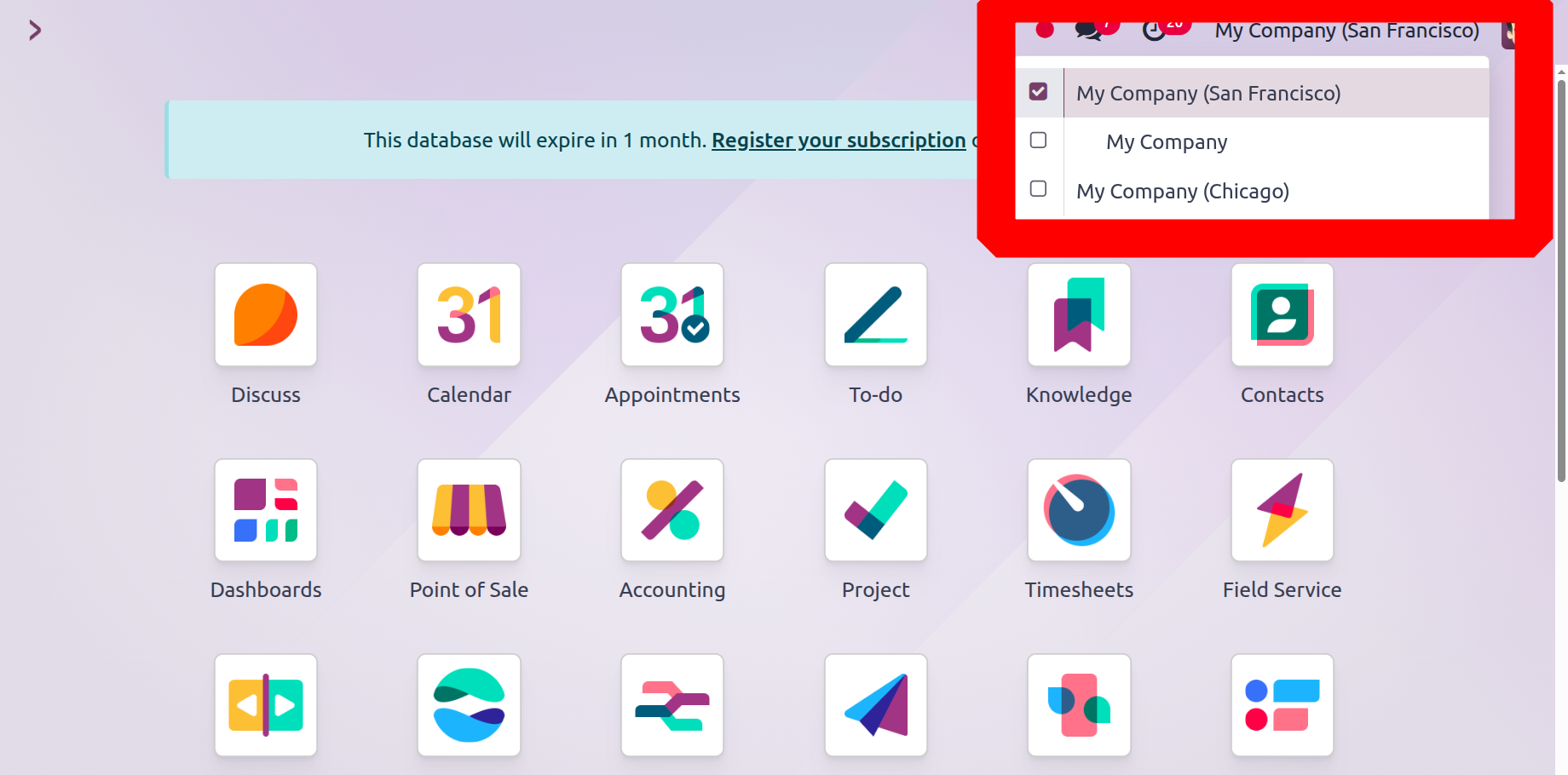
As the following image illustrates, if you have numerous businesses and operations set up in your Odoo system, you can easily access them all from the dashboard itself.
A menu listing every company you formed using this platform will show up when you click on the company name that is shown on the main dashboard. By just clicking on the relevant company once, you can quickly switch between them. All responsible users and management can go to another company by choosing the right one, and they can work in real-time. This simplest method will help manage the operations of many businesses fast.
To create a new company, click on the Companies menu and click on the New button.
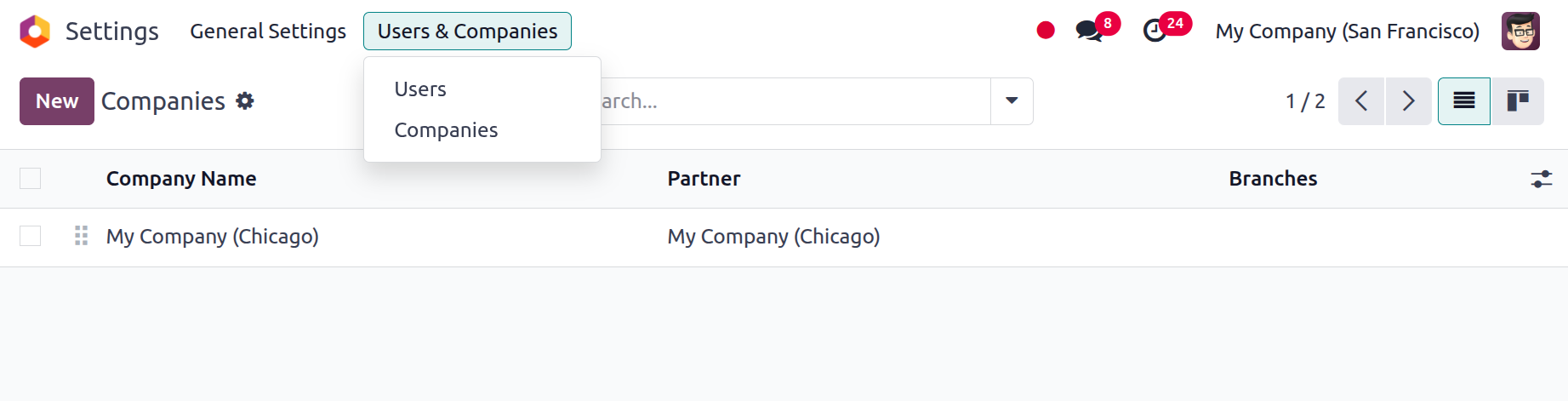
To add a new company, mention the company name first.
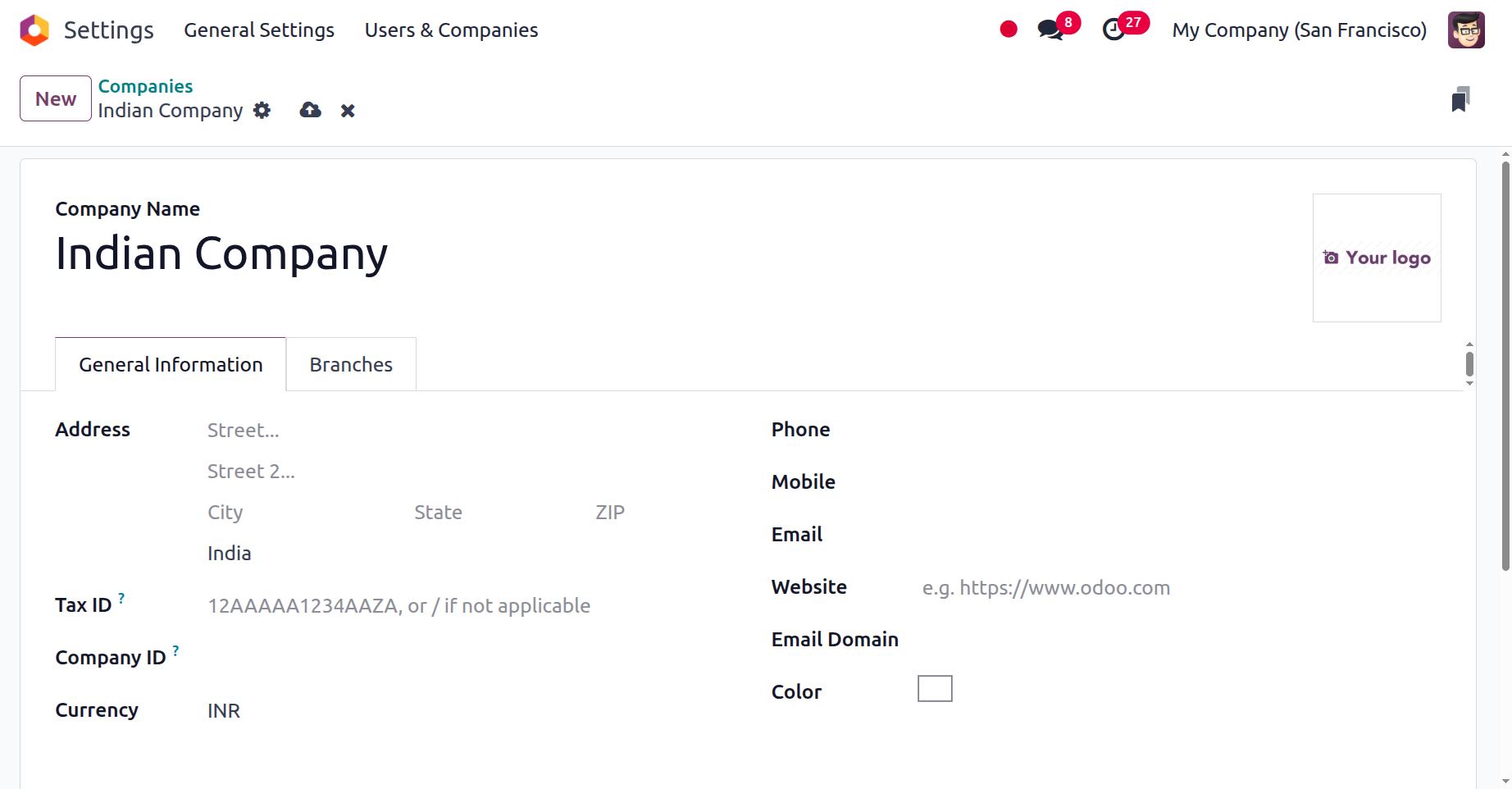
Add the company name and upload the company logo. Inside the General Information tab, add the Address, Tax ID, Company ID, Currency, Phone and Mobile Numbers, Email, Website, Email Domain, Colour, etc.
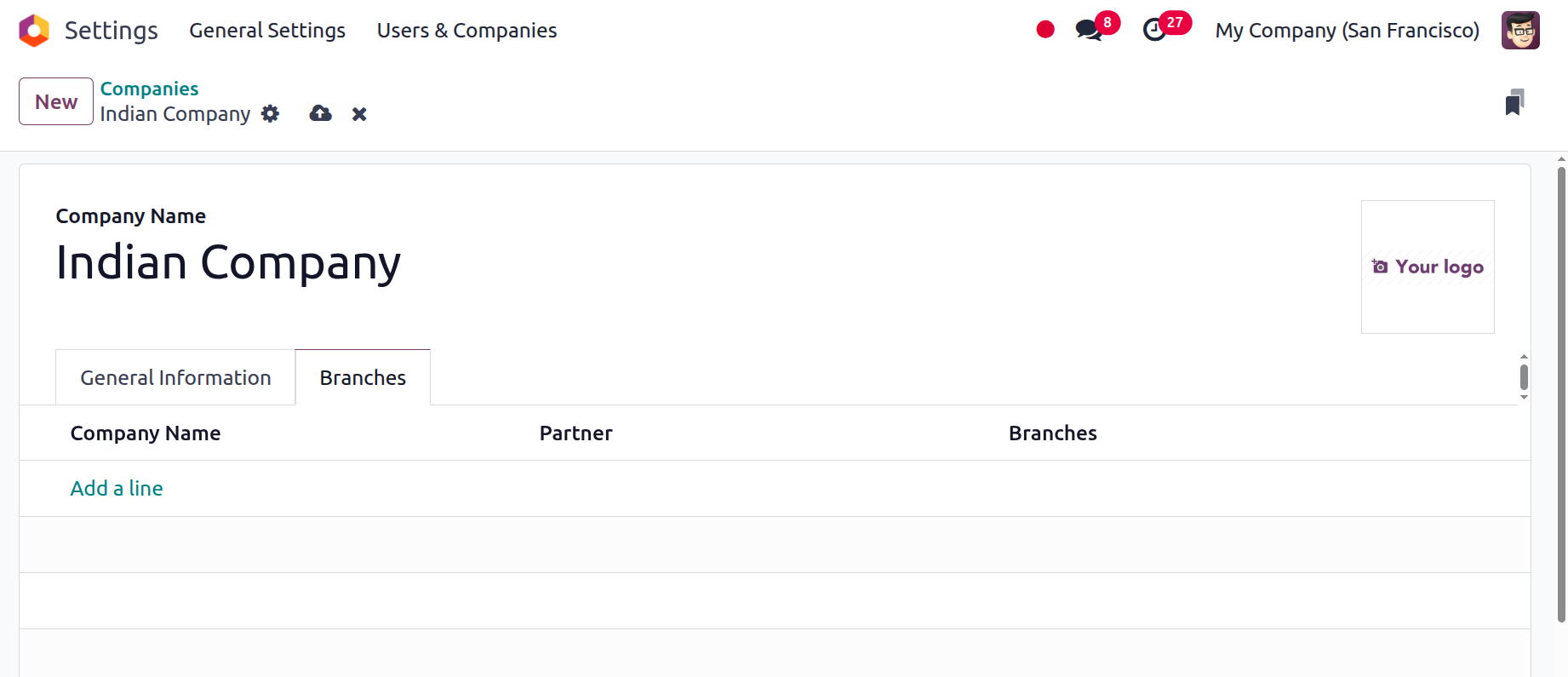
Then the Branches tab allows you to add branches to the company. Click on the Add a line, then choose the branch company.
To switch the company, click on the company name shown at the top right corner, then a list will appear. Select the company and click on the Confirm button to switch the company.
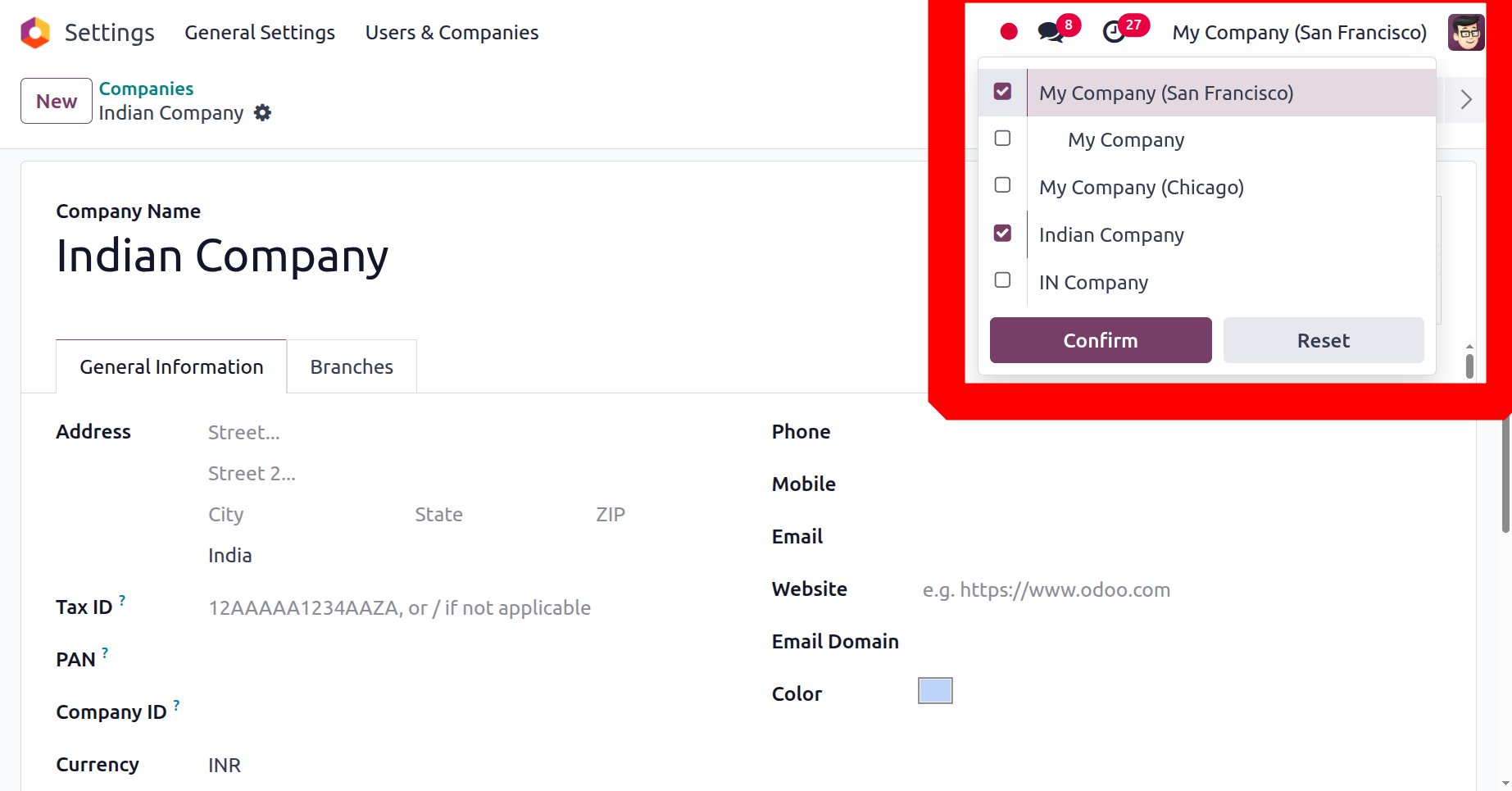
If more than one company is enabled, then the users can easily compare the reports of the companies. Users can easily add the filters inside the accounting reports as shown in the screenshot below.
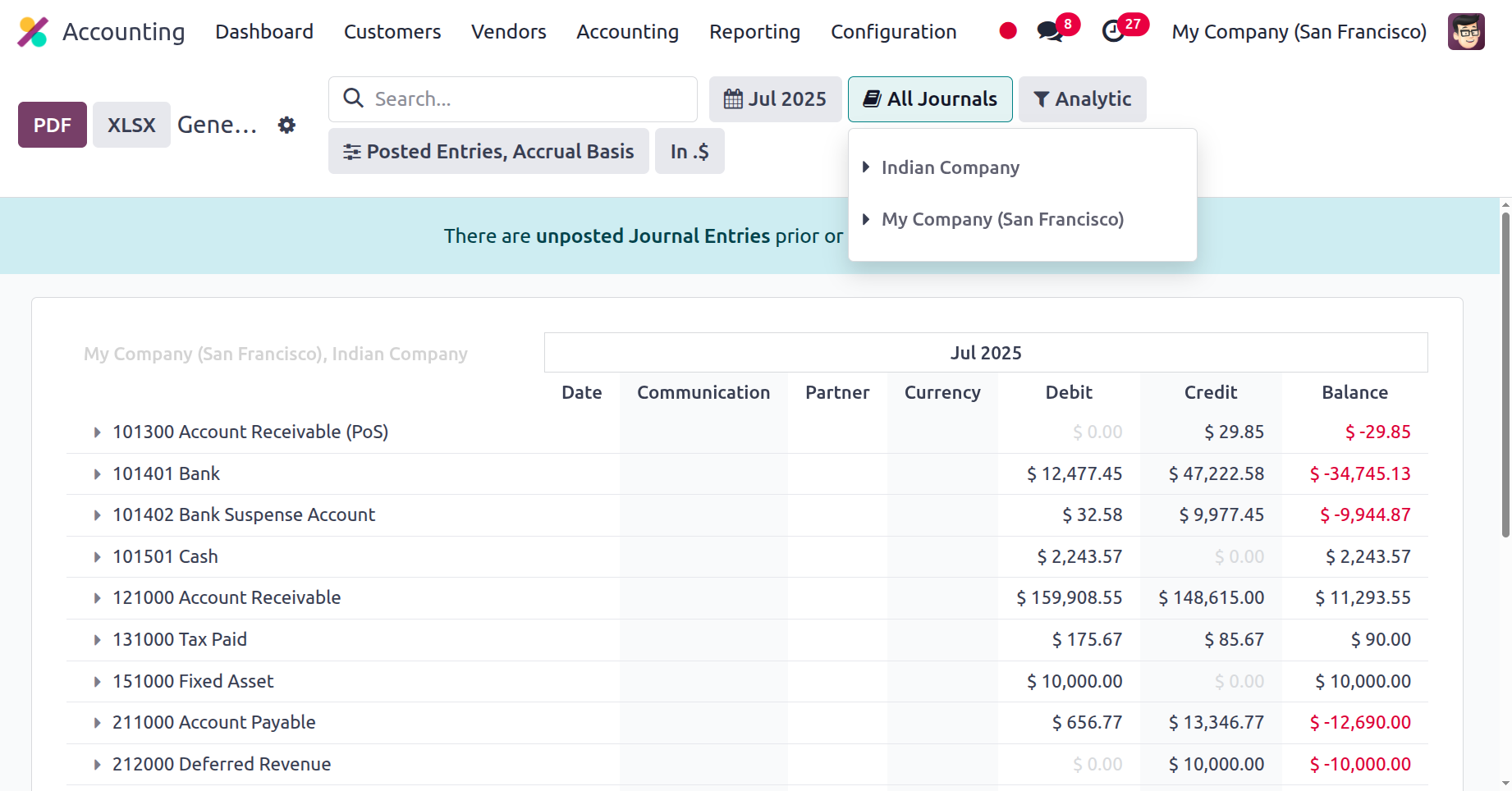
We have already discussed multi-company management, which is one of the crucial operational tools that the Odoo platform provides. In the following section, we can proceed to the activities of intercompany transfers and how they are managed in Odoo.
The following section will teach you how to use Odoo to manage Intercompany Transfer processes within partner organisations.
Intercompany Transfers
Using the same Odoo system, partner organisations can effectively coordinate intercompany transfer procedures. The operations of the partnership firms are typically closely linked to the components of many businesses, and the manager or regular management team is in charge of making sure that everything runs properly. While the associated businesses are operating, there is a greater chance of running out of items. In order to obtain the items as soon as possible, the management or other responsible party will retain the stock from the linked company. The Odoo system makes it simple to handle all the transfer processes and ensures that both organisations have adequate inventory. These transfers all occur within the confines of extremely particular contract procedures.
The inventory management module of the Odoo platform features a well-designed menu and a wealth of features to manage all transfer operations. When a product is transferred from one company's storage location to another's warehouse, you can make use of this feature to ensure proper operation. Having the same warehouse of operations in some situations implies that instead of moving the items to the company's warehouses, they are added to the inventory and removed from the other inventory. All of the information will be handled via Odoo's intercompany transfer feature, which will be useful for future use.
All financial records and accounting procedures should be consistent and operating in compliance with the established standards when discussing the accounting viewpoint in connection with the transfer of goods and services from one business to another. When it comes to the operations of the business and its future needs, the Odoo Accounting module helps you make sure that everything is done in a highly developed and well-organized manner. Every description and process needed for efficient operation is well-established.
Let's demonstrate the concepts with an example. Assume that two businesses, B and C, collaborate to manage the same product. An invoice is generated from B to C whenever a product is transferred from B to C because of internal requirements. In a similar manner, C prepares a purchase bill and forwards it to B upon a transfer from B to C. This occurs between each of the operating firms and in the opposite direction.
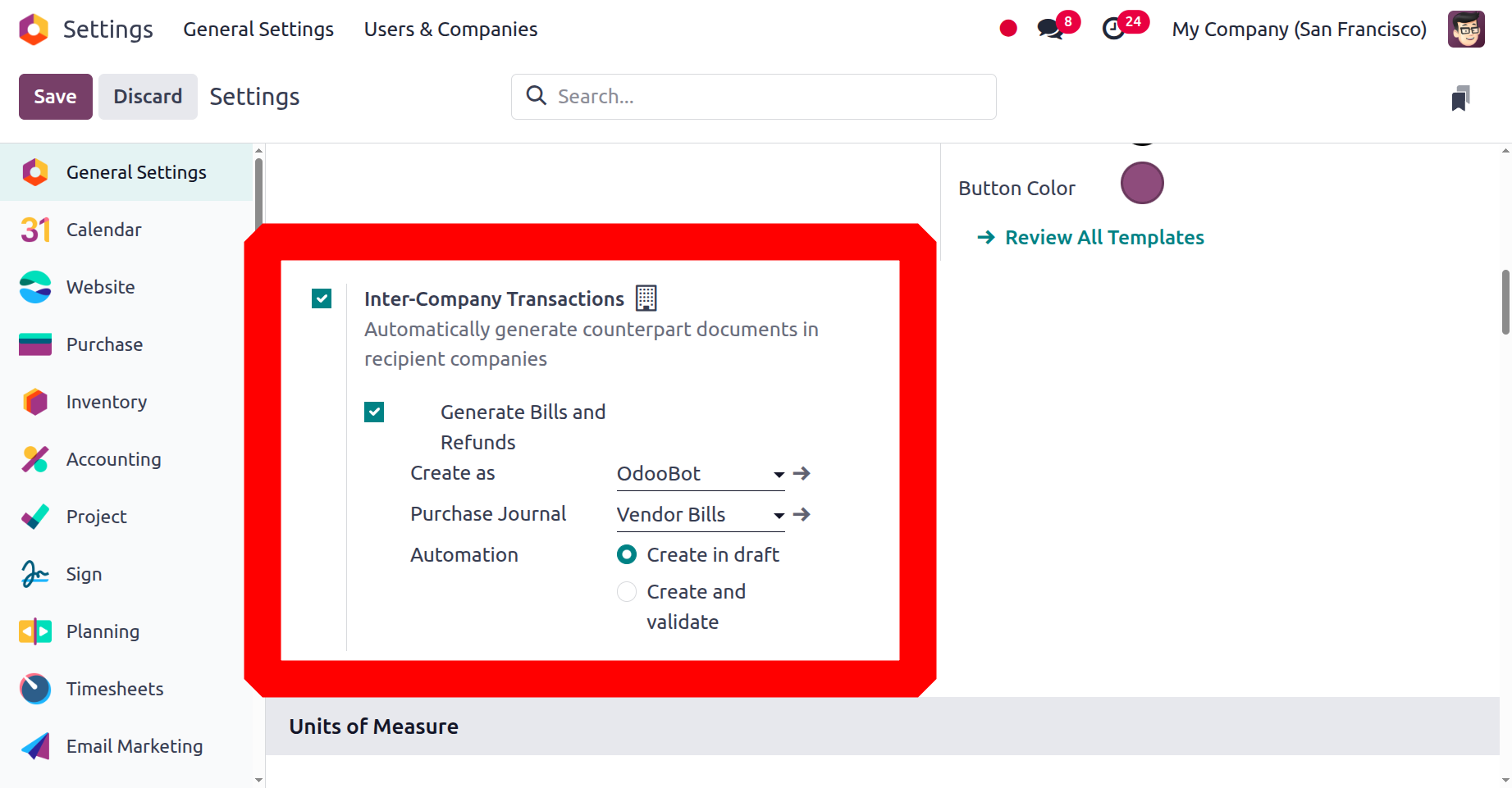
The purchase bill and invoice creation features of the Odoo platform will guarantee accurate accounting procedures in both companies with relation to the transfer of activities. In a similar vein, the Odoo platform makes it easier to manage partner firms effectively and to transfer money between businesses through banks. All of these are Odoo-related actions for internal product and service transfers. Now let's take a closer look at Odoo's Translation Settings.
Creation of Branches
The management of corporate branches is streamlined by the process of creating multiple company records in Odoo 18, each of which represents a distinct branch. The simplicity of branch switching and navigation enables independent financial and operational control. Odoo's centralized setup ensures efficient communication and data sharing while maintaining branch autonomy.
As a result, opening new branches for a firm is very simple. Click the New button to add a new firm after selecting the firm's choice from the Users & Companies menu. The creation form is the same as the one we discussed earlier. However, there is a field named Parent Company on the General Information tab. Here, users can indicate which corporate branch has been set up.
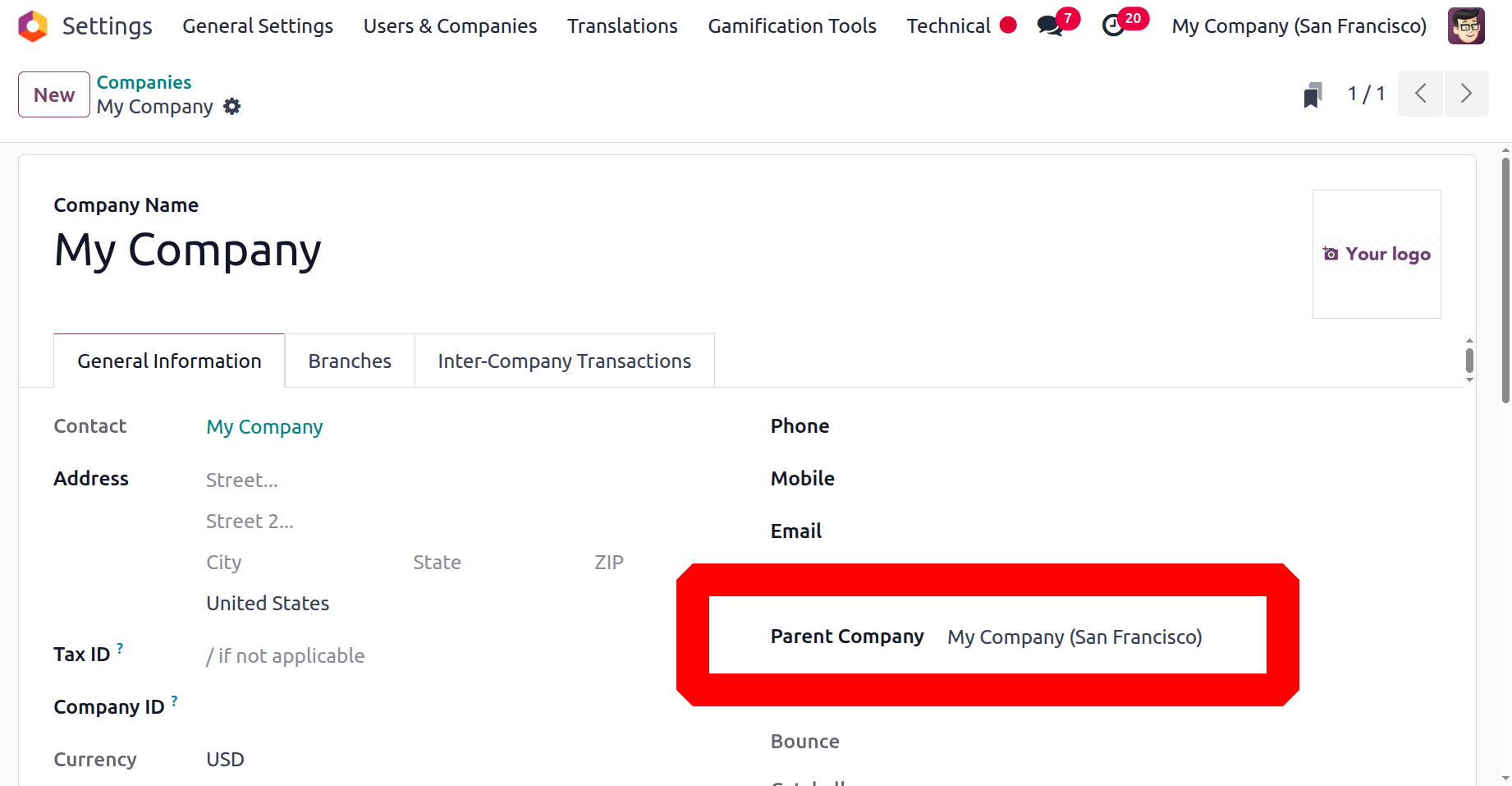
My Company (San Francisco) is identified as its parent company in this instance. My Company is therefore a division of My Company (San Francisco). The newly formed My Company is shown as a branch of My Company (San Francisco) on the list of companies you pursued. The same chart of accounts is used in the branch idea.
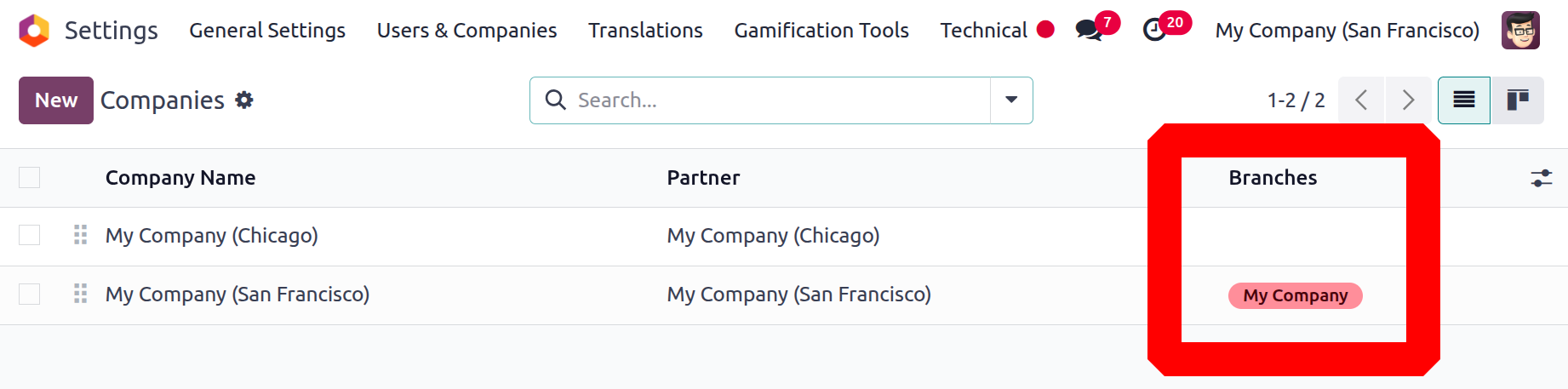
My Company was then added to the Branches page of the parent firm My Company (San Francisco), as can be seen in the image below.
Customers can then easily navigate to the Branch company, as seen in the illustration below.