Reconcile
The reconciliation tool can be used to reconcile the designated ledgers and chart of accounts to the accounting and financial management practices of your business with those of a bank account operation. You will undoubtedly benefit from the Reconciliation option for all Finance Management chores pertaining to purchases, sales, and other business operations. The Reconciliation window will open after you select the option, which is accessible from the Accounting tab of the Accounting module's Actions tab, as seen in the image below.
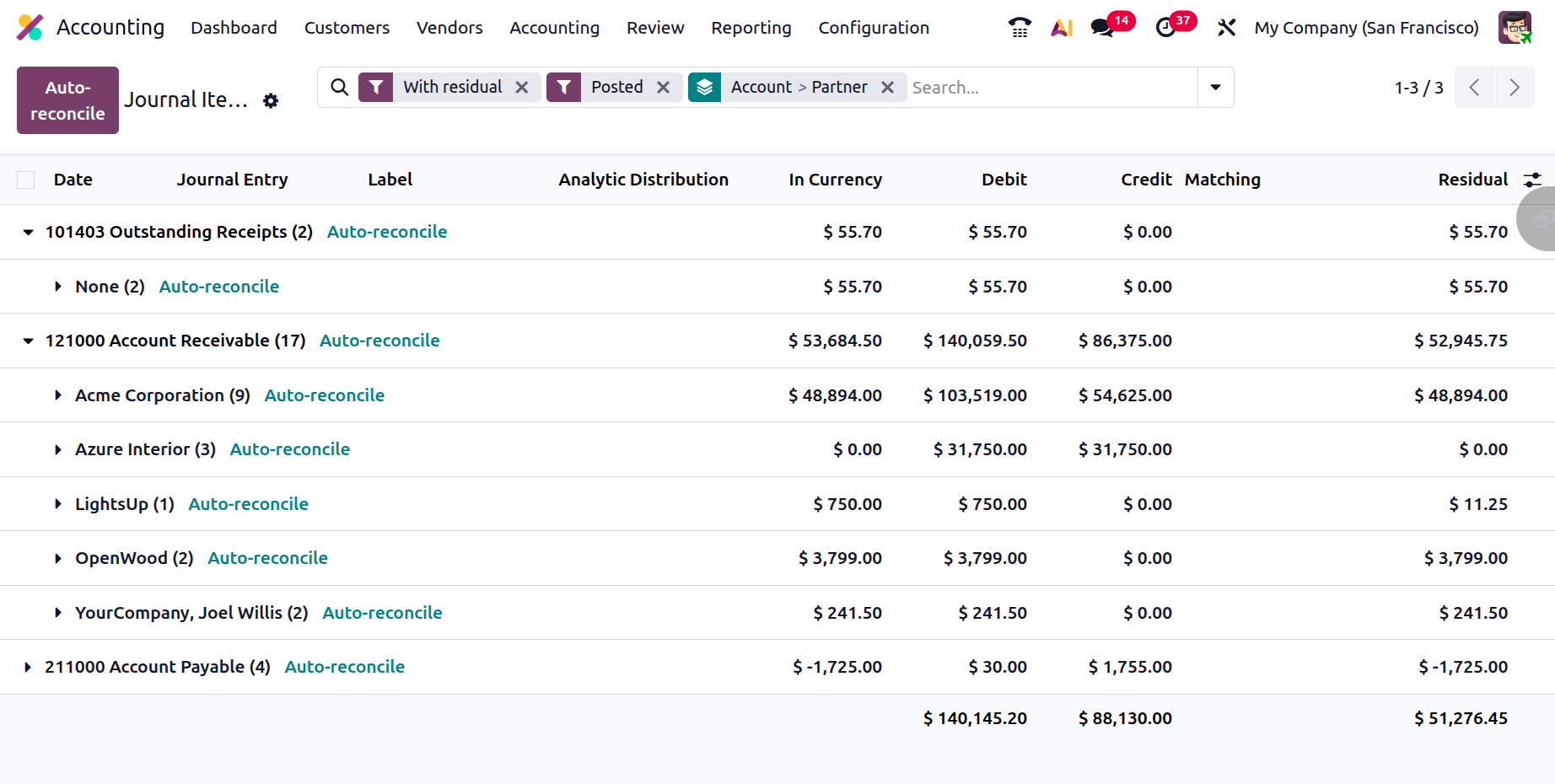
The running Chart of Accounts for the business and all payment-related data will be included in this area. Each Chart of Accounts invoice and the associated sum will be accessible for selection.
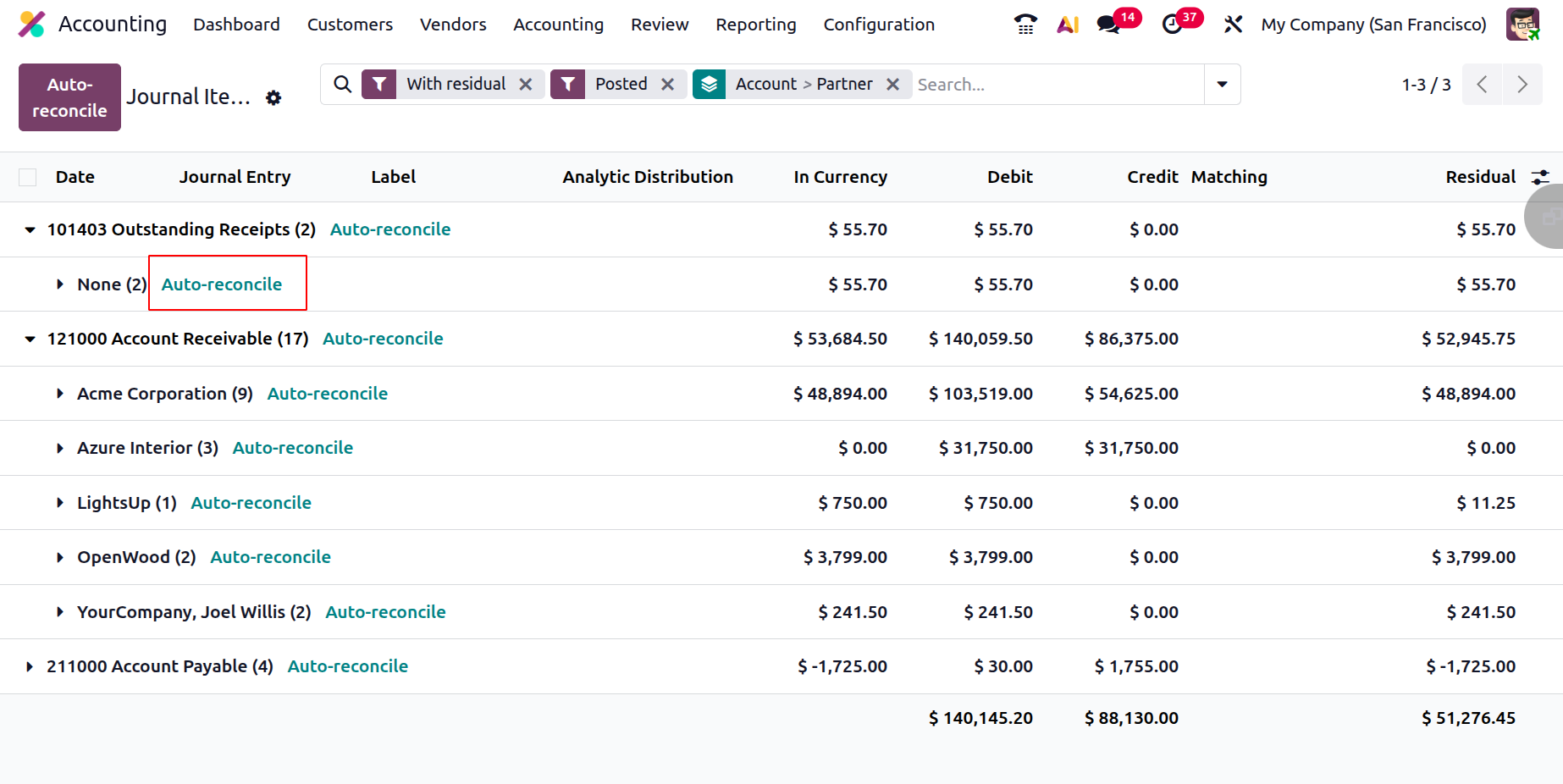
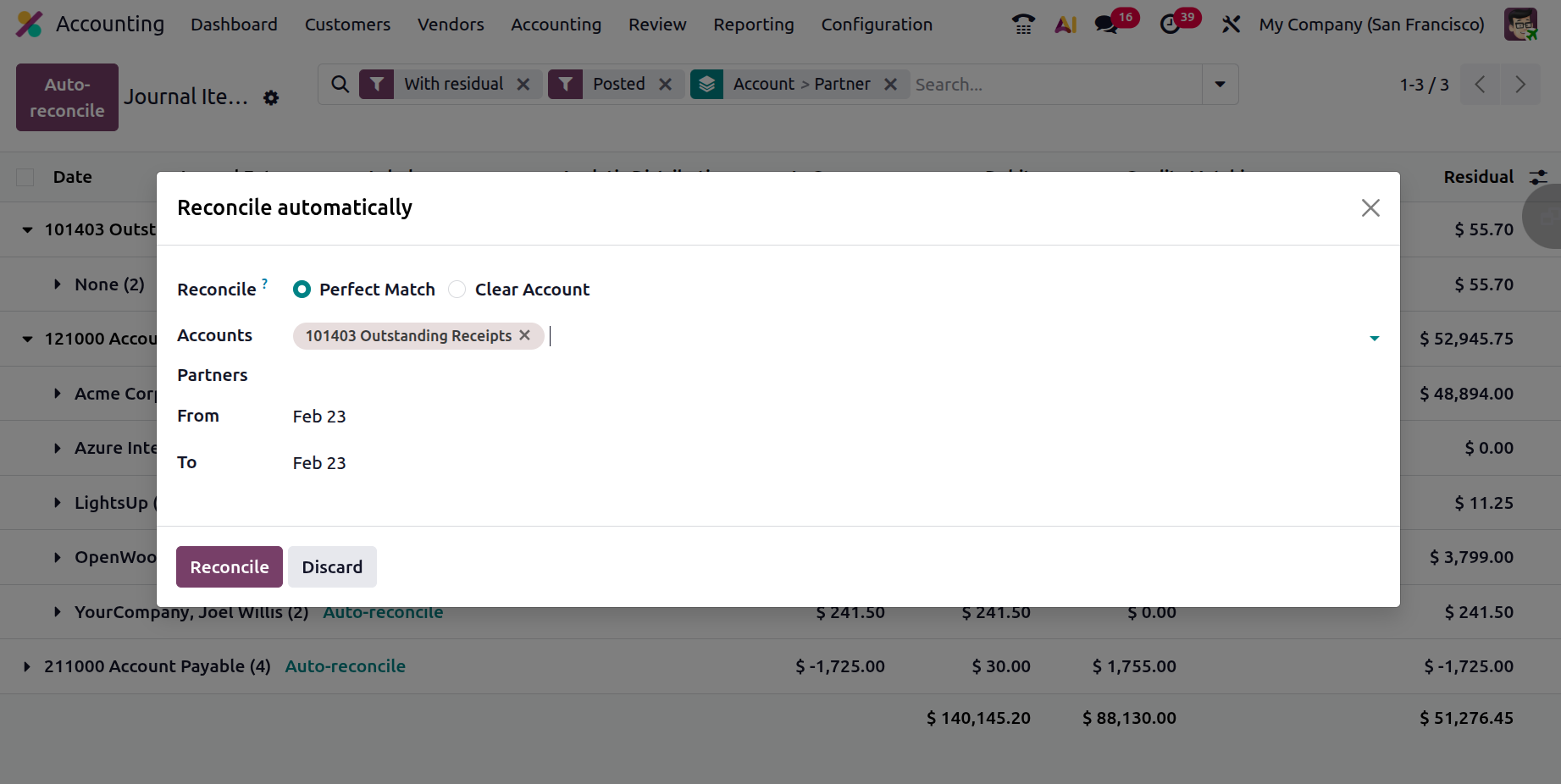
A new window with the items that need automated reconciliation will open when you select the Auto Reconcile option in each account. Select the search mode from within the Reconcile field once the window with the dates from and to opens. After that, the Partners and Accounts can be selected. To reconcile the entries, click the Reconcile button.
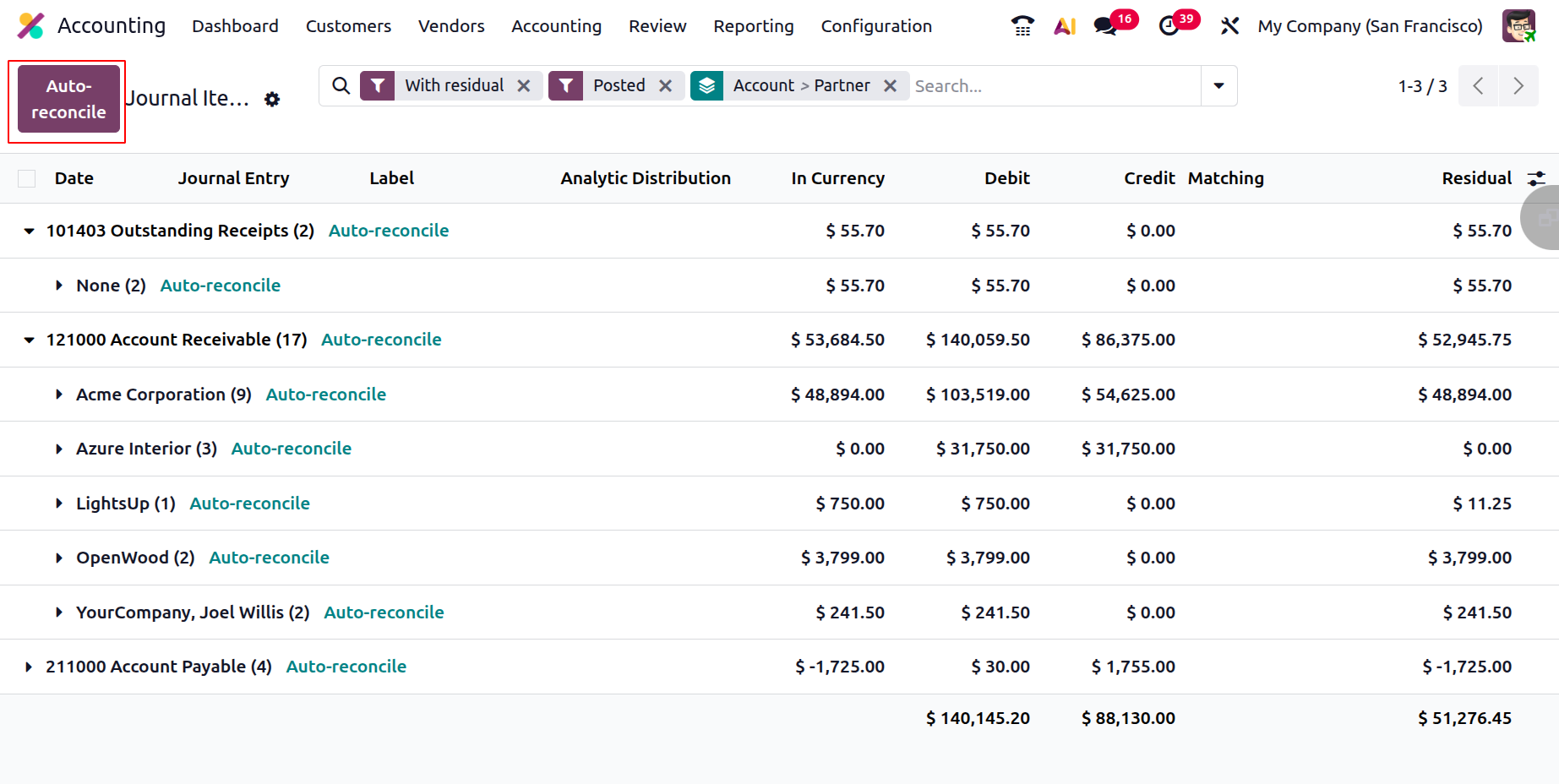
Additionally, there is an Auto-reconcile button in the top left corner of the screen, as shown in the image below. This enables users to quickly reconcile the entries.
Select the accounts with zero balances or the opposite balances one at a time for reconciliation once the from and to dates have been inserted. Accounts ought to be mentioned. Next, click the Reconcile button.
The screenshot below shows the Reconciliation menu in the Chart of Accounts. The Code of Account, Account Name, Type, Group, and Account Currency are all defined in this section. Additionally, the available reconciling options can be used to reconcile the related Chart of Accounts.
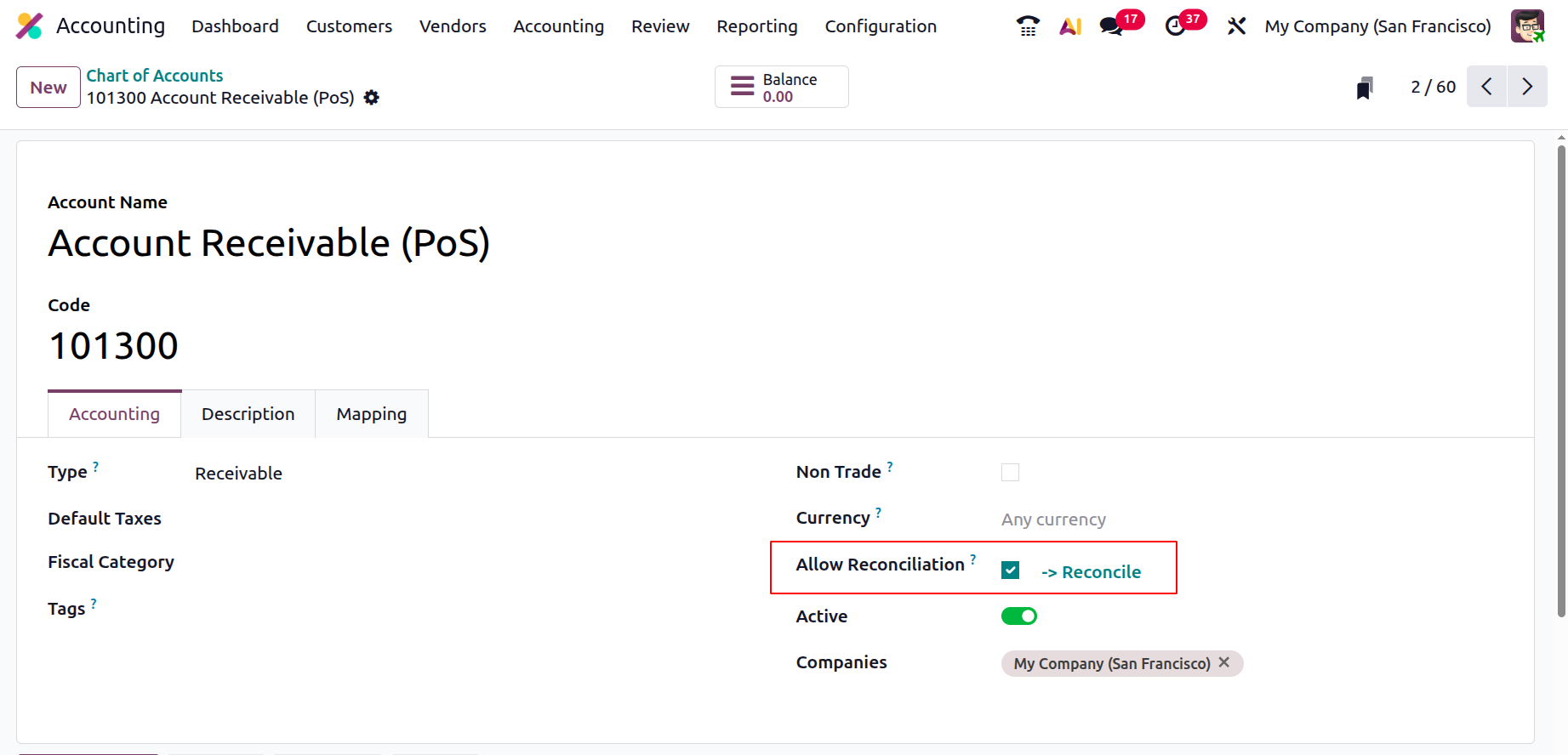
A helpful action tool for defining the financial operations pertinent to each Chart of Accounts that a company has set up to run efficiently is the Reconciliation menu in Odoo 19 Accounting. After discussing the Reconciliation menu in the Odoo Accounting Action tools, let's move on to the Lock Dates menu in the following section.