Ledger Reports
A certain class of ledger reporting tools, including the General Ledger and Trial Balance, are accessible through the reporting page of the Odoo 19 Accounting module. Let's look at each ledger report separately in the part that follows.
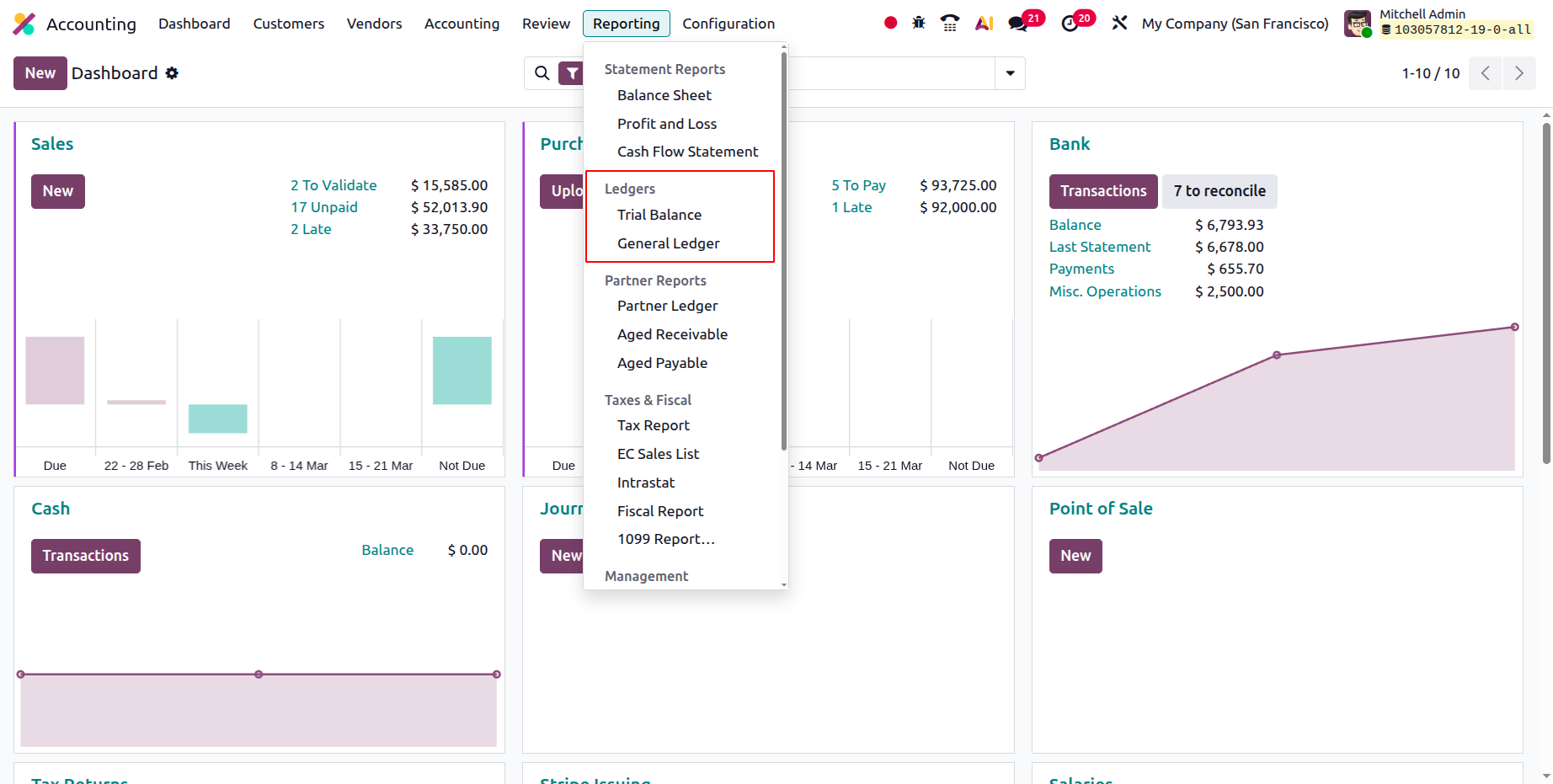
Trial Balance
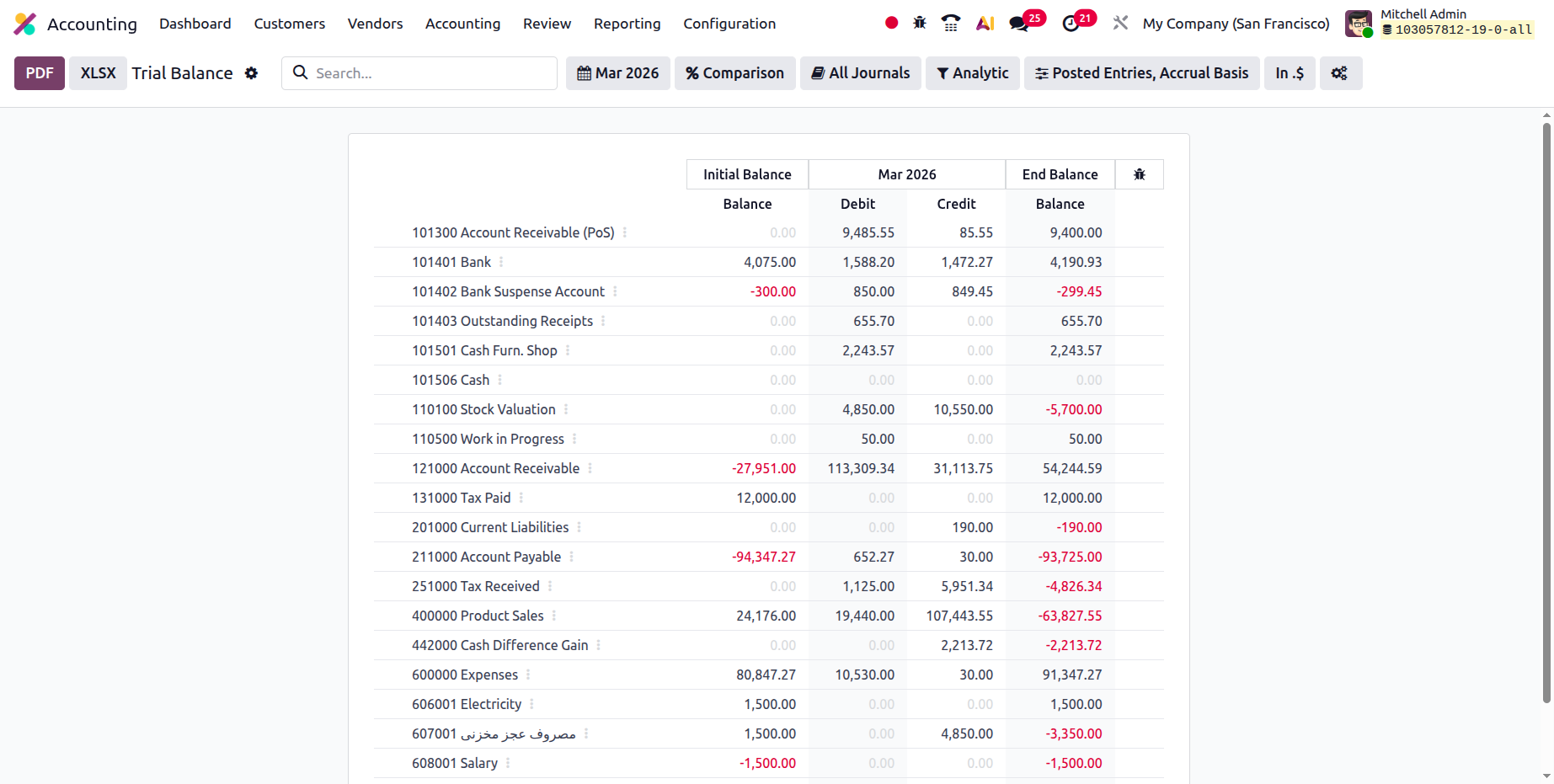
A trial balance, which shows the balance of each account in terms of credits and debits, is a type of bookkeeping instrument used in the business's accounting processes. The Trial Balance reporting feature of the Odoo Accounting module is described in the module and accessible through the Reporting page. All filtered journals and the operations' initial balance information as a debit and a credit will be shown in the Trial Balance report option. The overall debit and credit amount will then be displayed, together with the entries' credit and debit amounts for the pertinent time period. You can also search for a specific account using the Trial Balance report.
The Trial Balance Report can also be viewed in preview form before printing using the Print Preview option. By choosing the Export(XLSX) option, you can export the report in XLSX format for use in other business activities in addition to exporting the Trial Balance details. By choosing the Save option, the filtering options and configuration details in the reporting panel are saved.
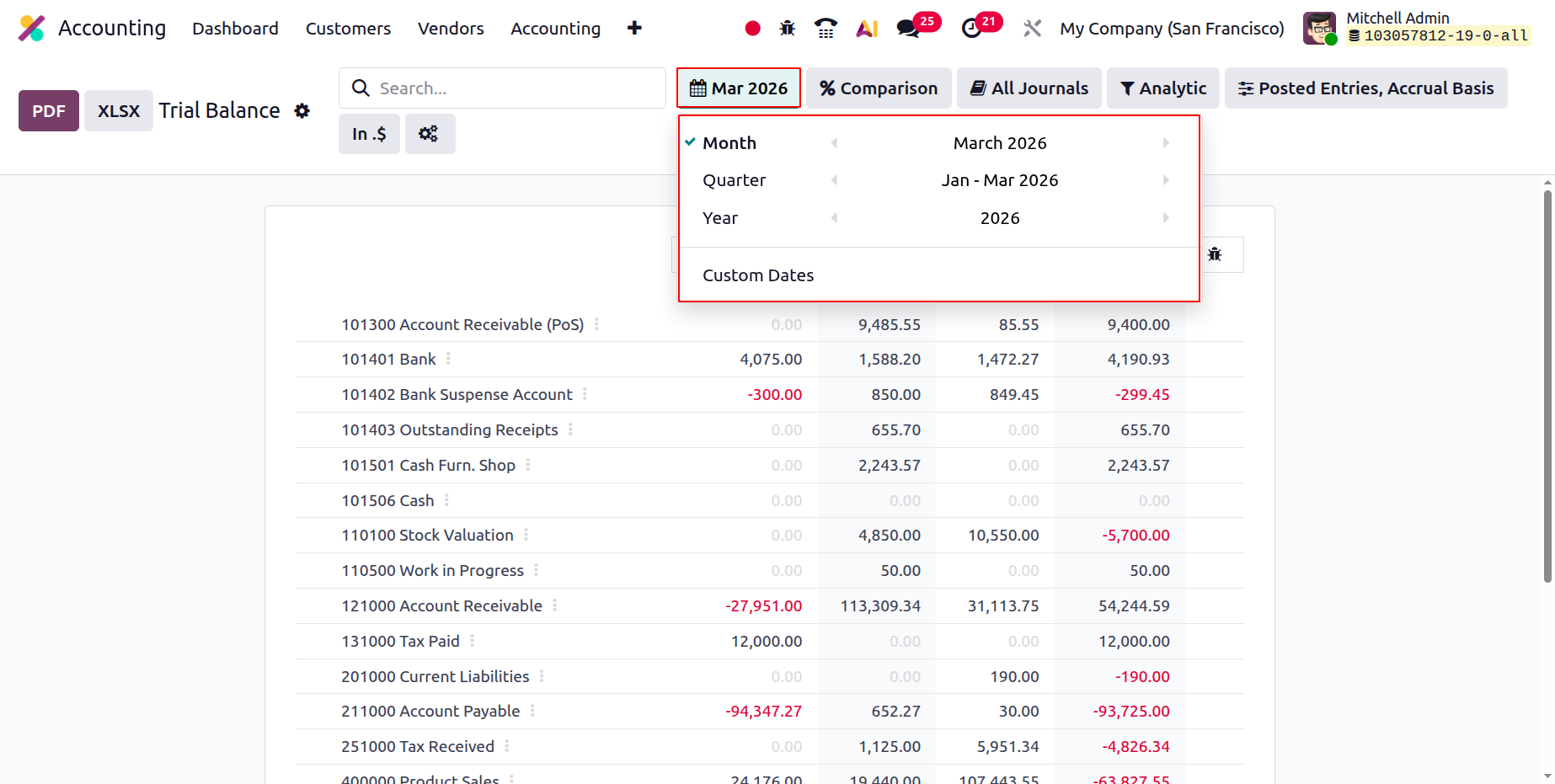
You can specify the trial balance for This Month, This Quarter, This Financial Year, Last Month, Last Quarter, and Last Financial Year using the Group by function. Custom filters can also be applied as needed. The Group by option, which may be used to filter the Accounts according to the duration of the company's activity, is seen in the accompanying snapshot.
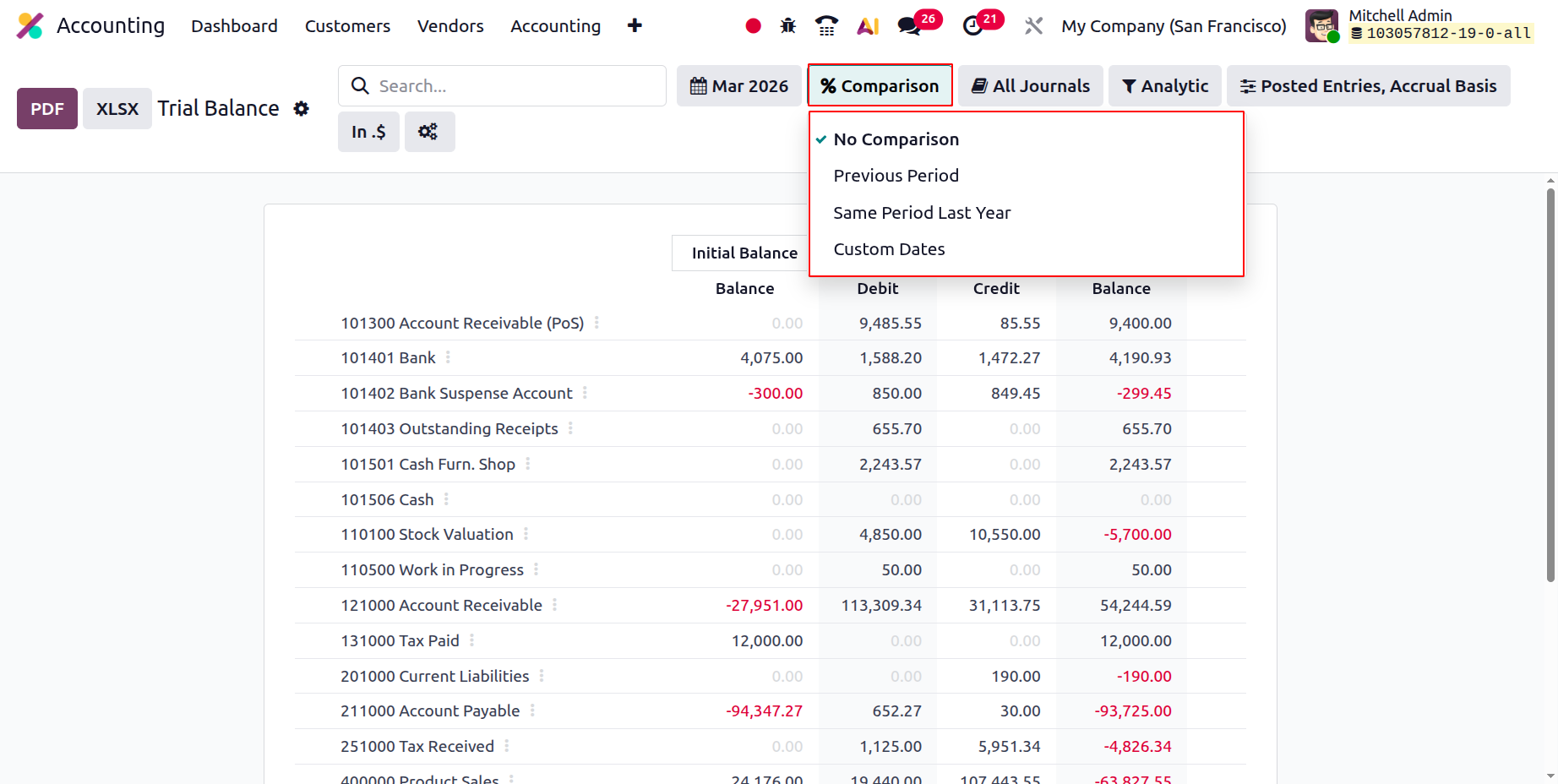
You can also use the extra Comparison option to make a comparison between the company's journal entries. The same time frame from the prior year, the previous quarter, or a custom comparison based on the needs can be used.
The Journal Groups and particular journals indicated can also be used to group the journals. You will gain a better understanding of the Trial Balance components in respect to each of the operational journals by using this grouping technique.
Using the available Analytic option, the filtration can also be carried out with reference to the Analytical Accounting portions of the business's financial management. To filter the items in the Trial Balance report, define the Analytical Accounts and Tags below.
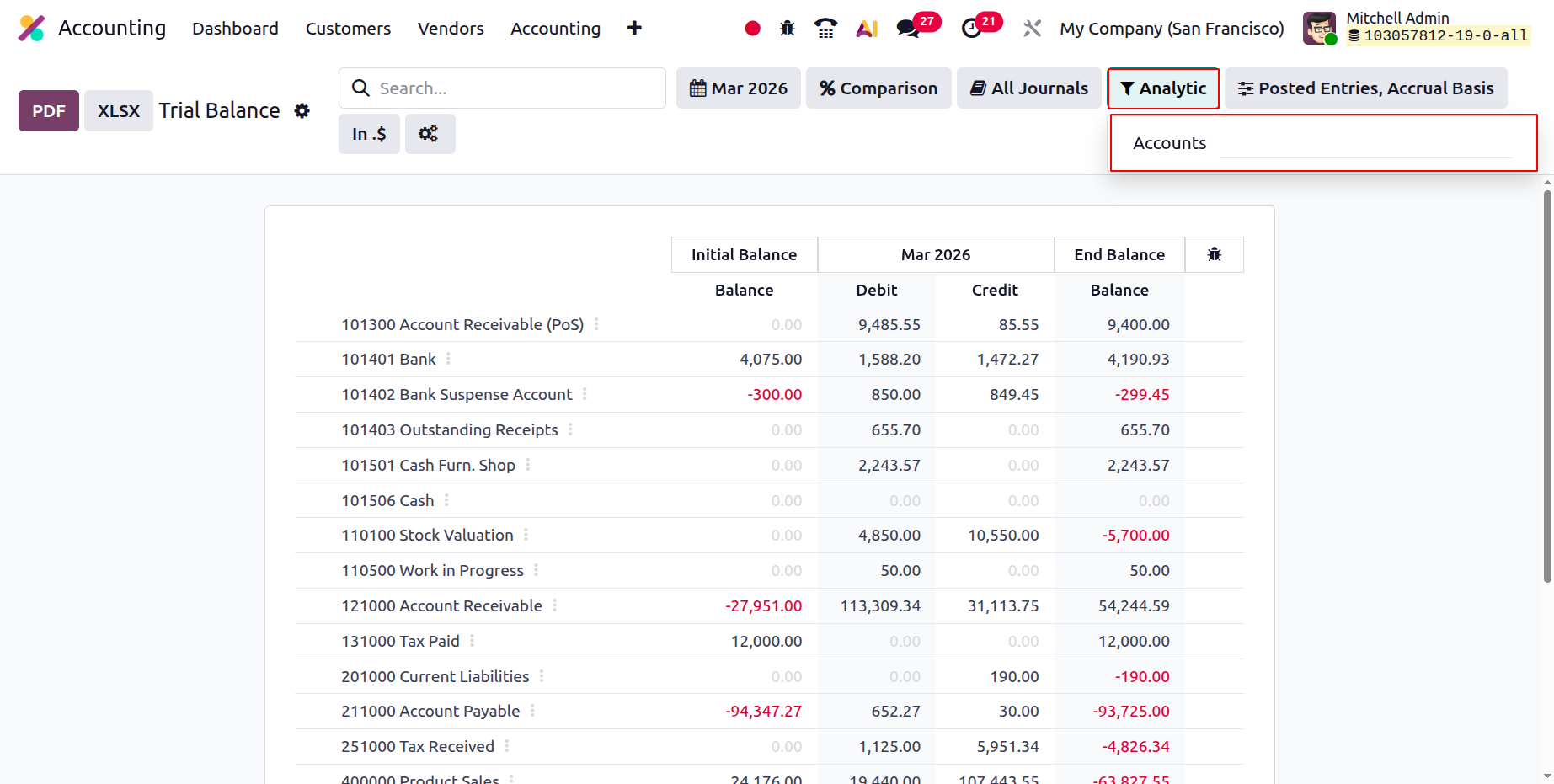
Additionally, a specific filtering tool is offered. By default, this filter only shows Posted Entries; however, you have the option to Include Unposted Entries, Use Accrual Basis, Use Cash Basis Method, and Unfold All. This option enables the definition of the required Trial Balance entries in operation. Additionally, there are buttons that let you print reports in XLSX and PDF formats. You can store financial data by using the Store button to save reports to the appropriate location in the Documents module.
Comprehensive details on the Credit and Debit amounts pertinent to the business's operations can be found in the Trial Balance report of its financial activity. Additionally, the Trial Balance report will aid in understanding and acquiring a general understanding of the financial operations of the company. Let's move on to the section that explains Odoo journal reports in connection with the business's accounting process.
General Ledger
All accounting data related to business operations will be kept in the company's general ledger. Furthermore, all business transactions from all of the company's account ledgers are displayed in the general ledger, and dynamic reports can be filtered. Every financial transaction pertaining to the company's purchases, sales, and other activities will be described here in a unique way to help the reader grasp it immediately. The well-organised menu can also be utilised to look for specific information on the company's financial management procedures.
As seen in the example below, you can view the company's general ledger by choosing the Reporting option in the Accounting module. This will display every financial operation item that has been filtered to appear during the designated time frame. For every journal that is posted, an explanation will be given along with the invoice and bill data.
You can also choose to Print Preview, which will show a preview of the General Ledger Report before it is printed. By choosing the Export(XLSX) option, you can export the report in XLSX format for usage in other business operations in addition to General Ledger data. The reporting menu's setup information and filtering choices are saved thanks to the Save option. A journal can be enlarged to show all associated bills and invoices. The sample has also been chosen as the Journal filter, and the ledger entries in the image below have been filtered to the month of March in 2026. Additionally, screening is limited to entries that have been posted.
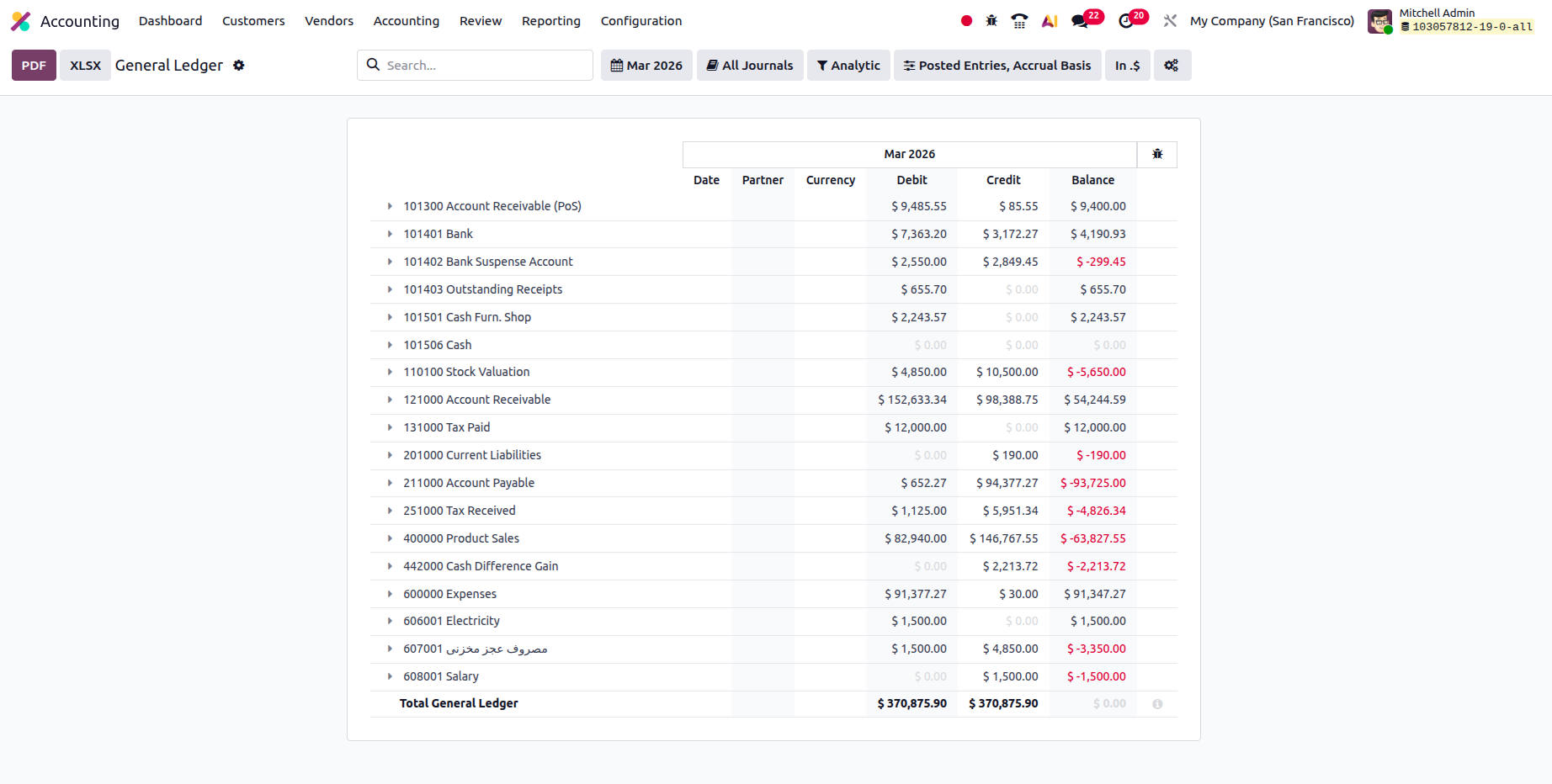
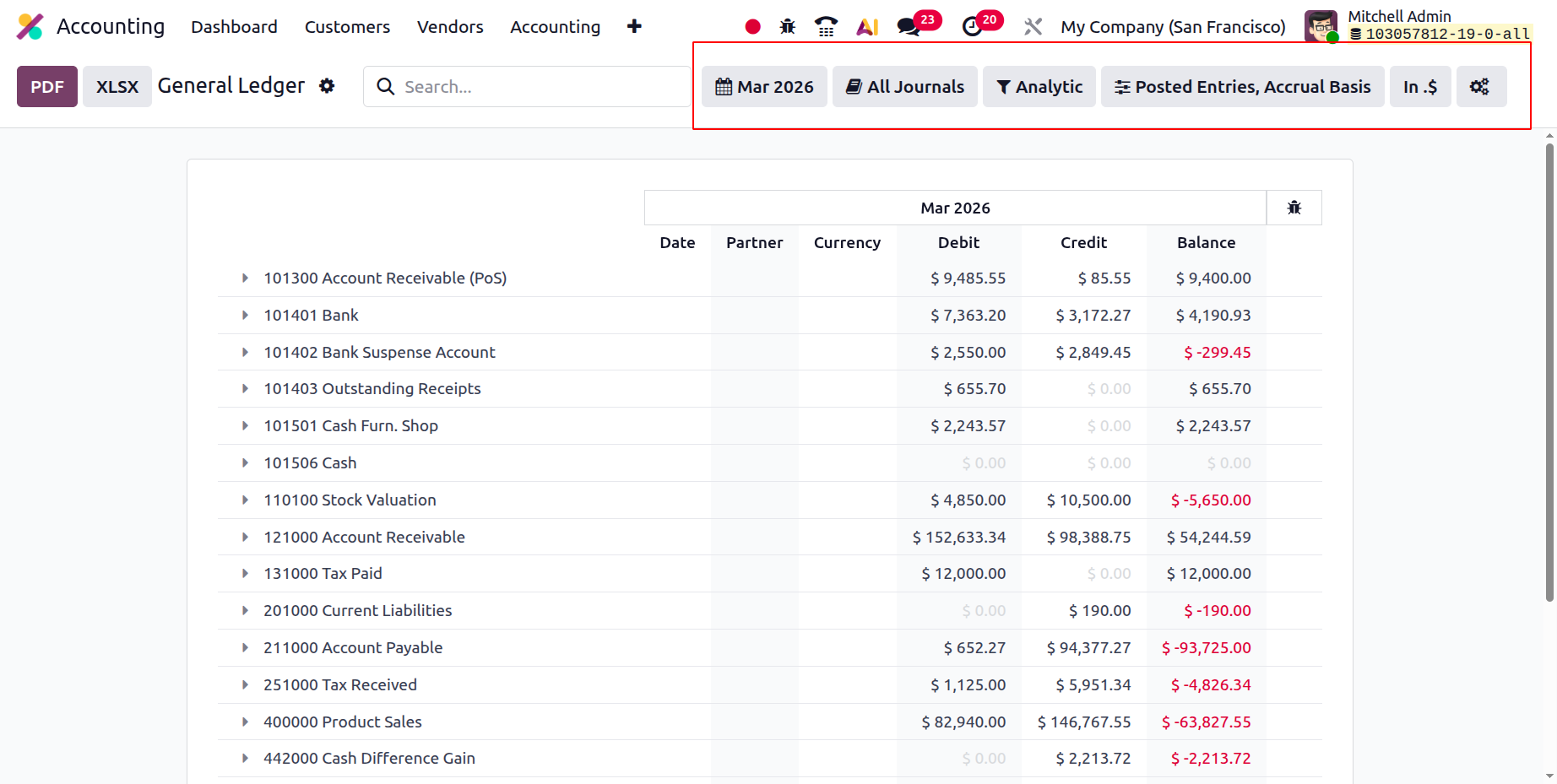
The affected journal entries are shown together with the date, partner details, currency, debit/credit amount, and balance when an account is opened. You can also view and comment on the Journal Entries with a right-click. The comments written to the journal entries at the bottom of the General Ledger are reviewable and editable. If you need to make a custom filter, the date or month of operations can be filtered as This Month, This Quarter, This Financial Year, Last Month, Last Quarter, or Last Financial Year. The General Ledger menu's Filtration menu is seen in the screenshot below.
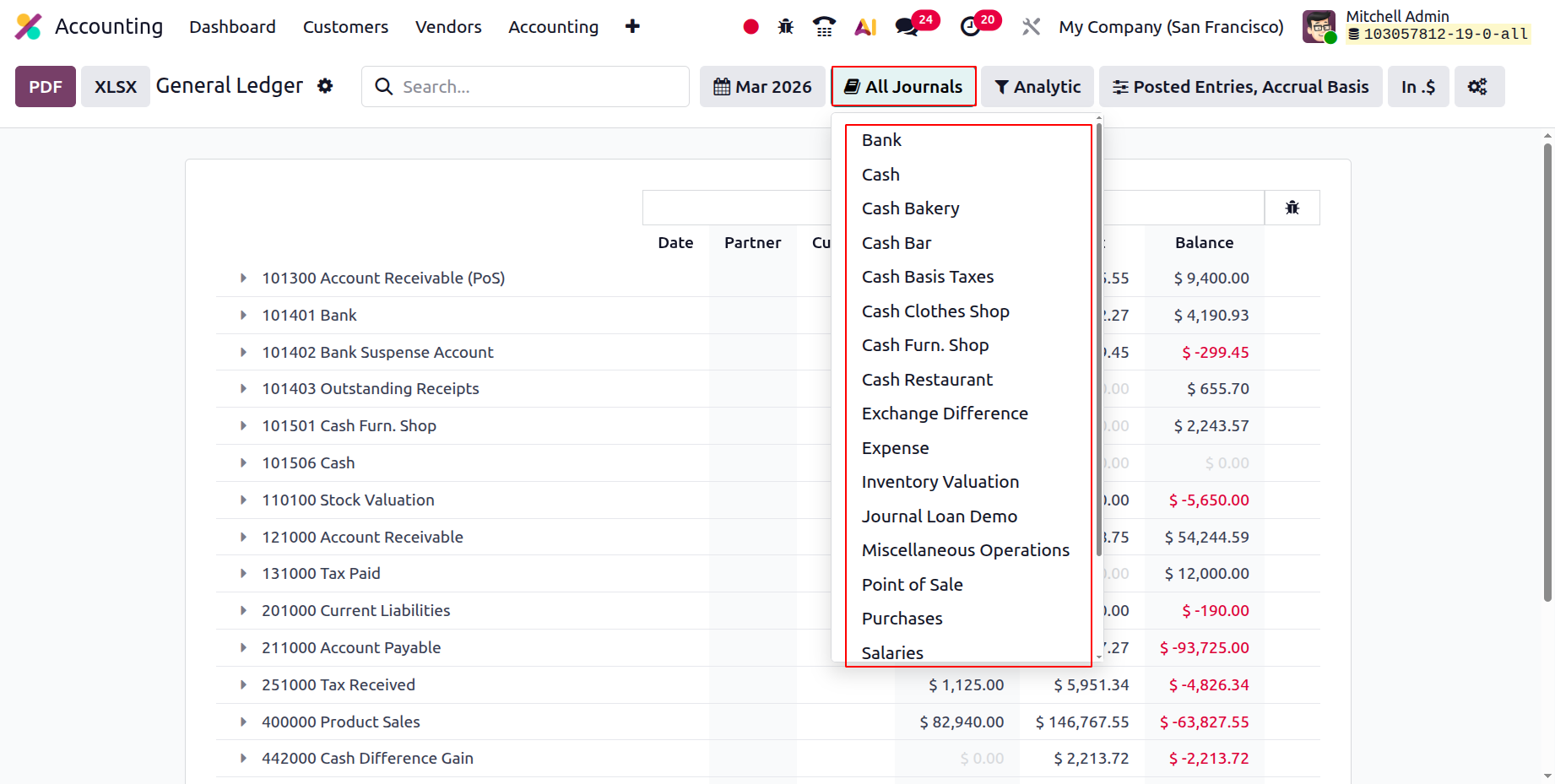
Instead of merely filtering the journals, you can choose which specific journals to filter as well as which defined journal groupings to use as the filter.
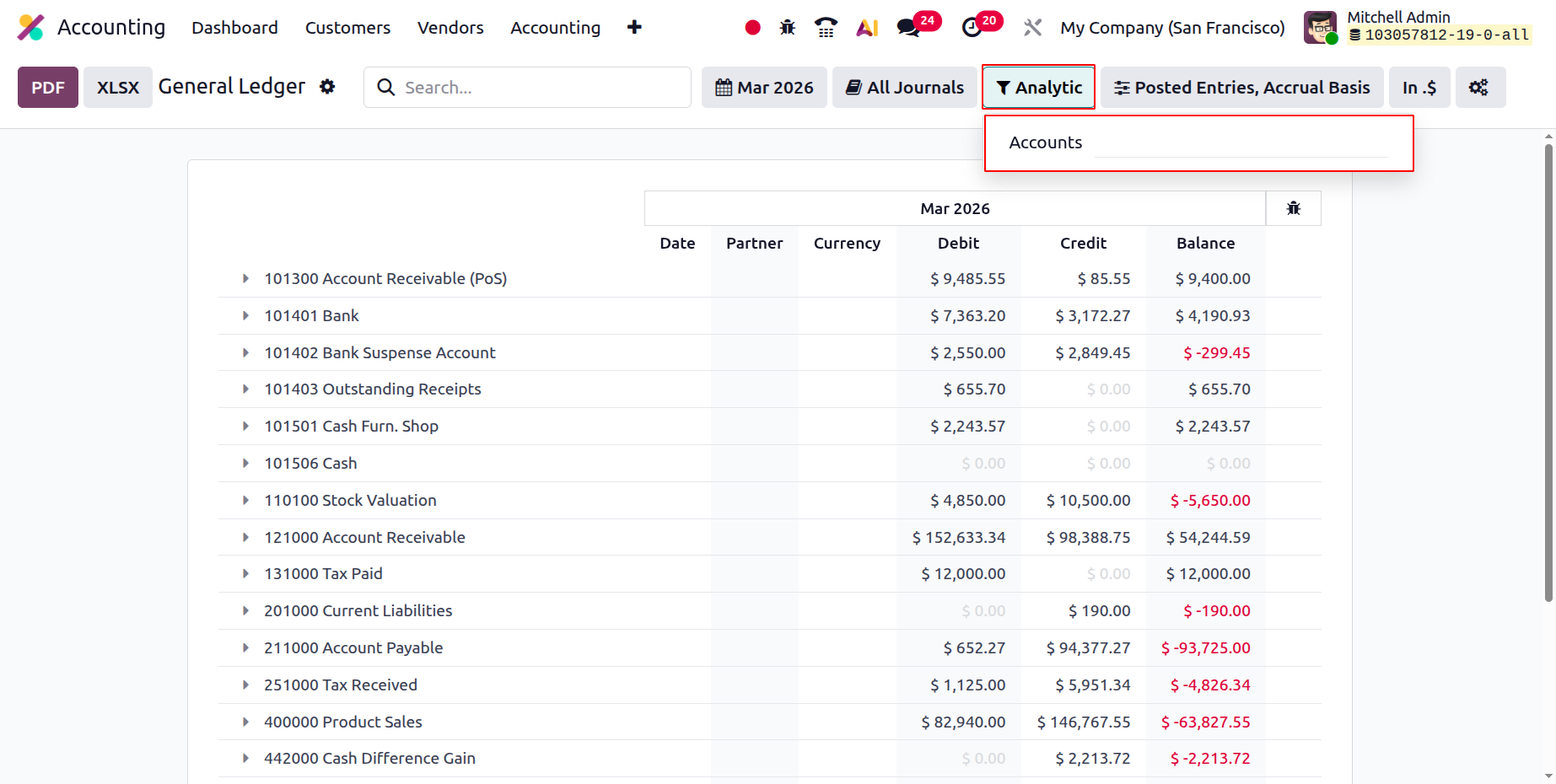
Additionally, the filtration can be done in relation to the analytical accounting components of the business's financial management using the available analytical option. To remove things from the General Ledger, define the Analytical Accounts and Tags here.
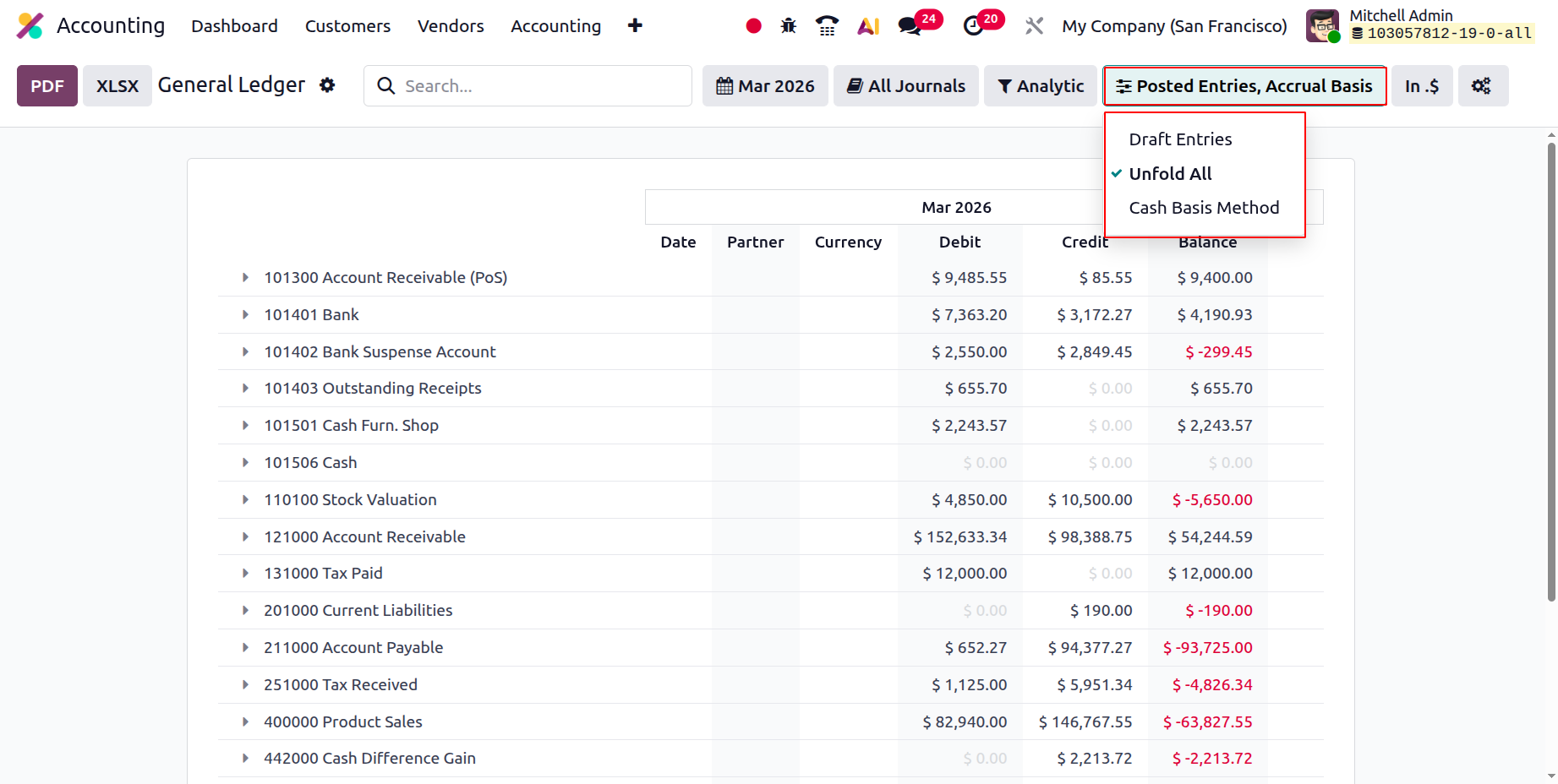
Additionally, a specific filtering tool is offered. By default, this filter only shows Posted Entries; however, you have the option to Include Unposted Entries, Use Accrual Basis, Use Cash Basis Method, and Unfold All. The necessary General Ledger entries can be defined in operation using this option. Additionally, there are buttons that let you print reports in XLSX and PDF formats. You can store financial data by using the Store button to save reports to the appropriate location in the Documents module.
The general ledger report initiates all posted and unposted accounting processes associated with the company's operations. The specialist book known as the General Ledger that was kept in the organization's early years will be replaced by the Odoo Accounting module, which will automatically display all entries relevant to the corporate operations of the numerous journals. After discussing the General Ledger reporting option, let's move on to the following part that describes the Partner Report in the Odoo Accounting module.