Lock Dates
You can set up the activities of the Fiscal Periods of operation for the business operations by using Odoo Accounting's Lock Dates feature. This capability will be helpful to the organization's management because they may need to adjust the Fiscal Periods to suit their needs. The Accounting module's Actions tab contains the Lock Dates option. As seen in the image below, a pop-up window will appear when you select the menu. Depending on your demands, you can lock in your fiscal term here.
You must first select a date from the calendar that shows after selecting a drop-down option in order to create the Lock Sales, Lock Purchase, Lock Tax Return, Lock Everything, and Hard Lock.
Users in the following categories—Invoicing, Read-only, Invoicing & Banks, Bookkeeper, and Administrator—have different levels of access within the Odoo Accounting module. Based on their individual permissions, each of them can utilise the Accounting module. Similarly, no one can update the papers unless the Lock Date is set for each user. Lock dates are occasionally used to prevent users from making changes after the fiscal year ends or during the company's financial operations auditing period.
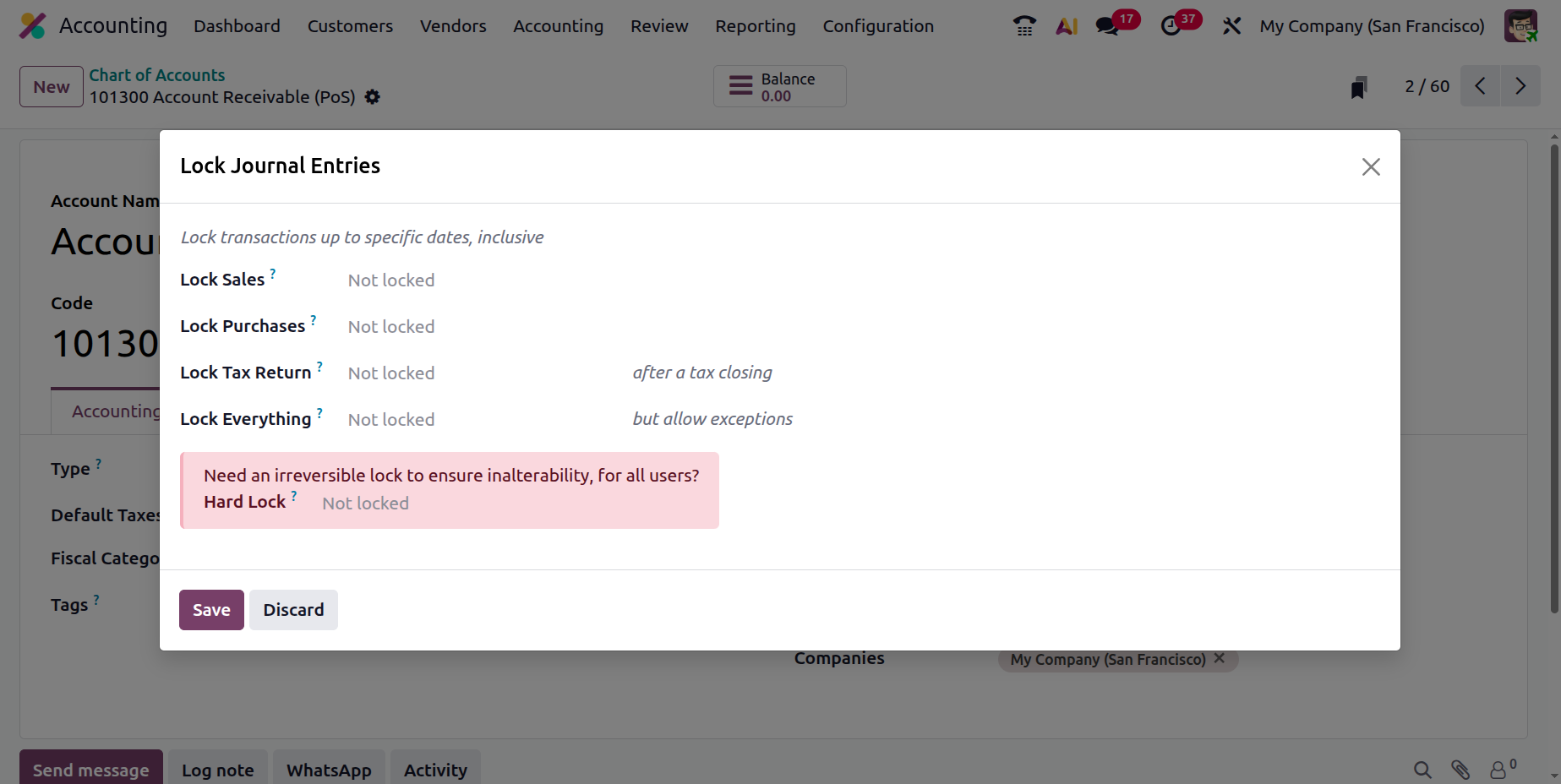
- Lock Sales: Any sales entry made prior to and including this date will be delayed in accordance with the journal's sequence.
- Lock Purchases: All purchase entries prior to and including this date would be postponed in accordance with the journal's sequence.
- Lock Tax Return: Any entry taxes owed up until and including that date will be postponed in accordance with the journal's sequence. The tax lock date is immediately set when the tax closing entry is posted.
- Lock Everything: Any entries made up until and including that date would be delayed in accordance with the journal's order. There are several exclusions, such a reversible lock date.
- Hard Lock: Any entry taxes owed until and including that date will be postponed in accordance with the journal's sequence. This lock date is final, and there are no exceptions.
Finally, if dates are being defined, you must select the Save option. You can also remove the lock dates at any moment if you have the required authority.
Additionally, the Odoo Warning box will appear as a pop-up in your direction if there are specified Unposted entries in the relevant Fiscal Period, as depicted in the figure below. Alerts are automatically generated because the Odoo platform is intended to support the company's financial management processes. On the other hand, unposted entries should be noted before the end of a fiscal quarter. To prevent the Lock Dates posting from being live, select Show Unposted Entries or Cancel.
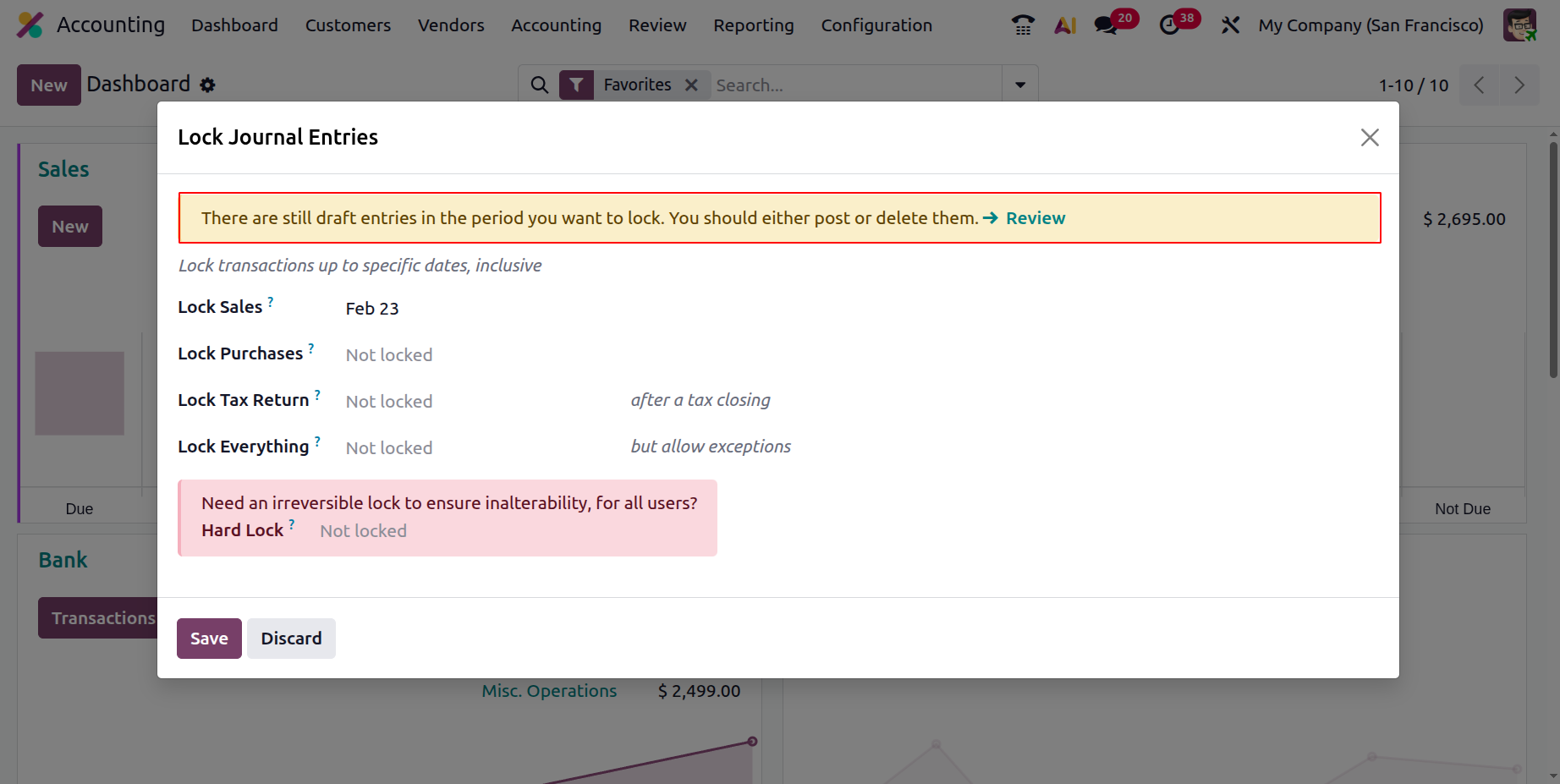
If you select "Review," a menu including every unposted entry pertaining to the financial operations of the fiscal quarter will show up.
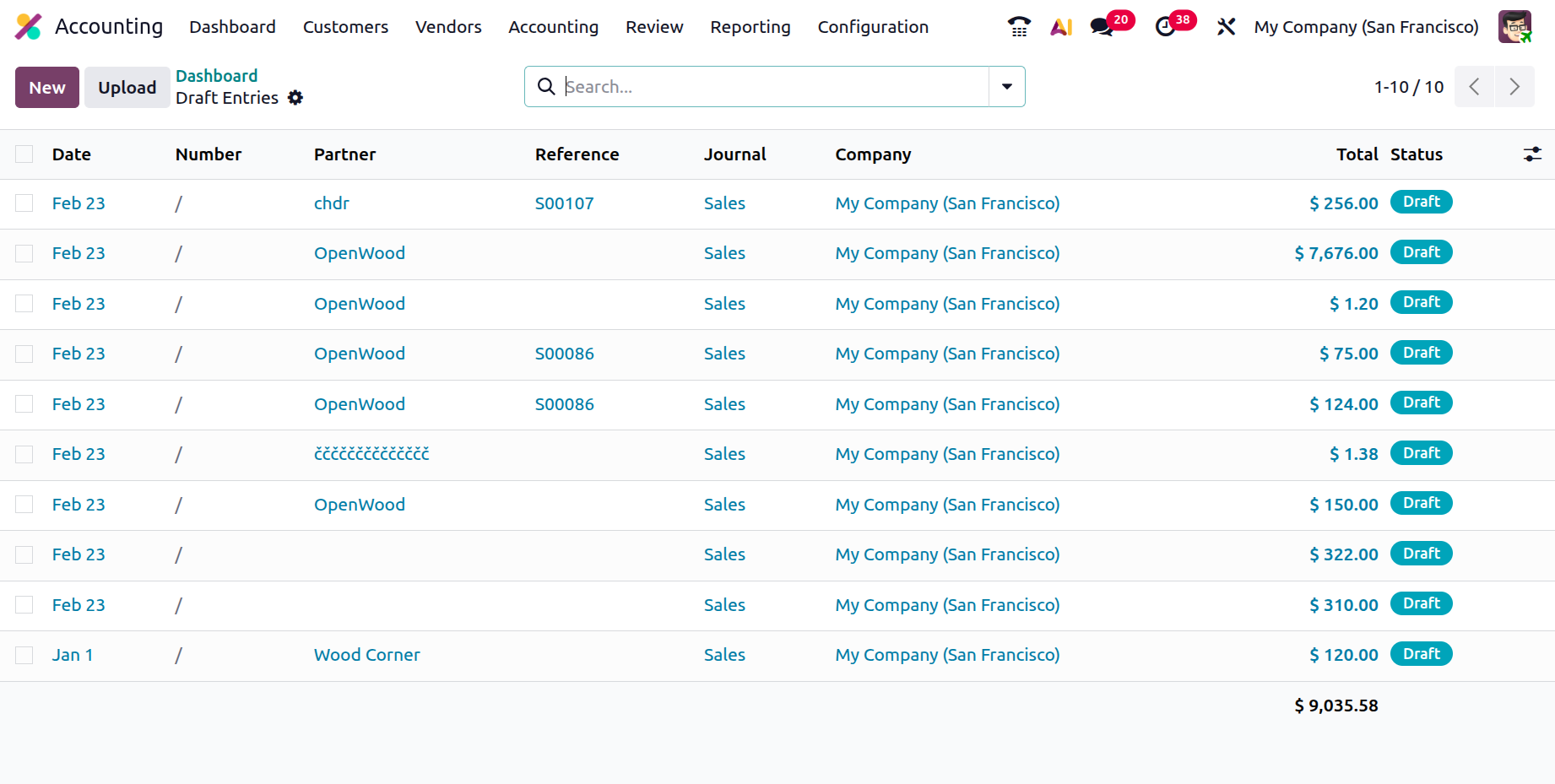
We may find the relevant Unposted Entries from the menu under the description by using the filter and group by options, just as in all other Odoo platform menus. Now that we know more about how the Accounting Action tools in the Odoo Accounting module operate, let's move on to the next part, which deals with Accounting Ledgers.