Taxes & Fiscal Report
A certain class of Taxes and Fiscal reporting tools, including the General Ledger and Trial Balance, are accessible through the reporting page of the Odoo 19 Accounting module. Let's look at each ledger report separately in the part that follows.
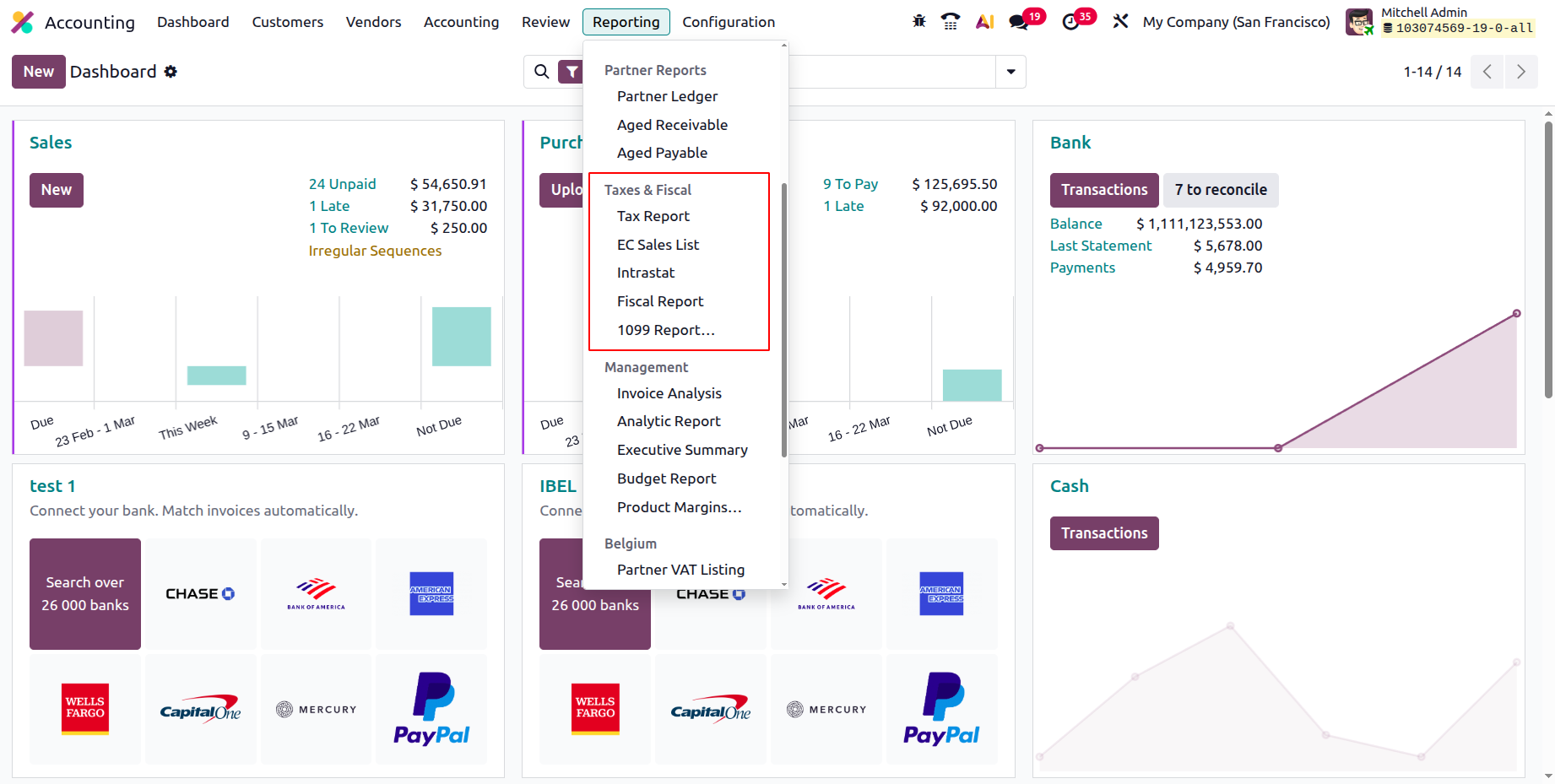
Tax Report
Taxes and how they are used in business, which is done everywhere in the world, are unavoidable. Because governments all throughout the world fabricate records to ensure that taxes are paid on time and precisely, businesses want to closely monitor how these taxes are applied to their financial operations. Chapter 3 of this book, Section 3.1.2 Configuring Taxes, provides a detailed description of the Tax Management window in the Odoo Accounting module. You can read the pertinent sections of the book's history to understand how tax management operations are carried out for a company in Odoo.
The Odoo Accounting module's Reporting tab offers a Tax Report option for reporting on taxes related to the financial operations of businesses that use Odoo. The operation, net worth, tax amount, and all other financial components associated with the specified taxes are shown in the screenshot below. Additionally, there are buttons for printing reports in XLSX and PDF formats. An extra setup option allows you to store the Consolidated Journals report following the Filtration Group.
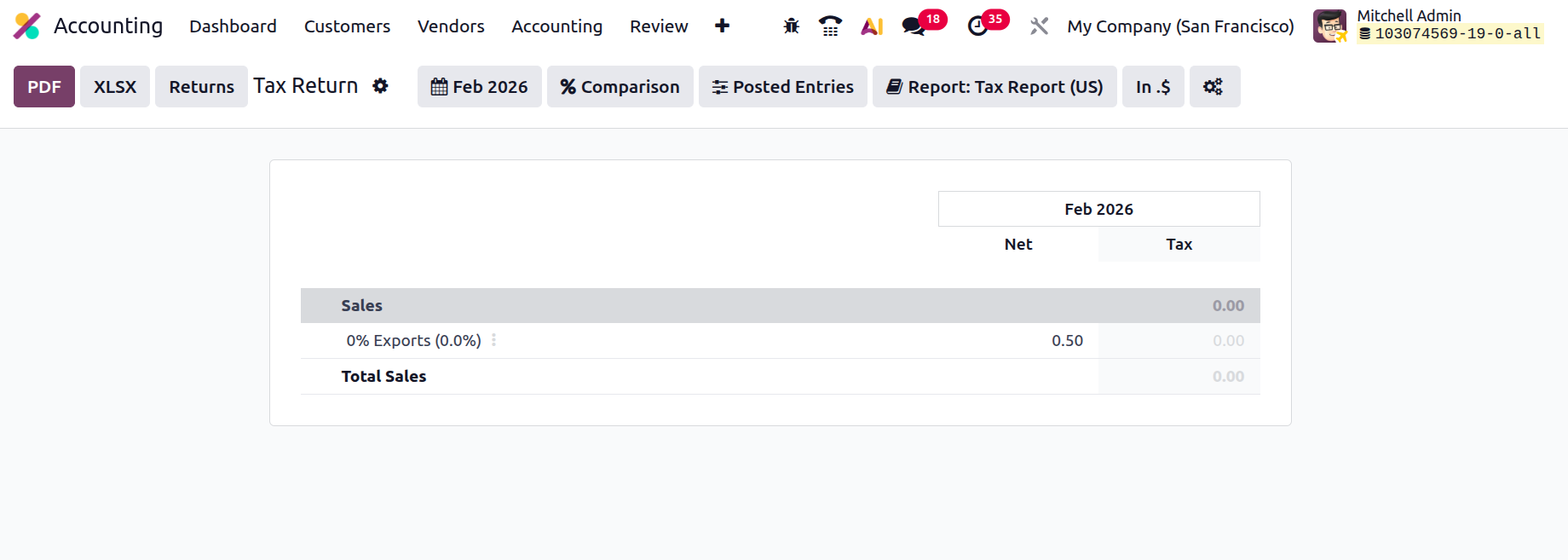
The journal entries pertaining to tax activities can also be closed and submitted using the closing journal entry option. You will also have access to grouping and filtering options in the Tax Report menu, as seen in the accompanying image. To learn more about the common tools available in the reporting menus, such as the Period based Filtering, Comparison filter, and Options filter, read the sections that come before this one. Tax reports can also be arranged as a global summary, by account, or by both tax and account.
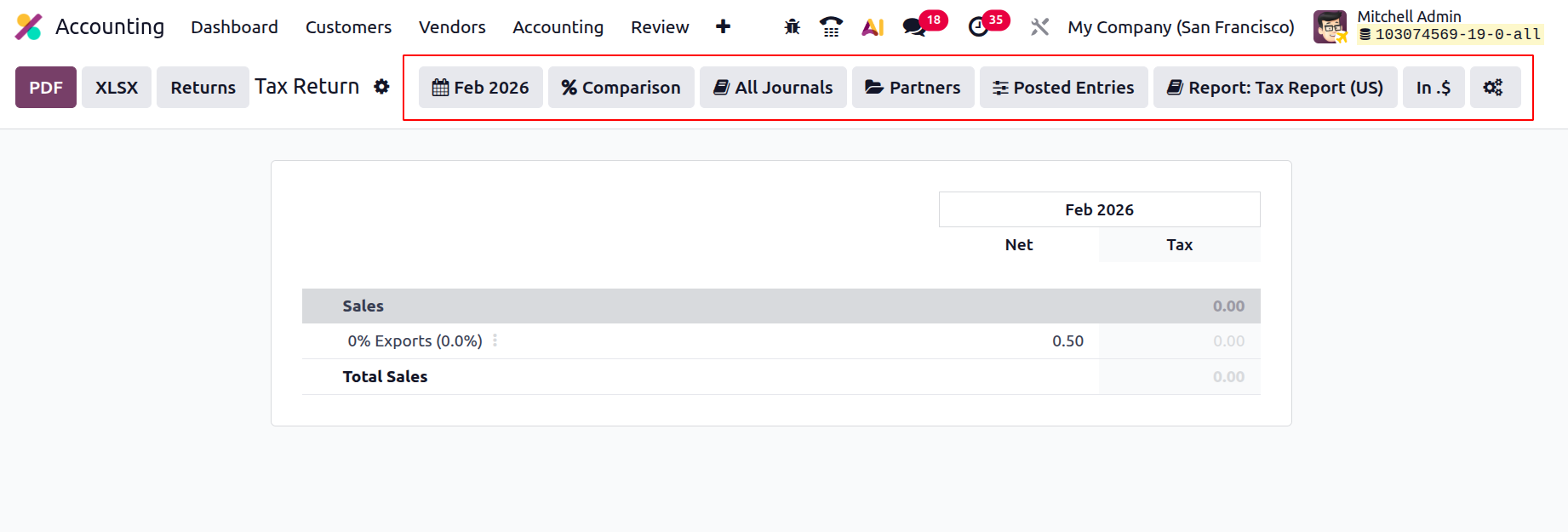
An overview of the tax procedures pertaining to the accounting and financial activities of the company is given by the Tax Reporting option on the Odoo platform. We'll now talk about the portion that explains the EC Sales List Reporting function.
EC Sales List
Another reporting option that could provide you a thorough understanding of the business's financial activities is the Odoo EC Sales List reporting feature. One of the papers that must be given to the UK government's Her Majesty's Revenue and Customs is the EC Sales List reporting, which is based on the sales of goods and services made by VAT-registered companies in the UK to other companies in the European Union. The EC Sales List Reporting is accessible through the Reporting tab of the Odoo Accounting module. Each entry on the EC Sales List has these details.
To assist you arrange the data by fiscal years and designated journals, you will have access to filtering and grouping tools. You can consult the reporting options covered in the sections before this one. Additionally, there are buttons for printing reports in XLSX and PDF formats. To preserve the financial records that are accessible from the EC Sales List menu and will be crucial for the company's financial management operations, you may utilise the SAVE option in the Documents module to save reports to the relevant workspace.
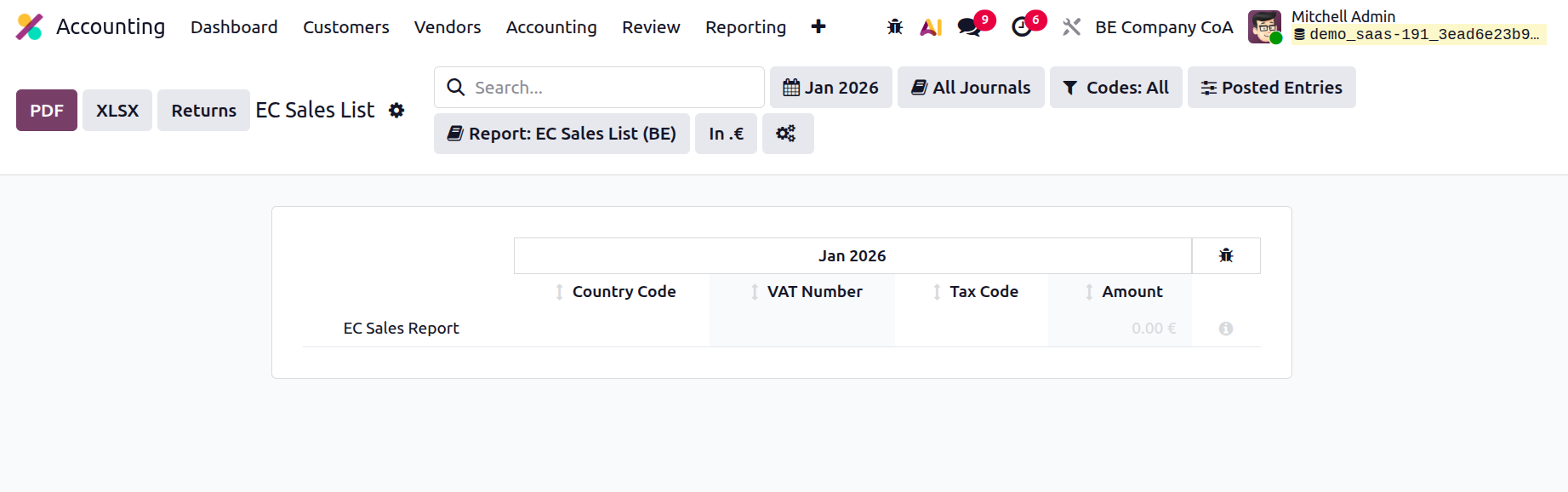
After you have a better understanding of the EC Sales List reporting management menu on the Odoo platform, let's go to the next phase, which involves setting up the Journal Audits.
Fiscal Report
Fiscal Categories in Odoo 19 Accounting are costs that are normally not deductible or reimbursed in the context of business accounting due to internal or regulatory restrictions. The computation of taxable income and reimbursable amounts does not take these expenses into account.
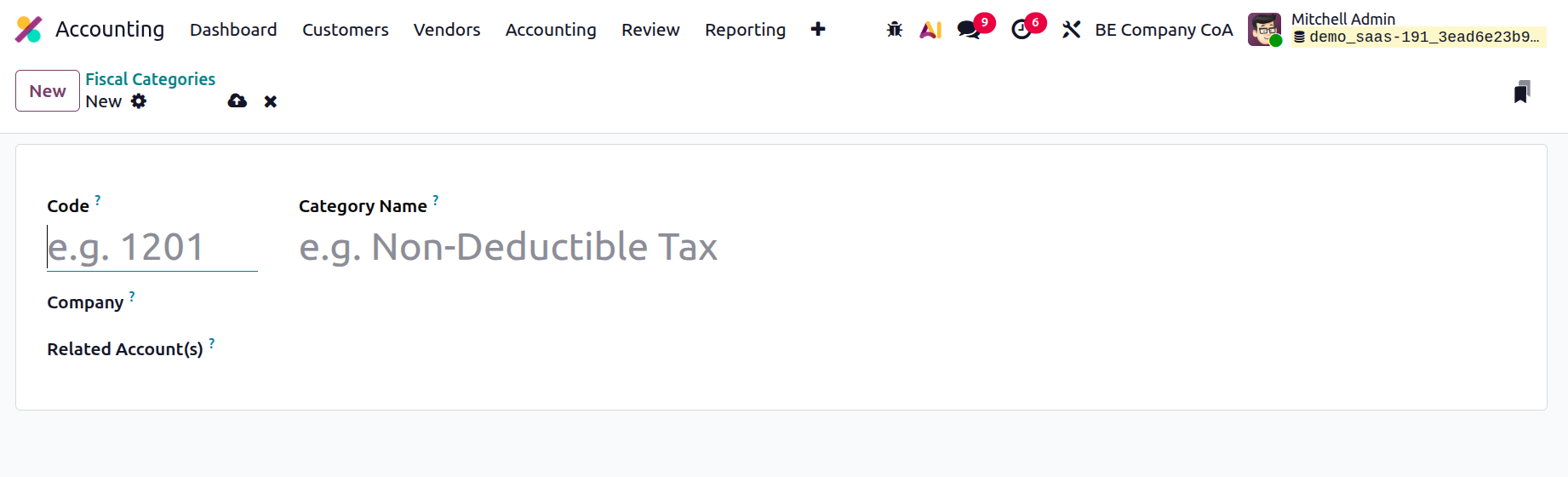
The Configuration menu allows you to define Fiscal Categories. Mention the code, category name, company, and related account inside each category.
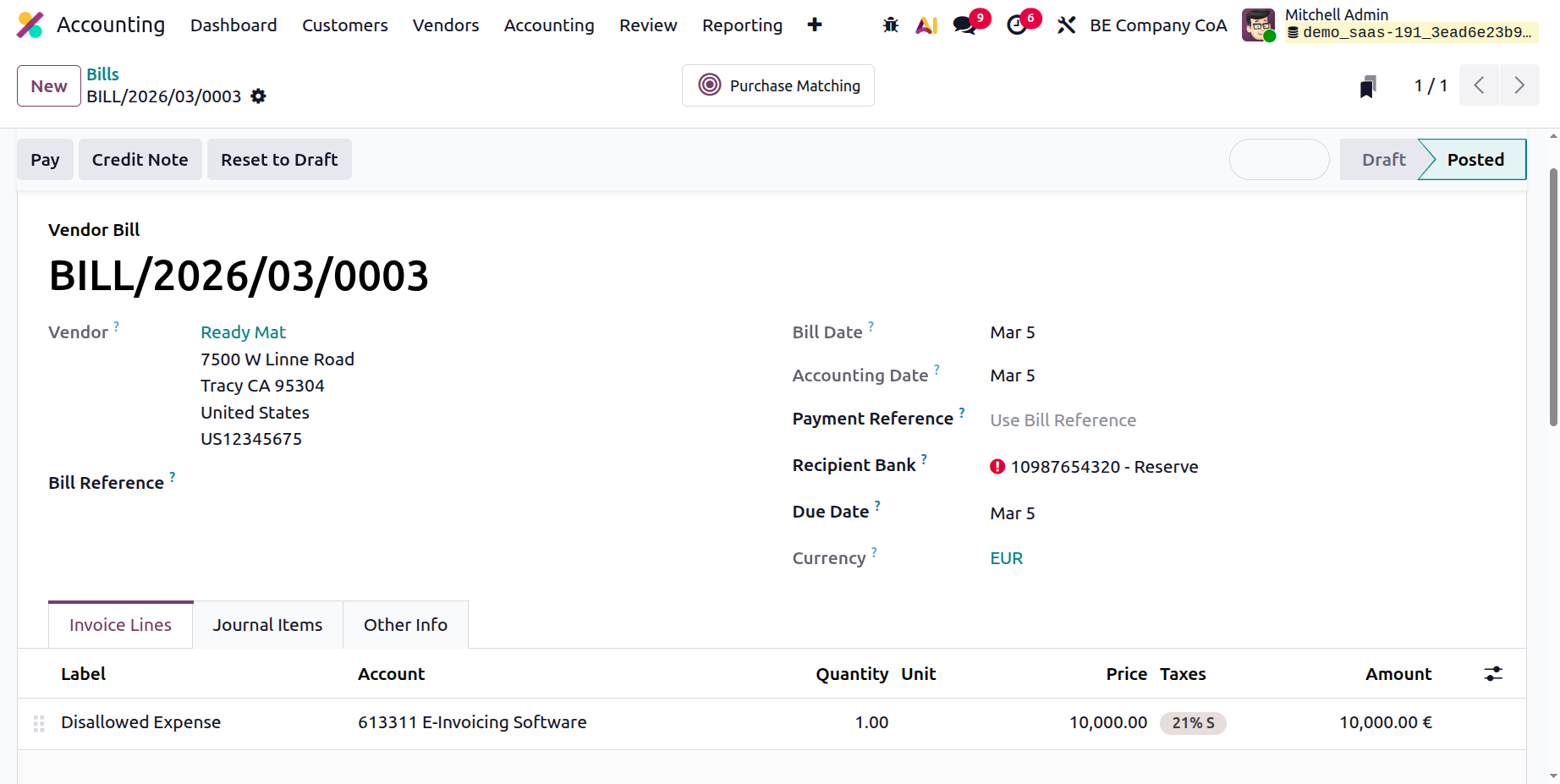
Next, draft a bill for the vendor. Add the product's quantity, price, vendor, and other details. In this case, the account should be the associated account that was added to the list of prohibited expenses. Next, verify the bill.
As a result, these fraudulent expenditures appear in the Disallowed Expense Report under Management, as shown below. Every detail of every Disallowed Expense item is included in the report. The report displays the total amount, the forbidden amount, and the disallowed rate.
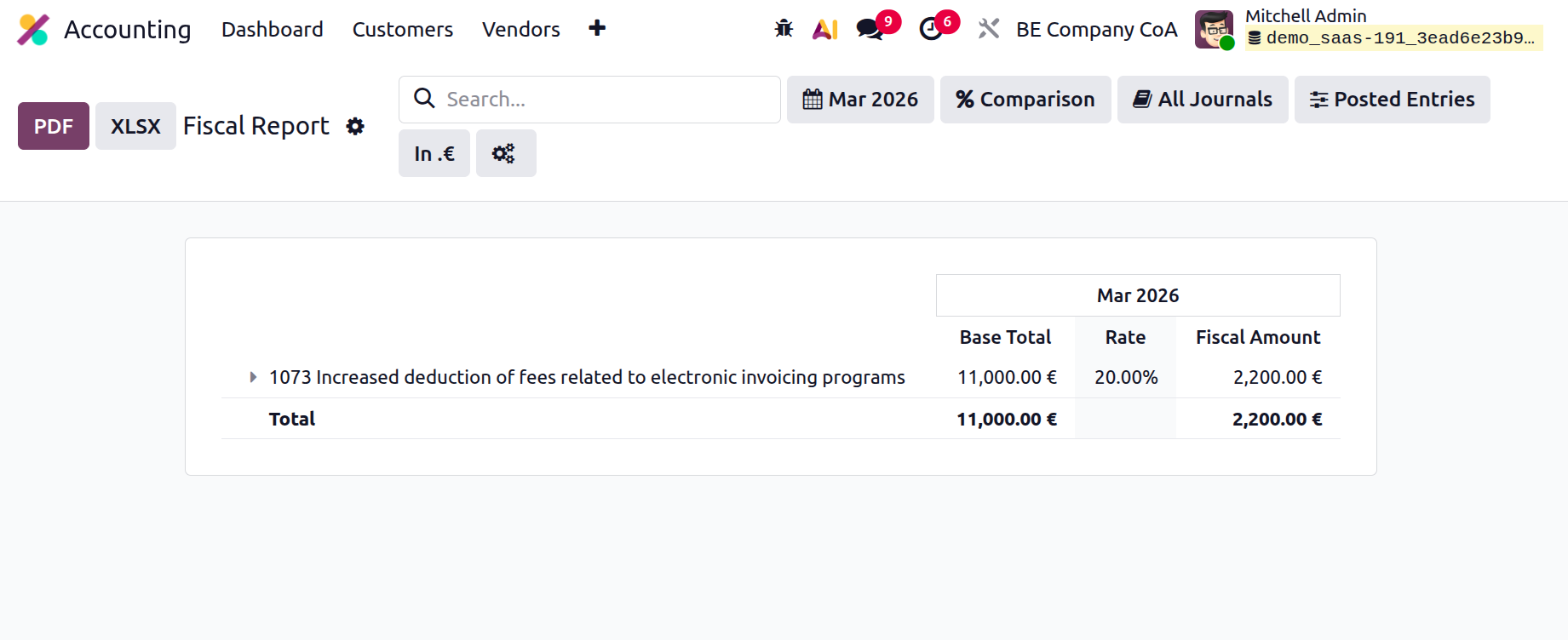
Both PDF and XLSX versions of the report are readily downloadable to the system. Clicking the store button will also store the report to the Documents.