Translation Settings
The Translation Settings feature of a business program is a crucial tool for global organisations. Businesses can easily grow their audience by translating their material into many languages. By using this feature to tailor their operations and communications to clients in other countries while also taking local laws and regulations into account, businesses may enhance the user experience. Additionally, it could aid organisations in communicating complex information and comprehending how their commercial operations function.
Every organisation in the contemporary corporate world operates both internationally and across several nations. Additionally, foreign workers are hired. The management team must be aware of the necessity to set up many languages because the company's corporate or eCommerce website is viewed worldwide. Giving business management the flexibility to function in a multilingual environment requires the system to be able to convert its processes into numerous languages. The Odoo platform allows users to select their preferred operational language, which may also be localised.
The Translation Settings in Odoo 19 can be used to change the language and regional settings of an Odoo instance. The Odoo interface and content can be localised for a particular language, nation, or area using translation options. This makes it easier to design an interface that meets the specific requirements of every user in a given environment. Additionally, clients can use the translation settings to tailor reports and other information to their preferred language and location.
The Translation Settings in Odoo 19 allow you to modify the language settings and create a multilingual Odoo instance. This tool allows you to manage languages, customize translations, import and export translations in other languages, and more. The multilingual features of Odoo 19's Translation Settings are crucial since they expand the amount of people that can utilize their Odoo instance. It is also advantageous to make sure that different customers receive content in the language of their choice. This feature allows users to access the information in their mother tongue. Odoo provides descriptions in nearly every language and enables you to conduct business abroad. You can also download the languages you need based on your needs. In the following section, we might examine the Language configuration tool on the Odoo platform in more detail.
Language Configuration
Users can install additional languages, set up language preferences, select a default language, and modify language-specific settings using Odoo's Language Configuration feature. The Odoo Settings module's Translation tab contains the Language configuration menu.
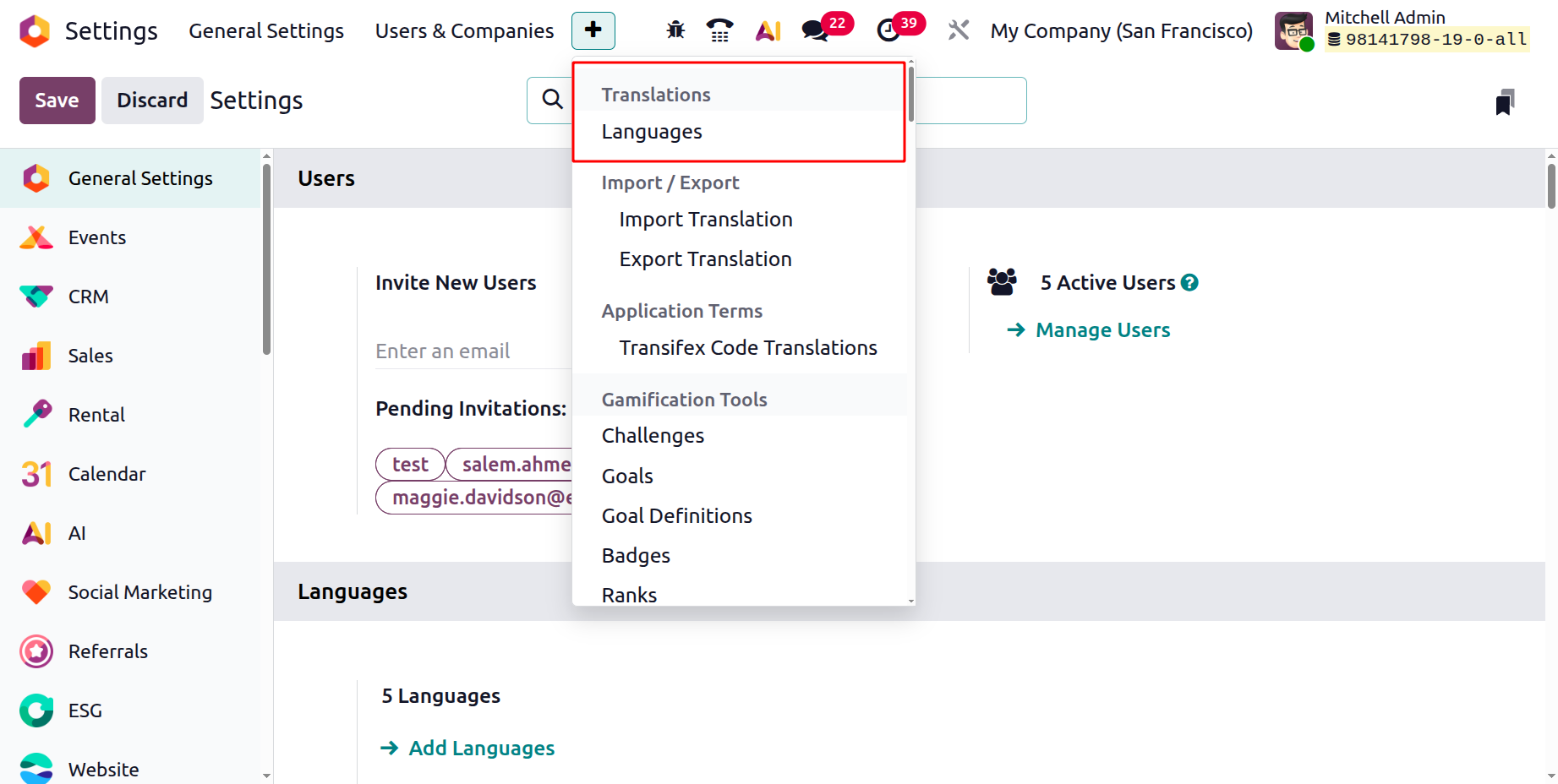
If not, you can locate it in the Settings page's Languages section.
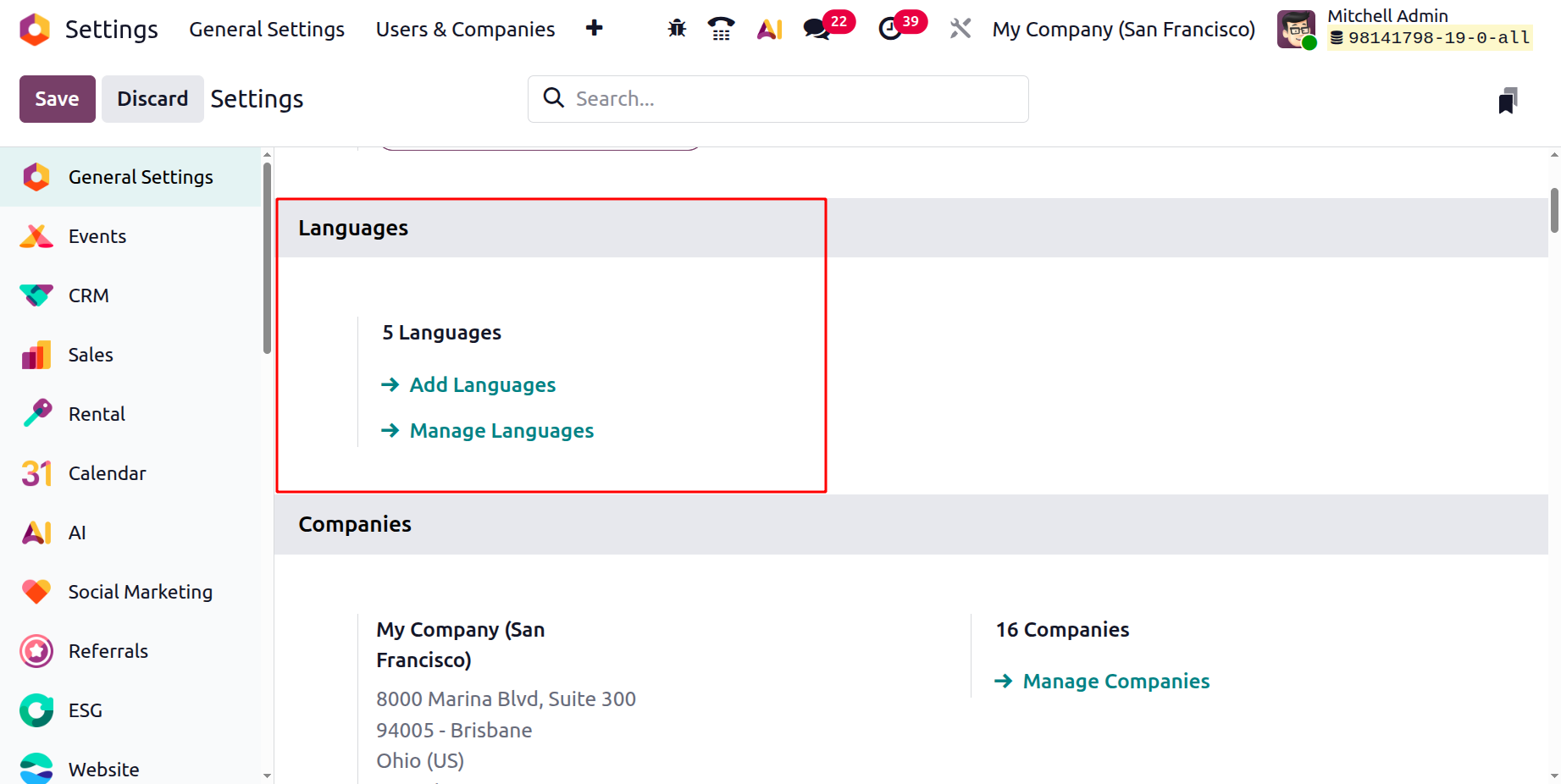
To assist you in completing the necessary activities, you may view the Add Languages and Manage Languages choices here. The snapshot of the Languages window below will display it.
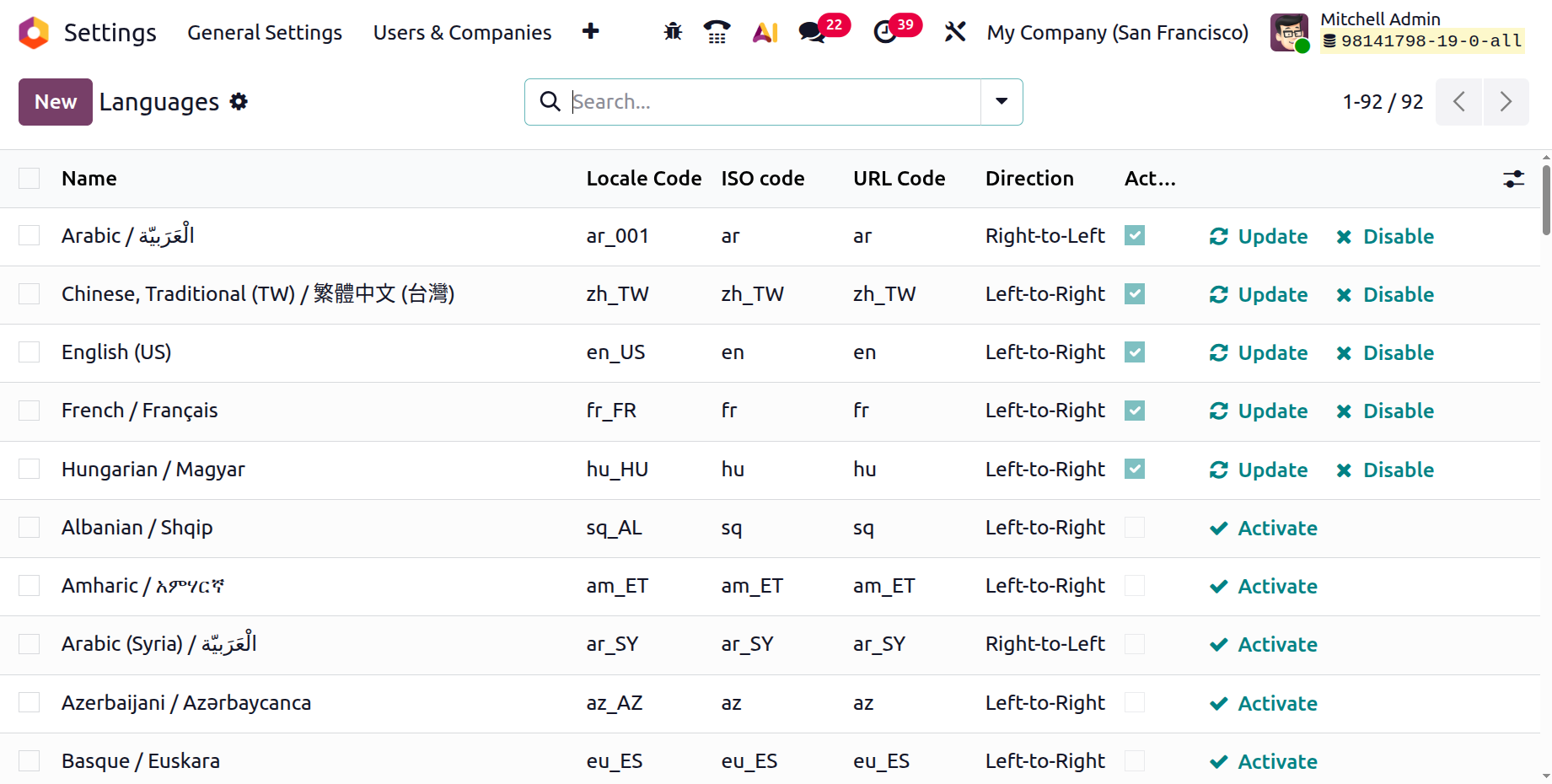
All of the previously entered language data will be shown in a list manner in the Language window. By navigating this window, you can see the Locale Code, ISO Code, URL Code, Direction, and a boolean field that indicates if each language should be active. Based on the active and inactive languages, you can also explore the Update, Disable, and Activate options. To allow that specific language, you can look at the boolean column.
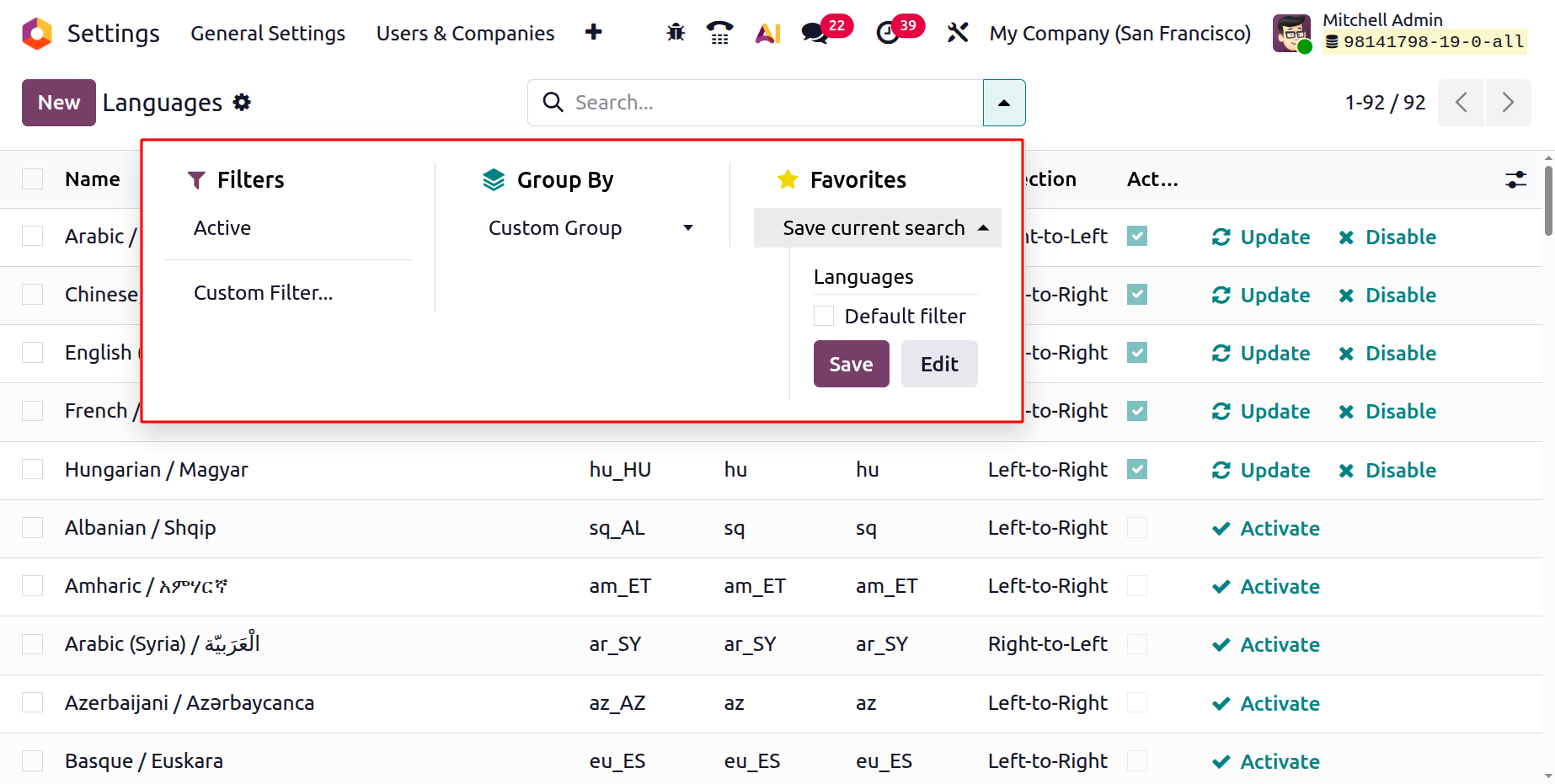
The Filters, Group By, Search, and Favourites tabs that are present in practically every Odoo platform window are also included in this window. A range of filters and grouping options can be used to classify and categorise the list of languages according to the requirements and purposes of your business. The Favourites tab contains the Save Current Search option, as shown below. For subsequent use, the personalised one can be saved and put to the list of favourites.
Additionally, each language record that appears in the menu can be chosen, carefully reviewed, and given the chance to change certain details if necessary. To set up a new language for your business, click the establish button in the top left corner of the window. The screenshot below shows the creation form that the system will now show.
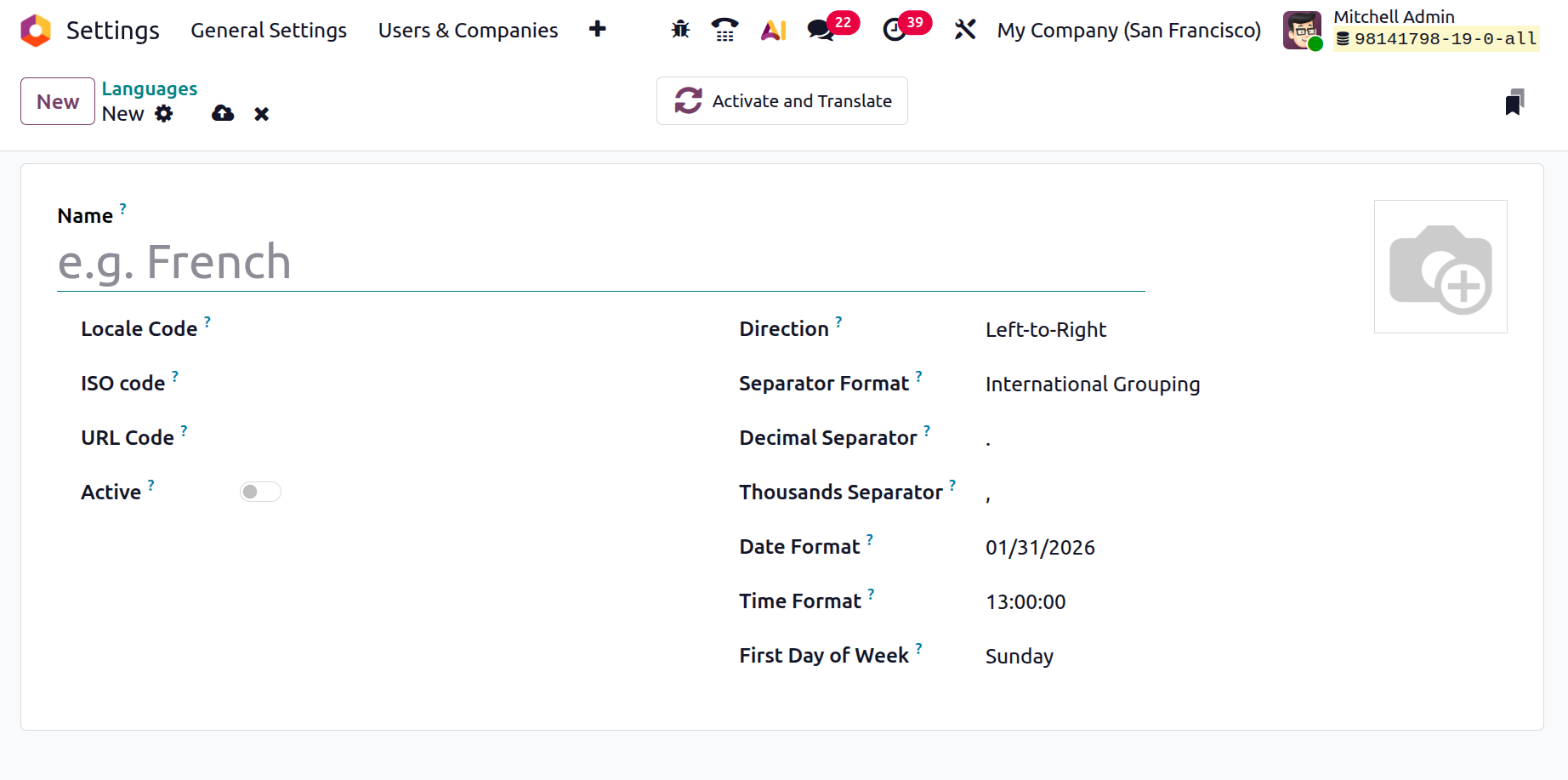
The language's name, which you can enter in the Name column, is the first thing you need to define in the Language configuration box. Entering the language's locale code in the relevant field is the next step. Next, you need to supply the ISO Code, where you can select the PO file names that will be translated. As a result, the language code that appears in the URL might be described as the URL Code. This element is followed by the Active field, a boolean field that can be used to activate the language.
The Direction box, which allows you to select between left-to-right and right-to-left directions, is also displayed. Next, you can bring up the Separator Format. To complete the Decimal Separator and Thousands Separator sections, you can also choose a suitable substitute. After that, you can input the Date Format in the relevant area. It is also possible to specify the time format and the first day of the week in the field. Using the Edit option, you can submit a language-related image to the photo upload area located in the upper right corner of the window.
In addition to these choices, there is a clever button in the upper right corner called "Activate And Translate," as seen in the picture below.
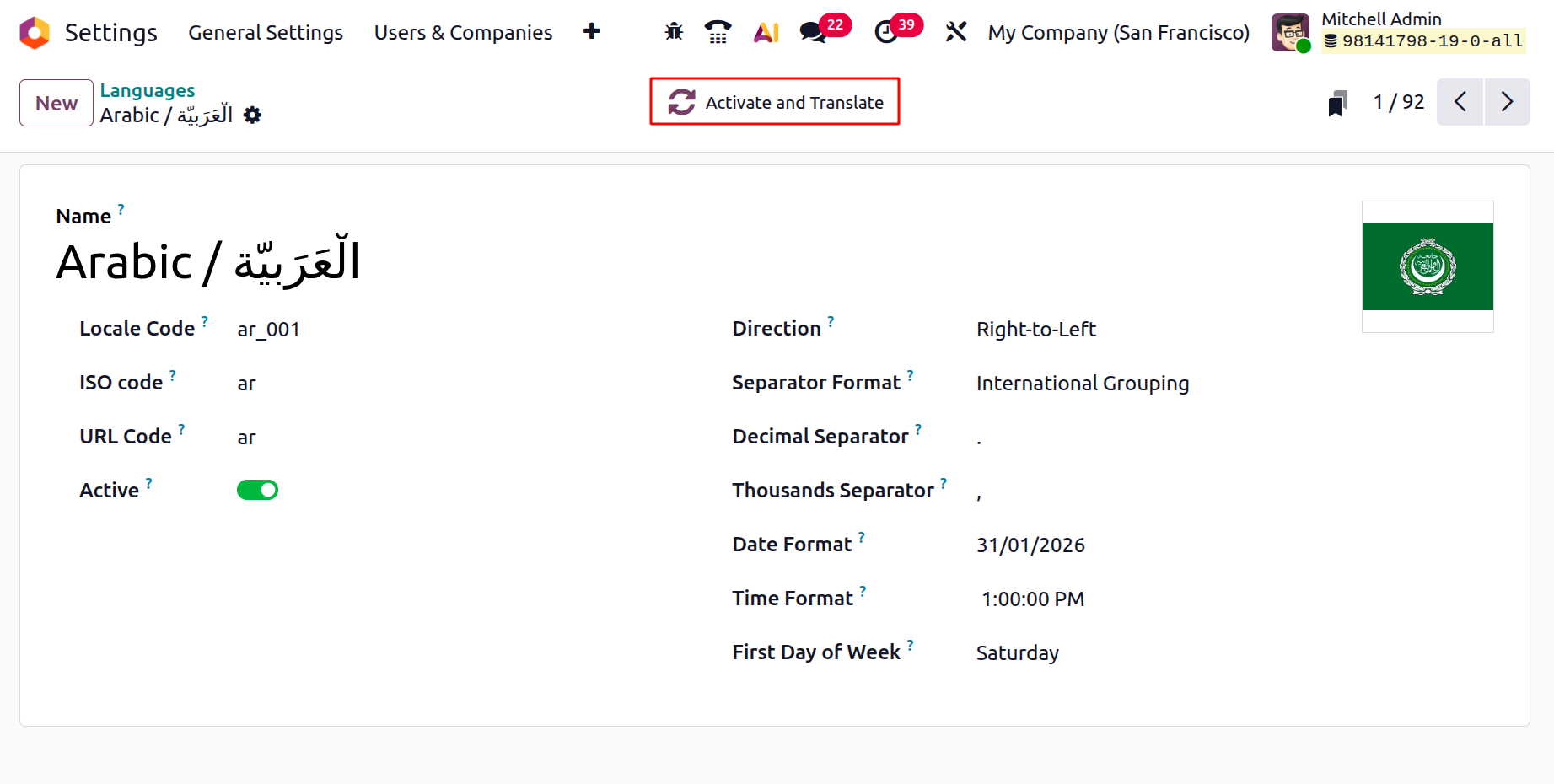
This innovative button allows you to instantly activate and translate a language. This will enable you to begin utilising language and translating the data. You can swiftly switch between languages thanks to it. The system shows a new pop-up window with several fields when you click the button, as seen below.
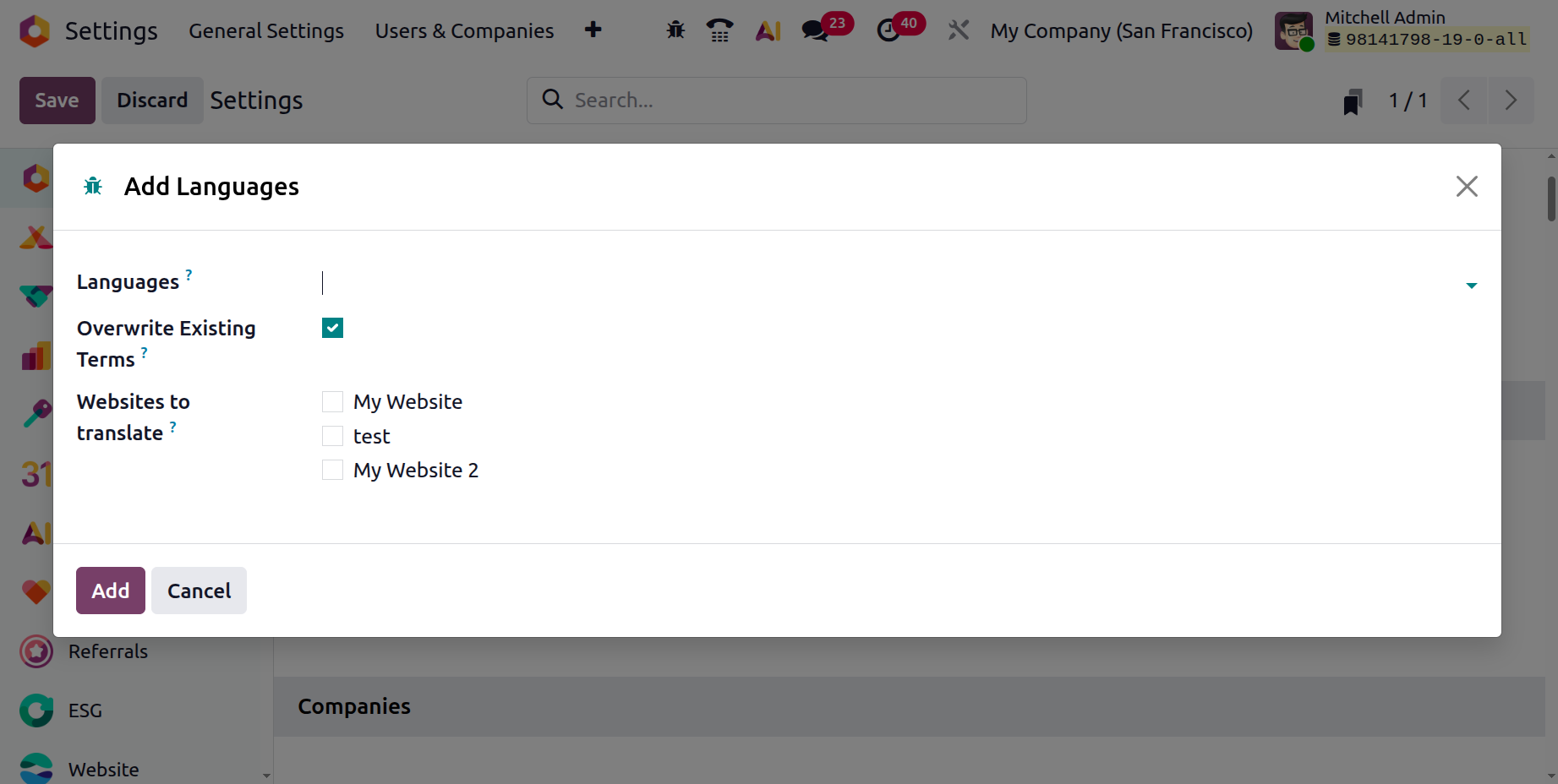
You may quickly activate and translate into a language and its associated documents in the system by using this window to add a language. Consequently, you can choose the languages you wish to add using the dropdown menu. Next is the Overwrite Existing Terms box. This field can be ticked or left unchecked based on the user's preferences. You can substitute terms that are already present in the languages they are translating after you activate this option. If a user wants to update existing translations or add new ones, this feature is useful. This suggests that your personalised translations will be superseded by the official translations. Next, you can click the option to choose the websites you want to translate.
The selected language and all of its translations for all of the system's documents will now be downloaded and installed immediately by the Odoo system. From their selections, users can select the language of their choice. In a multilingual setting, this facilitates and speeds up language transition.
The language configuration options of the Odoo platform have already been discussed. We may look at the platform's Sequence Number Modification functions in connection to accounting operations in the next section.