Company Settings
Upgrading to better technology and systems is essential for every business or organisation that wishes to enhance its organisational structure and capitalise on the business environment's rapid development. A strong ERP system not only lowers costs but also simplifies corporate processes. Odoo ERP is simpler to set up and operate than other ERP systems, as we previously discussed. Odoo ERP is a fully integrated software system that can be installed by any type of business, regardless of size. After successfully integrating Odoo for the seamless running of your business, you must first set up the firm and the associated data needed for Odoo to do all of your company's key responsibilities. It is crucial to describe every aspect of the company's operations and activities.
Odoo's broad and specialised Settings menu can help you construct its configuration features effectively. This menu allows you to control each of these characteristics. The special Companies management option on the Odoo system's General parameters page allows you to quickly create a variety of company-related settings. Establishing the firm and setting up the necessary activities, including parent and child enterprises on a single platform, is made easy by this menu. You may create and manage several businesses from a single database thanks to Odoo's multi-company operations capability. This capability is essential if you have to oversee several businesses from a single platform. Odoo allows you to build and manage many businesses quickly, assign people to different firms, and securely handle each company's data. Additionally, you may transfer financial, customer, and product data between firms using Odoo's multi-company capability. This will assist save time and money while managing many businesses.
A business can now open several branches. It implies that branch management is now quite simple for the company. The primary company may also open many branches. Odoo's multi-company configuration makes it easy for firms in the same Odoo database to share sales and procurement procedures. Another use for it is invoicing between companies who conduct business with one another. In the section that follows, we will thoroughly comprehend the many aspects of the Odoo platform's business administration settings and customisations.
Creation of a Company
The Odoo 19 platform makes managing the company's menu simple. Go to the Settings module, which has the menu displayed in the image below, to access the Manage Companies option and other company-related features. Furthermore, a tab for Companies is clearly visible.
By choosing the firms tab in Odoo 19's General parameters box, which is shown above, you may modify the businesses and the associated parameters. Each company in your Odoo instance is summarised, and you have the ability to create, update, and remove firms. This tab also displays the company's settings, such as its name, currency, time zone, logo, address, phone number, and other pertinent information. It also gives access to the security settings of the company, including user access levels, passwords, and roles.
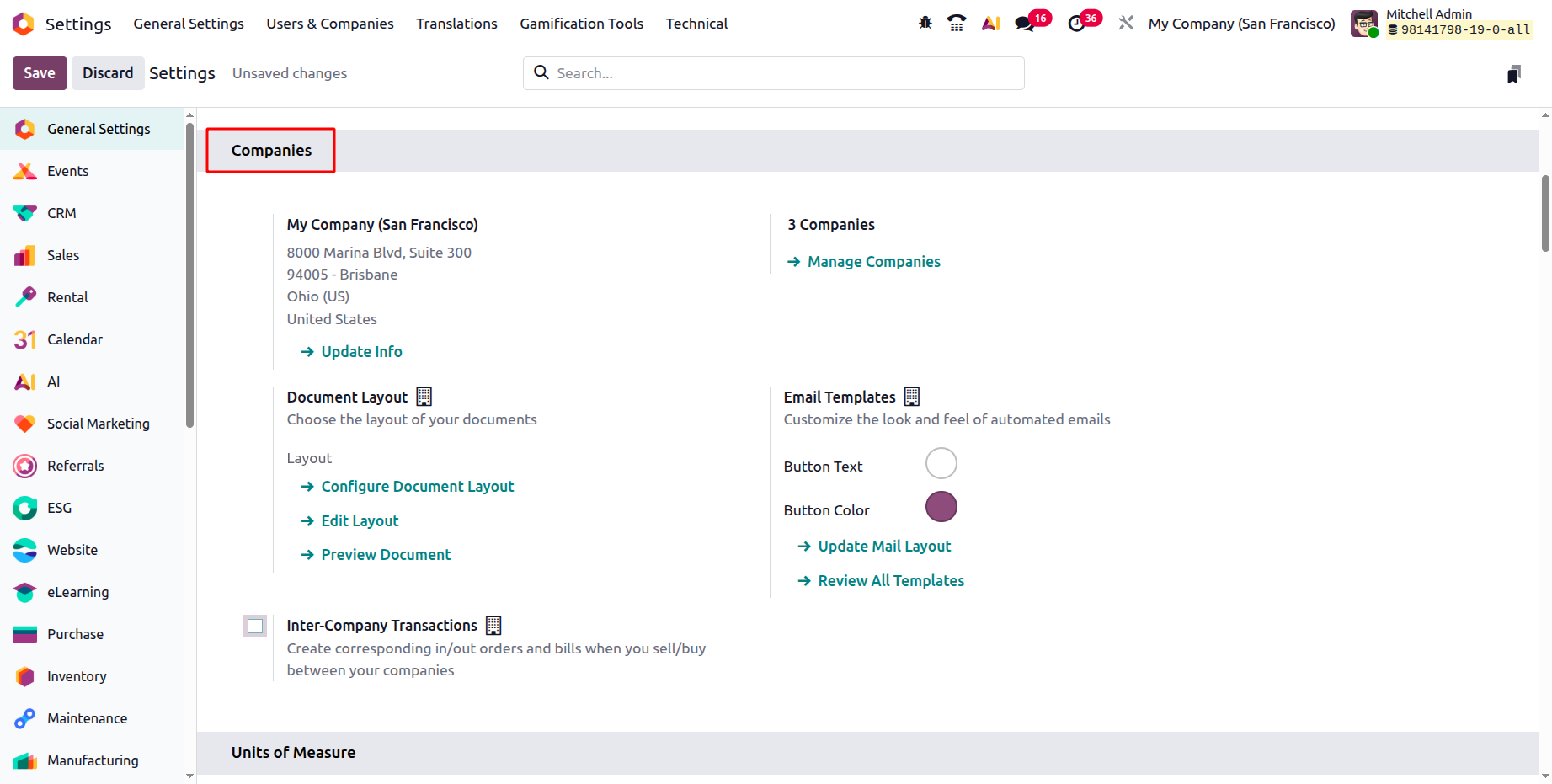
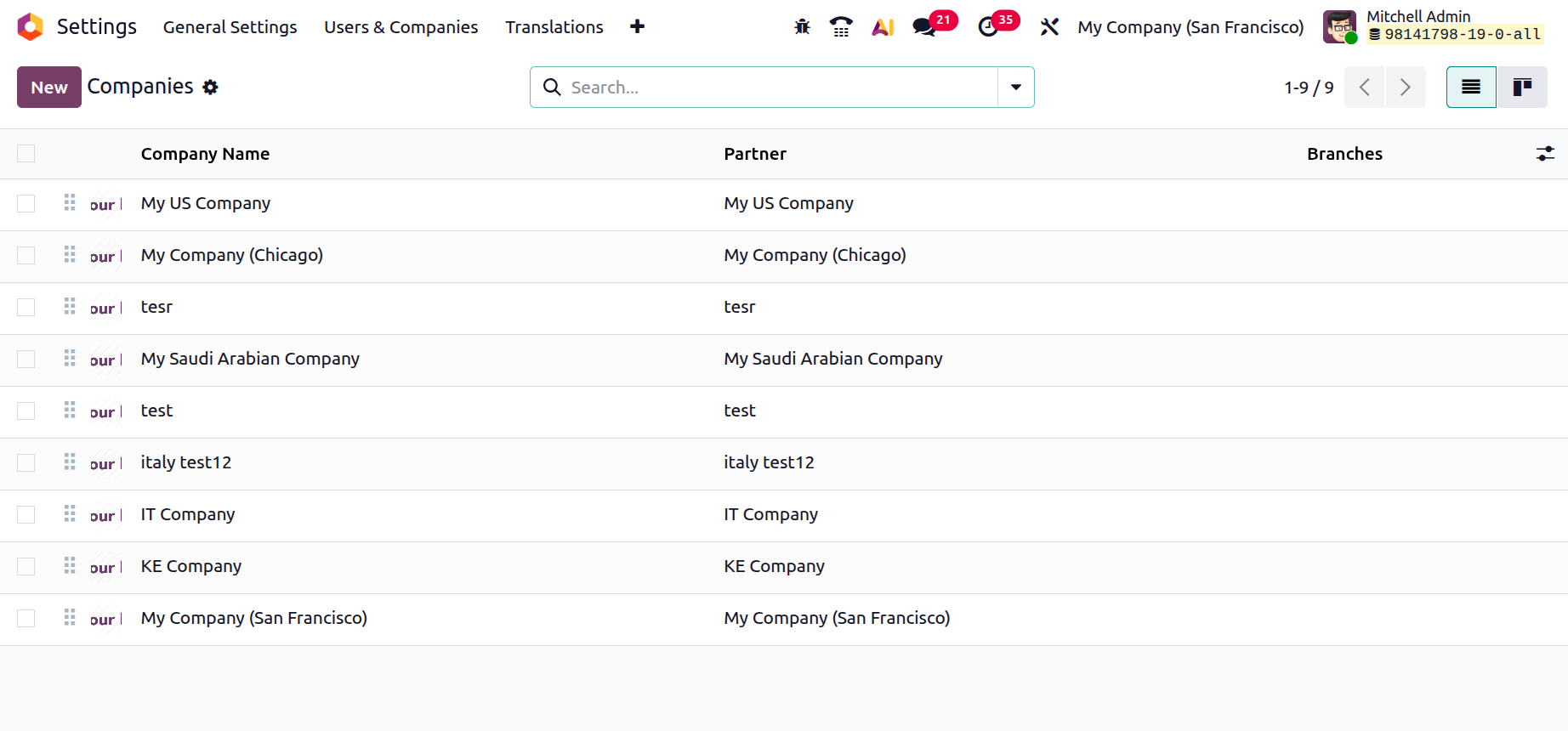
The Companies window appears when you click the Manage Companies arrow beneath the Companies menu, as seen in the image below.
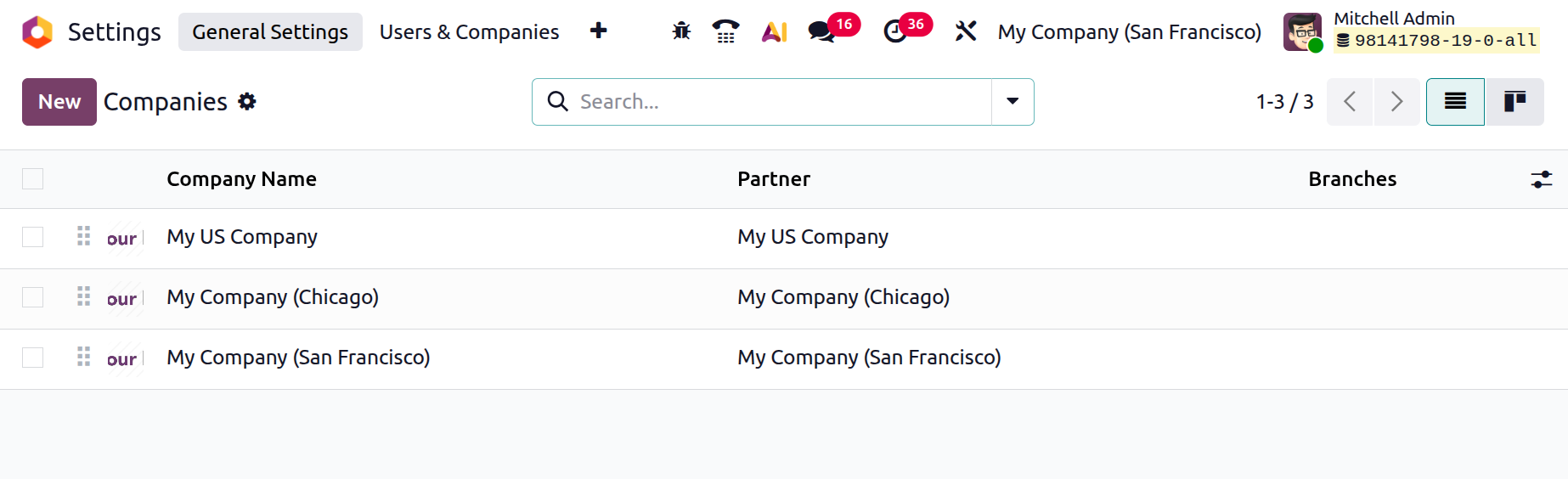
Two businesses have already been founded on this platform, as you can see; the specifics are shown below. This window will show the data for all configured firms in a similar way. By selecting the appropriate menu icon that shows up in the upper right corner, you can view and retrieve this data in either list or kanban format. The window will display the company name and partner details.
The Filters, Group By, and Search features will be particularly helpful for quickly locating and classifying firms while managing multiple businesses on a single platform. To fit your preferences, you can change the sorting features. The Favourites tab provides helpful solutions for doing many activities, which are crucial for your organization's efficient management. The following choices are available on the menus: Import Records, Save Current Search, Insert List in Spreadsheet, and Link Menu. The Export button, located adjacent to the New button, makes it easy to quickly export data into an Excel file. Additionally, you can choose a specific firm record. To do this, simply tick the box next to the appropriate company.
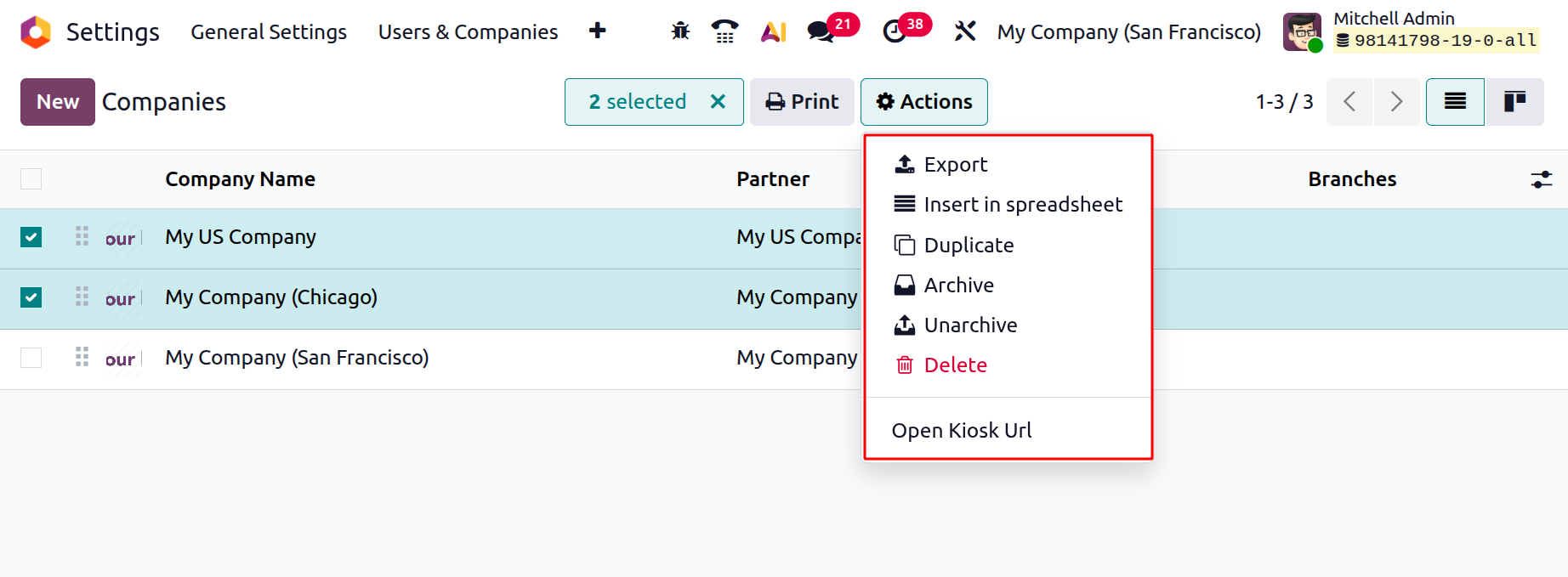
As seen below, the system will now provide an Action button with the Export, Insert in spreadsheet, Duplicate, Archive, Unarchive, Delete and Open Kiosk Url options. The Print option is also shown in the Action menu on the left.
As shown in the above image, the Print menu offers sub-menus such as Preview Internal Report, Preview External Report, and Report Layout Preview. The company window's Kanban view will be like the example below.
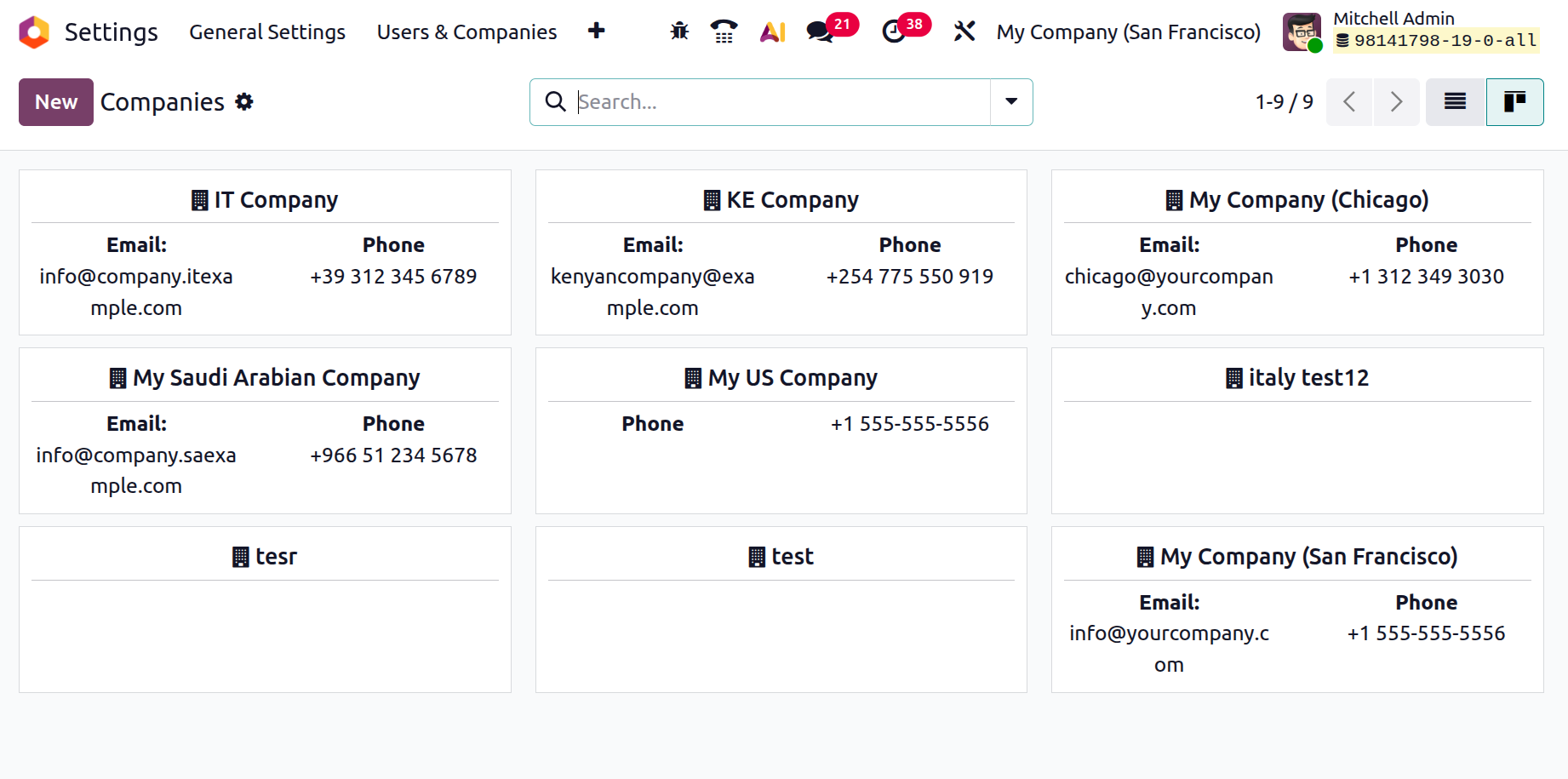
The company name, phone number, and email address will be displayed in the Kanban view along with additional keys and settings. Using the New button in your Odoo platform makes it simple to create a new company record. As seen in the screenshot below, clicking the New button opens the Company configuration form.
The organisation name section of the formation form is where you must first and foremost put the name of your organisation. In the next step, you may then place your company's logo in the proper location. If you want to differentiate your business from the competition, this is crucial. You can upload your logo from the system by choosing the Your logo option and choosing to attach it. You can change the general information and the VAT Units data under the relevant tabs once these two details are entered.
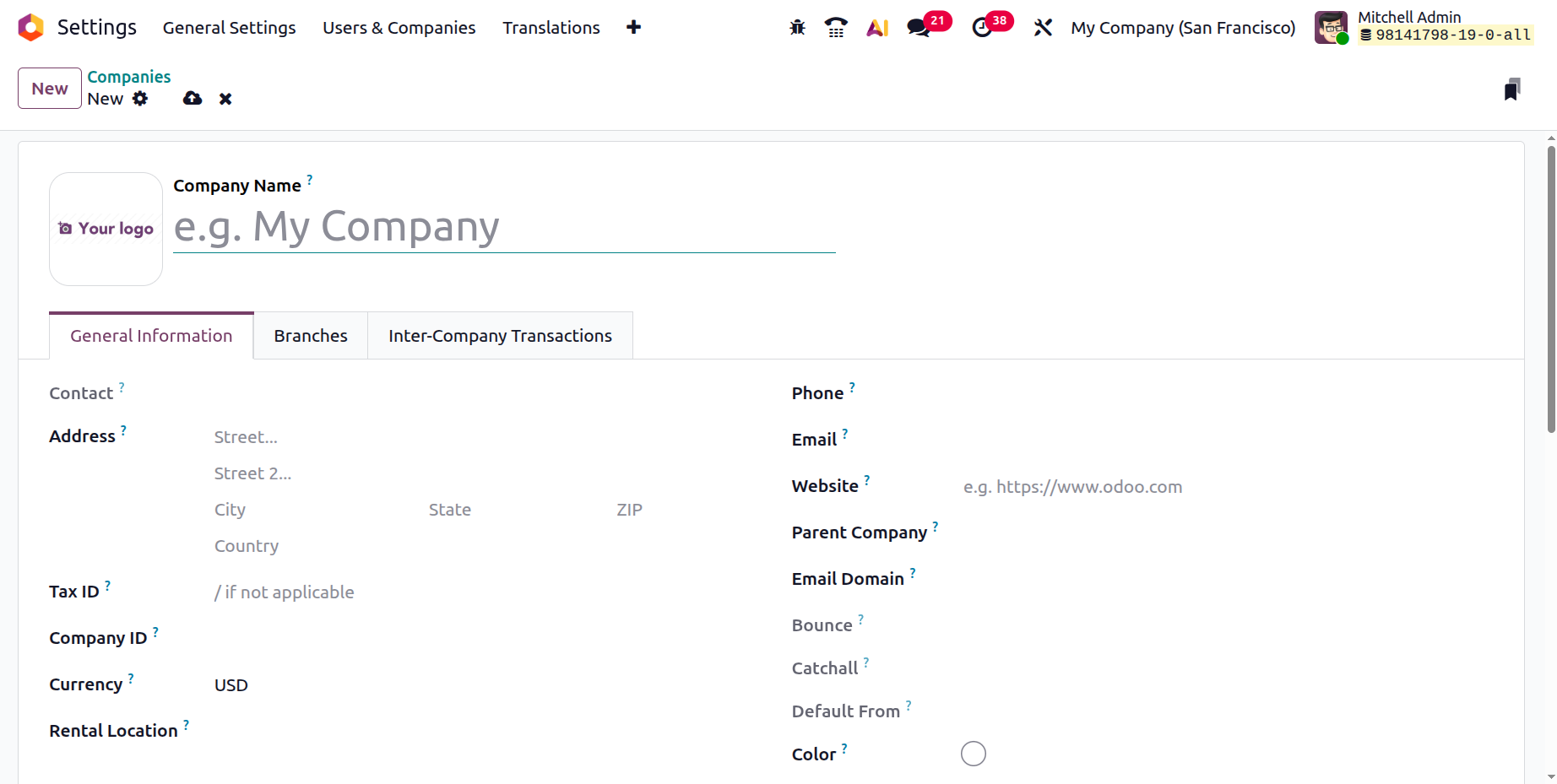
In the General Information page's Address area, you can provide a description of the company's address. This is where you must provide information such as street address, city, state, zip code, and country of business. The Tax ID box, which provides you with control over the business's tax identification number, comes next. In legal paperwork and tax procedures, this number will be used to identify the company. If the business is liable to government taxes, this area must be filled out. The company's register number can then be assigned using the Company ID box. It serves as the unique internal Odoo ID for the business. After that, you can fill in the denomination field with the correct denomination.
The Parent Company, website details, email address, phone number, and mobile number can also be entered in the designated section.
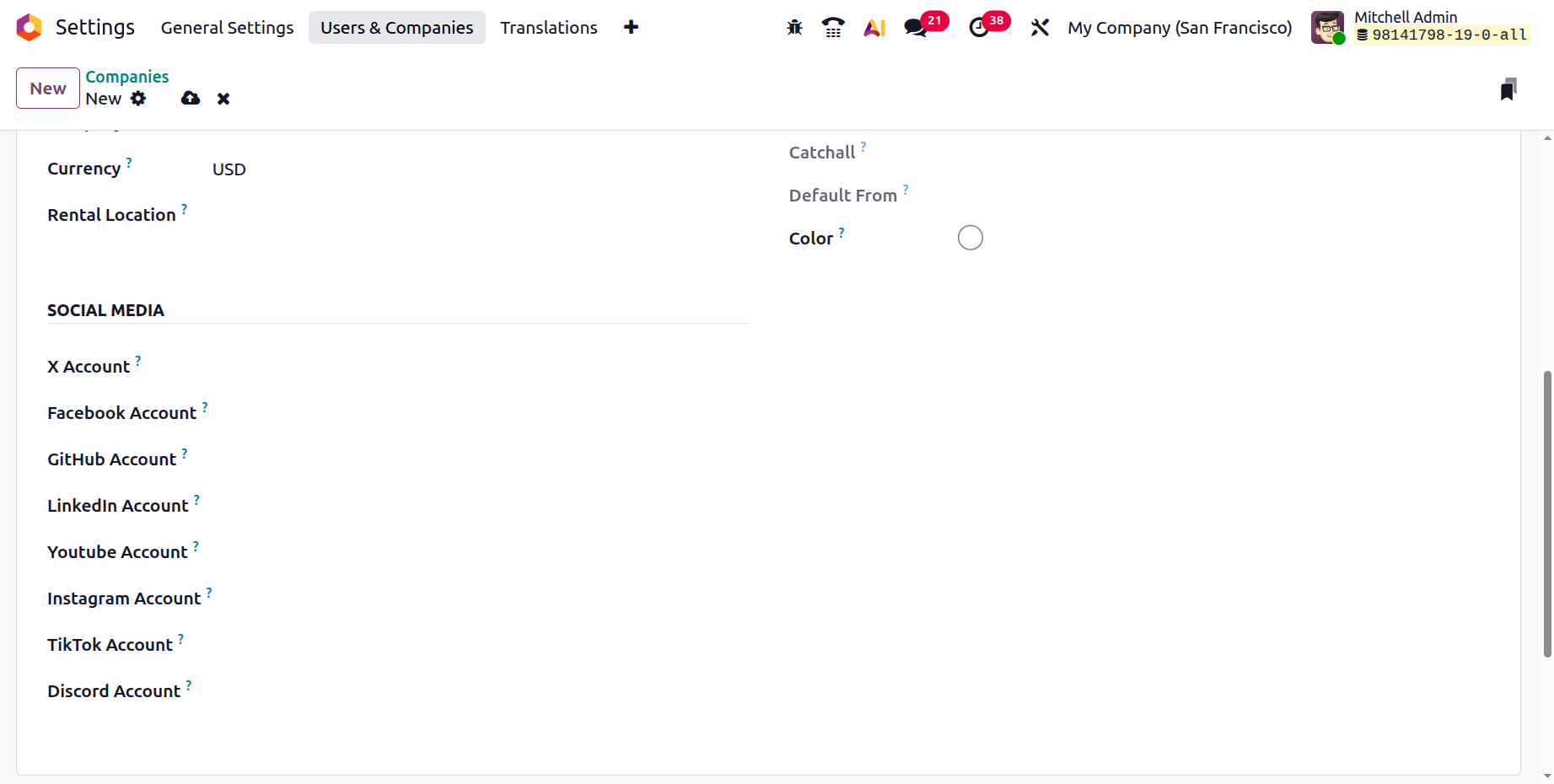
Then, certain fields can be used to describe social media data, such as a Twitter account, Facebook account, GitHub account, LinkedIn account, YouTube account, and Instagram account.
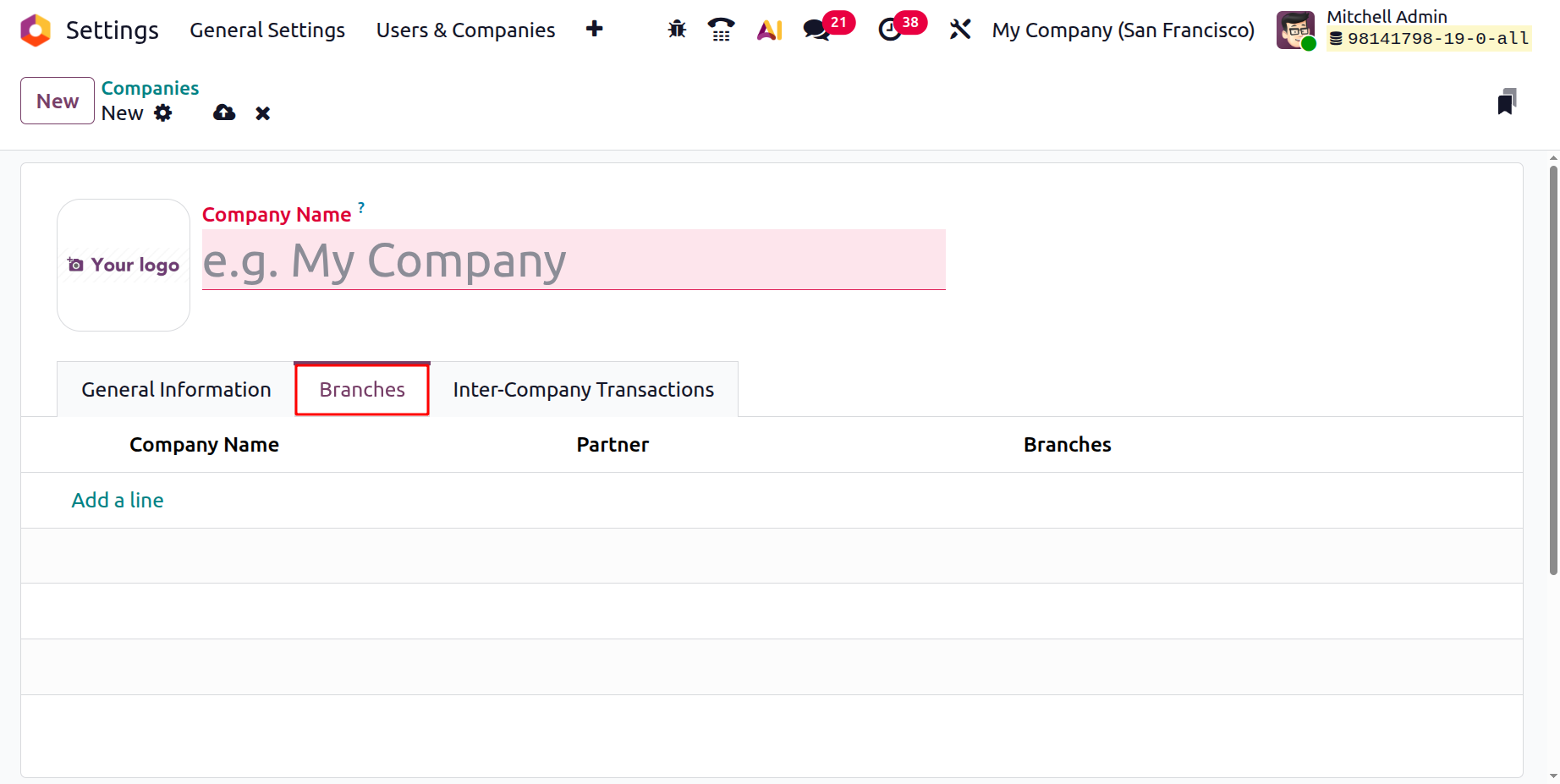
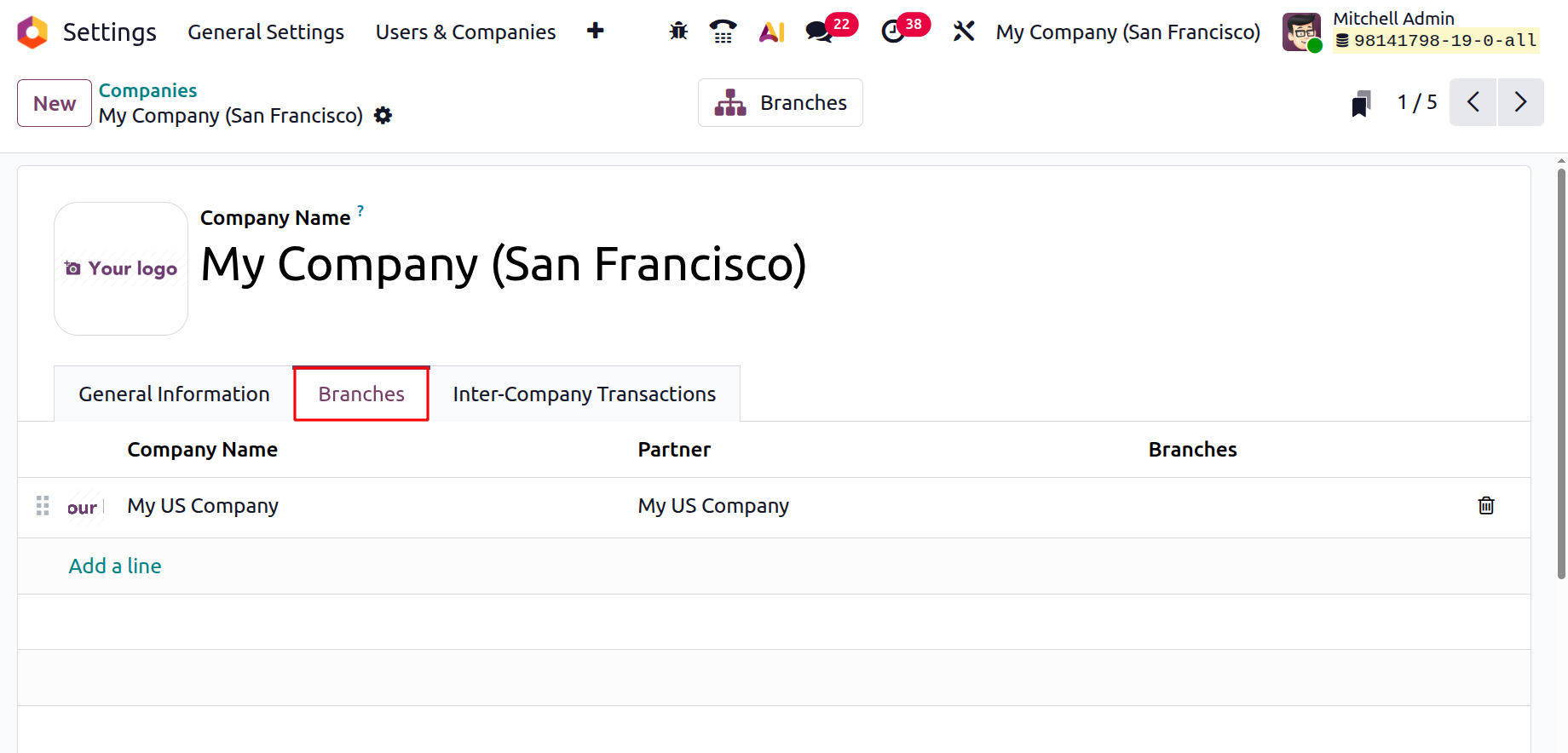
On the Branches tab, users can choose the Add a Line option to list the parent company's branches. A new window will open when you click the Add a Line button. As seen in the example below, the branch firm will show up inside the Branches tab after it is added. You can specify any number of the parent company's branches there by just selecting the Add a line option.
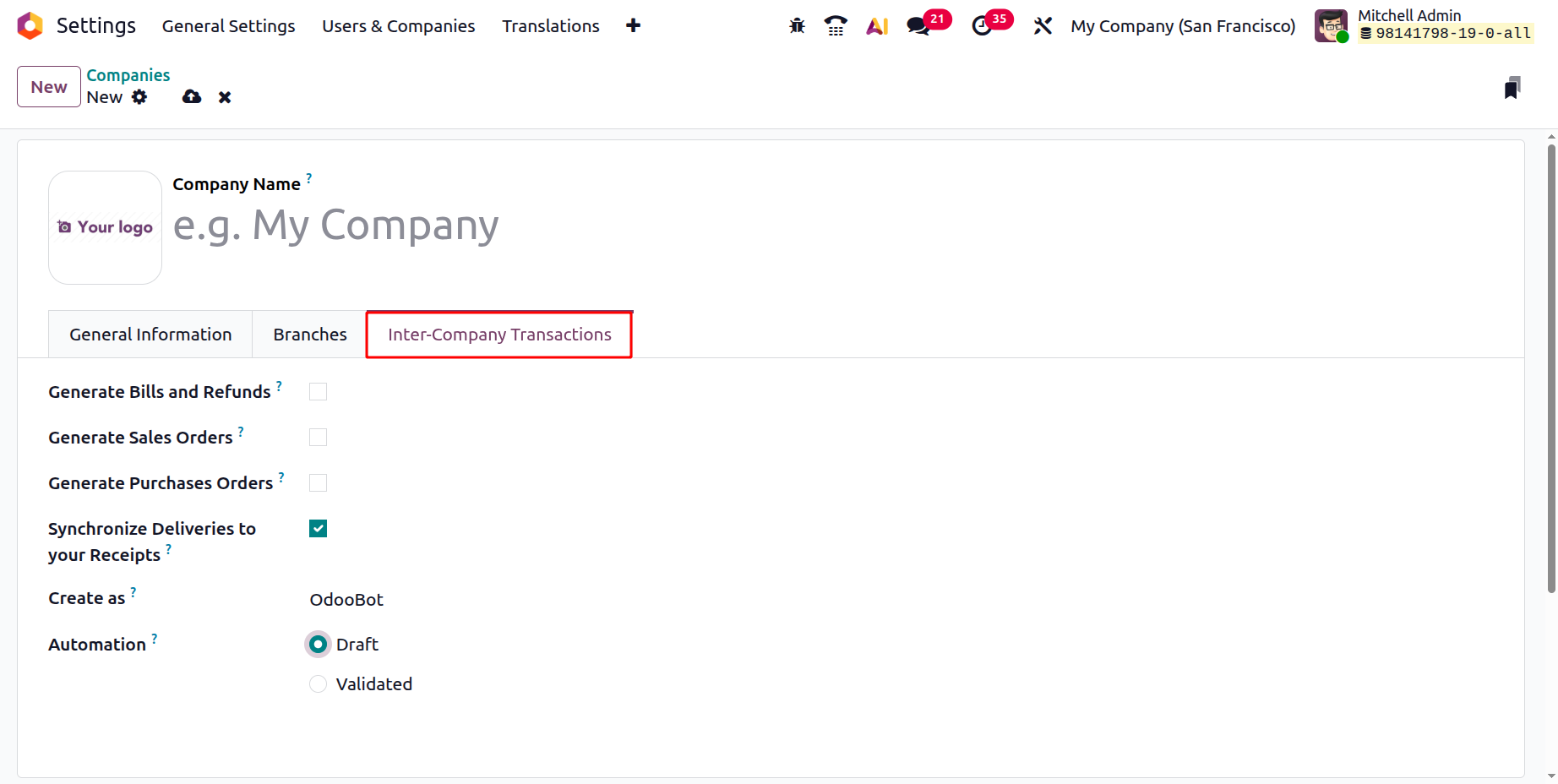
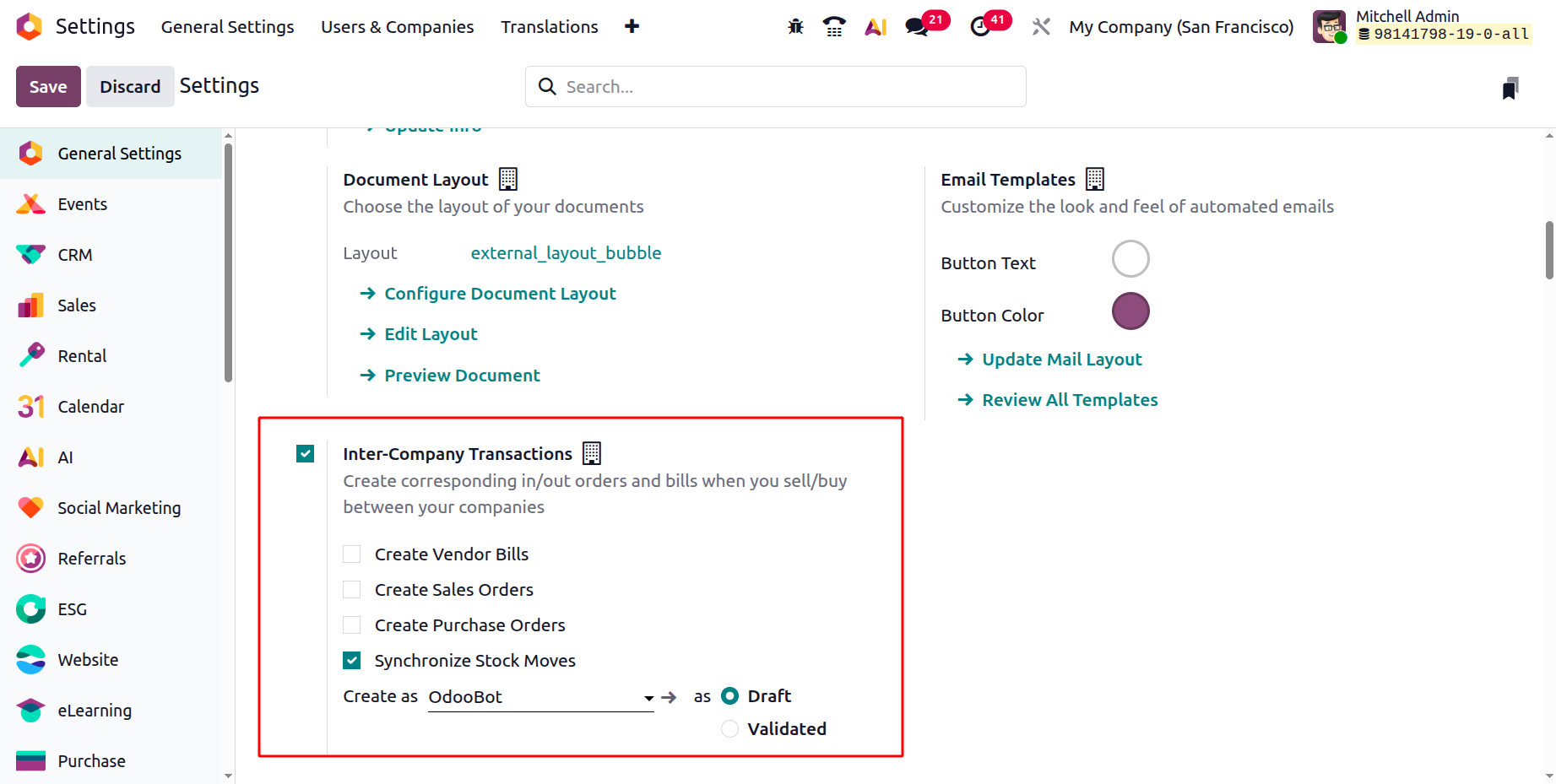
This tab is called Inter-Company Transaction. This enables users to choose the rule that will coordinate the purchasing and sales processes. Everything you input into the system is immediately saved and can be changed at a later time if necessary.
When we install the Accounting module and create a database in the Odoo platform with a specific country, the system will automatically install the accounting localisation packages for that country. By doing this, the business's currency and tax components will be completed in compliance with the regulations and laws of the relevant nation.
Additionally, if a new company with a multi-company structure needs to be founded in a nation other than the one described above, different localisation features will be required to administer the new company. Therefore, before adopting any accounting entries in these situations, we must apply the necessary localisation capabilities in the Configuration Settings of the Accounting module.
The Company menu on the Odoo platform can be used to create a variety of business settings. Since it is now clear how to start a new business in Odoo, the next section will look at managing the operations of numerous enterprises in Odoo.
Multi-Company Operations in Odoo
For companies with numerous firms, Odoo 19 allows you to establish multi-company operations. Because of this, businesses can use a single installation to manage several accounts, organisations, and financial operations. It can also be utilized to manage shared resources like customers, partners, and users. This capability allows businesses to see every aspect of their operations across all of their subsidiaries. Each company's aggregate and individual statistics are accessible in one location. Businesses can exchange data with one another when they are connected. This will enable them to precisely record transactions and manage their books and accounts in many ledgers.
From the main site, you can effortlessly keep an eye on the activities of several enterprises. All of these models can be effectively handled from a single platform, and these companies may function as partners or subsidiaries of the parent firm. Additionally, each organisation can use the same Odoo system to separately manage both its business and eCommerce websites. Businesses operating in the current environment will greatly benefit from this competence. Let's discuss a few advantages of having numerous businesses.
- Enterprises can boost productivity and reduce costs by standardising and streamlining their processes across many enterprises through multi-company operations.
- Centralised data management makes it easier to access, share, and analyse data from any company throughout the entire organisation by keeping data from all businesses in a single, centralised system.
- Improved cooperation and communication: When a system is centralised, managers and staff may collaborate and communicate across organisations more readily.
- Improved customer service: Multi-company operations can help improve customer service by giving customers access to all of the company's products and services in one location.
- Simplified financial reporting: Financial reporting in multi-company operations is accelerated by the ability to aggregate financial data from several firms into a single report.
- Distribute resources among several companies to maximise their utilisation.
- Improved financial and performance transparency for many businesses.
- Data is automatically updated and synchronised across several businesses.
- To increase security, allow many layers of user administration and access.
In addition to these benefits, by making the product available on both your own website and the websites of every other company, you may effectively market and sell the goods you create in one firm to others. Services, subscription-based products, rental goods, and other product categories can all benefit from this feature. Similarly, as previously said, this capability allows you to create both individual and synchronised reports using Odoo based on all business processes and requirements. Every company has full access to financial management and is adequately supervised, aside from accounting. The system will give each employee and platform user a specific set of permissions based on the linked firm. This would be quite successful in guaranteeing that the accountable staff members or Odoo platform users finish all of the company's tasks.
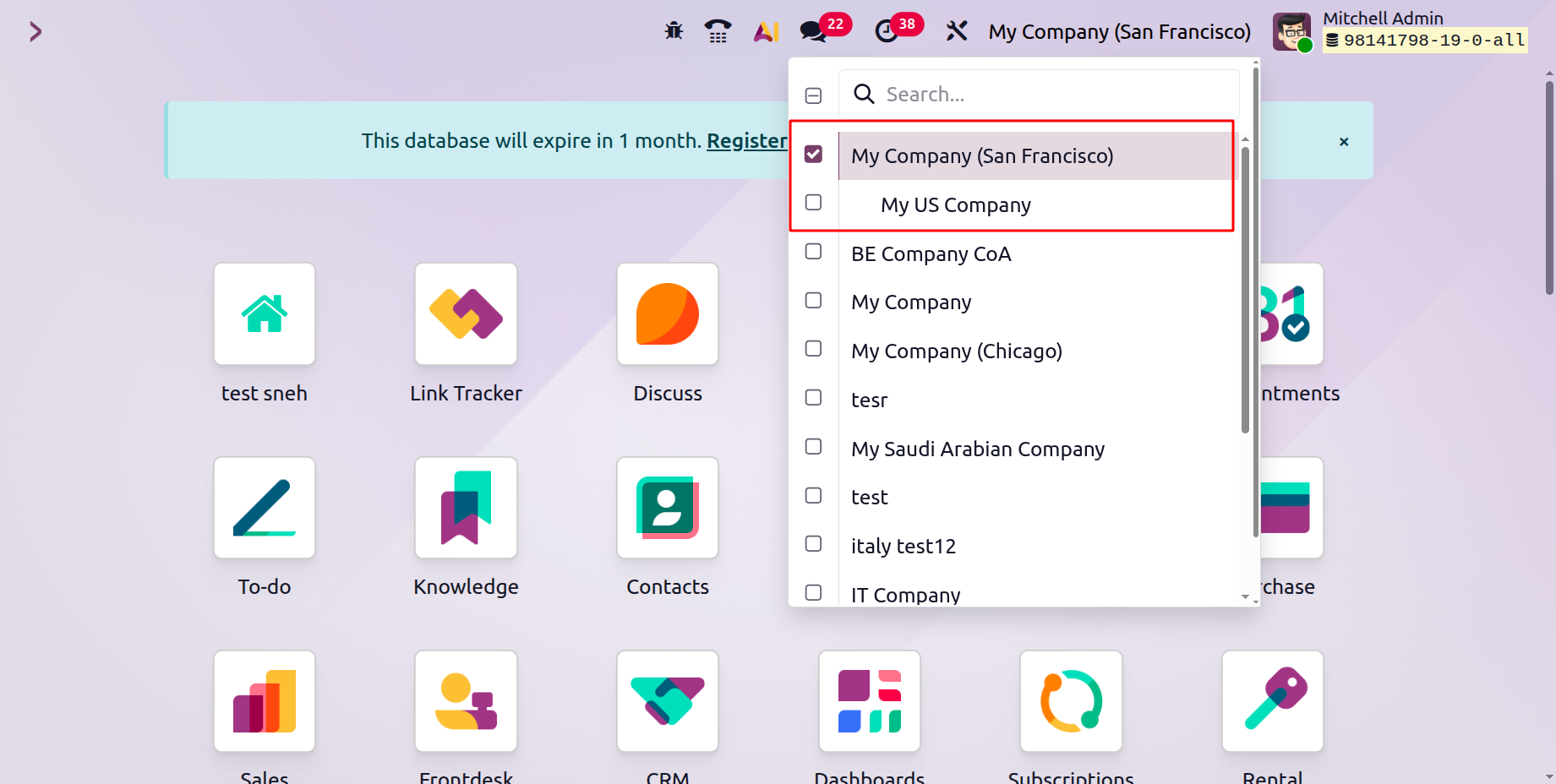
If you have many businesses and operations set up in your Odoo system, you can simply access them all from the dashboard itself, as the following graphic shows.
Clicking on the company name displayed on the main dashboard will bring up a menu with every company you created with this platform. You can swiftly switch between the relevant companies by simply clicking on them once. By selecting the appropriate firm, all responsible users and management are able to work in real-time. This straightforward approach will assist in quickly managing the operations of numerous enterprises.
Click the Companies menu, then select the New option to start a new business.
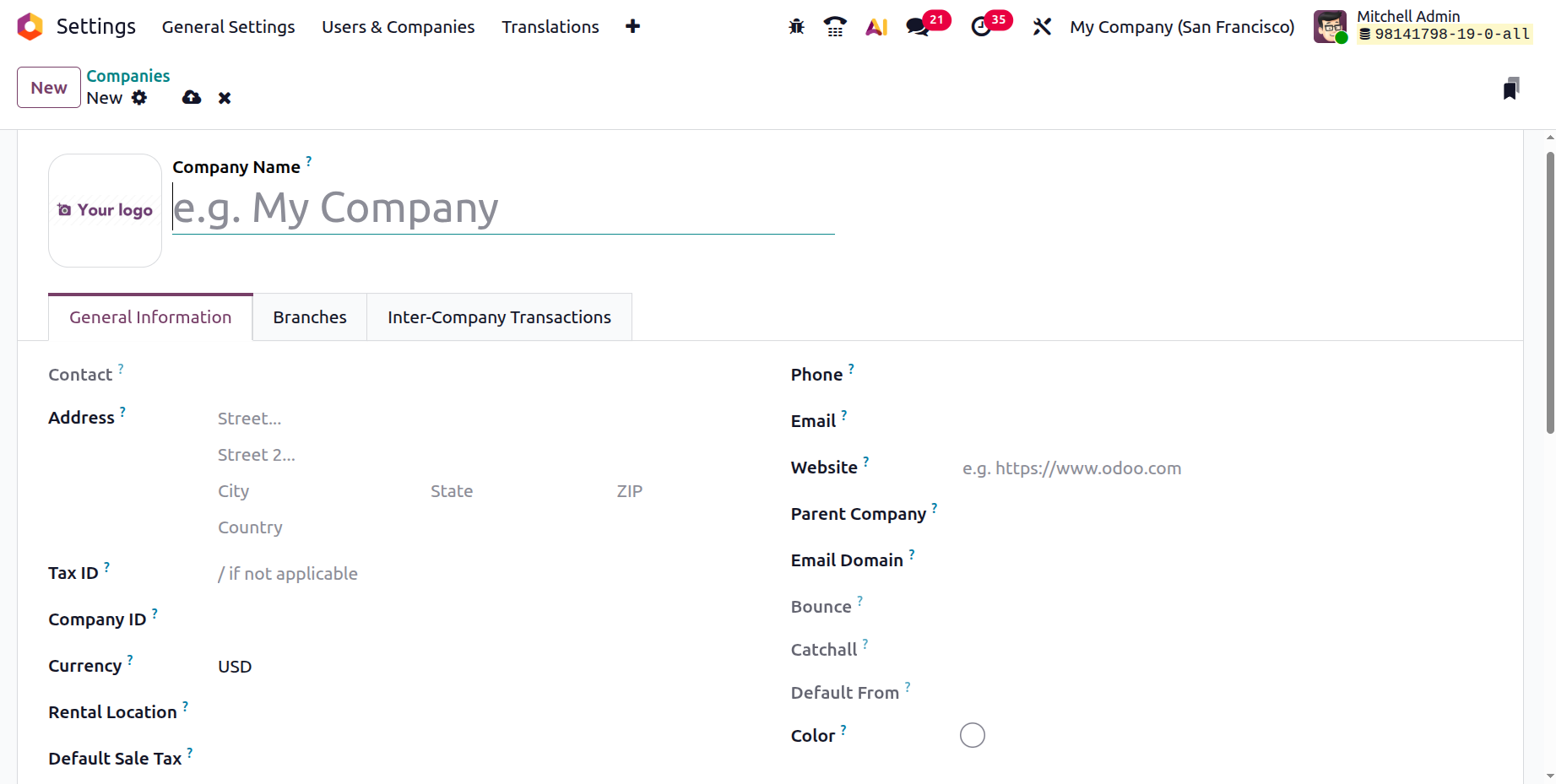
Mention the firm name first when adding a new business. Include the firm name and submit the logo. Add the following details to the General Information tab: Address, Tax ID, Company ID, Currency, Phone and Mobile Numbers, Email, Website, Email Domain, Colour, etc.
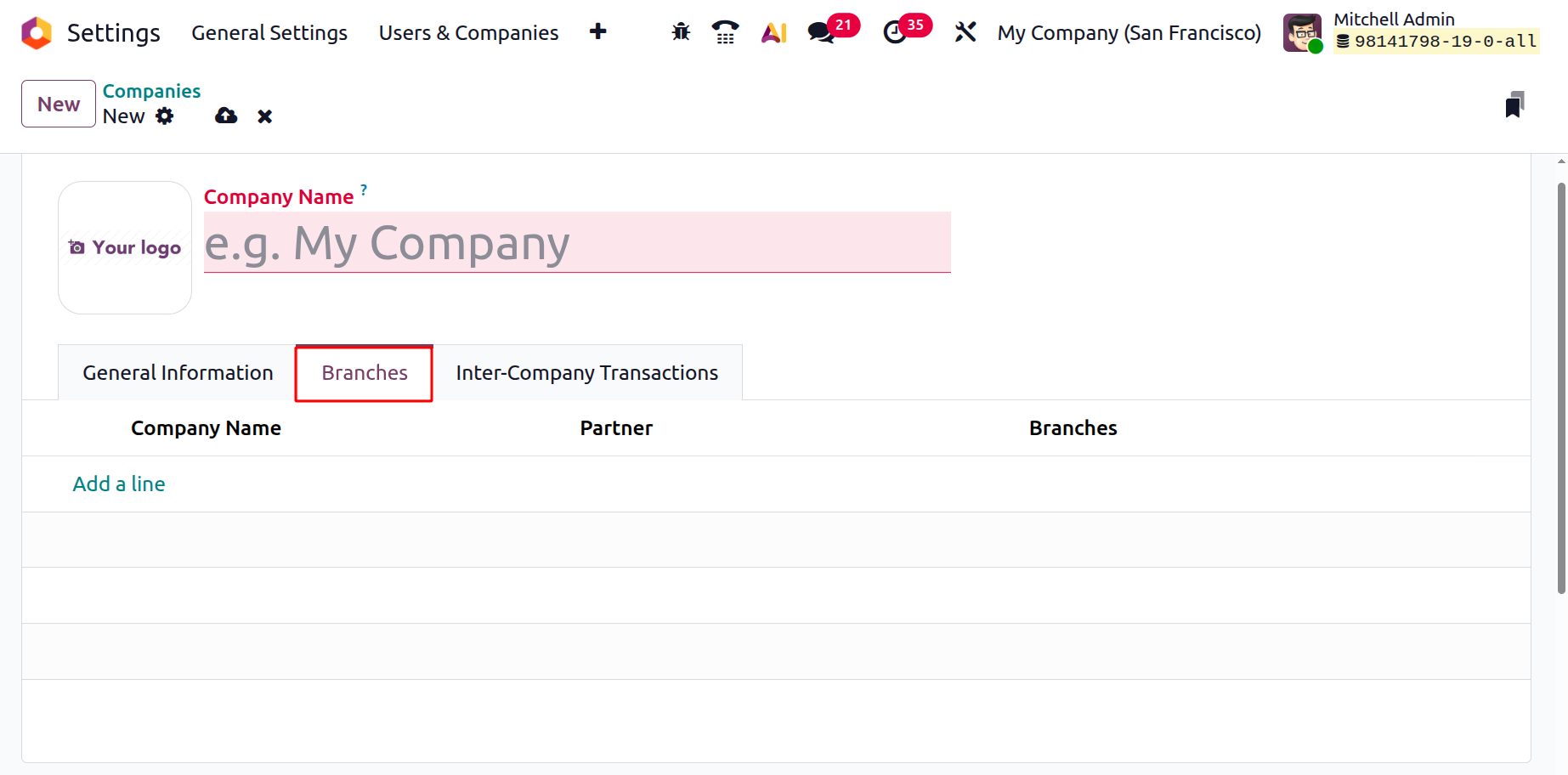
You may then add branches to the business using the Branches tab. After selecting the branch firm, click Add a line.
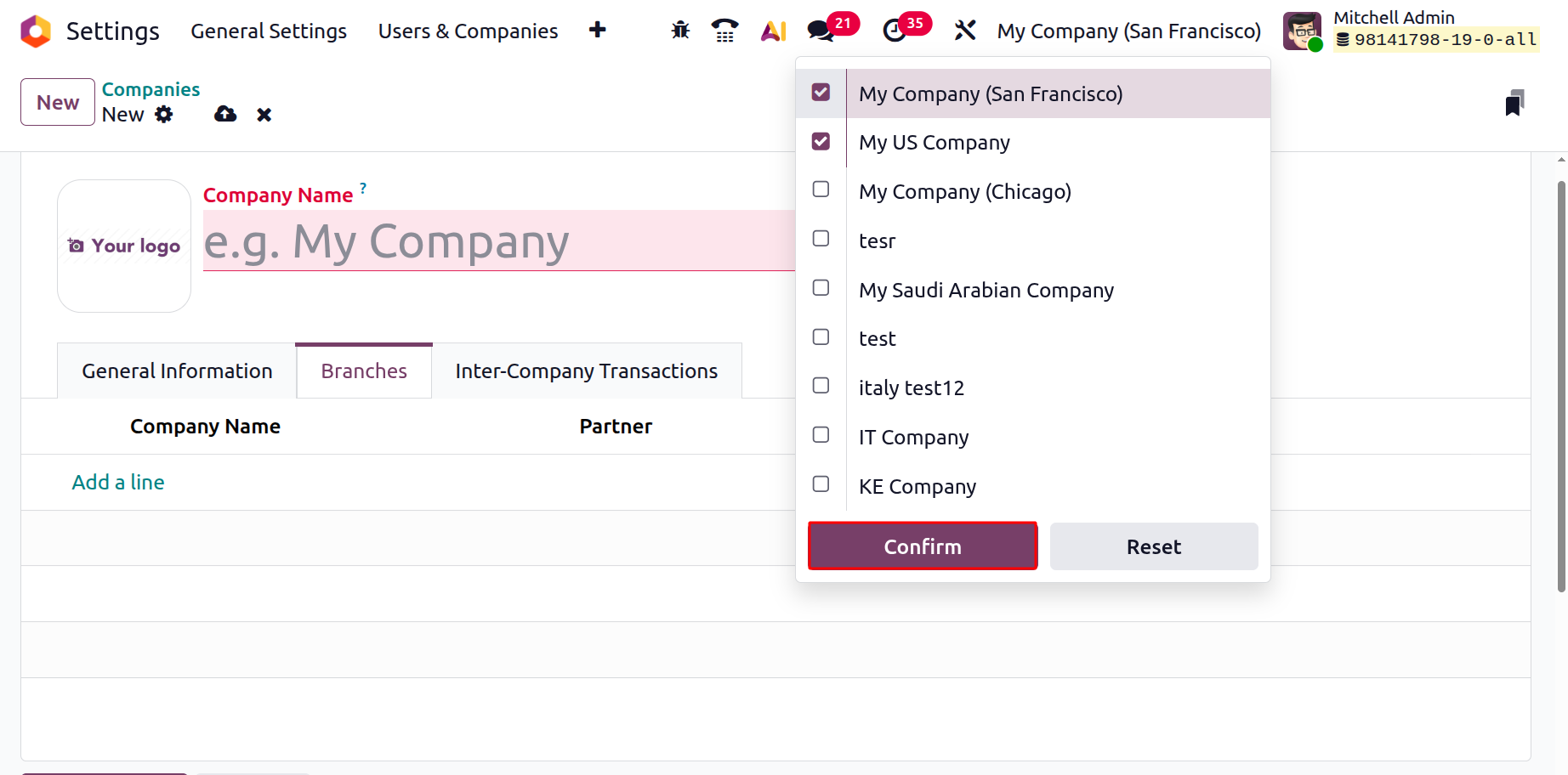
Click the company name in the upper right corner to change the company, and a list will show up. To change the company, choose it and press the Confirm button.
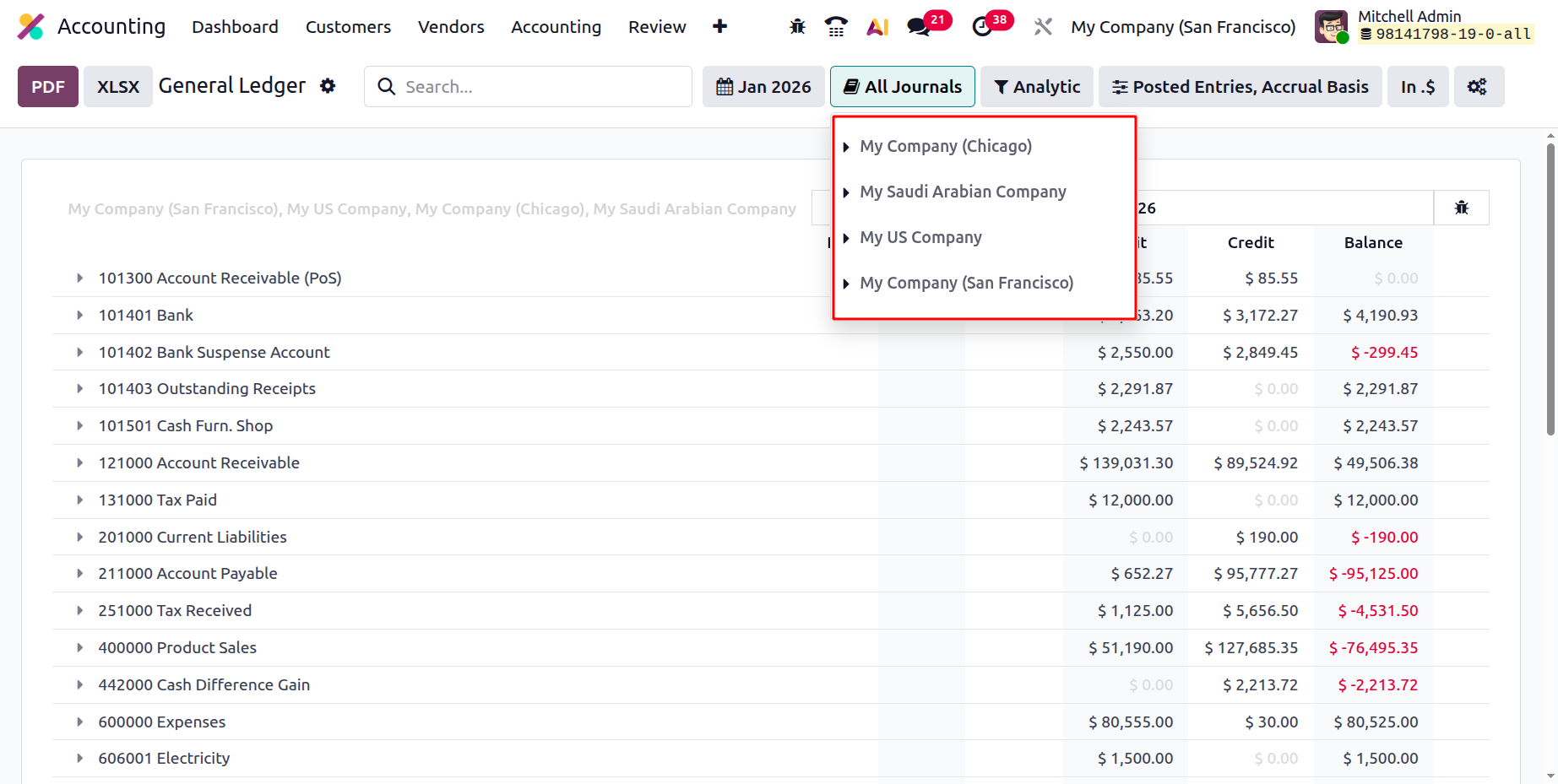
Users can simply compare the reports of different companies if multiple companies are enabled. As seen in the example below, users may simply apply filters to the accounting reports.
One of the most important operational tools that the Odoo platform offers is multi-company management, which we have already covered. We can go on to discuss intercompany transfers and how Odoo handles them in the next section.
You will learn how to manage intercompany transfer procedures within partner organisations using Odoo in the next section.
Intercompany Transfers
Partner organisations can efficiently coordinate intercompany transfer processes by using the same Odoo system. The manager or regular management team is responsible for ensuring the smooth running of the partnership firms, which are often intimately tied to the components of many organisations. There is a higher likelihood of running out of inventory while the related firms remain in operation. The management or other responsible party will keep the stock from the affiliated company in order to acquire the things as soon as possible. The Odoo system guarantees that both businesses have sufficient inventory and simplifies all transfer procedures. All of these transfers take place inside very specific contract procedures.
The Odoo platform's inventory management module has an attractive menu and a plethora of options to handle all transfer procedures. You can use this function to guarantee correct operation when a product is moved from one company's storage site to another's warehouse. In certain circumstances, having the same warehouse of operations means that the things are added to the inventory and taken out of the other inventory rather than being relocated to the company's warehouses. Odoo's intercompany transfer tool, which will be helpful in the future, will manage all of the data.
When considering the accounting perspective in relation to the transfer of goods and services from one business to another, all financial records and accounting practices should be consistent and operating in accordance with the set standards. The Odoo Accounting module assists you in ensuring that everything is carried out in a highly developed and well-organised manner with regard to the business's operations and future requirements. Every process and description required for effective functioning is well-established.
Let's use an example to illustrate the ideas. Let's say that two companies, X and Y, work together to oversee the same product. Every time a product is moved from X to Y due to internal needs, an invoice is created from X to Y. Similarly, when X transfers to Y, Y produces a purchase bill and sends it to X. This happens in the other direction and between all of the operational firms.
With regard to the transfer of operations, the Odoo platform's purchase bill and invoice production features will ensure appropriate accounting practices in both businesses. Similarly, the Odoo platform facilitates efficient partner firm management and bank-to-business money transfers. These are all Odoo-related actions for internal transfers of goods and services. Let's now examine Odoo's Translation Settings in more detail.
Creation of Branches
The process of creating numerous business records in Odoo 19, each of which represents a different branch, streamlines corporate branch management. Independent financial and operational control is made possible by the ease of branch switching and navigation. While preserving branch autonomy, Odoo's centralized setup guarantees effective communication and data sharing.
Consequently, it is quite easy for a company to open new branches. After choosing the firm from the Users & Companies menu, click the New button to add a new firm. The creation form is identical to the one we previously spoke about. On the General Information tab, there is a field called Parent Company, though. Users can specify which corporate branch has been established here.
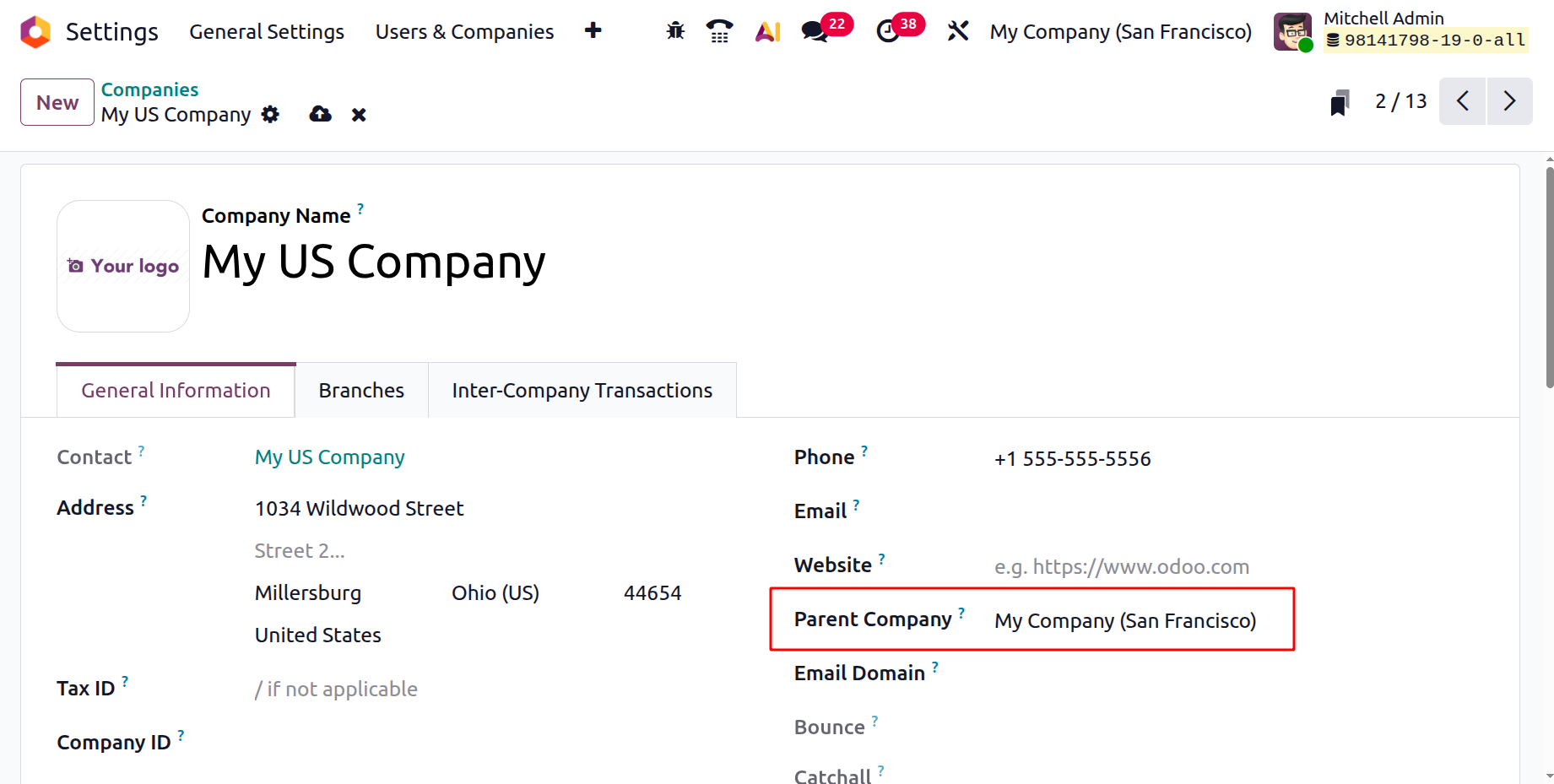
In this case, its parent firm is named My firm (San Francisco). Thus, My Company (San Francisco) is the parent company of My US Company. On the list of businesses you pursued, the recently established My US Company appears as a branch of My Company (San Francisco). The branch concept makes use of the same chart of accounts.
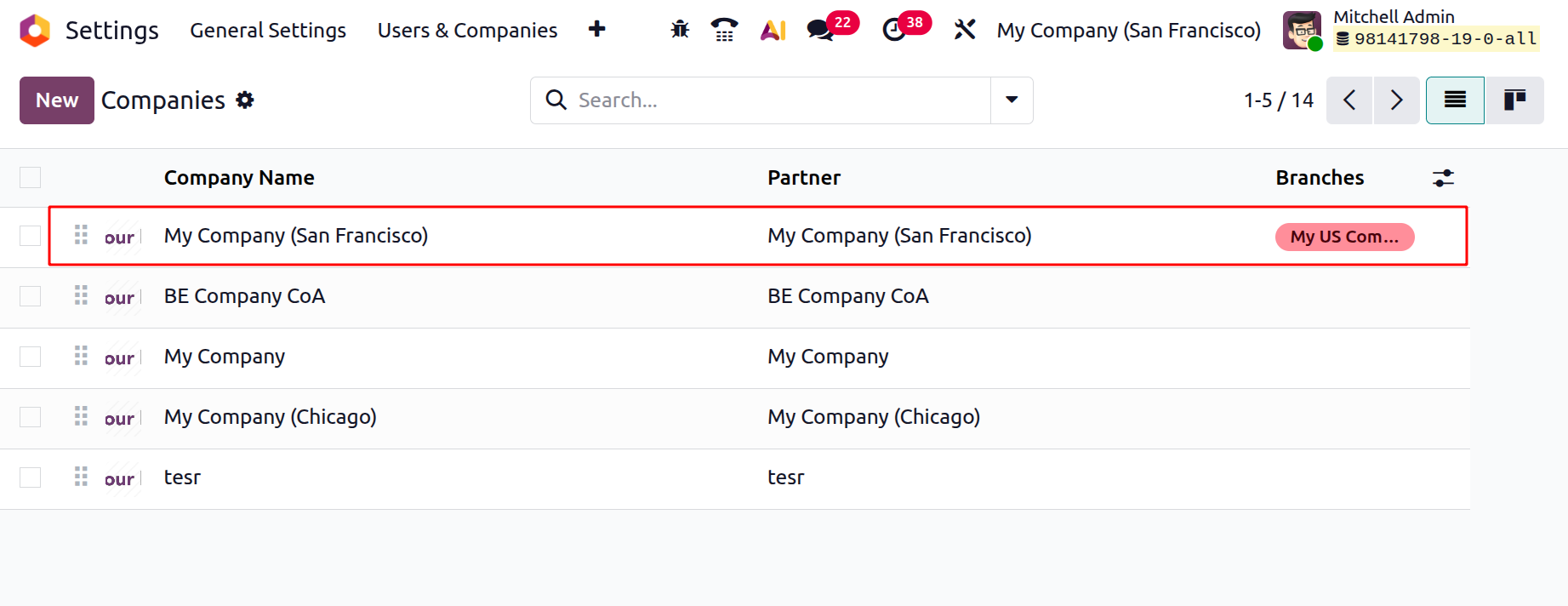
As shown in the picture below, My US Company was subsequently added to the Branches page of the parent company My Company (San Francisco).
As seen in the image below, customers can then simply navigate to the Branch company.