Automated Actions allow certain operations to run automatically when predefined conditions are satisfied, reducing the need for manual intervention. For example, you can configure an automated action to update the salesperson assigned to a sales order immediately after the order is confirmed.
To create this, open the Sales Order form view in Odoo Studio and switch to Edit mode. From the top menu, click the Automations button, as shown in the image below. This opens the configuration area where you can define the trigger conditions and the actions to be executed automatically.
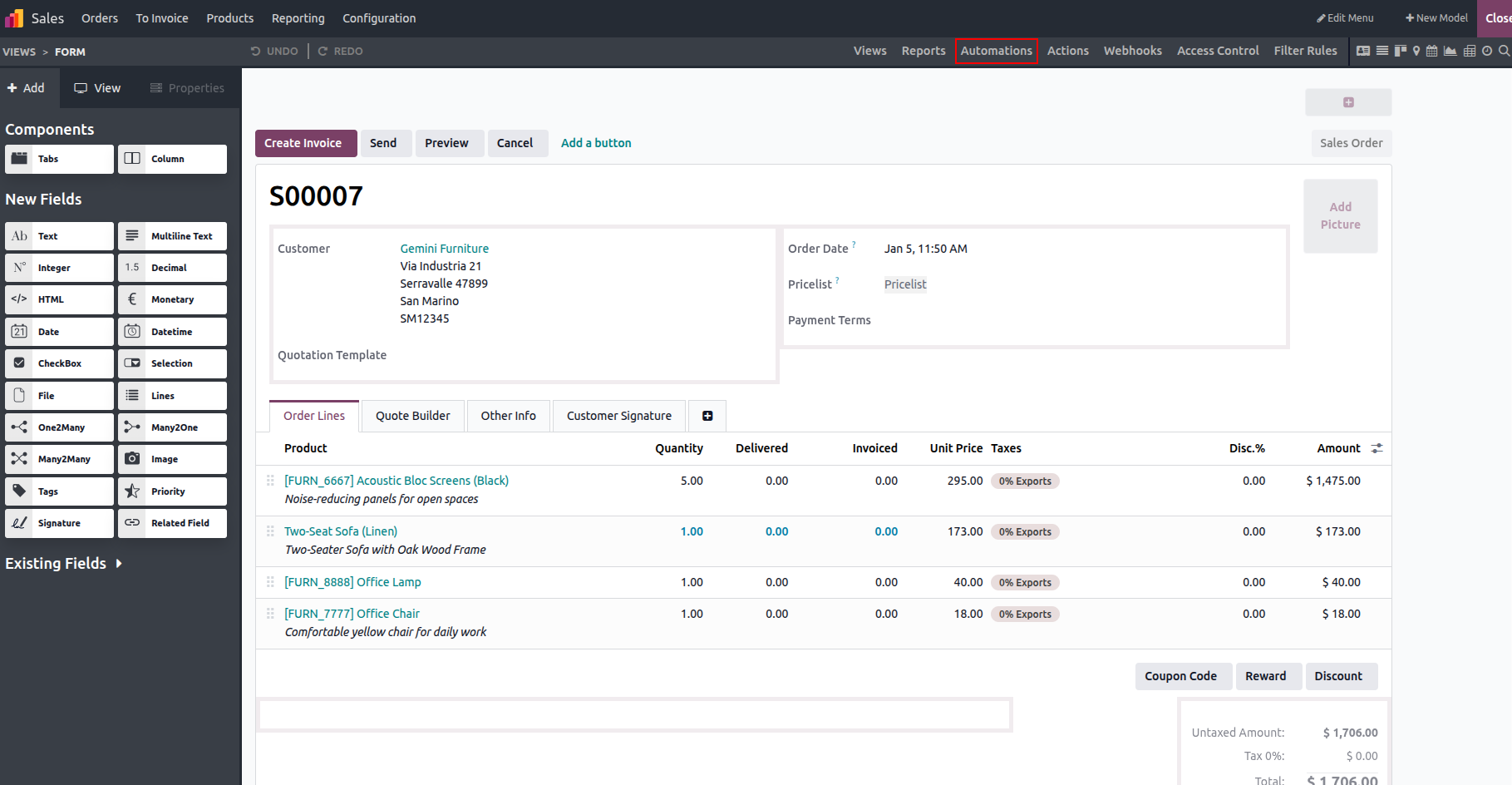
Create a New Automation Rule
To set up a new automated action, define the following fields carefully to control when and how the rule is executed:
- Action Name: This is the unique identifier for automation. Choose a clear and meaningful name so the purpose of the action is easy to understand later.
- Model: Specifies the data model on which the automated action will run. In other words, it determines which type of records the rule applies to.
- Trigger: The trigger determines when the automation is executed, such as on record creation, update, or another specific event.
- Before Update Domain: This domain acts as a precondition that must be satisfied before a record is updated. It ensures the update only occurs when certain criteria are already met.
- Apply On Domain: This condition defines which records are eligible for the automated action. The rule will run only when records match this domain.
- Actions To Do tab: This section is where you configure the actual operations to be performed, such as updating fields, executing Python code, or triggering other actions.
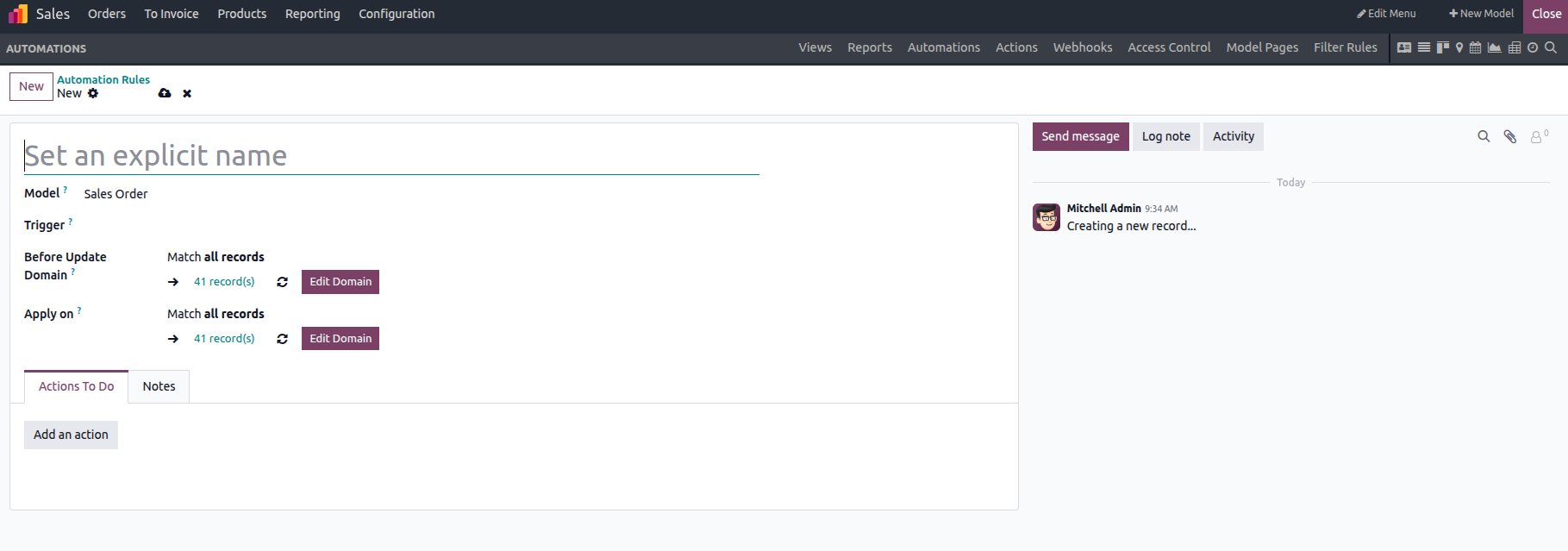
The screenshot shows an automation rule titled "Update Sales Person", configured on the Contact model and triggered after record creation. Once the rule is defined, different types of actions can be added to determine what should happen automatically when the trigger conditions are met.
Type Defines the kind of server action to be executed as part of the automation.
- Update Record: Select this option when you want to modify existing data in the related record, such as updating the value of a specific field.
- Create Activity: Use this action to automatically create an activity for the record, helping users track follow-ups or required tasks.
- Send Email: Enables sending an email automatically when the action is triggered. You need to choose an Email Template and specify how the email should be sent.
- Send SMS: Allows sending an SMS notification. Select the appropriate SMS template and define the sender details.
- Create Record: Choose this option to create a new record automatically. You must specify the model to create the record in, its name, and the field used to link it to the original record.
- Add Followers: This action adds selected users as followers to the record, ensuring they receive updates and notifications.
- Remove Followers: Use this option to remove specific followers from the record.
- Execute Code: Select this when you need to perform advanced logic or calculations. You can write custom Python code to handle complex operations.
- Send Webhook Notification: Triggers a POST request to an external system. Configure the webhook URL and define the data to be sent in the request body.
- Duplicate Record: Use this option when you want to create a copy of the current record automatically. This is useful in workflows where similar records need to be generated based on predefined rules.
- Multi Actions: Enables combining several actions into a single automation rule. With multi actions, you can update records, send notifications, and trigger other operations together in one seamless flow.
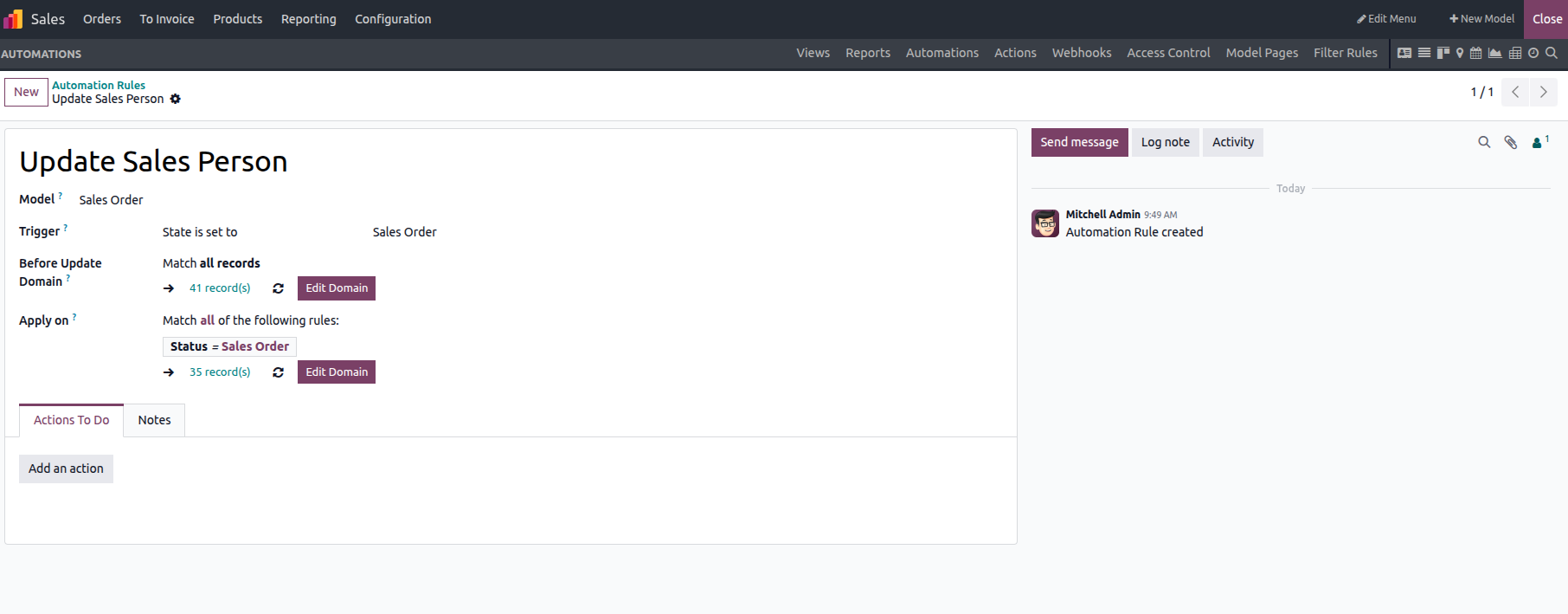
The automation rule is configured to run when the state of a sales quotation changes to Sales Order. In other words, the rule is triggered automatically at the moment the quotation is confirmed and converted into a sales order. This ensures that the defined actions are executed immediately after the confirmation step, without requiring any manual intervention.
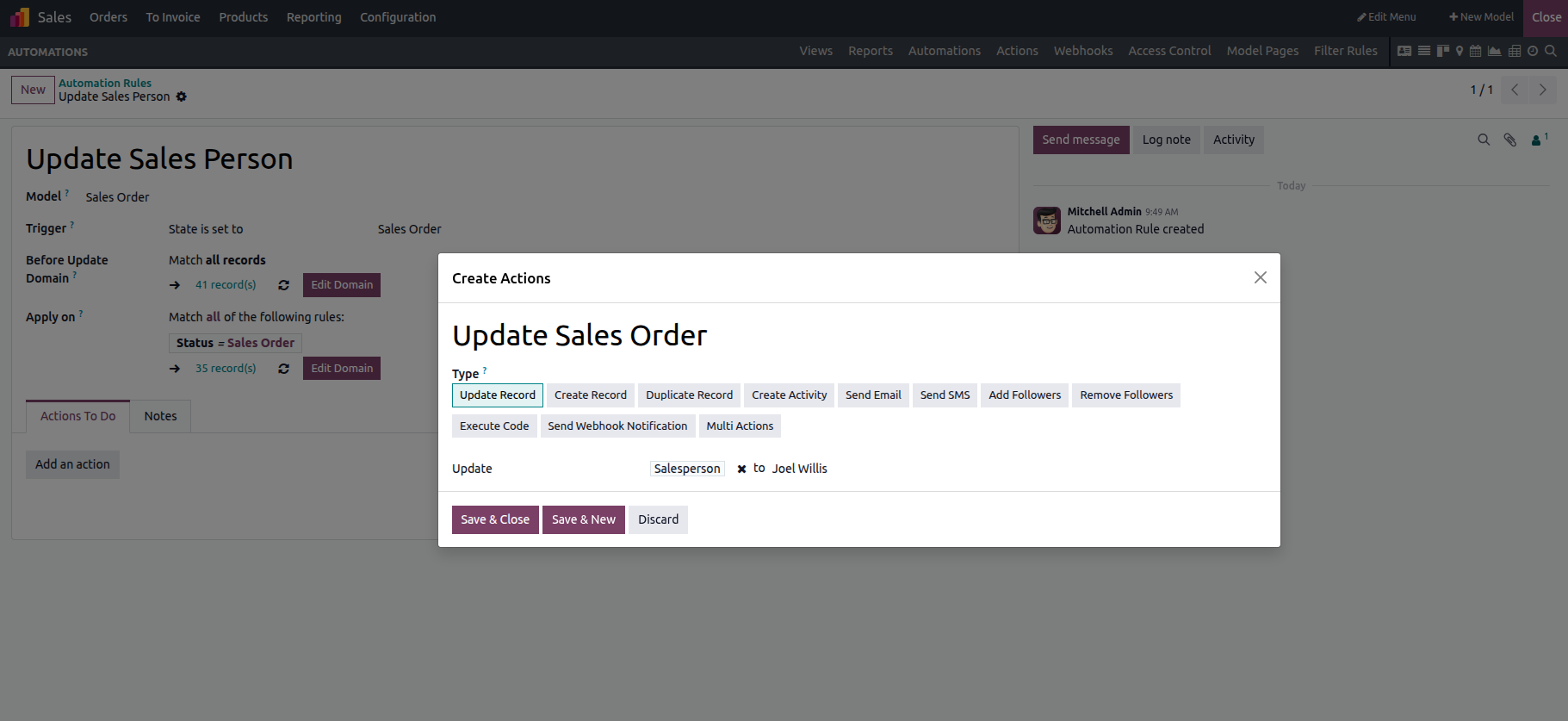
It can be observed that the salesperson assigned to the sales order has been successfully updated to Joel Willis, confirming that the automation rule executed as expected after the sales order was confirmed.