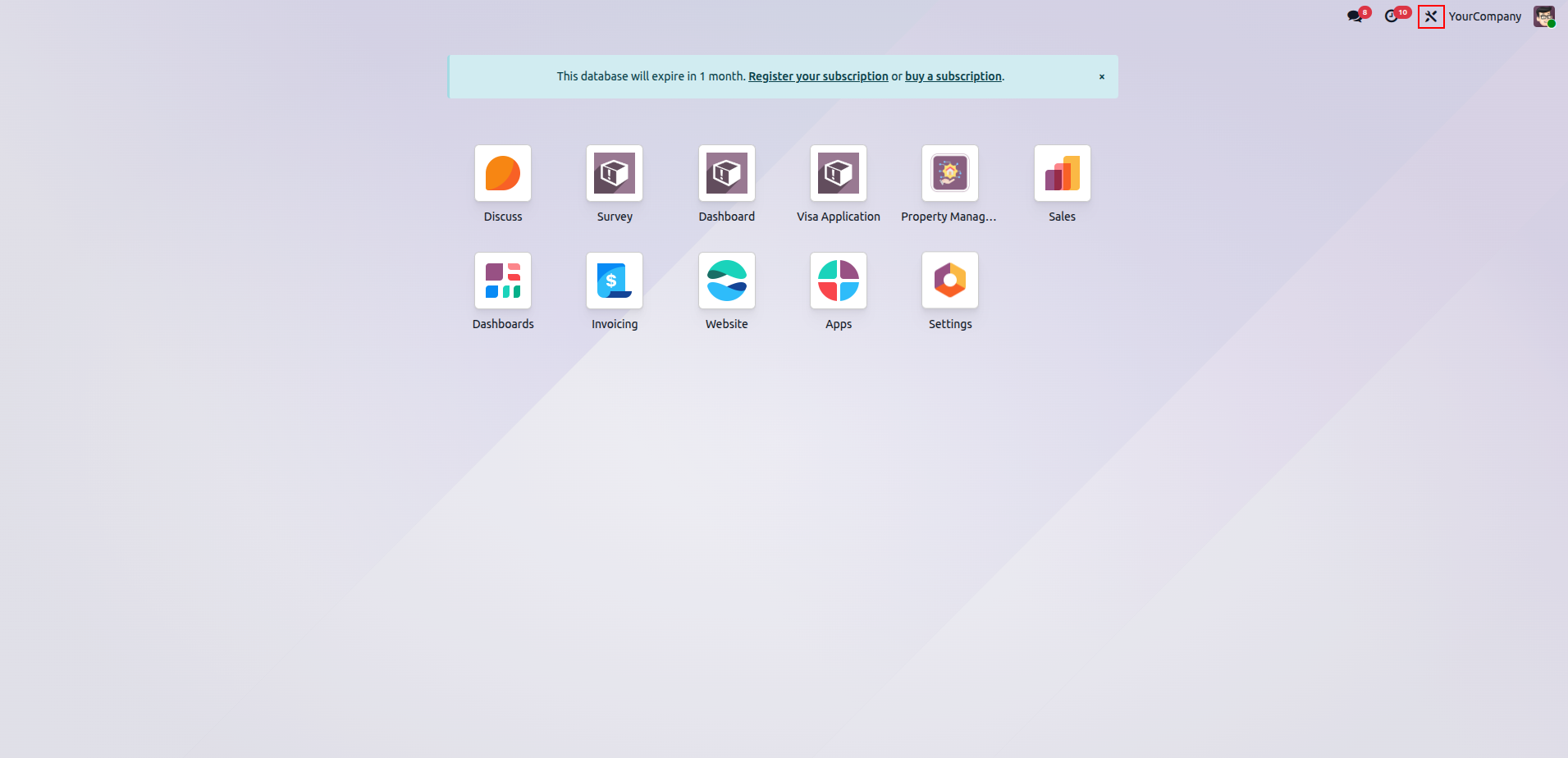
Begin by installing the Studio module from the Odoo Apps section to enable its features. Once the installation is complete, a Studio tool icon will be available in the top navigation bar, as shown below.
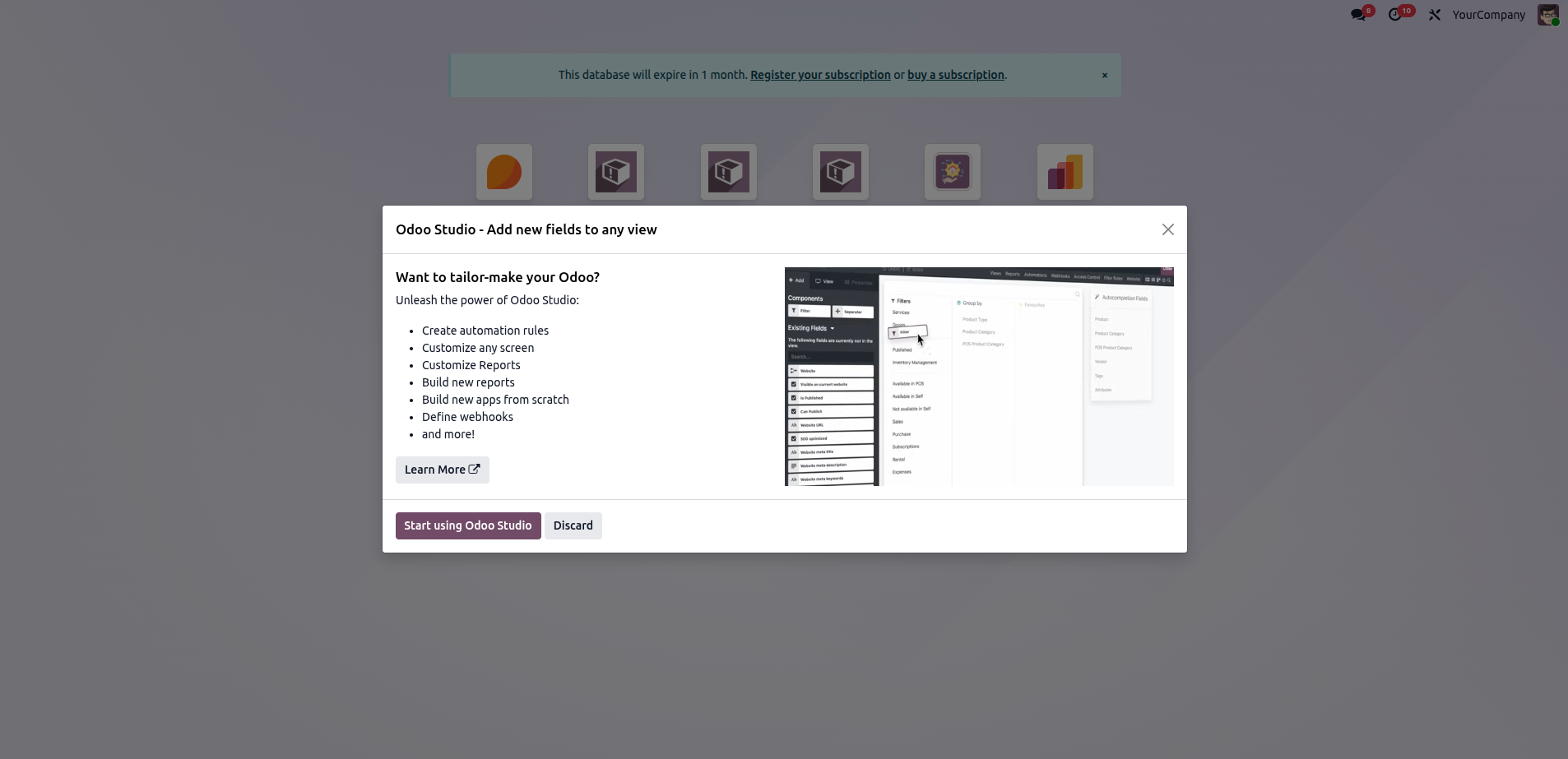
This screen is displayed when the Studio icon is clicked in Odoo 19, providing an introductory overview of Odoo Studio's features and offering the option to start using Studio.
Once Studio is activated, it shows a page that represents the Odoo Studio home screen, where users can manage application customization, create new apps, and access Studio utilities such as Change Background, Import, Export, and Close from the top-right toolbar.
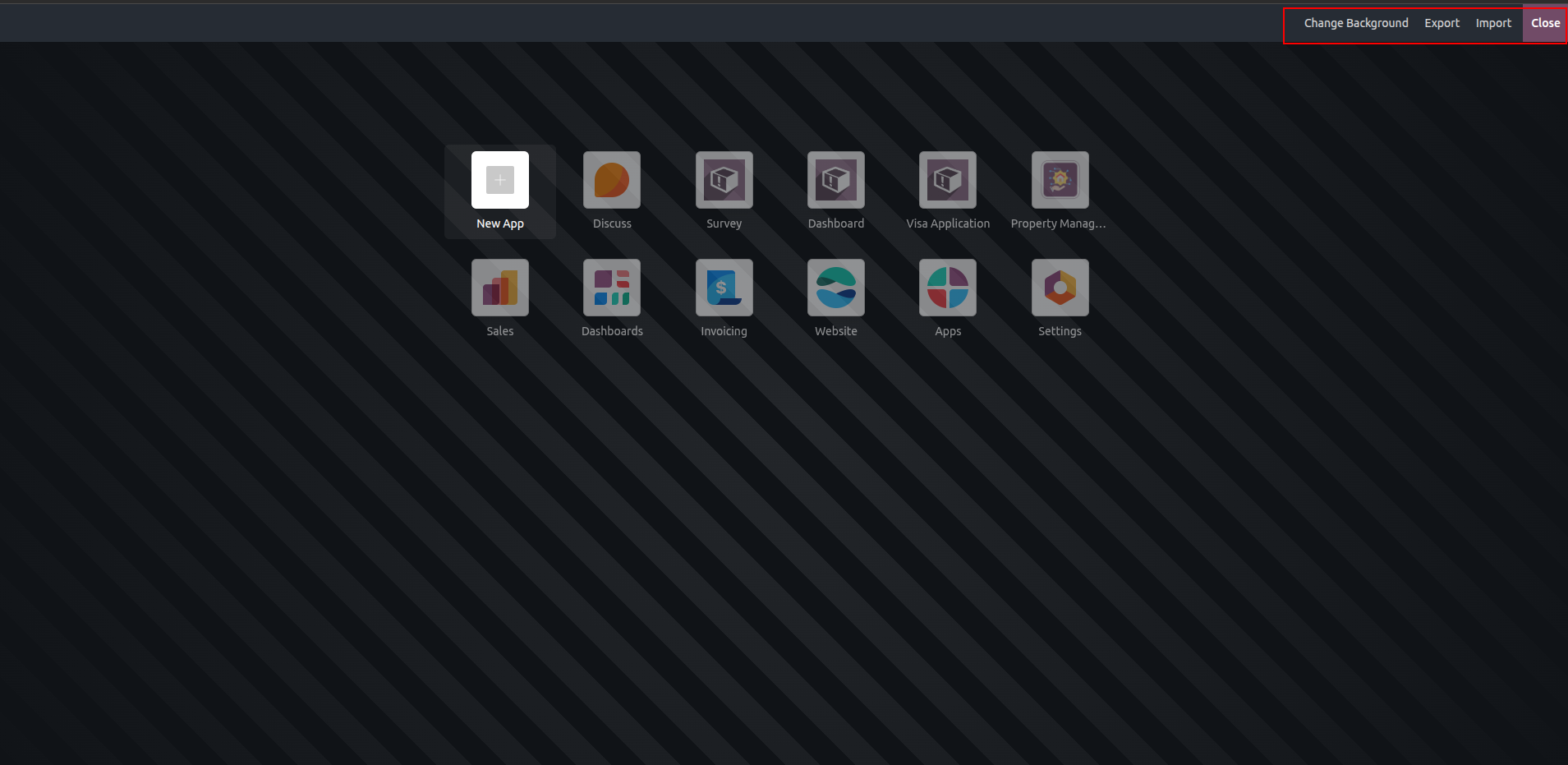
The Change Background option allows users to choose a preferred background image. Additionally, the Import feature lets users upload their custom modules, while the Export option simplifies exporting customized modules.