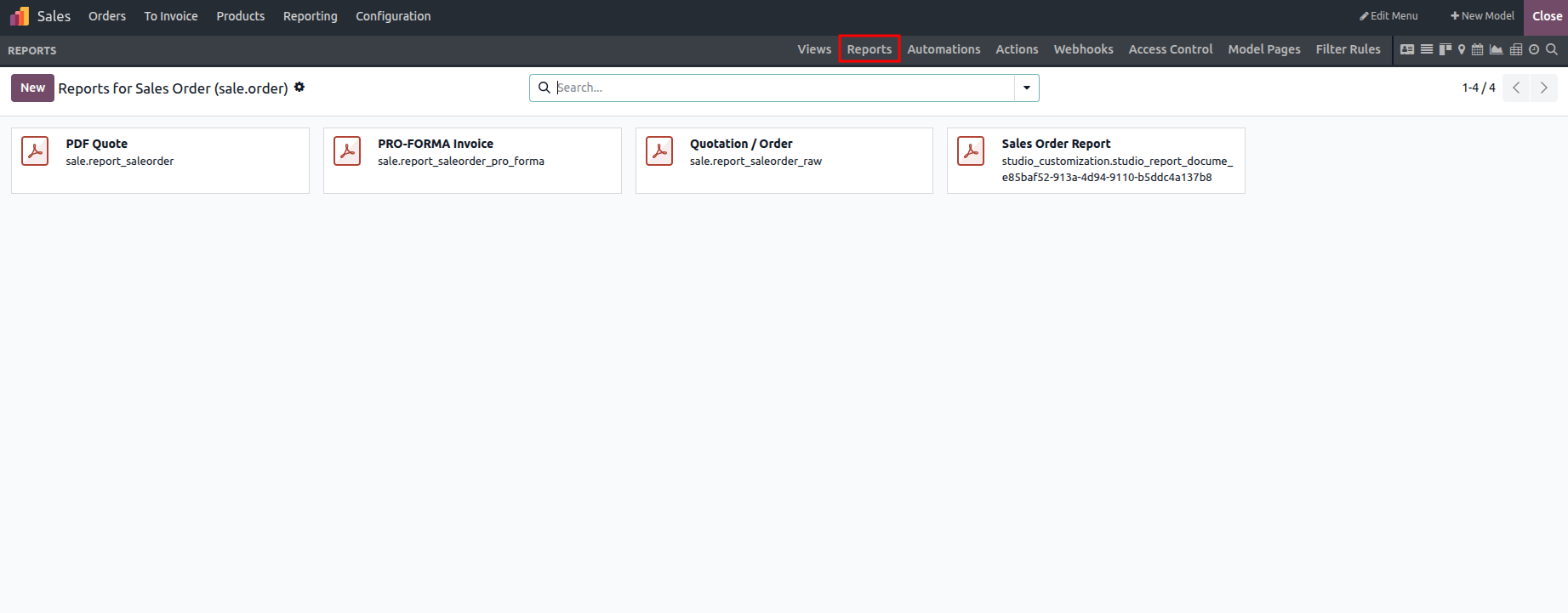
Odoo Studio allows you to create various types of templates, which are particularly useful for customizing reports. In this section, we will explore how to create a new template using the Studio module.
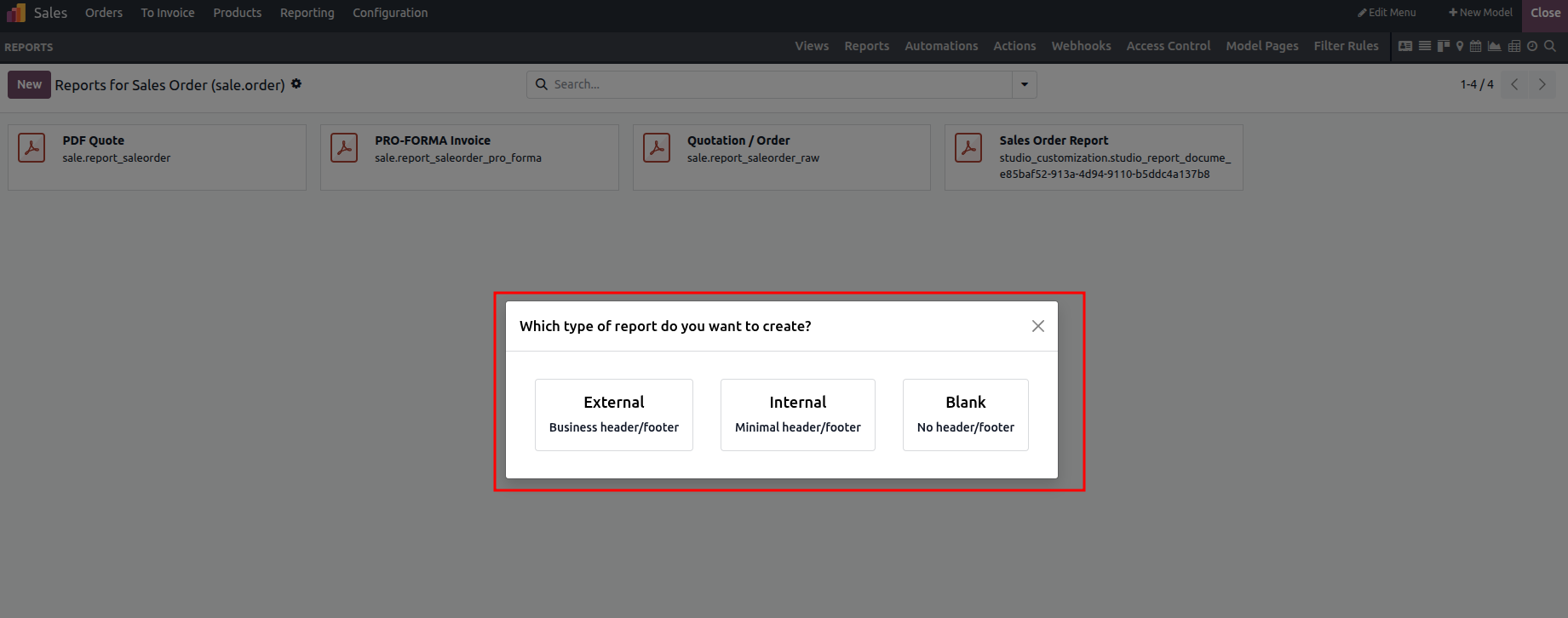
Selecting the Create option opens a pop-up window that prompts you to choose the report type, allowing you to include the appropriate functions or modules. You can select from three default options: External (with business header and footer), Internal (with minimal header and footer), or Blank (without any header or footer).
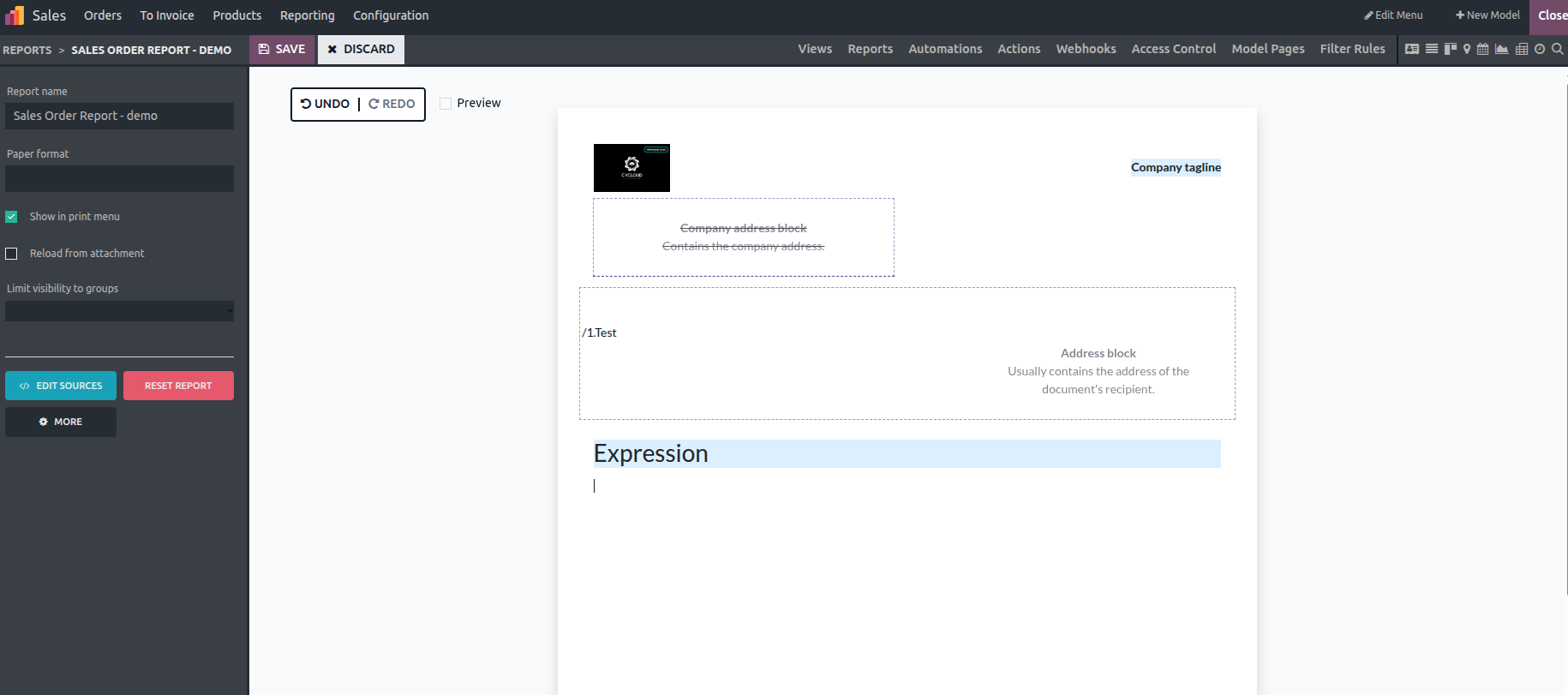
When the External report type is selected, the template displays both the header and footer. Additional fields and properties can be inserted into the template by typing the / character.
The Report Name field defines the name of the report.
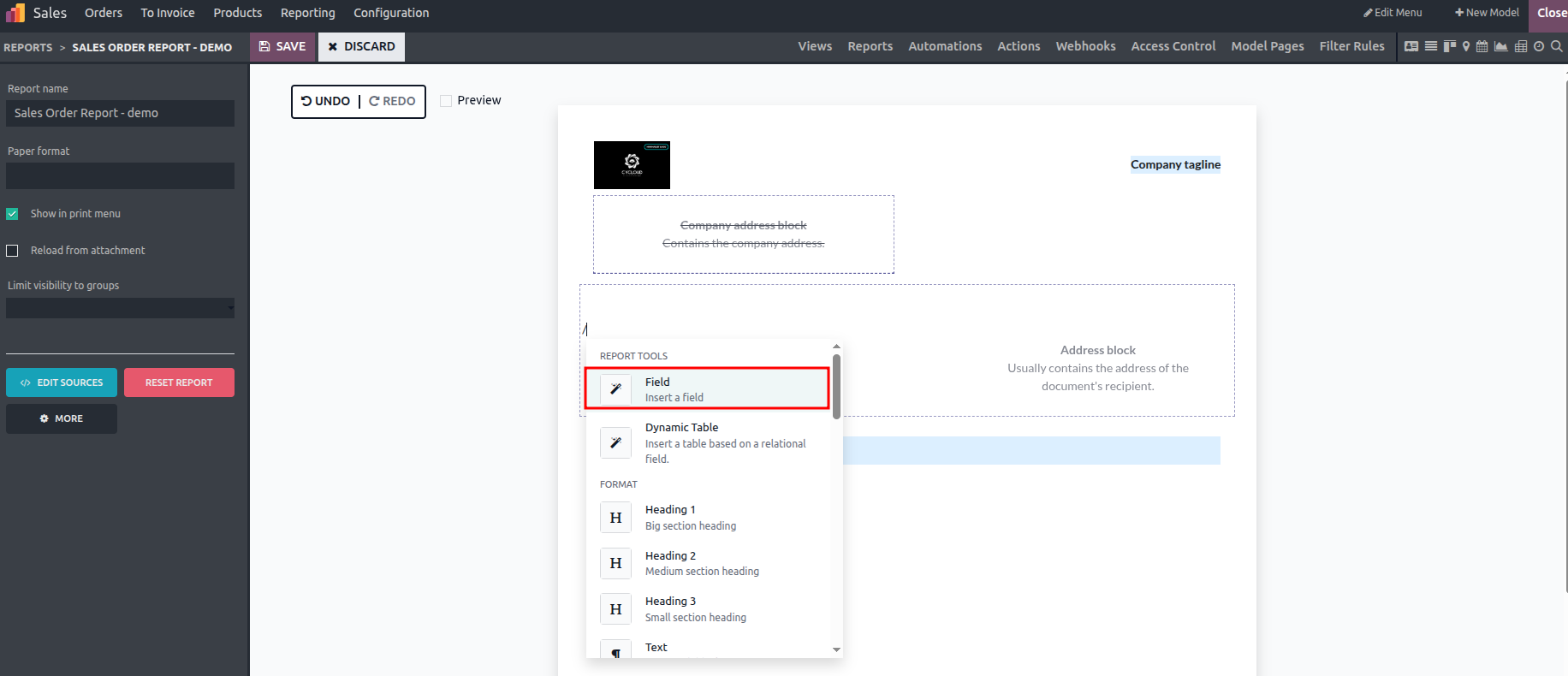
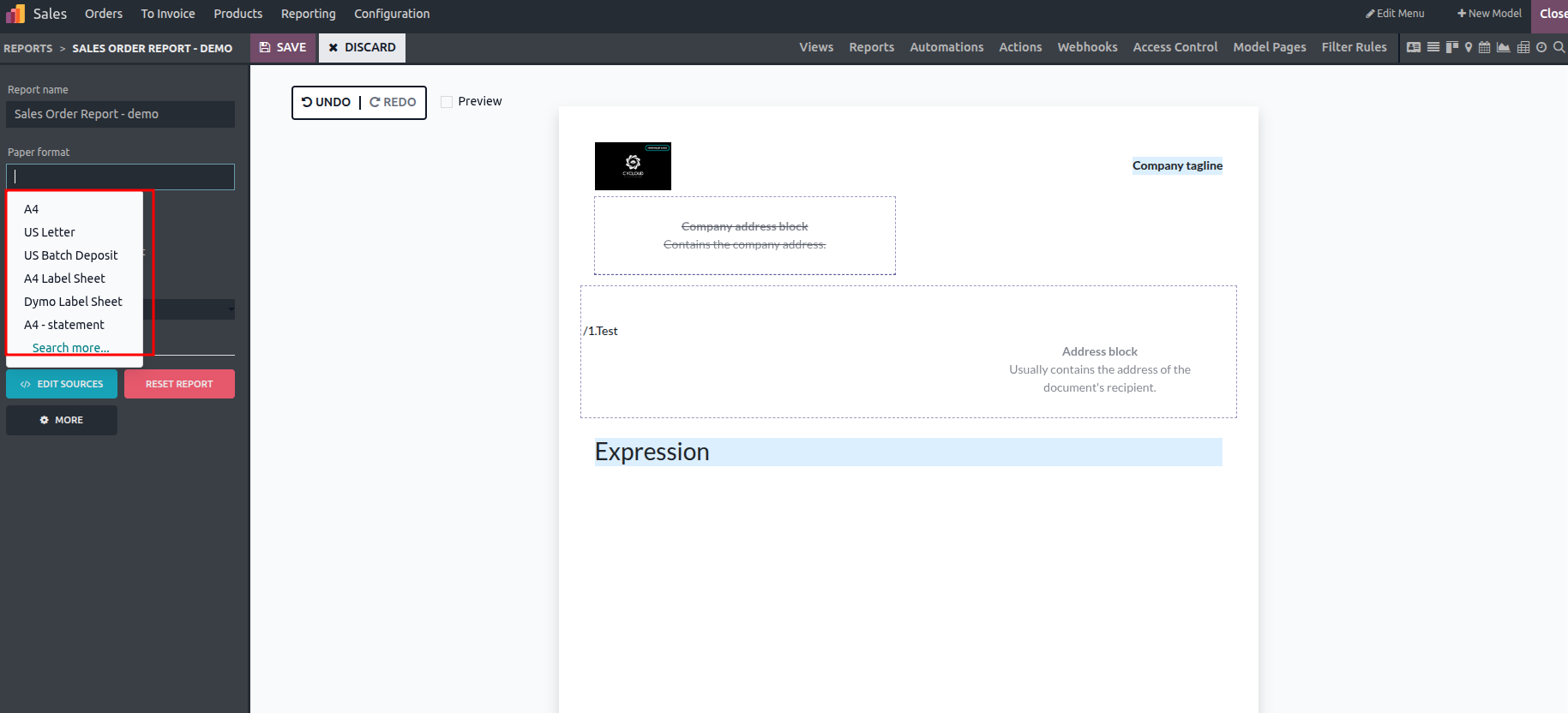
The Paper Format defines the page layout to be used when creating the template.
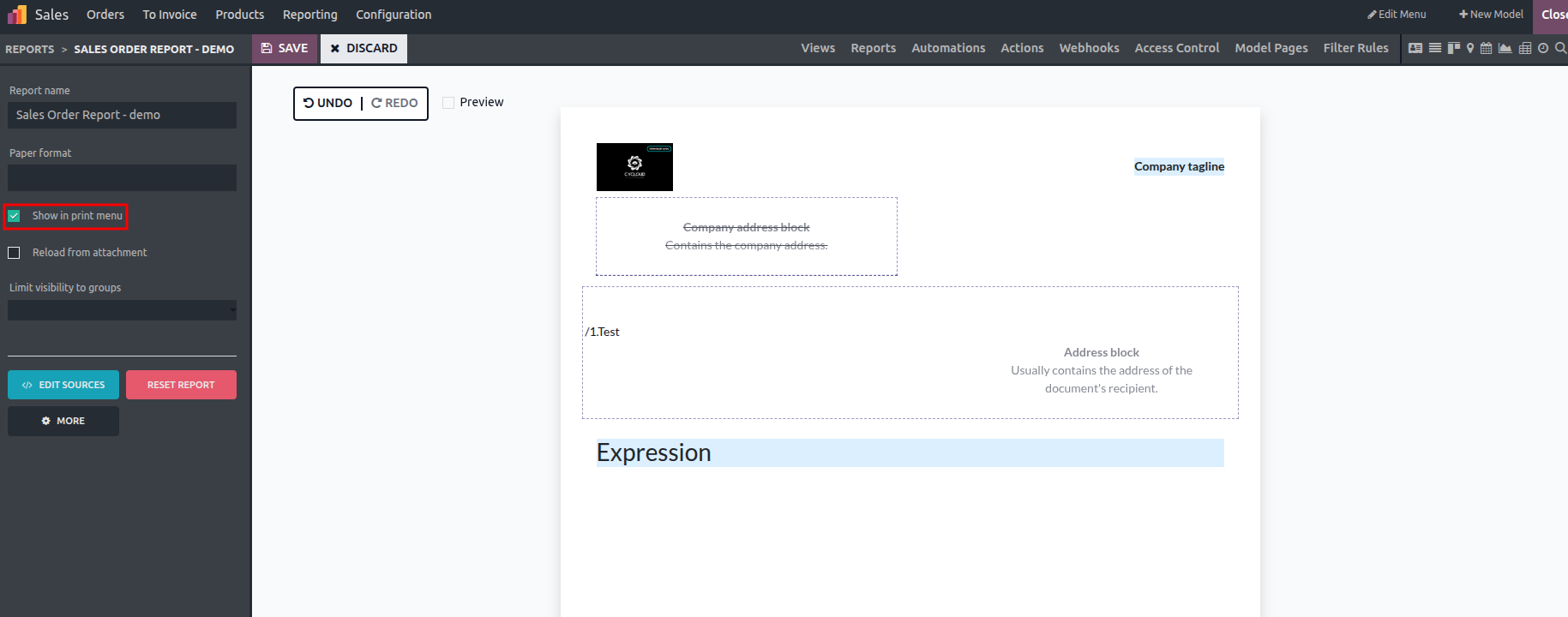
To make the report appear in the print menu of the model view, enable the corresponding Boolean field.
When Reload from Attachment is enabled, printing the report again with the same attachment name will retrieve the previously generated report.
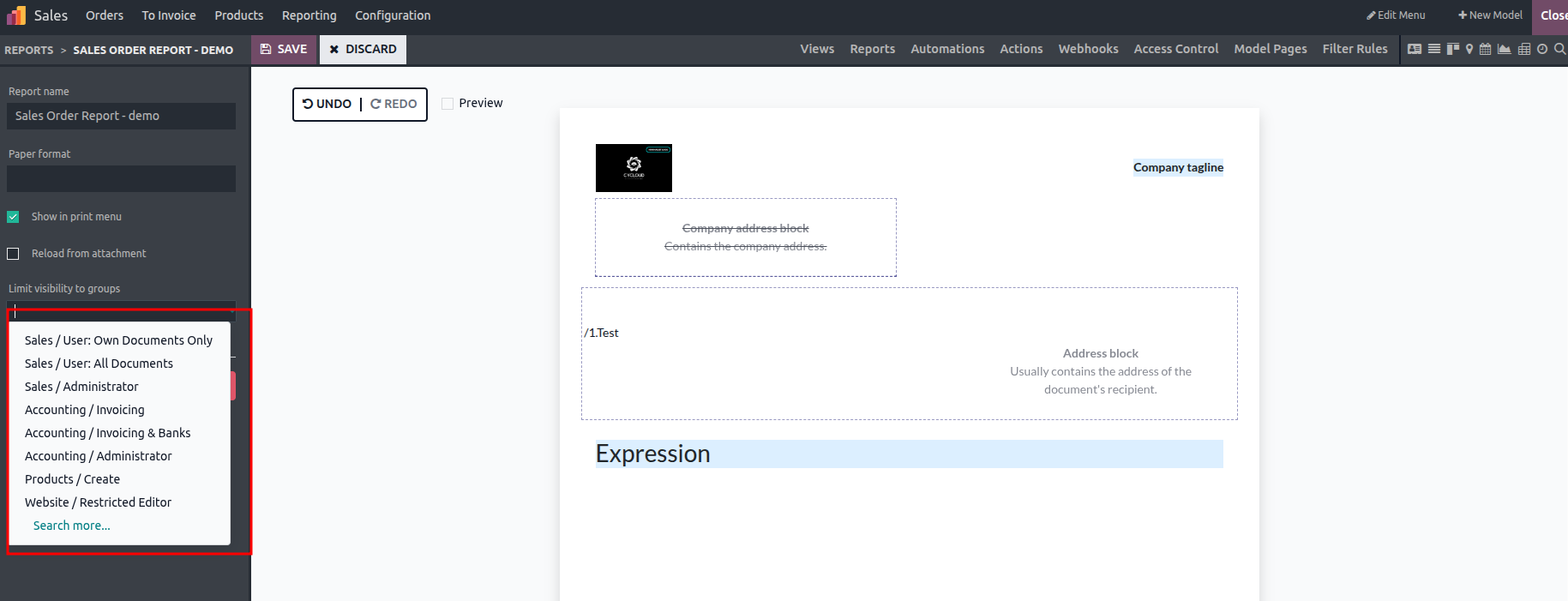
Setting a group in the Limit Visibility to Group field ensures that only users within that group can view the report in the model.
When the Internal report type is selected,
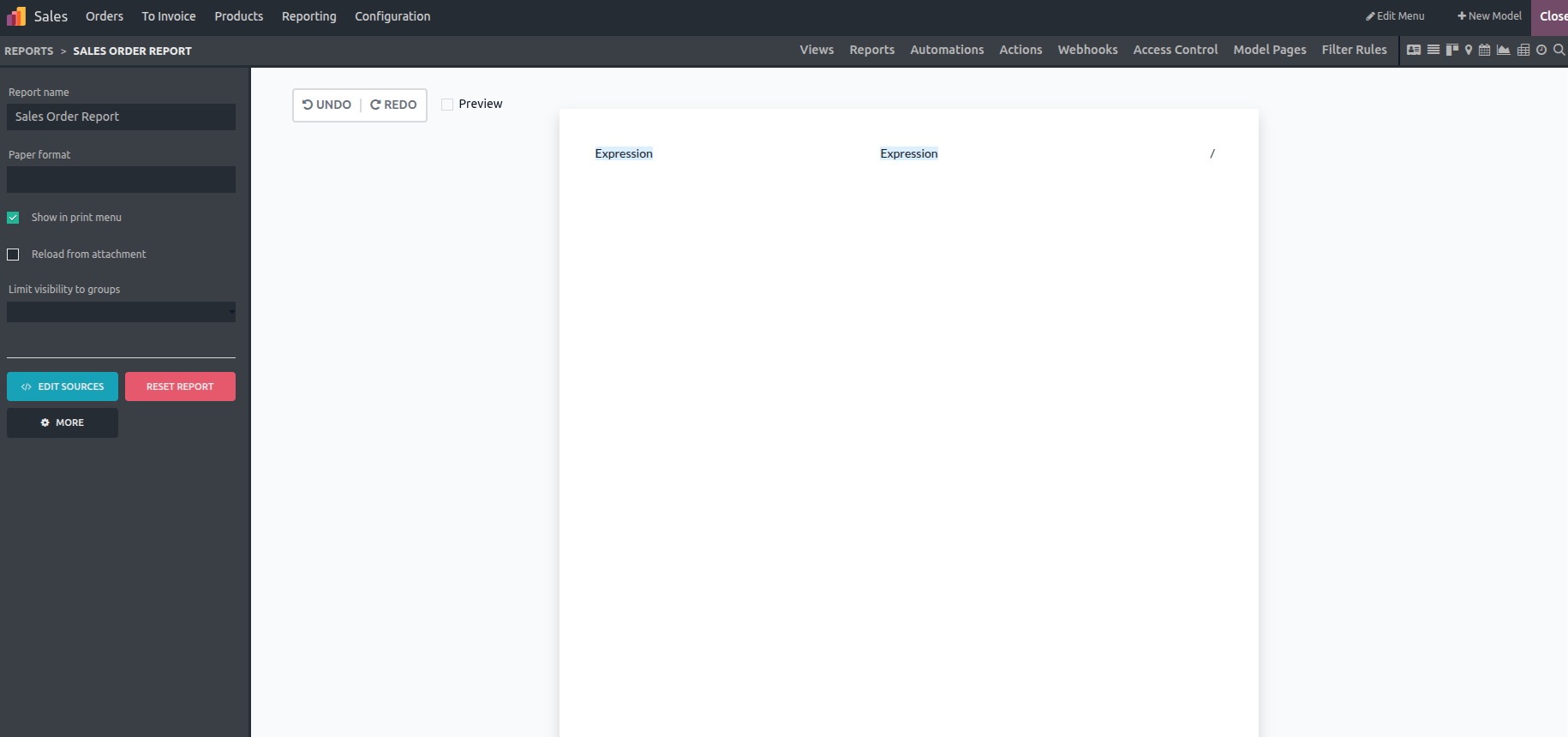
When the Blank report type is selected,
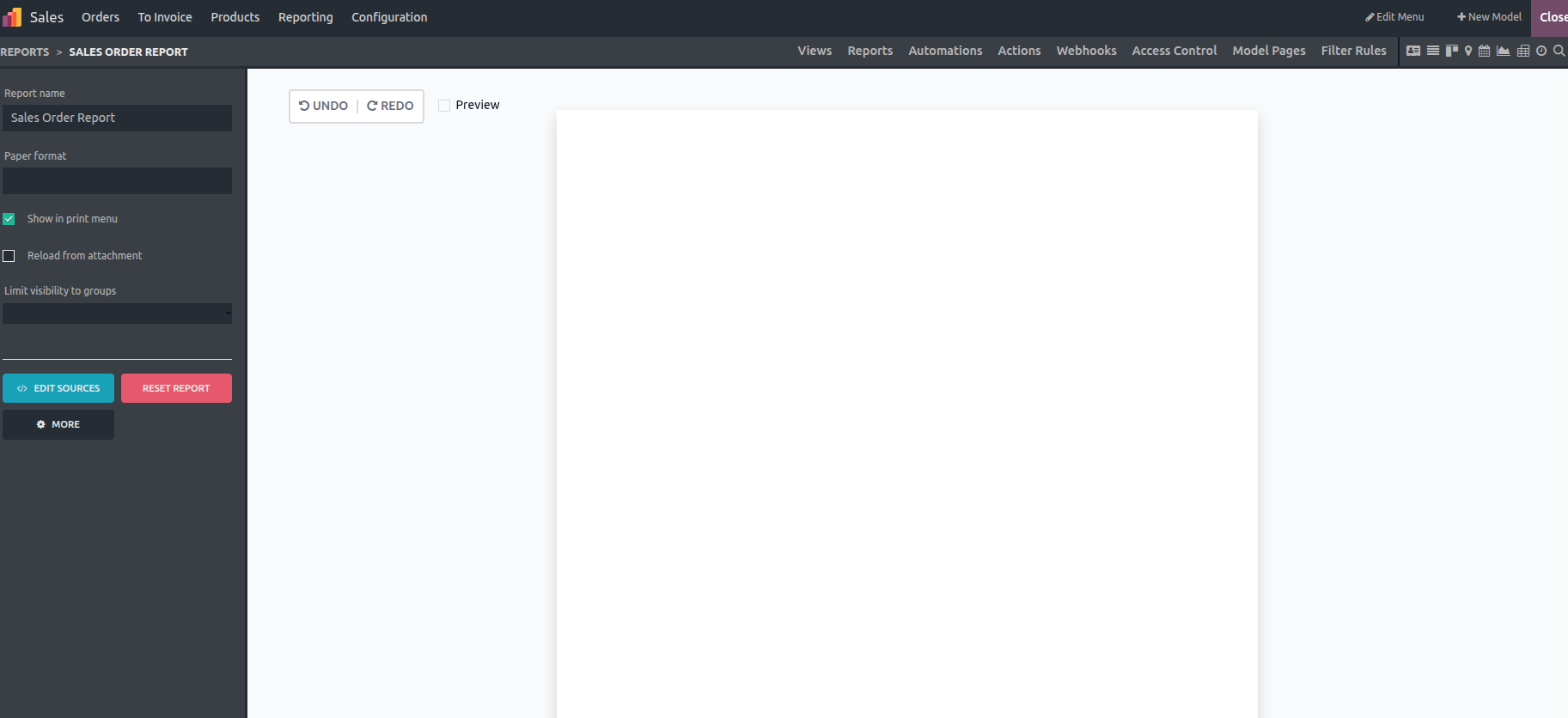
Creating a PDF quote Report
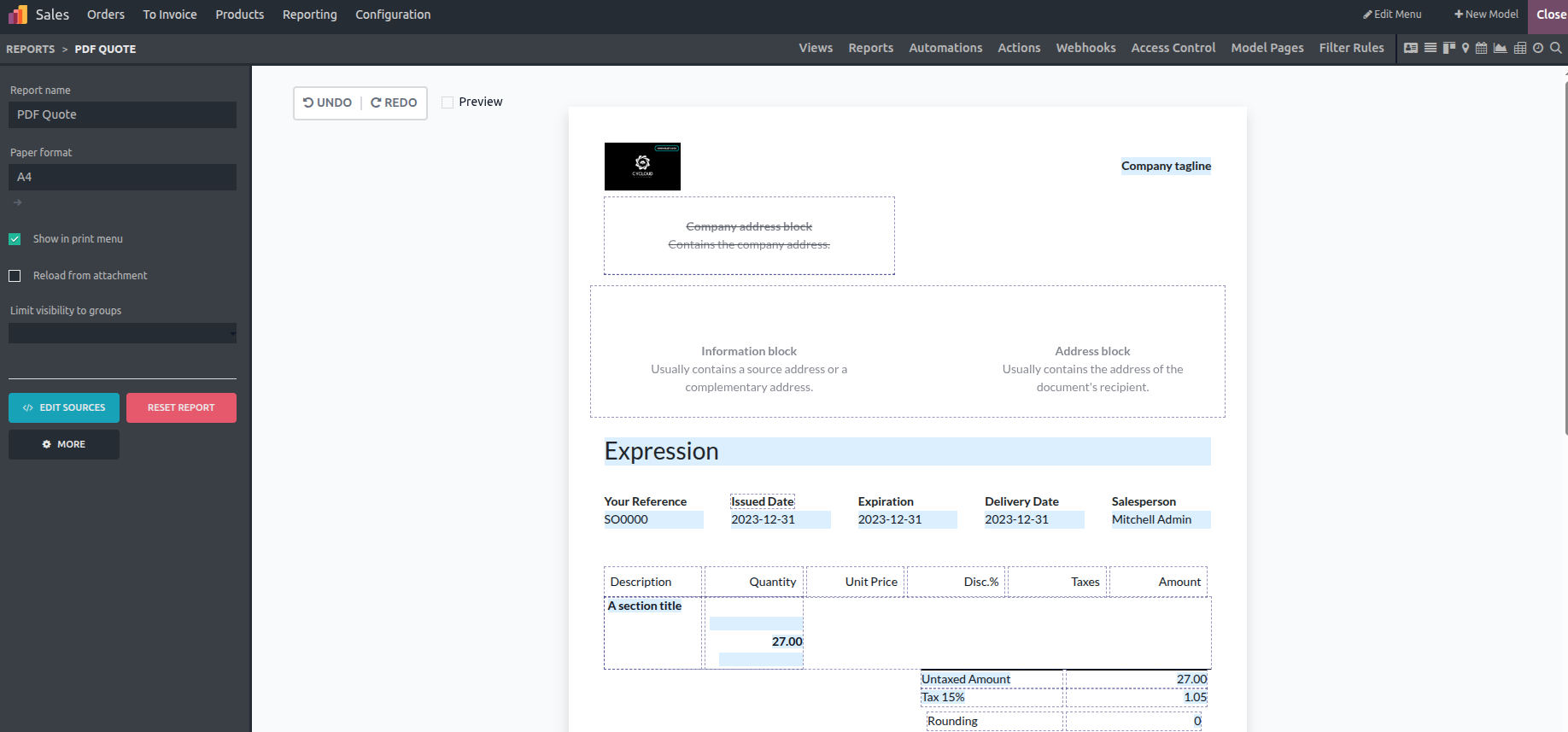
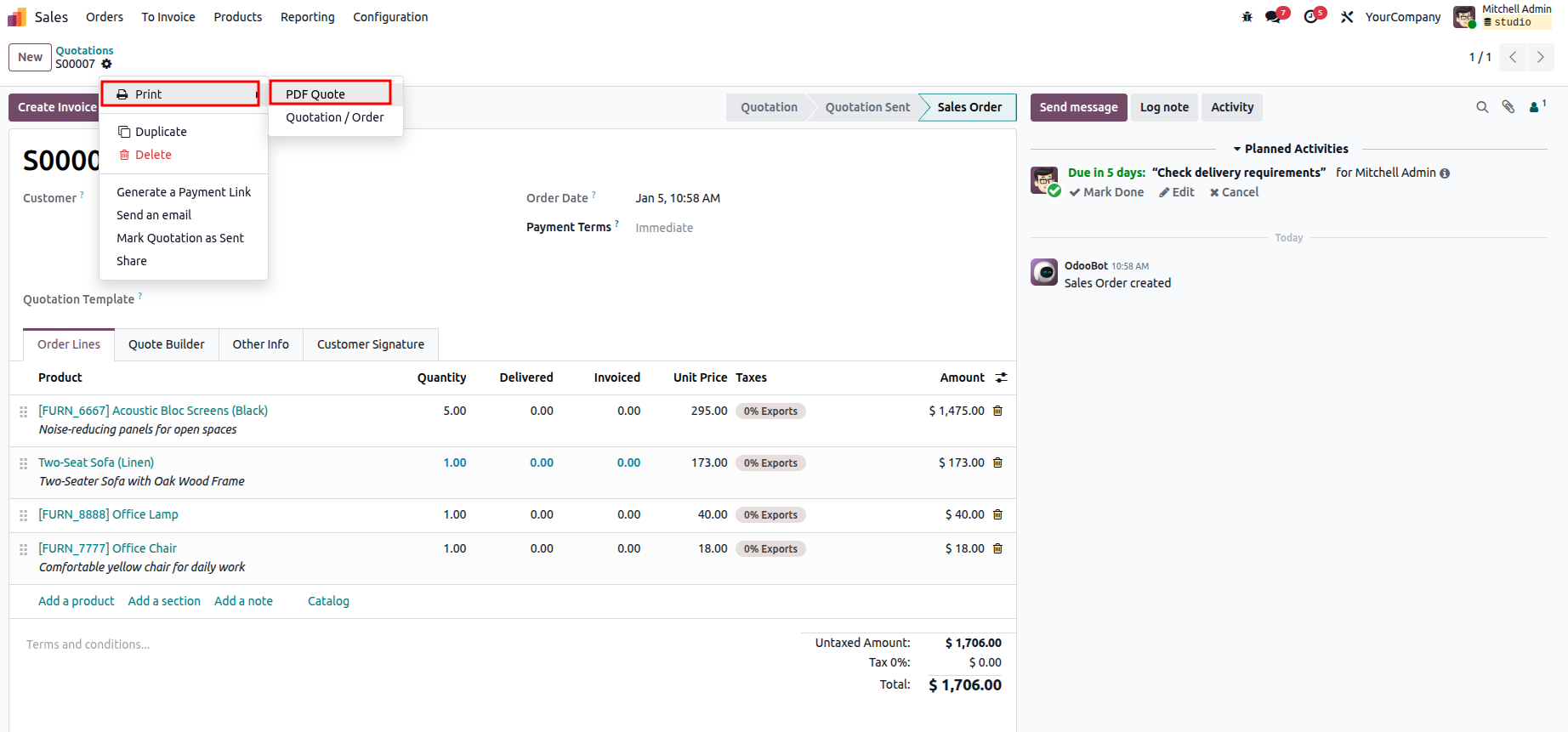
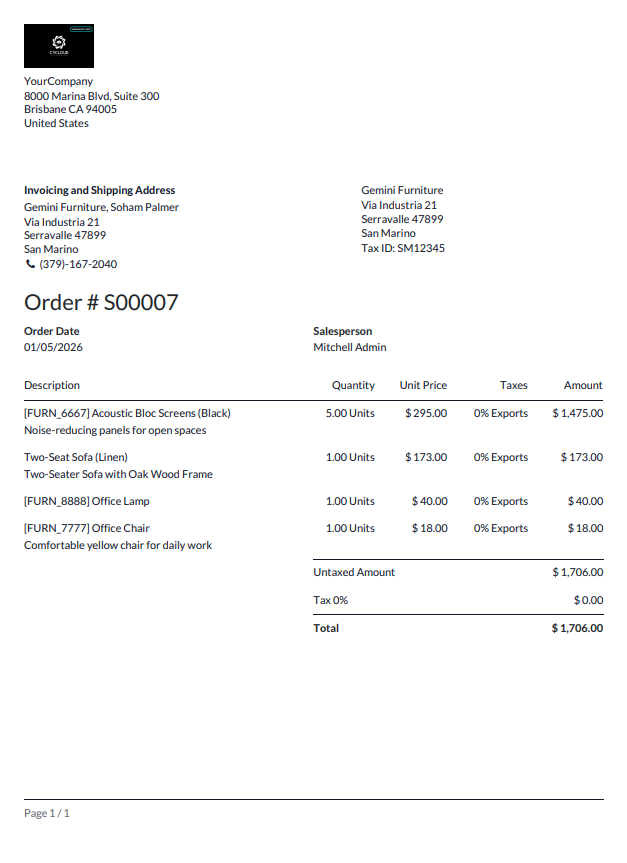
The output will be
As follows: