In Odoo, the list view displays multiple records in a structured, table-like format. You can switch to the list view by choosing it from the top-right menu in Odoo Studio or by selecting it from the Views section.
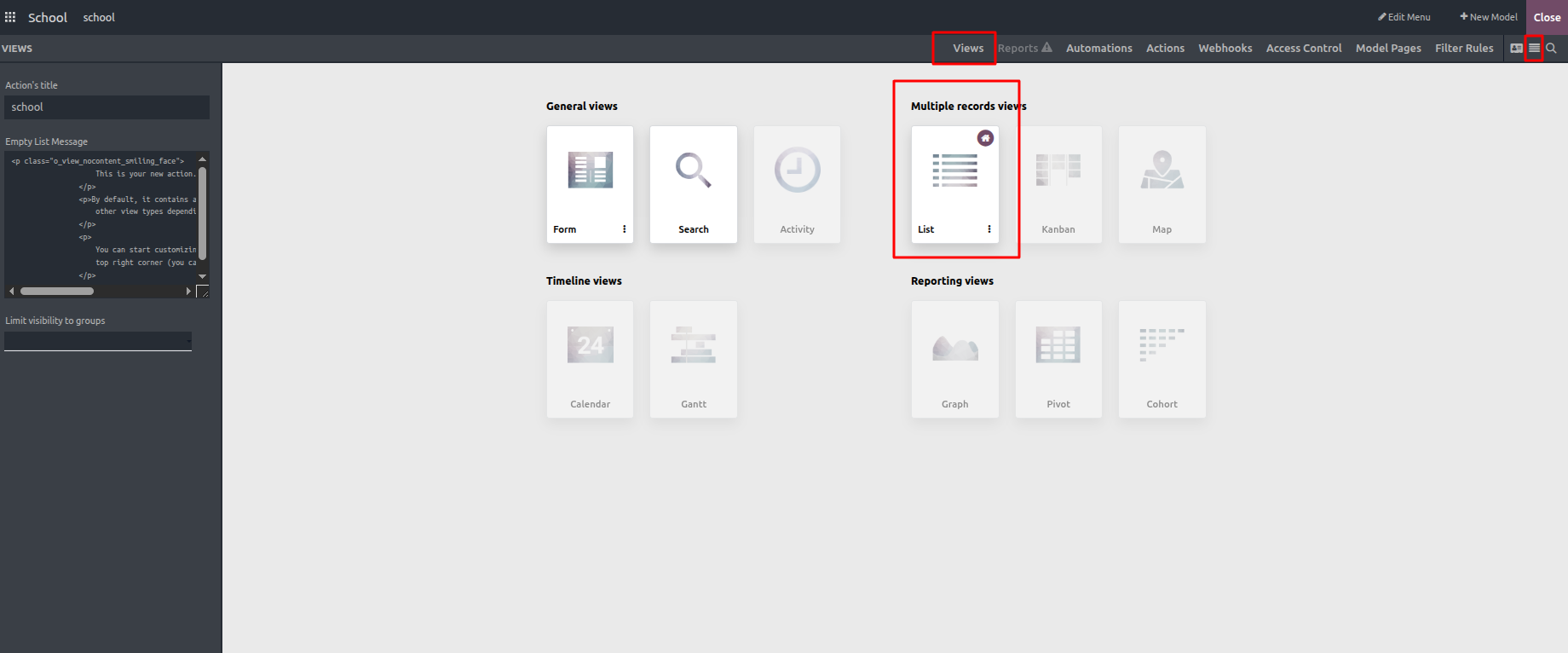
When you open the list view, a default layout is displayed, as shown in the image below. This view can be customized by adding or removing fields and reorganizing the layout to suit specific needs.
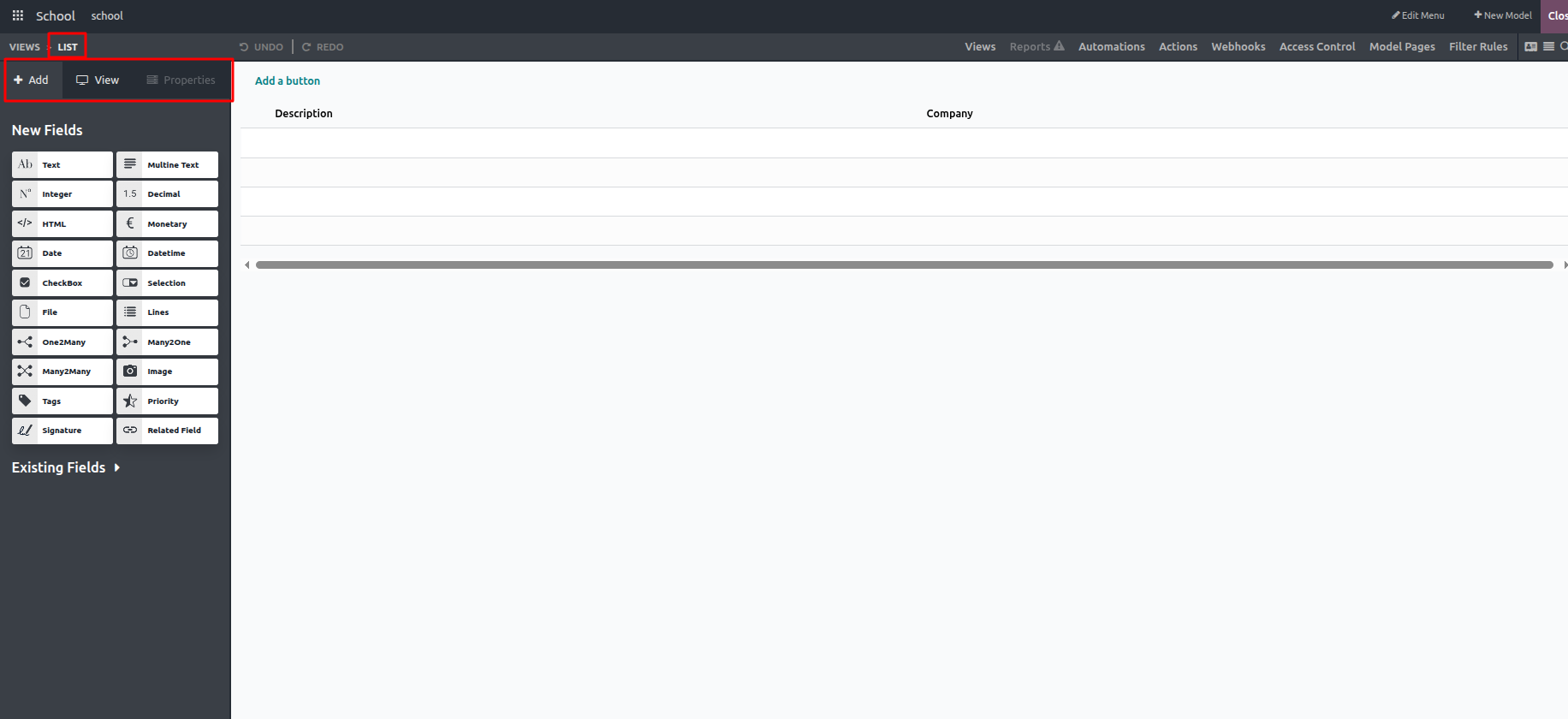
The image shows the default set of columns available in the view. Additional fields can be added from the options provided under the Add tab, and any existing fields can be removed as required.
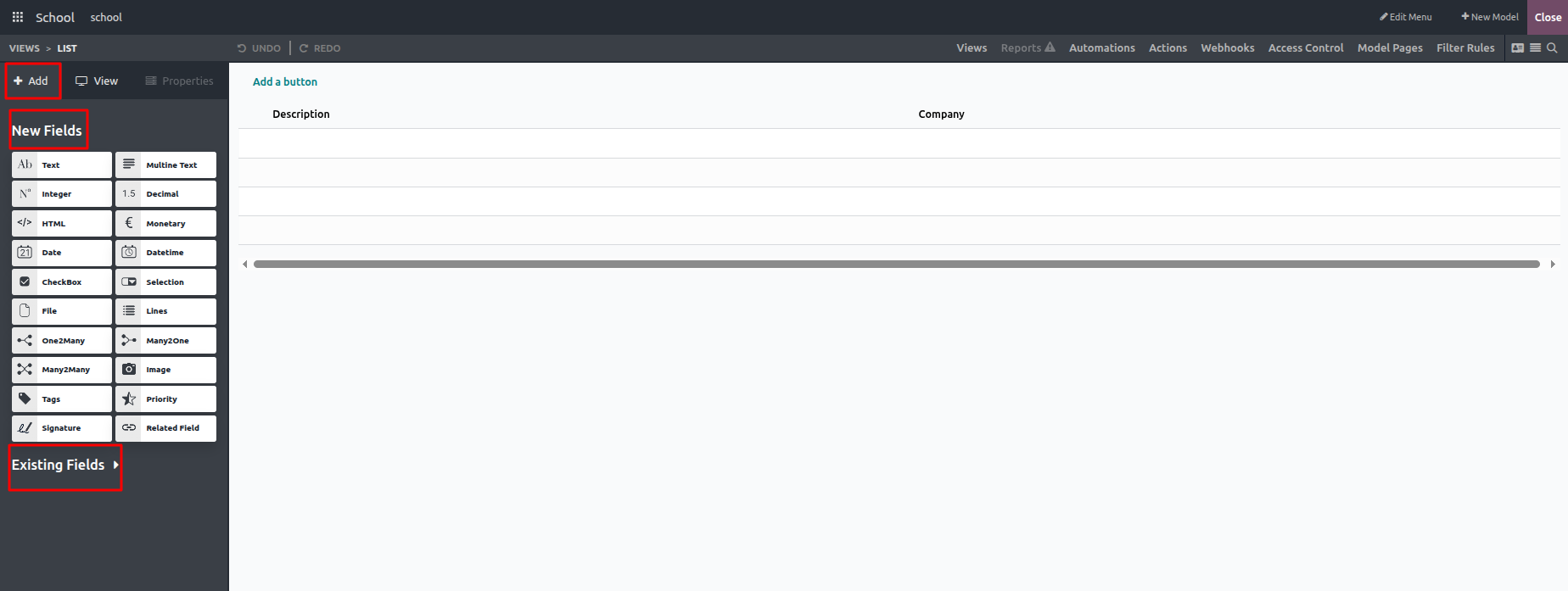
Selecting a specific column enables you to modify the settings and attributes related to that field.
After selecting a field, you can configure the following properties for that field:
- Invisible
- Required
- Read Only
- Show by Default
- Label
- Help Tooltip
- Widget
- Placeholder
- Dynamic Placeholder
- Default Value
- Column Width (px)
- Allow Visibility to Groups
- Forbid Visibility to Groups
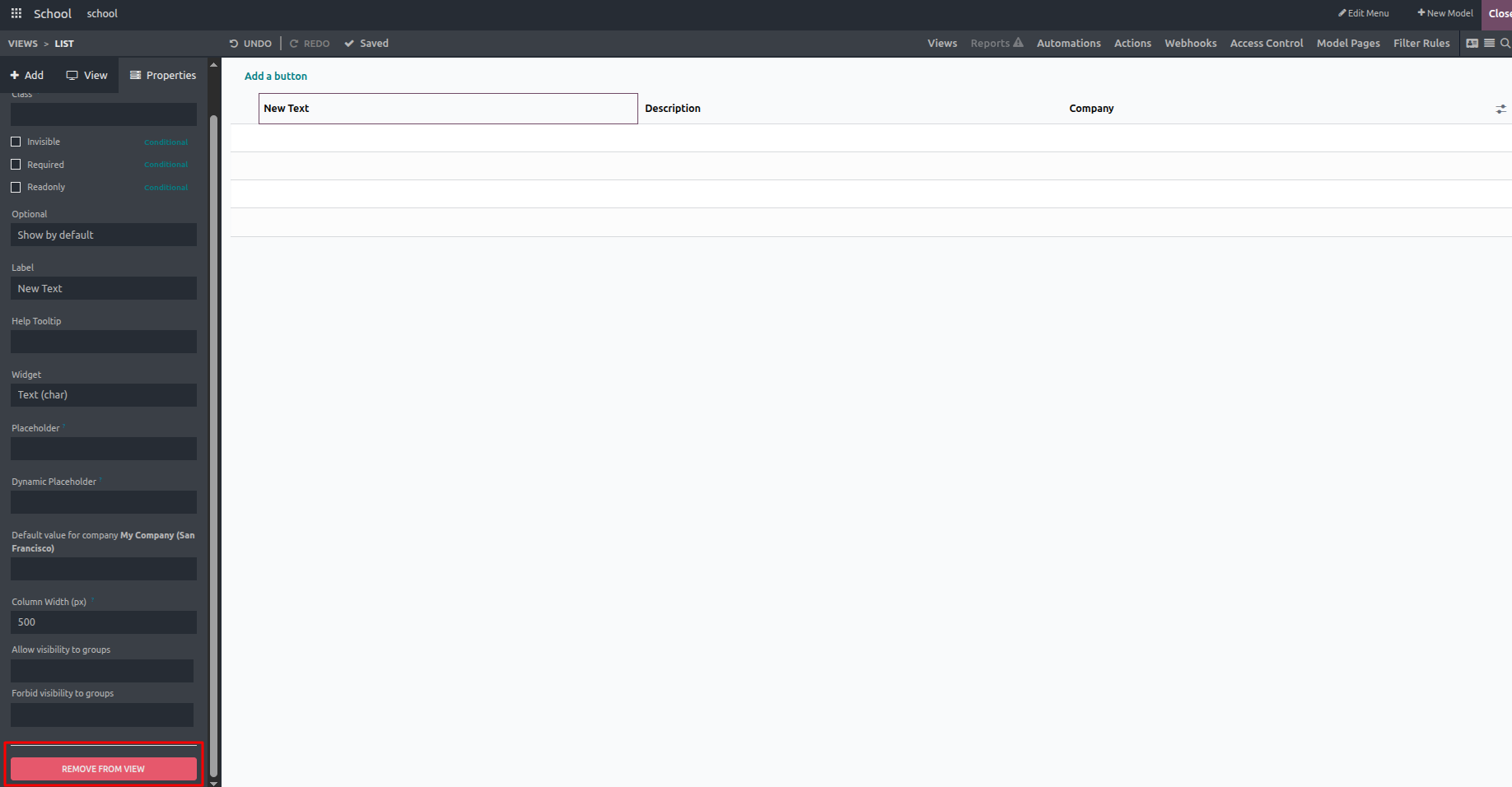
To remove a field from the list view, select the field and click the Remove from View button.
- Create Permission: Controls whether users are allowed to create new records.
- Edit Permission: Determines if users can modify existing records.
- Delete Permission: Specifies whether records can be removed.
- Field Visibility: Manages which fields are displayed to users.
- Editable Mode: Allows users to decide whether new records are added and edited at the top or bottom of the list view.
- Sorting: Enables records to be ordered based on selected fields.