Filters
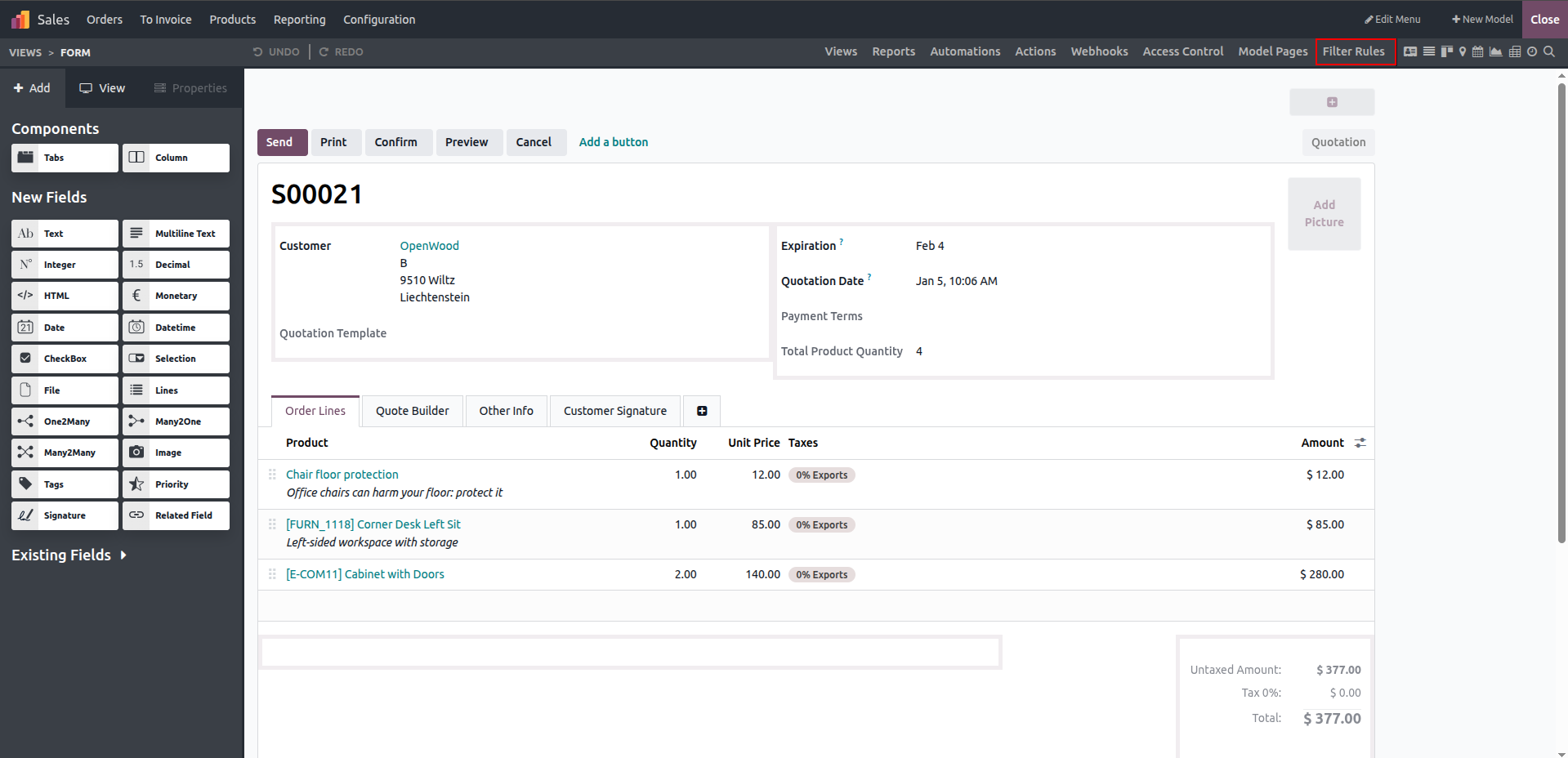
In the Odoo Studio module, filter rules can be used to easily filter records. The image below shows the filter rule button, which is located in the menu bar at the top.
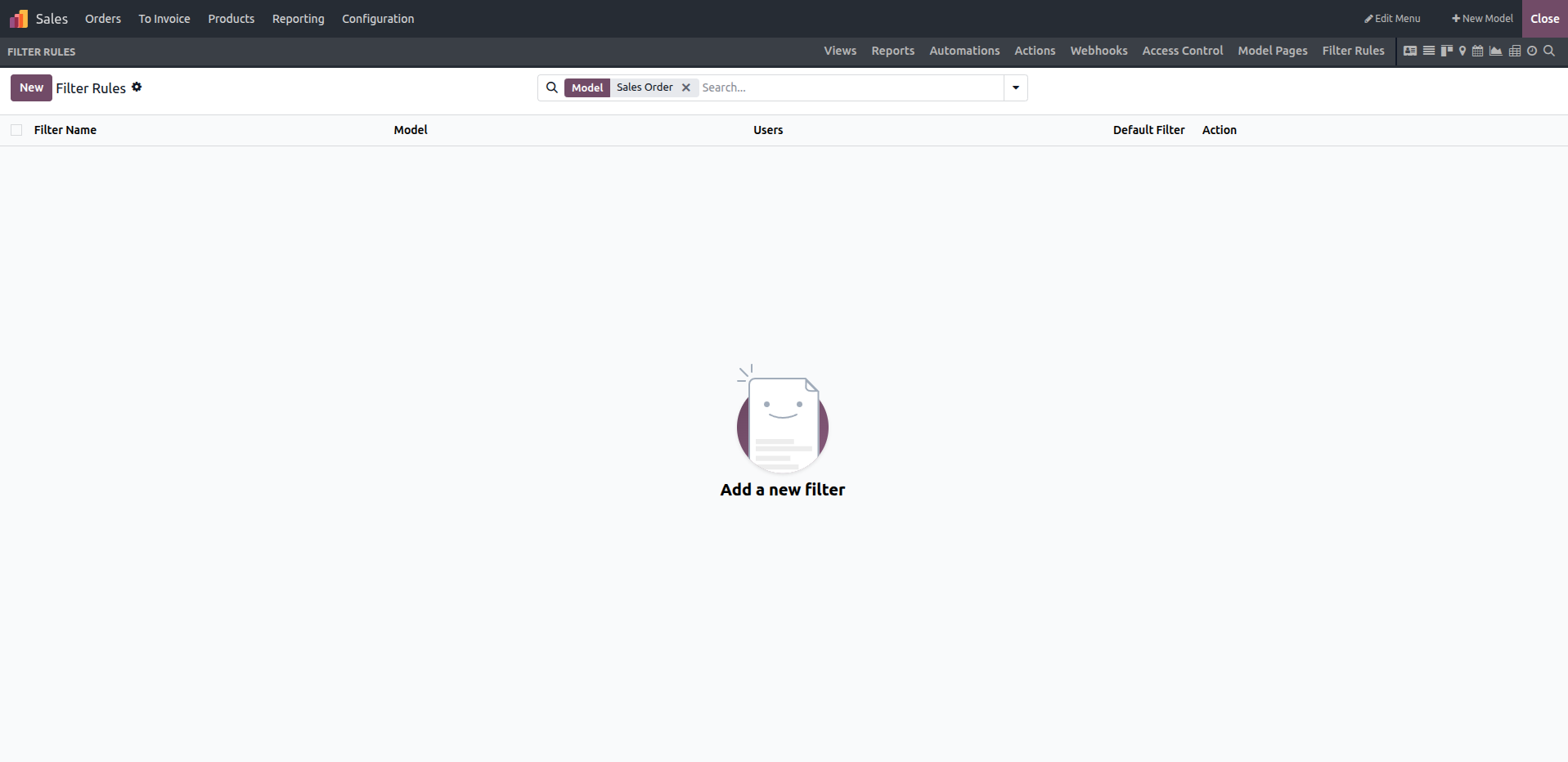
You can view the default filters in this section, and new filters can be created by clicking the New button.
When accessing the filter rules, you can create a new filter by specifying its name, mode, and action. You can also set it as the default filter and define a domain to determine which records are displayed.
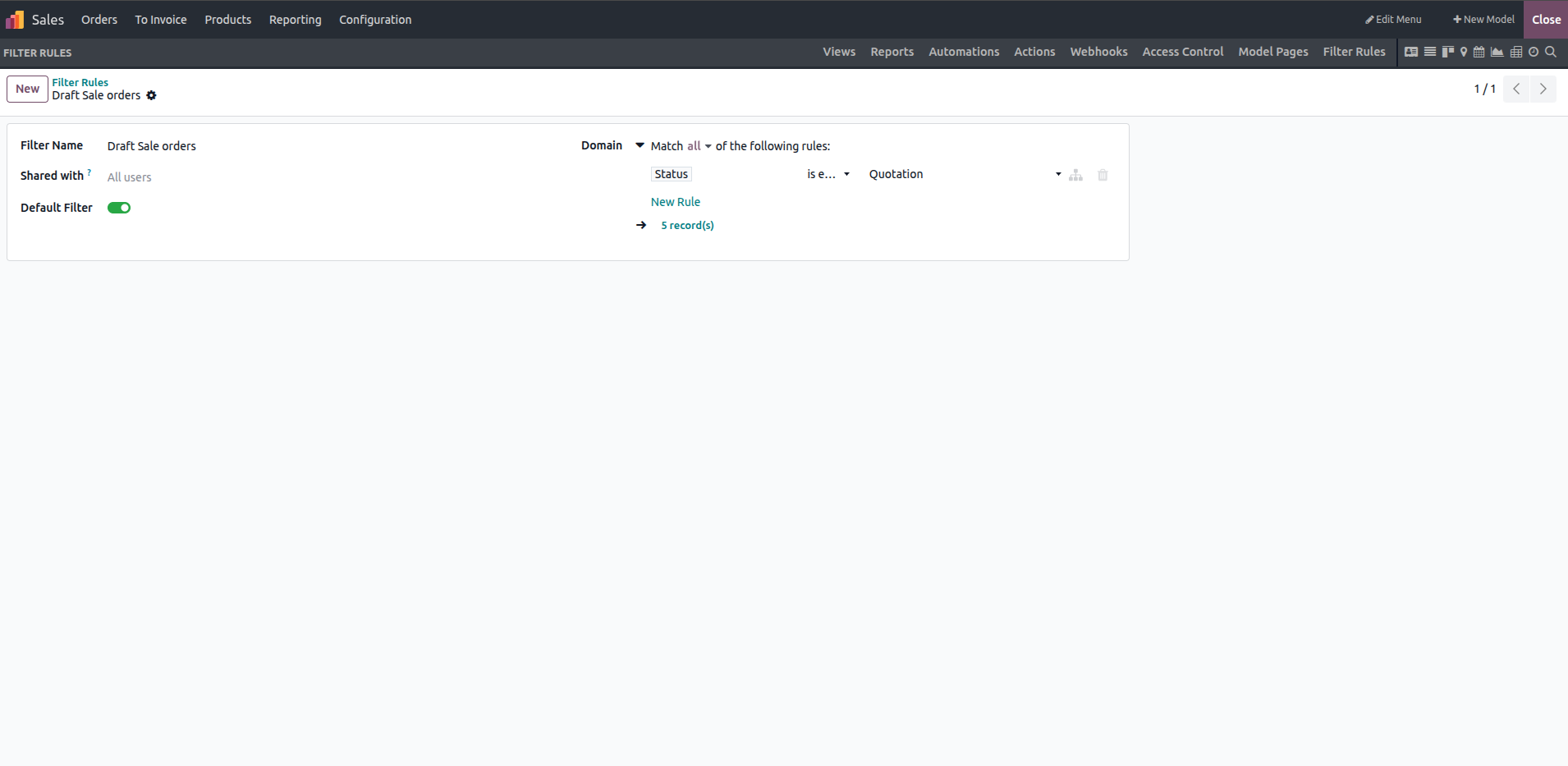
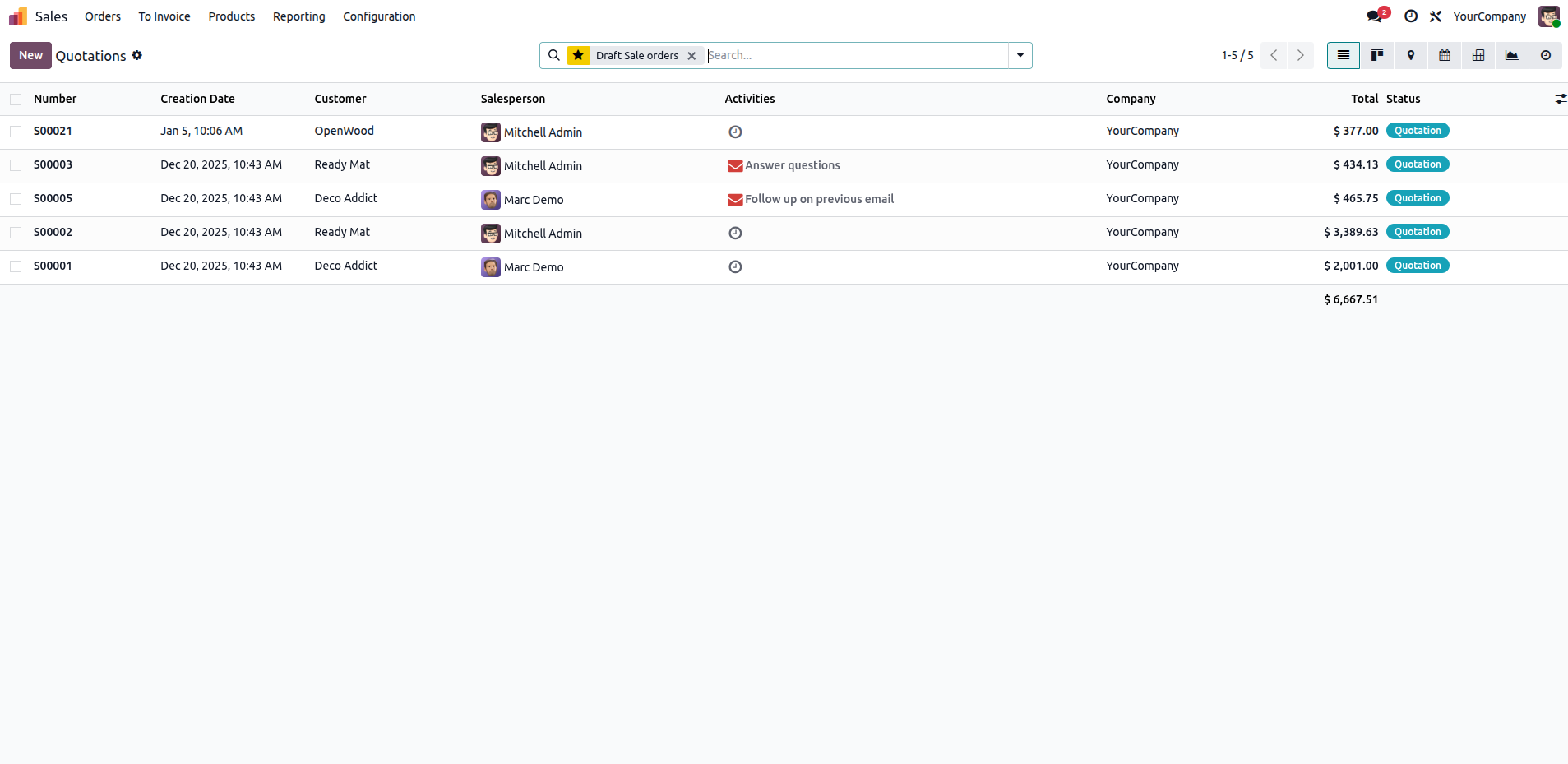
Once the domain is applied, the total record count will be shown, and all records with the "quotation" status will be listed in the interface.
Status Bar
In the Odoo Studio app, the status bar offers a clear overview of record workflows. When opening the app, you have the option to add a pipeline directly from the status bar.
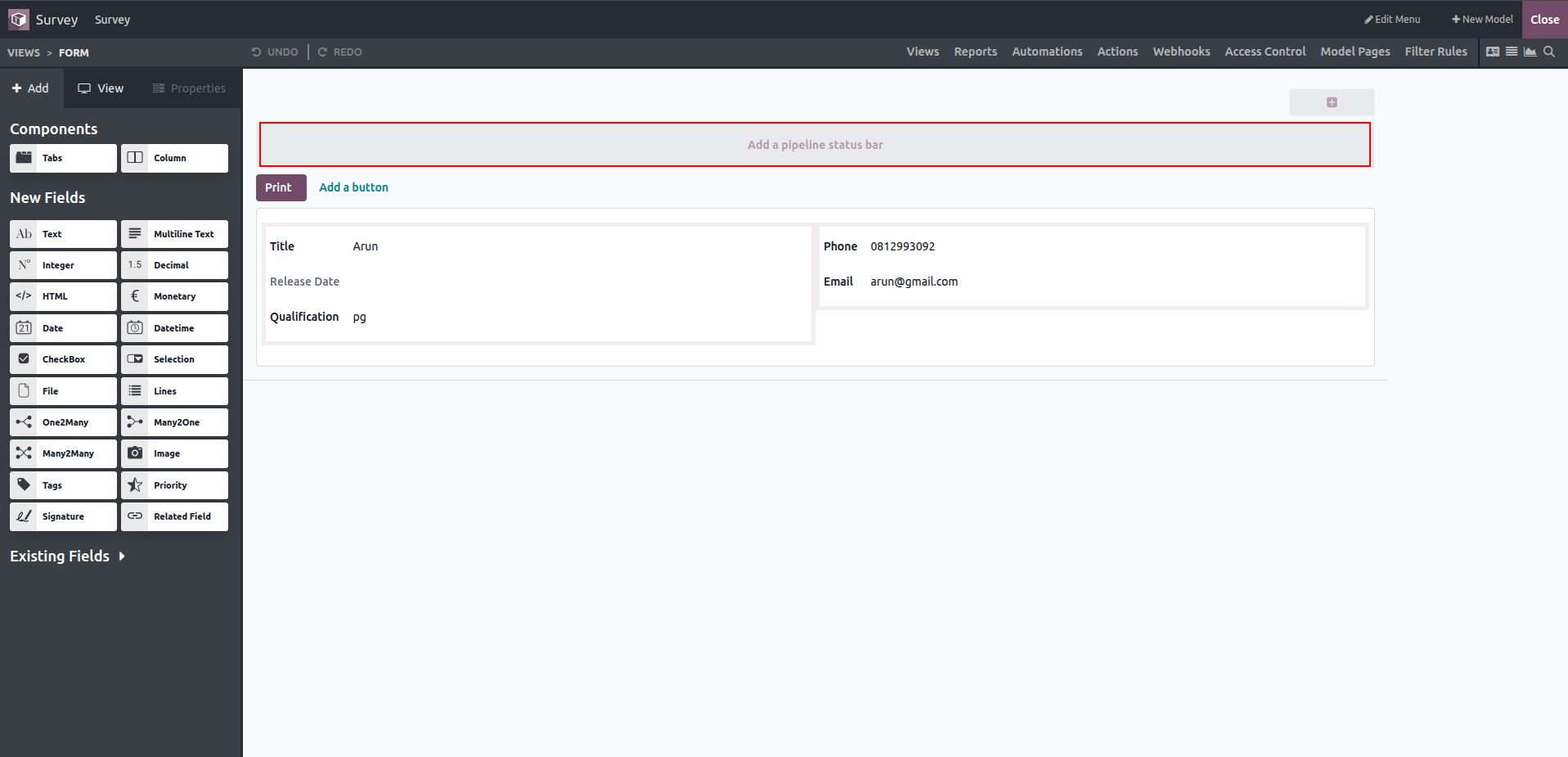
Click on the pipeline status bar tab, and a pop-up will appear showing the stages. You can add additional statuses from this pop-up.
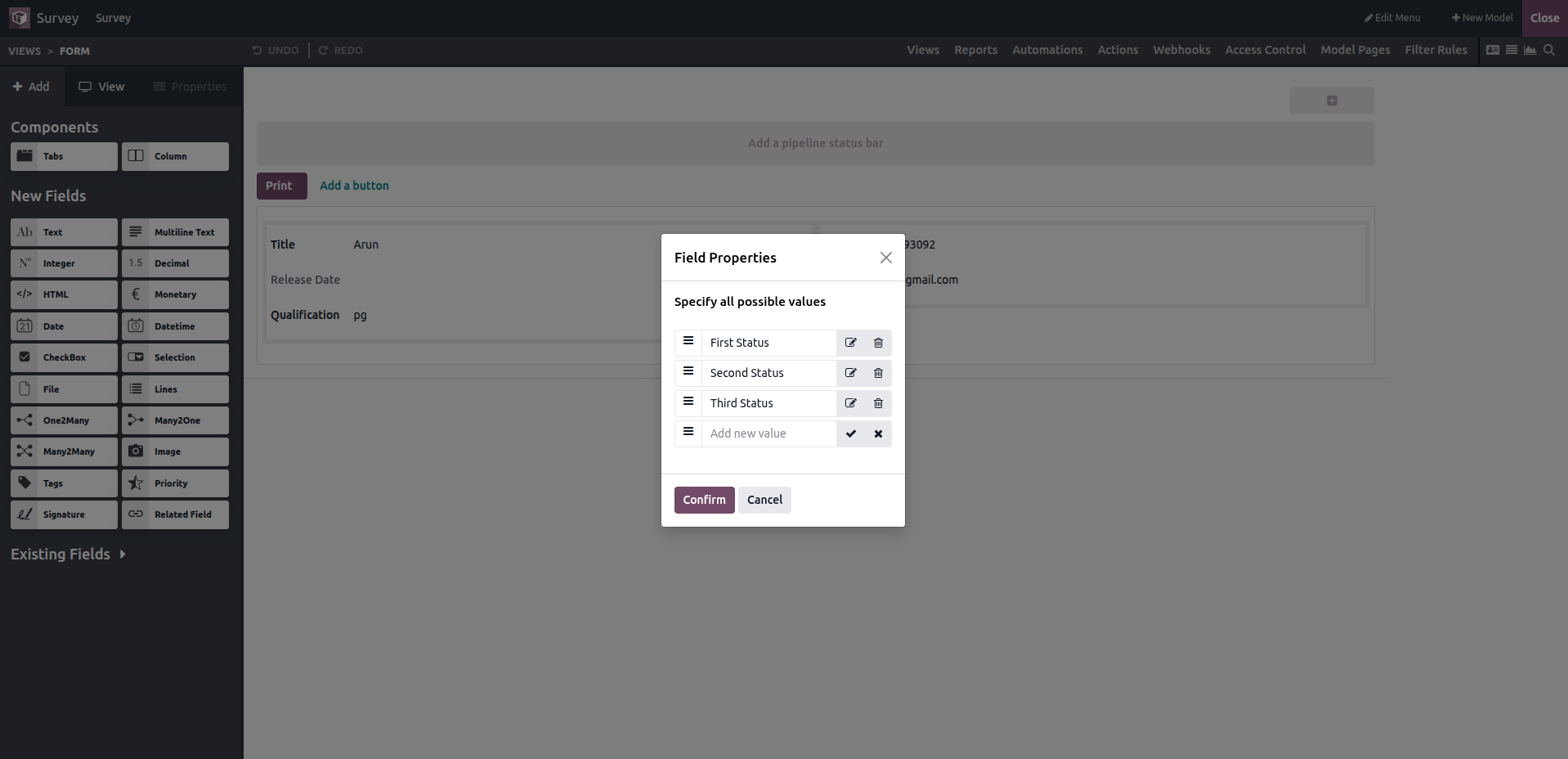
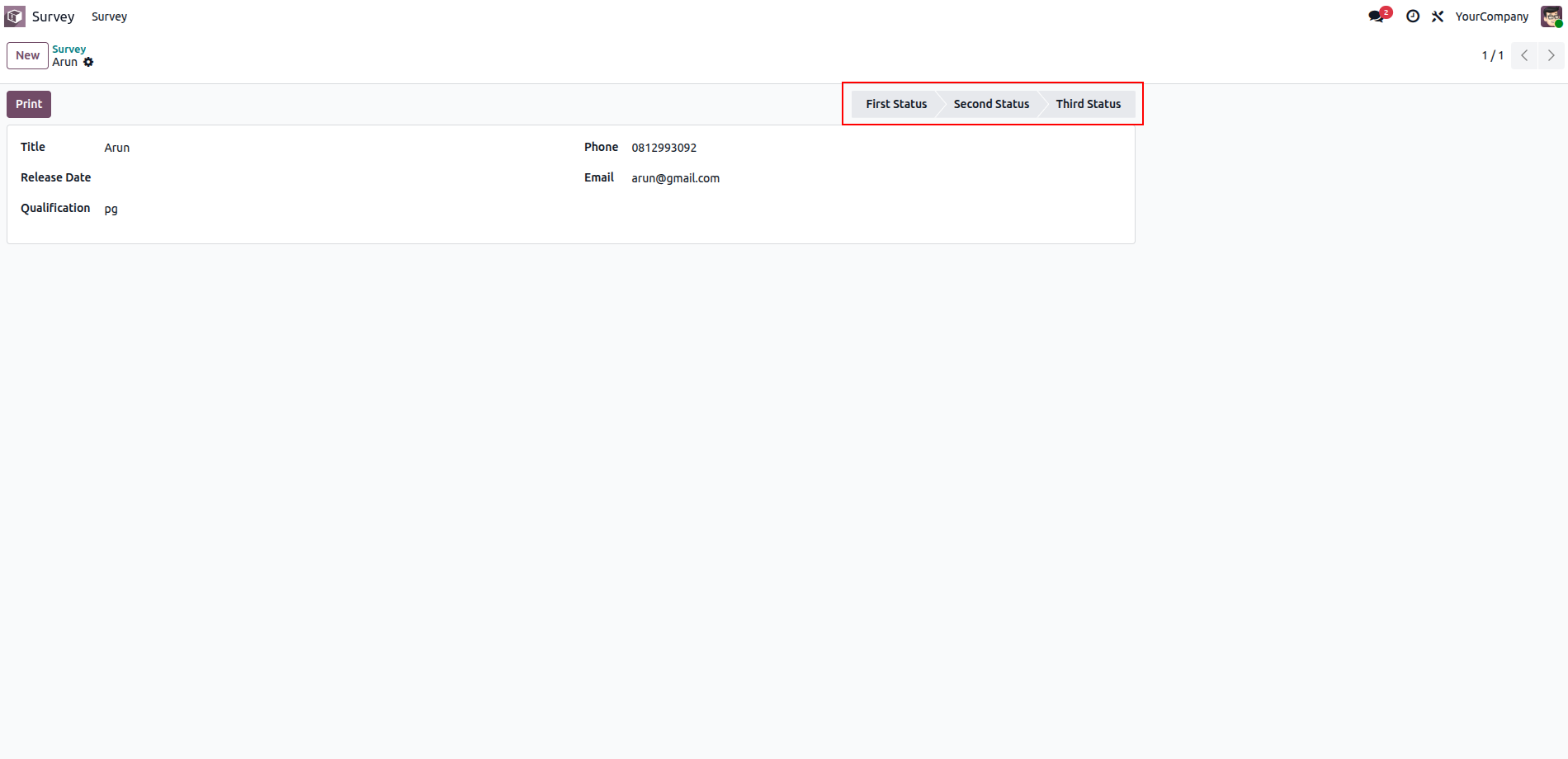
After clicking the Confirm button, all stages will be added and displayed in the top-right corner of the screen. Additionally, the status bar can be edited or deleted using the corresponding buttons. Once the Studio app is closed, the status bar will appear in the form view, as shown below.