In Odoo 19 Studio, website forms allow you to easily design custom forms that can be embedded directly on your website to collect information from visitors. Using the drag-and-drop builder, you can create forms that match your business needs without writing code. You can add different field types-such as text inputs, radio buttons, checkboxes, and more-and configure each field with labels, validation rules, and additional options to control how data is captured.
Creating a website form
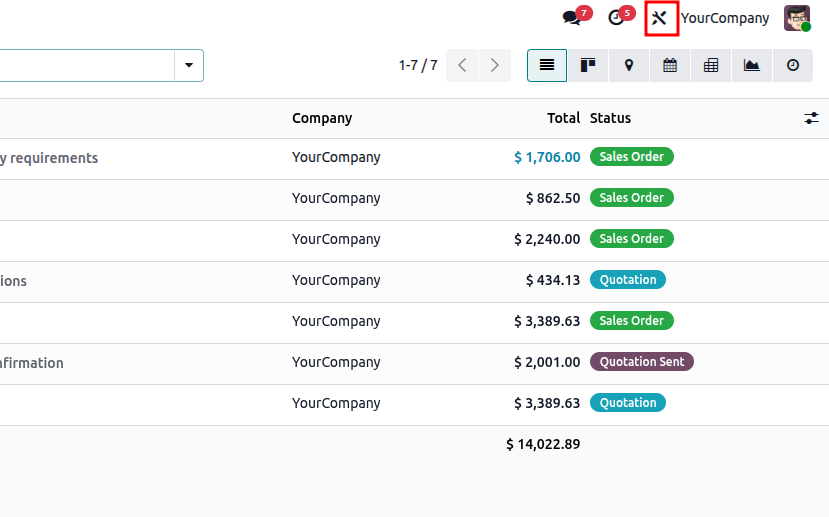
- Click the Studio icon at the top of the screen.
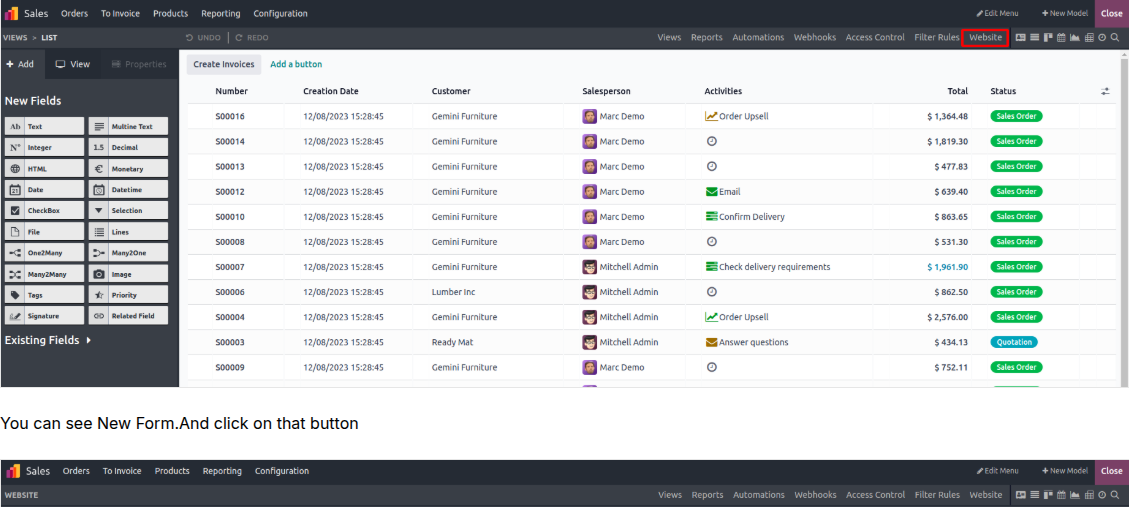
Click on the website
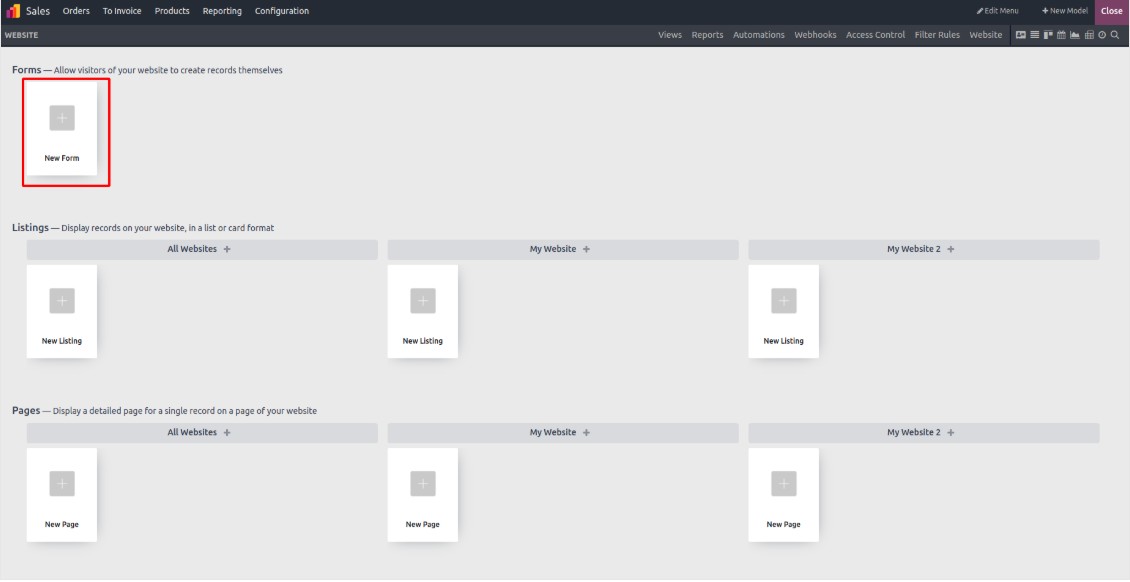
You can see the New Form option. Click on it to proceed.
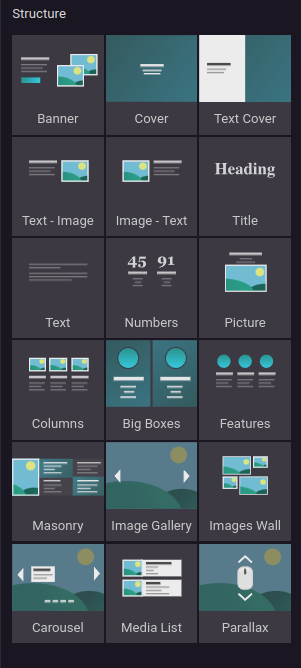
You can make your page more attractive by dragging and placing blocks as needed.
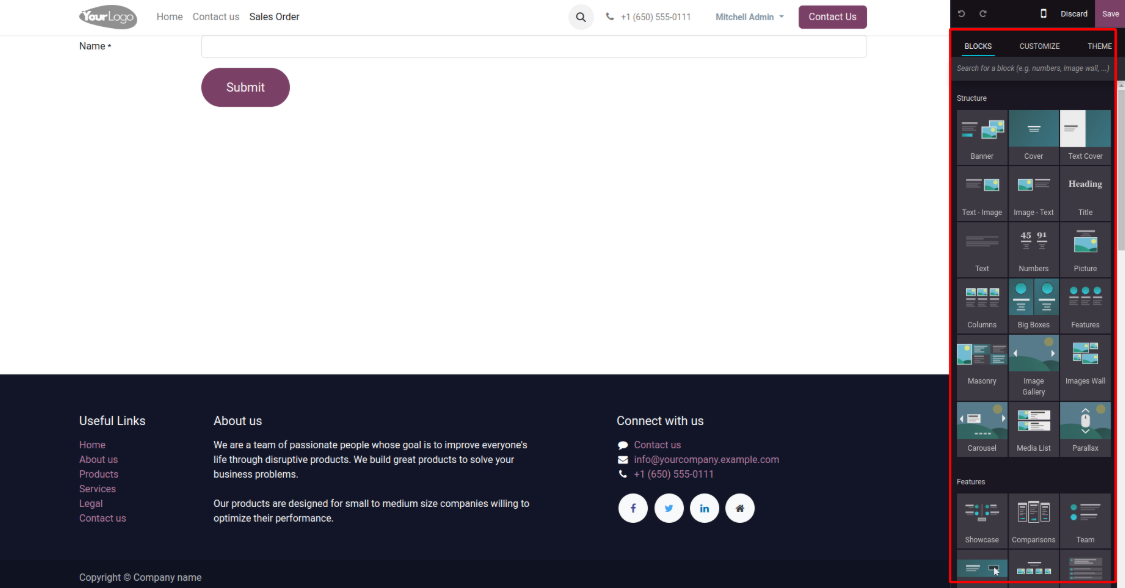
In Odoo 19, website blocks are organized using sections and rows. A section acts as the main container on a page, while rows are smaller units placed inside a section. Each row can hold one or multiple content blocks, allowing flexible page design.
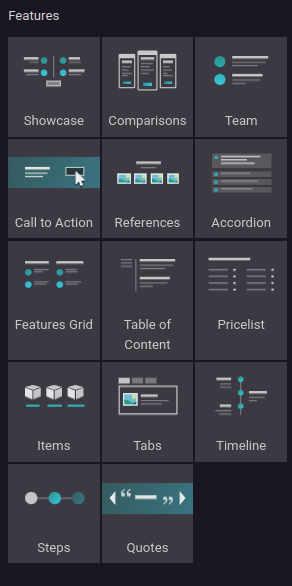
Features:
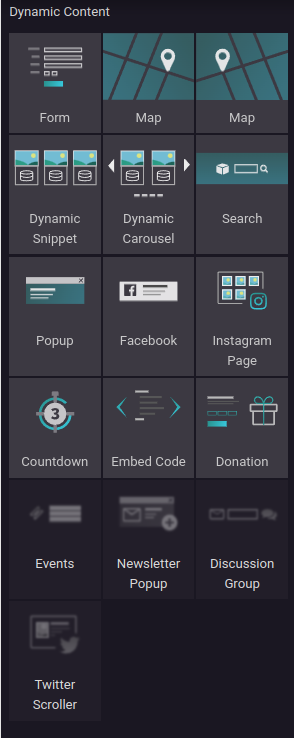
Dynamic Content:
You can add interactive features like forms, search bars, Facebook integrations, and other dynamic elements directly to your page using dynamic content blocks.
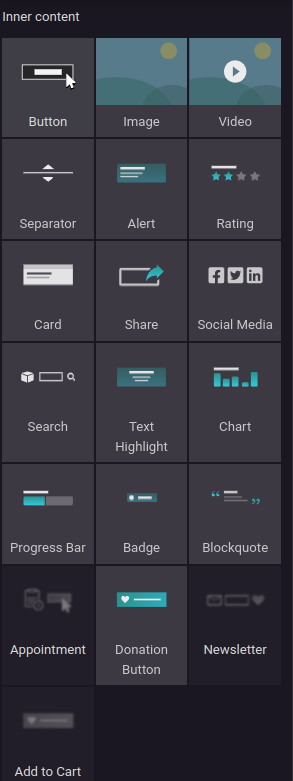
Inner Content:
Each website block in Odoo 17 contains inner elements that can be customized based on your needs. For example, a text block can include a title, subtitles, and body text, all of which are editable. Likewise, an image block may contain a caption or descriptive text that you can personalize.
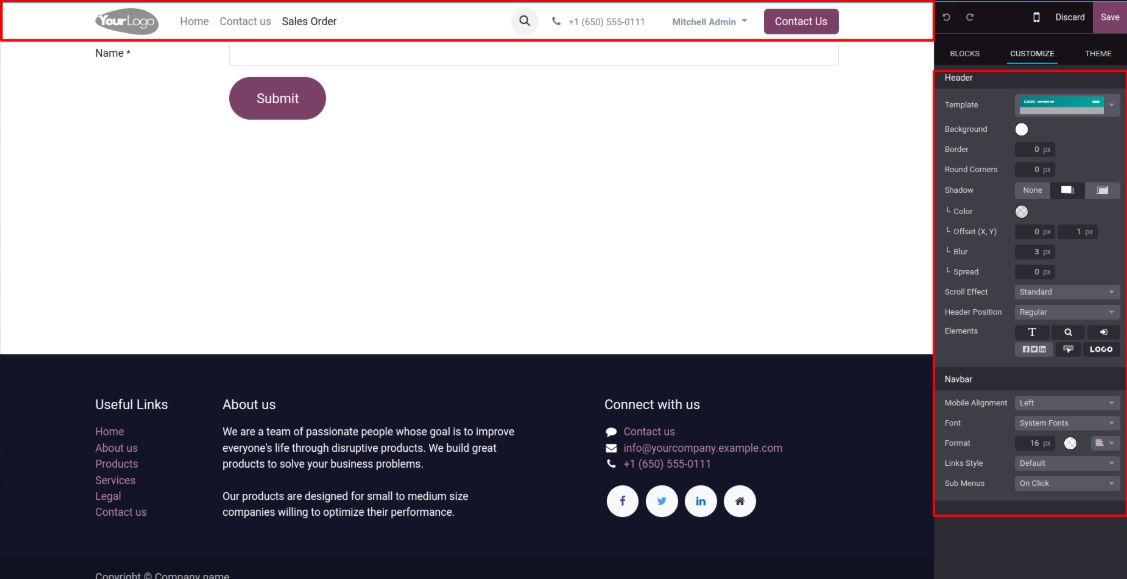
Select the header to access its editing options. You can adjust colors, templates, borders, shadows, the navigation bar, and other settings as required.
When you click on a field, more customization options become available.
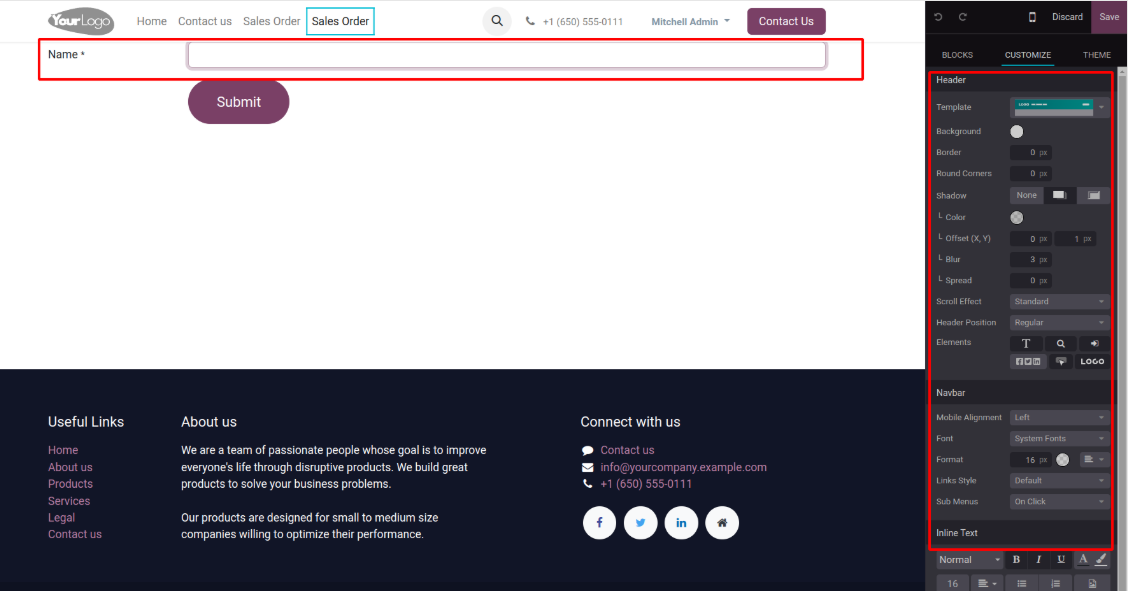
- Action: You can define what happens when the form is submitted, such as applying for a job, creating a customer record, opening a support ticket, starting an opportunity, subscribing to a newsletter, generating a sales order, creating a task, or sending an email.
- Label Width: Adjust the label width to improve the form's overall appearance.
- On Success: After the form is submitted, you can set a custom outcome, such as showing a confirmation message or redirecting the user to another page.
- Background: Customize the form's background by choosing a color, image, video, or shape.
- Content Width: Set the content width to control the layout of the form.
- Height: Specify the height of the form in this section.
- Visibility: Control where the form is visible by selecting whether it appears on mobile devices, desktops, or only under certain conditions.
- Type: Choose the types of fields that will be used within the form.
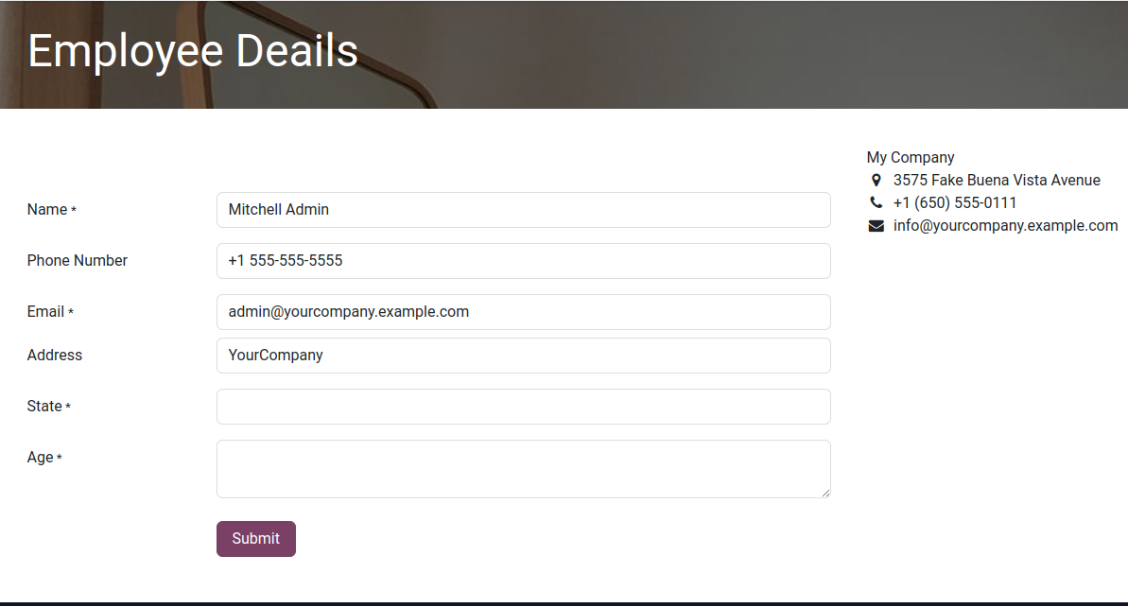
In this way, you can add more fields using text, apply selection options, enable animations, and set visibility rules based on your requirements.
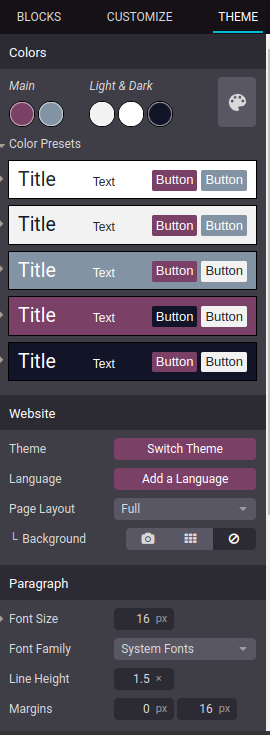
- Color Preset: Set the button color according to your preference.
- Page Layout: Choose a page layout such as full width, boxed, postcard, or framed to match your design needs.
- Font Size and Font Family: Customize the text appearance by adjusting the font size and selecting an appropriate font family.
- Website Settings: Odoo's Website Settings allow you to customize both the appearance and behavior of your website to better suit your needs.
- Extended Theme Options: Odoo provides several ready-made website themes to give your site a unique look. If the available themes do not meet your requirements, you can expand your options by uploading a new theme or creating a fully custom theme from scratch.
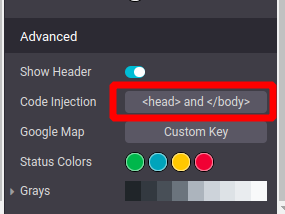
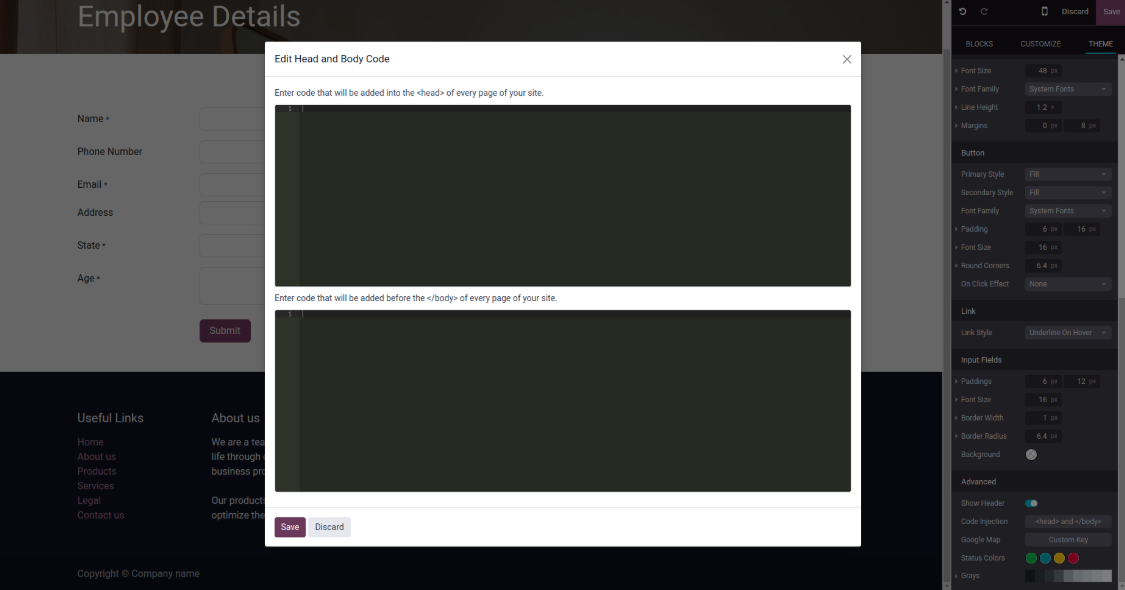
- Code Injection: To add custom CSS, JavaScript, or HTML, Odoo allows code injection through Website Settings. This is useful for implementing custom features that go beyond Odoo's default functionality.
Integrating Google Maps:
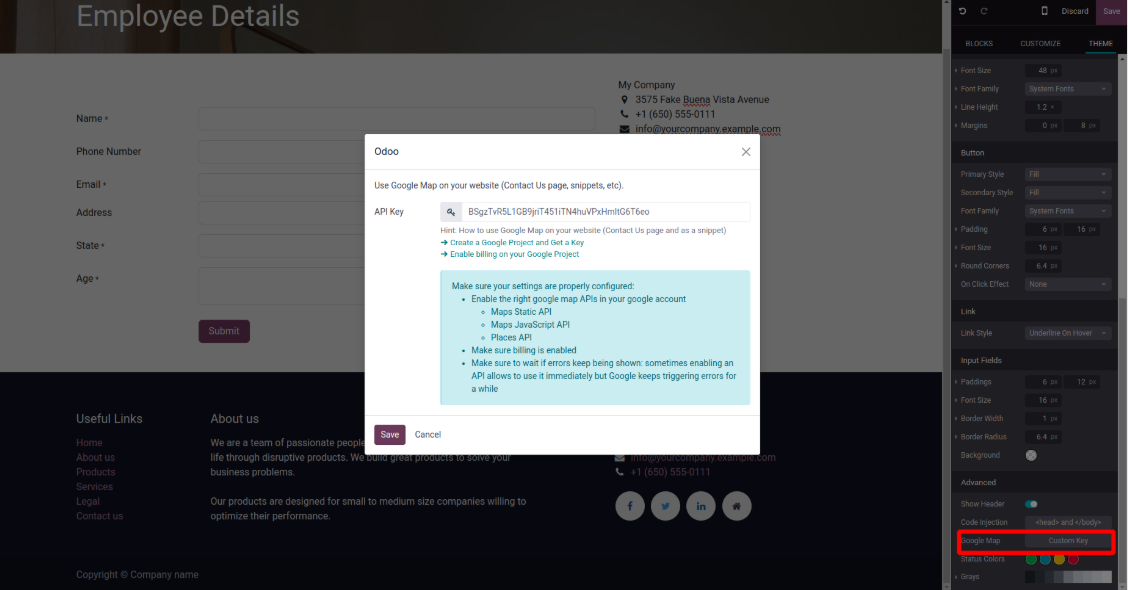
Odoo makes it easy to add Google Maps to your website using a custom API key. The Google Maps API allows you to embed maps and customize their appearance and behavior. To enable this feature, create a personal API key in the Google Cloud Console and add it to your Odoo website settings. Once configured, you can use Google Maps on your site without any additional cost.
In Odoo 19, website forms play a crucial role in helping businesses engage with visitors, capture important information, and support growth. The built-in form features allow users to create, customize, and manage forms easily, without needing technical knowledge.
With these powerful capabilities, businesses can interact more effectively with their audience, gather meaningful data, and simplify data handling. By making effective use of website forms, organizations can strengthen their online presence, improve customer engagement, and achieve more organized and sustainable growth.