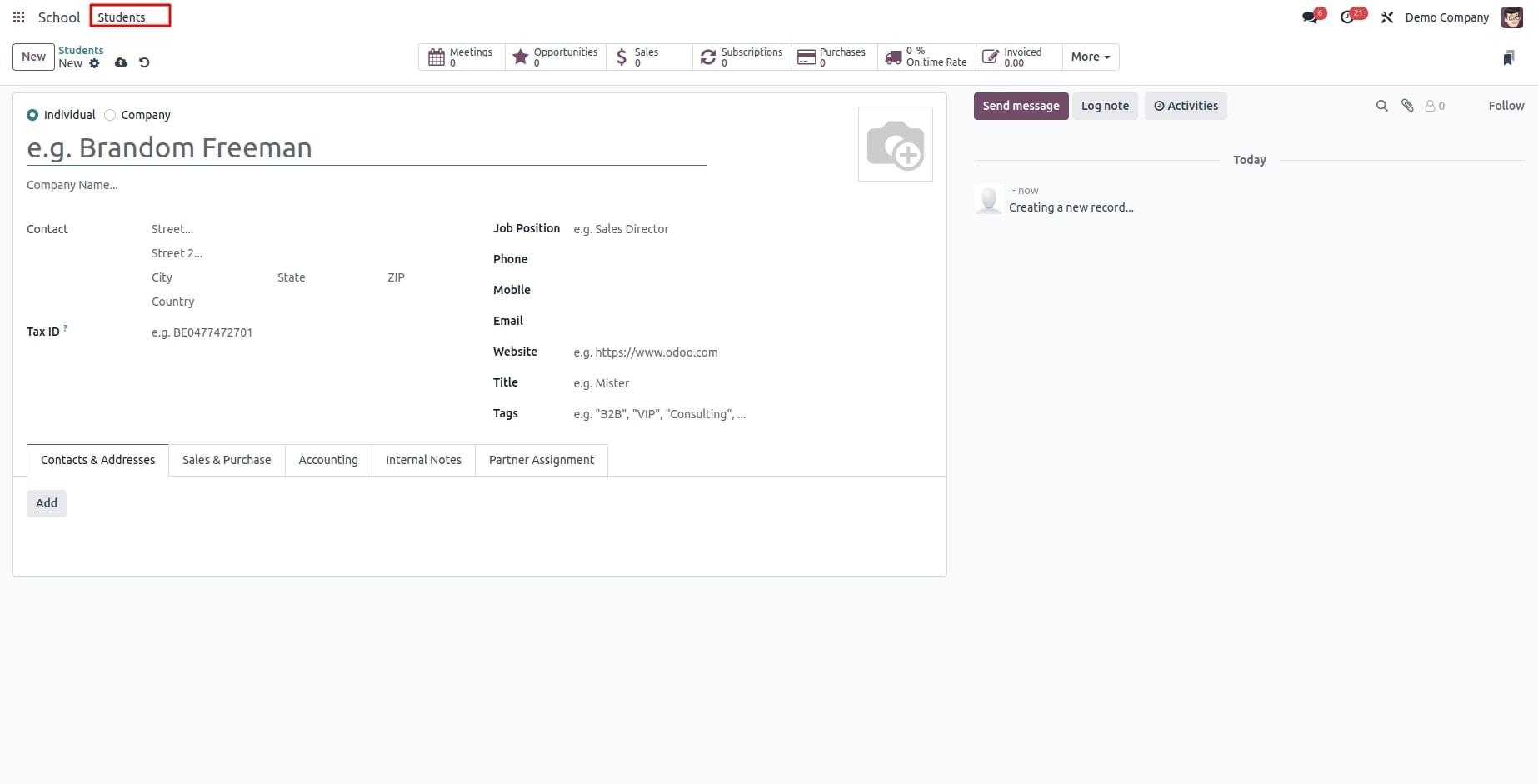
The Studio module makes it possible to create custom Odoo applications without needing any programming knowledge. Once the Studio app is installed, a "Toggle Studio" option becomes available in the top menu. By selecting this option, users can start designing and building their own personalized modules directly from the interface.
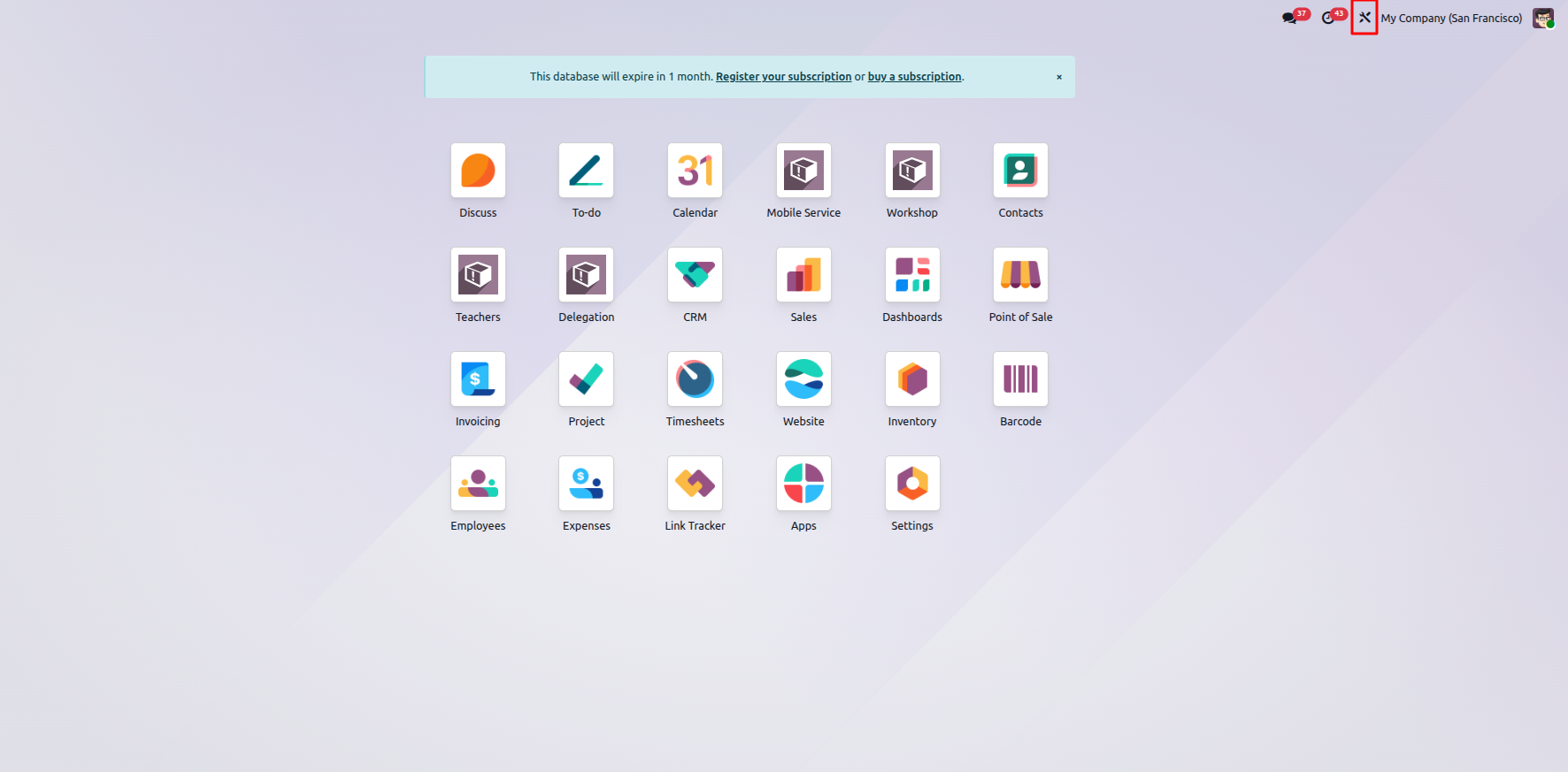
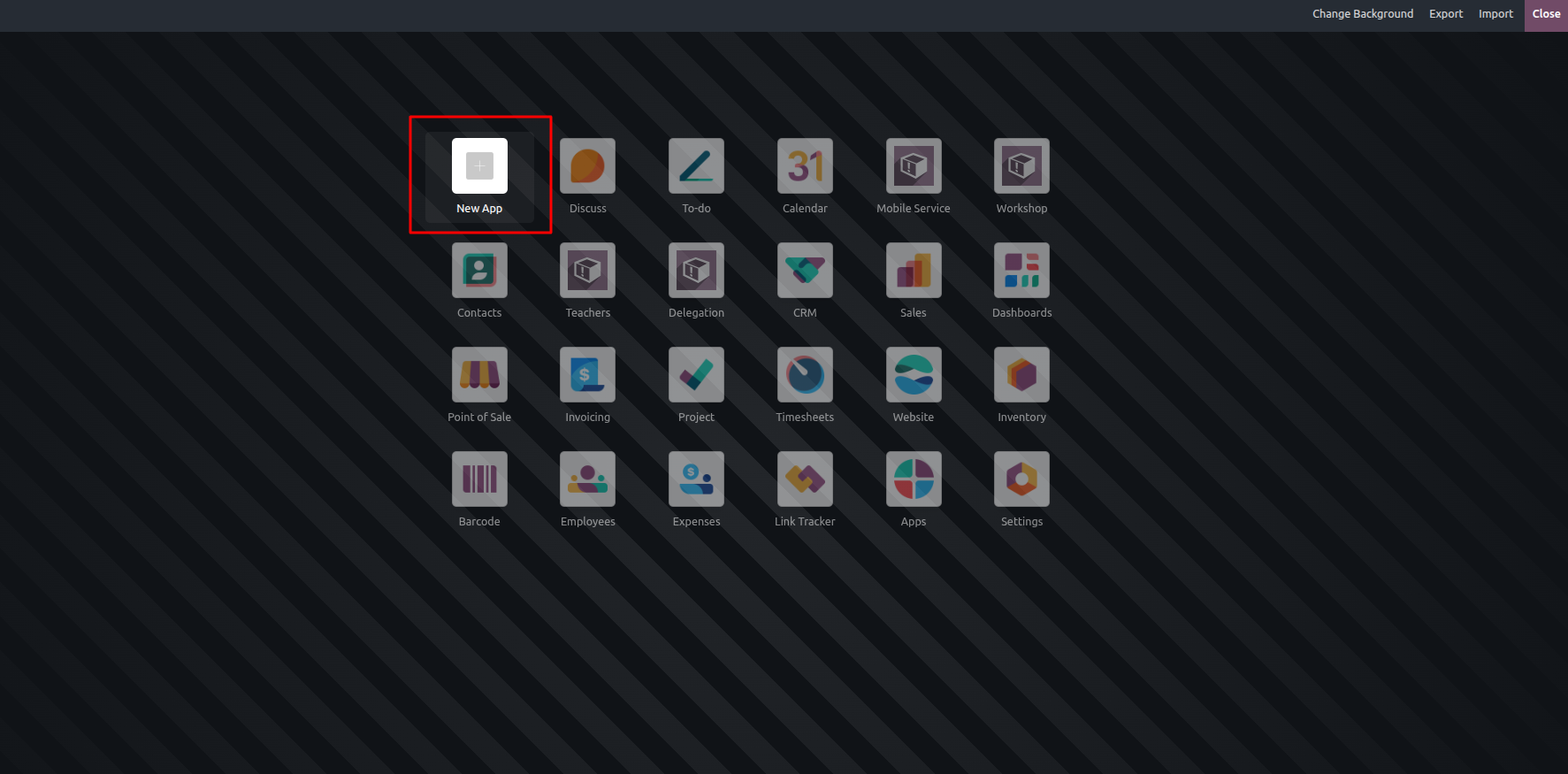
A "New App" button is available to help you begin building and designing a custom module from scratch. In addition to creating new applications, Studio also lets you enhance existing modules by adding extra fields, buttons, models, and other components to better suit your business needs.
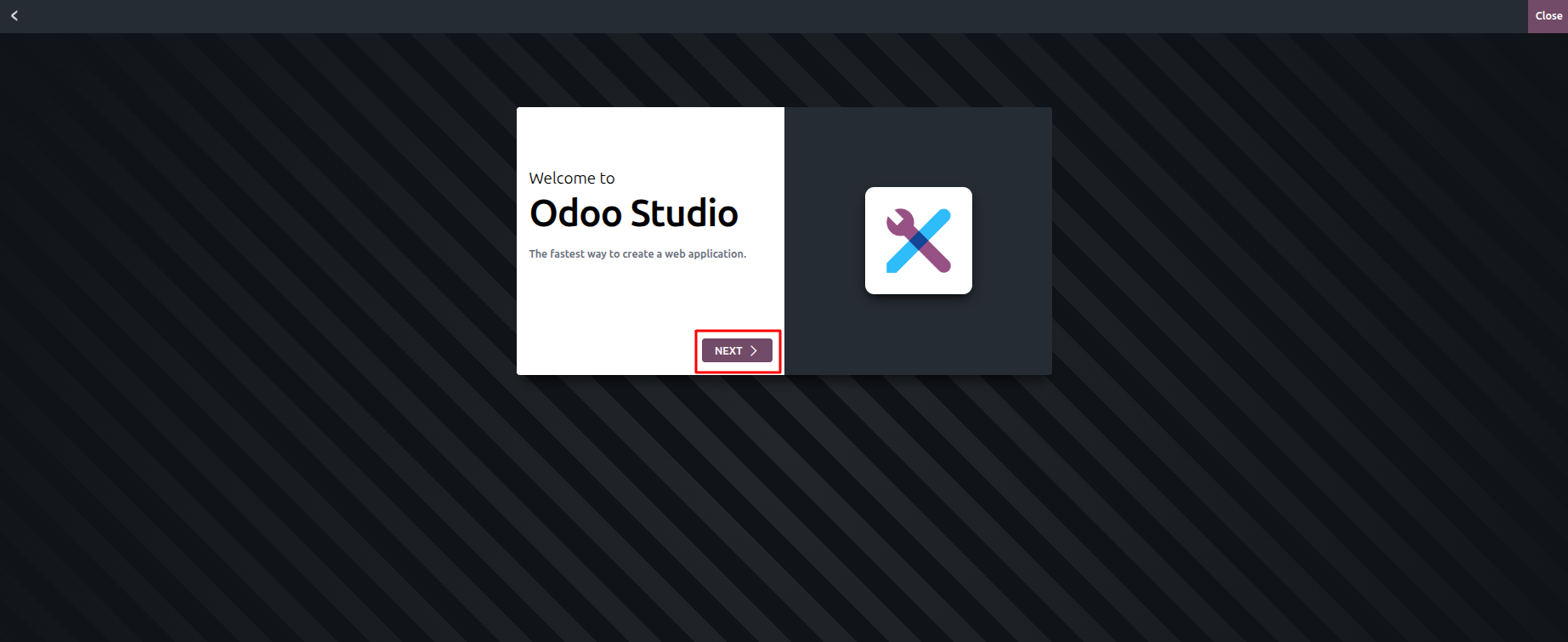
Selecting the "NEXT" button will move you to another screen that closely resembles the window displayed after choosing the "New App" option, allowing you to continue the configuration process.
Next, you can assign a name to your application and choose an icon to represent it. The icon's colour can also be customized, allowing you to personalize the app's appearance to match your preferences or branding.
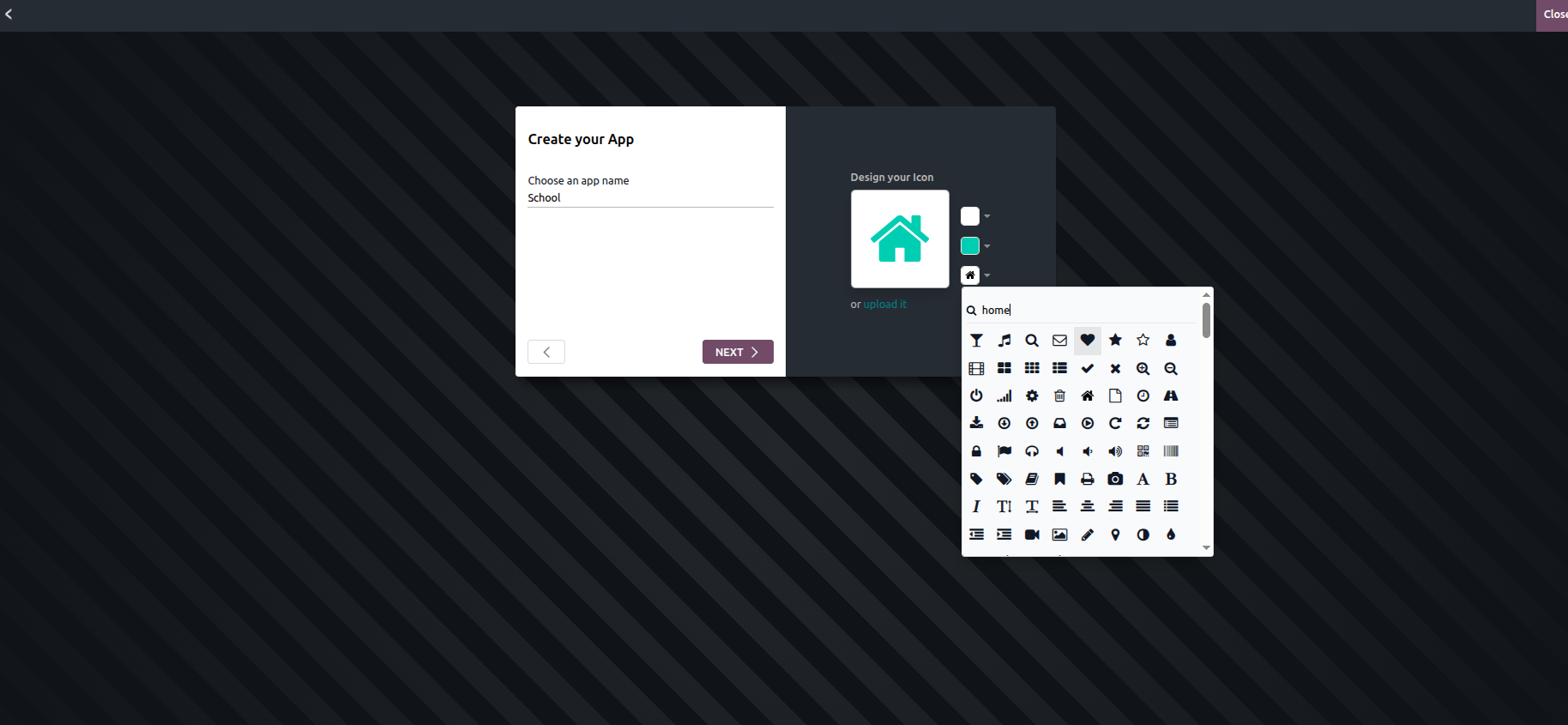
After this step, clicking the "NEXT" button helps you set up the first menu for your new module. This menu can be linked either to an existing model or to a newly created one, depending on how you want to structure your application.
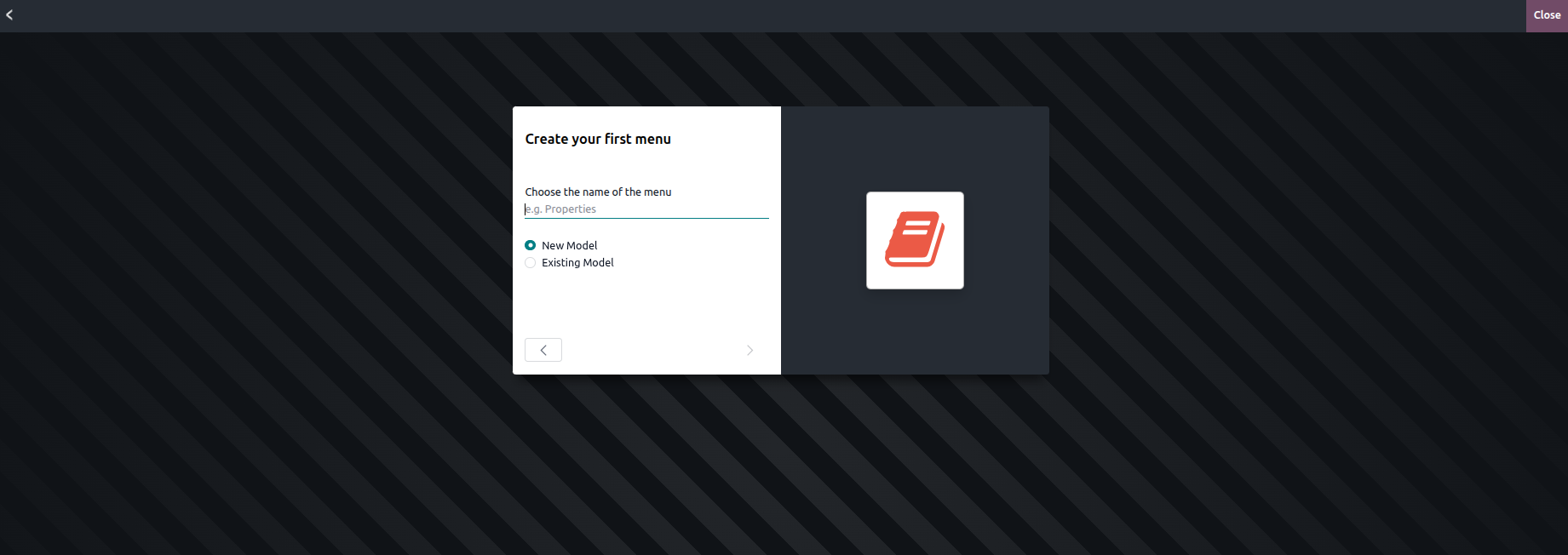
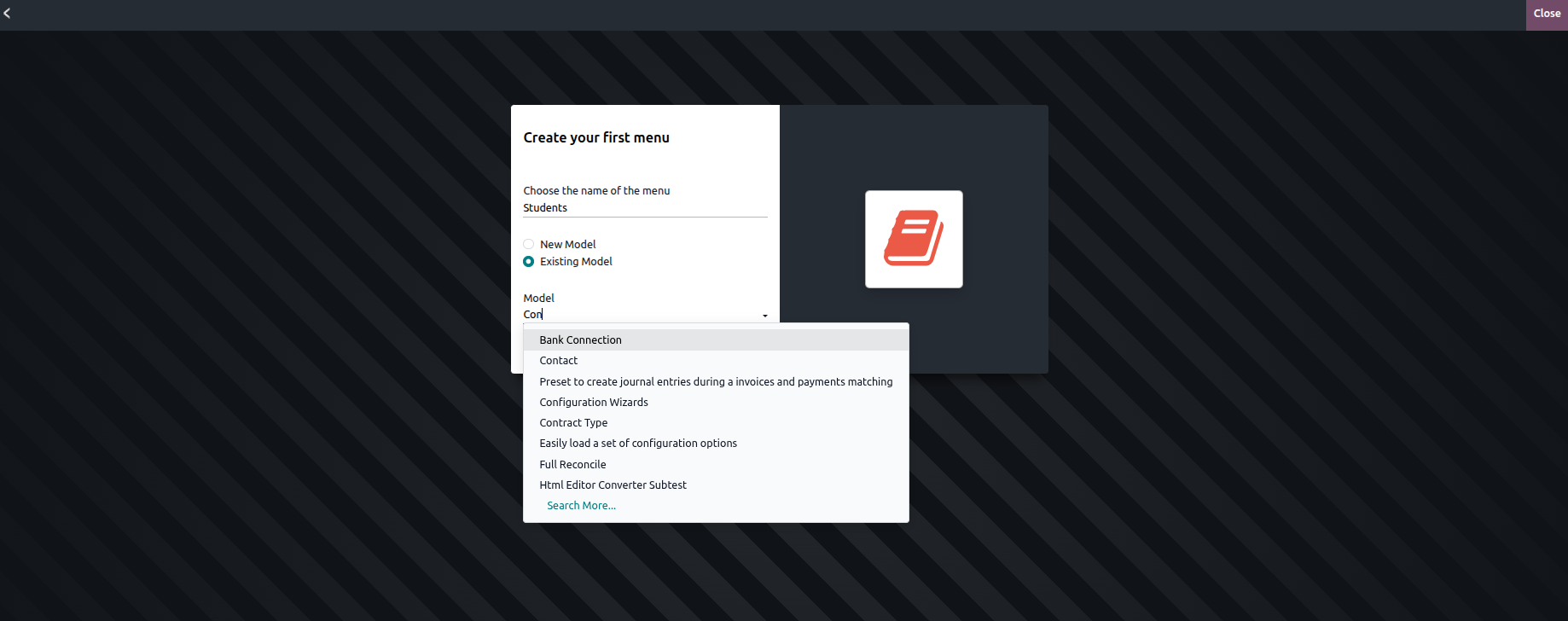
If you select "Existing Model" for the initial menu, you must choose one model from the list of available existing models to link with that menu.
Afterward, you will be directed to a sample view of the selected model, where its existing fields are displayed. From this screen, you can reorganize the fields as needed or add new ones by dragging them in from the panel on the left.
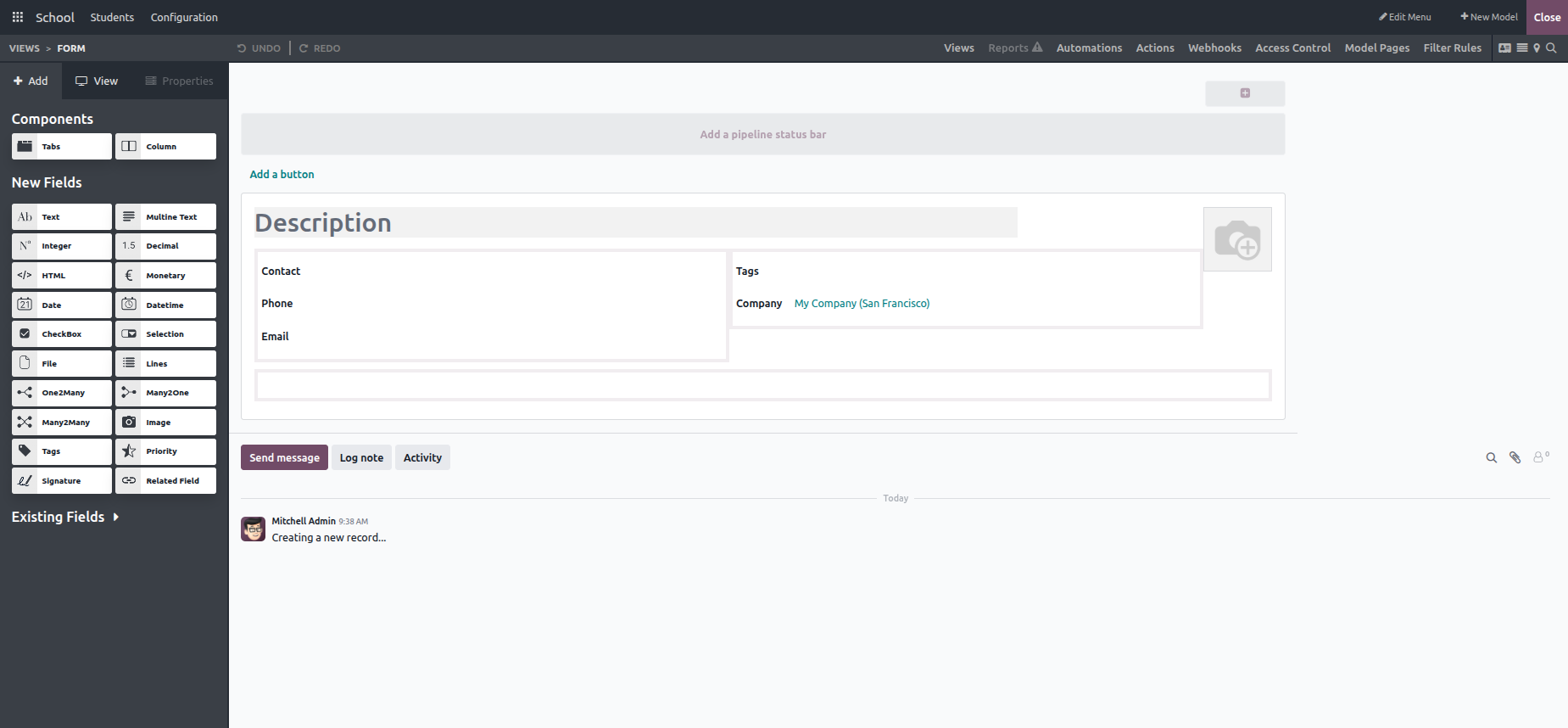
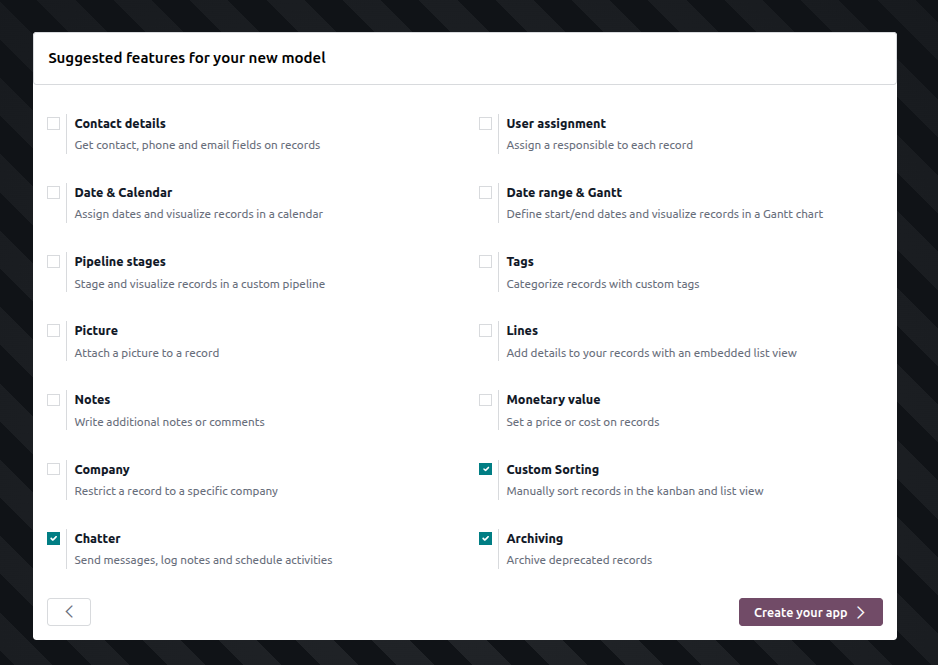
To include a new model in your custom application, the first step is to define its fields. In the next window, Studio presents a set of recommended features and options that can be applied to the new model to help you get started.
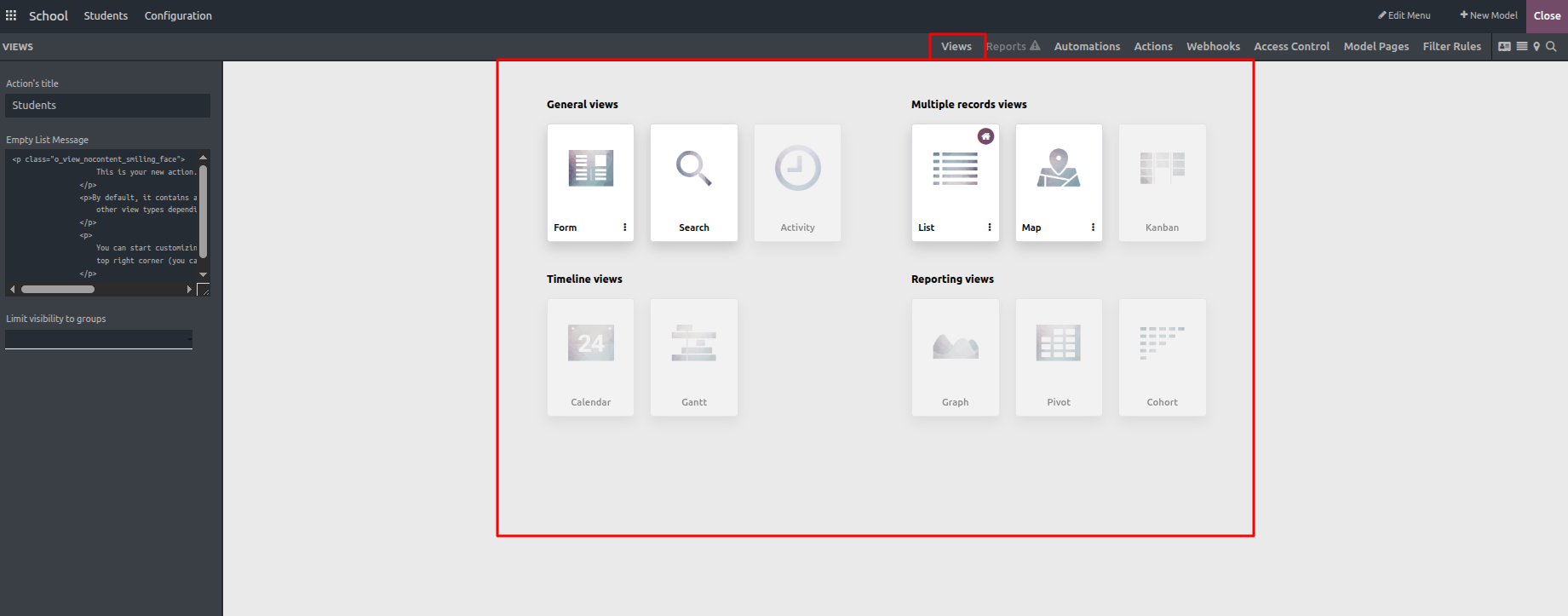
Moreover, the Studio module provides a range of design tools that enhance the ease of use and overall user experience of your application. By clicking the Views button at the top, you can quickly add different view types, such as List, Kanban, Calendar, and more to better present and manage your data.
Once you exit Studio, your first Odoo application created using Studio becomes available for use. It is automatically added to the main menus and linked models, allowing you to start working with it just like any other standard Odoo app.