A user interface (UI) consists of elements such as buttons, menus, screens, and input areas that allow users to interact with a computer system. Fields are specific components within the UI where information can be entered or displayed, and existing fields represent previously defined data that can be viewed or updated through the interface.
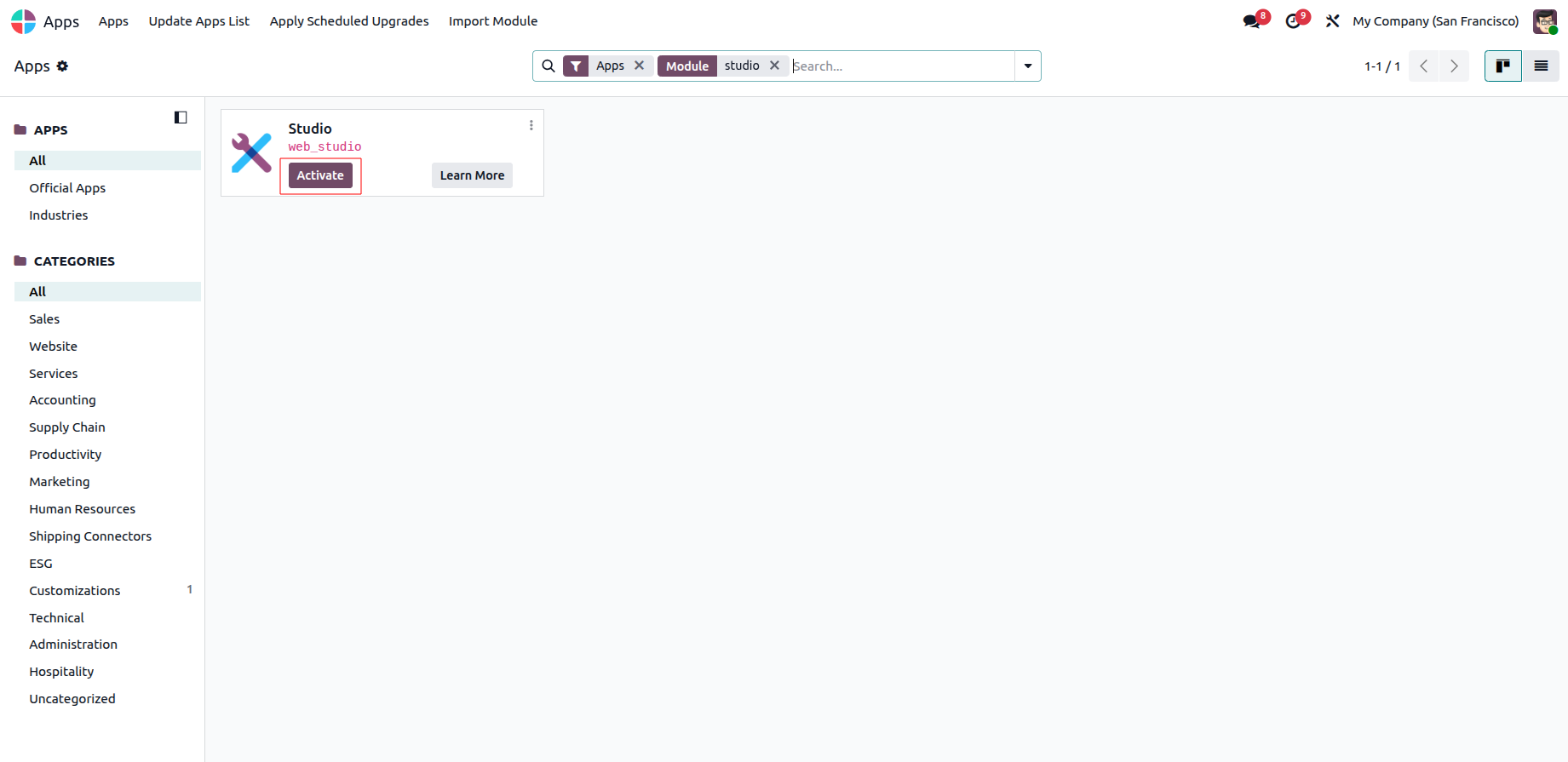
After installing the Studio module, you can find the editing control, labeled Toggle Studio, on the right side of the Odoo application dashboard. Switching this toggle on enables Studio mode, allowing you to use the advanced customization tools provided by the Studio module.
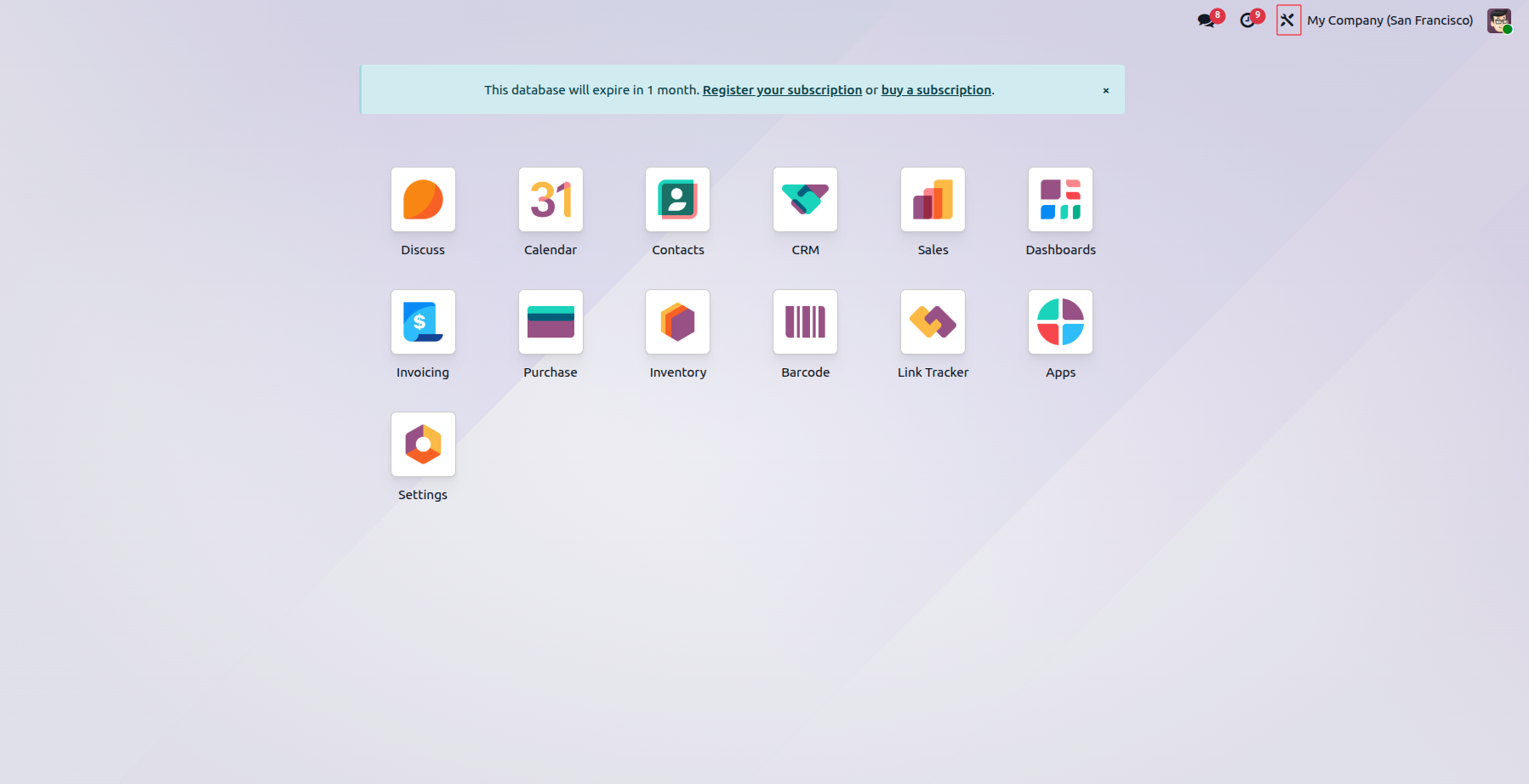
With the Studio toggle enabled, you can either build a new application or customize an existing one. Studio mode also provides the option to adjust the application's background appearance. Additionally, the Export feature allows modules to be exported, while the Import feature supports bringing modules into the system, offering a flexible and efficient way to customize applications in Odoo.
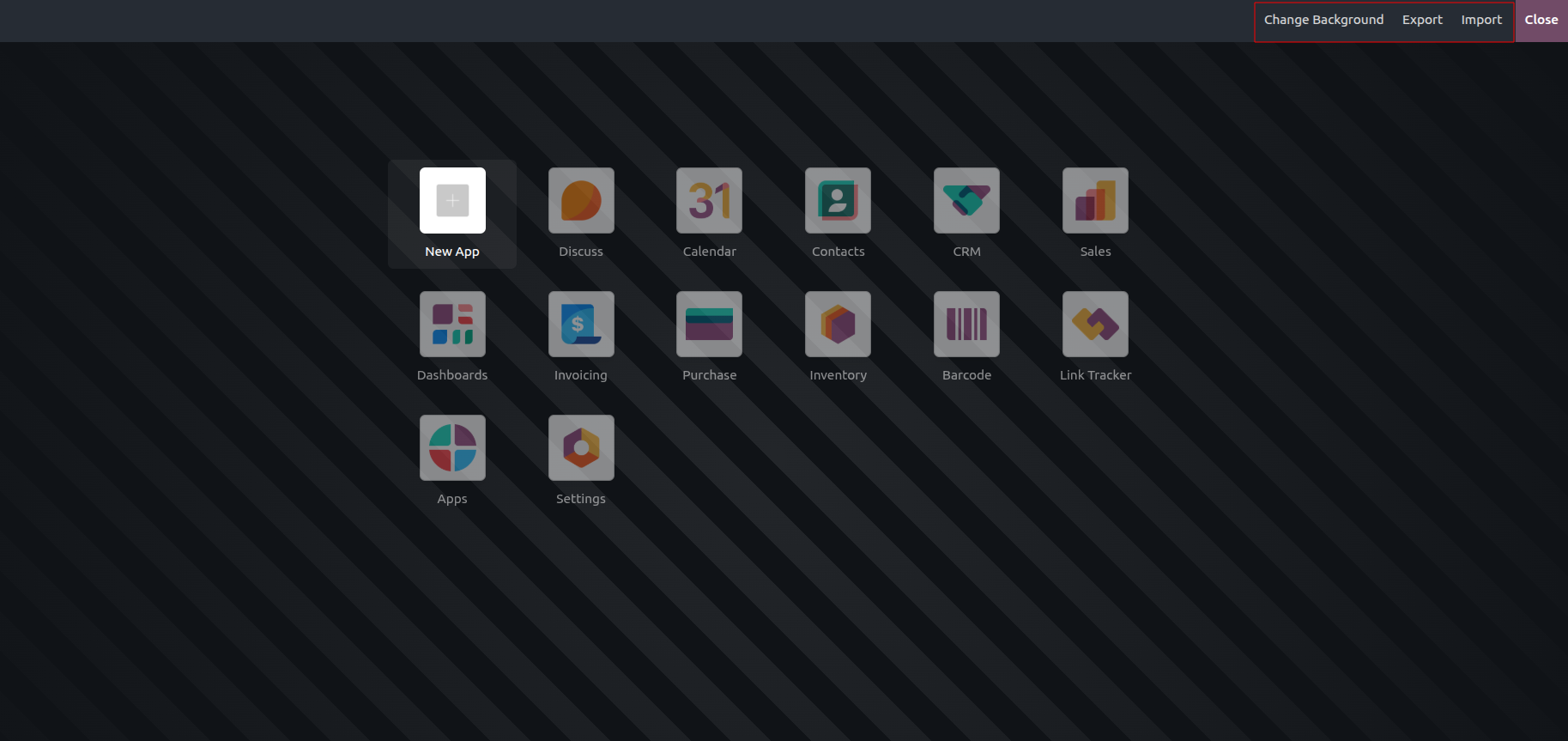
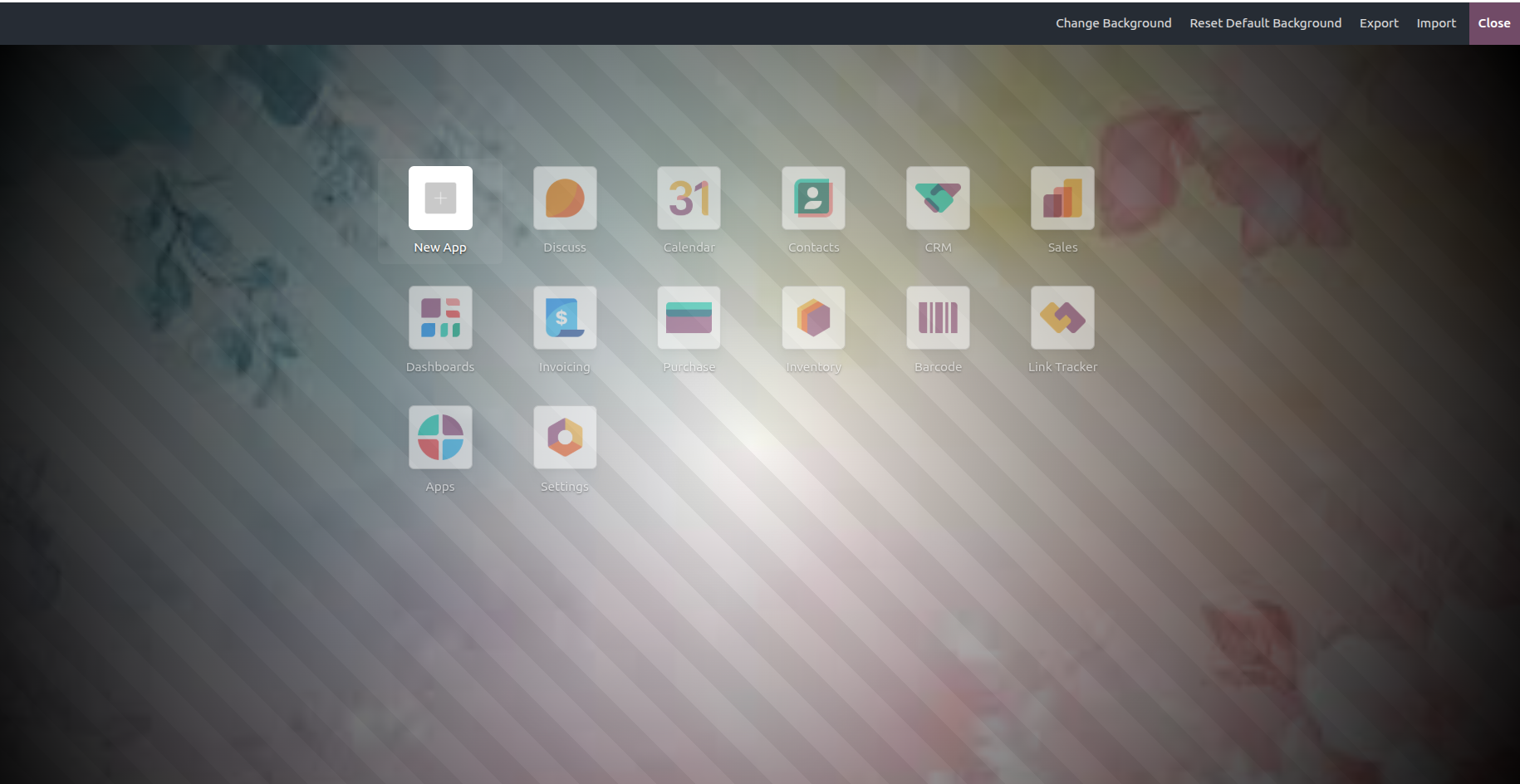
The customization menu, which can be opened through the Toggle Studio button, includes options such as import, export, and change background. By selecting the change background option, you can choose and apply a custom background, creating a more personalized and visually engaging interface.
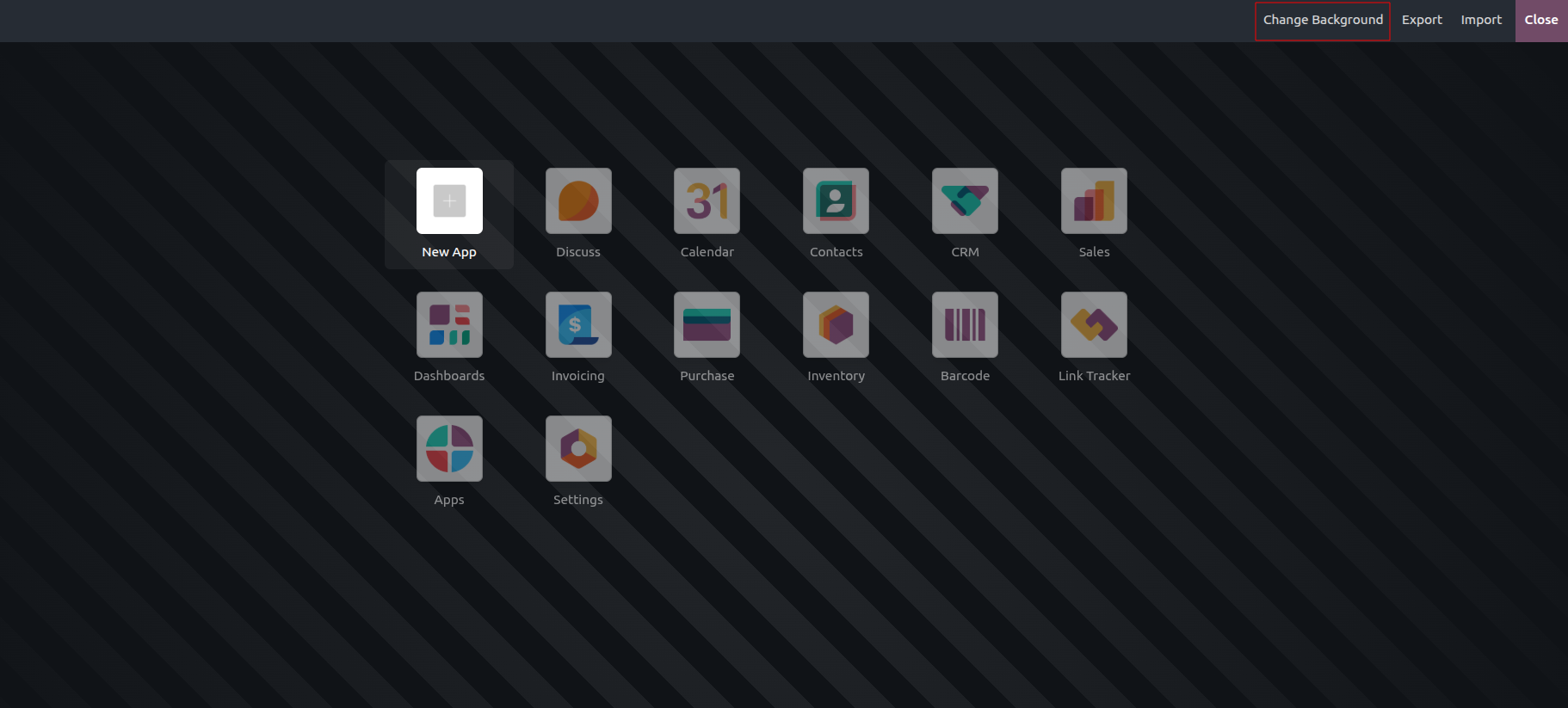
As shown, the custom background has been successfully updated.
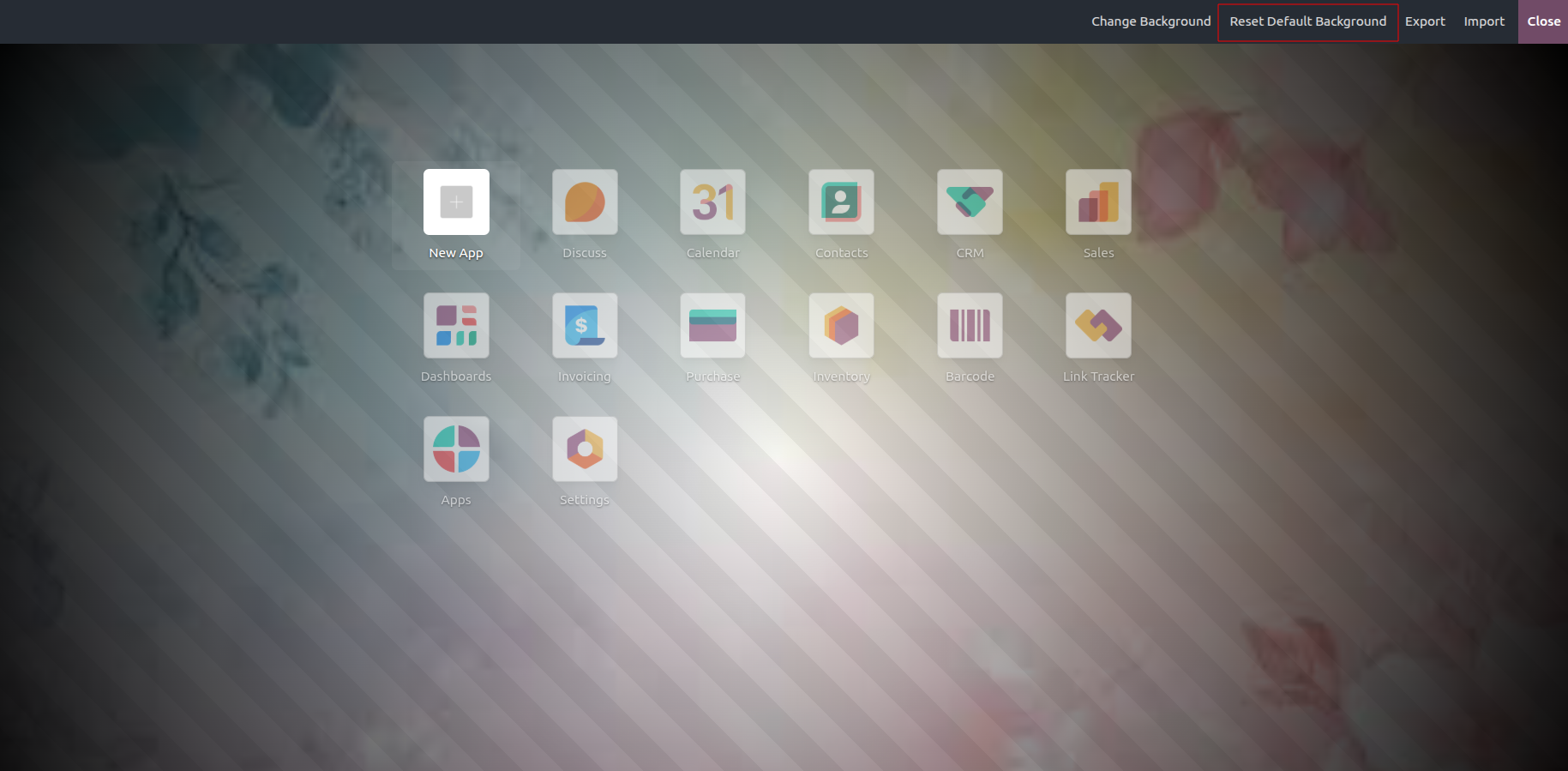
If you want to revert the current customized background to the original one, you can use the Reset Default Background option.
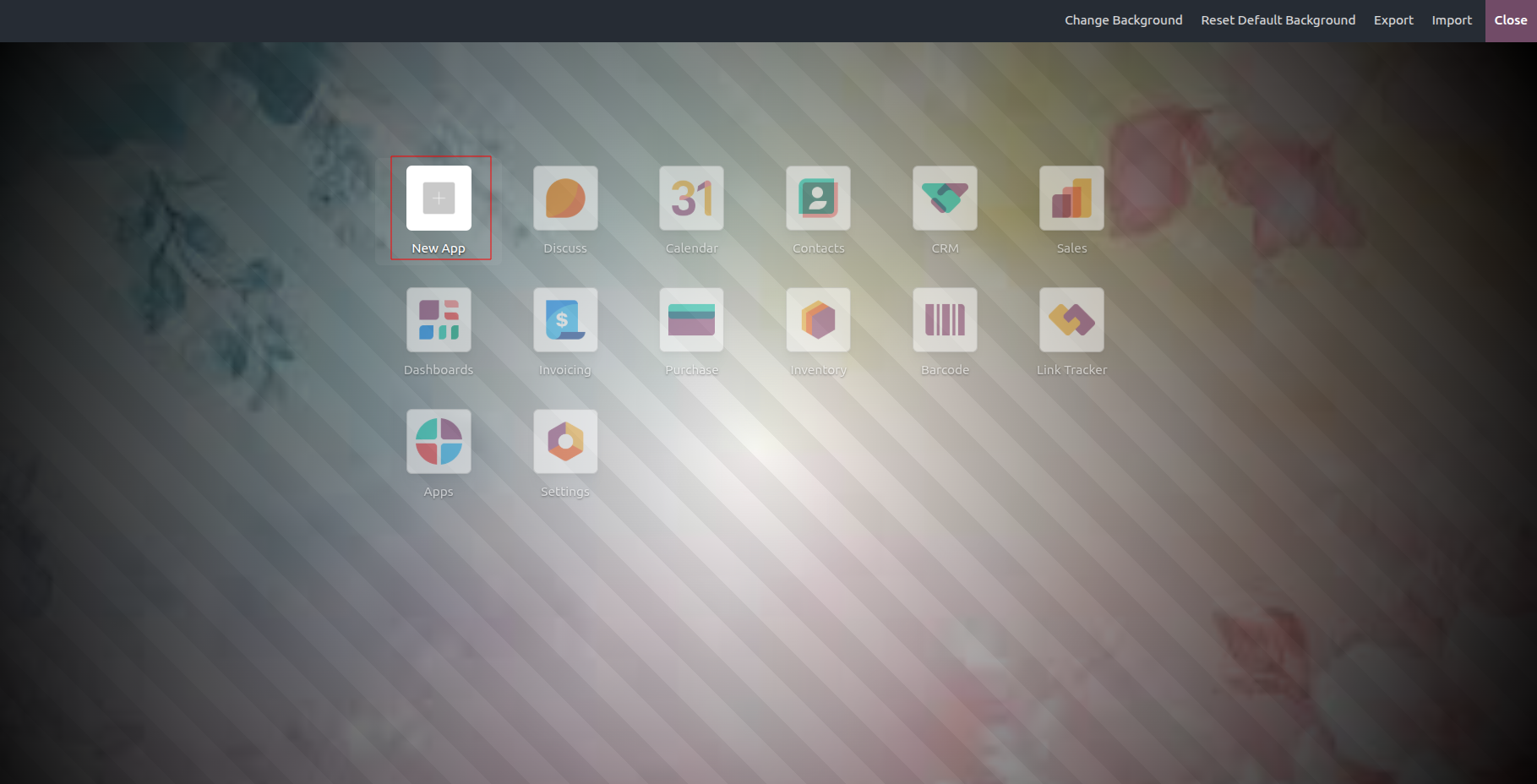
Select the new app icon to continue with the application creation process. If you want to update an existing application, simply open it and apply the required changes using the various customization options available in Odoo.
To modify an existing application, select its icon from the Odoo application panel. In the top-left area, you will find the Views button. This option allows users to create and manage different view types, such as tree, form, Kanban, map, search, calendar, and others. The Views button acts as a flexible control for tailoring the user interface to meet specific needs and preferences.
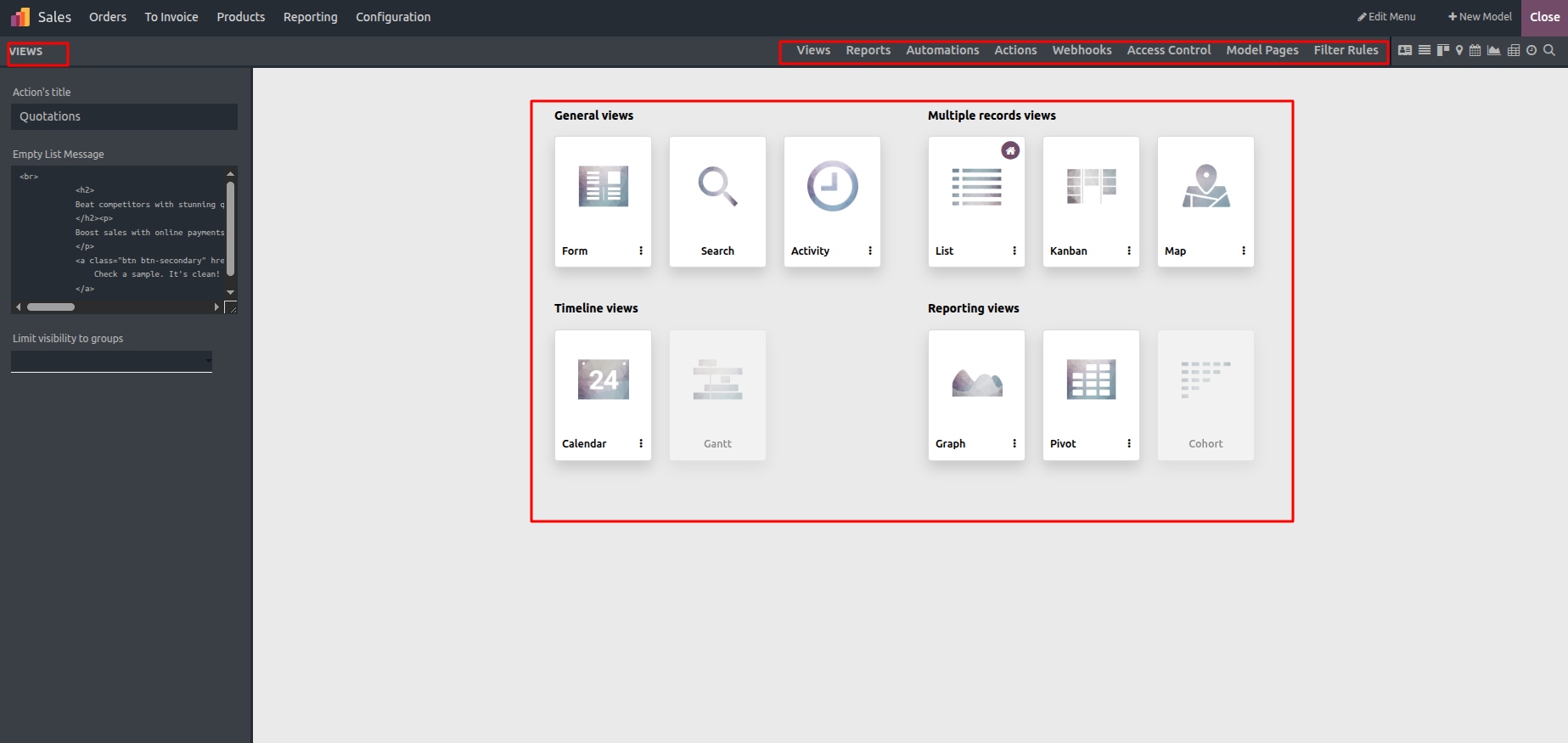
- Views: Used to manage and customize the different views associated with the model.
- Reports: Allows you to manage and review reports linked to the module.
- Automation: Enables the creation and modification of automated actions.
- Translations: Helps in adding and managing translations for the module.
- Access Rules: Used to configure and adjust access permissions.
- Filter Rules: Controls the filtering behavior within views.
- Model Pages: Allows customization of the related web pages.
General Views
Timeline Views
Multiple record Views
Reporting Views
When Studio mode is enabled, icons for the different view types appear alongside the customization menus. Selecting any of these icons opens the related view in a separate window. From the window's menu bar, the Edit Menu option allows you to adjust and customize the application's menus as needed.
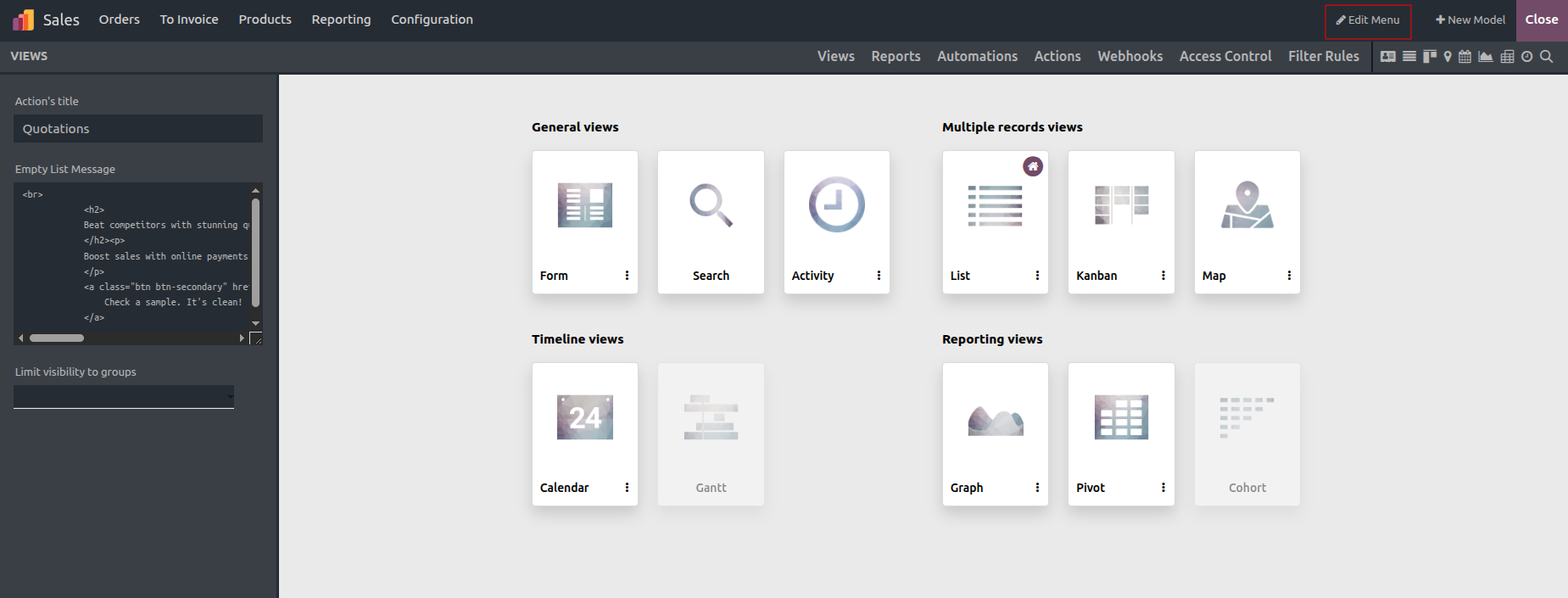
Choosing the New Menu option allows you to create a custom menu for your system, as well as edit or delete existing menus.
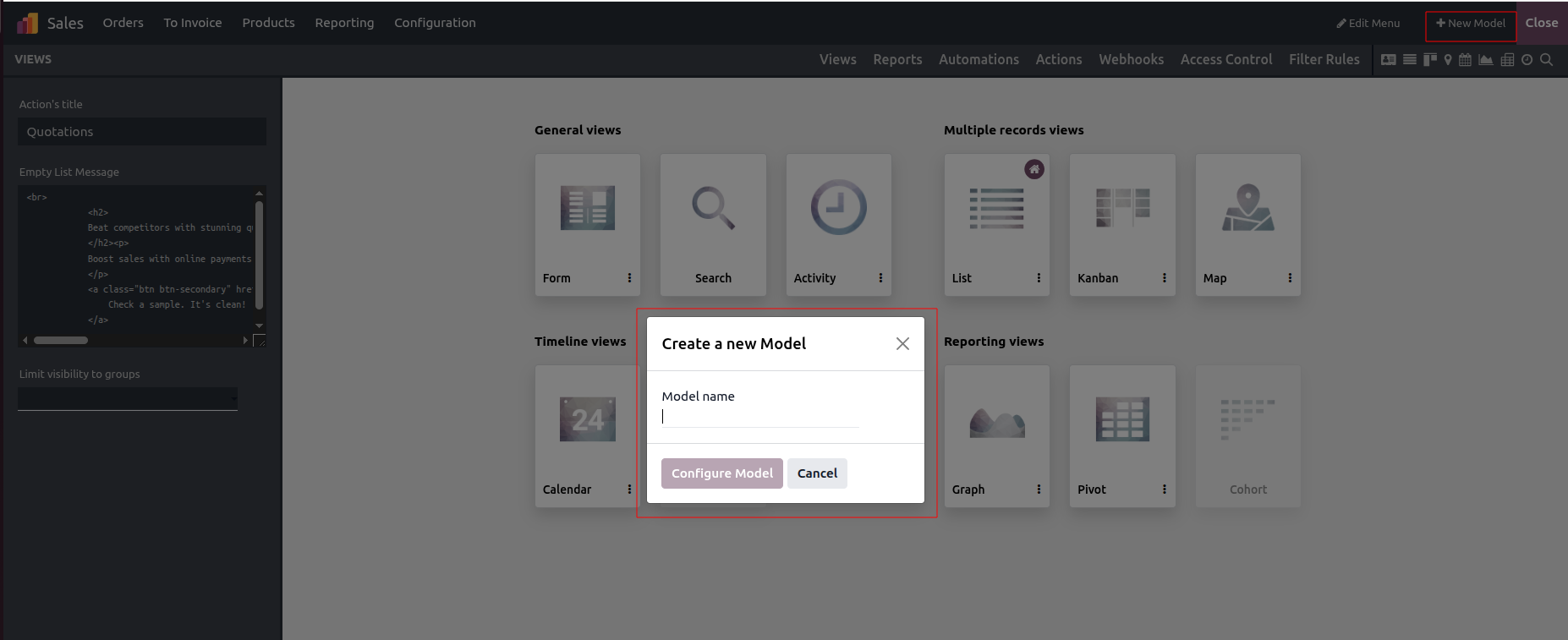
Clicking the New Model button enables you to define and create a new model within the system.
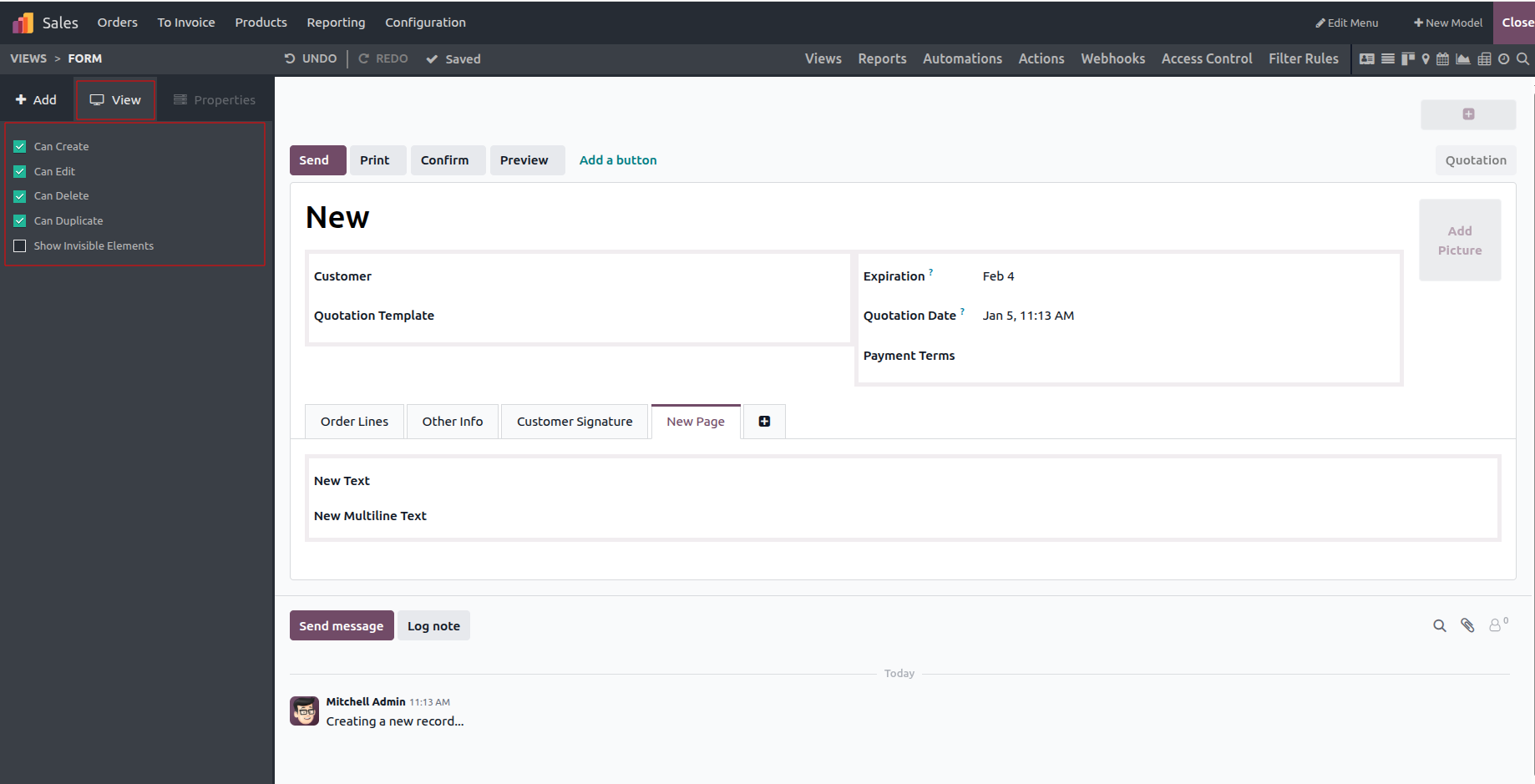
Three tabs, Add, View, and Properties, are available on the left side of the interface.
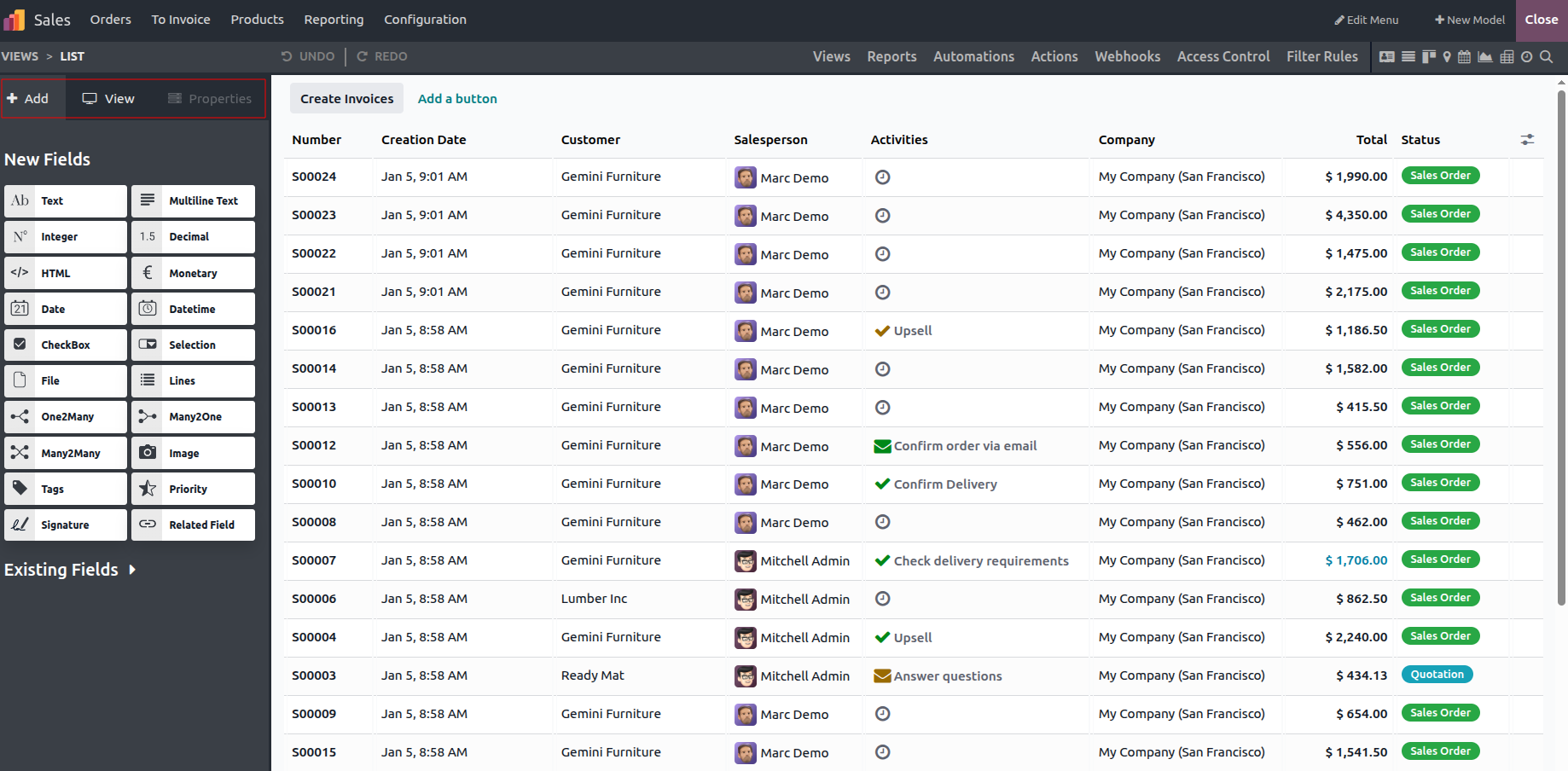
Use the Add tab to insert new components and fields, as well as to include existing fields that are not currently displayed in the view.
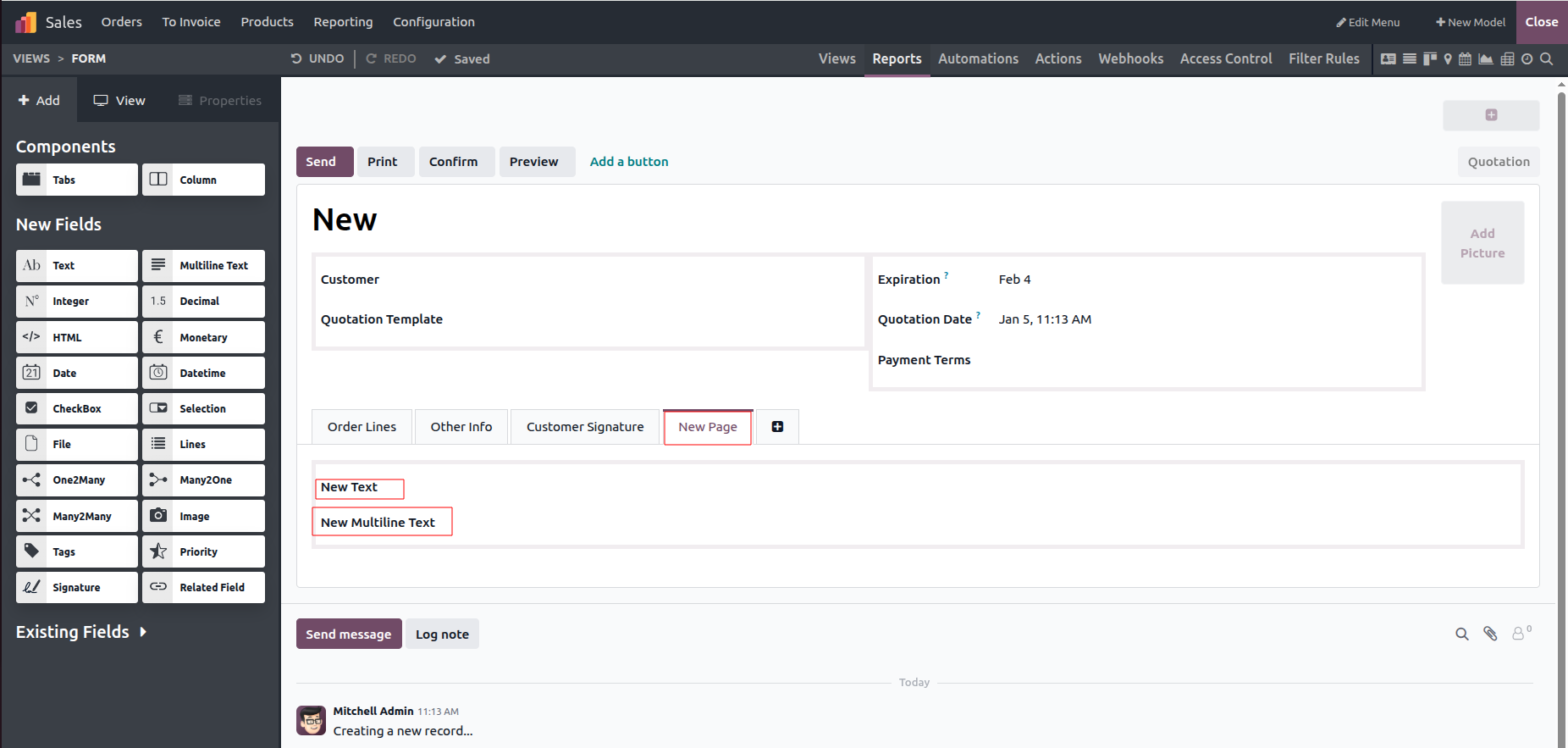
Within the View tab, you can configure permissions such as Create, Edit, Duplicate and Delete for the view. It also provides an option to control whether hidden elements should be visible.
By selecting the Properties menu, you can adjust the behavior of fields. Options such as Invisible, Read-only, and Required can be configured, and the field label can also be modified for clearer identification.