A form view displays the details of one record at a time in a structured layout. It allows users to add, delete, or reorganize fields to customize and update the view as needed.
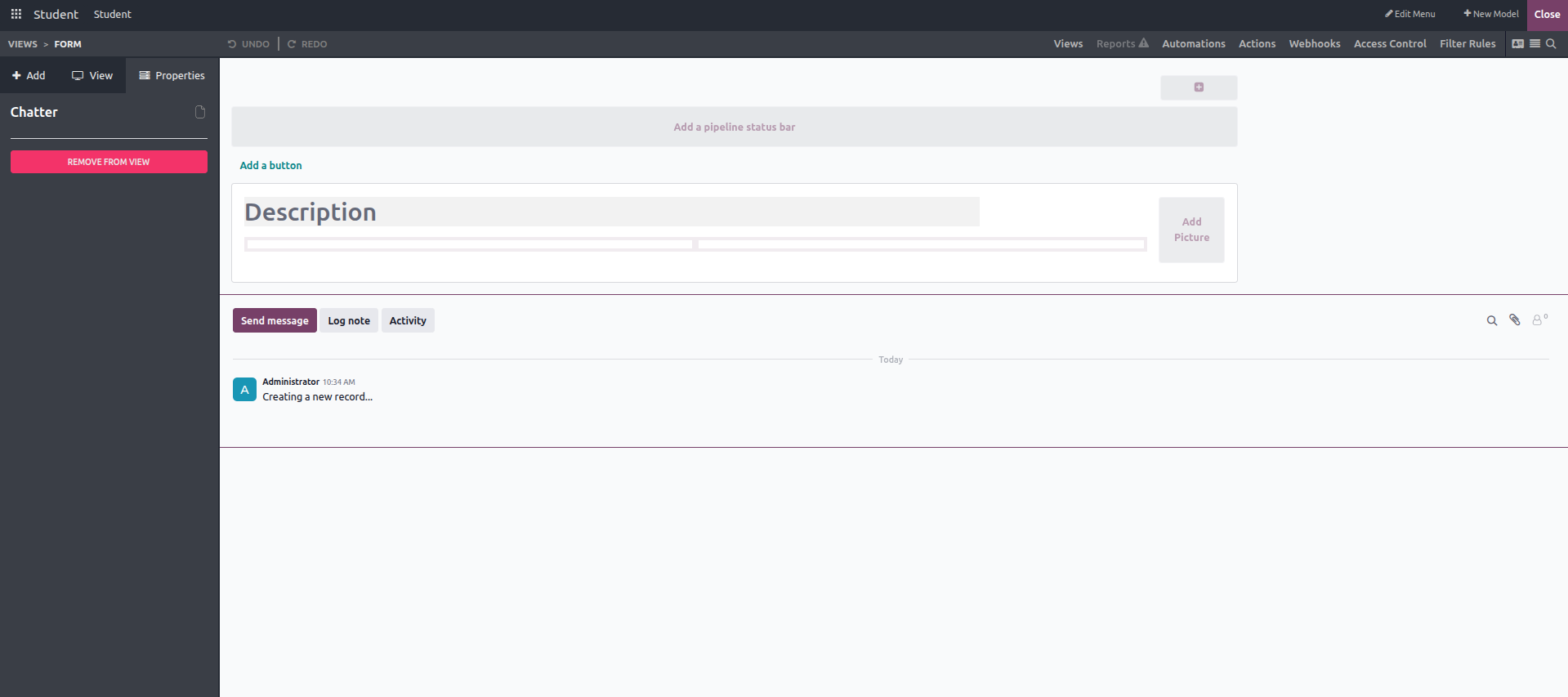
This is an example of the default form layout. It can be customized by deleting existing fields and adding new ones based on our requirements. On the left side, the Add panel provides different field types and components. These elements can be dragged and dropped onto the form, making it easy to adjust the layout to suit specific needs.
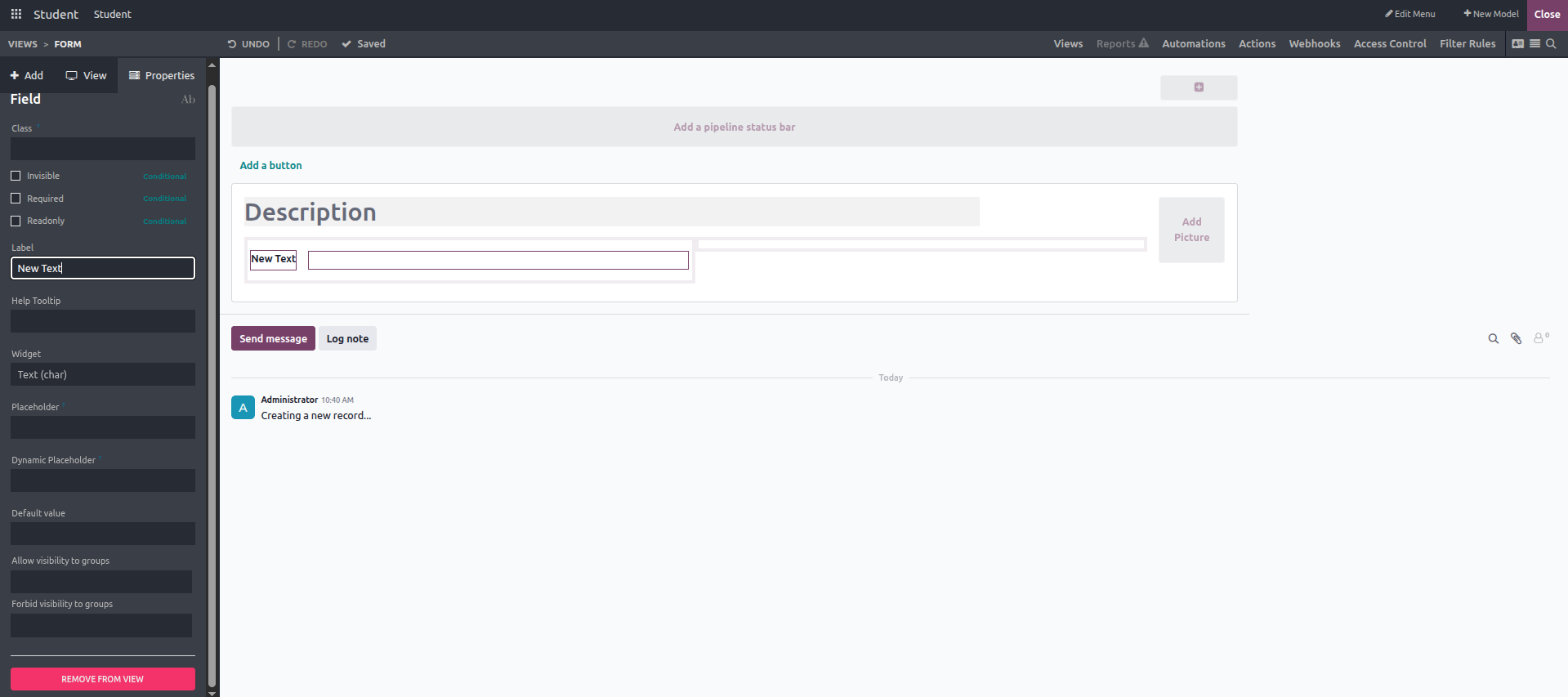
- Text: The Text field type is used to add a text input to the form by simply dragging and placing it at the desired location. You can define the field name using the label option, select a suitable widget, set a default value, and restrict its visibility to specific user groups if required.
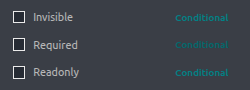
Additionally, enabling these checkboxes allows you to apply field properties such as hidden visibility, mandatory status, and read-only behavior.
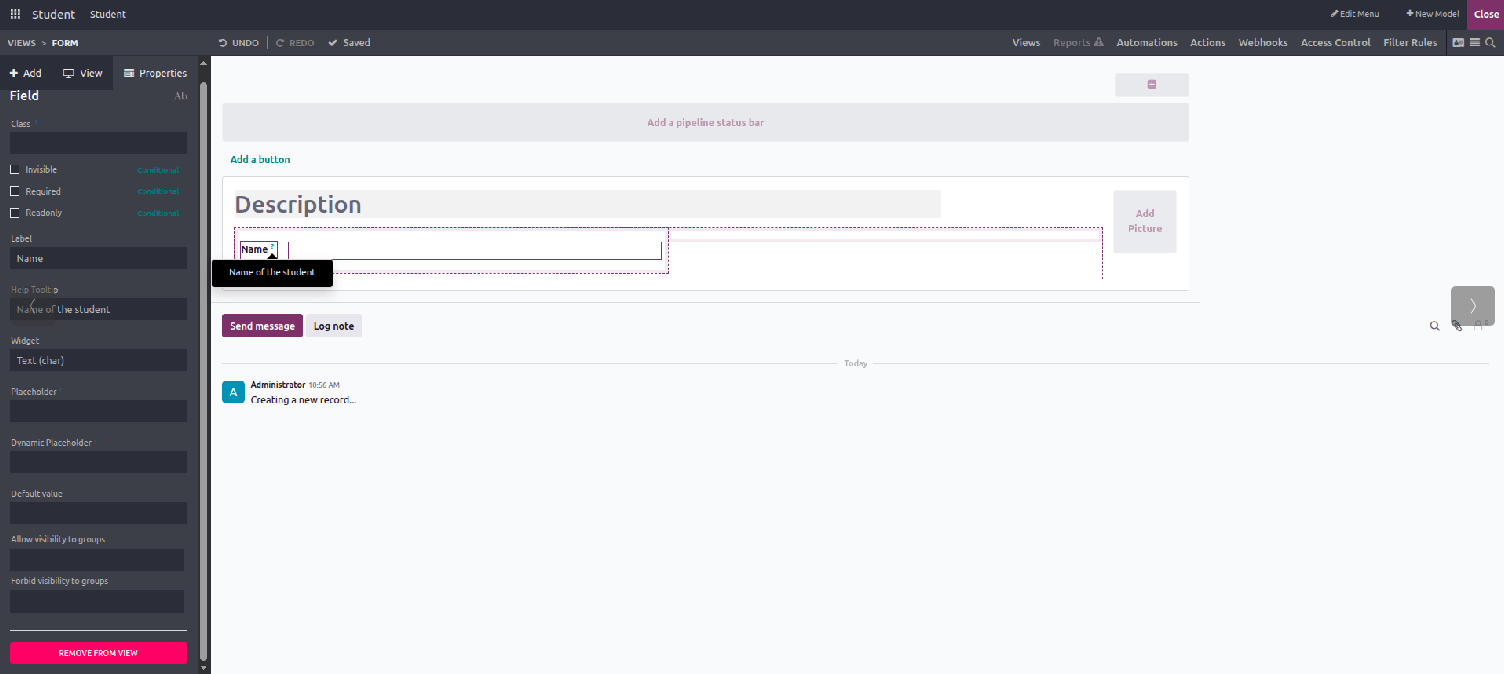
- Help: This helps convey extra details, guidance, or clarification about a field's purpose or how it should be used, making it easier for users to understand what information to enter or how to read the data.
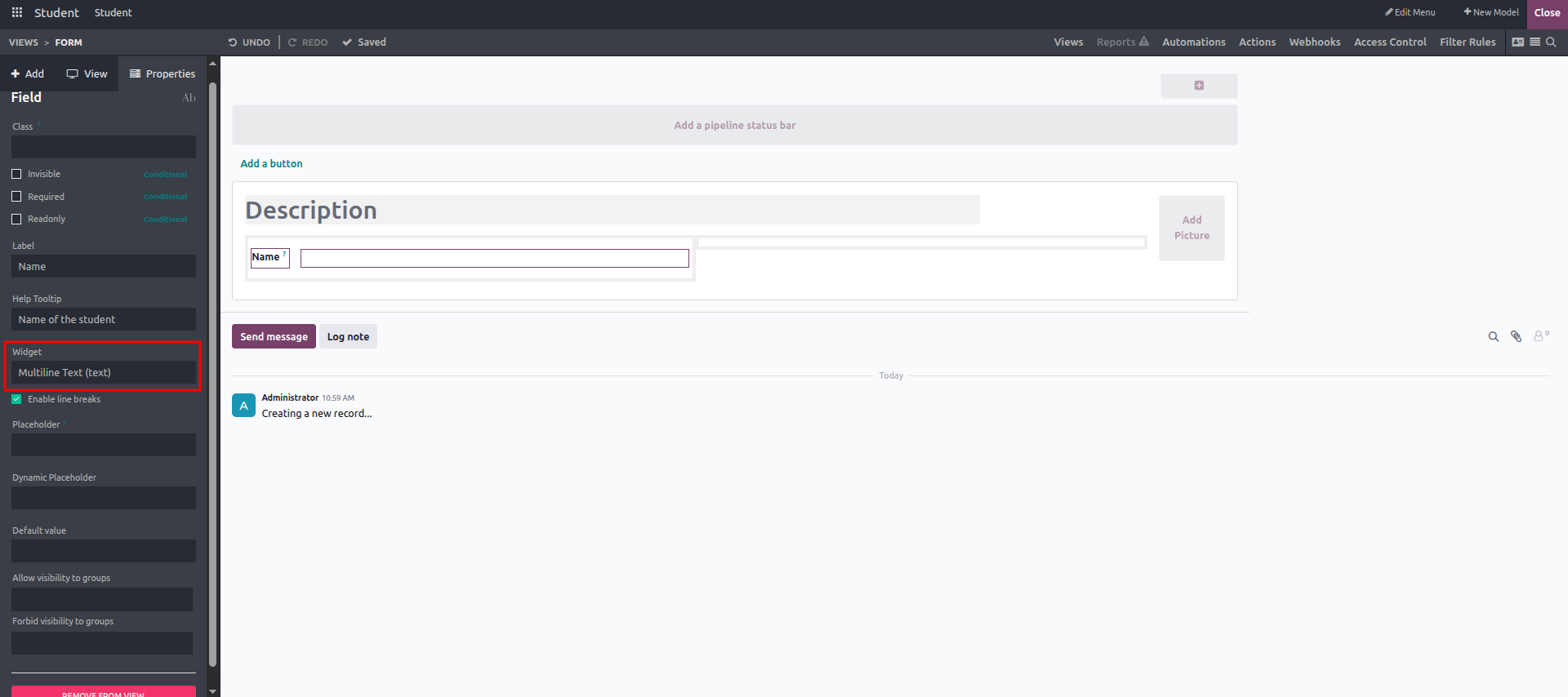
- Multiline Text: This option makes it possible to add one or more multiline text fields to the form view based on the requirement.
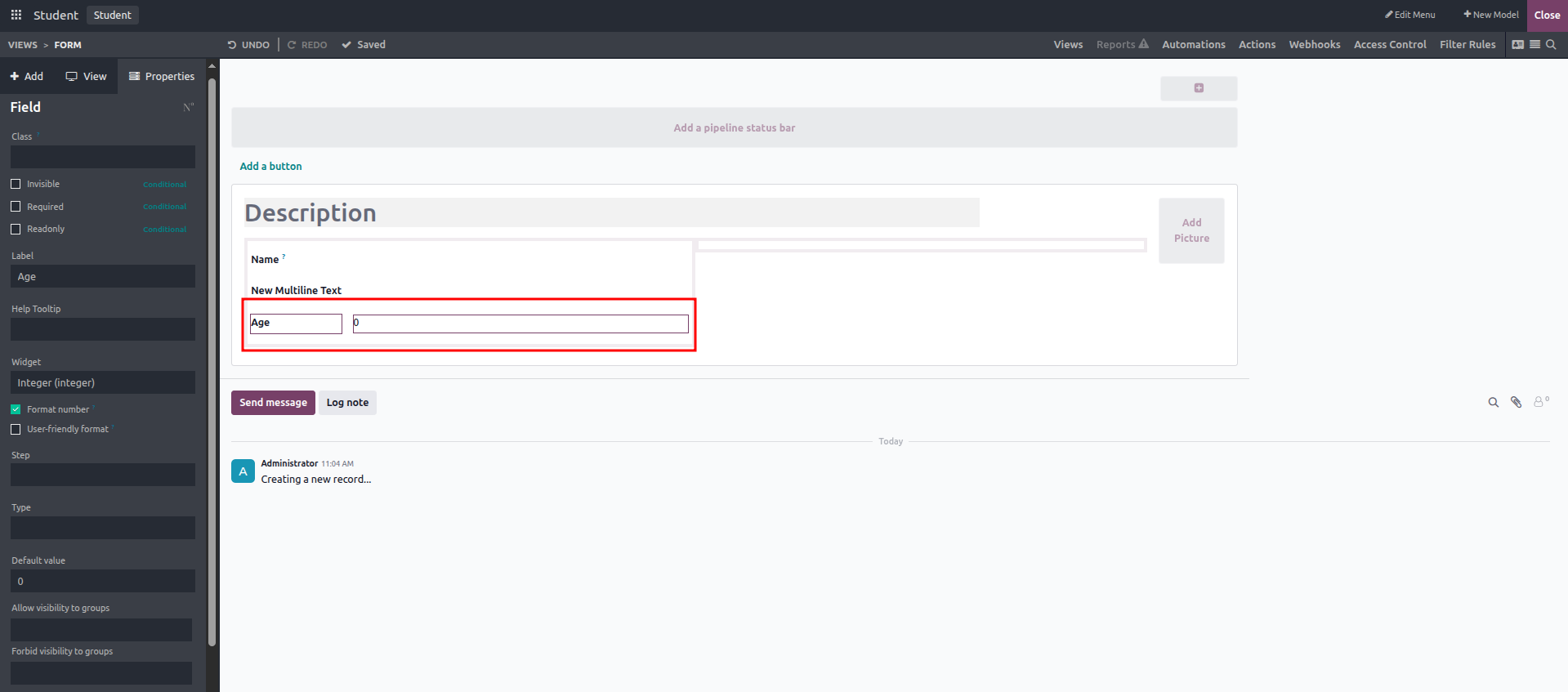
- Integer: This option adds an integer field to the form. It allows you to define a label, limit visibility to selected user groups, and set a default value, which is 0 by default.
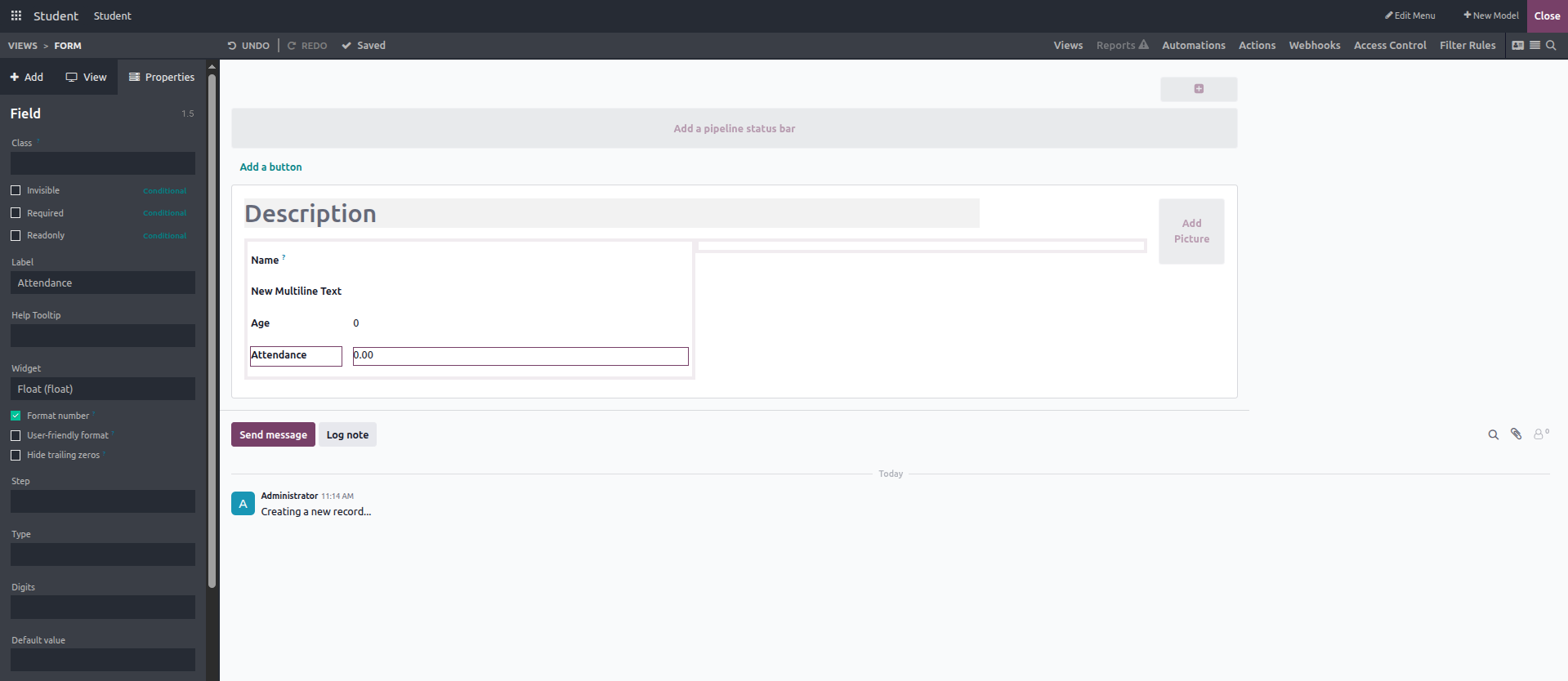
- Decimal: This field enables users to enter decimal (fractional) values in the form view.
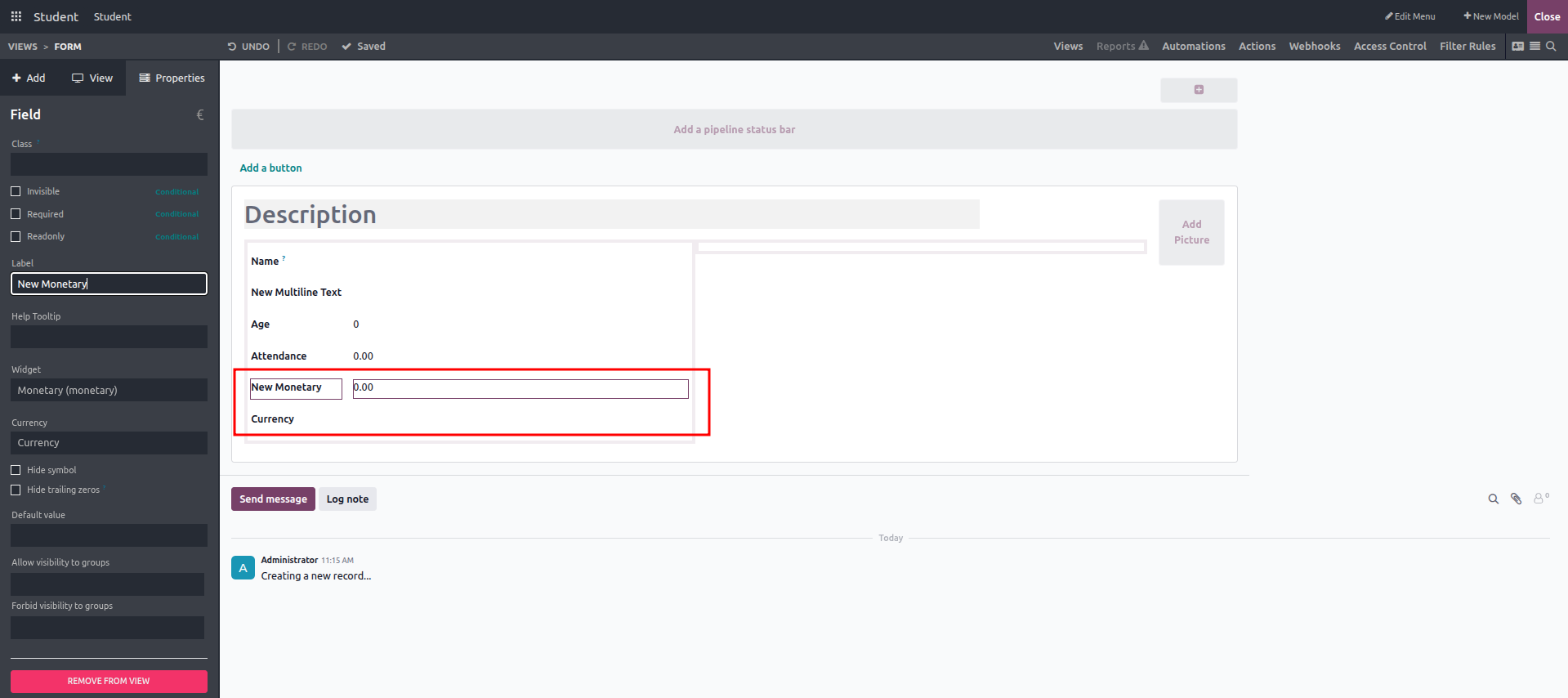
- Monetary: This field type is used to display and manage values related to financial or currency-based information.
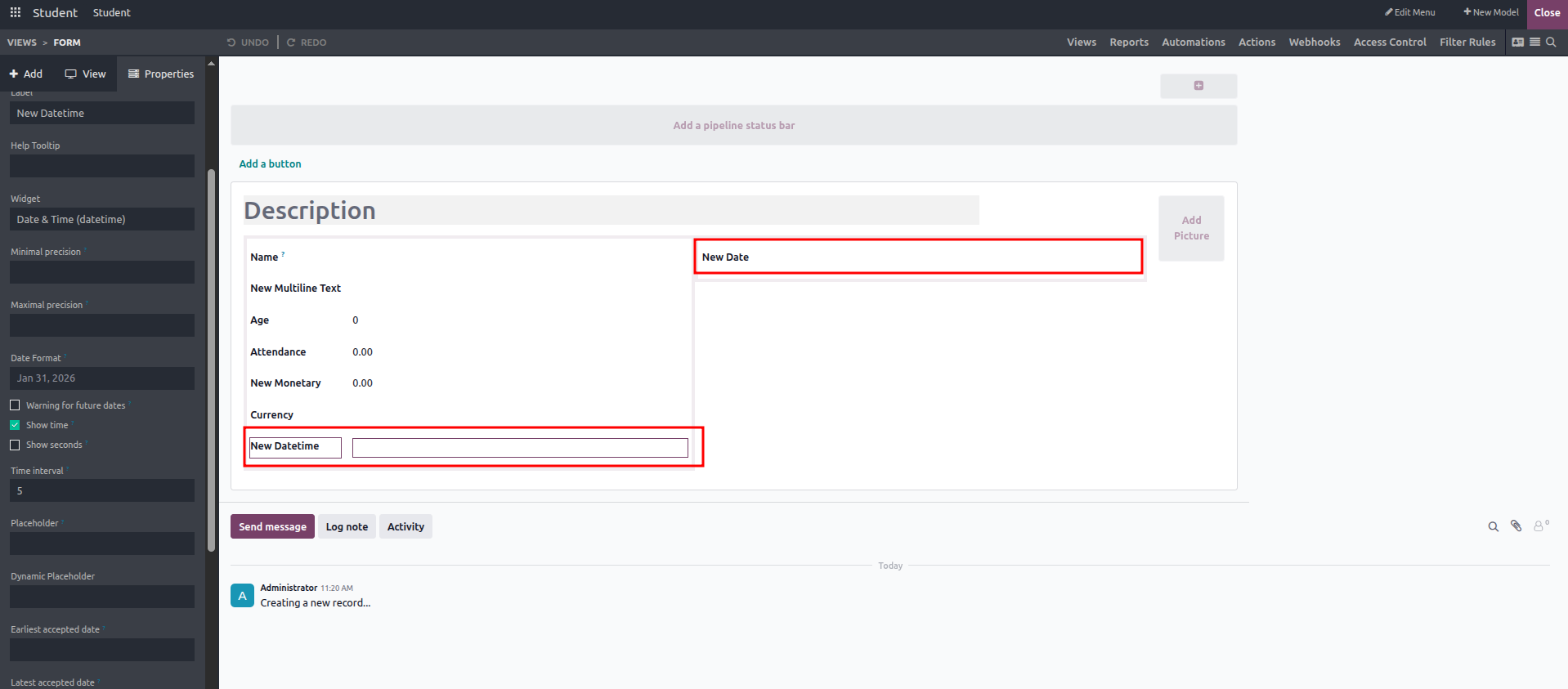
- Date: This field lets users enter and view a date. You can customize it by setting a label and adding help text for guidance.
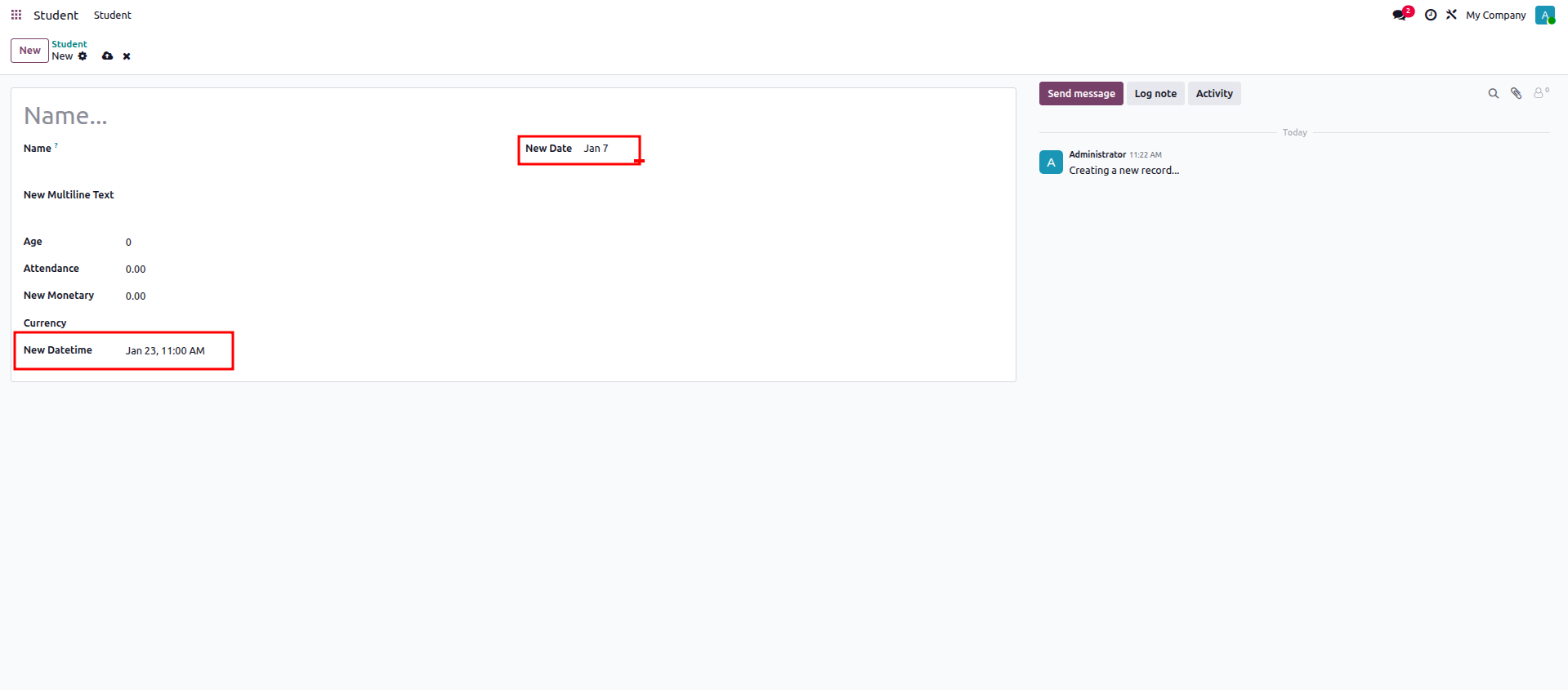
- Date & Time: This field displays both the date and the corresponding time, providing more detailed time-based information compared to the Date field.
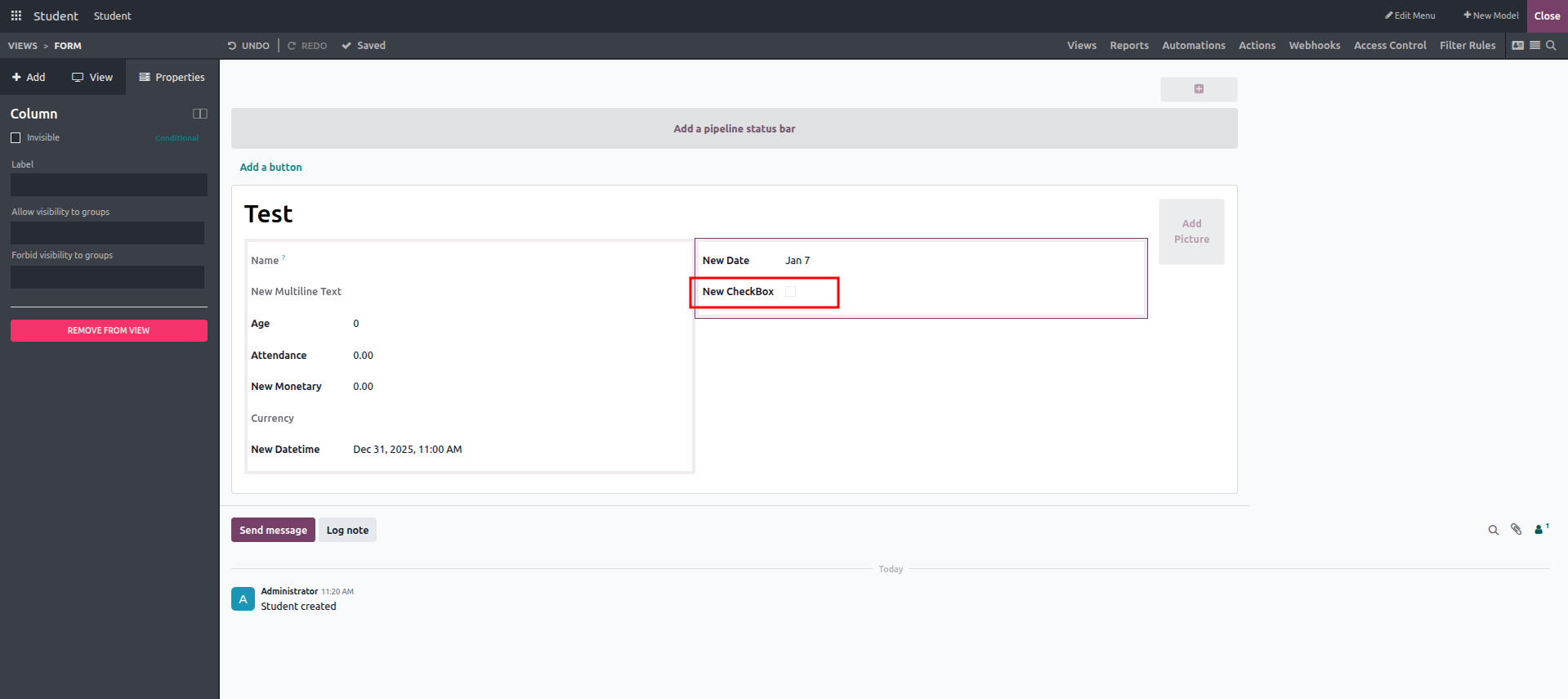
- Checkbox: This option adds a checkbox field to the form view. It allows you to define a label, set a default value (True or False), and limit visibility to specific user groups if required.
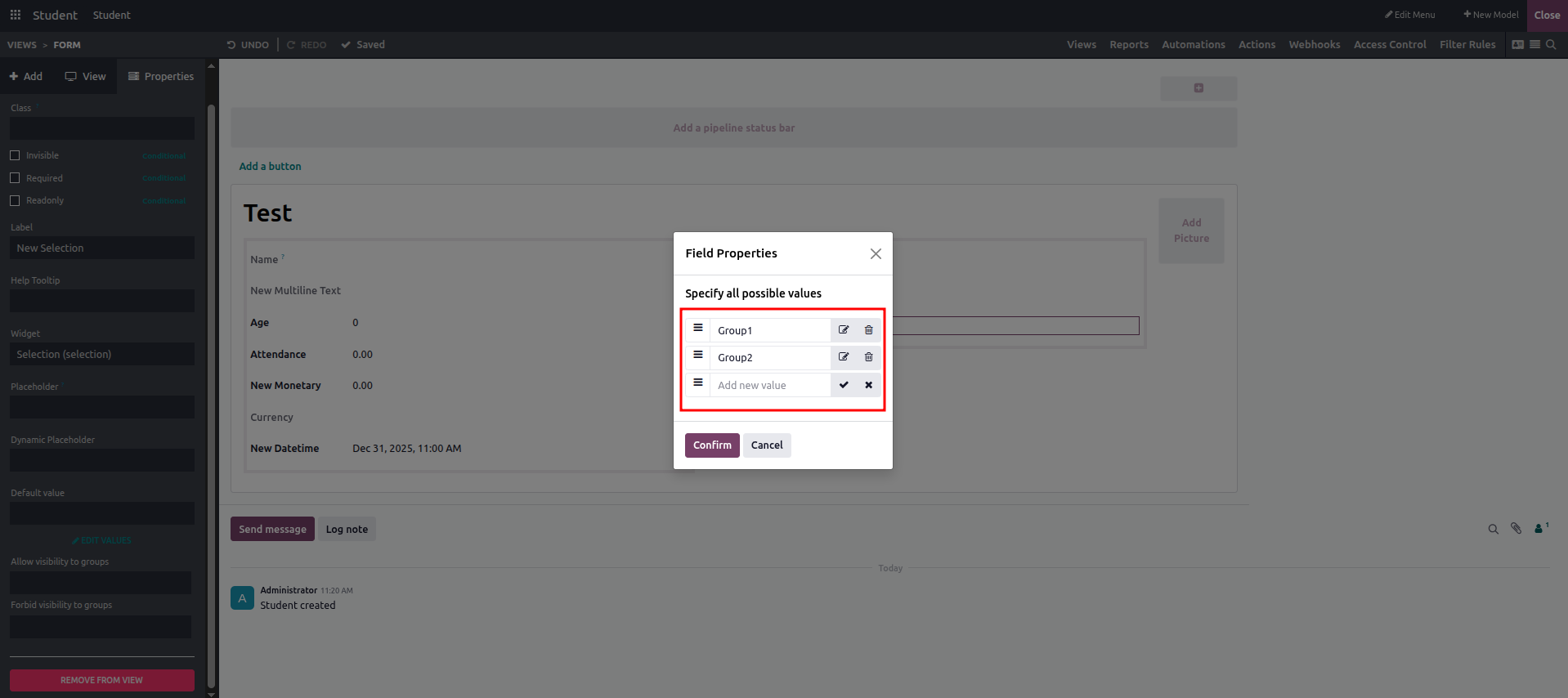
- Selection: This field lets users choose a value from a predefined set of options.
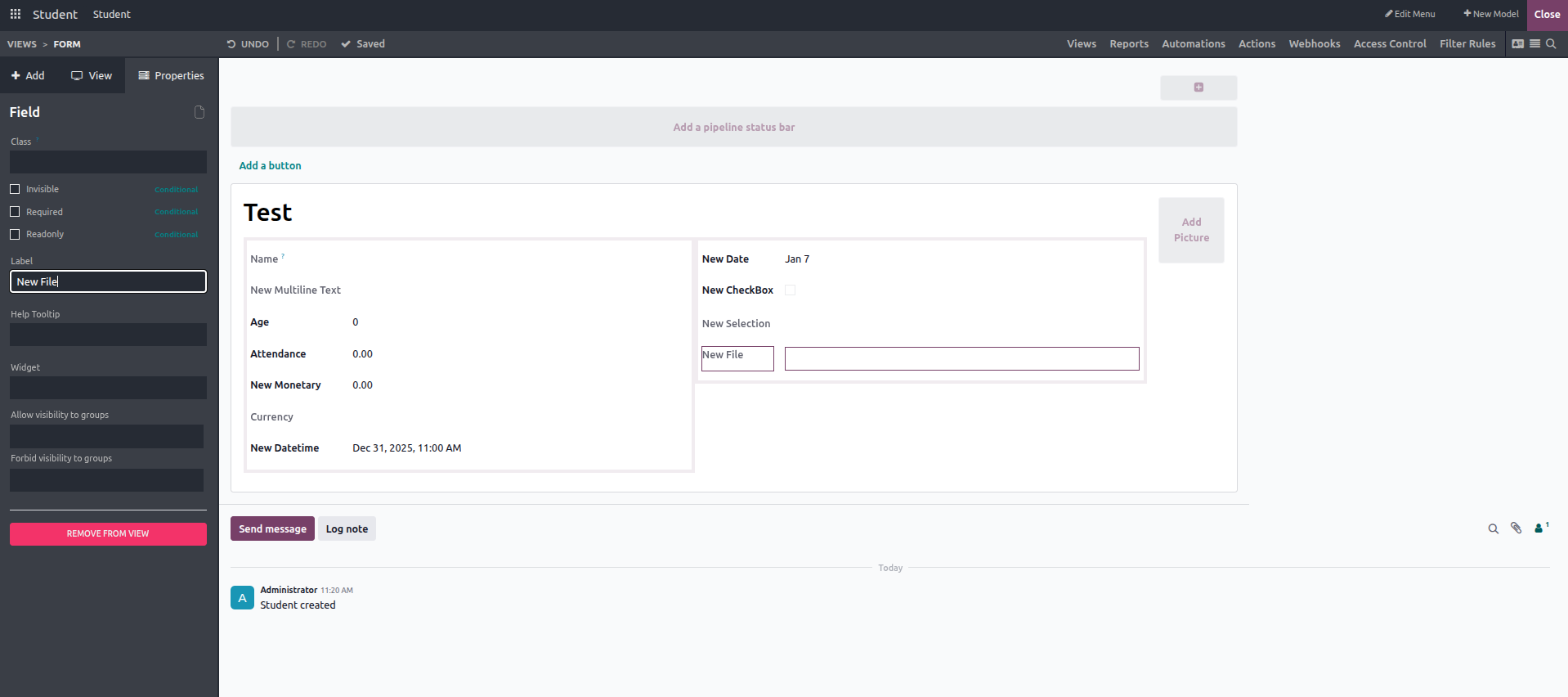
- File: This field enables users to upload and attach files to a record.
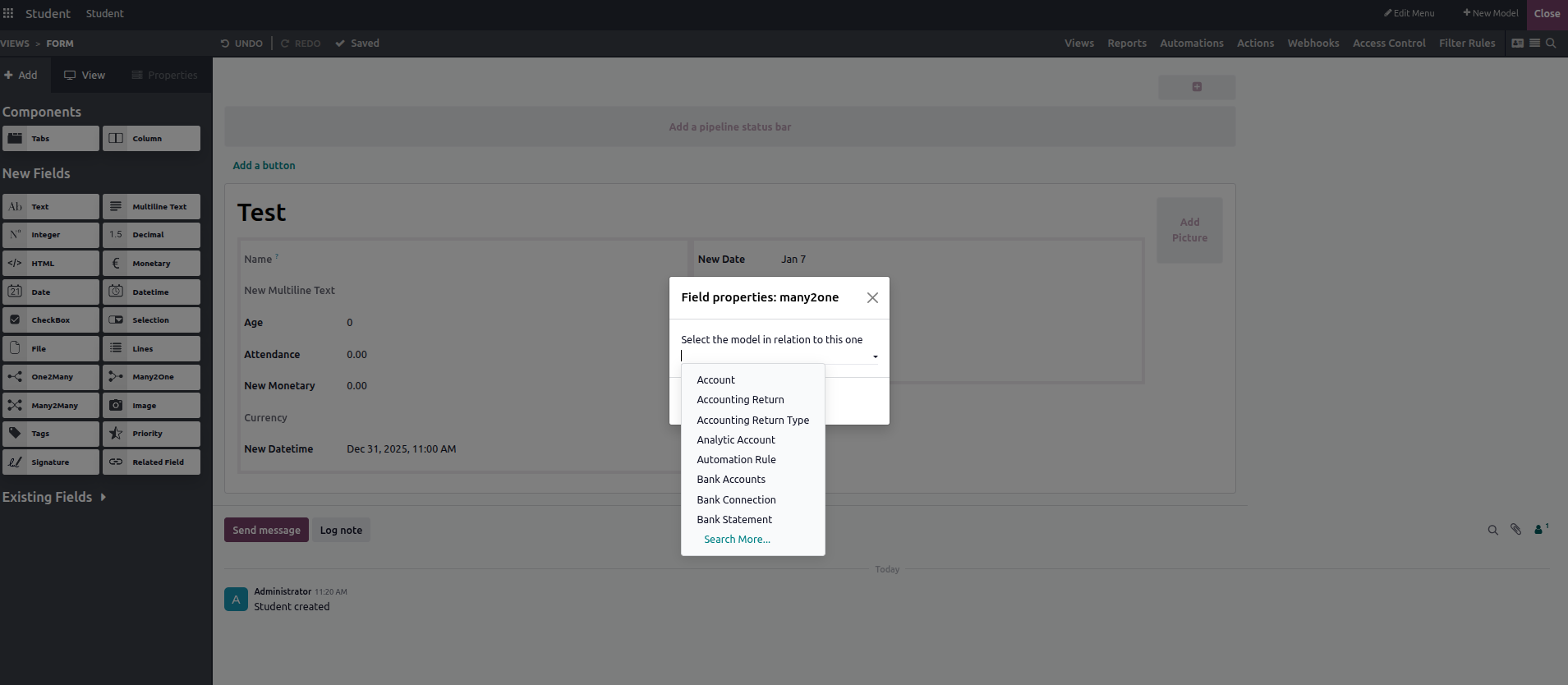
- Many2One: This field allows users to select a related record from another model.
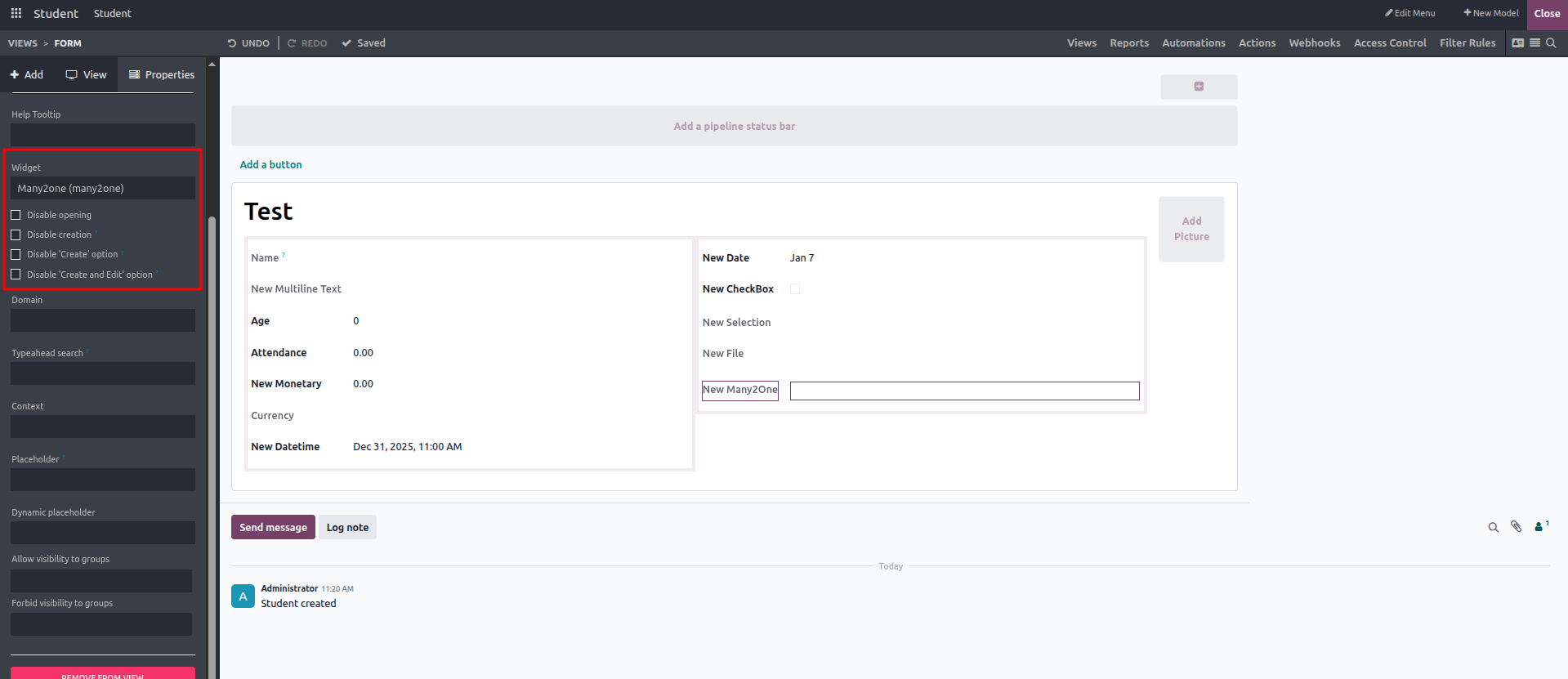
- Disable Opening: Prevents users from opening the selected related record.
- Disable Creation: Stops from creating a new record from the field.
- Disable "Create" Option: Hides the Create option in the dropdown list.
- Disable "Create and Edit" Option: Removes the Create and Edit option from the dropdown.
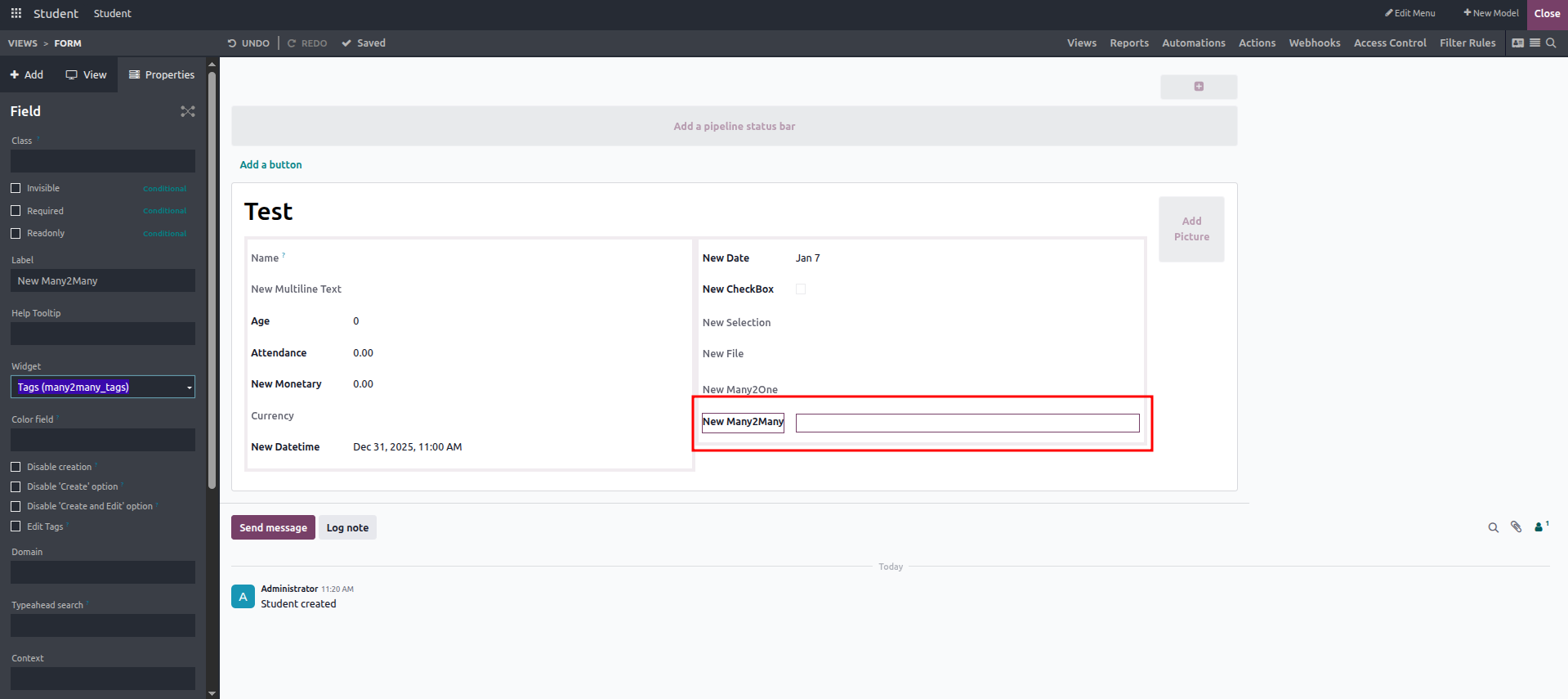
- Many2Many: Similarly, Many2Many fields can be created, and the widget can be set to Many2Many Tags for tag-style selection.
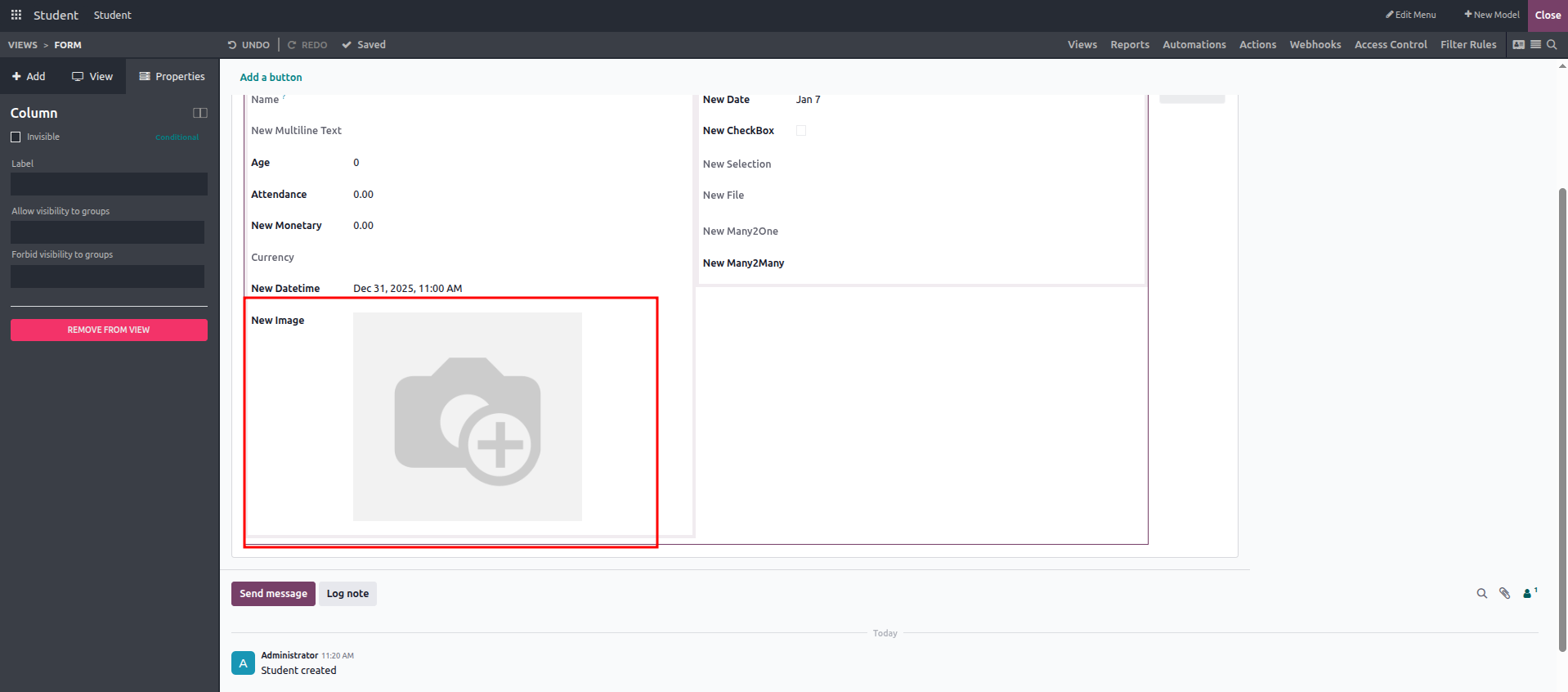
- Image: This field enables users to upload and display images within the form view.
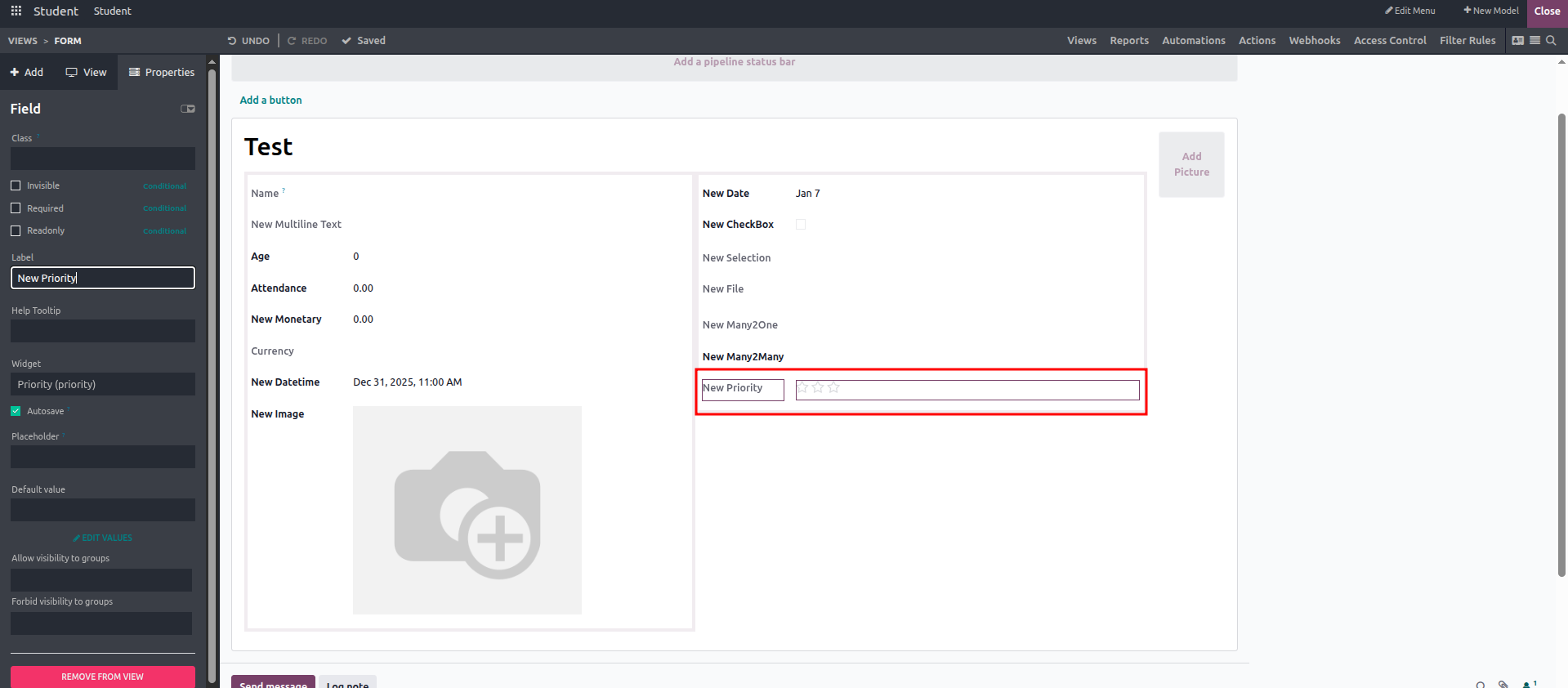
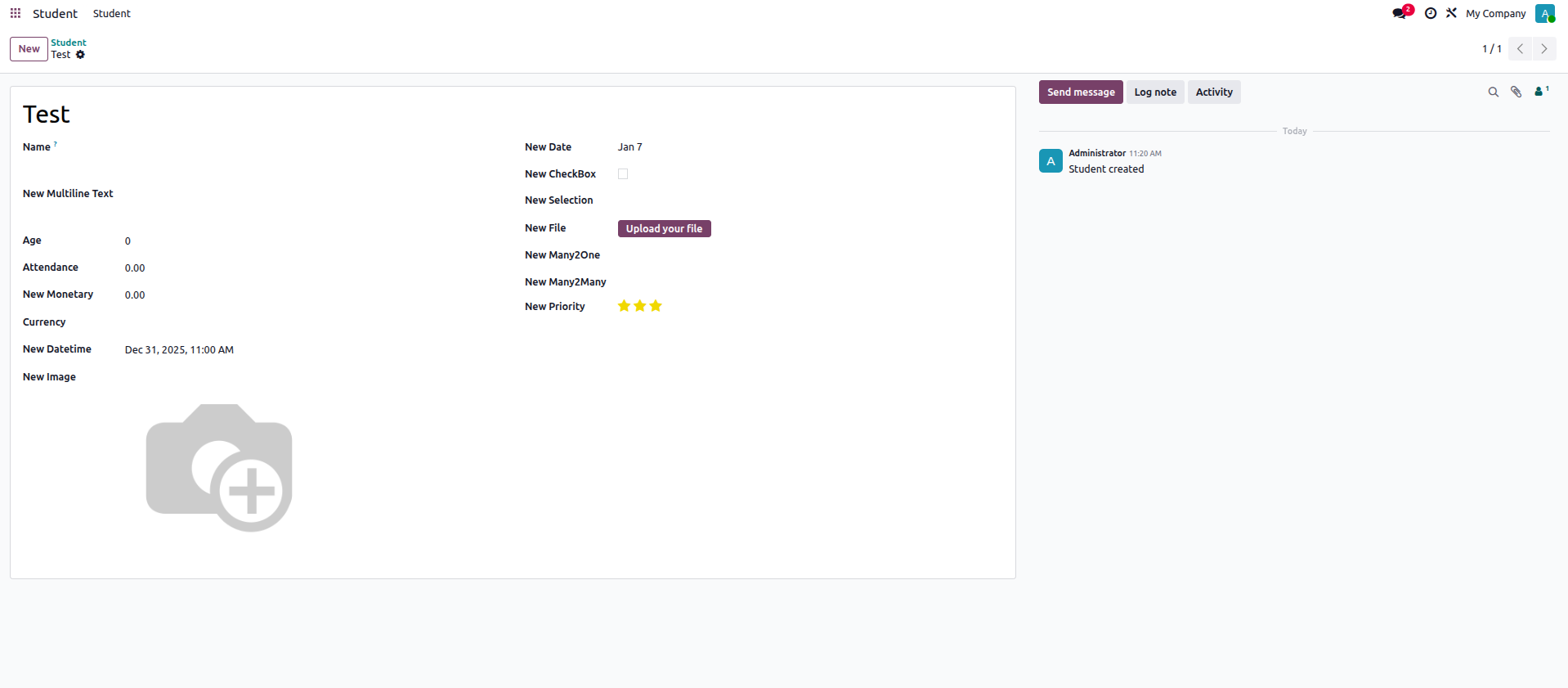
- Priority: This field lets users assign a priority level to a record, similar to a rating system.
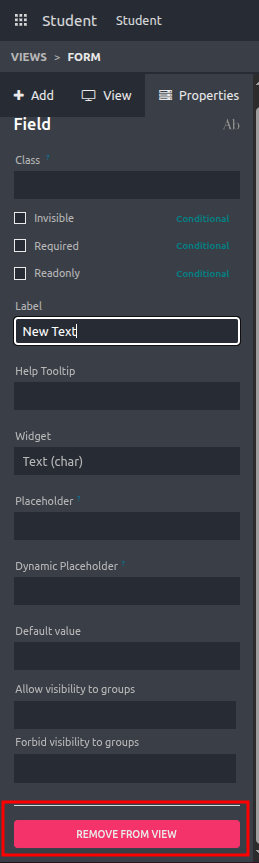
To delete a field from the form, simply select it and click the Remove from View button.