The Kanban View provides a clear and succinct summary of information by presenting records in a card-based format. This view offers a useful method of data visualization, even though it cannot be edited. To enable the Kanban view in Odoo Studio, just go to the Views option in the Studio module's upper-right corner.
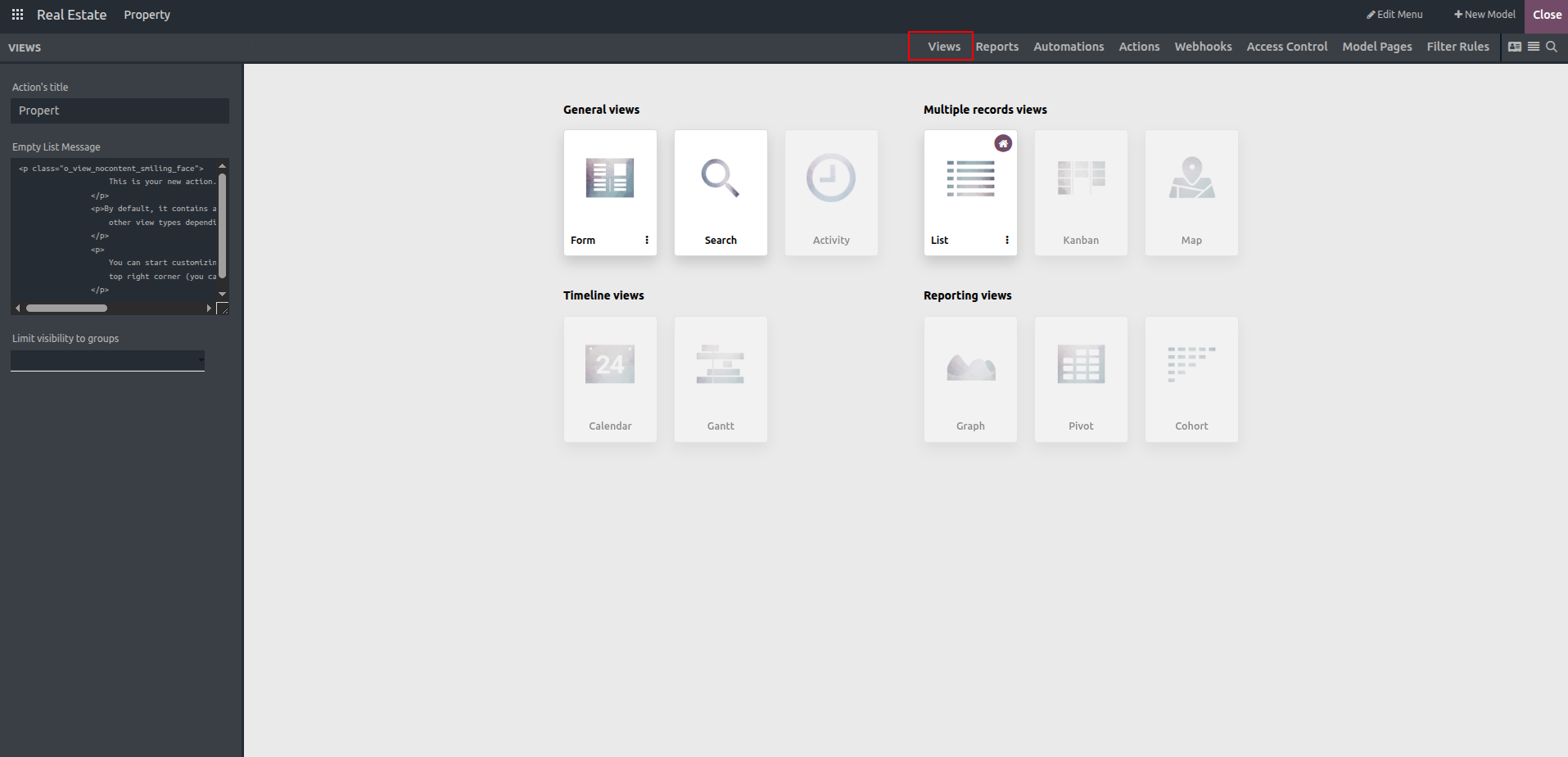
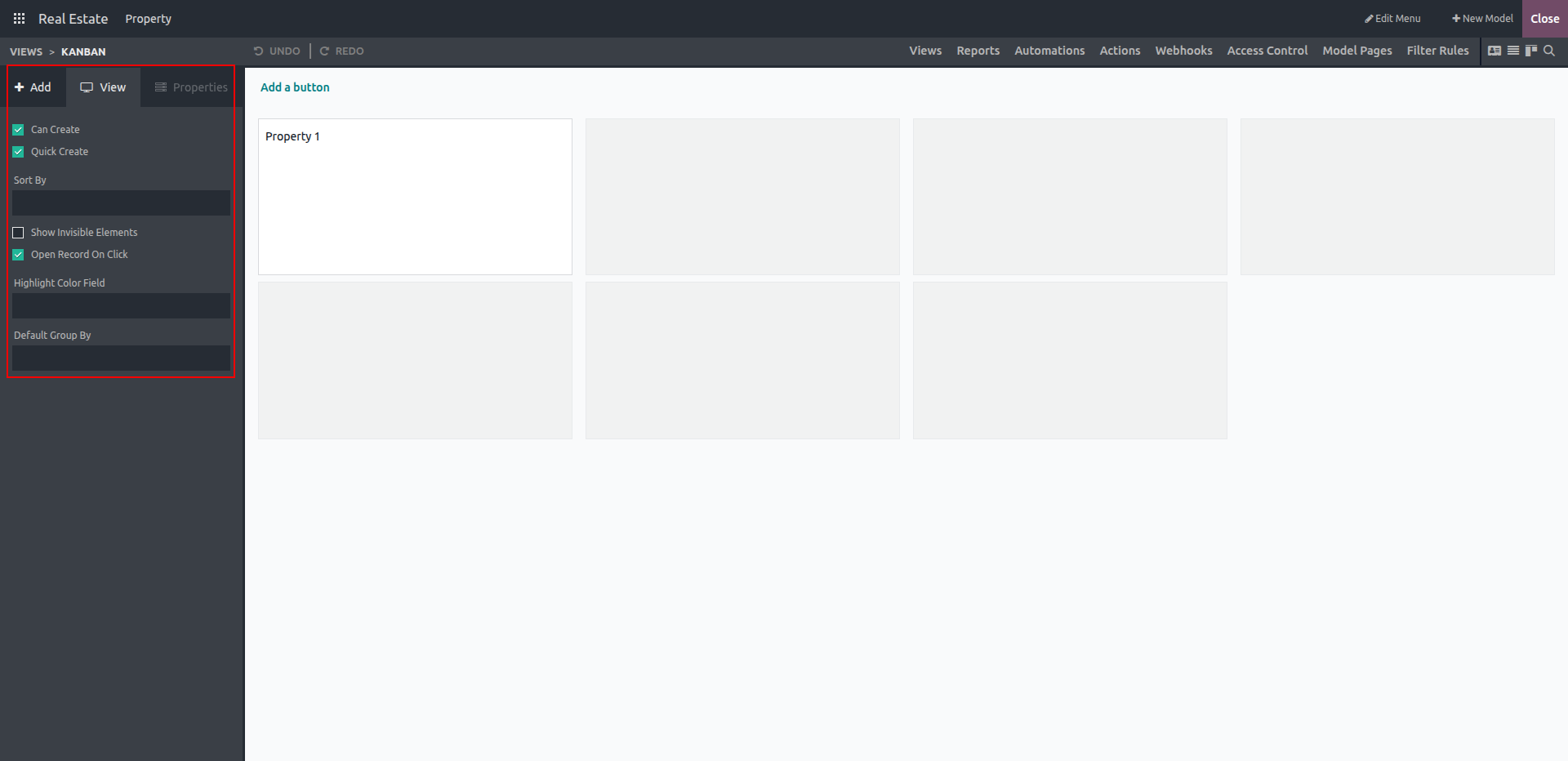
Once the option is activated, you will be directed to the menus for customizing the Kanban view. This opens a new interface, as illustrated in the screenshot below, which includes three main options: Add, View, and Properties.
In the View section, users can adjust field-specific settings for the Kanban cards. The available options include:
- Can create
- Quick create
- Show invisible elements
- Open Record On Click
- Highlight Color Field
- Default Group By
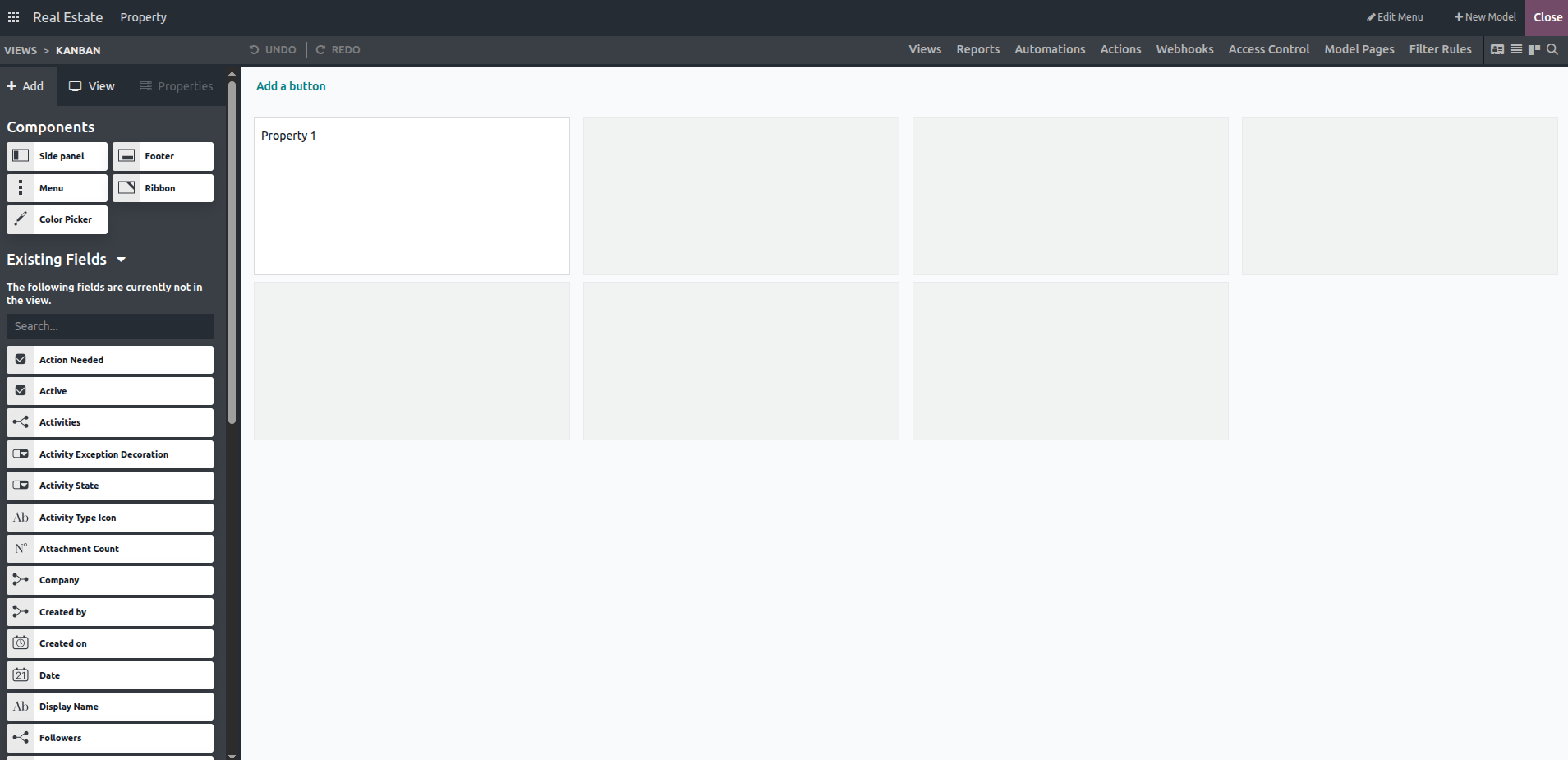
The Add option lets you include additional existing fields in the Kanban view by simply dragging and dropping them into the desired position.
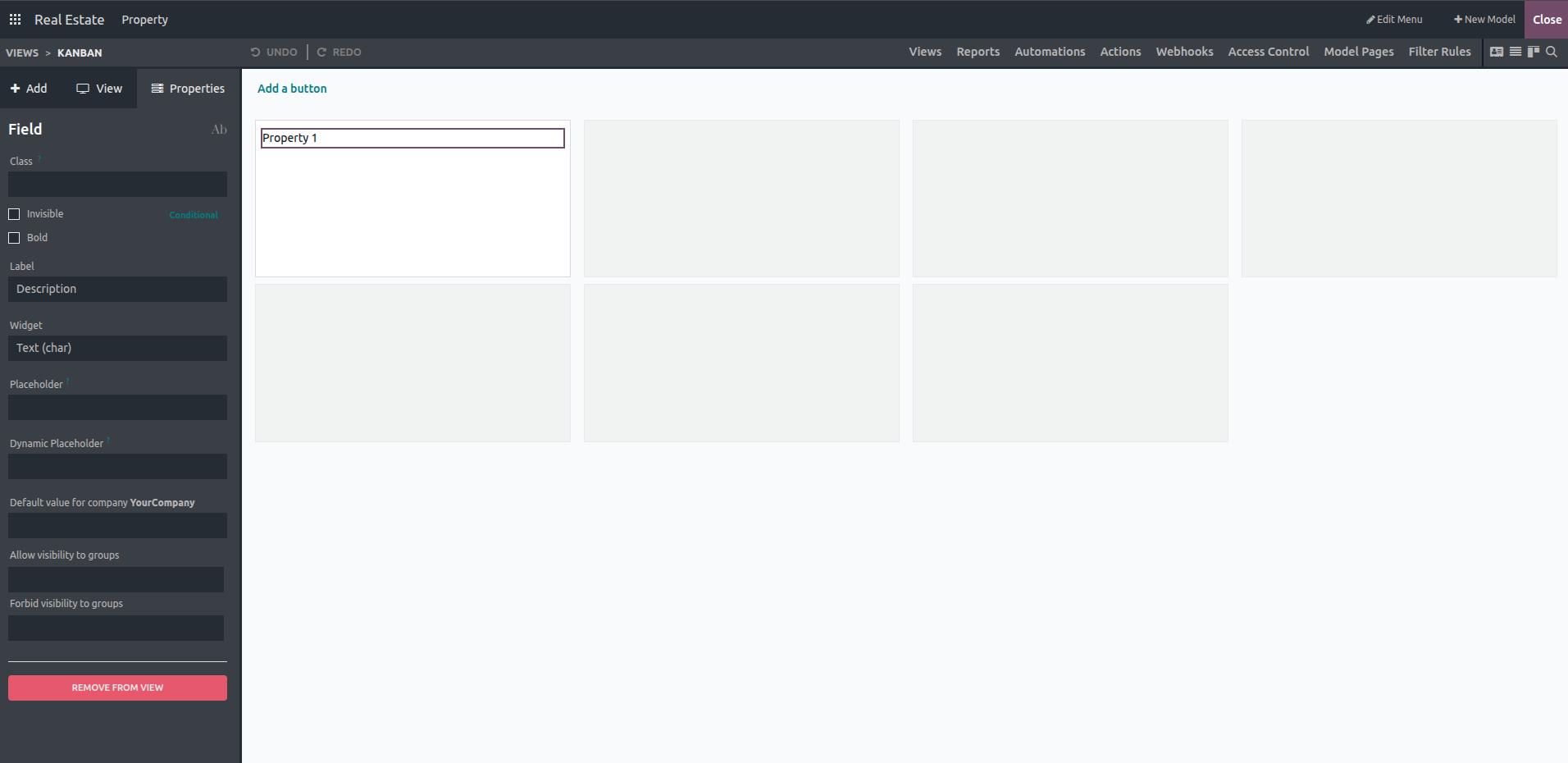
When you select a field in the Kanban view, the "Properties" option becomes available. Within this option, you can configure various attributes of the selected field. The properties include:
- Class
- Invisible
- Bold
- Label
- Widget
- Placeholder
- Dynamic Placeholder
- Default value for company: Your Company
- Allow visibility to groups
- Forbid visibility to groups
At the bottom of the View section, there is a "Remove from View" option that allows you to delete the selected field from the Kanban view.
The Window Action is automatically updated as soon as a Kanban view is added.