Odoo Studio makes it easy to add smart buttons to any model without writing code. You can quickly enhance views by placing smart buttons exactly where they are needed.
After enabling the Studio module, navigate to the view or section where you want to add the smart button. In this area, you will see a '+' icon, which represents the option to insert a smart button, as shown below. Clicking this icon allows you to create and configure the smart button effortlessly.
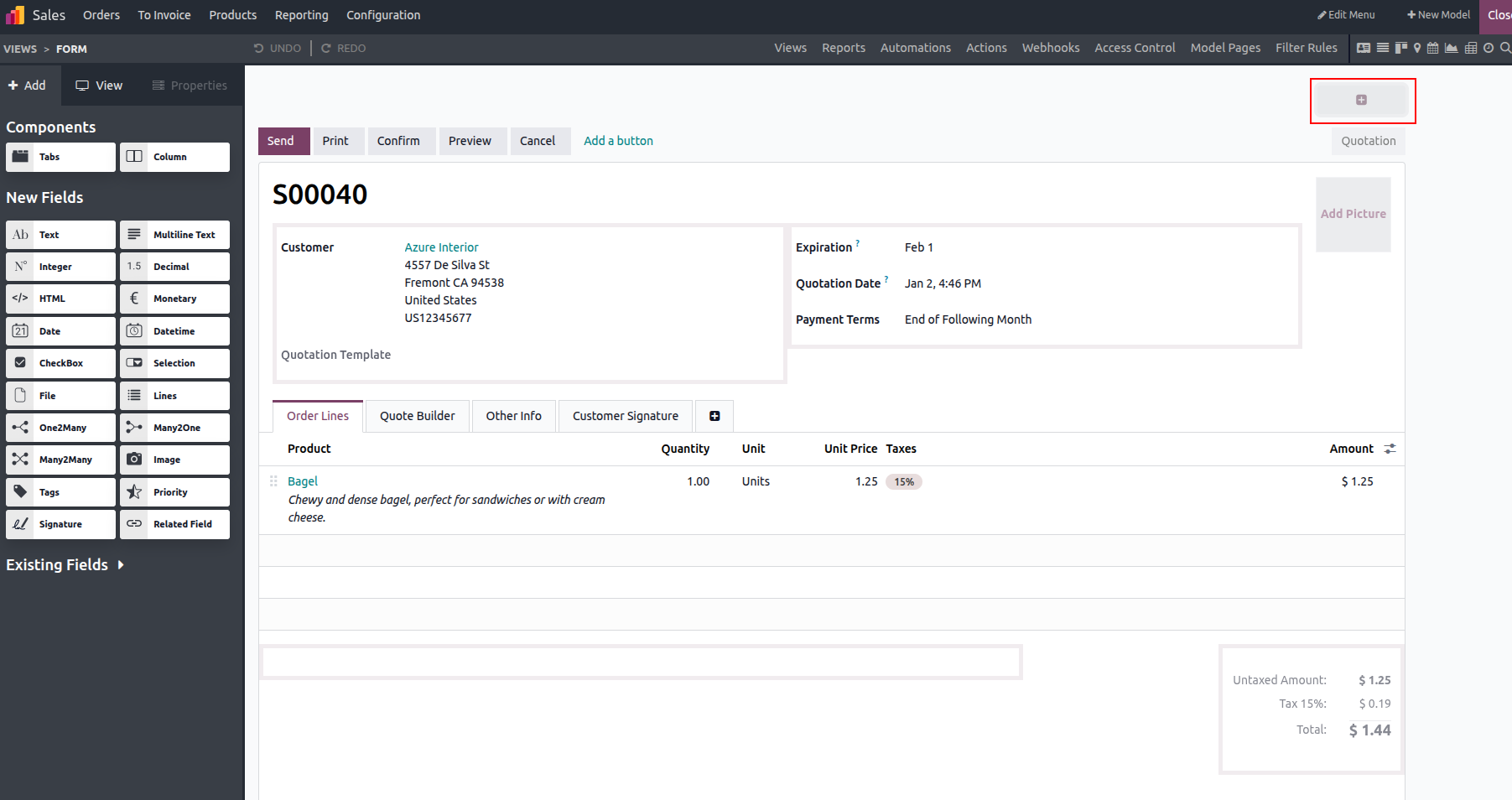
You can freely customize the smart button by selecting its label, choosing an appropriate icon, and linking it to the required field. This flexibility allows the smart button to match your functional needs as well as the overall interface design.
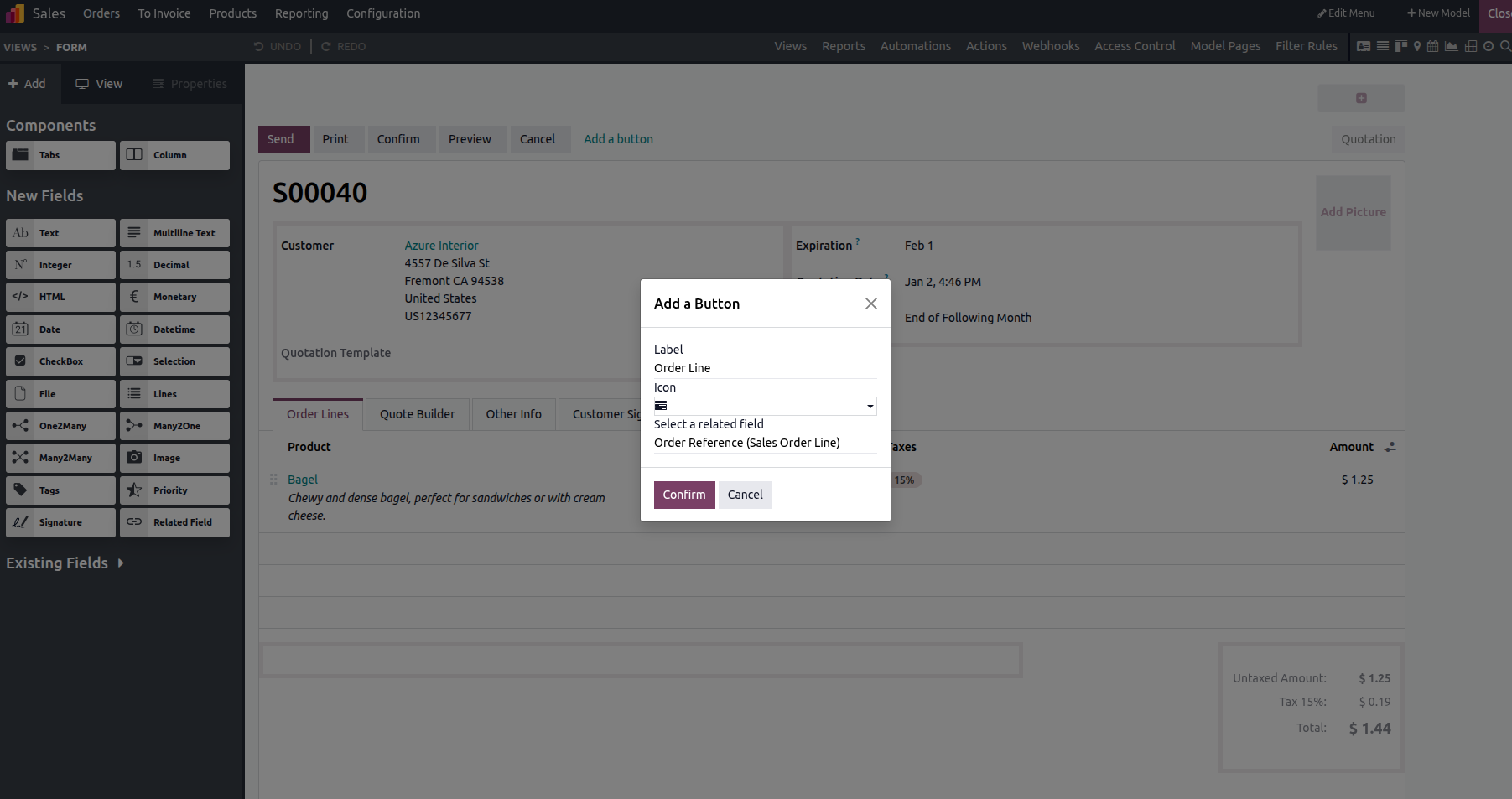
At this stage, you can configure the smart button by setting the label as "Order Line", selecting a suitable icon, and linking it to the sale order line field. After filling in these options, the smart button will be created and displayed, as illustrated below.
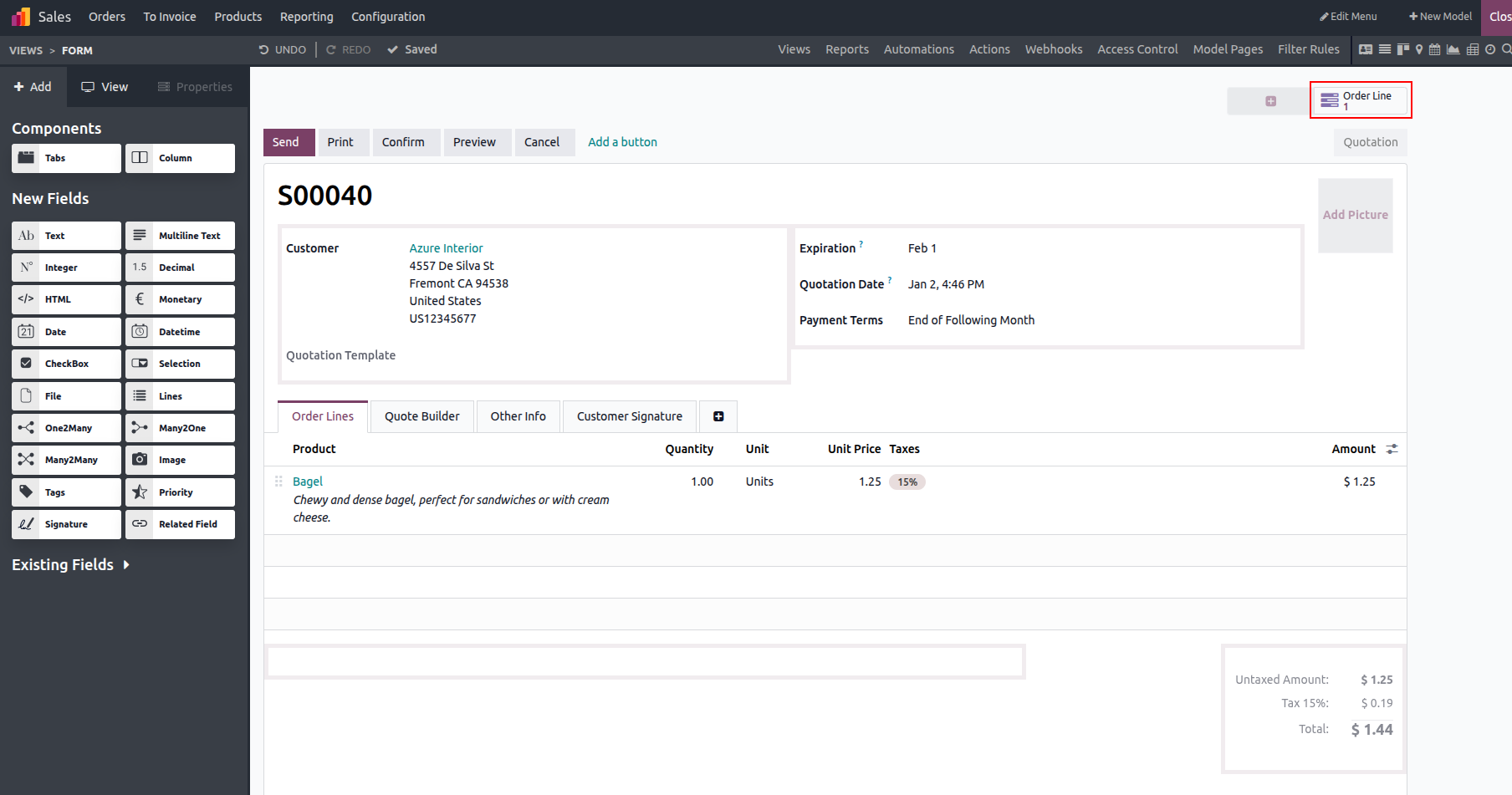
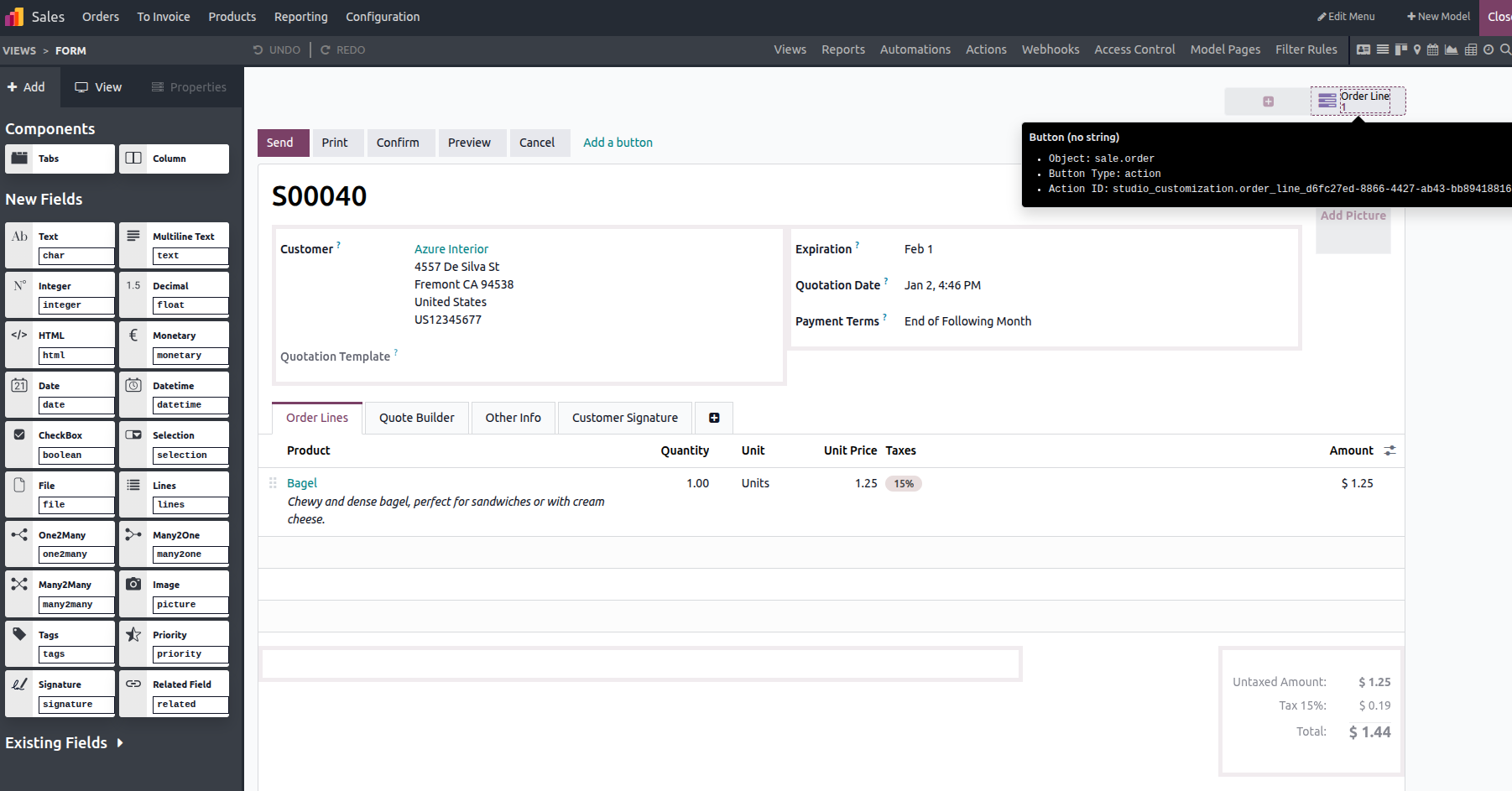
Once developer mode is enabled, you can quickly inspect the smart button by simply hovering your mouse over it. This allows developers to instantly see its details, making it easier to understand the configuration and improving overall visibility during development and customization.
After exiting Studio, the smart button will appear in the view. The number displayed within the button represents the total count of related records linked to that model.
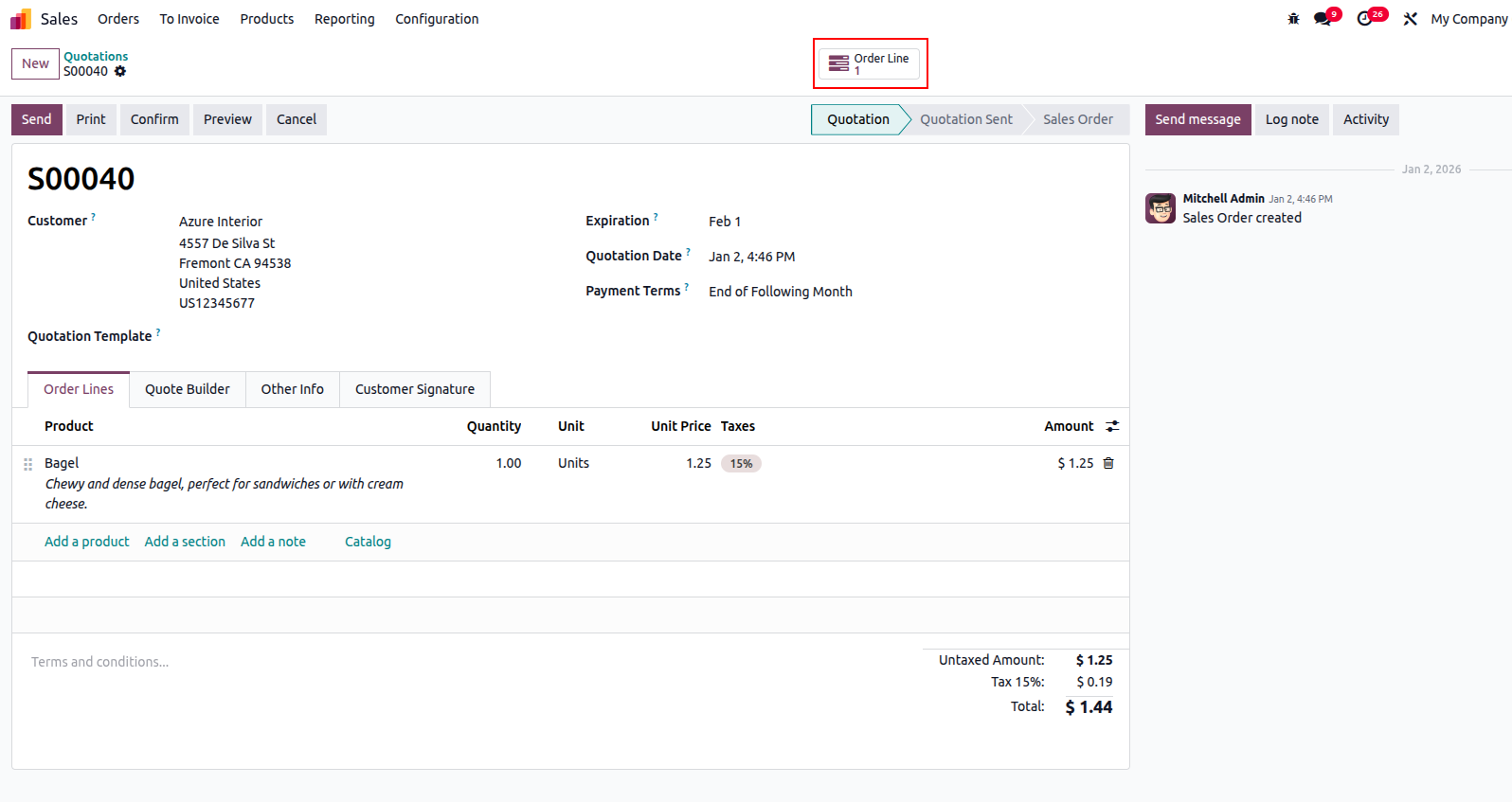
In this case, the number "1" indicates that there is a single order line linked to the smart button.