In the Odoo 19 Studio guide, conditional attributes play a key role in controlling how fields behave based on defined conditions. These attributes allow a field to be shown or hidden, marked as required, or set to read-only depending on specific criteria. When adding or selecting a field in Studio, the Options setting becomes available, offering multiple configuration features to manage these behaviors, as illustrated in the related image.
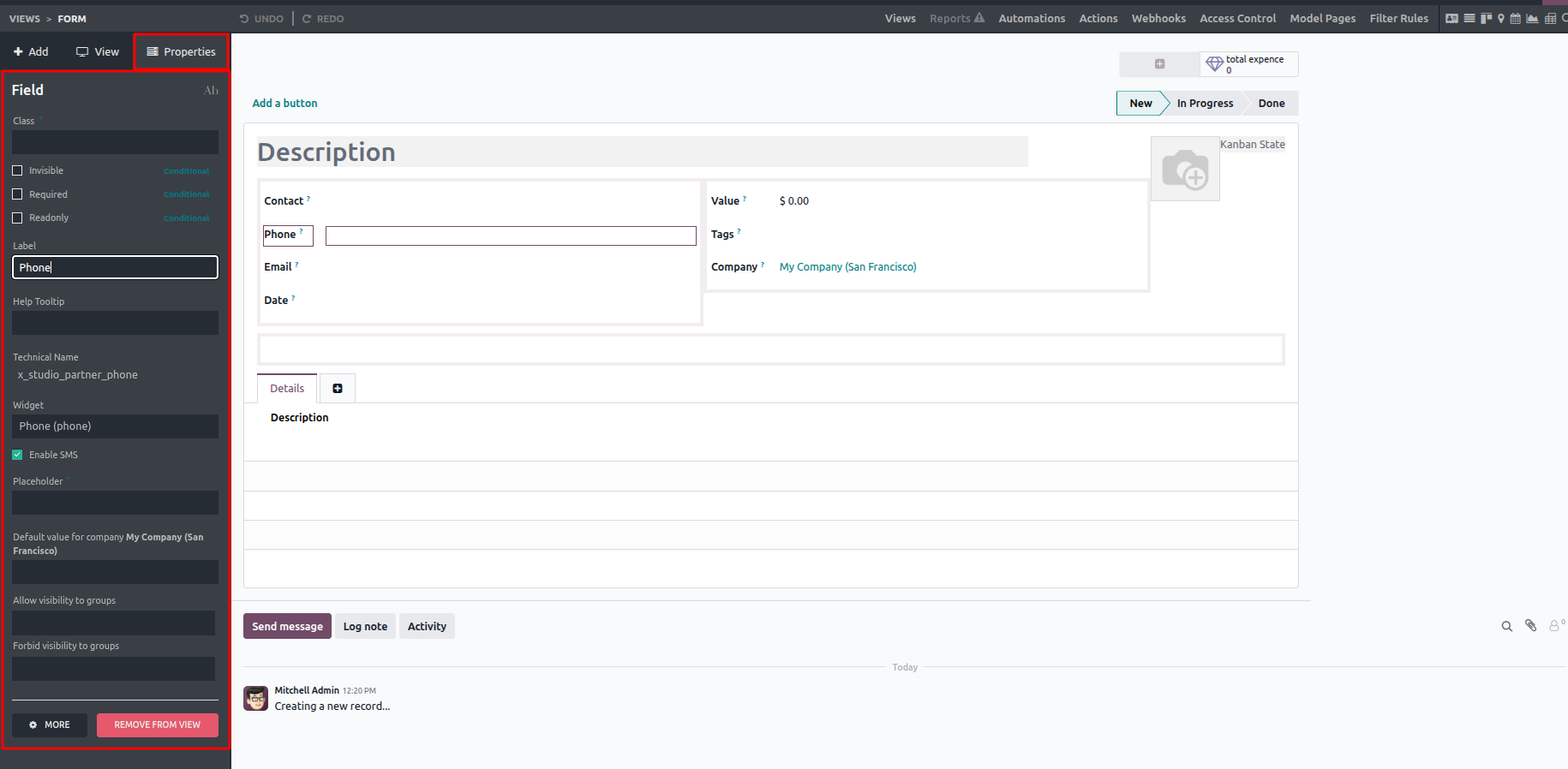
These conditional settings are mainly grouped into three types: invisible, required, and read-only. The invisible option lets you control whether a field is displayed or hidden based on defined conditions. The required option determines if a field must be filled in before saving, ensuring data completeness and generating validation warnings when mandatory fields are left empty. Meanwhile, the read-only option restricts changes to a field, allowing users to view its value without being able to modify it.
When a field is selected, the Properties panel provides three simple settings: invisible, required, and read-only. Activating the invisible option hides the field from the view, which is useful when certain information should not be displayed. The required option marks a field as mandatory, meaning it must be filled in before the record can be saved; otherwise, the system will display an error and block the save action. The read-only option, when enabled, prevents any changes to the field's value, ensuring that the information remains viewable but cannot be edited.
Next to these settings, there is a Conditional button that opens a domain widget when clicked. This widget allows you to define specific conditions that determine when each property such as invisible, required, or read-only should be applied.
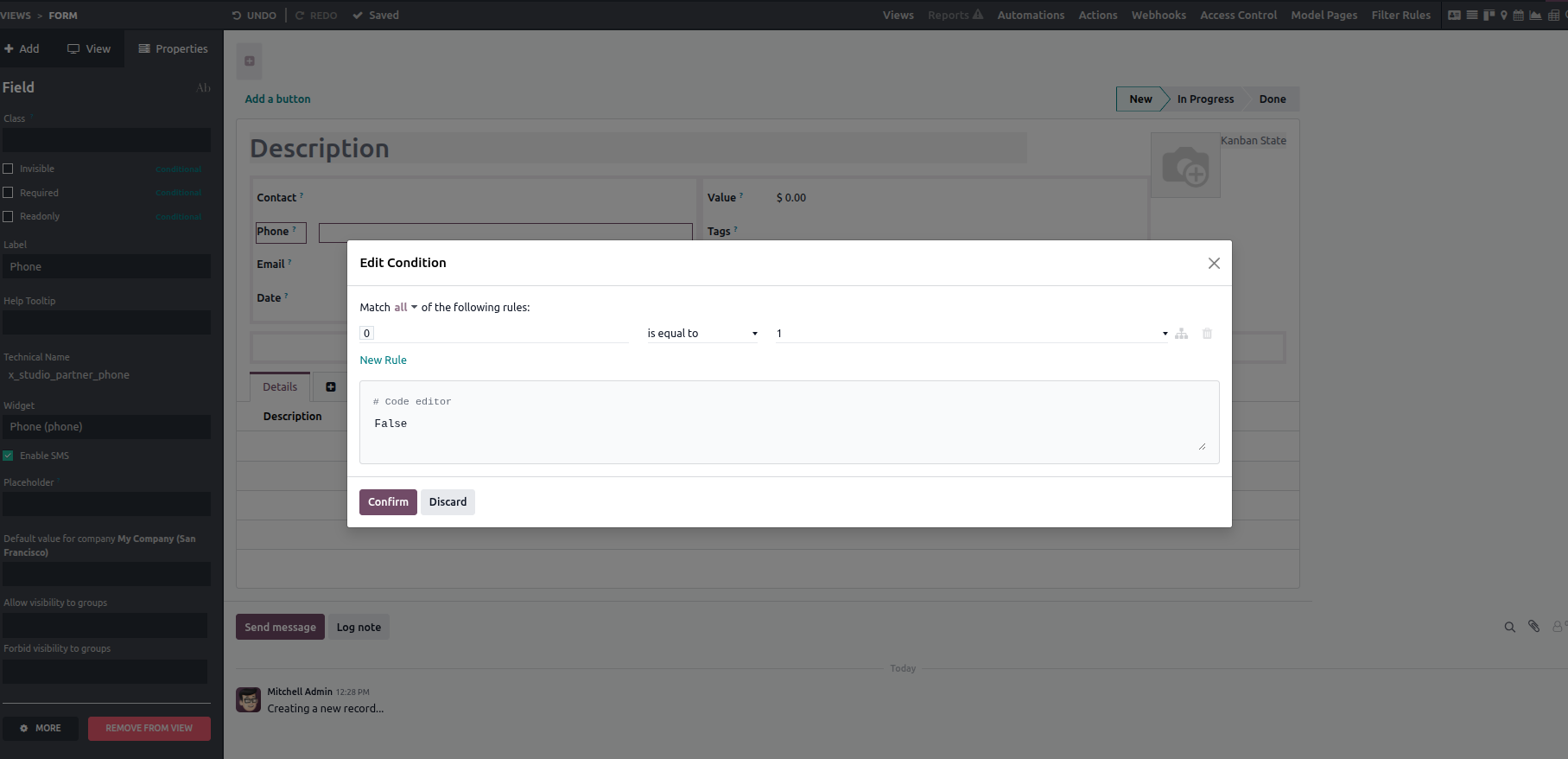
The domain can be configured as a condition-based filter. By selecting the Filter option, you can choose the relevant field names along with their values, allowing flexible and precise control over when fields should be filtered or affected based on your requirements.
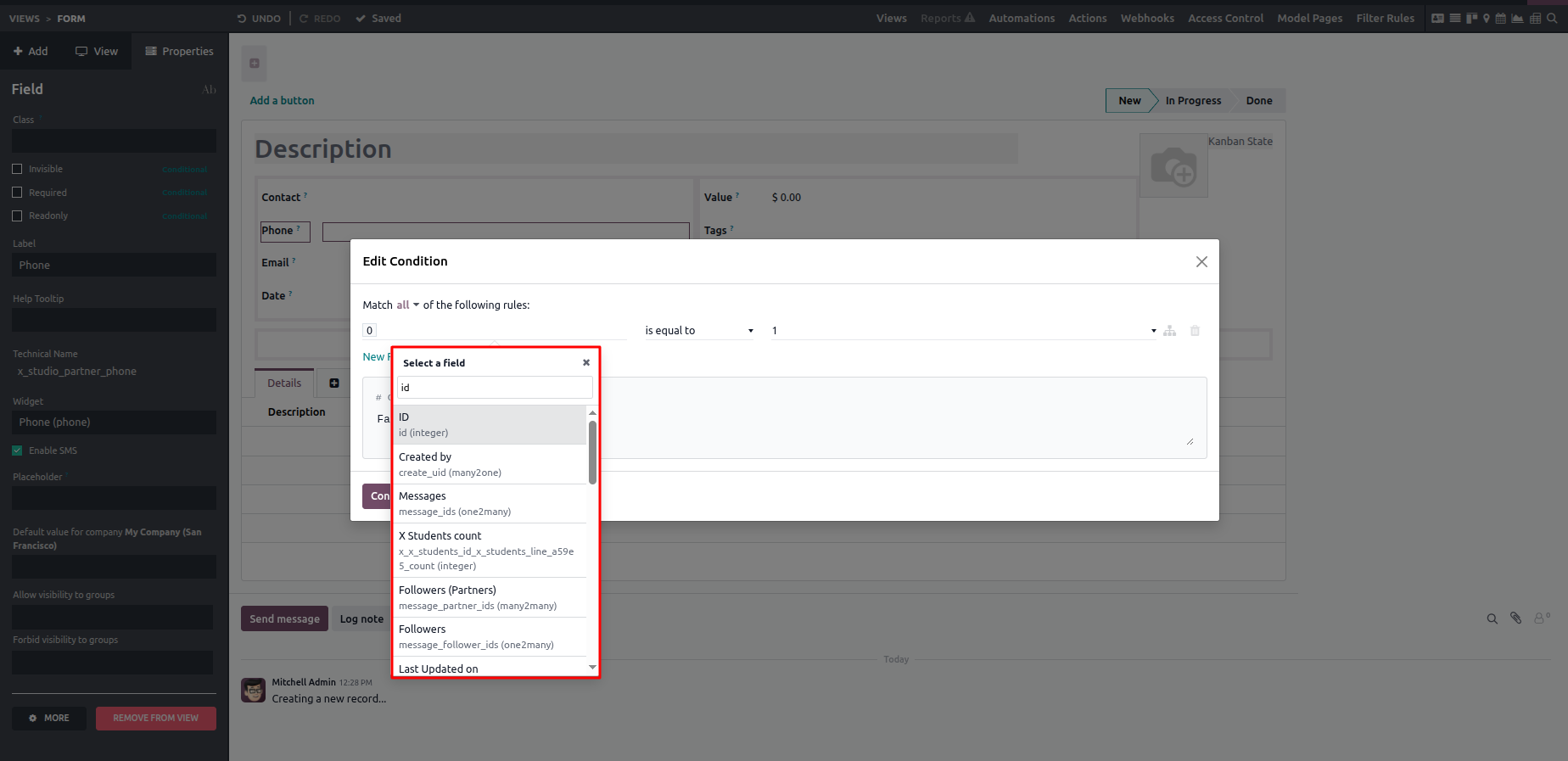
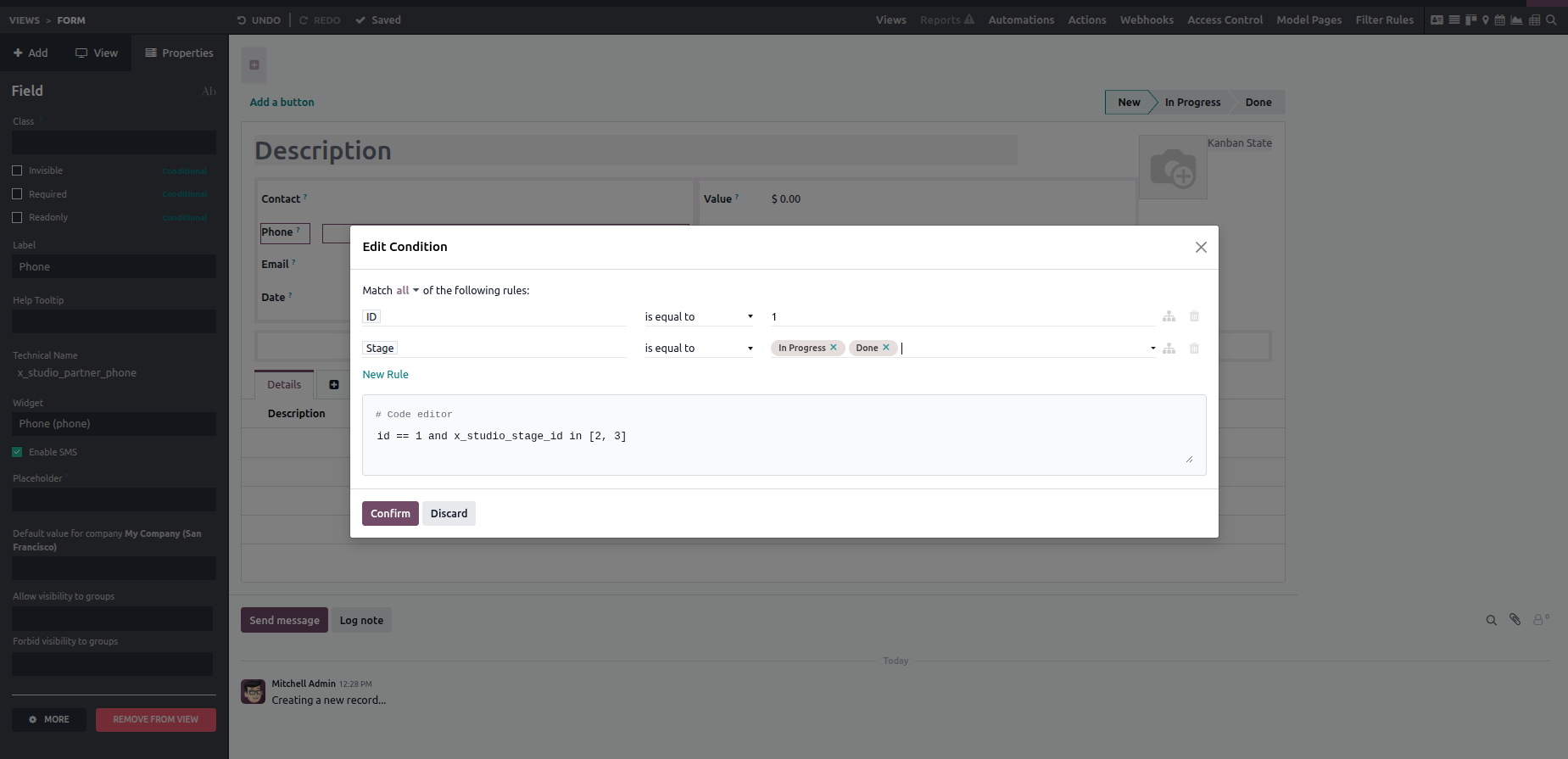
After choosing the filter and saving the changes, the field is filtered based on the defined domain conditions. Additionally, clicking the "New Rule" button allows you to create and apply extra filters as needed.
To summarize, Odoo Studio offers three powerful conditional settings invisible, required, and read-only that give users precise control over how fields behave. The invisible option allows fields to be shown or hidden based on defined conditions, ensuring cleaner and more relevant views. The required option determines whether a field must be completed before saving, helping maintain data accuracy and consistency through validation checks. The read-only option restricts editing, preserving the integrity of important information. Together, these features enhance flexibility, improve usability, and allow interfaces in Odoo to be tailored effectively to business requirements.