Odoo Studio comes with an intuitive menu editor that makes customizing application menus quick and simple. Using a drag-and-drop interface, users can rearrange existing menus or create new ones with just a single click, eliminating the need for technical effort and making the process highly user-friendly.
When you open Odoo Studio within the required module, the menu editor option is easy to find. By clicking on this button, as shown in the image, you can start managing and organizing menus effortlessly.
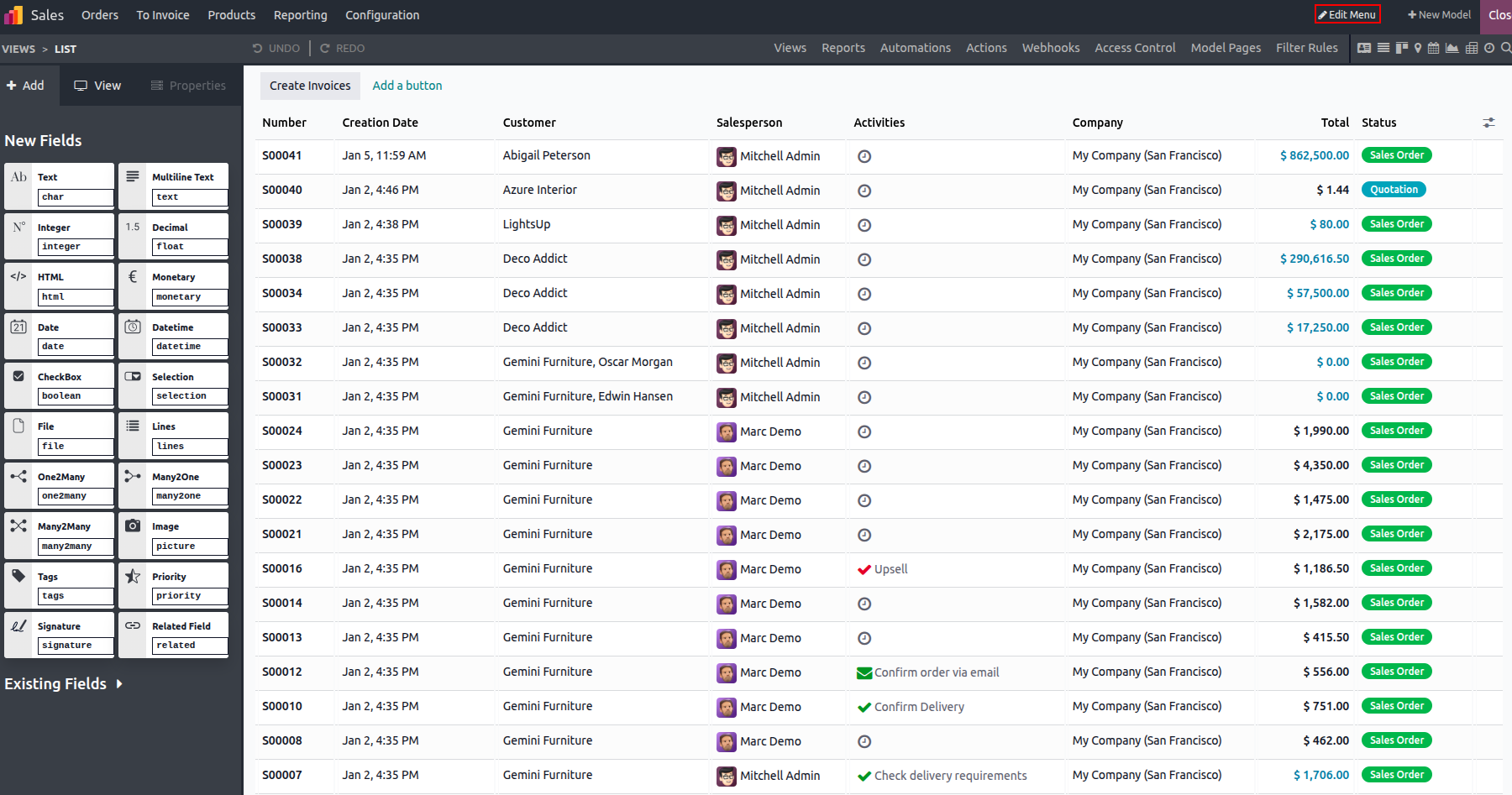
After that, the menu customization panel opens within the same screen. This view displays a complete list of all available menus and sub-menus, allowing users to easily review and modify them as needed.
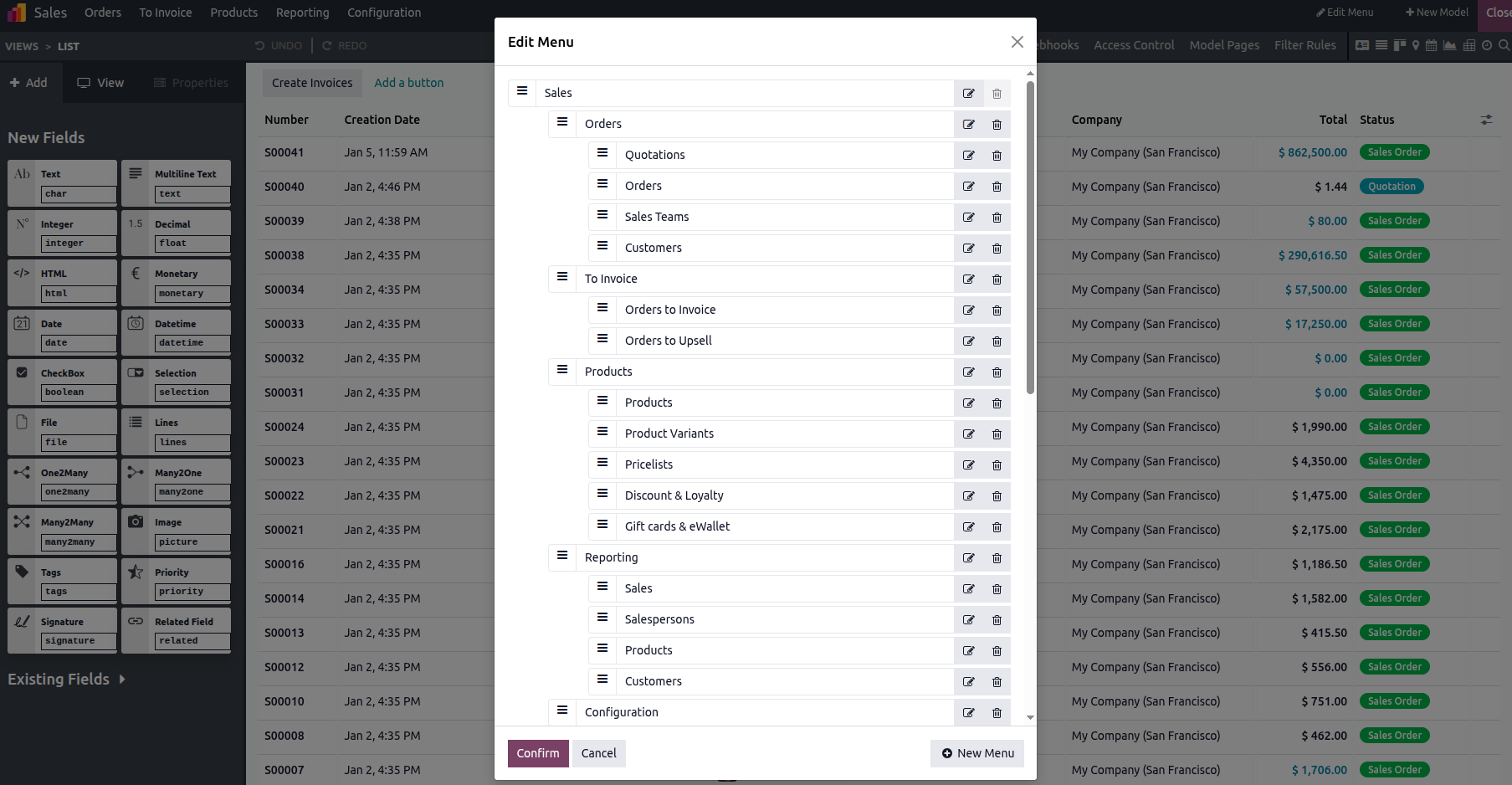
To begin, users can simply drag and drop menus to rearrange them based on their preferences. If a menu is no longer needed, it can be removed by clicking the delete icon. To add a new menu, just click the "New Menu" button available at the bottom-right corner of the window, as shown in the image.
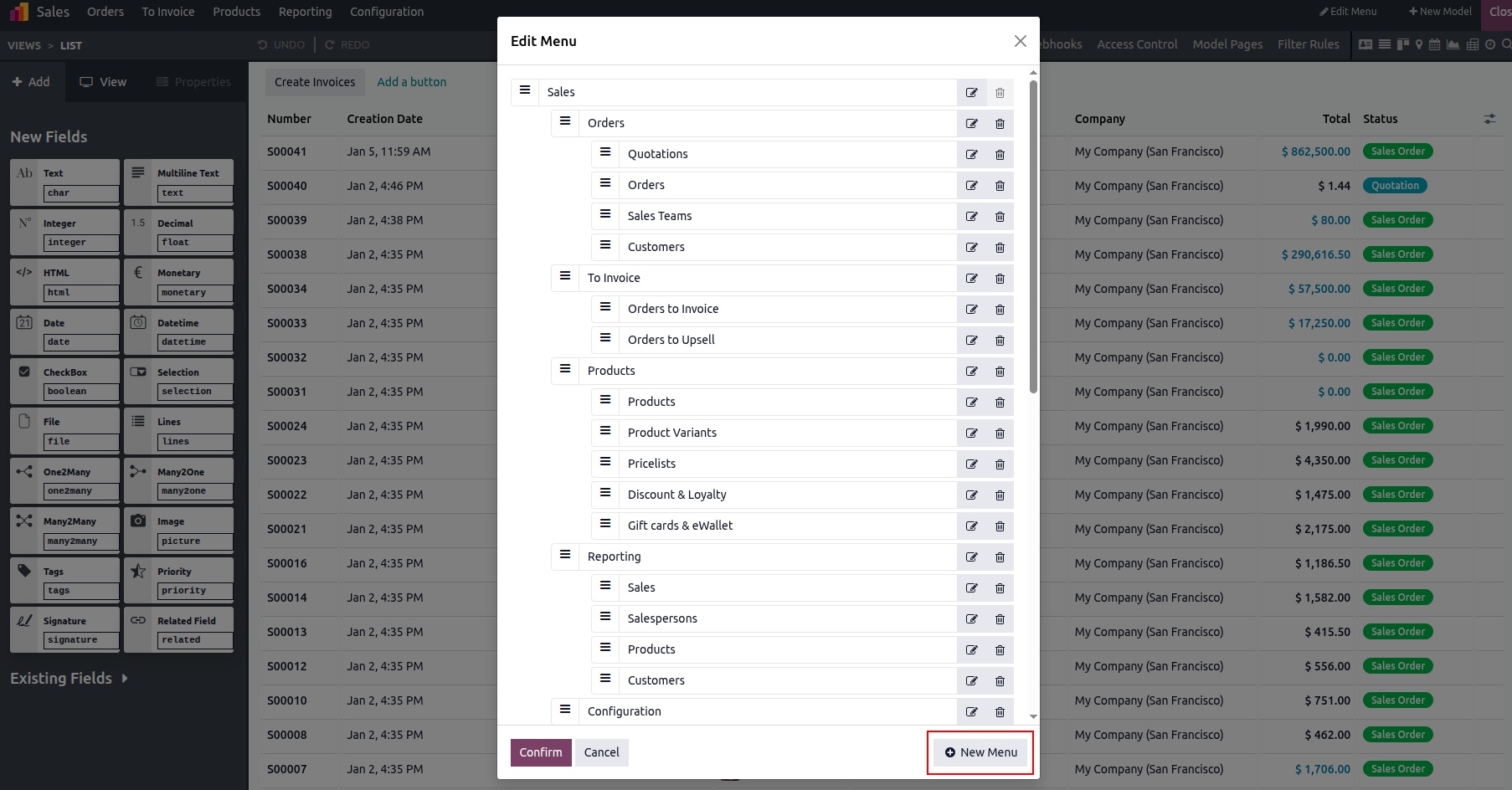
With the Odoo 19 menu editor, customizing app menus is simple and intuitive. Users can easily make changes by adding new menus, while the drag-and-drop functionality allows quick and seamless rearrangement for a smooth customization experience.